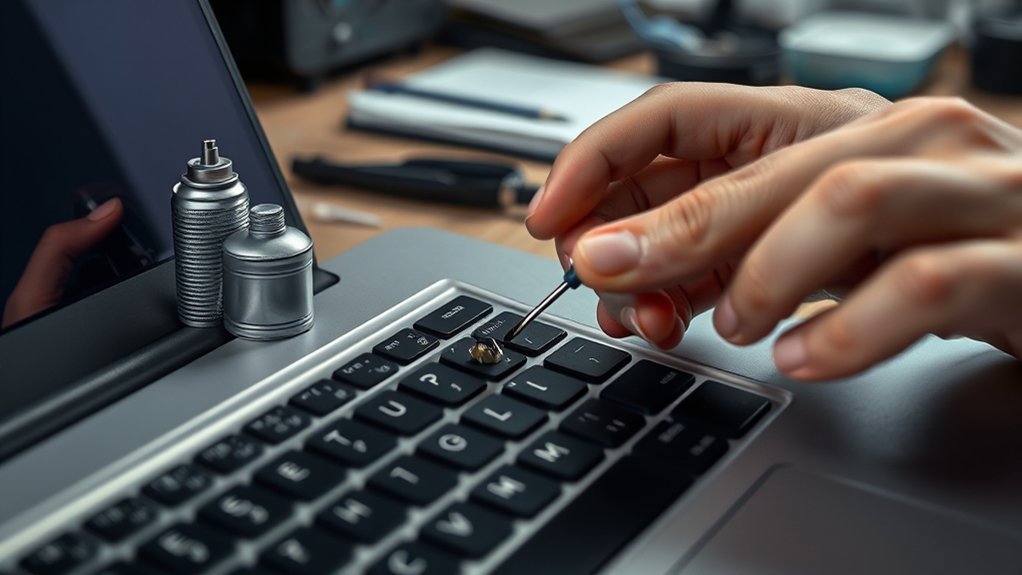
If your laptop keyboard isn’t working, start with the fixes that are safest and fastest before assuming the keyboard has failed. A reboot, debris check, external keyboard test, driver reset, and settings review can help you separate a temporary software issue from a physical keyboard problem.
Quick Answer
To fix a laptop keyboard that is not working, restart the laptop, check for stuck keys or debris, test with an external keyboard, turn off settings like Filter Keys, reinstall the keyboard driver, and check for updates. If only the built-in keyboard fails, the issue is likely hardware-related.
Key Takeaways
- A restart can clear temporary glitches that stop the keyboard from responding.
- Debris, liquid residue, or a stuck key can make some or all keys fail.
- An external keyboard helps you tell whether the problem is the built-in keyboard or the operating system.
- Keyboard settings, drivers, and updates should be checked before paying for repairs.
- If the keyboard fails outside Windows or macOS, professional repair may be the best next step.
At a Glance
| Time Required | 10 to 30 minutes for basic troubleshooting |
| Difficulty | Easy for software checks, moderate if cleaning is needed |
| Tools Needed | External USB keyboard, compressed air, microfiber cloth, cotton swab, optional isopropyl alcohol |
| Cost | Usually free if it is a software issue; repair costs vary if the keyboard is physically damaged |
Reboot and Inspect for Debris
Before trying more complex fixes, reboot your laptop. This simple step can clear temporary software glitches that affect keyboard functionality, especially after sleep mode, a failed update, or a frozen background process.
After the restart, open a text editor and test several keys. Try letters, numbers, the spacebar, backspace, enter, arrow keys, and modifier keys like Shift, Ctrl, Alt, Command, or the Windows key. This helps you see whether the whole keyboard is dead or only certain keys are failing.
Next, inspect the keyboard closely for visible debris, dust, crumbs, pet hair, or sticky residue that might block key movement. Pay special attention to frequently used keys such as the Windows key, spacebar, enter key, backspace, and common letter keys.
A keyboard problem is easier to diagnose when you first separate three causes: temporary software trouble, blocked keys, and physical keyboard failure.
Use a can of compressed air to blow out dust or crumbs lodged between the keys. Hold the laptop at a slight angle and use short bursts instead of a long blast. This helps move debris out instead of pushing it deeper under the keys.
If you notice sticky or discolored keys, gently wipe the surface with a slightly damp microfiber cloth. For light residue, use a cotton swab lightly moistened with isopropyl alcohol. The swab should be damp, not dripping.
Warning: Do not pour liquid directly onto the keyboard, spray cleaner into the keys, or force keycaps off unless your laptop model is designed for safe keycap removal. Liquid and broken clips can turn a small issue into a costly repair.
Finally, check whether any keys are physically stuck, loose, cracked, or sitting lower than nearby keys. A stuck key can make the laptop ignore other key presses. A damaged key or uneven keyboard area may point to a hardware issue that needs further attention.
Check Keyboard Settings and Shortcuts
If the keyboard still does not work, review your keyboard settings. Some accessibility features change how keystrokes behave and can make the keyboard feel unresponsive.
On Windows, check settings such as Filter Keys, Sticky Keys, and Toggle Keys. Filter Keys can ignore brief or repeated keystrokes, which may make it seem like random keys are not working. Turn these settings off temporarily, then test the keyboard again.
On a MacBook, check keyboard settings for slow key response, modifier key changes, and input source issues. Also make sure the correct keyboard layout is selected, especially if symbols or certain letters type the wrong characters.
If your keyboard has a function-lock setting, try pressing Fn plus the relevant lock key. Some laptops change the behavior of function keys, number pads, brightness keys, and media keys when Fn Lock is enabled.
Note: If only shortcuts are failing, such as Ctrl+C, Alt+Tab, or the Windows key, the keyboard may not be broken. The issue may be a disabled shortcut, a stuck modifier key, a keyboard layout problem, or software blocking the command.
Connect an External Keyboard
If inspecting for debris and checking settings did not resolve the keyboard issue, connecting an external keyboard can help diagnose whether the problem lies with the laptop’s built-in keyboard or another component.
Start by plugging an external USB keyboard into an available USB port on your laptop. If you use a wireless keyboard, make sure it has power and is paired correctly. A wired keyboard is better for testing because it removes Bluetooth or battery problems from the process.
Once the external keyboard is recognized, open a text document, browser search box, or notes app and test it by typing. Try the same keys that failed on the built-in keyboard.
If the external keyboard works flawlessly, your laptop’s built-in keyboard likely has a hardware malfunction, connection problem, liquid damage, or blocked key mechanism.
However, if the external keyboard does not function either, the issue may stem from the laptop’s operating system, drivers, USB ports, user profile, or input settings. This test narrows the problem and helps you choose the next fix.
Pro Tip: If you need the laptop right away, keep using the external keyboard while you finish the deeper troubleshooting steps. This protects your work and helps you avoid rushing into repairs.
[Amazon Products Picked for You]

【Ergonomic Design, Enhanced Typing Experience】Improve your typing experience with our computer keyboard featuring an ergonomic 7-degree input angle and a scientifically designed stepped key layout. The integrated wrist rests maintain a natural hand position, reducing hand fatigue. Constructed with durable ABS plastic keycaps and a robust metal base, this keyboard offers superior tactile feedback and long-lasting durability.

BOLD LARGE PRINT KEYCAPS: High-contrast block letters are 3 times larger than standard characters to accelerate typing speed and accuracy for home office users, students, and professionals working in dimly lit desks or computer labs.

KEYBOARD: The keyboard works for Windows with hot keys that enable easy access to Media, My Computer, Mute, Volume up/down, and Calculator
Restart in Safe Mode or Test Before Login
Testing the keyboard outside your normal desktop can reveal whether an app, startup service, or user setting is interfering with input.
First, test the keyboard on the sign-in screen. If the keyboard works before you log in but fails after your desktop loads, a startup app, user profile setting, or background utility may be causing the issue.
You can also restart in Safe Mode on Windows or safe startup mode on supported Mac systems. Safe Mode loads fewer services and can help you spot software conflicts. If the keyboard works there, look for recently installed apps, keyboard remapping tools, gaming utilities, macro tools, or system changes.
If the keyboard does not work during startup, in firmware settings, or before the operating system fully loads, the built-in keyboard is more likely to have a physical problem.
Update or Reinstall the Keyboard Driver
Driver problems can stop a keyboard from responding, especially after a system update, crash, or failed installation. If your laptop runs Windows, use Device Manager to refresh the keyboard driver.
Open Device Manager, expand the keyboard section, right-click the keyboard entry, and choose the option to uninstall the device. Restart the laptop after uninstalling it. Windows should reinstall the basic keyboard driver during startup.
You can also check for system updates and optional driver updates. If your laptop manufacturer provides a support app or driver page, use the official tool for your model rather than downloading random driver files from third-party websites.
On macOS, keyboard drivers are handled through system software. Check for available system updates, restart the Mac, and review keyboard settings if the issue continues.
Warning: Avoid third-party “driver updater” tools that promise one-click repairs. They can install the wrong driver, add unwanted software, or make the problem harder to diagnose.
Try a Power Reset
A power reset can clear temporary hardware states that survive a normal restart. This is useful when the keyboard stopped working after sleep mode, a battery drain, or a frozen session.
Shut down the laptop completely. Disconnect the charger and remove any external devices, including USB hubs, external keyboards, mice, storage drives, and docks.
If your laptop has a removable battery, remove it. Then hold the power button for about 15 seconds. Reconnect the battery and charger, turn the laptop back on, and test the keyboard again.
If your laptop has a built-in battery, keep it powered off, unplug the charger, hold the power button for about 15 seconds, then reconnect the charger and start the laptop. This will not fix a broken keyboard, but it can clear a temporary power or firmware glitch.
Check for Liquid Damage or Physical Failure
If the keyboard started failing after a spill, stop using the laptop and power it down. Liquid can damage the keyboard, trackpad, battery, motherboard, or internal connectors. Even if the laptop still turns on, continued use can make the damage worse.
Signs of physical failure include sticky keys, keys that feel crunchy, keys that do not spring back, a section of keys that fail together, random repeated characters, or a keyboard that works only when the laptop is moved or pressed in one area.
A swollen battery can also press upward on the keyboard or trackpad area. If the keyboard deck looks raised, the trackpad feels stiff, or the laptop case is separating, stop using the laptop and arrange service as soon as possible.
Warning: Do not keep charging or using a laptop if you suspect battery swelling, liquid damage, burning smell, heat, or case deformation. These signs need professional inspection.
[Amazon Products Picked for You]
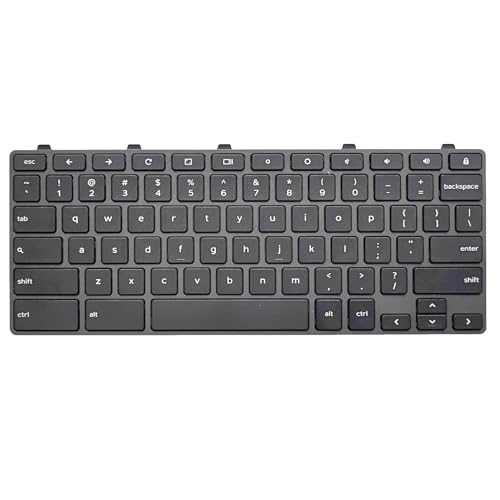
Compatible With:Dell Chromebook 3100 2-in-1 Series keyboards;For Dell Chromebook 3110 2 in 1 keyboard is designed for those who demand a dynamic typing experience, offering enhanced responsiveness and comfort;For Chromebook 3100, our keyboard replacement ensures compatibility and durability, providing seamless integration with your device;Experience the convenience of the Chromebook 3100 keyboard lock key, ensuring your privacy and security with just one touch
![English Keyboard Stickers [5 in 1], Replacement Keyboard Letters Sticker](https://m.media-amazon.com/images/I/41Fp3igdQGL._SL500_.jpg)
【5-in-1】Unlike others, our keyboard letter replacement stickers English set includes 2 x English keyboard stickers, 1 x Tweezer, 1 x Keyboard Cleaning Brush, and 1 x Microfiber Cleaning Cloth for easy, clean, and accurate application. Each sticker: 0.43" × 0.51"

【Compatible Models】Compatible with HP ProBook 450 G5 455 G5 470 G5 650 G4 650 G5 Series Laptop.
Seek Professional Help if Needed
When the built-in keyboard fails and troubleshooting has not resolved the issue, it is time to seek professional help.
If an external keyboard works while your laptop’s built-in one does not, the problem is likely hardware-related. Document all troubleshooting steps you have taken, including restarts, cleaning, power resets, settings checks, driver reinstallations, and external keyboard testing. This helps technicians diagnose the issue faster.
Consider taking your laptop to a certified repair shop or contacting the manufacturer’s service center for expert inspection and repairs. If the keyboard is dirty, sticky, liquid-damaged, or visibly damaged, professional cleaning or replacement might be necessary.
Always check your warranty status before seeking repairs, as some fixes may be covered. If your laptop is still under warranty, avoid opening it yourself unless the manufacturer’s instructions clearly allow it. Opening the laptop may affect warranty coverage on some models.
Don’t hesitate to get expert help when the keyboard fails after spills, drops, battery swelling, or repeated hardware symptoms. A professional repair can restore your laptop’s functionality and prevent further damage.
[Amazon Products Picked for You]
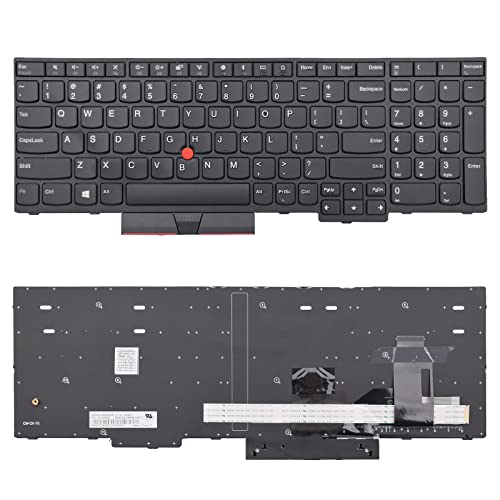
【Compatible models】Compatible with Lenovo IBM ThinkPad E580 E585 E590 E595 L580 L590 T590 P52 P53 P53S P72 P73
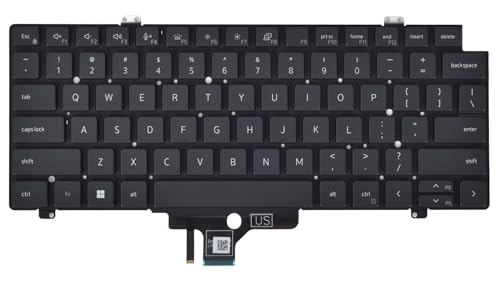
【Compatible With】: Dell Latitude 5420 5421 5430 5431 5440 5450 7420 7430 7520 7530 Series Laptop

All-day Comfort: The design of this standard keyboard creates a comfortable typing experience thanks to the deep-profile keys and full-size standard layout with F-keys and number pad
Frequently Asked Questions
How do you fix an unresponsive laptop keyboard?
Restart the laptop, check for stuck keys or debris, connect an external keyboard, review keyboard settings, and reinstall the keyboard driver if you use Windows. If the external keyboard works but the built-in keyboard does not, the built-in keyboard may need cleaning, repair, or replacement.
How do you fix random keys not working on a laptop?
Check for crumbs, dust, or sticky residue under the affected keys. Then test the same keys with an external keyboard. If the external keyboard works, the issue is likely with the built-in keyboard. If both keyboards fail on the same keys, check keyboard layout settings, accessibility settings, drivers, and recently installed software.
How do you force reset a laptop keyboard?
Power off the laptop, disconnect the charger and external devices, and hold the power button for about 15 seconds. Reconnect the charger, turn the laptop on, and test the keyboard. On Windows, you can also uninstall the keyboard from Device Manager and restart so the system reloads the driver.
How do you fix a laptop keyboard that will not type certain letters?
Clean around the affected keys, test with an external keyboard, check the keyboard layout, and reinstall the keyboard driver if needed. If only a cluster of built-in keys fails, the keyboard ribbon cable, key mechanism, or internal keyboard assembly may be damaged.
Why is my laptop keyboard typing the wrong characters?
The most common cause is the wrong keyboard layout or input language. Check your language and keyboard settings first. If only some keys type incorrectly, also check for stuck modifier keys, active Num Lock, keyboard remapping software, or a damaged key switch.
Should I replace my laptop keyboard or use an external keyboard?
Use an external keyboard as a temporary fix if you need to keep working. Replace or repair the built-in keyboard if you travel often, use the laptop away from a desk, have liquid damage, or need the laptop to work normally without extra accessories.
Conclusion
Fixing your laptop keyboard usually starts with simple checks: restart the laptop, inspect for debris, clean carefully, test an external keyboard, review settings, and refresh the driver. These steps help you avoid unnecessary repairs when the cause is a temporary glitch or setting.
If the built-in keyboard remains unresponsive while an external keyboard works, the problem is more likely physical. In that case, check your warranty and contact a certified repair shop or the manufacturer’s service center. Think of your keyboard as a finely tuned instrument; when it falls out of tune, careful troubleshooting tells you whether it needs a simple adjustment or professional repair.
