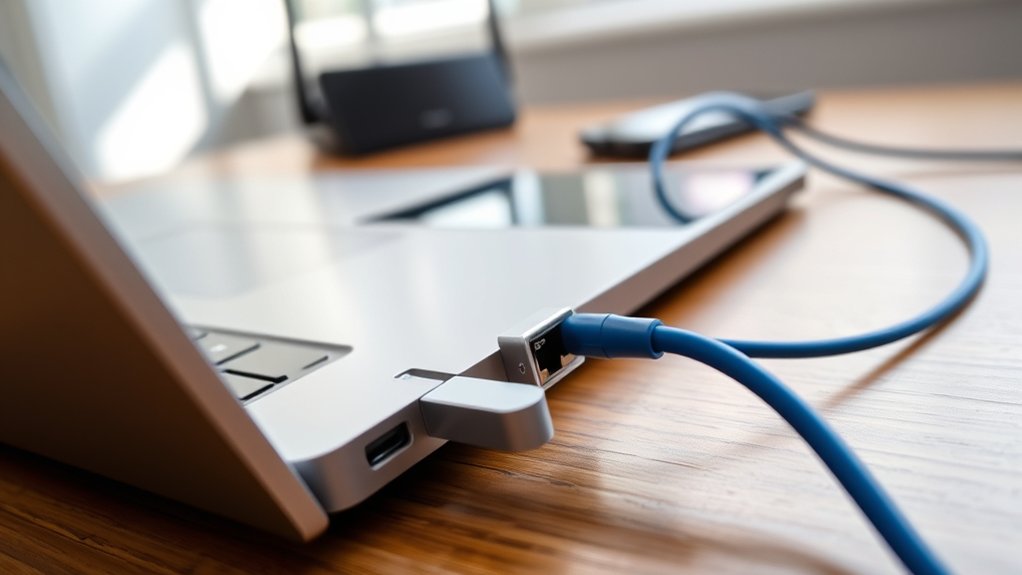
Connecting to Ethernet using a laptop charger is not feasible. Chargers and Ethernet connections serve distinct purposes with different ports. To access a wired internet connection, users should consider using a USB-to-Ethernet adapter, especially if their laptop lacks a built-in Ethernet port. This adapter easily plugs in and provides a stable connection. Understanding the differences between wired and wireless connections can further enhance network performance. Exploring these aspects will reveal ideal solutions for seamless connectivity.
Understanding Ethernet Connections: What You Need to Know
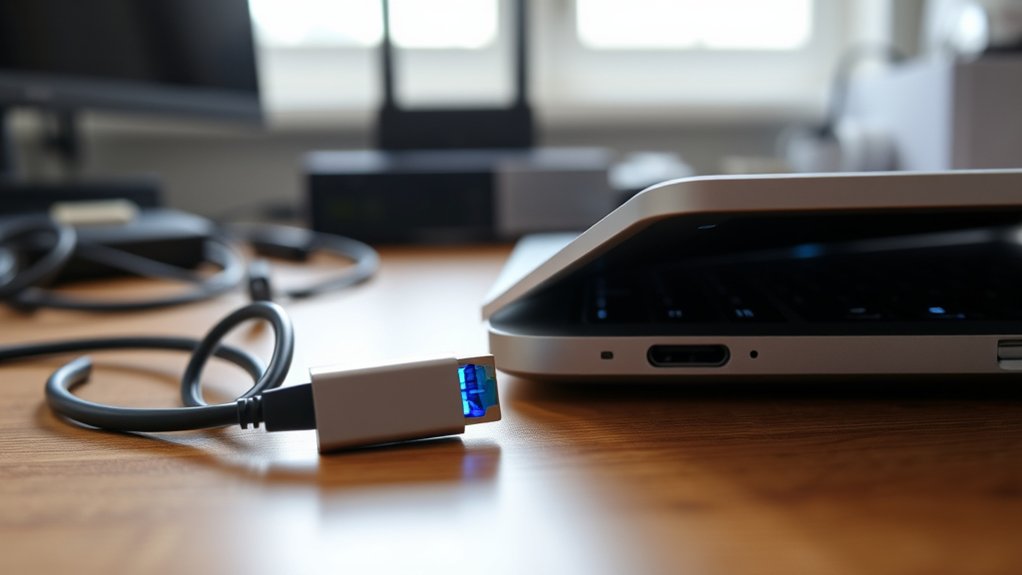
What makes Ethernet connections a preferred choice for many users? Ethernet offers a stable wired connection that greatly enhances internet speed compared to wireless alternatives.
Utilizing networking cables like Cat5e or Cat6, Ethernet reduces latency and minimizes interference, making it ideal for online gaming and streaming high-definition content.
However, most modern laptops lack built-in Ethernet ports, necessitating the use of a USB-to-Ethernet adapter to establish this reliable connection. This adapter allows users to connect their devices seamlessly, ensuring a fast and consistent network experience.
Configuring network settings is typically straightforward, requiring only automatic IP and DNS settings for instant access.
By opting for Ethernet, users can liberate themselves from the unpredictability of Wi-Fi, benefiting from the dependable performance essential for today’s digital demands.
Connecting to Ethernet With a USB Adapter
Many users find that connecting to Ethernet through a USB adapter is a straightforward solution for laptops lacking built-in ports. A USB-to-Ethernet adapter enables a wired connection, providing reliable internet connectivity without the need for an internal Ethernet port.
Devices like the Anker 543 USB-C Hub not only offer gigabit Ethernet but also support HDMI and additional USB ports for peripherals, enhancing versatility.
These adapters typically feature plug-and-play functionality, allowing users to establish a wired connection quickly, often without needing extra drivers. Most USB adapters support speeds of up to 1 Gbps, ensuring a stable connection ideal for high-bandwidth activities such as gaming and streaming.
It’s essential to verify that the laptop supports USB 3.0 ports or higher to maximize data transfer speeds. This simple solution empowers users to enjoy seamless internet access and the freedom that comes with a dependable connection.
Why Your Charger Won’t Connect You to the Internet?
A laptop charger is designed solely to provide power, lacking the necessary components for data transfer required for internet connectivity.
Ethernet connections rely on specific hardware, such as dedicated ports or adapters, to facilitate the flow of data.
Consequently, attempting to use a charger for internet access is futile, as power and data operate on distinct protocols.
Incompatible Connection Types
Understanding the fundamental differences between power and data transmission is essential to grasping why a laptop charger cannot facilitate an Ethernet connection.
Laptop chargers are designed solely for power delivery, making them incompatible with data transfer needs. Ethernet connections require specific ports or adapters, such as a dedicated Ethernet port or a USB-to-Ethernet adapter, to guarantee reliable wired connections.
While some USB-C ports can support both power and data, not all chargers possess this capability. Attempting to connect an Ethernet cable to a laptop charger port is futile, as the functions are fundamentally distinct.
To achieve seamless internet connectivity, always opt for the appropriate hardware designed for data transfer, rather than relying on your charger.
Power Versus Data Transfer
While it may seem convenient to use a laptop charger for multiple purposes, the inherent differences between power delivery and data transfer highlight why this approach fails for internet connectivity.
- Distinct Functions: Chargers provide electrical power, while Ethernet ports are specifically designed for data transfer.
- Ineffective Circuitry: Chargers lack the necessary circuitry to transmit data signals, rendering them incapable of facilitating internet connectivity.
- Required Tools: For proper network connectivity, a dedicated Ethernet port or a USB-to-Ethernet adapter is essential.
Understanding these distinctions clarifies why attempting to connect to the internet via a charger is futile.
Embracing the right tools enables seamless data communication and enhances overall connectivity experiences.
Wired vs. Wireless: Which Connection Is Better for Your Laptop?
When considering connections for laptops, the debate between wired and wireless options presents distinct advantages and drawbacks.
Wired connections, such as those using Ethernet cables, typically offer superior speed, lower latency, and enhanced security, making them ideal for tasks like online gaming and streaming.
Conversely, wireless connections provide flexibility and convenience, appealing to users who prioritize mobility over performance.
Wired Connection Advantages
Wired connections, particularly Ethernet, offer several compelling advantages over wireless options, making them an attractive choice for laptop users.
- Faster Speeds: Ethernet cables can achieve speeds up to 10 Gbps, far surpassing typical Wi-Fi connections.
- Reduced Latency: A stable wired connection minimizes lag, ideal for online gaming and video conferencing.
- Enhanced Security: Wired connections are less vulnerable to hacking, providing a safer environment for data transfers.
Utilizing an Ethernet cable, or a USB-to-Ethernet adapter, can considerably improve performance for data-heavy tasks.
This reliability makes wired connections a preferred choice for those seeking liberation from the limitations of wireless networks.
Wireless Connection Benefits
Wireless connections offer distinct advantages that cater to the needs of modern laptop users. While wired connections provide superior speed and stability, wireless options boast flexibility and convenience. A Wi-Fi network allows users to connect multiple devices without physical limitations, fostering mobility. Additionally, advancements in wireless technology have improved security and decreased interference, making connections more reliable than ever.
| Aspect | Wireless Connections |
|---|---|
| Mobility | High |
| Setup Ease | Simple |
| Device Connectivity | Multiple Devices |
| Interference Resistance | Moderate |
| Security | Improving |
Despite the advantages of wired connections, wireless options remain essential for users seeking liberation from cables and enhanced flexibility in their digital lives.
Performance Comparison Overview
Frequently, users find themselves weighing the merits of wired versus wireless connections for their laptops. A wired connection often emerges as the superior choice due to several key factors:
- Speed: Ethernet cables, particularly Cat6, can deliver speeds up to 10 Gbps, greatly surpassing typical Wi-Fi performance.
- Stability: Wired connections provide reliable performance, minimizing latency and packet loss, essential for real-time activities like gaming and video conferencing.
- Security: Using a USB-to-Ethernet adapter enhances security, making wired networks less vulnerable to unauthorized access compared to wireless options.
Troubleshooting Ethernet Connection Issues
Troubleshooting Ethernet connection issues can often be a straightforward process if approached methodically. First, verify that the Ethernet cable is securely plugged into both the laptop’s port or USB-to-Ethernet adapter and the router. If the connection fails, restarting the laptop can rectify recognition issues.
Additionally, it’s vital to check the network settings to confirm that the Ethernet connection is set to automatically obtain an IP address and DNS settings. If problems persist, testing the cable with another device can help identify if the cable itself is faulty. Finally, verify that the router or modem is powered on and functioning properly, as any malfunction can disrupt a secure connection.
| Step | Action |
|---|---|
| Check Cable | Verify it’s securely connected |
| Restart Laptop | Often resolves connection recognition issues |
| Verify Network Settings | Check for automatic IP and DNS settings |
| Test with Another Device | Rule out cable issues |
How to Choose the Right Ethernet Cable and Adapter
Establishing a reliable Ethernet connection is not only about resolving existing issues but also involves selecting the right components. Choosing the appropriate Ethernet cable and adapter is vital for ideal performance.
- Ethernet Cable Type: Opt for a Cat5e cable for speeds up to 1 Gbps or a Cat6 cable for speeds up to 10 Gbps, based on your needs.
- USB-to-Ethernet Adapter: For laptops lacking built-in Ethernet ports, a USB-to-Ethernet adapter is necessary. Confirm it supports the same Ethernet standards as your cable to maximize data transfer rates.
- Power Delivery Compatibility: Consider adapters with Power Delivery (PD) support, allowing you to charge your laptop while maintaining a wired connection.
Always verify compatibility between the Ethernet cable, adapter, and laptop to guarantee seamless connectivity and performance.
Making informed choices empowers users to achieve efficient networking solutions.
Frequently Asked Questions
Does USB-C to Ethernet Work on a Laptop?
USB-C to Ethernet adapters enhance laptop connectivity by ensuring stable network speed. Their USB-C compatibility allows simultaneous charging, but device limitations and specific adapter features must be considered for best performance and reliable connections.
Can an Ethernet Cable Be Plugged Into a Laptop?
An Ethernet cable can indeed be plugged into a laptop. This connection offers significant advantages in speed and stability compared to wireless alternatives, especially when using compatible adapters, while troubleshooting guarantees peak performance.
How to Connect Ethernet to Laptop Using USB?
Connecting Ethernet to a laptop via USB requires a compatible adapter. Users must navigate cable types and device limitations, ensuring Ethernet speed and connection stability while troubleshooting network settings for ideal performance in their digital journey.
Can I Connect Ethernet to a Laptop Without an Ethernet Port?
Yes, Ethernet adapters provide a solution for laptops without Ethernet ports, ensuring connection stability and ideal network speed. Consider device compatibility, explore wireless alternatives, and keep troubleshooting tips handy for seamless connectivity via USB hubs.
Conclusion
Ultimately, connecting to Ethernet requires the right equipment, not just a charger. Understanding the essentials, exploring adapters, and selecting suitable cables can greatly streamline your internet experience. While wired connections often offer superior speed and stability, troubleshooting tips can help resolve common issues. Ultimately, informed choices guarantee a seamless surfing session, making the journey through the digital domain both efficient and enjoyable. Embrace Ethernet expertise for enhanced online engagement!

