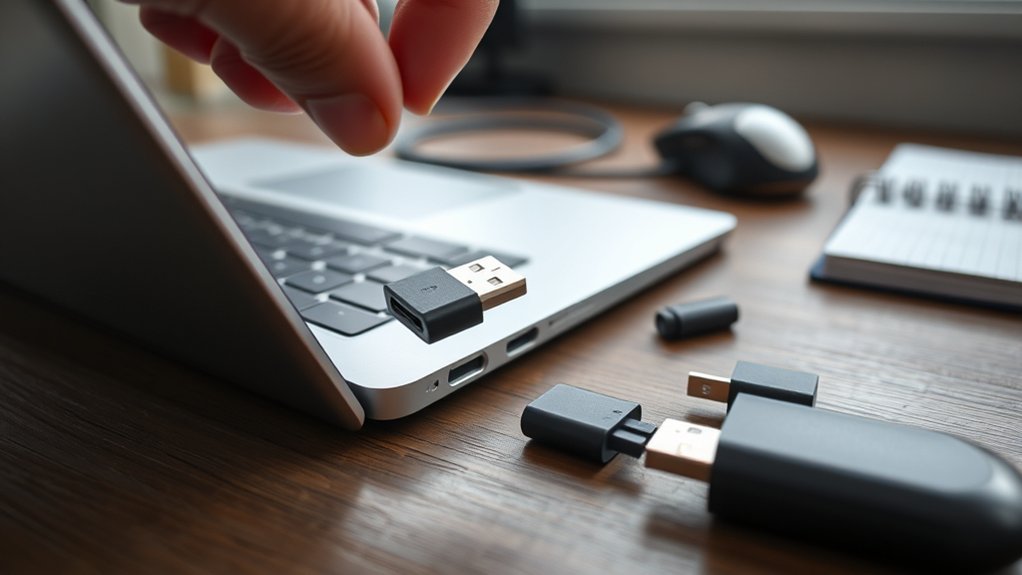
Yes, a dongle can be attached without an internal network port, such as a LAN port. USB WiFi dongles serve as a practical solution, providing immediate internet access. They require minimal setup and operate independently of existing network drivers. Verify compatibility with the device’s USB ports for best functionality. Additionally, proper configurations and settings are essential for effective use. For further insights on maximizing dongle performance, additional tips and troubleshooting methods are available.
Understanding Dongles and Their Uses
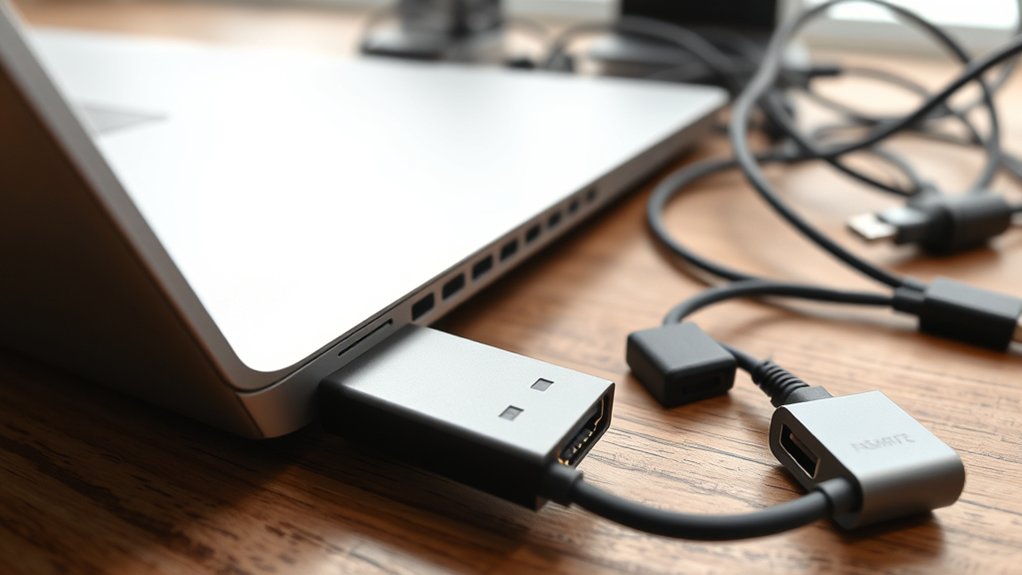
Dongles serve as vital tools in modern computing, enhancing connectivity and functionality for various devices. These compact hardware devices function as adapters, expanding features and enabling connection with peripherals.
Common types of dongles include port expansion hubs, video output adapters, network adapters, and wireless receivers, each tailored to specific connectivity needs.
Common dongles, like port expansion hubs and video adapters, are essential for meeting diverse connectivity requirements in modern devices.
To guarantee peak performance, dongles typically require compatible connector types and may depend on data protocols, such as various USB generations. Some models even support power delivery and pass-through charging, allowing users to transfer data while keeping devices powered.
Proper setup and configuration, including necessary firmware updates and driver installations, are fundamental for maximizing the capabilities of dongles in diverse work environments.
How to Use a Dongle Without Internal Network Access
For users needing internet access on devices without built-in WiFi, a USB WiFi dongle offers a practical and efficient solution. This device allows immediate connectivity without relying on internal network drivers.
Here are three key benefits of using a USB WiFi dongle:
- Easy Setup: Simply plug the USB dongle into a port, and it typically connects automatically, requiring minimal configuration.
- Driver Independence: Many USB WiFi dongles function independently of existing network drivers, making them ideal for users facing driver issues.
- Compatibility: A wide variety of USB WiFi adapters are available, allowing users to choose models that best fit their specific hardware needs.
Additionally, for those who may be interested in Bluetooth connectivity, some USB dongles also offer this feature, enhancing versatility.
Investing in a reliable USB WiFi dongle can provide flexible internet access, liberating users from reliance on internal network capabilities.
Essential Factors for Remote Dongle Access
Effective remote dongle access hinges on proper network configuration and understanding access limitations.
The primary computer must remain powered on and connected to the network for the dongle to be accessible.
Additionally, users may need to set up port forwarding and guarantee compatibility with specific drivers or software to optimize functionality.
Network Configuration Essentials
Remote access to a dongle hinges on proper network configuration, which encompasses several vital factors. To guarantee seamless connectivity to USB ports, users must consider the following essentials:
- Device Connectivity: The computer hosting the dongle must remain powered on and connected to the same local network as the accessing device.
- Network Settings: Proper firewall configurations and IP address allocations are essential for allowing remote devices to communicate effectively with the dongle.
- Port Forwarding: Understanding router settings for port forwarding may be necessary to enable external access, making sure all devices utilize compatible protocols and adequate bandwidth for data transfer.
Remote Access Limitations
How do remote access limitations impact the functionality of dongles? Remote access relies on the dongle being connected to a powered-on computer that is part of the same network. If this primary system is turned off, the dongle becomes inaccessible, severely restricting its remote capabilities.
Additionally, successful access often hinges on proper network configuration, such as port forwarding, which facilitates external connections. Certain dongles may also necessitate specific software or driver installations for remote functionality.
Users must navigate detailed guides to guarantee correct setup, as the process can vary considerably by dongle type. Understanding these limitations is vital for maximizing the use of internal USB devices in remote environments, empowering users to achieve their desired connectivity.
What to Do If Your Dongle Isn’t Working?
When a dongle fails to function properly, it can be frustrating. Users seeking liberation in technology should consider the following steps to troubleshoot their issues effectively:
- Check Compatibility: Verify the dongle is compatible with the device and install any required drivers for proper functionality.
- Switch Ports: Try connecting the dongle to a different USB hub or port to rule out issues with the original connection.
- Restart the Device: After plugging in the dongle, restart the device to help it recognize the new hardware.
Additionally, inspect the dongle and ports for any physical damage, as wear and tear can hinder connectivity.
Inspect the dongle and ports for physical damage, as wear and tear can significantly impact connectivity.
If the dongle remains unresponsive, seeking guidance from manufacturer support or community forums can provide specialized assistance.
These steps can empower users to regain control over their technology experience.
Best Practices for Managing Dongles in Shared Spaces
Effective management of dongles in shared spaces is essential for guaranteeing smooth operations and minimizing technical disruptions. Implementing clear labeling systems for each dongle enhances identification, while establishing check-in and check-out procedures helps track usage and prevent loss. Standardizing dongle models simplifies compatibility, reducing troubleshooting time for users.
Creating a dedicated storage solution, such as a designated drawer or box, keeps all dongles organized and easily accessible. Regular reviews of documentation on dongle assignments and usage guidelines guarantee compliance among all users.
| Best Practice | Description |
|---|---|
| Labeling Systems | Clear labels for quick identification |
| Check-in/Check-out Procedures | Track usage to prevent loss |
| Standardization | Use the same dongle models for compatibility |
| Dedicated Storage | Organize dongles in a specific drawer or box |
Incorporating an extension cable can further enhance accessibility in shared environments.
Alternative Solutions When Dongles Fail
When dongles fail, users can explore various wireless alternatives to maintain connectivity.
USB WiFi adapters often serve as effective substitutes, offering quick installation and reliable access.
Additionally, troubleshooting connectivity issues, such as relocating the dongle or checking for firmware updates, can improve performance in challenging environments.
Wireless Alternatives Available
Although dongles have long been a popular solution for connecting devices, various wireless alternatives offer effective options when they fail. Users can explore several strategies to maintain connectivity without relying on dongles:
- Bluetooth Connectivity: Many devices support Bluetooth drivers, allowing seamless wireless connections without additional hardware.
- Mobile Hotspots: Smartphones can act as mobile hotspots, providing internet access and bypassing traditional dongle setups.
- Built-in Wireless Capabilities: Modern devices often include built-in wireless functions for peripherals like mice and keyboards, eliminating the need for external dongles.
These alternatives empower users to connect effortlessly, ensuring freedom from hardware limitations.
Embracing these options can enhance convenience and streamline the user experience, particularly when dongles are unavailable.
Troubleshooting Connectivity Issues
Connectivity issues can arise unexpectedly, leaving users frustrated when their dongles fail to work.
First, verify that USB ports are functioning by testing them with other devices. Compatibility with the operating system is essential, so check for necessary drivers that may need installation or updates.
For wireless dongles, confirm that batteries are charged and that no electronic interference exists nearby. If problems persist, consider using Bluetooth as an alternative connection method.
A USB WiFi dongle may also restore internet accessibility if network drivers are lost or malfunctioning.
For ongoing challenges, troubleshooting resources and community forums can provide invaluable guidance on resolving specific dongle-related issues, empowering users to regain their connectivity.
Frequently Asked Questions
Where Does a Dongle Plug Into?
A dongle plugs into various ports, including USB, HDMI, or Ethernet, depending on its function. Port compatibility is essential for best performance, as positioning affects connectivity and signal strength for wireless devices.
What Can I Use Instead of a Dongle?
Instead of a dongle, one can utilize wireless alternatives such as built-in Bluetooth, USB WiFi adapters, mobile hotspots, or wired Ethernet connections, providing flexibility and convenience for connecting devices without occupying USB ports.
Can You Replace a Missing Dongle?
Yes, a missing dongle can be replaced with compatible models or universal receivers. Dongle alternatives exist, but ensuring compatibility with devices is essential for peak performance and functionality, emphasizing the importance of device specifications.
How to Attach a Dongle?
To attach a dongle, simply plug it into the appropriate port. If lacking one, adapters can bridge the gap. Confirm drivers are updated to establish a seamless wireless connection, activating the device’s full potential.
Conclusion
In summary, maneuvering the world of dongles without a dedicated port can be challenging but manageable. Many users believe that a lack of internal network access limits functionality, yet innovative solutions exist. By understanding the essentials of remote access and implementing best practices, individuals can effectively utilize dongles in diverse settings. Ultimately, the key lies in adaptability and troubleshooting, proving that with the right approach, technology can seamlessly fit into any scenario.

