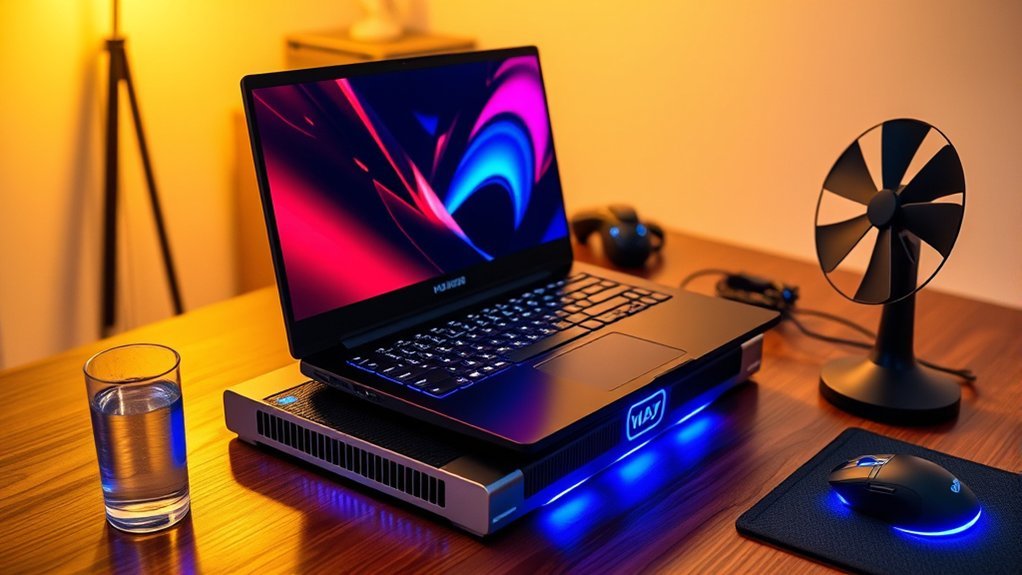
Gaming laptops naturally run warm because powerful CPUs and GPUs are packed into a small chassis. To reduce laptop heat during long gaming sessions, monitor temperatures, keep the vents clear, use the laptop on a hard surface, close unnecessary apps, limit excessive frame rates, and choose a sensible power profile. The goal is not to chase one universal temperature number, but to keep the system within its manufacturer-specified limits without throttling, crashes, or abnormal fan behavior.
Quick Answer
To reduce laptop heat while gaming, use a hard, well-ventilated surface, monitor CPU and GPU temperatures, clean blocked vents, close unnecessary background apps, cap FPS, lower demanding graphics settings, and use Balanced or an OEM cooling profile when maximum performance is unnecessary. If throttling, shutdowns, or fan problems continue, have the cooling system inspected.
Key Takeaways
- Do not use 85°C as a universal danger line. CPU, GPU, and laptop thermal limits vary by model.
- Blocked vents, soft surfaces, high room temperatures, and unnecessary CPU/GPU load can all increase gaming temperatures.
- Capping FPS and lowering demanding settings often reduces power use with a smaller performance sacrifice than aggressive cooling tweaks.
- Cooling pads can help some laptops, but the improvement depends on the laptop’s intake location and cooling design.
- Repeated shutdowns, grinding fans, thermal warnings, or a swollen battery require troubleshooting or professional service rather than more gaming.
At a Glance
| Time Required | About 10–30 minutes for basic software, airflow, and vent checks |
| Difficulty | Easy for external cleaning and settings changes; advanced internal service should follow the manufacturer’s service guidance |
| Tools Needed | Temperature-monitoring software, canned compressed air, hard surface or laptop stand; cooling pad optional |
| Cost | Most software and placement changes cost nothing; optional stands, cooling pads, or professional service add cost |
Know When Laptop Heat Is Too High
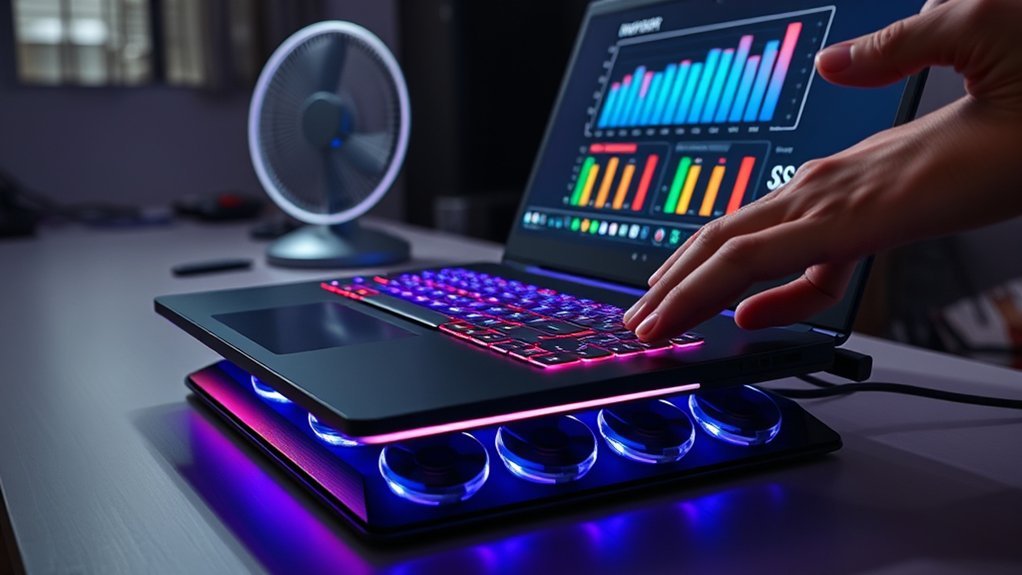
A gaming laptop feeling hot does not automatically mean it is overheating. Modern processors are designed to adjust clock speed, power, and fan behavior as temperatures change. What matters is whether your laptop stays within the limits specified for its CPU, GPU, and chassis while maintaining stable performance.
Do not treat 85°C as a universal cutoff. Intel states that maximum junction temperature varies by processor and is commonly in the 100–110°C range. Individual laptop manufacturers can also configure their own system-level thermal behavior. Check your exact processor specification and laptop documentation rather than applying one temperature limit to every machine.
You can monitor CPU and GPU temperatures with a hardware-monitoring utility such as CPUID HWMonitor. Record temperatures after 10–20 minutes of the same game so you have a repeatable baseline. Also watch CPU/GPU utilization, clock speeds, and whether frame rates suddenly drop as temperatures rise.
Note: A single brief temperature spike is less informative than sustained high temperatures combined with reduced clock speeds, unstable frame rates, thermal warnings, crashes, or unexpected shutdowns.
Common signs of a real cooling problem include repeated performance drops after the laptop warms up, fans running unusually hard during light workloads, thermal warnings, unexpected restarts or shutdowns, a fan that stops spinning, or grinding and rattling noises. Intel describes thermal throttling as a protective mechanism that reduces processor speed when its thermal limit is reached.
The useful question is not “Did my laptop cross 85°C?” but “Is it staying within the limits specified for this hardware without throttling, crashing, or showing cooling-system faults?”
Clean Dust and Improve Laptop Airflow
Once you have a temperature baseline, check airflow. Dust, hair, and debris can collect around intake vents, fan openings, and heatsink fins. Restricted airflow makes the cooling system work harder and can increase fan noise and temperatures.
Place the laptop on a hard, stable surface. Beds, cushions, blankets, and other soft materials can cover bottom or side intake vents. Dell specifically recommends using laptops on hard, flat surfaces with ventilation openings unobstructed.
If your laptop draws air from underneath, a stable stand or modest rear elevation can create more clearance. Make sure the stand does not cover the intake openings. Keep exhaust vents away from walls, books, or other objects that trap hot air.
Room temperature also matters. A laptop cooling system cannot cool its components below the temperature of the air entering it. If a room is unusually hot, improving room ventilation or air conditioning can reduce the thermal load on the laptop.
Warning: Shut the laptop down and disconnect the AC adapter before cleaning vents. Follow the laptop manufacturer’s instructions and the directions on the compressed-air can. Do not use household vacuum cleaners or high-powered blowers on internal electronics.
For external vent cleaning, inspect the intake and exhaust openings and use short, controlled bursts of canned compressed air according to the manufacturer’s directions. Dell’s current guidance recommends shutting the computer down, disconnecting power, and using canned compressed air to clear vent debris.
There is no single cleaning interval that works for every laptop. A laptop used around pets, carpets, smoke, or heavy dust may need inspection more frequently than a machine used in a clean office. Check the vents periodically and clean them when buildup becomes visible or airflow changes.
Cut Background Apps Before Gaming
Reduce avoidable CPU, memory, storage, and network activity before starting a demanding game. Background applications cannot always be eliminated, but closing software you are not using can free system resources and reduce unnecessary work.
On Windows, press Ctrl + Shift + Esc to open Task Manager. Review the Processes tab for applications using significant CPU, GPU, memory, or disk resources. Close only programs you recognize and do not need. Microsoft also recommends reviewing high-resource processes when troubleshooting PC performance.
Common background loads include browsers with many active tabs, cloud-sync software, game launchers updating other titles, video encoders, RGB utilities, recording software, and operating-system updates.
Review Startup apps as well. Disabling unnecessary automatic startup programs can reduce the amount of software running before you launch a game. Do not randomly disable security software, graphics services, audio services, or manufacturer utilities that control cooling or laptop functions.
Pro Tip: Make one change at a time and test the same game, graphics settings, and approximate room conditions. Comparing repeatable tests makes it much easier to identify which change actually improved temperatures.
Use Balanced and OEM Cooling Modes
Gaming laptops often include manufacturer software with profiles such as Silent, Balanced, Performance, or Turbo. These profiles can change CPU/GPU power limits and fan behavior. Maximum-performance modes generally allow more sustained power, which can also create more heat and fan noise.
If your laptop is running hotter than you want, test its Balanced or equivalent manufacturer profile before making advanced changes. For less demanding games, this can reduce power use while keeping performance acceptable.
Windows 11 also provides power modes under Settings > System > Power & battery. Microsoft currently lists Best power efficiency, Balanced, and Best performance options. Microsoft notes that Best performance can make a laptop run warmer.
Do not assume the coolest or quietest profile is always best for gaming. Quiet profiles may intentionally reduce fan speed or performance. Compare frame rate, temperatures, and fan noise and choose the profile that gives the balance you prefer.
Lower Graphics and FPS to Reduce Heat
Reducing unnecessary GPU workload is one of the most useful software-based ways to lower gaming heat. Start with settings that consume substantial GPU resources, such as ray tracing, high shadow quality, ambient occlusion, high rendering resolution, and heavy anti-aliasing.
You do not need to lower every setting to minimum. Change one or two demanding settings, test the same game section, and compare GPU utilization, temperatures, frame rate, and image quality.
An FPS limit can be especially useful when the GPU is rendering far more frames than you need. Many games provide their own frame-rate limiter. NVIDIA users can also configure Max Frame Rate in NVIDIA Control Panel. NVIDIA documents frame limiting as a way to reduce unnecessary power use in appropriate scenarios.
For example, if a single-player game remains smooth at a lower capped frame rate, preventing the GPU from running unrestricted can reduce its sustained workload. Competitive players may prefer a higher target because latency and responsiveness matter more.
Upscaling technologies supported by the game may also help achieve acceptable performance at a lower internal rendering resolution. Test visual quality and latency rather than enabling features automatically.
Update BIOS, Drivers, and Laptop Software
If temperatures or fan behavior have changed unexpectedly, check your laptop manufacturer’s support page for BIOS/UEFI, firmware, chipset, graphics, and system-control updates. Laptop manufacturers sometimes revise cooling behavior, fan control, or system stability through firmware and software updates.
Dell and ASUS both include BIOS, driver, or system updates in current overheating and fan-troubleshooting guidance. Use updates intended for your exact laptop model rather than downloading firmware from unrelated systems.
Note: BIOS updates should not be interrupted. Keep the laptop connected to reliable power and follow the manufacturer’s instructions exactly.
Add a Cooling Pad for Long Sessions
For extended gaming sessions, a cooling pad can provide additional airflow beneath laptops that use bottom-mounted intake vents. It may help reduce temperatures or fan workload, but results vary significantly by chassis design.
Do not assume that every cooling pad will reduce temperatures by a fixed number of degrees. A pad works best when its fans align reasonably well with the laptop’s intake area rather than blowing against a closed section of the bottom panel.
Before buying one, check where your laptop pulls in cooling air. A simple open laptop stand may provide much of the benefit if the main problem is restricted clearance rather than insufficient airflow.
If you use a cooling pad, compare temperatures before and after using the same game and settings. That test will tell you whether the accessory actually helps your particular laptop.
Use Advanced Cooling Fixes Carefully
If basic airflow, settings, cleaning, and software updates do not solve the problem, the laptop may need internal service. Aging thermal interface material, clogged heatsink fins, a failing fan, damaged heat pipes, or incorrect thermal-pad installation can affect cooling.
Replacing thermal paste is not a universal maintenance step and should not be the first response to high gaming temperatures. Opening a laptop can be difficult, and some systems use liquid metal or thermal pads that require model-specific procedures. Check the manufacturer’s service manual and warranty terms before disassembly.
Undervolting or changing CPU/GPU power parameters can reduce heat on hardware that supports those controls, but availability varies and incorrect settings can cause instability. Use only manufacturer-supported controls or well-understood platform settings and test system stability after any change.
What to Do If the Laptop Still Overheats
If the laptop continues to throttle, crash, or shut down after the basic fixes, stop treating the problem as normal gaming heat. Run the manufacturer’s hardware diagnostics if available and check whether all cooling fans are detected and operating normally.
Seek service if you notice:
- Repeated thermal shutdowns or restarts
- A fan that no longer spins
- Grinding, scraping, or rattling fan noises
- Sudden severe performance loss that begins after the laptop warms up
- Thermal or fan error messages
- Airflow that remains weak after external vent cleaning
- Visible chassis deformation or battery swelling
Warning: If the battery or laptop chassis is visibly swollen or deformed, discontinue use and disconnect AC power. Do not press on, puncture, or continue charging a swollen battery. Contact the laptop manufacturer or an authorized service provider for replacement guidance.
Frequently Asked Questions
How to Reduce Laptop Heating While Gaming?
Use the laptop on a hard surface with clear vents, monitor CPU and GPU temperatures, clean visible dust safely, close unnecessary background apps, use a sensible power or fan profile, cap excessive FPS, and lower demanding graphics settings. A cooling pad can help some laptops. If the machine still throttles or shuts down, inspect it for a cooling-system fault.
How to Reduce PC Heat While Gaming?
For a desktop PC, clean dust filters and heatsinks, keep intake and exhaust paths clear, confirm that case and component fans work correctly, close unnecessary processes, cap excessive frame rates, and reduce demanding graphics settings if needed. Desktop cooling differs from laptop cooling, so a laptop cooling pad is not relevant to a desktop system.
Is 70 Degrees Hot for a Laptop While Gaming?
A CPU or GPU reading around 70°C during gaming is not automatically excessive. Thermal limits vary by component and laptop design, and many modern processors have substantially higher specified junction limits. Compare the reading with the specifications for your exact hardware and watch for throttling, crashes, or other warning signs.
Is 90°C Hot for a CPU While Gaming?
90°C is a high CPU temperature worth monitoring, but it does not prove that every laptop is overheating. Intel and AMD processors have model-specific maximum junction temperatures, and some laptop CPUs are designed to operate near higher limits during heavy workloads. Check the exact processor specification and look for sustained throttling, instability, or thermal warnings.
Does a Cooling Pad Really Help a Gaming Laptop?
It can. Cooling pads are most useful when the laptop has bottom intake vents that can benefit from additional airflow. The amount of improvement varies by laptop and pad design, so compare temperatures before and after under the same gaming workload.
Should I Replace Thermal Paste to Reduce Gaming Temperatures?
Not as a first step. Start with airflow, vent cleaning, power settings, FPS limits, updates, and diagnostics. If the laptop still has a cooling problem, consult its service documentation or a qualified technician. Some laptops use liquid metal or model-specific thermal pads that should not be disturbed without the correct procedure.
Conclusion
Reducing laptop heat during long gaming sessions starts with accurate diagnosis rather than one universal temperature target. Monitor the CPU and GPU, keep intake and exhaust vents clear, use a hard surface, close unnecessary background processes, choose an appropriate power profile, and limit unnecessary GPU workload with graphics adjustments or an FPS cap.
A cooling pad can provide extra airflow, but persistent throttling, fan faults, crashes, shutdowns, or battery swelling need proper troubleshooting rather than increasingly aggressive cooling tricks. Make one change at a time, retest under the same workload, and use your laptop manufacturer’s specifications as the final reference for safe operation.
Sources
- Intel — Maximum Operating Temperature of Intel Processors — explains that processor temperature limits vary by model.
- Dell — Preventing Computer and Laptop Overheating — supports hard-surface use, vent cleaning, power settings, updates, and cooling-pad guidance.
- Microsoft — Change the Power Mode for Your Windows PC — documents Windows power-efficiency, Balanced, and Best performance modes.
- NVIDIA — Manage 3D Settings Reference — documents Max Frame Rate controls.
- CPUID — HWMonitor — official hardware-monitoring utility for temperatures, power, utilization, clocks, and fan readings.
- HP — Swelling or Deformation of Notebook Battery — supports discontinuing notebook use when battery swelling is present.

