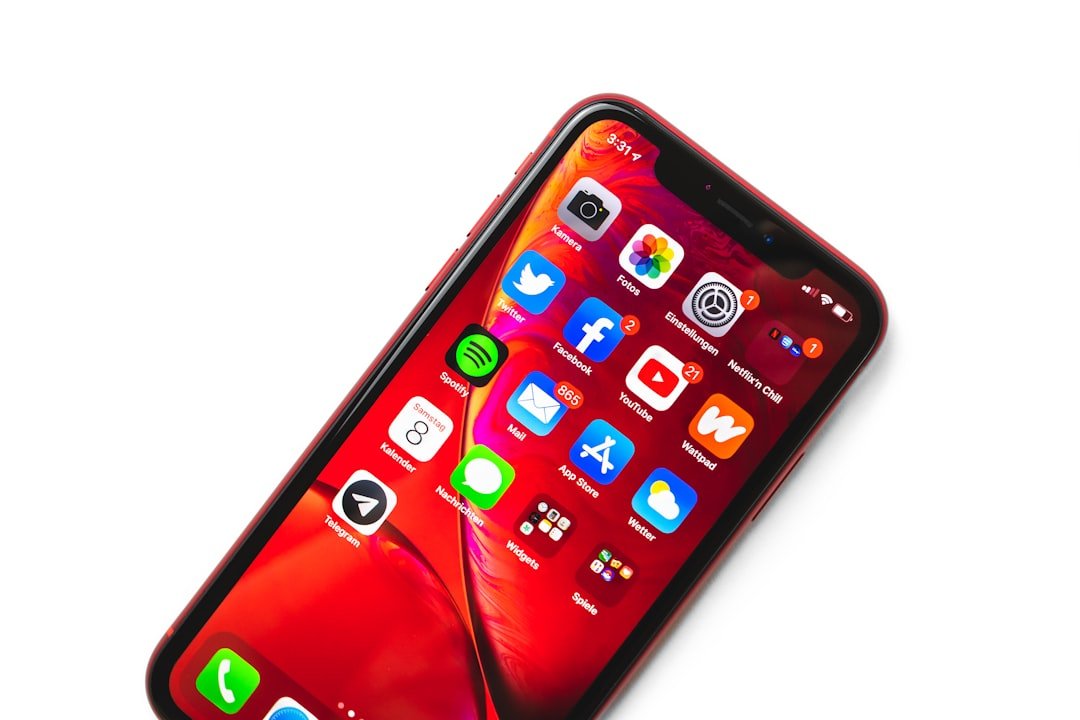
Blocked messages on an iPhone can feel confusing because the Messages app does not show a special folder for texts from blocked contacts. When you block a phone number or Apple ID, your iPhone stops future messages from that contact from appearing in your inbox. The sender also does not get a clear notice that you blocked them, which can create misunderstandings in personal or professional conversations.
The most important thing to know is this: unblocking a contact lets future messages come through, but it usually does not recover messages sent while the contact was blocked. Before you assume a message is gone, you should also check whether the message was filtered, muted, deleted, affected by Focus or Do Not Disturb, or blocked by your carrier instead of your iPhone.
Quick Answer
You usually cannot retrieve messages sent while a contact was blocked on your iPhone because those messages are not delivered to the Messages app. You can unblock the contact to receive future texts, check filtered or deleted message folders, review backups, or ask the sender to resend the missing message.
Key Takeaways
- Blocked messages on iPhone may be missing because the sender is blocked, the conversation is filtered, the number is flagged as spam, or your carrier is filtering messages.
- You can check your blocked list by opening Settings and reviewing Blocked Contacts under Messages, Phone, or FaceTime.
- Unblocking a contact allows future messages to appear, but it does not normally restore messages sent during the blocked period.
- Third-party apps may help with deleted messages or backups, but they usually cannot recover messages that were never delivered because a contact was blocked.
- If messages still do not arrive after unblocking, contact your service provider and check network, account, spam, and SMS filtering settings.
At a Glance
| Time Required | 5 to 15 minutes for basic checks; longer if you review backups or contact your carrier. |
| Difficulty | Easy for iPhone settings; moderate for backups or recovery tools. |
| Tools Needed | Your iPhone, Apple ID access, Messages settings, and carrier support if SMS delivery is affected. |
| Cost | Free for built-in iPhone checks; third-party recovery tools may require payment. |
Understanding Blocked Messages on iPhone
The iPhone blocking feature helps you control unwanted calls, texts, FaceTime requests, and iMessages. If you block a contact, messages from that person no longer appear in your normal conversation thread. The blocked sender can still try to send a message, but your iPhone does not place that message in your inbox.
This setup protects privacy, but it can also cause confusion. You may block someone after unwanted communication, accidentally add a contact to your blocked list, or mistake message filtering for blocking. Settings such as Focus, Do Not Disturb, Hide Alerts, Unknown Senders filtering, and carrier spam tools can also make it look like a message was blocked when it was only silenced or moved elsewhere.
Warning: Unblocking a contact does not normally bring back messages they sent while they were blocked. It only allows future messages from that contact to arrive.
Checking the Blocked List on Your iPhone
Checking the Blocked List
To address the issue of blocked messages, the first step is to check the blocked list on your iPhone. This list contains the contacts and numbers that you intentionally or accidentally blocked. Accessing this list is simple, and you can do it through the Settings app.
Open Settings, then go to Messages. Tap Blocked Contacts to view numbers and contacts blocked from sending you messages. You can also check similar blocked lists under Phone and FaceTime, since iPhone blocking can apply across multiple communication features.
Locating Blocked Contacts
By navigating to Settings, then scrolling down to Phone, Messages, or FaceTime, you can find the option labeled Blocked Contacts. Here, you will see a list of blocked numbers and contacts. If you suspect that a specific person is blocked, review this list carefully and look for their name, number, or Apple ID.
If you do not see the contact in the blocked list, the missing message may have another cause. The conversation may be filtered under Unknown Senders, silenced with Hide Alerts, deleted, affected by Focus settings, or delayed by your carrier network.
Unblocking a Contact
If you find a contact you want to receive messages from, remove them from the blocked list. Swipe left on the contact’s name and tap Unblock. On some iOS versions, you may need to tap Edit, then remove the contact from the blocked list.
After you unblock the contact, ask them to send a new message. This confirms that communication works again. Keep in mind that messages sent while the contact was blocked usually do not appear after unblocking, so the sender may need to resend anything important.
Pro Tip: After unblocking someone, send a short test message or ask them to text you again. This is the fastest way to confirm whether the issue was blocking or something else.
Retrieving Blocked Messages From the Messages App

Retrieving blocked messages directly from the Messages app is not possible in the normal sense. When a contact is blocked, texts and iMessages from that contact do not appear in the conversation thread. In most cases, your iPhone does not save those blocked messages in a hidden inbox that you can open later.
This means that if someone sent a message while they were blocked, you usually cannot recover that specific message from the Messages app. Unblocking the contact only restores the path for future communication. It does not reload older messages that were blocked before they reached your inbox.
However, before you give up, check whether the missing message was actually blocked. Open the Messages app and look for filters such as Known Senders, Unknown Senders, Unread Messages, or Recently Deleted, depending on your iOS version and settings. Messages from people who are not saved in your contacts may appear outside your main inbox if filtering is enabled.
Check Unknown Senders
If you use message filtering, open the Messages app and tap Filters in the upper-left corner. Then check Unknown Senders. This folder may contain messages from numbers that are not saved in your contacts. These messages are not the same as blocked messages, but many users confuse the two.
Check Recently Deleted Messages
If the message arrived before the contact was blocked and you later deleted it, check Recently Deleted in the Messages app. On supported iOS versions, deleted conversations may remain recoverable for a limited time. If the message was never delivered because the sender was blocked, this folder will not contain it.
Ask the Sender to Resend the Message
The most reliable way to recover a message sent during a blocked period is to ask the sender to resend it. The sender may still have the original text in their conversation thread. Once you unblock them, their new message should arrive normally unless another setting or carrier issue is still interfering.
Note: Filtered messages, deleted messages, muted conversations, and blocked messages are different issues. Check each one before assuming a message is permanently gone.
Using Third-Party Apps to Retrieve Blocked Messages
| Third-Party App Name | Compatibility | Cost | User Rating |
|---|---|---|---|
| Dr. Fone | iOS, Android | Free trial, Paid | 4.5/5 |
| Recoverit | iOS, Android | Free trial, Paid | 4/5 |
| PhoneRescue | iOS, Android | Free trial, Paid | 4.2/5 |
While retrieving blocked messages directly from the iPhone’s native Messages app is not usually feasible, some users turn to third-party applications in hopes of recovering lost communications. Various apps claim to provide enhanced message management, deleted message recovery, backup scanning, and device recovery features.
Approach these tools with caution. Many third-party apps require access to personal data, backups, device storage, or Apple account information. Even when they work well for deleted files or backup extraction, they typically cannot recover messages that were never delivered because the sender was blocked.
Data recovery tools such as Dr. Fone, Recoverit, and PhoneRescue may help in specific situations where messages were previously received, stored, backed up, and then deleted. They are less useful when a blocked contact sent a message that never reached your iPhone. Before installing any recovery software, read current reviews, check privacy policies, confirm compatibility with your iOS version, and avoid tools that make unrealistic promises.
Warning: Be careful with apps that promise guaranteed recovery of blocked messages. A tool cannot recover a message from your iPhone if the message was never delivered or stored on the device.
Checking Backups Before You Try Recovery Software
Before paying for a third-party app, think about whether the message ever existed on your iPhone. If the message arrived before you blocked the contact and was later deleted, an iCloud or computer backup might contain it. If the message was sent only while the contact was blocked, a backup of your iPhone probably will not contain it.
Restoring an iPhone from an older backup can also replace newer data on your device. That means you could lose recent photos, messages, app data, or settings created after the backup date. Use this option carefully, and only when the missing message is important enough to justify the risk.
A safer option is to check another Apple device that uses Messages in iCloud or the same Apple ID, such as an iPad or Mac. If the message was delivered before deletion, it may still appear on another device. If the sender was blocked across your Apple devices, the message likely did not arrive there either.
Contacting Your Service Provider for Assistance
If you are unable to retrieve important messages, or if you suspect an issue beyond simple blocking, contacting your service provider can be a valuable step. Service providers can help diagnose SMS and MMS delivery problems, account-level message blocking, carrier spam filtering, short-code restrictions, network outages, and SIM-related issues.
When you contact your service provider, have your account details ready. Explain whether the issue affects one contact or all contacts, whether iMessage works, whether SMS works, and whether messages fail only from unknown numbers. This helps support staff narrow the issue quickly.
Your carrier may suggest resetting network settings, checking for service outages, updating carrier settings, replacing a SIM or eSIM, or reviewing spam-blocking features on your account. If you recently switched phones, changed carriers, moved from Android to iPhone, or changed SIM cards, mention that too.
Troubleshooting Common Issues With Retrieving Blocked Messages

Device Settings: A Common Source of Confusion
One common issue arises when users think they have blocked a contact when they have actually enabled Focus, Do Not Disturb, Hide Alerts, or message filtering. These features can silence notifications or move messages away from the main inbox, but they do not always block delivery.
Open the conversation and check whether the bell icon or Hide Alerts option is enabled. Then check Settings and review Focus settings to make sure messages from important contacts are allowed. Also check Messages settings for filters that separate known and unknown senders.
Software Updates and Bugs: A Potential Culprit
Another potential issue could stem from software updates or temporary bugs within iOS. Updates may change how messages are filtered, displayed, synced, or recovered. If your Messages app behaves strangely, make sure your device is running a current version of iOS that supports the features you are trying to use.
Before updating, back up your iPhone. Then install the update, reopen Messages, and check the blocked list, filters, Recently Deleted folder, and conversation thread again. If you use multiple Apple devices, give them time to sync after the update.
Restarting Your Device: A Simple Solution
Restarting your device can sometimes resolve temporary glitches that interfere with message delivery, notifications, or syncing. Turn your iPhone off, wait a few seconds, and turn it back on. Then ask the sender to send a fresh test message.
If the new message arrives, the issue may have been temporary. If it still does not arrive, continue checking blocking, filters, Focus settings, iMessage settings, SMS settings, carrier issues, and the sender’s phone number format.
iMessage, SMS, and MMS Settings
Blocked messages can be confused with iMessage or SMS problems. Open Settings, then Messages, and make sure iMessage is set up correctly. If the sender uses SMS or MMS, confirm that your carrier plan and device settings support those message types.
You should also check Send & Receive to confirm that your phone number and Apple ID are selected correctly. If you recently changed your phone number, Apple ID, SIM, or device, messages may go to the wrong address until your settings are updated.
Spam Filtering and Unknown Senders
Some messages may be filtered because they look like spam or come from an unknown number. This can happen with verification codes, business alerts, delivery updates, bank notices, or messages from people not saved in your contacts. Check your filtered message folders before assuming those texts were blocked.
If you use a carrier spam app or a third-party SMS filtering app, open that app and review its blocked, spam, or filtered lists. The message may be outside Apple’s native blocked contacts list.
Preventing Future Messages From Being Blocked on Your iPhone
To prevent future instances of important messages being blocked on your iPhone, get familiar with the settings that control blocking, filtering, and notification behavior. Review your blocked contacts list regularly and make sure only the people you truly want blocked remain there.
Also review Focus and Do Not Disturb settings. You can allow messages from specific people even when Focus is active, which helps important contacts reach you while less urgent notifications stay quiet. This is useful for family members, work contacts, doctors, school contacts, or anyone who may need to reach you quickly.
Save important numbers in Contacts so they are less likely to be filtered as unknown senders. If you expect messages from banks, delivery companies, medical offices, schools, or two-factor authentication services, avoid aggressive filtering settings that may hide those alerts.
Seeking Professional Help if Necessary
In situations where you continue to experience difficulty retrieving blocked messages or managing messaging settings, professional help may be warranted. Apple Support can help you review device settings, iMessage setup, iCloud syncing, backups, blocked contacts, and software-related issues.
Visiting an Apple Store or contacting Apple Support online can be helpful when the Messages app is not behaving as expected. Trained technicians can help identify whether the issue is caused by software, account settings, device syncing, or something else on your iPhone.
If third-party applications are involved in managing messages or data recovery, consider speaking with a mobile technology professional before giving an app access to your personal data. Expert guidance can help you avoid risky tools and choose the safest path for your situation.
What to Do If the Missing Message Was Important
If the blocked or missing message contained important information, act quickly. Unblock the contact, ask them to resend the message, and check whether they can send a screenshot or forward the original text from their own device. This usually works better than trying to recover a blocked message from your iPhone.
If the message came from a company, bank, school, doctor, delivery service, or employer, contact the organization directly and ask them to resend the information. For verification codes, request a new code after confirming that the sender number is not blocked or filtered.
If the message involved legal, medical, financial, or safety information, do not rely only on recovery apps. Contact the sender or organization through an official channel so you can confirm the information accurately.
If you’re looking for ways to improve your kitchen safety, you may also be interested in learning about the 5 Best Fire Extinguishers for Kitchen Grease Fires. This article provides valuable information on how to choose the right fire extinguisher for your kitchen and how to effectively put out grease fires. It’s important to be prepared for any emergency situation, including kitchen fires, so having the right tools on hand is crucial.
Frequently Asked Questions
What are blocked messages on iPhone?
Blocked messages on iPhone are messages from a contact or number that you have blocked. When a contact is blocked, their messages are not delivered to your normal inbox and do not appear in the conversation thread.
How can I retrieve blocked messages on iPhone?
You usually cannot retrieve messages that were sent while the sender was blocked because they were not delivered to the Messages app. You can unblock the contact to receive future messages, check filtered or deleted folders, review backups for messages received before blocking, or ask the sender to resend the message.
How do I unblock a contact on iPhone?
Open Settings, tap Messages, and choose Blocked Contacts. Find the contact you want to unblock, then swipe left and tap Unblock. You can also check blocked contacts under Phone or FaceTime if needed.
Can I retrieve deleted blocked messages on iPhone?
If the messages were delivered before the contact was blocked and later deleted, you may be able to check Recently Deleted or an older backup. If the messages were sent while the contact was blocked and never delivered, they usually cannot be recovered from the iPhone.
Are there any third-party apps that can help retrieve blocked messages on iPhone?
Some third-party apps claim to recover messages from iPhones or backups. They may help with deleted messages that were once stored, but they usually cannot retrieve blocked messages that were never delivered. Research any app carefully before giving it access to your device or data.
Will I get old messages after unblocking someone?
No, unblocking someone usually does not deliver old messages they sent while blocked. It only allows new messages from that contact to come through after you unblock them.
Why do messages look blocked when the contact is not blocked?
Messages can seem blocked when Focus, Do Not Disturb, Hide Alerts, Unknown Senders filtering, carrier spam filtering, network issues, or iMessage setup problems interfere with delivery or notifications. Check these settings before assuming the contact is blocked.
Sources
- Apple iPhone User Guide: Block, filter, and report messages — supports the difference between blocking, filtering, and reporting messages.
- Apple iPhone User Guide: Back up iPhone — supports guidance about checking backups before using recovery tools.
- Apple iPhone User Guide: Restore iPhone from a backup — supports the caution that restoring from backup can affect current device data.

