
If your laptop falls asleep every time you close the lid, a few setting changes can keep it awake while you use an external monitor, run a download, present from another screen, or keep a background task active. The safest approach depends on your operating system: Windows lets you change the lid-close action directly, while macOS supports closed-lid use through clamshell mode.
Quick Answer
To stop a laptop sleeping when you close the lid, set the lid-close action to Do nothing in Windows Power Options. On macOS, use clamshell mode by connecting power, an external display, and a keyboard or mouse. Keep vents clear because closed-lid use can increase heat and battery drain.
Key Takeaways
- Windows: Set “When I close the lid” to Do nothing for Plugged in, On battery, or both.
- macOS: Closed-lid use needs clamshell mode with power, an external display, and input devices.
- Command line: Use
powercfgto setLIDACTIONvalues if you prefer automation. - Safety: Watch heat, battery drain, privacy, and airflow when your laptop stays awake with the lid closed.
At a Glance
| Time Required | 2 to 5 minutes on Windows; 5 to 10 minutes for a Mac clamshell setup |
| Difficulty | Easy for basic settings; moderate for command-line changes |
| Tools Needed | Windows Settings, Control Panel, Command Prompt, or macOS external display setup |
| Cost | Free if you already have the needed display, charger, keyboard, or mouse |
Adjust lid behavior on Windows
Windows gives you the most direct way to stop a laptop from sleeping when the lid closes. You can set different behavior for battery power and plugged-in power, which helps you balance convenience with battery life.
[Amazon Products Picked for You]

👪 【3 Powerful Cooling Fans 】 - This laptop cooling pad is a must-have computer accessory for the whole family’s devices! Equipped with three large, ultra-silent fans, this laptop cooling fan rapidly cools down any laptop—whether it’s your work device running nonstop, your kid’s gadget for online classes, or your husband’s gaming laptop cooling pad go-to during weekend marathons. The maximum fan noise stays about 40dB, so it won’t disrupt family movie nights, your focused work time, or the kids’ bedtime routines. Adjusting the fan speed is a total breeze with the simple wheel switch on top—no confusing buttons, just hassle-free control for busy moms.

Advanced Cooling with 2 Quiet Fans & RGB Lighting:The YICOSUN Laptop Cooling Stand features 2 ultra-quiet fans and advanced RGB lighting to help maintain optimal laptop temperature. With 3-speed adjustable cooling, it provides efficient airflow for devices compatible with MacBook, Lenovo, ASUS, and Dell laptops (10-16 inches), making it suitable for gaming, DJ setups, and office tasks

【12-Core Deep Cooling Fans】The Trullypine F12 Laptop Cooling Pad is equipped with 12 high-speed silent fans, providing excellent cooling effect and temperature control, 360 degrees all-round dynamic cooling; The large metal mesh provides great heat dissipation performance. Four diamond-shaped groove designs bring better heat dissipation space, being built to accelerate heat dissipation.At the same time, these high-end laptop cooling fans are all equipped with capacitor components to reduce working noise, very quiet and create a low noise environment for you!
Windows 11 Settings route
- Open Settings → System → Power & battery.
- Select Lid & power button controls if that option appears on your build.
- Under Closing the lid, choose Do nothing for Plugged in, On battery, or both.
Note: Some Windows 11 laptops do not show lid controls in the Settings app. If you do not see them, use the Control Panel method below. It works on Windows 10 and Windows 11.
Control Panel route for Windows 11 and Windows 10
- Open Control Panel → Hardware and Sound → Power Options.
- Click Choose what closing the lid does.
- Find When I close the lid.
- Set the action to Do nothing for On battery, Plugged in, or both.
- Click Save changes.
If Save changes is greyed out, click Change settings that are currently unavailable first. Then make the lid-close change and save it.

For Microsoft’s documented setting values, see Lid switch close action (LIDACTION).
Pro Tip: For the safest setup, choose Do nothing only under Plugged in. Keep On battery set to Sleep or Hibernate so your laptop does not drain in a bag.
Advanced Windows power tweaks
Changing the lid action stops Windows from reacting to the lid switch, but other power settings can still put the laptop to sleep later. Review these options if your laptop stays awake briefly and then sleeps after a few minutes.
- Sleep timers: Increase the standby timeout or set it to Never when you need long background tasks to continue.
- Display timeout: You can turn the screen off while keeping the computer awake. This saves power without stopping downloads, backups, or external-monitor work.
- Hard disk: Keep “Turn off hard disk” reasonable on laptops. Use longer timeouts only when a specific task needs continuous disk access.
- Processor state: Leave defaults unless you are troubleshooting throttling, fan noise, or performance drops.
- Hibernate: If you use Hibernate, remember that it saves your session and powers down the laptop. That is different from keeping the laptop awake.
Best settings by situation
| Using an external monitor at a desk | Set Plugged in lid action to Do nothing. Keep the laptop on a hard surface or stand. |
| Carrying the laptop in a bag | Keep On battery set to Sleep or Hibernate to avoid heat buildup and battery drain. |
| Running downloads or backups | Set lid action to Do nothing while plugged in, then increase sleep timeout for AC power. |
| Presentation or meeting setup | Test the setting before the meeting and keep the charger connected. |
Windows command line (optional)
Power users can automate lid behavior with powercfg. This helps when you manage several laptops, switch power plans often, or want a repeatable setup.
1) List plans:    powercfg /l
2) Set AC value:  powercfg /setacvalueindex scheme_current SUB_BUTTONS LIDACTION 0
3) Set DC value:  powercfg /setdcvalueindex scheme_current SUB_BUTTONS LIDACTION 0
4) Activate plan: powercfg /setactive scheme_current

# Values:
# 0 = Do nothing
# 1 = Sleep
# 2 = Hibernate
# 3 = Shut down
The AC value applies when the laptop is plugged in. The DC value applies when the laptop runs on battery. For Microsoft’s full command reference, see powercfg command-line options.
Warning: Avoid setting the battery lid action to Do nothing if you often close the lid and place the laptop in a sleeve or backpack. The laptop may keep running, heat up, and drain the battery.
Use Windows Mobility Center
Windows Mobility Center gives you a fast path to power controls on many laptops. Press Win+X, choose Mobility Center, then open Power Options to adjust the lid-close action.
If Mobility Center is not available on your device, open Control Panel and use Power Options instead. Some desktop PCs and managed business devices may hide Mobility Center or limit access to certain settings.
[Amazon Products Picked for You]

Intelligent AI Temperature Control with Myth.cool Software: Three smart modes (Low/Medium/High) auto-adjust fan speed to your laptop's workload. Download the latest version at “ llanolife.com/pages/support-download ” for seamless control, or go manual with the built-in scroller
Classic Office Apps | Includes classic desktop versions of Word, Excel, PowerPoint, and OneNote for creating documents, spreadsheets, and presentations with ease.
Designed for Your Windows and Apple Devices | Install premium Office apps on your Windows laptop, desktop, MacBook or iMac. Works seamlessly across your devices for home, school, or personal productivity.
Prevent sleep on macOS with clamshell mode
macOS does not provide a normal built-in setting that tells a Mac notebook to ignore lid closure by itself. Apple’s supported method is closed-display mode, often called clamshell mode.
To run a Mac with the lid closed, connect power, an external display, and a keyboard or mouse. Then close the lid. Your external display becomes the main display for the Mac. Apple’s guidance is in Connect a display to your Mac.
[Amazon Products Picked for You]
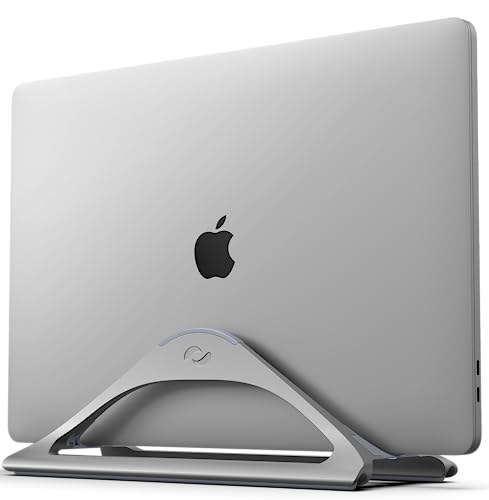
OPTIMIZE YOUR DESK: Connect an external monitor, keyboard and mouse to your laptop, then dock your laptop or Macbook (use closed-clamshell mode for Macbooks) to save valuable desk space and to protect your device from spills

SPACE SAVER & COOLING: This aluminum alloy laptop holder for desk stores laptops vertically, occupying minimal desk space while keeping your work area orderly. The vertical orientation utilizes passive thermal convection, allowing for improved heat dissipation and airflow compared to laying devices flat on a desk surface.

OPTIMIZE YOUR DESK: Connect an external monitor, keyboard and mouse to your laptop, then dock your laptop or Macbook (use closed-clamshell mode for Macbooks) to save valuable desk space and to protect your device from spills
Mac clamshell setup checklist
- Connect your Mac notebook to power.
- Connect an external monitor or display.
- Connect a keyboard and mouse or trackpad.
- Wake the Mac if needed by pressing a key or clicking the mouse.
- Close the lid after the external display is active.
Recommended macOS settings
- System Settings → Battery: On Power Adapter, use the available options that reduce automatic sleeping while plugged in.
- System Settings → Lock Screen: Set “Turn display off…” to a longer duration when plugged in if you do not want the display to go dark quickly.
- External display settings: Confirm the external monitor is detected before closing the lid.
- Keep-awake apps: If you need special wake behavior, use a reputable utility from a trusted source, such as Amphetamine from the Mac App Store.
Note: Keep-awake apps can help prevent normal idle sleep, but they do not replace Apple’s supported closed-display setup when the lid is shut.
Troubleshooting: why your laptop still sleeps
If your laptop still sleeps after you change the lid action, another power rule, driver, policy, or hardware trigger may be overriding your setting. Work through these checks before assuming the setting failed.
Check the active Windows power plan
Windows applies lid behavior to the current power plan. If you changed one plan and later switched to another, the laptop may sleep again. Open Power Options, confirm the active plan, and repeat the lid setting there.
Review sleep and hibernate timers
The lid action controls what happens at the moment you close the lid. Sleep timers can still activate later. In Power & battery or Power Options, set the sleep timeout long enough for your task.
Look for company or school policies
Managed Windows laptops may block lid, sleep, or power settings. If the options are missing, greyed out, or reset after restart, your organization may control them through policy.
Update display, chipset, and power drivers
Outdated drivers can cause incorrect sleep behavior, especially with docks and external monitors. Use Windows Update or your laptop maker’s support app to check for display, chipset, BIOS, firmware, and dock updates.
Test without a docking station
Docks can affect display detection and power behavior. If closed-lid use fails, connect the external display and power adapter directly to the laptop once, then test again.
Check wake and sleep history
On Windows, you can use powercfg /lastwake and powercfg /sleepstudy on supported devices to review power behavior. These reports can help you find whether the lid, a timer, or another device triggered sleep.
Safety & battery notes
Keeping a laptop awake with the lid closed is useful, but it changes how the device handles heat, power, and privacy. Use the setting carefully, especially on battery power.
- Thermals: A closed lid can trap heat. Use a hard, flat surface or a stand and keep vents clear.
- Battery: Staying awake increases power draw. Prefer these settings while plugged in.
- Privacy: With “Do nothing,” your session continues. Lock your screen before closing the lid.
- Travel: Do not place a running laptop in a backpack, sleeve, or drawer where heat cannot escape.
- Fan noise: Closed-lid operation may make fans run more often during updates, backups, gaming, or video exports.
The best everyday setup is simple: keep closed-lid awake behavior for plugged-in desk use, but let the laptop sleep or hibernate on battery.
Related Guides
Frequently Asked Questions
Can I stop sleep only when an external monitor is connected?
On Windows, the closest built-in option is to set Do nothing for Plugged in only, then use the external monitor while connected to power. On macOS, closed-lid use requires clamshell mode with power, an external display, and input devices.
Will changing these settings drain my battery faster?
Yes. Preventing sleep keeps the laptop active, so it uses more power. For better battery life and safety, use Do nothing mainly while plugged in and keep battery mode set to Sleep or Hibernate.
How do I revert the change later?
Return to Power Options and set “When I close the lid” back to Sleep or Hibernate. If you used Command Prompt, set LIDACTION to 1 for Sleep or 2 for Hibernate, then reactivate the power plan.
Is it safe to run a laptop with the lid closed?
It can be safe when ventilation is good. Keep the laptop on a hard surface, avoid blocking vents, and do not run heavy workloads in a sleeve, backpack, or tight space.
Why doesn’t macOS let me keep the Mac awake with the lid closed by default?
Apple designs Mac notebooks to sleep when the lid closes unless you use the supported closed-display setup. For clamshell mode, connect power, an external display, and a keyboard or mouse.
Can I close my Windows laptop and keep using only the external monitor?
Yes. Set the Windows lid action to Do nothing, connect the external display, and close the lid. You may also need to choose the external display as the main display under Windows display settings.
What is the safest setting for travel?
For travel, set the battery lid action to Sleep or Hibernate. This helps prevent heat buildup and battery drain when the laptop is closed inside a bag.
Related articles
Sources
- Microsoft Learn: Lid switch close action — Windows
LIDACTIONsetting values and lid-close behavior. - Microsoft Learn: powercfg command-line options — official command reference for Windows power configuration.
- Apple Support: Connect a display to your Mac — Apple guidance for external displays and closed-display Mac use.
