
Your MacBook’s storage can fill up faster than you expect, especially when old apps, downloads, photos, videos, installers, and cached files pile up over time. The good news is that you can free up space without deleting anything important. Start with the safest built-in macOS tools, review large files, remove apps you no longer use, and move bulky media to iCloud or an external drive when needed.
Quick Answer
To free up space on a MacBook, check Storage settings, delete unused apps, clear the Downloads folder, move large photos or videos to iCloud or an external drive, and empty the Trash. Avoid deleting random system files because macOS needs many hidden files to run safely.
Key Takeaways
- Use macOS Storage settings first because they show what is taking up the most space.
- Delete unused apps, old installers, large downloads, duplicate files, and media you no longer need.
- Move important photos, videos, and documents to iCloud, another cloud service, or an external drive before deleting local copies.
- Empty the Trash only after you confirm you no longer need the deleted files.
- Do not manually delete system folders, library files, or caches unless you know exactly what they do.
At a Glance
| Time Required | 15 to 45 minutes, depending on how much you review |
| Difficulty | Easy |
| Tools Needed | System Settings, Finder, Trash, optional external drive or cloud storage |
| Cost | Free, unless you choose paid cloud storage or an external drive |
Check Your MacBook Storage First
Before deleting anything, check what is using the most space. This keeps you from wasting time on tiny files while a few large videos, app installers, or backups are the real problem.
On newer macOS versions, open the Apple menu, choose System Settings, then go to General and select Storage. On older macOS versions, choose About This Mac, open the Storage tab, and click Manage.
Review the storage categories carefully. Apps, Documents, Photos, Mail, Messages, and System Data can all take up space in different ways. Focus first on categories you understand, such as Applications, Downloads, Documents, Movies, and Photos.
Note: The exact menu names can vary by macOS version. If you do not see “General > Storage,” use the search field in System Settings and type “Storage.”
Clear Out Unused Applications
To free up valuable storage space on your MacBook, start by clearing out unused applications. Open your Applications folder and identify programs you haven’t opened in months or years.
If you’re not using an app, it may be taking up space that could go toward photos, documents, updates, or creative projects. Drag unwanted applications to the Trash, or use Launchpad when the app supports that removal method.
For apps installed through the App Store, you can also open Launchpad, click and hold the app icon, then remove it if the delete option appears. For large professional apps, check whether the developer includes a built-in uninstaller, since some apps install extra support files.
After you’ve cleared out the clutter, remember to empty the Trash to finalize the deletion. Until you empty it, deleted apps and files may still count against your available storage.
Warning: Do not delete apps by removing random files from Library, System, or hidden folders. That can break app settings, login items, extensions, or macOS features.
Optimize Storage Settings
After clearing out unused applications, use macOS’s built-in optimization features. These tools help you review large files, remove old media, and keep deleted items from sitting in the Trash forever.
Open the Apple menu and go to System Settings > General > Storage. If you use an older macOS version, open About This Mac, select the Storage tab, and click Manage.
Use Storage settings before installing any cleaning app. macOS already gives you a clear starting point for finding apps, documents, downloads, and media that use the most space.
Enable Store in iCloud if you want to keep eligible files, photos, and messages in iCloud while reducing local storage use. This can help, but it may require enough iCloud storage for your library.
Use Optimize Storage to automatically remove watched Apple TV movies and shows when space is needed. This does not delete your purchased content from your account, but it can remove local copies from the Mac.
Turn on Empty Trash Automatically if you want macOS to remove items that have stayed in the Trash for an extended period. This is useful if you often delete files but forget to empty the Trash.
These settings let your Mac manage storage more efficiently, giving you room for the files and apps you actually use.
Pro Tip: If your MacBook is almost full, free up space before installing major macOS updates. Updates often need extra temporary space during installation.
[Amazon Products Picked for You]

Easily store and access 2TB to content on the go with the Seagate Portable Drive, a USB external hard drive

Get NVMe solid state performance with up to 1050MB/s read and 1000MB/s write speeds in a portable, high-capacity drive(1) (Based on internal testing; performance may be lower depending on host device & other factors. 1MB=1,000,000 bytes.)
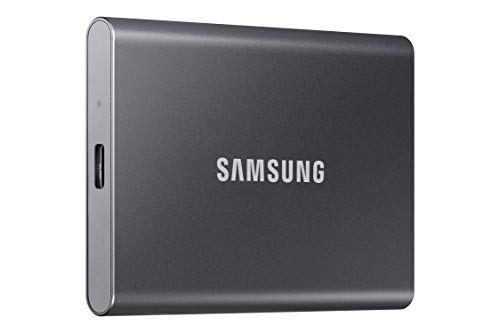
MADE FOR THE MAKERS: Create; Explore; Store; The T7 Portable SSD delivers fast speeds and durable features to back up any endeavor; Build your video editing empire, file your photographs or back up your blogs all in an instant
Manage Large Files and Downloads
While optimizing your MacBook’s storage, managing large files and downloads is essential for maintaining free space. A single video project, ZIP file, disk image, or app installer can use more storage than hundreds of documents.
Start by identifying and removing files that you no longer need. Here are some quick tips to help you manage effectively:
- Use Finder’s “Large Files” search feature to locate hefty items.
- Regularly check your Downloads folder for forgotten files.
- Move large media files to an external drive or cloud storage.
- Uninstall apps you rarely use, especially those with large footprints.
- Use a dedicated cleaning app to help identify and delete unnecessary files.
To search manually in Finder, open a Finder window, choose a folder such as Downloads or Documents, and sort files by size. You can also use Finder search filters to narrow results by kind, date, or size.
Pay close attention to old .dmg, .pkg, .zip, and video files. These files are easy to forget after installing software, extracting downloads, or finishing a project.
If you use a dedicated cleaning app, choose a trusted app and review every deletion before confirming it. Avoid tools that make dramatic promises, show scary warnings, or push you to delete system files you do not understand.
[Amazon Products Picked for You]

【Versatile Storage Expansion – For Gaming, Work & Everyday Use】 Running out of space on your PS5 or Xbox Series X/S? This external hard drive lets you store and play PS4 / Xbox One games directly, instantly freeing up your console’s internal storage for next‑gen titles. At the same time, it handles work file backups, media libraries, and cross‑device data transfers with ease. One drive, all your needs. *(Note: PS5 / Xbox Series X|S games cannot be run or stored directly from the external hard drive. However, by offloading your PS4 / Xbox One games, you can free up valuable space for newer titles.)*

Ultra fast data transfers: the external hard drive works with USB 3.0 thickened copper cable to provide super fast transfer speeds. Theoretical read speed is as high as 110MB/s-133MB/s and write speed is as high as 103MB/s.

All-in-One Design: 1TB external hard drive, multi-port hub and SD/TF card reader combine to provide ample storage and comprehensive connectivity in a single device for seamless multi-device connectivity to enhance your productivity.
Move Photos, Videos, and Project Files Safely
Photos, videos, music libraries, design files, and editing projects often take up the most space. Instead of deleting them quickly, move them safely so you can keep your memories and work files.
You can use iCloud Photos, another cloud storage service, or an external SSD or hard drive. Before deleting local files, open the destination and confirm that the files copied correctly.
For Photos, avoid dragging random files out of the Photos Library package unless you know what you are doing. Use the Photos app’s export options or move the entire Photos Library carefully if you want to store it on an external drive.
Note: Cloud storage and external drives are not the same as a complete backup. Keep a separate backup of important files before deleting the only local copy.
[Amazon Products Picked for You]

Capacity Display Variance: 1TB external ssd often appears as around 931GB on Windows. MacOS can show full 1 TB capacity. This is binary calculation difference and doesn’t affect SSD hard drive actual physical storage
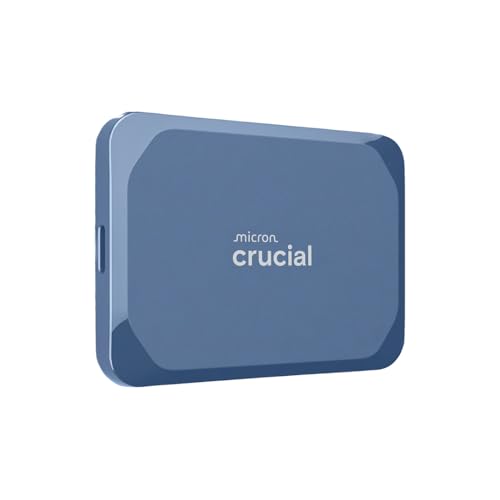
Ultra-fast Speeds: Designed for creators, students and PC gamers, this matte blue external SSD delivers fast data access with up to 2,100MB/s read speeds. Unlike a hard drive, SSDs offer significantly faster performance

Capacity Display Variance: 250GB external ssd often appears as around 232GB on Windows. MacOS can show full 250 GB capacity. This is binary calculation difference and doesn’t affect SSD hard drive actual physical storage
Empty Trash and Restart Your MacBook
After you delete apps, downloads, or large files, open the Trash and review what is inside. Restore anything you still need, then empty the Trash to actually reclaim the space.
Next, restart your MacBook. A restart can clear some temporary files, close background processes, and help macOS update the storage reading. If your available space does not change right away, give macOS time to recalculate storage categories.
You should also check the Trash inside some apps. Photos, Mail, and cloud-sync tools may keep deleted items in their own recently deleted or trash areas before removing them fully.
Avoid Risky System Cleanups
When storage is low, it can be tempting to delete anything labeled cache, logs, system, or library. Be careful. Some of those files help macOS and your apps run correctly.
Do not manually delete files from /System, /Library, or hidden folders unless you understand exactly what they are. Removing the wrong file can cause app errors, missing settings, or startup problems.
Instead, use the safer steps first: remove unused apps, clean Downloads, review large documents, move media, empty Trash, and restart. These steps usually reclaim space without putting your system at risk.
Related Guides
Frequently Asked Questions
How can I find duplicate files on my MacBook?
You can find duplicate files by using Finder to sort folders by name, size, kind, or date, then reviewing matching files manually. The Photos app may also show duplicate photos in supported macOS versions. For large libraries, a trusted duplicate-file app can be faster, but review matches before deleting anything.
What cloud storage options are best for MacBook users?
iCloud Drive is the most seamless option for many MacBook users because it works closely with macOS, Desktop, Documents, Photos, and Messages. Google Drive, Dropbox, and OneDrive are also useful if you share files across different devices, teams, or platforms.
Can I store my photos on an external drive?
Yes, you can store photos on an external drive. Export photos from the Photos app, or carefully move your Photos Library to a properly formatted external drive. Always confirm the library opens correctly from the new location before deleting local copies.
How do I delete system junk files safely?
The safest approach is to use macOS Storage settings, uninstall unused apps properly, delete old downloads, empty app trash folders, and restart your MacBook. Avoid manually deleting system folders, hidden library folders, or cache files unless you know exactly what they control.
Do temporary files affect my MacBook’s performance?
Temporary files can take up storage, and very low free space can make your MacBook feel slower. macOS manages many temporary files on its own, but restarting your Mac, deleting old downloads, and keeping enough free space can help your system run more smoothly.
Why does System Data take up so much space on my MacBook?
System Data can include caches, logs, app support files, local snapshots, temporary files, and other macOS-managed data. It may shrink after you restart, update apps, remove large files, or give macOS time to recalculate storage. Do not delete system files manually just to reduce this number.
How much free space should I keep on my MacBook?
Try to keep enough free space for updates, downloads, app work files, and normal macOS activity. If your MacBook regularly warns that storage is almost full, remove large files or move media before performance problems appear.
Conclusion
By clearing out unused applications, optimizing your storage settings, managing large files, and moving bulky media safely, you can reclaim space on your MacBook without creating extra risk. Think of it like organizing a cluttered closet: start with the obvious items, keep what matters, and remove what no longer serves you.
Use macOS Storage settings as your first stop, then review Downloads, apps, photos, videos, and duplicate files. Once you empty the Trash and restart your MacBook, you should have more room for updates, projects, and the files that truly matter.
