
Last updated: July 20, 2026
Disclosure: This guide includes affiliate links. If you buy through these links, I may earn a commission at no extra cost to you. As an Amazon Associate I earn from qualifying purchases.
Setting up the Canon MegaTank G3270 is straightforward when you follow the correct order. You install the two print heads, fill the GI-21 ink tanks, let the printer finish its initial ink preparation, load paper, connect it to your network, and complete automatic print head alignment.
This updated guide also corrects an important point from the earlier version: there is no separate “small release button” inside the print-head carriage. You open the print-head locking cover by lifting the raised knob on the cover itself.
Quick Answer
To set up the Canon MegaTank G3270, remove all packing material, turn on the printer, lift the print-head locking cover by its raised knob, install the color print head on the left and the black print head on the right, fill all four GI-21 tanks to the upper limit lines, let the printer complete its initial adjustment, load plain paper, connect to Wi-Fi, and run automatic print head alignment.
Important correction: Do not search for a small release button inside the carriage. The G3270 does not use a separate button for this step. Wait until the print-head holder stops moving, then grasp the raised knob on the print-head locking cover and lift the cover.
Key Takeaways
- There is no separate small carriage-release button.
- Install the print heads before filling the ink tanks.
- The color print head goes on the left, and the black print head goes on the right.
- Fill each tank with the matching GI-21 color up to the upper limit line.
- Do not interrupt initial ink preparation, cleaning, or alignment.
- The current mobile app is called Canon PRINT. It was previously named Canon PRINT Inkjet/SELPHY.
What’s in This Article
- Canon G3270 setup at a glance
- What’s in the box
- Prepare and power on the printer
- Install the print heads correctly
- Fill the GI-21 ink tanks
- Load paper
- Connect the G3270 to Wi-Fi
- Run automatic print head alignment
- Use nozzle check and cleaning tools
- Troubleshoot common setup problems
- Frequently asked questions
Canon G3270 Setup at a Glance
| Typical setup time | About 30 to 60 minutes, depending on network setup and alignment |
| Difficulty | Beginner-friendly |
| Ink | Canon GI-21 pigment black and GI-21 dye-based cyan, magenta, and yellow |
| Print heads | CH-20 color head on the left and BH-20 black head on the right |
| Connection options | Wi-Fi, Wireless Direct, or Hi-Speed USB. The G3270 does not include Ethernet networking. |
| Paper for alignment | One clean sheet of A4 or Letter-size plain paper |
What’s in the Box? 📦
Canon lists the following items in the G3270 box:
- Canon PIXMA MegaTank G3270 Wireless All-in-One printer (Check Price on Amazon)
- A set of GI-21 ink bottles: pigment black, cyan, magenta, and yellow
- Two print heads
- Power cord
- Setup documentation
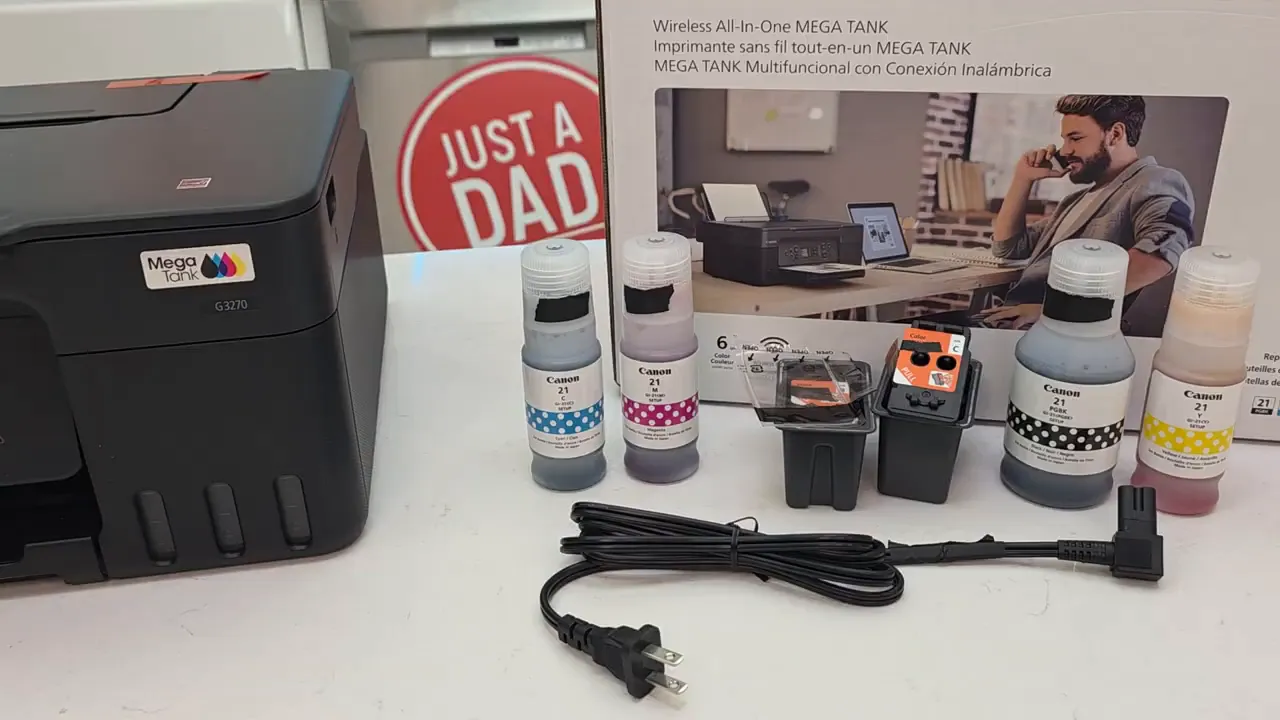
Note: Keep the packaging until setup is complete. The power cord, print heads, or paperwork can sit inside separate cardboard sections. A USB cable is not part of Canon’s listed box contents, so you may need a standard USB printer cable if you plan to use a direct wired computer connection.
Step 1: Place the Printer and Remove All Packing Material 🛠️
Place the printer on a firm, level surface. Leave enough space behind it for the rear paper tray and enough space in front for the output tray. Keep the printer upright. Do not place it on its side because ink can leak after the tanks have been filled.
Remove every piece of orange tape, protective film, cardboard, and packing material from the outside and inside of the printer. Check the display, rear tray, output area, scanning unit, and print-head area.
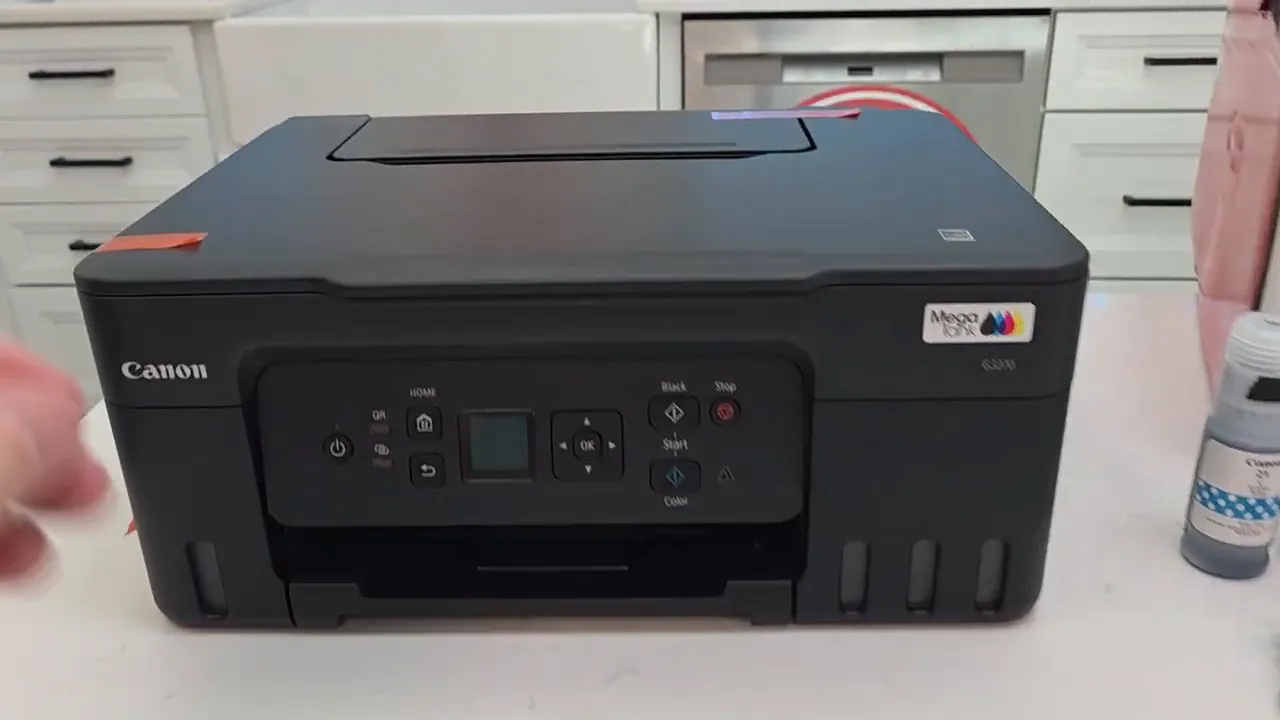
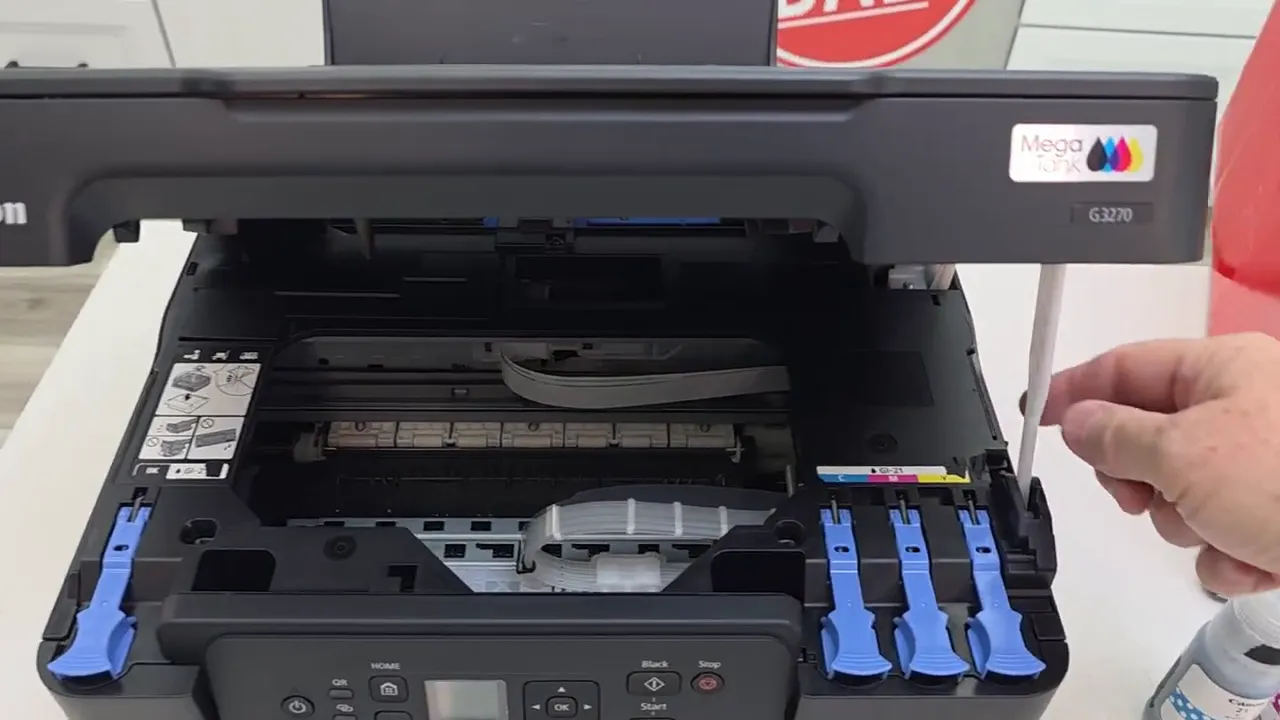
To reach the print-head and ink-tank area, lift the entire scanning unit/cover. Do not confuse this with only lifting the thin document cover used for scanning originals. Raise the scanning unit gently and use its built-in support position.
Before turning the printer on: Look again for hidden orange tape or packing pieces. A missed piece can block the print-head holder or cause a setup error.
Step 2: Connect Power and Start the Printer 🔌
Insert the power cord firmly into the power connector on the back of the printer, then connect it to a suitable wall outlet. The nearby rectangular printer port is the Hi-Speed USB connection. The printer supports USB and wireless networking, but it does not have an Ethernet port.
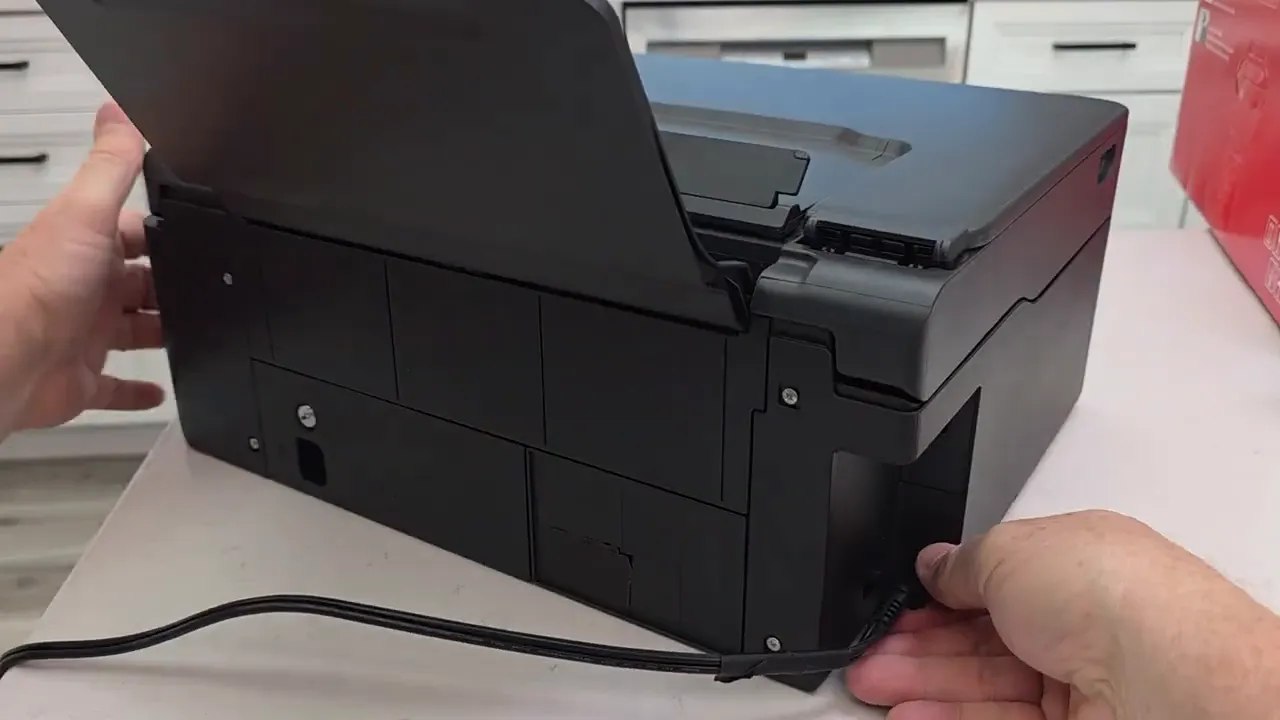
Press the power button. Follow the LCD prompts to choose your language and begin setup. You can leave automatic firmware updates enabled so the printer can receive supported fixes and updates.
Warning: Do not unplug the printer while it is moving the print-head holder, preparing ink, cleaning, updating, or aligning the print heads. Wait until the current process finishes.
Step 3: Install the Print Heads Correctly 🔩
The G3270 uses two user-replaceable print heads: the CH-20 color print head and the BH-20 black print head. Install both heads before you fill the ink tanks.
Where is the “small button”?
There is no separate small release button inside the carriage. After the holder moves into the installation position and stops, use the raised knob on the print-head locking cover. Lift that cover to access the two print-head slots.
- Make sure the printer is on, then open the scanning unit/cover.
- Wait for the print-head holder to move into position and stop completely.
- Do not push, pull, or manually slide the holder while it is moving.
- Grasp the raised knob on the print-head locking cover and lift the cover. Do not look for a separate release switch.
- Remove the print heads from their protective packaging. Hold each head by its sides.
- Do not touch the gold electrical contacts, print-head nozzles, ink tubes, or metal parts inside the printer.
- Place the color print head in the left holder.
- Place the black print head in the right holder.
- Check that both heads sit flat and fully inside their holders.
- Lower the print-head locking cover and press it down firmly until it clicks into place.

The print heads should sit securely without rocking. Never twist or force them. If the locking cover does not close, remove the heads and check their position instead of applying extra pressure.
If the holder moves away: Close the scanning unit/cover, wait a moment, and reopen it. Canon notes that the holder may move if the cover stays open for too long.
Step 4: Fill the GI-21 Ink Tanks 🧪
The G3270 uses Canon GI-21 ink. The black bottle contains pigment-based black ink, while cyan, magenta, and yellow use dye-based ink. Each bottle tip is shaped to match the correct tank, which helps prevent color mistakes.
- Keep the printer upright and open the scanning unit/cover.
- Open the cap for the tank you are filling.
- Hold the matching ink bottle upright and gently remove its cap. Do not shake the bottle.
- Align the bottle tip with the matching tank inlet.
- Turn the bottle upside down slowly and insert it into the inlet. Support the bottle with your hand.
- Let the tank fill. You do not need to squeeze the bottle.
- For the initial fill, use the correct included bottle and fill the tank to the upper limit line.
- When the ink reaches the upper limit line, lift and remove the bottle slowly.
- Close the tank cap fully and store any remaining ink upright with its bottle cap secured.
- Repeat the process for black, cyan, magenta, and yellow. A specific color order is not required, but every bottle must match its tank.
Genuine ink links for reorders: GI-21 Pigment Black, GI-21 Cyan, GI-21 Magenta, and GI-21 Yellow.
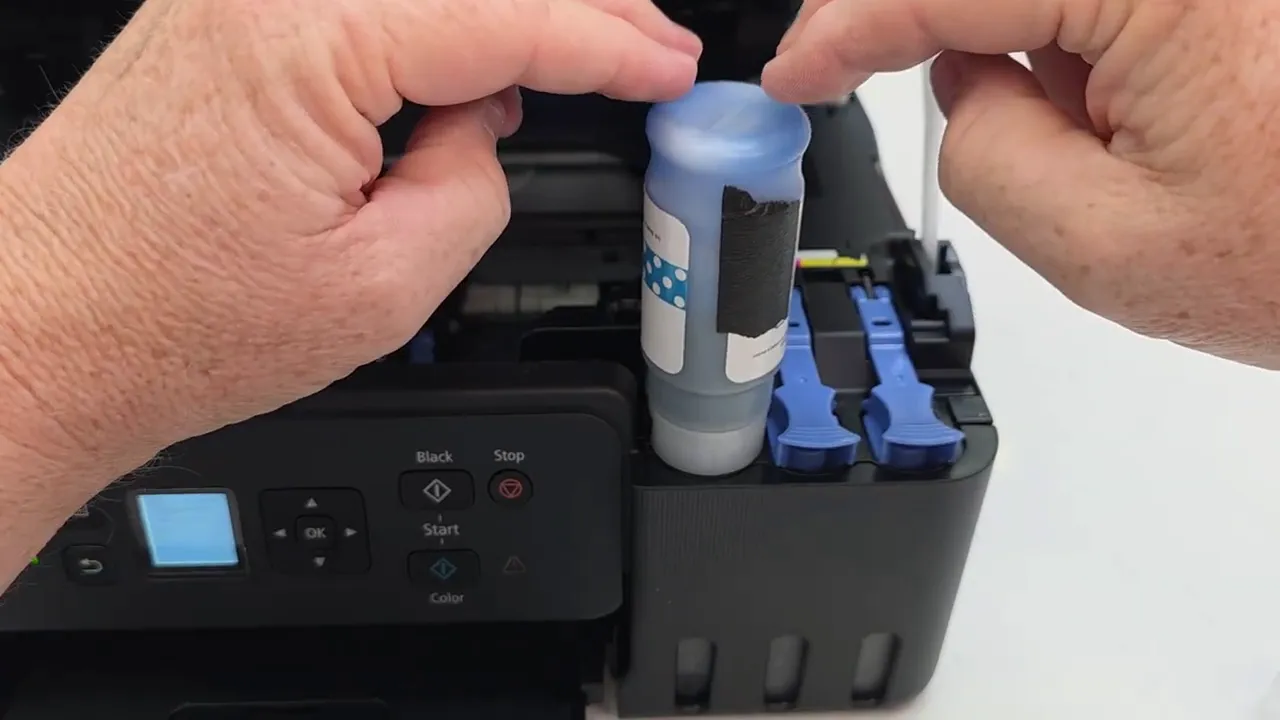
Pro Tip: Keep each bottle upright until you are ready to insert it. Once it is seated in the keyed inlet, allow the tank system to draw the ink. If ink does not flow, remove the bottle slowly and reseat it. Do not force or squeeze it.
Ink safety: Keep ink away from children, eyes, skin, clothing, and furniture. Do not drink it, mix colors, add water, or transfer ink to another container.
Step 5: Close the Covers and Let the Printer Initialize ⏳
After installing the print heads and filling all four tanks, close every tank cap. Then lower the scanning unit/cover gently. The printer will begin its initial adjustments and move ink through the system.
Your LCD may show a message such as “Performing initial adjustments” with an estimated wait time. The tested printer showed about six minutes, but the exact time can vary. Follow the message on your own display.
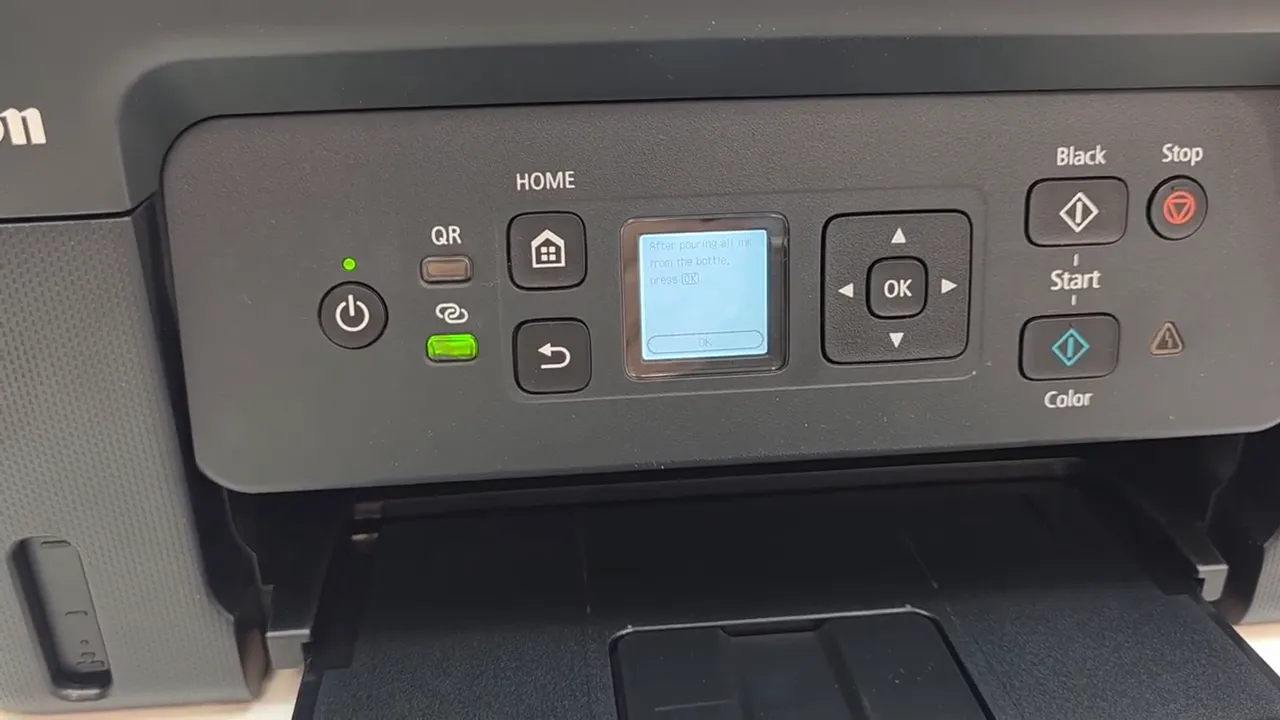
During this process, you may hear the print-head holder and pumps moving. This is normal. Do not open the cover, press the power button, unplug the printer, or start another setup task until the process is complete.
Step 6: Load Plain Paper in the Rear Tray 🖨️
Use clean A4 or Letter-size plain paper for setup, the nozzle check, and automatic alignment.
- Open the rear paper support and extend it as needed.
- Open the feed-slot cover if it is closed.
- Move the paper guides outward.
- Load the paper in portrait orientation with the printable side facing you.
- Slide the guides inward until they touch the paper edges without bending the sheets.
- Close the feed-slot cover if the printer instructs you to do so.
- Pull out the paper output tray.
- Confirm the paper size and media type on the LCD when prompted.
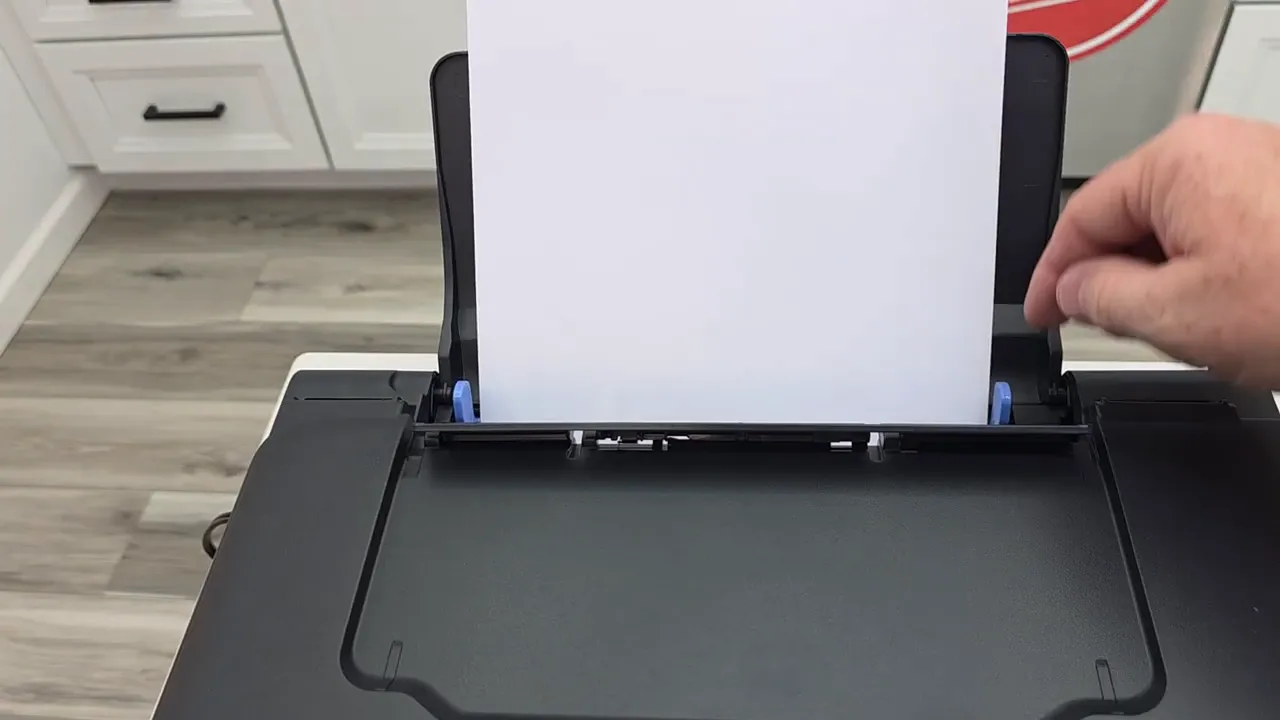
For automatic print head alignment, one clean sheet is enough. Avoid wrinkled, curled, damp, or previously printed paper because the scanner may not read the alignment pattern correctly.
Step 7: Connect the Canon G3270 to Wi-Fi 📶
The G3270 supports Wi-Fi on compatible 2.4 GHz and 5 GHz networks, Wireless Direct, and Hi-Speed USB. Manual connection is useful when you want to select the network directly from the printer.
Method 1: Manual Wi-Fi connection from the printer
- Press the Home button.
- Use the up or down arrow to select Settings, then press OK.
- Select LAN settings, then press OK.
- Select Wi-Fi, then press OK.
- Select Wi-Fi setup, then press OK.
- Select Manual connect.
- Choose your wireless network name, also called the SSID.
- Enter the Wi-Fi password with the arrow and OK buttons.
- Confirm the entry and wait for the connection message.
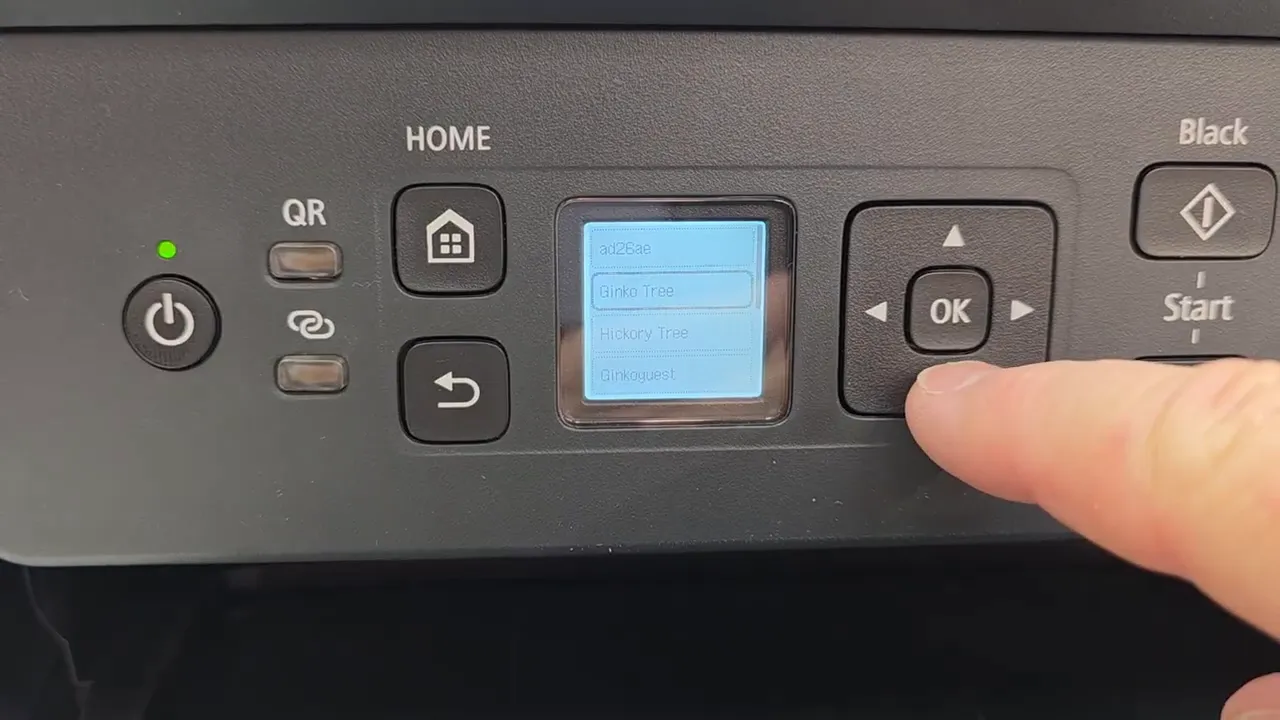
After the connection succeeds, check for the Wi-Fi status icon on the Home screen. Your computer or mobile device should normally be connected to the same router network when you add the printer.
Method 2: Easy Wireless Connect
Easy Wireless Connect lets a computer or phone send the router information to the printer.
- Turn on the printer and wait until it is idle.
- Press and hold the Wireless connect button at the lower-left of the operation panel for about three seconds.
- Wait for the printer to display the Easy Wireless Connect message.
- Return to the Canon setup software on your computer or the Canon PRINT app on your phone.
- Follow the on-screen instructions to finish connecting the printer.
App name update: Canon’s mobile app is now called Canon PRINT. Older instructions may call it Canon PRINT Inkjet/SELPHY. It is the same app line under the newer name.
Method 3: Wireless Direct
Wireless Direct connects a phone, tablet, or computer directly to the printer without using your router. This can help when a normal Wi-Fi network is unavailable, but your device may temporarily lose its usual internet connection while connected directly to the printer.
From the printer, go to Home > Settings > LAN settings > Wireless Direct, then follow the LCD instructions. Use the displayed network name and password on your device.
Step 8: Run Automatic Print Head Alignment ✅
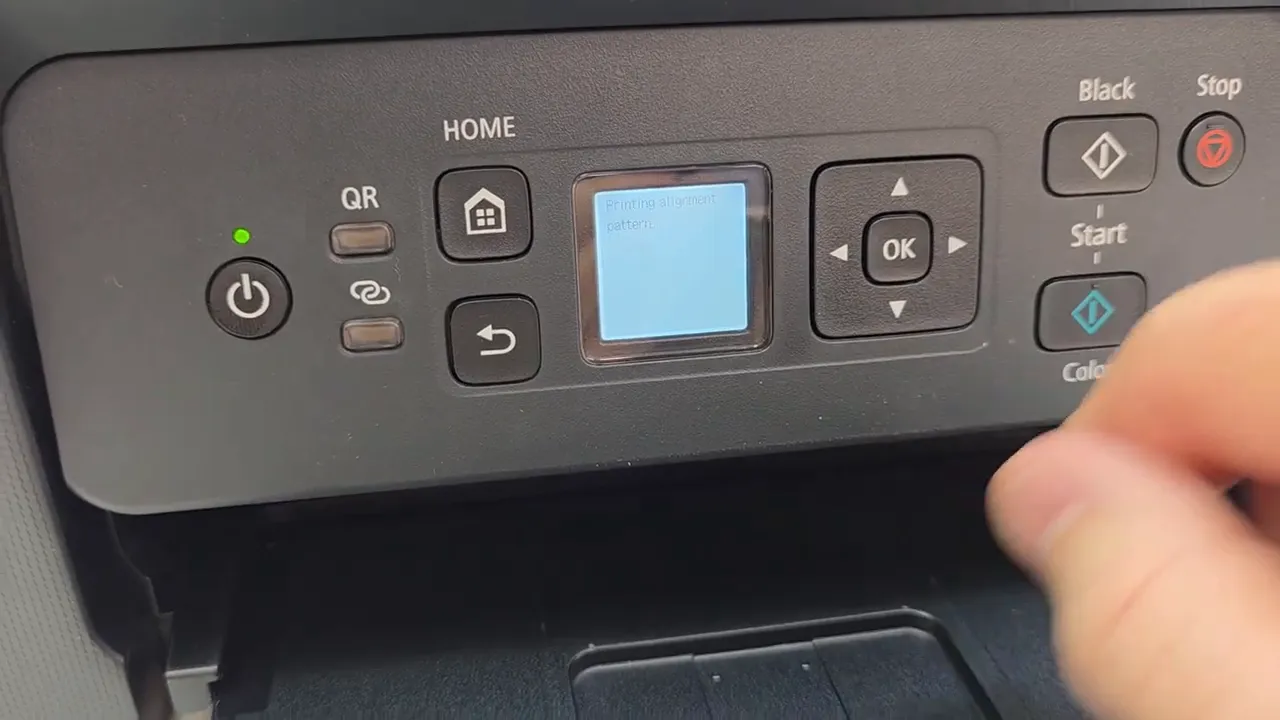
Run alignment if the printer requests it during setup or if lines look misaligned. Canon calls the menu option Print Head Alignment – Auto.
- Make sure the printer is on.
- Load one clean sheet of A4 or Letter-size plain paper in the rear tray.
- From the Home screen, select Maintenance.
- Select Print Head Alignment – Auto.
- Select Yes, then press OK.
- Wait for the printer to print the alignment sheet.
- Do not touch, stain, fold, or wrinkle the printed pattern.
- Place the sheet on the scanner glass with the printed side facing down.
- Align the mark at the upper-left corner of the sheet with the alignment mark beside the scanner glass.
- Close the document cover gently and press OK.
- Do not move the sheet or open the cover while scanning is in progress.
- When the completion message appears, select OK and remove the sheet.
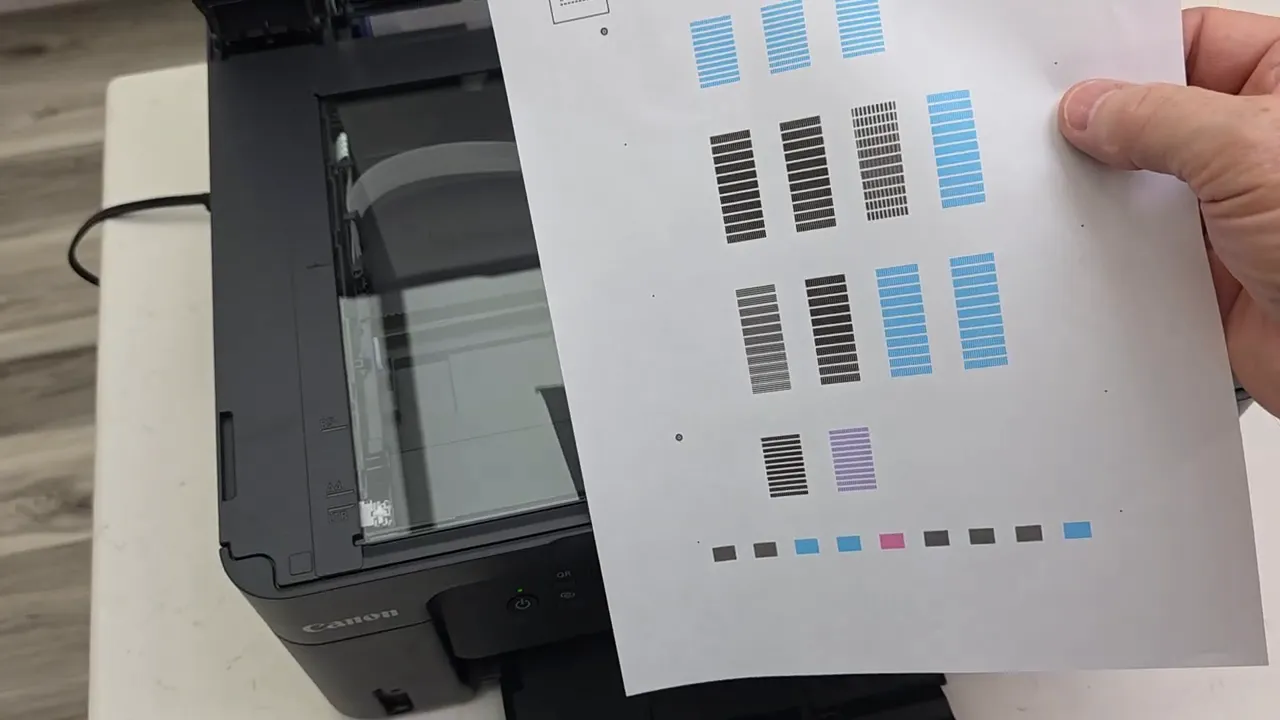
If automatic alignment fails, use a clean, unwrinkled sheet and confirm that it is face down in the correct corner. Also check that the scanner glass is clean.
Quick Maintenance: Nozzle Check, Cleaning, and Deep Cleaning 🧰
Use maintenance tools only when print quality needs attention. Cleaning consumes ink, and deeper procedures consume more.
Recommended maintenance order
- Print a nozzle check: Go to Home > Maintenance > Nozzle Check. Load one sheet of A4 or Letter-size plain paper, select Yes, and press OK.
- Examine the pattern: Look for missing lines, white horizontal streaks, or uneven color blocks.
- Run Cleaning: Use standard cleaning if the pattern is not correct, then print another nozzle check.
- Repeat standard Cleaning once if needed: Canon’s maintenance flow allows you to repeat the normal cleaning and recheck the pattern before moving to deep cleaning.
- Run Deep Cleaning: Use this only when normal cleaning does not solve the problem. It uses more ink and takes about three minutes.
- Wait more than 24 hours if needed: If deep cleaning does not help, turn off the printer and perform deep cleaning again after more than 24 hours.
- Use Replace Ink in Print Head only as a later step: This process consumes a large amount of ink and uses space in the maintenance cartridge. Follow the LCD and Canon manual carefully.
- Check print-head installation or replacement last: If the problem remains, reseat the heads or replace the correct head after confirming the fault.
Do not over-clean: Running several deep cleanings back to back wastes ink and may fill the maintenance cartridge faster. Follow the maintenance order instead.
Useful Setup Tips 💡
- Install both print heads before adding ink.
- Use the raised knob on the locking cover. Do not search for a separate carriage-release button.
- Keep the printer level after filling the tanks.
- Fill each tank with the matching color up to the upper limit line during initial setup.
- Do not shake or squeeze the GI-21 bottles.
- Wait for every printer process to finish before opening a cover or starting another task.
- Use the current Canon PRINT app for phone setup, printing, and scanning.
- Keep your router network name and password ready before manual Wi-Fi setup.
- Print a nozzle check before running repeated cleaning cycles.
- Check ink levels through the clear tank windows. Do not keep printing with ink below the lower limit line.
How the MegaTank System Differs From Cartridges 🧾
The G3270 uses built-in refillable ink tanks instead of small disposable cartridges. The black tank uses pigment ink for text, while the three color tanks use dye ink. You can check the approximate ink level through the front tank windows.
- Main benefit: You refill larger tanks from bottles instead of replacing small cartridges often.
- Setup difference: You install separate print heads and fill the tanks before the first use.
- Maintenance difference: Cleaning and ink-replacement procedures send used ink into a replaceable maintenance cartridge.
- Important habit: Keep the printer level and refill a tank when the ink approaches the lower limit line.
Canon lists the print heads and maintenance cartridge as user-replaceable parts. This can make long-term maintenance easier, but you should run the built-in maintenance steps before replacing a part.
Connect a MacBook, Windows Computer, Chromebook, or Phone 💻
MacBook or Mac
- Connect the printer and Mac to the same Wi-Fi network.
- Open System Settings > Printers & Scanners.
- Select Add Printer, Scanner, or Fax.
- Choose the Canon G3270 when it appears.
- Use AirPrint when it is offered, or install the current Canon software from the official G3270 support page if you need Canon-specific scanning or maintenance tools.
Windows computer
Use Canon’s current G3270 setup package or Windows printer settings. During Easy Wireless Connect, follow the Canon installer and do not connect a USB cable unless the installer asks for it.
iPhone, iPad, or Android
Install the current Canon PRINT app from the official app store. The app can help with wireless setup, printing, scanning, and checking supported printer information. Apple AirPrint and Mopria Print Service are also supported for compatible devices.
Chromebook
Connect the Chromebook and printer to the same network, then add the printer from ChromeOS printer settings. The G3270 is listed by Canon as Chromebook compatible.
Troubleshooting Common Canon G3270 Setup Problems 🛟
- I cannot find the small release button: There is no separate button. Wait for the holder to stop, then lift the print-head locking cover with its raised knob.
- The print-head holder moved away: Close the scanning unit/cover, wait, and reopen it. Do not pull the holder by hand.
- The locking cover will not click: Remove both heads and reinstall them in the correct positions. Color goes left and black goes right. Make sure each head sits flat.
- The printer does not recognize a print head: Turn off the printer only after it becomes idle, then reseat the head. Avoid touching the contacts and nozzles. Confirm that you installed BH-20 black and CH-20 color heads.
- Ink does not flow from a bottle: Confirm that the bottle color matches the tank and that the bottle is fully seated. Remove it slowly and insert it again. Do not squeeze it.
- The printer stays on initial adjustment: Give it time and follow the LCD. Do not unplug it during ink preparation. If an error appears, record the exact error code and use Canon’s G3270 support page.
- Wi-Fi setup cannot find the network: Confirm that the router is on, the network name is broadcasting, and the printer is within range. Restart the router and printer, then try Manual connect or Easy Wireless Connect again.
- The Wi-Fi password keeps failing: Check uppercase letters, lowercase letters, numbers, and symbols carefully. The small LCD can make character entry slow.
- The printer is connected, but the computer cannot find it: Confirm that both devices are on the same network. Remove and re-add the printer, or run Canon’s setup software again.
- Wireless Direct works, but the internet stops on my phone: This can happen because the phone is connected directly to the printer instead of the router. Reconnect the phone to your normal Wi-Fi network after printing.
- Prints have missing lines or streaks: Print a nozzle check, run standard Cleaning, check again, and move to Deep Cleaning only if the normal process does not solve the issue.
- Alignment scanning fails: Use one clean A4 or Letter-size sheet, place it printed-side down, align the upper-left marks, close the document cover, and do not move the sheet during scanning.
- Paper does not feed: Reload it in portrait orientation, adjust the guides, remove curled sheets, and clean the paper feed rollers only when necessary.
Related Guides
Frequently Asked Questions
Where is the small button that releases the print-head carriage?
There is no separate small release button. Wait until the print-head holder moves into position and stops. Then grasp the raised knob on the print-head locking cover and lift the cover. Do not force or manually slide the carriage.
Which side does each Canon G3270 print head go on?
Install the CH-20 color print head in the left holder and the BH-20 black print head in the right holder. Lower the locking cover and press it down until it clicks.
What ink does the Canon G3270 use?
The Canon G3270 uses GI-21 pigment black ink and GI-21 dye-based cyan, magenta, and yellow ink. Match each bottle to the correct tank and fill to the upper limit line during initial setup.
Do I squeeze the GI-21 ink bottle?
No. Insert the matching bottle into the keyed tank inlet and support it while the ink flows. If it does not begin filling, remove the bottle slowly and reseat it. Do not shake or squeeze it.
How long does initial ink preparation take?
The printer shows an estimated time on its LCD. The unit used for this guide showed about six minutes, but your time may differ. Do not interrupt the printer while it is performing the initial adjustment.
What is the current Canon mobile app called?
The current app is called Canon PRINT. It was previously named Canon PRINT Inkjet/SELPHY. Use the official Canon app listing for setup, printing, and scanning on supported phones and printers.
Does the Canon G3270 support 5 GHz Wi-Fi?
Canon lists the G3270 with compatible 2.4 GHz and 5 GHz wireless LAN support. Available channels and 5 GHz use can vary by country, region, and router settings. Try a 2.4 GHz network if setup on 5 GHz fails.
Can I use USB instead of Wi-Fi?
Yes. The printer has a Hi-Speed USB port. Canon’s in-box list does not include a USB cable, so you may need a separate standard USB printer cable. The G3270 does not have an Ethernet port.
Can I replace the print heads?
Yes. Canon identifies the BH-20 as the black replacement head and the CH-20 as the color replacement head for the G3270. First run the recommended nozzle check and cleaning sequence. Replace a head only when maintenance and correct reseating do not solve the problem. You can also view replacement options here: Check Price on Amazon.
How often should I run deep cleaning?
Run deep cleaning only when a nozzle check and standard cleaning do not fix missing lines or streaks. Deep cleaning uses more ink. Do not run repeated deep cleanings without following Canon’s maintenance sequence.
Official Canon Resources
- Canon G3270 setup guide
- Canon G3070 series online manual used for the G3270 family
- Canon G3270 support, software, drivers, manuals, and wireless help
- Official Canon PRINT app information
Final Thoughts 🏁
The Canon MegaTank G3270 setup is manageable when you follow the correct order and avoid forcing the moving parts. The most important correction is simple: there is no separate small release button inside the carriage. Use the raised knob on the print-head locking cover, install the color head on the left and black head on the right, and press the cover down until it clicks.
After that, fill every GI-21 tank to its upper limit line, let the printer finish preparing the ink, connect it by Wi-Fi or USB, and run automatic alignment. For printer details or current availability, see the Canon MegaTank G3270 on Amazon.
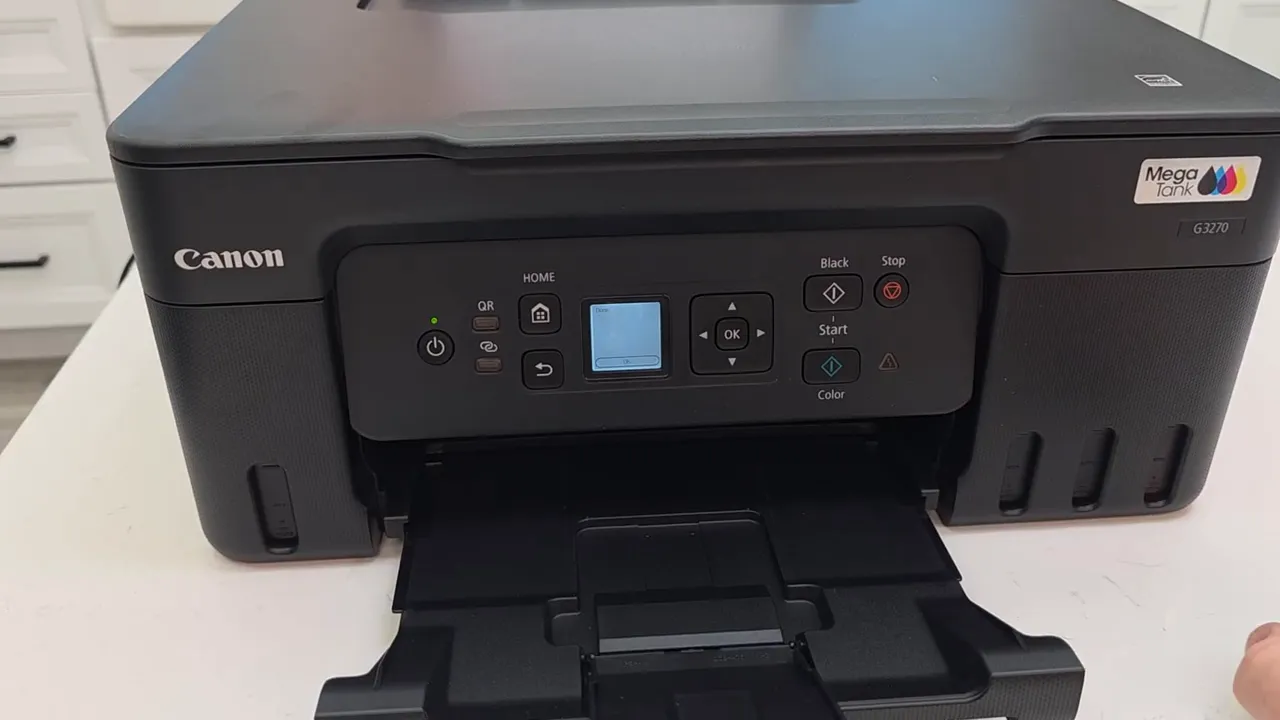
Once the setup is complete, print a nozzle check if anything looks uneven. Start with standard cleaning and use deeper maintenance only when needed. This approach protects your ink supply and gives you a clearer path when troubleshooting.

where is the “small button” to release inside the carriage?? I CAN NOT FIND one???
Thank you for pointing that out, Barbara. You’re correct. There is no separate “small button” inside the carriage.
Wait until the print-head carriage moves into position and stops completely. Then look for the raised knob or tab on the print-head locking cover. Lift the locking cover using that knob, install the color print head on the left and the black print head on the right, then press the cover down firmly until it clicks into place.
Please don’t force or manually move the carriage while it is moving. I apologize for the confusing wording. I’ve corrected the instructions in the article.