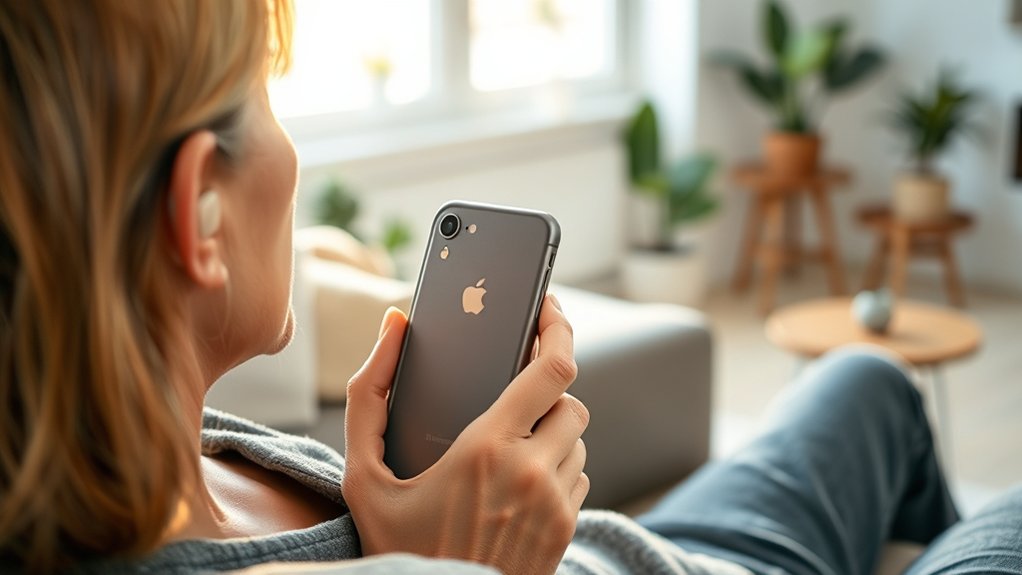
Phonak hearing aids offer broad iPhone compatibility, making it possible to stream calls, music, podcasts, and other audio directly to supported models. Hearing aids such as the Phonak Audéo Lumity L90-R use Bluetooth to connect without a separate streaming accessory. However, pairing for phone audio and pairing for the myPhonak app can work differently depending on your hearing aid generation.
Quick Answer
Most Bluetooth-enabled Phonak hearing aids work with iPhones for wireless calls and audio streaming. Pair compatible models through Settings > Bluetooth, then connect the myPhonak app if needed. Lumity and Paradise models generally use separate app and audio connections, while Infinio Ultra and newer models support combined setup through myPhonak.
Key Takeaways
- Bluetooth audio and myPhonak app control use different connection methods on earlier hearing aid generations.
- Pairing mode normally remains available for three minutes after restarting compatible Phonak hearing aids.
- Infinio, Lumity, and Paradise models can remember up to eight Bluetooth devices and maintain two active Bluetooth Classic connections.
- A newer iPhone does not automatically guarantee better hearing aid performance. Software, firmware, fitting, and connection settings also matter.
- If basic troubleshooting fails, an audiologist can check hearing aid firmware, fitting, and wireless functionality.
Understanding iPhone Compatibility With Phonak Hearing Aids
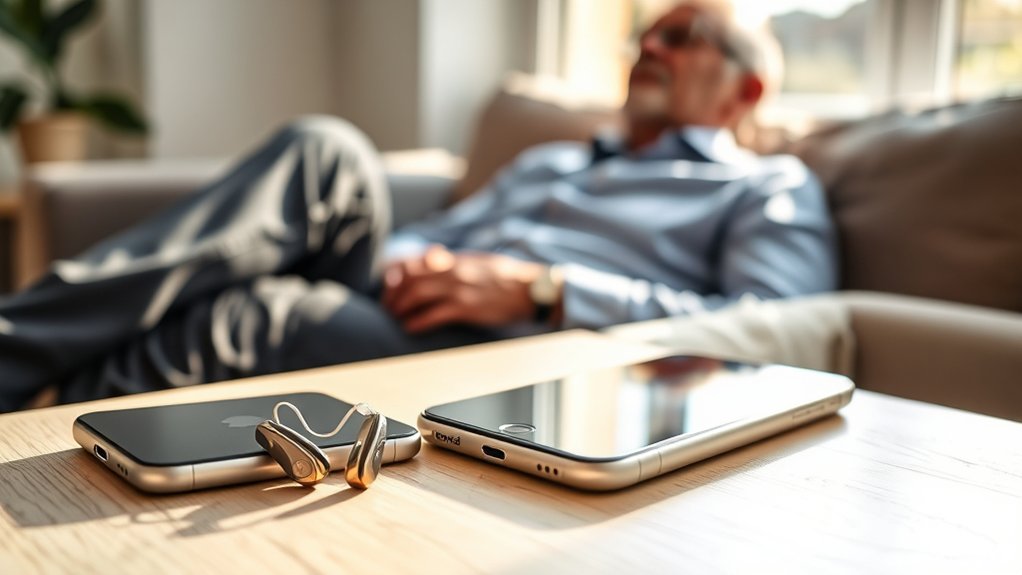
Phonak hearing aids connect to iPhones through standard Bluetooth technology. This differs from hearing aids designed specifically around Apple’s Made for iPhone (MFi) system. Phonak’s approach, often called Made for All connectivity, supports compatible iPhones and many Android phones.
According to Phonak’s official phone compatibility requirements, wireless calls and media streaming use Bluetooth Classic audio profiles. These include HFP for phone calls and A2DP for music and other media.
The myPhonak app uses Bluetooth Low Energy (LE) instead. Phonak’s current compatibility guidance specifies iOS 16 or newer for the app, although requirements can differ between older app versions and hearing aid generations.
Which Phonak Models Work With iPhones?
Several Phonak families support direct iPhone audio streaming and app controls. These include compatible models from the following generations:
- Phonak Lumity: Includes Audéo L models such as the Audéo L90-R. Supports Bluetooth streaming, hands-free calling, and myPhonak controls.
- Phonak Paradise: Supports wireless audio, phone calls, and compatible app features.
- Phonak Infinio: Offers Bluetooth streaming and app connectivity, with setup behavior depending on the installed platform and firmware.
- Phonak Infinio Ultra and newer: Supports pairing through myPhonak that also sets up calls and streaming.
- Phonak Marvel: Supports direct Bluetooth streaming on compatible models but has more limited simultaneous device connectivity.
Not every Phonak hearing aid supports the same features. The exact product model matters more than the brand name alone.
For example, a pair of Lumity hearing aids may connect normally to an iPhone even though the phone displays only one hearing aid entry for audio streaming. This is expected behavior rather than a missing connection.
Do iPhone 15, 16, and 17 Models Work With Phonak?
These iPhone generations support the standard Bluetooth functions used by compatible Phonak hearing aids. However, successful operation also depends on your hearing aid model, firmware, and iOS version.
Some users report reliable connections with iPhone 15 and iPhone 17 devices. Others describe intermittent Bluetooth problems with iPhone 16 or older phones. These individual experiences do not establish that one iPhone generation is consistently better for every Phonak model.
Before replacing a working phone, test calls, music streaming, and myPhonak controls with your own hearing aids.
Key Features of Phonak Hearing Aids for iPhone Users
Compatible Phonak hearing aids can provide wireless phone calls, direct audio streaming, personalized listening programs, and connections to multiple devices. The available features depend on the hearing aid generation and its individual capabilities.
Bluetooth Connectivity for Calls and Music
Phonak hearing aids can stream sound from an iPhone without requiring an external Bluetooth receiver. This allows you to listen to phone calls, music, podcasts, and videos through your hearing aids.
With compatible hands-free models, the hearing aid microphones can also pick up your voice during calls. This means you may be able to speak without holding the iPhone next to your ear.
For two hearing aids fitted together, a single Bluetooth Classic audio pairing can deliver sound to both ears.
Another advantage is support for multiple paired devices. According to Phonak’s Bluetooth connection limits:
- Phonak Infinio, Lumity, and Paradise can pair with up to eight Bluetooth devices, with up to two connected simultaneously.
- Phonak Marvel supports pairing with up to two Bluetooth devices, with one active connection at a time.
This is helpful if you frequently switch between your iPhone, tablet, or computer. However, maintaining two connections does not mean both devices can play audio simultaneously.
Customizable Audio Settings
The myPhonak app provides personal controls for compatible hearing aids. You can adjust listening settings without visiting your hearing care professional for every small change.
Depending on your model, available features may include:
- Adjusting overall hearing aid volume.
- Changing individual left and right volume settings.
- Switching between listening programs.
- Adjusting bass, middle, and treble frequencies.
- Saving personalized sound settings as custom programs.
- Adjusting compatible noise reduction and speech-focus features.
Phonak’s automatic sound processing, known as AutoSense OS, can also respond to changing listening environments. It adjusts supported hearing aid functions as you move between quieter and noisier places.
The app’s controls are not a substitute for professional hearing aid fitting. Your audiologist establishes the underlying settings based on your hearing needs.
How to Successfully Pair Your Phonak Hearing Aids With an iPhone
To connect compatible Phonak hearing aids to an iPhone, enable Bluetooth, restart the hearing aids, and select the correct device name. For Lumity, Paradise, and similar earlier generations, this establishes the connection used for phone calls and streaming.
The following steps follow Phonak’s official iPhone Bluetooth pairing instructions.
Step 1: Enable Bluetooth on Your iPhone
- Open the Settings app on your iPhone.
- Select Bluetooth.
- Turn Bluetooth on.
- Keep the Bluetooth settings screen open while you prepare the hearing aids.
Step 2: Restart Your Hearing Aids
Restarting compatible Phonak hearing aids activates Bluetooth pairing mode.
For rechargeable hearing aids:
- Place the hearing aids in their powered charger for at least 10 seconds.
- Remove them from the charger.
- Confirm that the hearing aids have turned on. Compatible models normally display a green indicator.
Alternatively, compatible rechargeable models can be restarted using their buttons. Press and hold the lower part of the button until the indicator turns red, then press it again until the indicator turns green.
For hearing aids with replaceable batteries:
- Open the battery doors.
- Leave them open for five seconds.
- Close the battery doors to restart the hearing aids.
These procedures apply to compatible models. Use your specific hearing aid instructions if the controls or indicator lights differ.
Step 3: Select Your Hearing Aid in Bluetooth Settings
- Return to Settings > Bluetooth on your iPhone.
- Look under the available Bluetooth devices.
- Find an entry such as R-Phonak hearing aid or L-Phonak hearing aid. Your audiologist may have assigned a personalized name.
- Tap the hearing aid entry to connect.
- Listen for the confirmation beep.
Compatible hearing aids normally remain discoverable for three minutes after restarting. If you miss this pairing window, restart them again.
You do not need to pair the right hearing aid first. Select the Bluetooth Classic audio entry that appears for your fitted hearing aid system.
Step 4: Test Calls and Streaming
After pairing, play a short audio clip or make a test call. Check whether sound reaches the hearing aids and whether the caller can hear your voice.
If you wear two hearing aids, audio should normally stream to both when they are properly fitted and paired as a set.
The iPhone may display several Phonak entries. Their meanings differ:
| Bluetooth Entry | What It Means |
|---|---|
| R-Phonak or L-Phonak | On earlier generations, this is typically the Bluetooth Classic connection for calls and audio streaming. |
| LE_R-Phonak or LE_L-Phonak | On earlier generations, these Bluetooth Low Energy connections allow the myPhonak app to communicate with each hearing aid. |
| Two Phonak entries on newer models | Infinio Ultra and newer hearing aids use a different pairing arrangement. Two entries can be normal after myPhonak setup. |
On earlier generations, the LE entries may show “Not Connected” when the app is closed. This does not necessarily mean anything is wrong.
Step 5: Connect Your Hearing Aids to myPhonak
Audio streaming and app controls are separate Bluetooth functions on many earlier Phonak models.
- Install myPhonak from the iPhone App Store.
- Make sure the iPhone has an internet connection and Bluetooth is enabled.
- Open myPhonak and complete its initial setup.
- Select Pair hearing aids.
- Restart the hearing aids when the app requests pairing mode.
- Wait for both hearing aids to appear if you use a pair.
- Tap Pair and accept the Bluetooth pairing requests for each hearing aid.
Phonak’s myPhonak pairing instructions explain one key difference: Infinio Ultra and newer devices establish streaming and calling during app pairing. Earlier generations may need an additional audio pairing step.
For earlier models, myPhonak may offer “See instructions” or “Optional settings” to complete audio streaming setup.
Common Pairing Issues and Solutions
Most Phonak and iPhone connection problems involve Bluetooth settings, an expired pairing window, competing devices, or separate audio and app connections. Try simple fixes first before removing saved Bluetooth pairings.
Phonak Hearing Aids Do Not Appear in Bluetooth
If the iPhone cannot detect your hearing aids, confirm that they are powered on and in pairing mode.
- Check the hearing aid battery level or charger connection.
- Turn Bluetooth off and back on in iPhone Settings.
- Restart the hearing aids to reactivate pairing mode.
- Keep the hearing aids near the iPhone.
- Temporarily disconnect another nearby phone or computer that may be connected to them.
- Restart the iPhone if the hearing aids still do not appear.
Remember that pairing mode lasts for a limited time. Restarting the aids again is usually easier than repeatedly searching after the pairing window has closed.
Connected to Bluetooth but No Audio Is Playing
If the hearing aids appear connected but sound still comes from the iPhone speaker, the wrong audio destination may be selected.
Try playing music, then open the iPhone audio output controls and select your Phonak hearing aids if they appear as an available destination.
During a phone call, tap the Audio control on the call screen and select the hearing aids. Check the call volume while audio is streaming.
You can also review Apple’s Call Audio Routing settings under Settings > Accessibility > Touch > Call Audio Routing.
myPhonak Shows Disconnected
If calls and music work but myPhonak cannot connect, the Bluetooth Classic connection may be fine while the app’s Bluetooth Low Energy connection needs attention.
Close and reopen myPhonak. If that does not help, restart the hearing aids and iPhone.
For persistent problems, Phonak recommends a full pairing reset:
- Open Settings > Bluetooth on your iPhone.
- Tap the information icon beside each Phonak entry.
- Choose Forget This Device for all relevant Phonak connections.
- Open myPhonak and go to Devices.
- Open the device information or Product Information screen and select Forget my devices.
- Return to the app’s Home screen and follow its pairing instructions again.
These steps follow Phonak’s iPhone connection recovery guidance. The number of Bluetooth entries to remove depends on your hearing aid generation.
Warning: Forgetting Bluetooth devices removes their saved connections. You must pair them again afterward. Do not remove unrelated Bluetooth accessories, and follow your specific hearing aid’s instructions if the app menus differ.
Only One Hearing Aid Connects
If only one hearing aid appears for audio streaming, that can be normal on older Phonak models. One Bluetooth Classic connection can carry sound to both fitted hearing aids.
However, if myPhonak detects only one hearing aid instead of both, restart the pair and repeat the app pairing process.
If the problem continues, both hearing aids may need a firmware check or professional fitting review. Hearing aids that are not properly fitted together may fail to connect as a pair within the app.
The Caller Cannot Hear You Clearly
Compatible Phonak hearing aids use their microphones to capture your voice during hands-free calls. Background noise, blocked microphone openings, or incorrect audio routing can make your voice difficult to hear.
Try moving to a quieter location and confirming that the call audio is routed through the intended device. Inspect the hearing aid microphone openings for visible debris and clean them according to the manufacturer’s instructions.
Phonak’s phone microphone troubleshooting guidance also recommends switching the call back to the iPhone when necessary.
If the caller hears you clearly using the iPhone microphone but not the hearing aid microphones, the hearing aids or their microphone settings may need attention.
User Experiences: Success Stories and Challenges
Phonak hearing aid users report a mix of successful iPhone connections and occasional problems. Many find direct streaming convenient, while others experience dropouts, app disconnections, or unclear phone calls.
These experiences can vary even when two people use the same iPhone generation.
What Users Appreciate
- Receiving phone calls directly through their hearing aids.
- Listening to music and podcasts without additional streaming hardware.
- Adjusting hearing aid volume and programs from an iPhone.
- Connecting hearing aids to more than one Bluetooth device.
- Using automatic sound adjustments in changing environments.
Challenges Users Describe
- Bluetooth connections that stop working after an iOS or app update.
- Hearing aids appearing in Bluetooth settings but failing to stream audio.
- Only one hearing aid appearing inside myPhonak.
- Distorted or unclear sound in noisy environments.
- Difficulty switching between connected devices.
Some community reports suggest that newer iPhones, including the iPhone 15 and 17, connect reliably with certain Phonak hearing aids. Other reports describe trouble with older iPhones or specific iPhone 16 setups.
However, these reports are not controlled compatibility tests. They should not be treated as evidence that one iPhone model has consistently better Bluetooth performance.
A more useful comparison is whether your particular hearing aids can complete three tasks: stream media, handle calls, and connect to the app.
Pro Tip: When testing a new iPhone, try a phone call, a music stream, and a myPhonak adjustment separately. This makes it easier to identify whether a problem affects audio streaming, microphone performance, or app communication.
Things to Consider Before Upgrading Your iPhone
Upgrading your iPhone may improve overall phone performance, but it is not a guaranteed fix for Phonak connectivity problems. Confirm that your hearing aids, app, and required Bluetooth features will work together before making a purchase.
Check Your Exact Hearing Aid Model
Phonak Lumity, Paradise, Marvel, and Infinio hearing aids do not all use identical Bluetooth connection methods.
Identify your exact hearing aid model and note whether your primary needs are direct phone calls, music streaming, or myPhonak controls.
Review iOS and App Compatibility
Your iPhone must support the required Bluetooth functions and operating system for the myPhonak app.
For example, Bluetooth calling may continue to work on a phone even when its operating system no longer meets the current myPhonak app requirements.
This is why phone compatibility and app compatibility should be checked separately.
Test the New Phone Before Switching Completely
If possible, pair your hearing aids with the replacement iPhone before you erase or trade in the old one.
Check the following:
- Can you answer a call and hear the caller clearly?
- Can the caller hear your voice?
- Does music play through both hearing aids?
- Can myPhonak detect and adjust both hearing aids?
- Can you switch between your other Bluetooth devices when needed?
Also confirm whether your hearing aids need an available firmware update. This can prevent unnecessary troubleshooting after switching phones.
The myPhonak App: Enhancing Your Connectivity Experience
The myPhonak app gives compatible Phonak hearing aid users greater control over everyday listening. It provides adjustments for volume, programs, and selected sound features directly from an iPhone.
According to the official myPhonak app information, available controls depend on the hearing aid model and its fitted features.
Useful myPhonak Features
- Volume control: Adjust how loudly your hearing aids reproduce sounds.
- Personalized programs: Save or modify supported listening profiles for different environments.
- Sound adjustments: Change available bass, middle, treble, and speech-related controls.
- Battery monitoring: View battery information for compatible rechargeable models.
- Remote Support: Connect with your hearing care professional for eligible remote services.
- Health features: Access supported wearing-time and activity information on qualifying devices.
- Connection management: Manage supported app connections and available streaming preferences.
Some users also receive notifications about eligible firmware updates. Other updates may require an appointment with a hearing care professional.
Why App Pairing and Audio Pairing Can Behave Differently
On Lumity, Paradise, and other earlier generations, myPhonak communicates using Bluetooth Low Energy. Phone calls and music use Bluetooth Classic.
Because these connections operate separately, it is possible for the app to work while phone audio fails, or for streaming to work while the app appears disconnected.
For Infinio Ultra and newer Phonak generations, the pairing process has been simplified. Connecting through myPhonak also establishes the supported call and audio functions.
Understanding this difference helps prevent unnecessary device resets.
Alternative Hearing Aids That Work Well With iPhones
Phonak is not the only hearing aid manufacturer offering direct iPhone connectivity. Several other brands use Apple’s Made for iPhone system to support wireless audio streaming and compatible hearing aid controls.
Apple maintains an official list of Made for iPhone hearing devices, including models from Starkey, Oticon, ReSound, and Signia.
Examples include:
- Starkey Livio AI: An MFi-compatible hearing aid family offering direct iPhone audio integration and dedicated app features.
- Oticon Opn S: Supports Made for iPhone audio streaming and compatible hearing aid controls.
- ReSound ONE: Provides direct iPhone streaming through the MFi system on compatible devices.
- Signia Pure Charge&Go: Includes rechargeable hearing aid models with iPhone connectivity, although supported Bluetooth functions vary by generation.
- Phonak Paradise: An alternative within Phonak’s own range, offering standard Bluetooth connectivity with iPhones and compatible Android devices.
Made for iPhone hearing aids, including compatible Starkey Livio AI and Oticon Opn S models, use Apple’s hearing device connection system for direct streaming.
How MFi Hearing Aids Differ From Phonak
Many MFi hearing aids are paired through Settings > Accessibility > Hearing Devices on an iPhone. They use Apple’s hearing device system for supported streaming and accessibility controls.
Phonak hearing aids using Bluetooth Classic are generally paired through Settings > Bluetooth instead.
This difference matters when following setup guides. Instructions written for MFi hearing aids may not apply to your Phonak model.
Also, MFi compatibility does not guarantee that every hearing aid supports the same type of hands-free calling. Some models offer one-way audio streaming, while others support two-way communication.
The right hearing aid depends on your hearing needs, professional fitting, desired features, and device compatibility rather than Bluetooth support alone.
Note: A hearing care professional can help compare hearing aids based on your hearing test, comfort, speech understanding, and communication needs. Smartphone compatibility is useful, but it should not be the only factor in choosing a hearing aid.
Staying Updated: Importance of Firmware and Software Updates
iPhone software, the myPhonak app, and hearing aid firmware can all affect Bluetooth performance. Keeping these components compatible can reduce connection problems and help maintain supported features.
Firmware is the software built into the hearing aids themselves. It controls device functions that may include wireless communication and sound processing.
What Should You Update?
- iPhone software: Install appropriate iOS updates that address bugs, security, and compatibility issues.
- myPhonak: Keep the app updated through the App Store.
- Hearing aid firmware: Check whether your particular devices have an applicable firmware update.
- Paired hearing aid firmware: Make sure both hearing aids have compatible firmware when they are fitted together.
Phonak’s one-sided app connection troubleshooting guidance specifically recommends checking hearing aid firmware with a hearing care professional when connection problems persist.
Firmware updates can fix existing problems or add supported functions, but they are not a guaranteed solution for every Bluetooth issue.
Some eligible hearing aids support firmware updates through myPhonak. Other models or updates require professional fitting equipment.
If your hearing aids repeatedly disconnect after a phone update, document when the issue occurs and which function fails. This information can help your audiologist identify the cause.
Frequently Asked Questions
What Is the Best Phone for Someone Using a Phonak Hearing Aid?
There is no single best iPhone for every Phonak hearing aid. Models such as the iPhone 15 and 17 support the Bluetooth features used by compatible Phonak hearing aids. Choose based on your exact hearing aid model, supported iOS version, and successful testing of calls, music, and myPhonak.
What iPhone Settings Affect Hearing Aid Use?
Bluetooth, audio output selection, Call Audio Routing, and iOS software can affect Phonak hearing aid use. Most Bluetooth Classic Phonak models pair through Settings > Bluetooth. Apple’s Accessibility > Hearing Devices menu is primarily intended for compatible Made for iPhone hearing devices.
Which Phonak Model Is Considered the Best?
The best Phonak hearing aid depends on your hearing needs rather than one model ranking. Lumity models, including Audéo L90-R, offer speech-focused features and Bluetooth connectivity. Newer Infinio devices provide additional options, so an audiologist should compare their benefits for your specific hearing loss.
How to Connect Phonak to a New iPhone?
Enable Bluetooth on the new iPhone, restart your hearing aids, and select the correct Phonak entry under Settings > Bluetooth. For earlier Phonak generations, connect the myPhonak app separately if needed. Infinio Ultra and newer models can establish streaming and calls during myPhonak setup.
Why Does My iPhone Show Three Phonak Bluetooth Devices?
Three Bluetooth entries can be normal for earlier Phonak hearing aid generations. One entry handles calls and audio streaming, while two Bluetooth Low Energy entries connect the hearing aids to myPhonak. Infinio Ultra and newer models use a different pairing arrangement and may display two entries instead.
Conclusion
Phonak hearing aids can work well with iPhones for direct calls, audio streaming, and personalized listening controls. The most important step is understanding how your specific hearing aid generation connects to Bluetooth and myPhonak.
If you experience connection issues, test audio streaming and app controls separately before resetting the devices. Keep compatible software and firmware maintained, and contact your hearing care professional if problems continue.
Sources
- Phonak: Bluetooth Compatibility: Bluetooth audio profiles and myPhonak phone requirements.
- Phonak: Pairing Hearing Aids With iPhone: Restart procedures, pairing window, device selection, and confirmation.
- Phonak: Bluetooth Device Connection Limits: Differences between Infinio, Lumity, Paradise, and Marvel connections.
- Phonak: Connecting Rechargeable Hearing Aids to myPhonak: App pairing and generation-specific streaming setup.
- Phonak: myPhonak App: Remote controls, personalized sound programs, and supported features.
- Phonak: Repairing myPhonak Connections on iPhone: Bluetooth and app connection troubleshooting.
- Phonak: iPhone Call Microphone Troubleshooting: Voice pickup, microphone maintenance, and call routing.
- Apple Support: Route and Automatically Answer Calls: iPhone Call Audio Routing settings.
- Apple Support: List of Made for iPhone Hearing Devices: Compatible hearing aid models and streaming capabilities.
- Phonak: Why Only One Hearing Aid Connects: Firmware consistency, Bluetooth troubleshooting, and professional support.