
Adjusting the audio in your Toyota RAV4 usually takes only a few minutes, but the exact controls depend on the model year and multimedia system. You can change the main volume with the dashboard knob or steering-wheel buttons, then use the sound menu to adjust tone, balance, fade, and Automatic Sound Levelizer settings when available.
Quick Answer
Use the PWR/VOL knob or steering-wheel volume buttons for immediate changes. For detailed tuning, park the vehicle and open the multimedia settings. Look for Sound, Audio, or Sound & Media, then adjust bass, midrange, treble, balance, fade, and ASL. Menu names and available controls vary by model year.
Key Takeaways
- Use the volume knob or steering-wheel buttons for fast adjustments while keeping your attention on the road.
- Start with bass, midrange, treble, balance, and fade centered before making small changes.
- Automatic Sound Levelizer settings may appear as Off, Low, Mid, and High or as a simple On/Off option.
- If only Bluetooth, CarPlay, Android Auto, or one app sounds weak, check the connected phone and that specific source first.
- Use the manual for your exact RAV4 model year because Toyota multimedia menus and features differ between systems.
At a Glance
| Time Required | 5 to 10 minutes |
| Difficulty | Easy |
| Tools Needed | Multimedia controls, your connected phone if applicable, and the manual for your model year |
| Cost | No cost for normal adjustments |
Warning: Park in a safe location before opening multimedia menus, pairing a phone, testing multiple settings, or resetting the system. Adjusting a stereo or entertainment system while moving can distract you from driving.
Identify Your RAV4 Multimedia System First
Toyota RAV4 audio controls vary by model year, trim, market, display, and audio package. Older vehicles may use an Entune-style interface with physical MENU and AUDIO buttons. Newer vehicles may use Toyota Audio Multimedia with settings shown mainly on the touchscreen.
Before following a menu path, confirm your RAV4’s model year and look at the buttons surrounding the display. You can also use Toyota’s owner’s manual selector to find instructions for your exact vehicle.
Note: A setting mentioned in another RAV4 owner’s guide may not appear on your screen. Missing controls do not always indicate a fault. Your system may use a different name, offer fewer adjustment levels, or omit the feature.
[Amazon Products Picked for You]
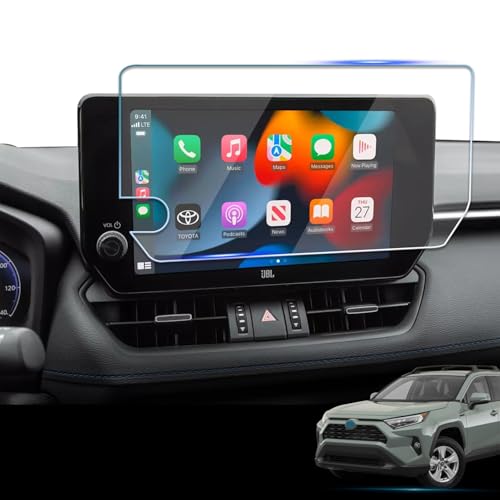
【Fit For】 The screen protector is fit for 2023-2025 RAV4 Limited/TRD Off-Road/XSE/Adventure/XLE Premium.Compatible with 10.5 inch multimedia screen.

【Fit For】 The screen protector is fit for 2023-2025 RAV4 LE/XLE/Adventure/XLE Premium/SE/Woodland Edition.Compatible with 8 inch multimedia screen.
Understand the Automatic Sound Levelizer
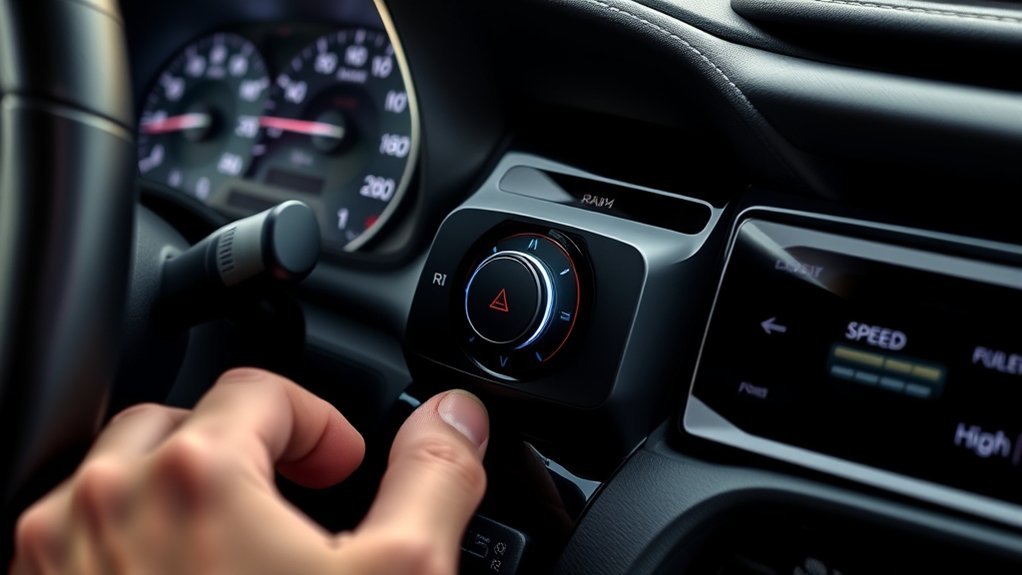
The Automatic Sound Levelizer, commonly shortened to ASL, is designed to compensate for changes in road and vehicle noise. As the driving environment becomes louder, the system may change the amount of audio compensation so music, speech, and other media remain easier to hear.
Depending on the installed system, you may see settings such as:
- Off: Disables automatic compensation.
- Low: Applies a small amount of compensation.
- Mid or Medium: Applies a moderate amount.
- High: Applies the strongest available compensation.
- On/Off only: Some systems do not provide separate intensity levels.
ASL is not the same as a fixed volume increase. Its effect may be gradual and more noticeable when road, tire, and wind noise change. The result can also depend on the current source, recording level, audio package, and cabin conditions.
The best ASL setting is the lowest level that keeps speech and music clear without making volume changes feel distracting.
How to Adjust Toyota RAV4 Audio Settings
[Amazon Products Picked for You]

【Applicable Not Fit JBL】】The car stereo is compatible with Original Factory Style Car radio For Toyota RAV4 2007 2008 2009 2010 2011 2012;If your original car audio system has J-B-L sound system,you need buy extra J-B-L harness.Please check the year, dimensions and shape of the center console of your vehicles before purchasing. If you are not sure, you can send messages or picture to us, we will give you advice.

【Applicable Car Models】This car radio is custom-fit for Toyota RAV4 models from 2013 to 2018, matching the factory dashboard style. No dashboard modifications are needed for installation. To ensure proper fit, please confirm your vehicle's model year, dashboard dimensions, and center console shape before purchasing. Unsure about fit? Send us a center console photo.

Plug and Play Radio Upgrade for RAV4: Custom-design radio replacement for Toyota RAV4 2013 2014 2015 2016 2017 2018,equipped with a Large 10 Inches QLED Touch Screen,the car stereo transfer the outdated radio into a modern look,this android head unit retains OEM functions like steering wheel control,radio etc.(Please send us your stock radio picture for checking if it will fit)
1. Use the Main Volume Controls
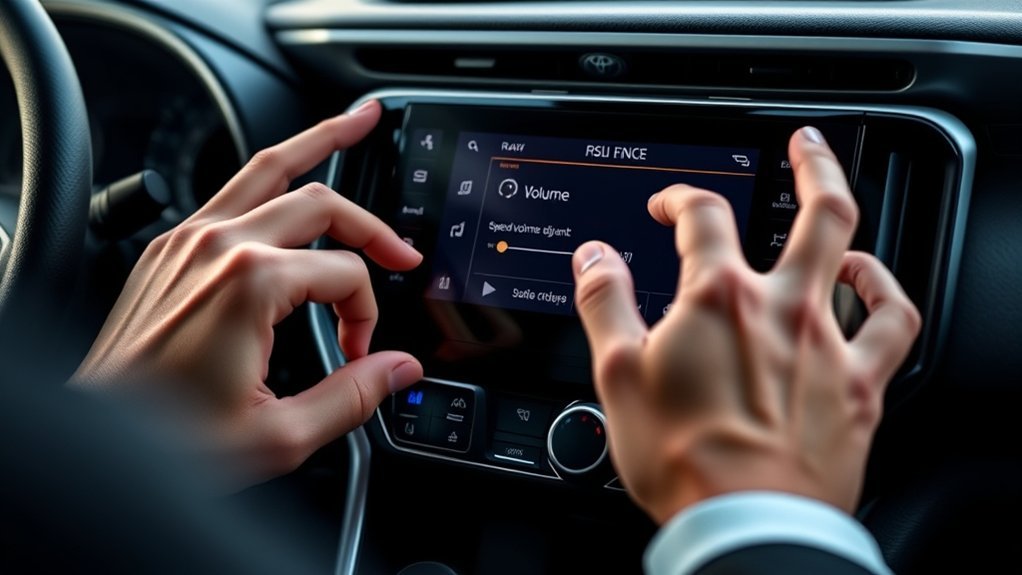
Turn the PWR/VOL knob to raise or lower the main audio level. Most equipped RAV4s also have volume-up and volume-down controls on the steering wheel. These physical controls are the simplest option when the vehicle is moving.
The selected volume may apply differently to music, phone calls, navigation prompts, and voice-assistant responses. If one type of audio remains too quiet, play that audio first and adjust the volume while it is active.
2. Open the Sound Settings Menu
Park the vehicle, turn on the multimedia system, and select an audio source. Then open the settings menu and look for an option labeled Sound, Audio, Sound Settings, or Sound & Media.
Common paths include:
- Newer touchscreen systems: Settings, then Sound & Media or Sound.
- Older multimedia systems: MENU, Setup, Audio, and then Sound Settings.
- Audio-source screen: Options or a settings icon, followed by Sound.
These are common examples rather than universal paths. Follow the wording displayed by your system or consult the manual for your model year.
3. Start With a Neutral Baseline
Place bass, midrange, and treble at their center positions. Center the balance and fade controls as well. This neutral starting point helps you identify which adjustment improves the sound instead of stacking several changes at once.
Play a familiar track or spoken program at a moderate volume. Choose a clean recording without heavy equalization so you can hear each change more clearly.
4. Adjust Bass, Midrange, and Treble
- Bass: Controls lower frequencies such as kick drums and deep instruments. Reduce it if door panels buzz or voices sound muddy.
- Midrange: Affects vocals, dialogue, guitars, and many instruments. Raise it slightly when speech sounds recessed.
- Treble: Controls higher-frequency detail. Reduce it if cymbals, consonants, or road-noise hiss sound harsh.
Move one control by one or two steps, listen again, and then continue only if needed. Extreme equalizer settings can create distortion or make one type of content sound good while making another sound worse.
Pro Tip: For clearer podcasts and calls, keep bass near the center and raise midrange by one small step. For balanced music, begin with every tone control centered and add only a small amount of bass or treble.
5. Set Balance and Fade
Balance moves sound between the left and right sides. Fade moves it between the front and rear speakers. Keep both centered for normal listening unless you have a specific seating need.
If sound comes mainly from one door or one row, check these controls before assuming a speaker has failed. An accidental balance or fade change can make a working system appear defective.
6. Adjust the ASL Setting
Open the sound menu and locate ASL, Automatic Sound Levelizer, or an equivalent automatic-volume setting. Begin with Low or On. Use Mid or High only when road noise consistently masks the audio.
To compare settings safely:
- Choose one familiar song, podcast, or radio program.
- Set a comfortable volume while parked.
- Drive on a familiar route with ASL set to Off or its lowest level.
- Repeat the route later with a higher ASL setting.
- Compare speech clarity and whether the volume changes feel natural.
Have a passenger change settings during the comparison, or change them only after parking. Do not navigate through menus while driving.
Useful Starting Points for Different Audio
| Listening Goal | Suggested Starting Point |
| Balanced everyday sound | Center bass, midrange, treble, balance, and fade. Set ASL to Low or Off. |
| Podcasts and spoken audio | Keep bass centered or slightly lower. Raise midrange one step if voices lack clarity. |
| More impact for music | Raise bass one step and treble one step. Return either control toward center if distortion or harshness appears. |
| Frequent highway driving | Try ASL at Low or Mid. Avoid excessive bass, which can become less distinct under road noise. |
These settings are starting points, not required values. Speaker packages, hearing preferences, recordings, and cabin noise differ, so use the combination that remains clear without sounding harsh or distorted.
Troubleshoot Common Toyota RAV4 Audio Issues
[Amazon Products Picked for You]

EASY TO USE: The tester will automatically detect the pin position, the release time of the action, and the consistency of the relay in each test phase. If the tester lights up the green LED light, the relay is normal; if the red LED light is on, the relay is abnormal. USA Patented
Tone Generator and Speaker Polarity Tester

EASY TO USE: The tester will automatically detect the pin position, the release time of the action, and the consistency of the relay in each test phase. If the tester lights up the green LED light, the relay is normal; if the red LED light is on, the relay is abnormal. The relay puller makes it easy to remove the relays to be tested. USA Patented
Audio Is Too Quiet From Every Source
- Confirm that the main volume is not near its minimum.
- Center balance and fade.
- Turn ASL off temporarily to compare the result.
- Test AM/FM or another built-in source to rule out a connected-device issue.
- Check whether the problem affects every speaker or only one area.
If every source remains unusually quiet at a high displayed volume, the system may need diagnosis for a head-unit, amplifier, speaker, wiring, or power-supply problem.
Bluetooth Audio Is Too Low
Raise the phone’s media volume while Bluetooth music is playing. Phone-call volume and media volume are often controlled separately. Also check the streaming app for an equalizer, normalization, volume limit, or hearing-protection setting.
If the problem continues, disconnect and reconnect the phone. You can also remove the vehicle from the phone’s Bluetooth list and remove the phone from the Toyota system before pairing them again.
CarPlay or Android Auto Volume Is Inconsistent
Music, calls, voice-assistant replies, and navigation prompts may use separate volume levels. Adjust the volume while the quiet audio type is actively playing. For example, change the volume while a navigation prompt is speaking if only navigation instructions are too quiet.
Toyota provides model-dependent information for Bluetooth, Apple CarPlay, Android Auto, JBL, and Audio Multimedia features.
Only One Speaker or One Row Is Audible
Open the sound-position screen and center balance and fade. Test several sources. If the same speaker remains silent with every source and the position controls are centered, schedule an inspection.
Sound Is Distorted or Harsh
- Reduce bass and treble toward their center positions.
- Lower the main volume and compare another source.
- Turn off any equalizer or bass enhancement on the connected phone.
- Check whether loose objects in the doors or cargo area are vibrating.
- Test a clean recording rather than a heavily compressed or distorted track.
ASL Does Not Seem to Work
ASL changes can be subtle. Compare Off with the highest available setting using the same program and route. If you hear no useful difference, leave the feature off and use a comfortable fixed volume.
Do not assume the feature can be changed through an OBDII tool. Use only settings documented for your exact multimedia system or ask a Toyota service department to confirm the available customization.
The Screen Freezes or Audio Stops
- Switch to another source and then return to the original source.
- Disconnect the phone or USB device.
- Turn the multimedia system off and back on if your controls allow it.
- Park, turn off the vehicle, open the driver’s door, and restart the vehicle after a brief pause.
- Re-pair the connected phone if only wireless audio is affected.
A full multimedia reset should be a last step. Reset options vary, and they may remove paired phones, profiles, presets, and preferences. Check the exact owner’s manual before confirming a reset.
Next Steps for Resolving Audio Issues With Toyota Support
Contact Toyota or a dealer when the system has no sound from any source, repeatedly freezes, loses settings, shows persistent error messages, produces crackling from a specific speaker, or behaves differently after a repair or software update.
Before requesting help, record:
- Your RAV4’s model year, trim, and vehicle identification number.
- Whether the vehicle has the standard or JBL audio system.
- The affected source, such as radio, Bluetooth, USB, CarPlay, or Android Auto.
- The connected phone model and operating-system version.
- The sound and ASL settings you tested.
- Whether the problem occurs while parked, driving, or using a specific app.
- Any error message displayed on the screen.
You can use Toyota’s official contact and dealer resources or the Toyota Audio Multimedia support portal for additional assistance.
Frequently Asked Questions
Can I mute the audio without turning off the system?
It depends on the multimedia system. Some RAV4s can mute or pause audio through a steering-wheel MODE control or an onscreen pause button. Others require you to lower the volume or press the PWR/VOL control. Check the manual for your model year before assuming a dedicated mute function is available.
How do I return the sound settings to neutral?
Open the sound menu and move bass, midrange, treble, balance, and fade back to their center positions. This restores a neutral audio baseline without performing a full multimedia reset or deleting paired devices.
How do I reset the Toyota RAV4 multimedia system?
Reset procedures vary by model year and system. First try switching sources, disconnecting the phone, restarting the multimedia unit, or cycling the vehicle off and on while parked. Use a factory or personal-data reset only when your owner’s manual provides that option because it may erase profiles, paired phones, presets, and preferences.
Can I balance the sound between the speakers?
Yes, when your system includes balance and fade controls. Balance moves sound between the left and right sides, while fade moves it between the front and rear. Center both controls for normal listening or adjust them slightly for a particular seating position.
Can I use voice commands to adjust the volume?
Voice-command support varies by multimedia system, subscription, connected phone, and active interface. Apple CarPlay, Android Auto, or Toyota’s available assistant may control playback or media selection, but volume commands are not guaranteed on every RAV4. The knob and steering-wheel buttons are the dependable controls.
Does the RAV4 support external audio devices?
Equipped RAV4 models may support Bluetooth audio, USB media, Apple CarPlay, Android Auto, or a combination of these options. Availability and whether the connection is wired or wireless depend on the model year and installed multimedia system.
Why is my music loud but my navigation or calls are quiet?
The system may store separate levels for music, calls, navigation prompts, and voice-assistant responses. Adjust the volume while the quiet audio type is actively playing. Also check the phone’s call and media volumes if the sound comes through Bluetooth, CarPlay, or Android Auto.
Conclusion
You can improve your Toyota RAV4’s audio by starting with the physical volume controls, centering the tone and speaker-position settings, and then making small adjustments. Use ASL only when it improves clarity in changing road noise. If one source sounds wrong, troubleshoot that source and the connected device before resetting the entire system.
Because RAV4 multimedia systems differ by year and equipment, use your exact owner’s manual when a menu or control does not match this guide. Persistent silence, distortion, freezing, or a failed speaker should be inspected by Toyota support or a qualified service department.
Sources
- Toyota Manuals and Warranties — model-specific owner’s manuals and feature instructions.
- Toyota Audio Multimedia and Connected Services — Bluetooth, Apple CarPlay, Android Auto, JBL, and multimedia resources.
- Toyota Audio Multimedia Support — official help for multimedia and connected-service questions.
- Toyota Contact and Dealer Support — owner assistance, contact information, and dealer resources.
- National Highway Traffic Safety Administration: Distracted Driving — safety guidance concerning stereo, entertainment, and navigation distractions.
