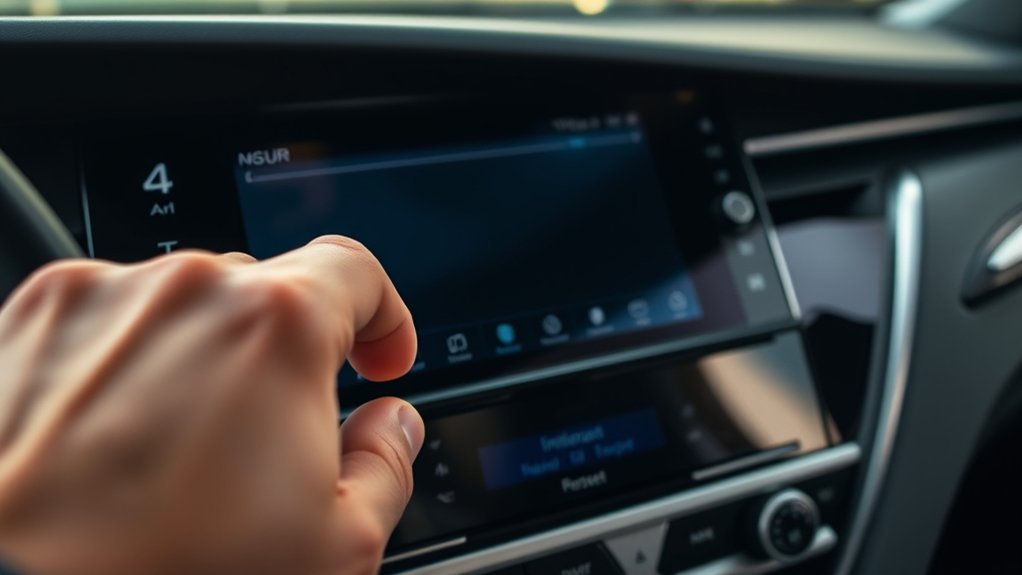
A frozen, slow, or disconnected Toyota Camry infotainment screen often needs only a restart—not a full factory reset. The correct method depends on the Camry’s model year, trim, market, and multimedia unit, so start with the least destructive option and use the exact multimedia manual for your vehicle before deleting personal data or touching the 12-volt battery.
Quick Answer
Park the Camry, leave the multimedia system on, and press and hold its physical power/volume knob until the screen switches off and the Toyota logo returns. If that does not work, use the on-screen reset option listed in your model-specific manual. Avoid disconnecting the 12-volt battery as a routine reset.
Key Takeaways
- Try a soft reboot before a factory reset; a reboot normally preserves paired phones, presets, and saved settings.
- “Meter settings” control the driver display on many Camrys and are not the same as the infotainment reset menu.
- Factory-reset labels and menu paths vary among older Entune units, Entune 3.0, and newer Toyota Audio Multimedia systems.
- A factory reset may erase phones, favorites, profiles, navigation destinations, and account information.
- Use a battery disconnect only when Toyota’s instructions for your exact vehicle or a qualified technician specifically calls for it.
At a Glance
| Time Required | About 2–5 minutes for a soft reboot; 10–20 minutes for a factory reset and setup |
| Difficulty | Easy for software resets |
| Tools Needed | No tools; the multimedia owner’s manual for the exact model year is recommended |
| Cost | Usually $0 for a reboot or menu reset; diagnosis or hardware repair may cost extra |
Warning: Do not reset the screen, pair a phone, or change detailed settings while driving. If the rear-view camera image is blank, frozen, or distorted, do not rely on the display; check the surroundings directly and arrange service promptly.
How to Reset Your Toyota Camry Infotainment System
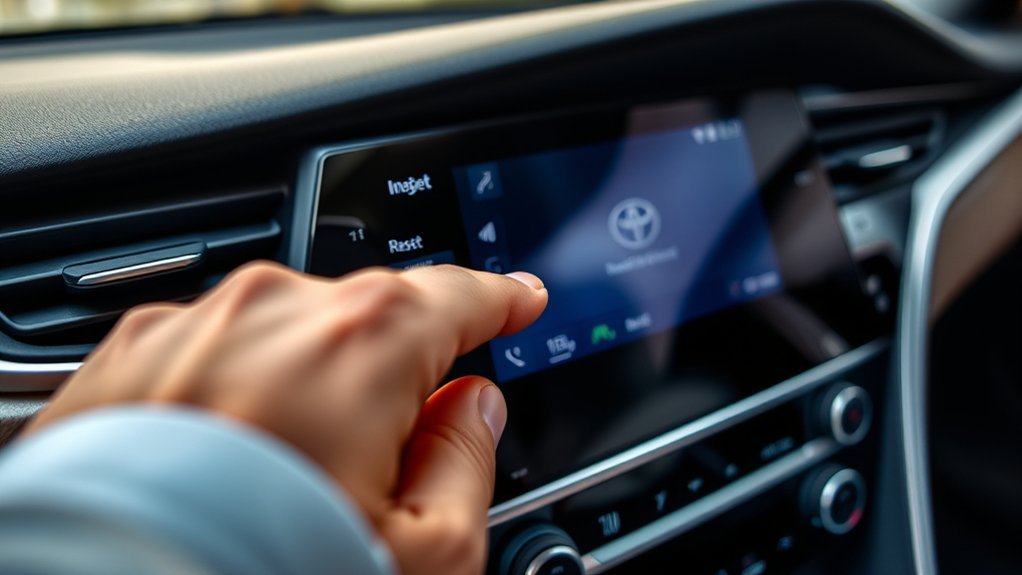
Use the following reset order. It starts with the option least likely to erase data and moves toward more disruptive troubleshooting only when necessary.
1. Identify the Multimedia System
Camry controls differ across model years. Older vehicles may use a Toyota audio or Entune interface, many 2018–2024 North American models use an Entune-era interface, and newer Camrys use Toyota Audio Multimedia. Screen size alone does not identify the software.
Check the model year, trim, and market, then open Toyota’s Manuals and Warranties page and select the exact vehicle. Look for the multimedia, navigation, audio, or connected-services manual rather than relying on a page number quoted for a different edition.
Note: The instrument cluster or multi-information display is separate from the center infotainment screen. A menu labeled “Meter Settings” generally relates to the driver display, not a factory reset of the audio multimedia unit.
2. Try a Soft Reboot First
- Park on a safe, level surface and apply the parking brake.
- Turn the vehicle to ACC, ON, or READY as normally required to operate the multimedia screen.
- Unplug phones, USB drives, and aftermarket adapters from the media ports.
- If the unit has a physical PWR/VOL knob, press and hold it until the screen turns off and the Toyota startup logo returns.
- Release the knob, allow the system to finish loading, and test the feature that failed.
A soft reboot is the preferred first step for a frozen screen, delayed response, missing audio source, temporary Bluetooth fault, or an app projection problem. It normally restarts the head unit without intentionally deleting saved data.
Pro Tip: Photograph important presets, saved destinations, and pairing information before a factory reset. A soft reboot should preserve them, but a factory reset may not.
3. Let the Vehicle Complete a Normal Power Cycle
If the knob does not restart the unit, shut the vehicle off, open and close the driver’s door, lock the vehicle, and leave it undisturbed long enough for the electronics to power down. Then restart the Camry and test the screen again. This is safer than immediately disconnecting the battery and may clear a temporary startup fault.
Step-by-Step Guide to Resetting the Settings Menu
A menu reset is appropriate when a soft reboot does not fix corrupted preferences, repeated pairing failures, profile problems, or persistent settings errors. It is more disruptive because it may delete personal information.
Access the Infotainment Settings Menu
- Park the vehicle and keep it stationary.
- Open Menu, Setup, or the gear-shaped Settings icon on the center screen.
- Look under a category such as General, System, Personal Info, or Reset.
- Use the wording shown in the multimedia manual for your model year; do not substitute the driver-display “Meter Settings” menu.
Toyota’s public support material shows that menu names differ by system and feature. For example, some Toyota interfaces begin phone setup with Menu and then Setup, while newer systems use a different settings layout. That is why a universal click path cannot be guaranteed for every Camry.
Select the Correct Reset Option
Choose only the option that matches your goal:
- Reset one setting: Restores a limited category, such as sound, display, or navigation preferences.
- Delete a paired device: Removes one phone without erasing the rest of the system.
- Delete personal data: May remove phones, contacts, call history, destinations, favorites, profiles, and account-related information.
- Factory data reset or reset all: Returns the multimedia unit to its default user configuration and is the most destructive on-screen option.
Read the confirmation screen carefully. If the menu does not clearly state what will be erased, stop and check the exact manual before confirming.
Restart the System for Changes
- Confirm the reset only after reviewing the data-loss warning.
- Allow the system to restart without switching the vehicle off or unplugging a device during the process.
- Wait for the home screen to load fully.
- Test radio audio, touchscreen response, Bluetooth, navigation, Apple CarPlay, or Android Auto as applicable.
- Re-enter only the settings and devices you still need.
Restore Your Infotainment System to Default Settings
A full default-settings restore is useful when the problem follows a corrupted user profile, repeated device conflicts, or settings that cannot be corrected individually. It is not the best first response to a blank screen, no electrical power, a failed amplifier, damaged wiring, or a hardware fault.
Before proceeding, record the following items when available:
- Paired phone names and Bluetooth permissions
- Radio favorites and audio settings
- Saved navigation destinations
- Toyota account or user-profile login details
- Home location and privacy preferences
- Any subscription or connected-service status shown on the screen
After the reset, sign in only if your system requires it, pair one phone first, and test the basic functions before adding more devices. This makes it easier to identify whether one phone, cable, profile, or application is causing the problem.
A restart refreshes the multimedia software; a factory reset erases user configuration. Use the least destructive option that matches the symptom.
Troubleshooting Issues After Resetting
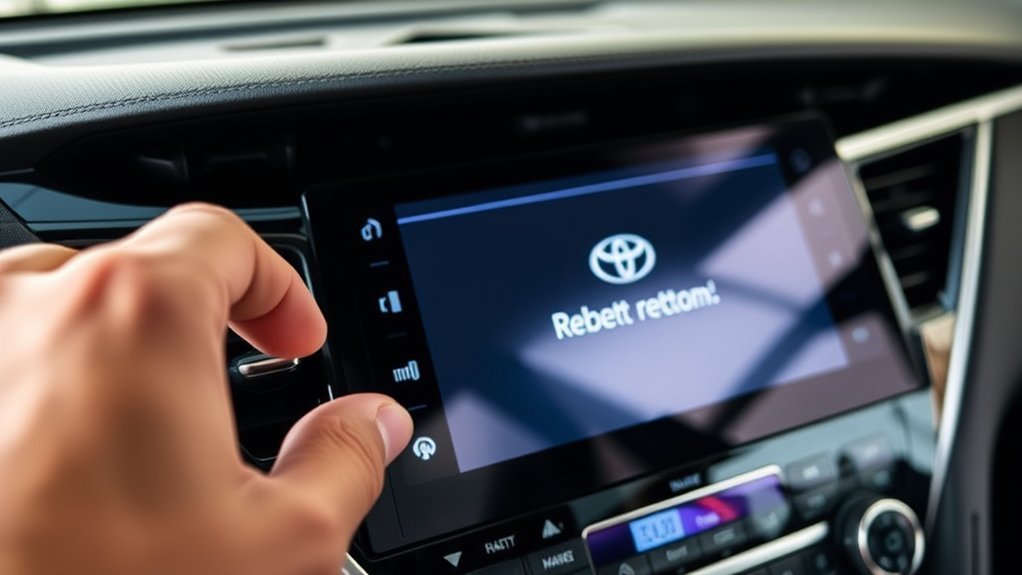
If the reset completes but the original problem returns, treat the symptom rather than repeating factory resets. Repeated resets can waste time and may hide a software, power, phone-compatibility, or hardware fault.
[Amazon Products Picked for You]

Car Screen Cleaner & Car essentials for a Streak Free Screen – This powerful screen cleaner spray with microfiber wipe is designed for car screens, iPhone screens, and all touch displays. The fast-acting formula removes fingerprints, oil, and smudges in one application, delivering a deep, streak-free clean on glass and screens.

Laptop, Computer, & Car Screen Cleaner Spray and Wipe: Altura Photo 2 oz. cleaning solution spray bottle + 2 MagicFiber microfiber cleaning cloths (1 Extra Large OVERSIZE 16x16” and 1 original 6x7”). Perfect for keeping your screens spotless. Use as a screen cleaner, computer screen cleaner, tv screen cleaner.

What You'll Get: One pack of 25 Windex Electronic Pre-Moistened Cleaning Wipes
Screen Display Issues
- Screen is dim but readable: Check brightness, day/night mode, and whether the dashboard illumination control is turned down.
- Touch response is inaccurate: Clean the display with a dry, soft microfiber cloth and remove moisture, heavy dirt, or a poorly fitted screen protector.
- Screen is black but audio works: Perform one soft reboot. If the display remains black, arrange diagnosis rather than repeatedly power-cycling it.
- Screen is completely dead: Confirm the vehicle’s other electronics work. Use the owner’s manual to identify the correct fuse information, but do not pull random fuses.
- Rear-view camera image is missing or frozen: Treat this as a safety issue. Check the vehicle by VIN through Toyota’s recall and service-campaign lookup and the NHTSA recall database, then contact a Toyota dealer if the problem continues.
Connectivity Problems
For Bluetooth, Apple CarPlay, or Android Auto problems, use this order:
- Restart the phone and the multimedia unit.
- Turn Bluetooth and Wi-Fi off and back on as required by the connection type.
- Confirm the phone is not connected to another vehicle, headset, or wireless projection session.
- Delete the Camry from the phone and delete the phone from the Camry, then pair them again while parked.
- Approve contact, message, microphone, notification, and projection permissions when prompted.
- For wired projection, use a known-good data cable and the vehicle’s media-capable USB port, not a charge-only port.
- Test with one phone before reconnecting other devices.
Toyota provides a current Audio Multimedia and Connected Services resource for pairing, compatibility, and feature support. Availability still depends on the exact Camry and phone.
Software Update Importance
Software updates can correct known bugs, improve phone compatibility, and change system behavior. The update method varies:
- Newer Toyota Audio Multimedia systems may receive over-the-air updates.
- Some older units use a dealer-installed or USB-delivered update.
- Navigation map data, multimedia firmware, phone operating-system updates, and Toyota app updates are separate items.
Do not interrupt an update, switch the vehicle off when the screen says not to, or install files from an unofficial source. Toyota introduced its newer multimedia platform with over-the-air software capability, but that does not mean every Camry or every update supports OTA installation.
If the Reset Fails, Here’s What to Try
If one soft reboot and one appropriate menu reset do not solve the problem, work through these checks instead of repeating the same reset:
- Remove external devices: Disconnect USB drives, cables, wireless adapters, and aftermarket accessories.
- Test another source: Compare AM/FM, Bluetooth audio, USB audio, phone calls, and projection to determine whether the fault affects one source or the entire unit.
- Test another phone or cable: This separates a vehicle problem from a device problem.
- Check for updates and campaigns: Use Toyota’s official owner resources and VIN lookup.
- Document the fault: Record the time, screen message, weather, phone model, software version, and a short video if safe to do while parked.
- Arrange professional diagnosis: A dealer or qualified automotive electronics technician can check power, ground, network communication, the amplifier, antenna modules, and the head unit.
Warning: Do not remove both battery cables and hold them together. Do not disconnect the 12-volt battery with the ignition on. A battery disconnect can erase learned settings, create warning messages, affect power accessories, and expose you to electrical or mechanical hazards. On a Camry Hybrid, never touch orange high-voltage cables or components.
A 12-volt battery power cycle should be a last resort performed only under the exact Toyota procedure for the vehicle or by a qualified technician. It is not a universal “hard reset,” and it will not repair failed hardware.
[Amazon Products Picked for You]
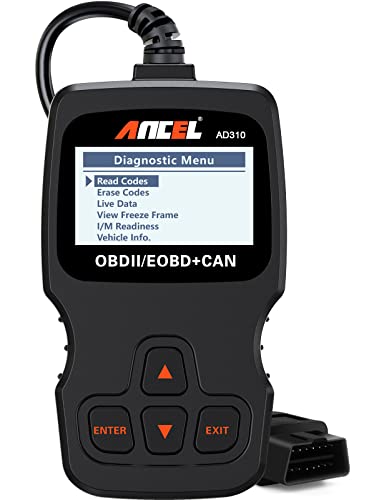
CEL Doctor: The ANCEL AD310 is one of the best-selling OBD II scanners on the market and is recommended by Scotty Kilmer, a YouTuber and auto mechanic. It can easily determine the cause of the check engine light coming on. After repairing the vehicle's problems, it can quickly read and clear diagnostic trouble codes of emission system, read live data & hard memory data, view freeze frame, I/M monitor readiness and collect vehicle information

Multi-Functions - Practical Multi-Functions OBD2 code reader features built-in OBD2 DTC lookup library, which help you to determine the cause of the engine light, read code, erase code, view freeze frame, I/M ready, vehicle information, data flow, real-time curve, get vehicle speed information, calculate load value, engine coolant temperature, get engine speed.

【Diagnose Check Engine Light in Seconds – No Mechanic Needed】The FOXWELL NT301 OBD2 scanner instantly reads & clears engine fault codes (DTCs) with one click. Simply plug into the 16-pin DLC port, turn ignition on, and get accurate results within seconds—No prior car knowledge required. Save hundreds on dealership fees by knowing exactly what’s wrong before you visit a shop. The #1 choice car scanner for DIYers and car owners who want to take control of their vehicle’s health
Tips for Maintaining Your Infotainment System Stability
- Install supported updates: Keep the phone, Toyota app, and vehicle software current through official channels.
- Use quality cables: Replace damaged or charge-only USB cables that cause intermittent projection.
- Limit paired devices: Remove old phones and duplicate pairings to reduce connection conflicts.
- Finish updates properly: Do not interrupt an in-progress multimedia update.
- Keep ports clean and dry: Debris or moisture can cause unstable USB connections.
- Reboot before erasing data: A soft restart is usually the better first response to a temporary freeze.
- Check recalls by VIN: A VIN search is more reliable than assuming every Camry from one model year is affected by the same campaign.
[Amazon Products Picked for You]

Main Specifications: USB 2.0 fast data transmission and device charge power, 12V-30V input, 1.2 A 5V output, 9.84 inches / 25 cm car extension cable; USB socket extender replacement fits the hole of (1.34 " x 0.91 " ) 34 x 23 mm

USB Port Retention Harness Wiring compatible with Toyota - Camry 2012-2015, CHR 2018, Civic 2016-2018, Corolla 2012-2017, Hilux 2015-2016, Prius 2012-2017, RAV4 2012-2017, Scion FRS 2016, Scion tC 2014, Scion xB 2013, Sequoia 2012-2013,Tacoma 2013-2017, Tundra 2012, Venza 2013, Yaris 2012;

Custom Fit Design: USB socket extender replacement fit the hole of approximately (0.98" x 0.87" ) 25x22 mm, compatible with Toyota Tundra 2022–2023; Toyota Sequoia 2022–2023; Toyota Land Cruiser 300 Series 2022–2023; Toyota Prado 150 Series 2008, 2017–2023; Toyota Rav4 and Rav4 Hybrid 2019–2023; Toyota Camry 70 Series 2009, 2017–2023; Toyota Hiace 2019–2023; Toyota Corolla 2006, 2018–2023; Please check the size of your car's buttons
Frequently Asked Questions
How do you reboot a Toyota Camry infotainment system?
Park the vehicle and, if the unit has a physical power/volume knob, press and hold it until the screen switches off and the Toyota logo returns. If the unit has no knob or does not respond, use the model-specific multimedia manual rather than guessing at a button combination.
How do you hard reset the infotainment system?
Use the factory-reset or delete-personal-data option shown in the exact multimedia manual for your Camry. Menu names vary by system. Avoid treating a 12-volt battery disconnect as a universal hard reset because it can create additional problems and will not fix failed hardware.
How do you reset the Toyota dashboard display?
The dashboard display and center infotainment screen are separate systems. Use the steering-wheel controls and the owner’s manual for the multi-information display. Do not use “Meter Settings” as though it were the infotainment factory-reset menu.
How do you fix an unresponsive Camry touchscreen?
Remove connected devices, clean and dry the screen, perform one soft reboot, and complete a normal vehicle power cycle. If the display remains black, repeatedly reboots, becomes unusually hot, or loses the camera image, have it diagnosed.
Will a factory reset delete Bluetooth phones and navigation favorites?
It may. Depending on the unit, a full reset can remove paired phones, contacts, call history, radio favorites, saved destinations, user profiles, and account information. Review the confirmation screen and record anything important first.
When should a Toyota dealer inspect the system?
Arrange service when the unit has no power, enters a repeated boot loop, loses all audio sources, shows a persistent camera fault, smells hot, displays an update error, or fails again immediately after a correct reset.
Conclusion
Start with a soft reboot, then use a model-specific menu reset only when the symptom justifies erasing personal data. Do not confuse the dashboard’s meter settings with the infotainment system, and do not use a battery disconnect as routine troubleshooting. If the screen, camera, audio, or connectivity problem returns, check official updates and recalls and have the system diagnosed.
Sources
- Toyota Manuals and Warranties — model-specific owner and multimedia documentation.
- Toyota Audio Multimedia and Connected Services — official pairing, compatibility, multimedia, and connected-service resources.
- Toyota’s Next-Generation Multimedia System Announcement — over-the-air updates, user profiles, and newer platform capabilities.
- Toyota Safety Recall and Service Campaign Lookup — VIN-based Toyota campaign information.
- NHTSA Recall Lookup — U.S. government VIN recall search and safety information.
