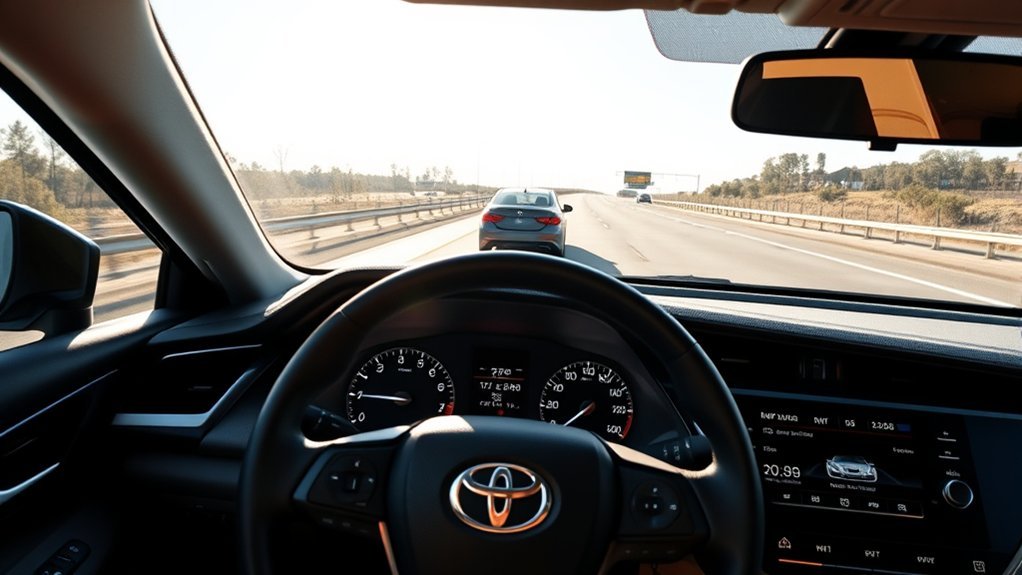
Dynamic Radar Cruise Control can reduce repeated accelerator and brake adjustments during suitable highway driving in your Toyota Camry. However, the controls, minimum set speed, distance choices, and stop-and-go behavior differ by model year, grade, and Toyota Safety Sense generation. Learn the controls while parked, keep your hands on the steering wheel, and remain ready to brake or steer at any time.
Quick Answer
Turn on your Camry’s cruise-control system, reach a suitable lawful speed, press SET, and choose a vehicle-to-vehicle distance. Confirm the selected speed and distance mode on the driver display. Use DRCC mainly on predictable highways, keep your hands on the wheel, and cancel it whenever traffic, weather, or road conditions become complex.
Key Takeaways
- DRCC can adjust your Camry’s speed to help maintain a selected gap behind a detected vehicle.
- Minimum set speed and low-speed following capability are different specifications and vary by model year.
- DRCC controls speed; Lane Tracing Assist is the separate feature that may provide lane-centering steering support.
- The distance setting is not a guaranteed number of feet and cannot replace your judgment about a safe following interval.
- You remain responsible for steering, braking, observing traffic, and taking control whenever conditions change.
At a Glance
| Time Required | About 5–10 minutes while parked, plus a first practice drive on a suitable road |
| Difficulty | Easy after you confirm your model-specific controls and display indicators |
| Tools Needed | Your Camry and its model-year owner’s manual |
| Cost | No additional cost when DRCC is equipped and operating correctly |
Understanding Dynamic Radar Cruise Control in the Toyota Camry
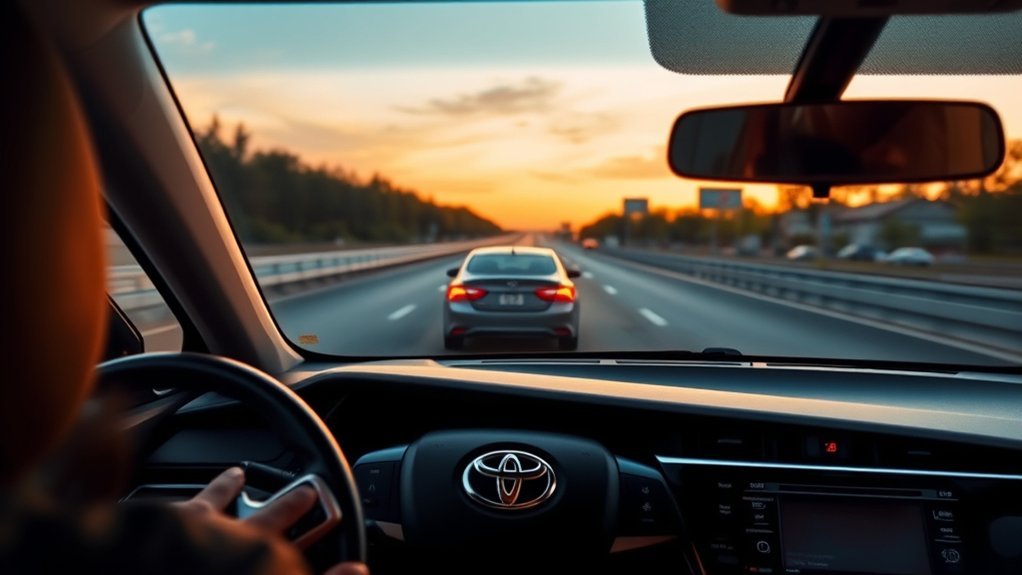
Dynamic Radar Cruise Control, commonly shortened to DRCC, is Toyota’s form of adaptive cruise control. It can maintain a selected cruising speed when the road ahead is clear. When the system detects a slower vehicle ahead, it can reduce your Camry’s speed to help maintain the selected vehicle-to-vehicle distance.
When the detected vehicle speeds up or leaves your lane, DRCC may accelerate toward the speed you selected. That acceleration can feel sudden when a large gap opens, so continue watching traffic and cancel the system when the selected speed is no longer suitable.
DRCC controls acceleration and braking assistance. It does not make your Camry self-driving, choose a safe speed for you, guarantee that every vehicle or object will be detected, or remove your responsibility to steer.
DRCC vs. Lane Tracing Assist and Traffic Jam Assist
DRCC, Lane Tracing Assist, and Traffic Jam Assist are related but separate features:
- DRCC: Adjusts speed to help maintain a selected distance behind a detected vehicle.
- Lane Tracing Assist: May provide steering input to help keep the Camry near the center of a detected lane while DRCC is operating.
- Traffic Jam Assist: An additional feature on certain newer Camrys that may provide expanded low-speed support when its specific operating conditions are met.
Visible lane markings are especially important to Lane Tracing Assist. They are not a universal requirement for basic DRCC vehicle-distance control. A dirty camera, blocked radar area, poor weather, difficult road geometry, or unusual traffic can still limit either system.
Note: Toyota has used different DRCC versions across Camry model years. Confirm your year, grade, controls, set-speed threshold, and stopped-traffic behavior through the Toyota Manuals and Warranties portal.
Which DRCC Version Does Your Camry Have?
Do not identify the system only by the words “radar cruise” on a sales listing. Camrys from different years and grades may have different control layouts and operating ranges.
| U.S.-market example | What to expect | What to verify |
|---|---|---|
| Earlier Camrys with Toyota Safety Sense-P or an older interface | The controls may use a stalk, and full-speed following may not be available on every grade or powertrain. | Manual section, button or stalk layout, minimum set speed, and low-speed cancellation behavior |
| 2021–2024 Camry examples with Toyota Safety Sense 2.5+ | Some grades use standard DRCC and others use Full-Speed Range DRCC. Toyota stated that equipped 2021 Camry full-speed systems could activate above 30 mph while controlling down to 0 mph and resuming from a stop. | Whether the specific grade has standard or full-speed DRCC and what input is required after a stop |
| 2025–2026 Camry examples with Toyota Safety Sense 3.0 | Full-Speed Range DRCC is designed to be set above 20 mph and uses four available distance settings. | Current software instructions, steering-wheel controls, display prompts, and whether optional Traffic Jam Assist is equipped |
The examples above are not a substitute for the vehicle-specific manual. Toyota’s 2021 Camry information and 2025 Camry information show why the set-speed threshold cannot be assumed from the words “Full-Speed Range” alone.
Camry DRCC Controls and Display
Identify every control while the vehicle is parked. Depending on the model year, the controls may be grouped on the steering wheel or placed on a cruise-control stalk.
- Main or cruise switch: Turns the cruise-control system on and prepares it for setting.
- SET or -SET: Stores the current speed when operating requirements are met and usually lowers the selected speed after activation.
- RES or +RES: Resumes a stored speed when conditions permit and usually raises the selected speed.
- CANCEL: Temporarily ends cruise operation without necessarily erasing the stored speed.
- Vehicle-to-vehicle distance button: Cycles through the available following-distance settings.
Before relying on DRCC, confirm the selected speed on the multi-information display and look for the vehicle-to-vehicle distance or preceding-vehicle indication described in your manual. Do not assume that a generic cruise indicator proves the radar-distance function is actively tracking a vehicle.
Warning: Never search for a button or study the display for an extended period while driving. Identify the controls and indicator meanings while parked.
[Amazon Products Picked for You]
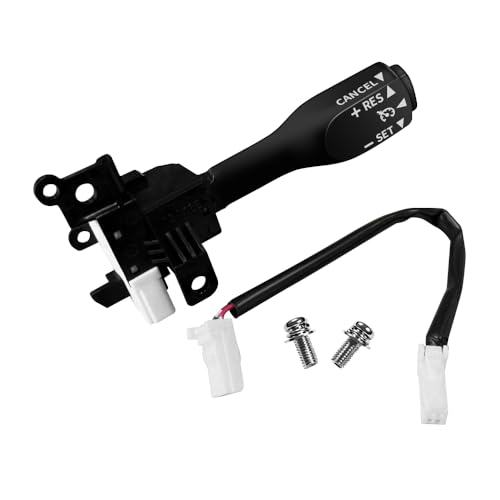
Note: This cruise control is for replacement only and Do Not fit 1.6L Toyota Corolla and Do Not fit all manual transmission cars!!!. Please make sure your original car has cruise control function and check your original part number, Reference Part Number: 84632-34017, 84632-08020, 84632-08021, 84632-0F010, 84632-34010, 84632-34011. If your original car is a hybrid, you need to use the original car wiring harness!!!

OEM Number: 84632-34011. Manufacturer Part Number: 84632-34011/84632-08021/84632-34017

[Vehicle Fitment]: Compatible with Toyota Yaris 2007-2009, Venza 2009 & 2014-2015, Tundra 2005-2010 & 2014-2021, Tacoma 2005-2009 & 2014-2023, Solara 2004-2008, Sienna 2004-2010 & 2013-2015, RAV4 2004-2009, Prius 2004-2022, Matrix 2009-2010, Land Cruiser 2003-2009 & 2014-2021, Highlander 2005-2009, FJ Cruiser 2007-2009, Corolla 2009-2010 & 2014-2016, Camry 2005-2010 & 2014-2017, Avalon 2005-2013, 4Runner 2003-2009 & 2014-2019 --- without Adaptive Cruise Control & Collision Mitigation Braking
How to Set and Use Camry Dynamic Radar Cruise Control
Exact button labels and operating thresholds vary, but most Camry systems follow this basic process.
- Choose suitable conditions. Use a predictable highway or similar road with good traction, adequate visibility, and enough space to learn how the system responds. Avoid construction, sharp curves, severe weather, and frequent merging.
- Turn on cruise control. Press the cruise-control main switch or the button marked with the cruise symbol. Confirm that the cruise indicator appears.
- Reach a suitable speed. Accelerate normally to a lawful speed that is appropriate for the road, traffic, weather, and your Camry’s system requirements.
- Set the speed. Press or move the control toward SET. Confirm the selected speed on the driver display.
- Select the following distance. Use the vehicle-to-vehicle distance button to choose a comfortable setting. Start with the longest setting while learning.
- Confirm the operating mode. Check that the display shows the expected DRCC and distance indicators rather than relying only on the feel of the vehicle.
- Keep your hands on the wheel. DRCC controls speed, not steering. Lane Tracing Assist, when equipped and active, is a separate steering-support function.
- Monitor continuously. Watch traffic beyond the vehicle directly ahead and be ready to brake, steer, or cancel DRCC immediately.
You can normally increase or decrease the selected speed with the RES and SET controls. The exact change from a short press or a press-and-hold varies by model year, so do not assume every Camry changes speed in the same increments.
DRCC can assist with speed and following distance. It does not replace your observation, steering, braking, or decision-making.
How to Cancel, Resume, and Turn Off DRCC
Know the difference between temporarily canceling cruise control and switching the system off completely.
- Press the brake pedal: Normally cancels active cruise control so you can slow the vehicle yourself.
- Press CANCEL: Temporarily stops cruise operation while commonly retaining the stored speed.
- Press RES: May return the Camry toward the stored speed when the road is clear and operating conditions are met.
- Press the main cruise switch: Turns the cruise-control system off and normally clears active operation.
- Press the accelerator: May temporarily override the commanded speed. When you release it, the Camry may return toward the selected speed unless the system was canceled.
Check traffic before pressing RES. The stored speed may be much higher than your current speed, and the Camry may accelerate firmly when the lane ahead is clear.
When Is Adaptive Cruise Control Safe in Heavy Traffic?
Full-Speed Range DRCC may assist in slower traffic on some Camry models, but that does not make every traffic jam suitable for cruise control. Safe use depends on your model’s capabilities, visibility, road design, traffic behavior, and your ability to supervise the system continuously.
Understanding Traffic Conditions
DRCC is easier to supervise when vehicles are moving steadily in clearly organized lanes. It becomes less predictable when drivers repeatedly cut in, motorcycles move between lanes, traffic approaches a construction merge, or vehicles enter from short ramps.
Cancel DRCC when traffic requires frequent judgment calls or immediate speed changes. Manual control is often the safer choice in complex urban congestion, work zones, toll areas, accident scenes, and crowded entrance or exit lanes.
Choosing a Safe Set Speed
Do not rely on one universal 20, 25, or 30 mph recommendation. Select a speed only when it is legal, reasonable for current conditions, and permitted by your Camry’s system. A selected speed is a maximum target, not a promise that the car will always travel at that speed.
| Traffic factor | Safer approach | Reason |
|---|---|---|
| Steady highway flow | Use a lawful speed and a comfortable distance setting | Traffic is easier to monitor and predict |
| Frequent cut-ins | Increase the distance or take manual control | A newly entering vehicle may not be detected at the same moment you see it |
| Construction or lane shifts | Cancel DRCC | Lane geometry, workers, equipment, and traffic patterns are less predictable |
| Poor visibility or traction | Drive manually and reduce speed appropriately | Sensors, tires, and braking performance may be limited |
Maintaining Driver Vigilance
Keep your hands on the steering wheel and scan well beyond the vehicle directly ahead. DRCC may react to a detected vehicle, but it cannot anticipate every merge, stalled vehicle, pedestrian, animal, road obstruction, or unsafe action by another driver.
Watch for acceleration when the lane clears or the lead vehicle changes lanes. Cancel the system if the selected speed or resulting gap is no longer appropriate.
How Dynamic Radar Cruise Control Can Reduce Workload on Long Trips
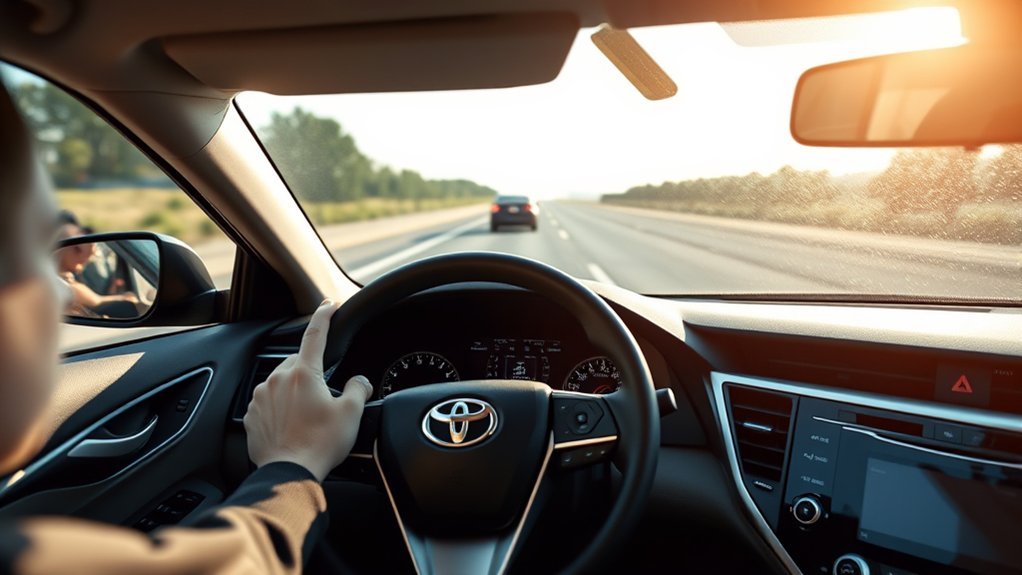
On a suitable highway, DRCC can reduce the number of small accelerator and brake adjustments you make as traffic speed changes. This can make a long drive feel less physically repetitive, especially when traffic is flowing smoothly.
The system does not prevent fatigue or make drowsy driving safe. Stop driving when you feel sleepy, struggle to focus, miss signs, drift within the lane, or cannot remember the last few miles.
Reduced Pedal Workload
DRCC can provide several practical benefits during appropriate highway travel:
- Speed support: It maintains the selected cruising speed when the lane ahead is clear.
- Distance support: It can slow the Camry when a detected vehicle ahead is traveling more slowly.
- Speed recovery: It may accelerate toward the selected speed after the lane clears.
- Fewer repetitive adjustments: It can reduce constant movement between the accelerator and brake pedals.
Maintaining Focus on the Road
Use the reduced pedal workload to improve your observation of traffic, not to divide your attention. Continue checking mirrors, blind spots, road signs, merging lanes, and the behavior of vehicles farther ahead.
| DRCC assistance | Your continuing responsibility |
|---|---|
| Adjusts speed behind a detected vehicle | Decide whether the resulting speed and gap remain safe |
| Maintains a selected cruising speed | Observe speed limits, curves, traffic, and weather |
| May slow or stop with traffic on equipped models | Watch for display prompts and take control when required |
| Reduces some pedal input | Remain awake, attentive, and ready to respond |
How to Adjust the Following Distance
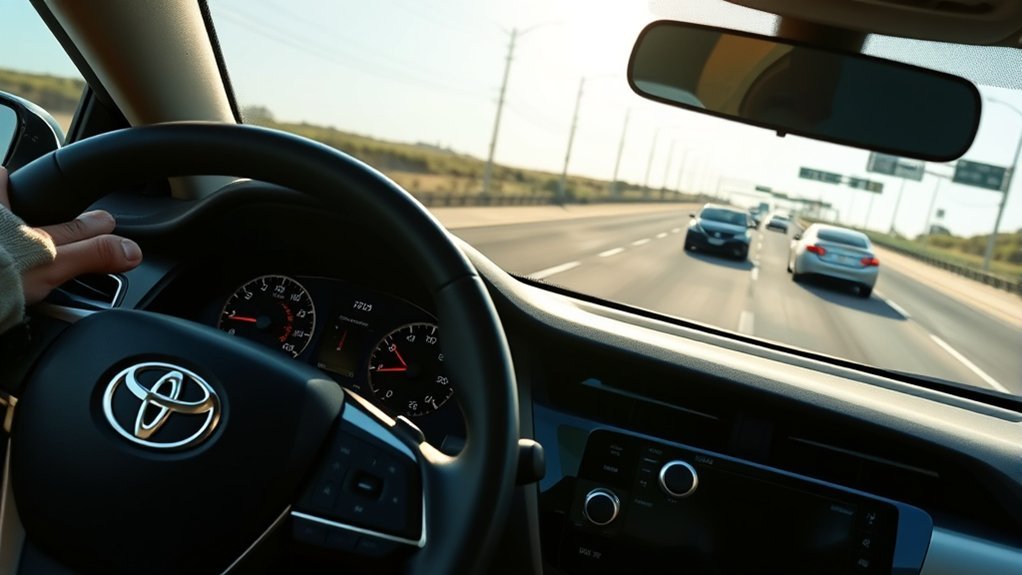
Use the vehicle-to-vehicle distance button to change the gap DRCC attempts to maintain behind a detected vehicle. The display commonly uses bars or vehicle icons to show the selected setting, although the appearance varies by model year.
- Find the vehicle-to-vehicle distance button while the Camry is parked.
- Activate DRCC and confirm the selected speed on the display.
- Press the distance button to cycle through the available settings.
- Choose a setting that gives you enough time and space to react.
- Increase the setting when speed, visibility, traffic, or road conditions make a larger gap prudent.
Toyota Safety Sense 3.0 introduced four cruise-distance settings, compared with three on the previous system overview. That does not mean every Camry has four choices; confirm the number displayed in your vehicle. Toyota describes the change in its Toyota Safety Sense 3.0 overview.
The selected level is not a fixed number of feet. The actual spacing changes with vehicle speed, and the system may not maintain the gap you expect when another vehicle cuts into your lane.
Pro Tip: Start with the longest available distance while learning the system. Shorten it only when conditions are good and the resulting gap still gives you comfortable reaction time.
When Not to Use Adaptive Cruise Control
DRCC works best when vehicle detection, traction, speed changes, and driver supervision are predictable. Turn it off when road or traffic conditions make those requirements difficult to meet.
| Situation | Why DRCC may be unsuitable | Recommended response |
|---|---|---|
| Heavy rain, snow, fog, ice, or road spray | Reduced visibility, traction, or sensor performance | Cancel DRCC and drive manually |
| Sharp curves or steep, winding roads | Vehicle detection and speed selection may not match the road | Control speed yourself |
| Long or steep downhill grades | The selected speed may be unsuitable and braking demand may increase | Use manual speed control appropriate to the grade |
| Construction zones | Temporary lanes, workers, equipment, and abrupt merges | Keep DRCC off |
| Frequent merging or cut-in traffic | Vehicles may enter the detection area suddenly | Increase the gap or take manual control |
| Blocked or dirty sensing area | The system may not detect vehicles reliably | Clean only as directed and wait for normal operation |
| System warning or unavailable message | DRCC may be limited or disabled | Drive manually and follow the manual’s instructions |
Safely Resuming Motion in Stop-and-Go Traffic
Stopped-traffic behavior depends on the DRCC version installed in your Camry. Some Full-Speed Range systems can follow a detected vehicle to a stop. Depending on the model, stopped time, and operating conditions, the Camry may resume automatically after a brief stop or may ask you to press RES or lightly press the accelerator.
The minimum speed at which you can initially set DRCC is not necessarily the lowest speed at which an already active full-speed system can continue following. For example, Toyota described equipped 2021 Camry full-speed systems as activating above 30 mph while providing distance control down to 0 mph. The 2025 Camry’s TSS 3.0 system is designed to be set above 20 mph.
Traffic Jam Assist, when equipped, is a separate feature with additional requirements. Never assume that the presence of DRCC means the Camry can provide hands-free traffic-jam operation or an extended automatic-resume period.
- Watch the driver display. Follow any message asking you to resume, hold the steering wheel, or take control.
- Confirm that traffic is moving safely. Check beyond the vehicle ahead before pressing RES or the accelerator.
- Keep your foot ready. Be prepared to brake if traffic stops again or another vehicle enters your lane.
- Do not assume the car will remain stopped indefinitely. Apply the brake whenever the display or traffic situation requires it.
- Cancel when congestion becomes complex. Manual control may be easier and safer in unpredictable traffic.
Common DRCC Driving Characteristics
DRCC usually feels smoothest when traffic moves steadily and vehicles remain centered in their lanes. It may feel more abrupt when a slower vehicle leaves your lane because the Camry can begin accelerating toward the selected speed.
A vehicle entering your lane can also cause noticeable braking after the system detects it. Detection may not happen at the same moment you first see the vehicle, so do not wait for DRCC when you already recognize a developing hazard.
The distance setting may return to a default value after the vehicle is restarted on some models. Other settings and behaviors can differ by year. Check the driver display each time you activate the system instead of assuming your previous choices remain active.
DRCC may also react to vehicles in an adjacent lane, vehicles near a curve, or changing road geometry in a way that feels unexpected. Cancel it and control the speed yourself whenever its response does not fit the situation.
Maintenance Tips for Reliable DRCC Operation
DRCC depends on sensing equipment, vehicle electronics, brakes, tires, and correct sensor positioning. Routine vehicle care supports normal operation, but owners should not disassemble, aim, or attempt to calibrate safety sensors themselves.
- Keep sensing areas clean. Remove dirt, ice, snow, insects, and heavy road film only through methods allowed in your owner’s manual.
- Keep the windshield clear. Dirt, stickers, tint material, damage, or accessories near the forward camera can interfere with driver-assistance features.
- Do not alter sensor covers. Avoid badges, wraps, grille accessories, coatings, or repairs that obstruct the radar area.
- Maintain tires and brakes. Correct tire condition, pressure, and brake operation help the vehicle respond as expected.
- Respond to warning messages. If DRCC becomes unavailable, drive manually and follow the displayed instructions.
- Check for recalls or service campaigns. Use Toyota’s official owner resources or contact a Toyota dealer with your VIN.
Warning: Windshield replacement, front-emblem or grille work, collision repairs, suspension changes, wheel-alignment work, or removal of a camera or radar component may require inspection or calibration under the vehicle-specific repair procedure. Do not attempt sensor alignment at home.
[Amazon Products Picked for You]
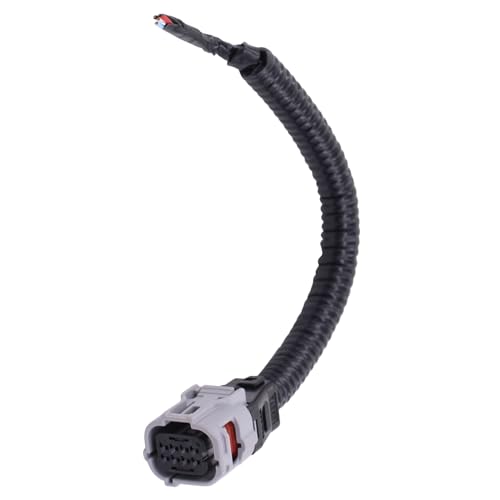
Compatible with Toyota Avalon 2013-2022; Camry 2018-2022; CHR 2017-2019;

8Pcs 16mm Sensor Cleaning Swabs: Specifically designed for APS-C frame sensors. Each swab features a lint-free, ultra-fine microfiber head that gently and safely removes dust and smudges without scratching. Each cleaning swab is vacuum-sealed for hygiene and ready-to-use
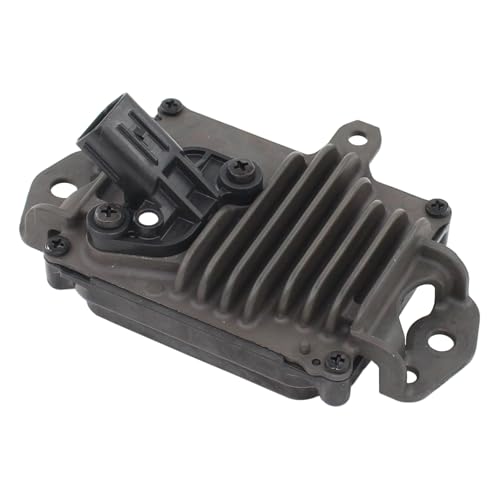
Applicabe for Toyota Corolla 2019-2022;Highlander 2020-2021;Mirai 2019-2020;Prius 2021-2022;Prius AWD-e 2021-2022;Prius Prime 2021-2022;RAV4 2019-2022;RAV4 Prime 2021-2022;Venza 2021-2022
Maximizing Your Adaptive Cruise Control Experience
The safest way to become comfortable with DRCC is to learn one function at a time on a familiar, lightly traveled highway. Start with the longest distance setting, use a moderate lawful speed, and observe how the Camry reacts to slower vehicles without allowing your attention to drift.
Parked Pre-Use Checklist
- Confirm the Camry’s model year, grade, and DRCC type in the owner’s manual.
- Locate the main, SET, RES, CANCEL, and distance controls.
- Learn the meaning of the cruise, selected-speed, preceding-vehicle, and distance indicators.
- Check the windshield-camera area and front radar area for obvious obstruction.
- Know how to cancel the system without searching for a control.
- Choose the longest distance setting for the first practice drive.
Understanding Distance Settings
Many Camry systems provide several distance settings, commonly displayed as bars or vehicle icons. A longer setting normally creates more time between your Camry and a detected vehicle, while a shorter setting allows the system to follow more closely.
These settings do not replace a safe following interval. Actual spacing changes with speed, and DRCC may not respond to every vehicle, object, or traffic movement in the way you expect.
Making Safe Speed Adjustments
Use the RES and SET controls only after checking the current speed limit and traffic ahead. Increase the selected speed gradually. Reduce it before curves, congestion, interchanges, or other conditions that make the previous speed unsuitable.
Toyota’s general system descriptions state that applicable TSS 3.0 Full-Speed Range DRCC systems are designed to be set above 20 mph. Older Toyota descriptions include systems designed to be set above 30 mph. Some Camry full-speed systems with the higher activation threshold can still follow a detected vehicle to a complete stop after they have been engaged. Follow the threshold and procedure shown in your Camry’s manual and driver display.
Staying Attentive While Driving
The National Highway Traffic Safety Administration describes adaptive cruise control as a driver-assistance technology that adjusts speed to maintain a preset distance. It does not transfer responsibility for driving to the vehicle.
- Keep watching the road and traffic around you.
- Keep your hands on the steering wheel.
- Do not use a phone or perform another distracting task.
- Be ready to brake when a vehicle cuts in or traffic stops suddenly.
- Cancel the system when its response does not match current conditions.
- Never use DRCC to continue driving when you are tired or unwell.
Troubleshooting Dynamic Radar Cruise Control
[Amazon Products Picked for You]
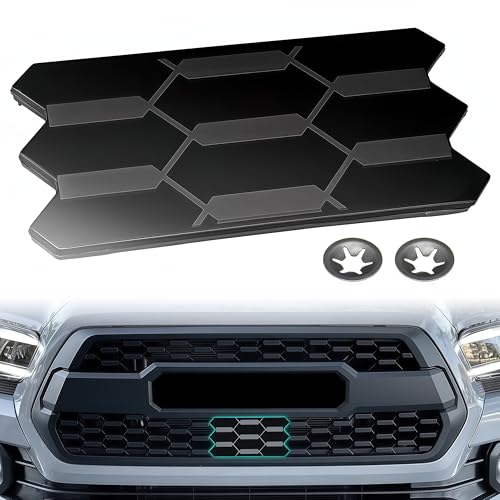
Vehicle Fitment: Compatible with Tacoma 2016-2023 3rd gen; factory trd pro grille; aftermarket pro-style grille; precision fit; seamless installation

Compatible with Honda Accord 2018-2022

Fitment:This Front Grille Garnish Sensor Cover for Toyota Tundra TRD Pro 2018-2021, OE Number:5314134010/9018306044
DRCC Will Not Turn On
Check the driver display for a warning or unavailable message. Confirm that the cruise-control main switch is on, the vehicle is in a permitted driving mode, and your speed meets the model-specific setting requirements.
If your Camry supports more than one cruise mode, confirm that you selected the intended vehicle-to-vehicle distance mode. Do not experiment with an unfamiliar alternate mode while driving.
The System Says a Sensor Is Unavailable
Rain, snow, ice, fog, direct sunlight, extreme heat or cold, dirt, condensation, or an obstructed sensing area may temporarily limit operation. Drive manually, move to a safe location when necessary, and clean only the areas identified in the owner’s manual.
Do not scrape, polish, paint, cover, or disassemble a radar cover or camera area unless the Toyota procedure specifically permits it.
The Camry Brakes or Accelerates Unexpectedly
Cancel DRCC and take full control. The system may have detected a vehicle entering your lane, lost detection of the previous vehicle, responded to a vehicle near a curve, or reacted to changing road geometry. Do not continue using it until conditions are suitable and you understand the likely cause.
DRCC Works, but Lane Tracing Assist Does Not Center the Car
This does not necessarily mean DRCC has failed. DRCC controls speed and distance, while LTA has separate operating conditions. Lane markings may be unclear, the LTA setting may be off, the camera may be obstructed, the road may be too curved, or another operating condition may not be met.
Continue steering the vehicle yourself. Check the LTA indicator and owner’s manual rather than assuming that active DRCC guarantees steering assistance.
The Warning Returns in Clear Conditions
If the sensing areas are clean but the warning continues, arrange an inspection. Persistent problems after a collision, windshield replacement, grille repair, emblem replacement, suspension work, wheel alignment, or sensor removal may require professional diagnosis or calibration.
Frequently Asked Questions
How do you use Toyota Camry Dynamic Radar Cruise Control?
Turn on the cruise-control system, reach a suitable lawful speed, press SET, and select a vehicle-to-vehicle distance. Confirm the selected speed and distance indicators, keep your hands on the steering wheel, and continue supervising traffic and braking. Controls and operating requirements vary by model year.
What does Dynamic Radar Cruise Control do?
DRCC maintains a selected speed when the lane ahead is clear. When it detects a slower vehicle ahead, it can adjust your Camry’s speed to help maintain the selected distance. It is a driver-assistance feature, not an automated-driving system.
Does Toyota Camry DRCC steer the car?
No. DRCC controls acceleration and braking assistance. Lane Tracing Assist is the separate feature that may provide steering input to help center the Camry when its operating conditions are met. The driver must continue steering and holding the wheel.
What is the difference between standard cruise control and DRCC?
Standard cruise control generally maintains the speed you select until you cancel it or press the brake. DRCC can also reduce or restore speed in response to a detected vehicle ahead. Neither system selects a safe speed or removes your responsibility to drive.
What is the minimum speed for Toyota Camry DRCC?
It depends on the model year and system generation. Applicable TSS 3.0 systems are generally described as being designed to set above 20 mph. Some earlier Camry systems were described as activating above 30 mph. A Full-Speed Range system may continue following below its initial set-speed threshold after it has been engaged.
Will Camry DRCC stop and resume in traffic?
Some Camrys with Full-Speed Range DRCC can follow a detected vehicle to a stop. Automatic or driver-initiated resumption depends on the system version, stopped time, traffic, and operating conditions. Watch the display and never assume the car will resume or remain stopped without your input.
Can you use Toyota DRCC in rain or snow?
Do not rely on DRCC in heavy rain, snow, ice, dense fog, severe road spray, or other conditions that reduce traction, visibility, or sensor performance. Drive manually and follow any unavailable message displayed by the vehicle.
Why is Dynamic Radar Cruise Control unavailable?
The system may become unavailable because of blocked sensing areas, rain, snow, fog, glare, extreme temperature, condensation, a temporary electronic condition, or a fault requiring service. Drive manually, follow the displayed message, and seek inspection if the warning remains after conditions improve.
Conclusion
Dynamic Radar Cruise Control can make suitable highway travel more comfortable by assisting with speed and vehicle spacing. Its usefulness depends on knowing which version your Toyota Camry has, selecting sensible speed and distance settings, and remaining ready to take control.
Review the model-year owner’s manual before relying on low-speed or stop-and-go functions. Keep the sensing areas unobstructed, distinguish DRCC from Lane Tracing Assist and Traffic Jam Assist, and cancel the system whenever road, weather, or traffic conditions become difficult to predict.
Sources
- Toyota Safety Hub — DRCC purpose, Toyota Safety Sense generations, general set-speed descriptions, and LTA distinctions
- Toyota Manuals and Warranties — model-specific controls, operating conditions, warning messages, and limitations
- Toyota 2021 Camry Model Information — earlier Camry full-speed activation, low-speed control, and resume behavior
- Toyota 2025 Camry Model Information — Toyota Safety Sense 3.0 and Full-Speed Range DRCC information
- Toyota Safety Sense 3.0 Overview — four distance settings and general DRCC operation
- NHTSA Driver Assistance Technologies — adaptive cruise-control definition and driver-assistance context
