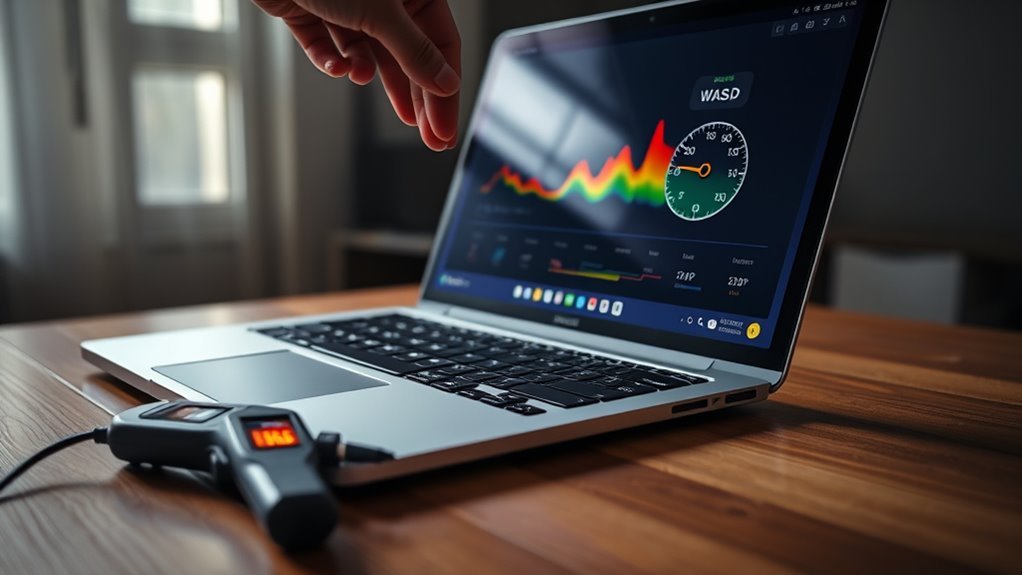
A stable laptop temperature usually stays within the safe operating range of about 30°C to 85°C internally, with ambient room conditions near 10°C to 35°C. Lower temperatures are better during light use, while heavy workloads naturally raise heat. Signs of instability include loud fans, throttling, slow performance, or shutdowns. Dust, blocked vents, and soft surfaces often worsen heat buildup. Proper airflow and monitoring help maintain safe operation, and more details can clarify the limits further.
Key Takeaways
- A stable laptop operating temperature is typically within 30°C to 85°C, depending on the device and workload.
- Ambient room temperature should stay between 10°C and 35°C, ideally with good airflow around the laptop.
- Overheating signs include hot casing, loud fans, performance slowdowns, thermal warnings, and sudden shutdowns.
- Common causes are dust buildup, blocked vents, soft surfaces, heavy apps, and outdated drivers or BIOS.
- Keep the laptop on a hard, level surface, clean vents regularly, and monitor temperatures to prevent heat damage.
What Temperature Is Safe for a Laptop?
A laptop is generally considered safe to use within an ambient temperature range of 50 to 95 degrees Fahrenheit (10 to 35 degrees Celsius), which supports reliable operation without undue thermal stress. This safe temperature window helps preserve component integrity, battery stability, and system responsiveness.
Standard laptops may tolerate internal operating temperatures around 30°C to 85°C, but sustained exposure near the extremes increases risk. Heat can trigger throttling, reduce performance, and accelerate wear; freezing conditions can impede startup and contribute to data loss or other hardware damage.
If a device has been stored in severe cold or heat, it should first acclimate to room temperature before booting. Regular monitoring of internal temperatures provides a practical safeguard, allowing users to detect rising thermal load early.
Clear temperature discipline supports durable, autonomous computing and protects the user’s capacity to work without interruption.
Safe Laptop Temperature Ranges by Device Type
Safe laptop temperature limits vary by device class, with standard laptops generally operating best between 50°F and 95°F (10°C to 35°C) to avoid freezing, overheating, and avoidable performance loss. These safe laptop temperature ranges protect portability and user autonomy.
| Device type | Range |
|---|---|
| Standard laptop | 10°C to 35°C |
| High-performance laptop | 30°C to 85°C |
| Ruggedized laptop | Extreme-condition rated |
| LCD panel | Warm to room temperature |
High-performance systems tolerate wider heat bands, yet internal monitoring remains essential to reduce throttling and extend service life. Ruggedized models are built for harsher environments, while standard machines should stay within recommended limits. In cold settings, LCDs can freeze, so the device should acclimate before power-up. Temperature discipline preserves hardware freedom, steadier output, and longer operational independence for every platform.
Signs Your Laptop Is Running Too Hot
When a laptop begins running too hot, the signs are usually visible in both hardware behavior and system performance. The casing may feel hot to the touch, especially near the keyboard, underside, or exhaust vents, signaling that internal temperatures are rising beyond a stable range.
Fan output often becomes noticeably louder as the cooling system works harder to preserve control. At the same time, the system may slow down, particularly during demanding tasks, because the CPU can throttle itself to reduce heat.
In more severe cases, sudden crashes or unexpected shutdowns appear, reflecting a built-in defense against damage. Thermal warning messages, when displayed, should be treated as urgent indicators rather than minor alerts.
Recognizing these hot-condition symptoms early gives the user more autonomy over device health and helps prevent avoidable hardware stress.
Common Causes of Laptop Overheating
Laptop overheating typically begins when internal components produce more heat than the cooling system can dissipate, creating a thermal imbalance that can lead to performance throttling and, in severe cases, hardware damage.
A computer running hot often reflects one or more identifiable stressors rather than a single fault. Technical analysis commonly shows these causes:
- Dust buildup in vents restricts airflow and reduces heat removal.
- Soft surfaces, such as beds or pillows, block ventilation openings and trap heat.
- Demanding applications raise CPU and GPU load, increasing thermal output.
- Outdated drivers or BIOS can weaken power management and thermal control.
Each factor narrows the system’s thermal margin and can push the laptop beyond its safe operating range.
When cooling efficiency drops, the device loses the freedom to sustain normal performance, and heat accumulates faster than it can escape.
How to Prevent Laptop Overheating
Preventing laptop overheating begins with maintaining unobstructed airflow by using the device on a hard, stable surface rather than on bedding or other soft materials that block vents.
Dust and debris should be removed from air vents regularly with compressed air to preserve cooling efficiency and reduce thermal buildup.
CPU activity and other heat sources should also be monitored through built-in system tools, and power settings can be adjusted to lower heat generation during heavy use.
Improve Airflow
Proper airflow is essential for maintaining stable laptop temperatures, because blocked ventilation quickly reduces cooling efficiency and allows heat to accumulate around internal components.
To improve airflow, the laptop should rest on a hard, flat surface that leaves the air vents unobstructed and permits heat to escape freely. Soft materials trap warmth and limit cooling, while objects placed over vents create unnecessary thermal resistance.
- Use a desk or tray, not bedding.
- Keep air vents exposed on every side.
- Add a cooling pad or stand for active tasks.
- Maintain open space around the chassis.
This approach supports quieter operation, steadier performance, and greater freedom from thermal throttling.
When airflow is restored, the machine can work with less strain and more consistent output.
Clean Vents Regularly
Even with good airflow around the chassis, cooling performance can decline if the vents themselves are obstructed by dust or debris.
Regular inspection of intake and exhaust openings helps preserve stable temperature on laptop systems by preventing airflow restriction. Before cleaning, the laptop should be powered off and peripherals disconnected to reduce risk.
Compressed air can then be used to dislodge dust, with the can held upright to avoid moisture accumulation. A dry microfiber cloth is suitable for wiping loose dirt around the vent edges without forcing particles inward.
This cleaning routine should be scheduled according to usage intensity, since dusty environments accelerate buildup. Consistent maintenance supports efficient heat removal, allowing the device to operate with greater independence from avoidable thermal stress.
Monitor Heat Sources
Monitoring heat sources is essential for controlling laptop temperatures, especially when the device is placed near direct sunlight, radiators, or other warm equipment.
To monitor heat sources effectively, the laptop should rest on a stable surface that preserves airflow and prevents a computer running hot. Ambient conditions must remain between 50 and 95 degrees F (10 to 35 degrees C) to support safe operation.
- Move the laptop away from heat sources.
- Use balanced power settings during light tasks.
- Add a cooling pad when loads rise.
- Keep vents clear with compressed air.
These measures reduce thermal stress and give users more freedom to work without unnecessary throttling, noise, or shutdowns.
Best Surfaces for Better Laptop Cooling
Hard, flat surfaces such as desks or tables support consistent airflow beneath and around a laptop, which helps reduce heat buildup.
Soft bedding, couches, and similar surfaces should be avoided because they can block intake and exhaust vents, restricting ventilation and raising internal temperatures.
Keeping the vents unobstructed, including through slight elevation or a cooling stand, further improves thermal performance.
Hard, Flat Surfaces
A laptop performs best on a hard, flat surface because this setup preserves unobstructed airflow around its cooling vents and supports effective heat dissipation.
Such hard, flat surfaces let internal fans move air efficiently, reducing thermal buildup during sustained workloads. Stable placement also prevents tipping, which can disturb vent alignment and reduce cooling performance.
Clean, level support further limits dust ingress, helping vents remain open for longer.
For users seeking control over device temperature, the practical guidance is direct:
- Choose a rigid desk.
- Keep the chassis level.
- Maintain clear vent space.
- Favor stable positioning.
This simple arrangement strengthens built-in cooling, protects performance, and supports freer, more reliable operation under pressure.
Avoid Soft Bedding
Soft bedding should be avoided because it blocks the laptop’s intake and exhaust vents, restricting airflow and causing heat to accumulate around internal components.
Beds, couches, pillows, and blankets create insulating contact that traps thermal energy, pushing temperatures upward and increasing the chance of throttling or hardware stress.
When the chassis feels hot to the touch, that is a sign the surface is failing to support stable cooling. A hard, flat platform preserves the ventilation path needed for efficient heat transfer and reliable performance.
For greater freedom from heat buildup, a lap desk or cooling pad offers a firm, ventilated base that supports mobility without sacrificing thermal control.
This simple choice reduces strain and keeps the system operating within safer limits.
Keep Vents Unblocked
Keeping laptop vents unobstructed is essential for maintaining stable internal temperatures and preventing performance loss. A laptop should be placed on hard, level surfaces such as desks or tables so airflow remains steady and the cooling system can operate without resistance.
To keep vents unblocked, the device should not rest near walls, fabrics, or clutter that trap heat. This disciplined setup helps the computer running efficiently and preserves user freedom from thermal throttling.
- Use a rigid surface.
- Clear space around the chassis.
- Clean dust from vents regularly.
- Avoid any obstruction under or beside the machine.
When ventilation openings stay open, internal fans expel heat effectively, reducing stress on components and supporting reliable, liberated mobility.
How to Check Laptop Temperature Safely
Start by checking the laptop’s internal temperatures with built-in monitoring tools such as Activity Monitor on macOS or Task Manager on Windows, since these can help track CPU and other component temperatures while the system is under load. This is the safest way to check laptop temperature without exposing the device to unnecessary risk.
For more precise data, reputable third-party applications can be used, but they should report internal sensor values, not external case temperatures, which are often much lower and misleading. Monitoring should be repeated during demanding tasks such as rendering, gaming, or large file processing, because sustained heat can trigger throttling and eventual hardware stress.
Dust in the vents can skew results and worsen cooling, so airflow should be kept clear and clean. If temperatures remain excessive despite proper ventilation, updated drivers, BIOS firmware, or technical support may be required for deeper diagnostics.
Windows Fixes for an Overheating Laptop
- Update drivers and BIOS with SupportAssist to remove software faults that can trigger overheating.
- Inspect vents and clear dust or debris so trapped heat can escape freely.
- Use a cooling pad to improve airflow and support lower temperatures under heavy tasks.
- Recheck temperature readings and run SupportAssist diagnostics if overheating persists.
Each step reduces thermal pressure and increases system freedom from forced throttling.
Each step eases thermal strain and helps the system run smoothly without forced throttling.
When applied together, they create a stable operating environment that supports performance without excess heat.
Mac Laptop Temperature Tips and Limits
Mac laptops operate best when ambient temperature stays between 50 and 95 degrees Fahrenheit, or 10 to 35 degrees Celsius, which supports stable performance and long-term component health.
These mac laptop temperature tips emphasize keeping the device away from parked cars, where cabin heat can quickly exceed safe limits and stress internal parts.
Relative humidity should remain between 0% and 95% non-condensing, since excess moisture can disrupt electronics and reduce reliability.
Internal sensors constantly monitor thermal load and automatically increase fan speed when critical components warm up, preserving stable operation without manual intervention.
If heat problems persist despite proper use, resetting the System Management Controller can restore normal power and thermal management behavior.
This approach helps maintain cooler operation while keeping the system efficient, predictable, and free from unnecessary thermal constraint, supporting user autonomy through informed care.
When to Get Help for Laptop Heat Problems
When a laptop repeatedly runs hot enough to cause loud fan activity, sluggish performance, unexpected shutdowns, or crashes, professional service becomes necessary to reduce the risk of hardware damage.
Persistent overheating signals that airflow, thermal paste, sensors, or internal components may be compromised. If temperatures regularly exceed safe limits, typically 30°C to 85°C, technical support should be contacted without delay.
- Fan noise that never settles
- Heat that remains after vent cleaning
- Sudden power loss or crashes
- A chassis too hot to touch
Diagnostic tools such as SupportAssist can help identify deeper faults before failure spreads.
Adjusting power settings may offer temporary relief, but repeated overheating despite maintenance indicates a systemic problem.
Seeking help is a practical act of control: it protects data, preserves performance, and restores freedom from avoidable hardware stress.
Frequently Asked Questions
What Temperature Should I Keep My Laptop At?
It should stay between 50 and 95°F; internal temperatures should remain below 185°F. Cooling Solutions, clear vents, and hard surfaces preserve performance, prevent overheating, and support liberated, reliable computing without thermal damage.
What Is a Good Idle Temperature for a Laptop?
A good idle laptop temperature is 30°C–50°C, like a quiet engine resting between journeys. Cooling Solutions, proper airflow, and clean vents keep it stable; sustained readings above 85°C suggest heat stress and reduced longevity.
Is 70 Degrees Safe for a Laptop?
70 degrees Celsius is generally safe for a laptop, though sustained operation may trigger throttling. Monitoring load and applying Cooling Solutions, such as improved ventilation or a cooling pad, helps preserve performance and thermal freedom.
Is 92 Degrees Hot for a CPU Laptop?
Yes, 92°C is hot for a laptop CPU. With only about 15°C above many safe limits, it can throttle performance and shorten lifespan. Cooling Solutions like cleaning vents, improving airflow, or using a pad help.
Conclusion
In the quiet hum beneath a laptop’s shell, stable temperature remains the thin line between smooth performance and thermal strain. When heat stays within safe limits, fans breathe steadily, processors work cleanly, and the machine runs like a balanced engine rather than an overheated furnace. With regular monitoring, good airflow, and timely fixes, the device can avoid the scorch of throttling and the silent wear that shortens its useful life.
