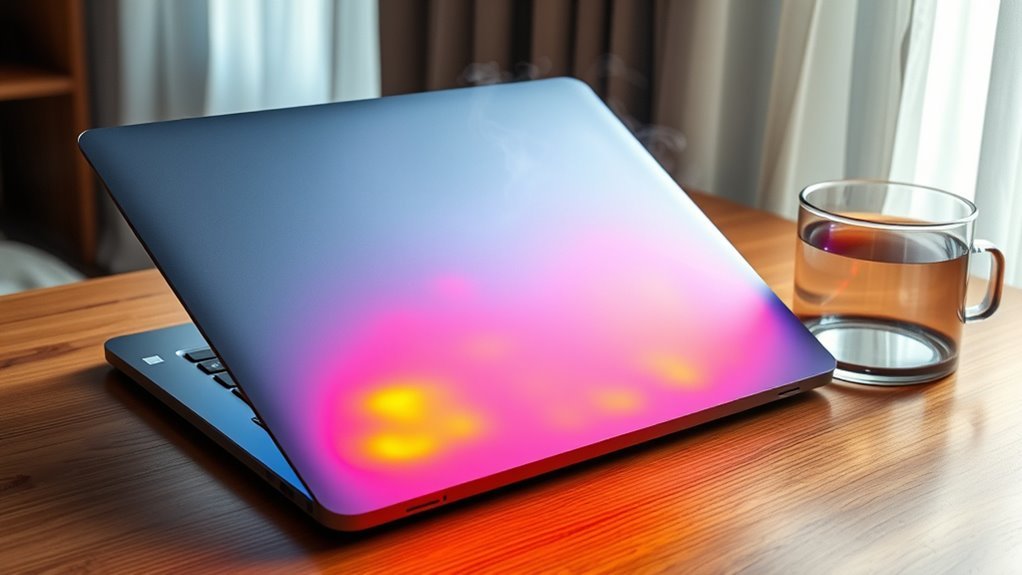
A gaming laptop normally runs at 30°C to 50°C when idle and 70°C to 85°C during heavy gaming. Temperatures above 90°C usually indicate overheating, especially if throttling or loud fan noise appears. Heat rises because high-performance components, limited airflow, and sustained load all increase thermal output. Safe use depends on rigid surfaces, clean vents, and occasional cooling support. Proper monitoring and maintenance can prevent damage, and more detailed guidance follows.
Key Takeaways
- Laptop temperatures are usually 30°C–50°C idle, 50°C–70°C light use, and 70°C–85°C during gaming.
- Temperatures above 90°C for long periods usually mean overheating and may cause throttling or shutdowns.
- Keep the laptop on a hard, flat surface and use a cooling pad to improve airflow and lower heat.
- Clean dust from vents and fans every 3–6 months, and consider undervolting or thermal paste replacement.
- Store the laptop powered off in a cool, dry place, ideally between 10°C and 35°C.
What Is a Normal Gaming Laptop Temperature?
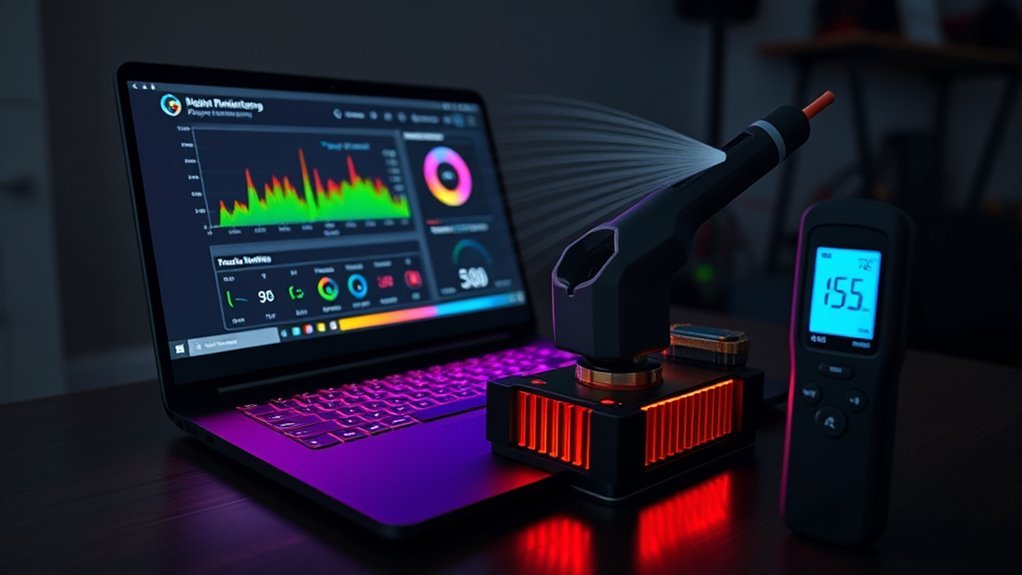
A normal gaming laptop temperature depends on workload, with idle readings typically falling between 30°C and 50°C and light-use temperatures generally ranging from 50°C to 70°C.
In technical terms, this normal gaming laptop temperature reflects a machine operating within a safe temperature envelope, without unnecessary restraint on performance.
When games or demanding applications generate heat, CPU readings commonly rise to 70°C–85°C, which remains acceptable for short periods. Upper safe limits approach 90°C–95°C, but sustained operation near that threshold indicates stress on the cooling system.
Liberation from thermal limitation depends on maintaining measured headroom, not ignoring heat. Temperatures above 90°C on a regular basis can trigger throttling and reduce output.
Tools such as HWMonitor or MSI Afterburner provide direct monitoring, allowing the user to preserve stability, protect hardware, and sustain responsive gameplay without drift into unsafe thermal conditions or avoidable performance loss.
Why Gaming Laptops Run Hot
Gaming laptops run hot because high-performance CPUs and GPUs generate substantial thermal output during sustained gameplay.
Their compact chassis leaves limited space for heatsinks, fans, and airflow channels, reducing heat dissipation efficiency.
As a result, heat accumulates quickly under load, often pushing internal temperatures into the upper operating range.
Powerful Components
Powerful processors and graphics chips are the main reason gaming laptops run hot, as these components draw substantial power and generate significant heat during demanding workloads. Their elevated temperature is a direct consequence of powerful components operating near design limits, especially during high-frame-rate gaming and overclocked sessions.
When heat accumulation persists, thermal throttling may activate to protect silicon integrity and preserve system stability.
- CPUs execute dense game logic and physics, raising electrical load.
- GPUs render complex scenes, producing sustained thermal output.
- Higher clock speeds increase energy use and heat density.
This pattern reflects a tradeoff: more performance grants greater computational freedom, yet it also intensifies thermal stress.
Ambient conditions can further worsen the internal thermal state, making the chassis an environment where excess heat must be managed carefully.
Limited Cooling Space
Although gaming laptops pack high-performance CPUs and GPUs into thin enclosures, their limited internal space restricts airflow, heatsink size, and overall cooling capacity.
This limited cooling space narrows the temperature range in which components operate safely, especially under sustained gaming loads. High frame rates and demanding workloads raise power draw, converting energy into heat faster than the chassis can disperse it.
When ambient conditions are warm or vents are blocked, thermal accumulation intensifies, producing overheating issues that can throttle performance. Overclocking further elevates heat output and pushes internal temperatures toward unsafe limits.
In this constrained design, cooling systems must manage powerful hardware with minimal volume, leaving little margin for liberation from heat buildup or for efficient thermal control during extended sessions.
What Temperatures Are Safe Under Load?
Under sustained load, a laptop CPU typically operates in the 70–85°C range, with short peaks up to 90–95°C generally considered the upper safe limit. This envelope allows a laptop to function across long periods without immediate thermal compromise, especially for a new account of usage patterns.
- CPU and GPU behavior: during gaming or rendering, both chips commonly sit near 70–85°C. GPU idle values are usually 30–50°C.
- Thermal interpretation: temperatures above 90°C on a consistent basis suggest reduced cooling efficiency and may trigger throttling, a controlled reduction in performance to preserve stability and user autonomy.
- Surface assessment: localized hot spots on the chassis can reflect internal heat concentration. Regular monitoring with tools such as HWMonitor provides analytical visibility into operating conditions and supports informed maintenance.
How Do I Know My Laptop Is Too Hot?
A laptop is generally considered too hot when its CPU or GPU remains above 90°C for sustained periods, as this suggests cooling inefficiency and a growing risk of thermal stress. At that point, thermal sensors often register conditions where performance monitoring reveals throttling above 85°C, reducing speed during games or heavy workloads.
A laptop is too hot when its CPU or GPU stays above 90°C, often triggering throttling.
If temperatures climb near 100°C, the system may trigger abrupt shutdowns to prevent damage. Loud fan noise under moderate load is another indicator that fan efficiency is inadequate, meaning heat is not being expelled effectively.
Surface hot spots also matter; they show internal heat concentration and warn of possible long-term component degradation. For users seeking control over their machines, these signals provide practical evidence that the thermal envelope is being exceeded.
Continued operation in this state narrows stability, weakens autonomy from hardware failure, and deserves immediate attention.
How Can I Check Laptop Temperature?
Once overheating signs appear, the next step is to verify actual component temperatures with monitoring tools. Software such as HWMonitor or Core Temp provides real-time CPU and GPU readings while the system runs, allowing an objective assessment rather than guesswork. This data supports informed control, preserving user autonomy over thermal conditions.
- Temperature monitoring tools: Open HWMonitor or Core Temp and note idle, load, and peak values.
- BIOS settings access: During startup, enter BIOS/UEFI to inspect built-in thermal readouts when available.
- Gaming overlays usage: Enable MSI Afterburner or RivaTuner to track temperatures during gameplay without leaving the session.
Thermal throttling or unexpected shutdowns signal that checks are overdue. Under heavy load, CPU temperatures should generally remain between 70 and 85°C, with 90°C as a practical upper limit.
Consistent readings above that threshold indicate elevated risk and demand immediate attention.
How Can I Cool My Laptop Fast?
When a laptop needs rapid cooling, the most effective first measures are to reduce thermal load and improve airflow immediately.
Practical laptop cooling techniques include using a cooling pad with built-in fans, which can lower temperatures by 5-10°C, and placing the machine on a rigid desk to preserve efficient airflow.
Heat should be measured with HWMonitor or MSI Afterburner so that throttling or sustained spikes are identified precisely.
Dust accumulation in vents and fans should be removed every 3-6 months with compressed air, because obstruction traps heat and impairs liberation from thermal constraint.
If temperatures remain excessive, undervolting the CPU or GPU can reduce power draw and thermal output with little performance loss.
Thermal paste replacement is a later maintenance step, not an instant fix, but it can restore heat transfer when the compound has degraded.
What Are the Best Laptop Surfaces?
The laptop should be positioned on a hard, flat surface such as a desk or table to support unobstructed airflow and thermal dissipation.
Soft materials like beds, couches, blankets, and pillows can occlude vents, elevate internal temperatures, and reduce performance.
A cooling pad can further improve heat management by adding airflow and increasing the clearance available for ventilation.
Hard Surface Airflow
Hard, flat surfaces such as desks and tables provide the most effective airflow for laptop use because they leave air vents unobstructed and allow heat to dissipate efficiently.
From an analytical perspective, this is a core element of laptop maintenance tips and effective cooling strategies within an ideal workspace setup.
- Stable support preserves vent clearance and reduces thermal buildup.
- A stand or cooling pad can improve circulation and lower operating temperatures by 5-10°C.
- Adequate surface area helps internal components remain cooler during demanding tasks.
Soft Surface Risks
Soft surfaces such as beds and couches interfere with laptop cooling by compressing against the chassis and obstructing air vents, which increases internal heat accumulation and can reduce performance. Such soft surface dangers are not incidental; they directly constrain convection and heighten airflow obstruction, undermining overheating prevention.
| Surface | Thermal Effect |
|---|---|
| Bed | High obstruction |
| Couch | Moderate obstruction |
| Desk | Low obstruction |
| Table | Ideal ventilation |
A rigid desktop or table permits stable clearance beneath the machine, enabling heat to dissipate efficiently. Temperature monitoring remains advisable, since elevated readings can reveal misuse before throttling occurs. For users seeking functional autonomy, the best laptop surfaces are flat, hard, and unobstructed, because they preserve cooling capacity without dependence on extra accessories.
Cooling Pad Benefits
Cooling pads improve laptop thermal management by increasing airflow beneath the chassis and lowering operating temperatures by roughly 5–10°C, which helps maintain performance under sustained load.
Their cooling pad effectiveness depends on fan placement, base rigidity, and contact with the laptop underside. Hard, flat surfaces remain the best laptop surfaces because they enable airflow improvement and limit heat accumulation.
- Active fans extract heat during gaming or other heavy workloads.
- Elevated designs provide ergonomic benefits by reducing wrist strain.
- Lower temperatures reduce thermal throttling and may extend component lifespan.
For users seeking more control over their devices, a cooling pad offers a practical method to preserve speed, stability, and operational freedom while minimizing avoidable thermal stress.
What Cooling Tips Help During Gaming?
Effective laptop cooling during gaming depends on both improved airflow and reduced thermal load. Thermal management becomes more effective when the machine rests on a hard, flat surface, not fabric that seals vents and traps heat.
Cooling improves when laptops rest on hard, flat surfaces that keep vents clear and airflow unobstructed.
A quality cooling pad with built-in fans is one of the most direct cooling solutions, often lowering temperatures by 5-10°C and supporting steadier gaming performance. Internal dust should be cleared every 3-6 months with compressed air; this preserves airflow and limits heat buildup.
Temperature monitoring software such as HWMonitor or MSI Afterburner gives precise CPU and GPU readings, ideally kept below 85°C during heavy play. Game settings also matter: VSync or frame-rate caps reduce processor demand, cut waste heat, and free the system from unnecessary strain.
Together, these measures create a controlled thermal environment that preserves responsiveness, stability, and user autonomy.
How Should I Store My Laptop Safely?
Laptop storage should remain within safe temperature limits, ideally 50 to 95 degrees F (10 to 35 degrees C), to reduce the risk of thermal stress and component degradation.
A cool, dry location with stable ventilation is preferable, and waterproof or insulated containment can help limit moisture exposure and temperature swings.
Before packing, the device should be powered off completely to prevent heat buildup and protect internal data and hardware.
Safe Temperature Limits
Safe storage requires maintaining the device in a cool, dry environment, ideally within the 50 to 95°F (10 to 35°C) range to reduce the risk of overheating, freezing, and related component stress. Effective safe storage practices reject thermal extremes that can enslave hardware reliability.
- Keep the laptop within the stated range; use temperature monitoring tools to verify internal conditions and detect overheating signs early.
- Do not expose it to vehicle trunks or uninsulated transport during severe weather; sudden cold or heat can trigger data loss and component failure.
- After cold exposure, wait until room temperature is reached before power-up; this protects the display and preserves operational autonomy.
Cooling pads and ventilated containers can support stable conditions when travel is unavoidable.
Cool, Dry Storage
A laptop should be stored in a cool, dry environment maintained between 50 and 95°F (10 and 35°C) to reduce the risk of overheating, freezing, and moisture-related damage.
Effective laptop storage requires moisture protection, stable ambient conditions, and sufficient ventilation to prevent heat buildup. A waterproof bag or insulated container can buffer short-term temperature swings, but it must not trap humidity.
Vehicle trunks are unsuitable during extreme weather because they can force damaging thermal extremes. Before use after cold exposure, temperature adjustment to room conditions should occur to avoid internal stress and condensation.
This approach preserves component integrity, supports reliable performance, and reduces avoidable dependence on unstable environments. Careful storage is a practical measure for users seeking autonomy over their equipment’s longevity and operational readiness.
Power Off Before Packing
Once storage conditions are controlled for temperature and moisture, the next safeguard is removing power before packing.
Laptop shutdown importance is not optional; it interrupts active thermal load and supports heat damage prevention during transport or storage. After use, especially under heavy workloads, the unit should cool to room temperature before enclosure.
Proper packing techniques then preserve autonomy and hardware integrity.
- Power off completely, not sleep or hibernate.
- Confirm exterior temperature is near ambient.
- Place the device in a waterproof bag or insulated container, away from sunlight, trunks, and other confined spaces.
This sequence limits thermal stress, moisture intrusion, and ambient temperature exposure.
The result is safer storage and greater control over the machine’s condition.
When Should I Get Help for Overheating?
When does overheating become a problem that requires outside help? It does so when overheating signs persist despite normal use and basic cleaning. A laptop that repeatedly exceeds 90°C indicates thermal management failure, not mere discomfort.
Frequent thermal throttling during games or heavy tasks shows the system is suppressing performance to avoid damage, and fan performance may be inadequate. If temperatures approach or exceed 100°C and the machine suddenly shuts down, immediate technical support is warranted because such events signal severe cooling faults.
Loud fan noise under moderate loads is also diagnostic; it implies the device is struggling to dissipate heat efficiently. Regular temperature monitoring with tools such as HWMonitor helps reveal trends before failure becomes severe.
When these patterns appear, user intervention alone is insufficient, and professional evaluation is the rational path to restore stability, preserve hardware autonomy, and prevent unnecessary degradation.
Frequently Asked Questions
What Temperature Is Considered Hot for a Laptop?
A laptop is considered hot above 85°C during sustained use; 90°C or more is concerning. Effective laptop cooling, thermal management, and heat dissipation should keep temperatures lower to preserve performance and user autonomy.
What Is the Hottest Part of a Computer?
The CPU is typically the furnace of a computer, often the hottest part. CPU overheating can trigger thermal throttling; effective cooling solutions—fans, heat sinks, airflow—preserve performance, reliability, and liberation from heat-induced constraint.
How Much Heat Does a Laptop Give Off?
A laptop typically gives off 30°C to 90°C of heat, depending on workload. Cooling Solutions, Thermal Paste, and Ventilation Design strongly influence dissipation, while poor airflow increases temperatures and reduces performance under sustained demand.
How Much Heat Is Safe for a Laptop?
Safe laptop heat generally stays below 85°C under load; above 90°C risks damage. Effective laptop cooling, thermal throttling avoidance, and disciplined heat management preserve performance, reduce shutdowns, and support liberated, reliable use.
Conclusion
In conclusion, a gaming laptop typically runs warm under load, often reaching temperatures that are safe but noticeably higher than those of standard devices. This heat is driven by compact hardware and limited airflow. If temperatures climb into throttling ranges, performance and component life can suffer. Users can visualize the issue as a sealed box under strain: without clear intake and exhaust paths, heat accumulates rapidly, making external cooling and proper surfaces essential.
