Laptop heat can be checked with built-in system tools or monitoring apps. On Windows, Task Manager shows performance load; macOS users can review Activity Monitor; Linux systems can use lm-sensors for temperature data. Third-party tools such as HWMonitor, Core Temp, or Speccy provide more detailed CPU, GPU, and fan readings. If temperatures stay above about 85°C, overheating may be present. A few simple fixes and prevention steps can help keep the system running cooler.
Key Takeaways
- Use built-in tools like Task Manager on Windows, Activity Monitor on macOS, or lm-sensors on Linux to check temperature-related performance.
- Open third-party monitors such as HWMonitor, Core Temp, Speccy, or Open Hardware Monitor for detailed CPU, GPU, and fan readings.
- Watch for overheating signs like high idle CPU use, loud fans, temperatures above 85°C, or thermal throttling.
- Improve cooling by placing the laptop on a hard, flat surface and closing unnecessary apps to reduce heat.
- Prevent future overheating with regular dust cleaning, unobstructed airflow, updated drivers, and, if needed, a cooling pad.
How to Check Laptop Temperature
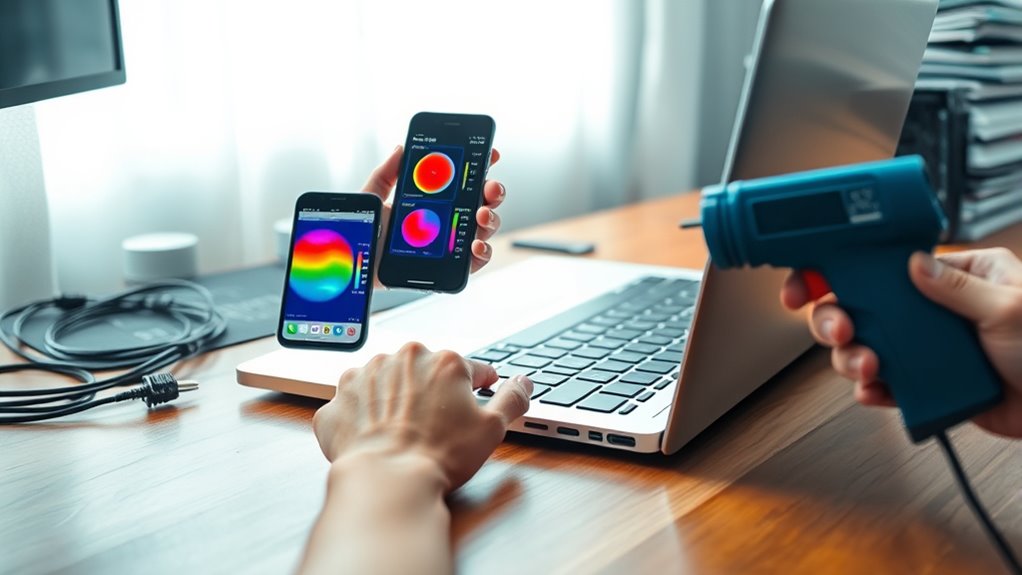
Laptop temperature can be checked with built-in system tools or third-party monitoring software. Task Manager on Windows and Activity Monitor on macOS give only basic thermal clues through CPU load, but they help spot strain before performance declines.
For direct readings, temperature monitoring software such as HWMonitor or Core Temp reports CPU temperatures and GPU values in real time. That data matters because overheating can trigger thermal throttling, lowering speed and limiting a laptop’s useful output. Most systems should stay below 85°C. If readings rise, the cooling system should be inspected for dust build-up and blocked vents, since weak air circulation traps heat.
Fan speeds also deserve attention: constant high speed or abnormal noise often signals trouble. Regular checks let the user maintain control, protect hardware, and keep the laptop operating freely and efficiently.
Built-In Ways to Check Laptop Temperature
Built-in tools can provide a quick temperature check by showing signs of thermal strain before damage occurs. On Windows, Task Manager exposes performance metrics in the Performance tab; sustained CPU spikes during idle work can signal overheating issues.
On macOS, Activity Monitor shows CPU load, and a persistently busy processor during light tasks suggests heat buildup. Linux users can run lm-sensors in the terminal for direct temperature monitoring of the CPU and related parts. These options give practical visibility without surrendering control.
- A CPU graph climbing like a heat wave
- A fan ramping as graphics settings rise
- A terminal report of numbers and thresholds
- A quiet laptop restored by smarter cooling
Third-party software can extend the same check with broader readings, but built-in methods already help identify trouble early. Regular review supports laptop cooling, preserves performance, and keeps users informed enough to act before thermal limits tighten.
Best Apps to Check Laptop Temperature
Several third-party apps provide more detailed laptop temperature monitoring than built-in tools. HWMonitor gives concise readings for CPU, GPU, motherboard temperatures, and fan speeds, making it a strong baseline for tracking laptop overheating.
Core Temp focuses on CPU temperature, shows live statistics, and can alert when thresholds are exceeded, helping users notice excessive heat early.
Core Temp focuses on CPU temperature, shows live statistics, and alerts when heat thresholds are exceeded.
Speccy offers a cleaner overview, combining temperature data with hardware specifications for fast diagnosis.
Open Hardware Monitor is open-source, shows sensors, voltages, and fan speeds, and its interface can be adjusted for practical monitoring.
MSI Afterburner is useful when graphics load matters; its performance tab displays real-time GPU temperature during demanding tasks.
Together, these tools support informed control over heat rather than blind trust. They do not repair hardware issues, but they can reveal patterns that point toward dust buildup, poor airflow, or the need for thermal paste replacement.
Quick Fixes for Laptop Overheating
Improving airflow is often the fastest way to reduce laptop heat, and it starts with placing the device on a hard, flat surface rather than a bed or couch that can block vents. This simple shift supports cooling and steadier thermal management for an overheating laptop.
Next, close unnecessary applications through Task Manager or Activity Monitor so CPU usage drops and heat output falls. Regular cleaning matters as well: dust in vents and fans acts like a blanket, trapping warmth until performance suffers. A cooling pad with built-in fans can add another layer of relief during demanding work.
- Laptop resting on a hard surface, vents open to moving air
- Heavy windows shut, CPU usage reduced
- Compressed air clearing lint from dark vent grilles
- Cooling pad pushing fresh air beneath the chassis
These quick fixes are practical, low-cost, and easy to apply. They help restore usable freedom from excess heat without complicated repairs.
How to Prevent Laptop Overheating
Preventing laptop overheating starts with maintaining unobstructed airflow and reducing thermal load during use. Effective laptop cooling depends on clear air vents, a clean cooling fan, and sufficient airflow around the chassis.
Dust should be removed routinely to prevent dust accumulation, since blocked passages force higher temperatures and unstable performance. The device should rest on a flat surface, not fabric, so intake and exhaust paths stay open.
During demanding work, unnecessary applications should be closed to reduce strain on the CPU and GPU. A cooling pad or laptop stand can further improve thermal management by lifting the system and increasing air intake.
Updated operating systems and drivers also support efficient power use and better heat control. These best practices help prevent overheating, extend component life, and preserve reliable performance without unnecessary dependence on restrictive settings or reactive fixes.
Frequently Asked Questions
How to Check Laptop Heat Temperature?
Laptop heat temperature is checked with hardware-monitoring apps reading heat sensors, while a ventilation check confirms airflow. Idle temperature, gaming heat, dust buildup, thermal paste, fan maintenance, and laptop cooling all reveal performance impact and hardware stress.
How to Test if a Laptop Is Overheating?
Software monitoring of temperatures, laptop fan behavior, and performance throttling reveals overheating. Inspect internal dust, thermal paste, and heat sinks; improve ambient temperature, power settings, cooling pads, or hardware upgrades. Persistent heat confirms failure to dissipate.
Is It Okay if a Laptop Gets Really Hot?
No; a laptop getting really hot can trigger performance impact and damage internal components. Effective laptop cooling depends on thermal paste, fan maintenance, airflow optimization, heat sensors, safety precautions, and disciplined usage habits for heat management.
Will My Laptop Tell Me if It’s Overheating?
No, not usually; laptop cooling, thermal paste, and laptop design rarely announce danger directly. Hardware monitoring, fan noise, and performance throttling hint at heat management problems, especially with ambient temperature, dust buildup, or ventilation issues.
Conclusion
In conclusion, checking laptop temperature is less a luxury than a routine safeguard. Built-in tools provide a quick snapshot, while dedicated apps offer deeper insight into CPU and GPU heat. If readings rise, simple fixes such as improving airflow, cleaning vents, and reducing load can restore stability. Monitor, respond, and prevent: when temperatures stay controlled, performance remains steady, hardware lasts longer, and unexpected shutdowns become far less likely.

