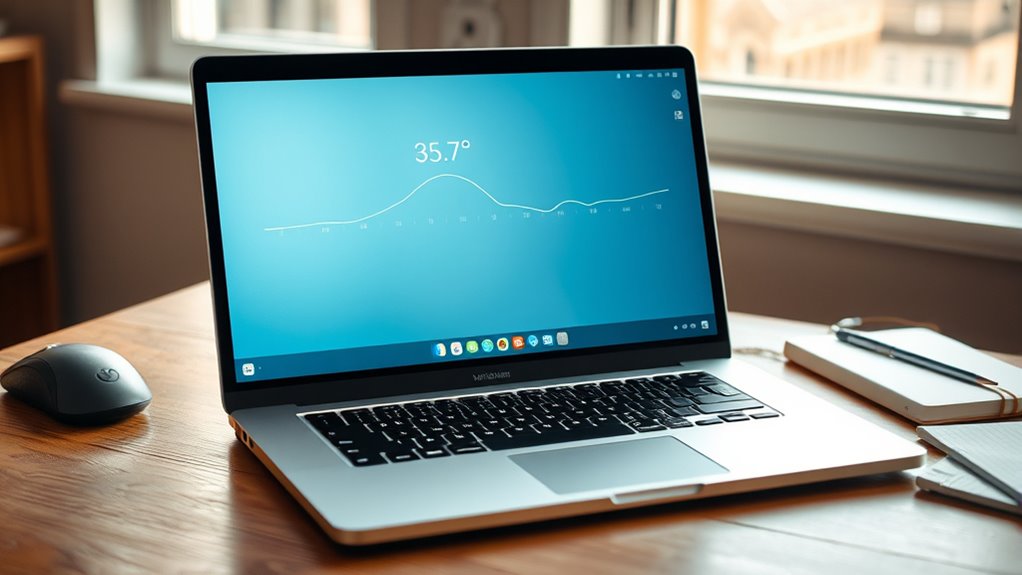
Yes. A 35.3°C idle temperature on a 12th Gen i3 laptop is normal and well within the typical 30°C to 50°C range. It suggests the cooling system is functioning properly and the machine is not under thermal stress. Laptop CPUs usually operate safely up to about 85°C, with higher sustained readings needing attention. If the user wants to assess load behavior, signs of throttling, or cooling checks, more details are available below.
Key Takeaways
- 35.3°C is normal for a 12th Gen i3 laptop at idle or light use.
- Typical laptop CPU temperatures range from 30°C to 85°C during normal operation.
- Idle temperatures around 30°C to 50°C usually indicate healthy cooling and airflow.
- Worry only if temperatures stay above 85°C, especially with throttling or shutdowns.
- Keep vents clean and monitor with HWMonitor or Core Temp for accurate checks.
Is 35.3°C Normal for a 12th Gen i3 Laptop?
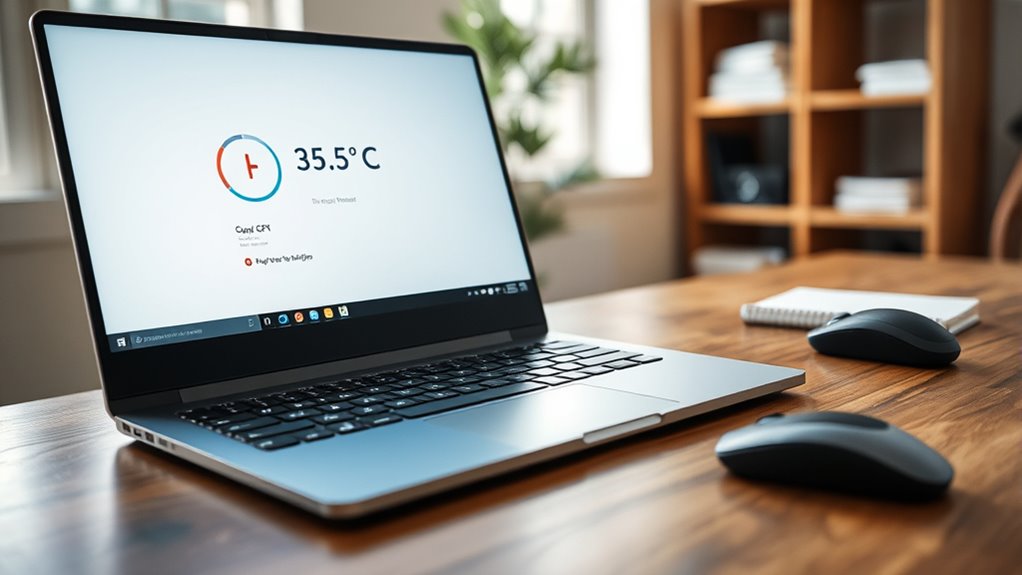
Yes—35.3°C is a normal idle temperature for a 12th Gen i3 laptop. It falls inside the typical 30–50°C idle band, indicating that the laptop CPU temperature remains under control under light load.
For this class of Intel processor, such a reading is consistent with efficient power management and adequate airflow. In diagnostic terms, the device is operating within a safe temperature range, and the result does not suggest thermal stress.
A stable figure near 35°C often reflects clean vents, functional cooling hardware, and modest ambient conditions. The user does not need intervention unless the value rises sharply during sustained workloads.
If temperatures climb well above this baseline, dust accumulation, obstructed airflow, or degraded thermal paste may deserve inspection. Monitoring over time remains prudent, because thermal behavior is part of hardware autonomy: a machine that stays cool is a machine less constrained.
What Is a Normal Laptop CPU Temperature?
A normal laptop CPU temperature typically falls between 30°C and 85°C, with the exact range shifting according to workload, cooling design, and ambient conditions.
For a 12th Gen i3 at idle, 35.3°C sits safely within normal temperature bounds and suggests the CPU is operating efficiently.
During light tasks such as web browsing, readings often move into the 50°C to 70°C band, reflecting routine power use rather than fault.
Under heavier loads, the CPU may rise to 70°C to 80°C without immediate concern, provided the system remains stable and temperatures do not persist at the upper limit.
Consistent values above 85°C warrant scrutiny because they may signal cooling impairment or other thermal stress.
Regular monitoring with diagnostic software helps detect abnormal spikes, preserving performance and enabling users to keep their machines free from unnecessary thermal constraint.
When Is a Laptop CPU Too Hot?
A laptop CPU is generally considered too hot when it consistently exceeds 85°C, with temperatures above 90°C indicating a probable overheating condition.
For many 12th Gen Intel i3 systems, 30–70°C is normal under light to moderate load, and 70–85°C is usually acceptable at full load.
Warning signs include thermal throttling, reduced performance, loud fan activity, and unexpected shutdowns.
Normal CPU Temperature Range
Laptop CPU temperatures are generally considered normal when they sit in the idle range of roughly 30°C to 50°C, so a 35.3°C reading on a 12th Gen i3 falls well within expected limits. In these normal temperature ranges, the processor is operating efficiently and without thermal stress.
Under heavier workloads, many laptops may rise into the 70°C to 85°C band and still remain acceptable, depending on chassis design and cooling capacity. Persistent readings above 85°C warrant closer inspection, because thermal throttling may reduce performance.
Monitoring tools such as HWMonitor provide real-time diagnostics and support informed, autonomous maintenance. If temperatures remain above 90°C during sustained use, airflow, vents, and cooling pads should be evaluated to preserve stable operation and keep the machine running within safe thermal boundaries.
Signs Of Overheating
Temperatures that remain consistently above 85°C generally indicate a laptop CPU is running too hot, with thermal throttling and possible long-term hardware stress becoming real concerns. Monitoring the temperature of your CPU helps identify signs of overheating before stability collapses.
Diagnostic markers include:
- Frequent shutdowns under load.
- Reduced system performance or thermal throttling.
- Loud, sustained fan noise.
Unexpected crashes or freezes during routine tasks further suggest heat-induced instability. During gaming or video editing, readings above 80°C merit attention, as they may signal inadequate cooling.
Regular use of monitoring software enables early detection, preserving system autonomy and preventing avoidable damage. A machine kept within safe thermal limits retains responsiveness, efficiency, and the freedom to operate without imposed thermal constraints.
Why Your 12th Gen i3 Laptop Runs Hot
A 12th Gen i3 laptop commonly idles near 35°C, which is generally within normal operating range, while sustained loads can push temperatures much higher.
Heat spikes typically arise during gaming, video editing, or other intensive workloads, and are worsened by dust buildup, restricted airflow, weak cooling hardware, or high room temperature.
If readings persist above 85°C, thermal throttling may occur, so regular vent cleaning and active temperature monitoring are necessary to maintain stable operation.
Typical Safe CPU Temps
Although a 12th Gen Intel i3 laptop may appear warm during routine use, its thermal behavior is usually within normal limits: idle readings around 30°C to 50°C are expected, so 35.3°C is not abnormal for light workloads.
Sustained full-load operation commonly rises into the 70°C to 85°C range without indicating a fault. These typical safe cpu temps reflect design tolerance, not distress.
Cooling efficiency and ambient room heat shape the result, so free airflow matters.
- Verify temperatures with HWMonitor or Core Temp.
- Keep vents and fans free of dust.
- Maintain unobstructed cooling paths on a hard surface.
When readings stay inside these bands, the processor remains operationally healthy and the user can work without thermal anxiety.
Why Temps Spike
Even when a 12th Gen Intel Core i3 operates within normal thermal limits, short-lived spikes can still appear during bursts of computation, because its hybrid architecture is designed to raise performance quickly while keeping average power consumption low.
Under demanding applications, temperature commonly climbs into the 70°C to 85°C range, which remains safe. Sudden load shifts, dust-clogged vents, weak airflow, and high ambient heat can intensify these peaks.
If the processor stays above 90°C, thermal throttling may activate, reducing clock speed to protect the silicon and preserve stable access to work. A cooling pad can help reduce intake heat, but it cannot compensate for poor maintenance.
Regular cleaning and unobstructed ventilation remain the most direct measures for keeping the machine responsive and free from unnecessary thermal pressure.
Cooling And Monitoring
Cooling performance depends heavily on the laptop’s thermal design, with fan quality, heat sink capacity, and vent layout directly affecting operating temperatures. A 12th Gen Intel i3 system idling near 35°C is typically within the normal 30–50°C range, but sustained rises can indicate limited airflow or a cooling system under strain.
Efficient cooling is not merely convenience; it preserves user autonomy by preventing throttling and instability. Effective monitoring with HWMonitor or Core Temp can reveal abnormal trends before damage occurs.
- Check vents for dust.
- Confirm fans respond under load.
- Use a cooling pad during gaming or editing.
Periodic cleaning restores airflow, while disciplined monitoring helps identify whether heat stems from design limits, blocked vents, or heavy workloads.
How to Check Your Laptop CPU Temperature
To check a laptop’s CPU temperature, diagnostic utilities such as HWMonitor, Core Temp, and Speccy provide direct temperature readings with minimal setup.
HWMonitor reports real-time values for the CPU, GPU, and other sensors, making it useful for broad inspection. Core Temp narrows the focus to each CPU core, enabling granular analysis of thermal variation inside the laptop.
Speccy consolidates CPU temperature, GPU temperature, and system data on one page, which supports fast assessment. Regular monitoring is technically advisable during heavy workloads, because temperature trends can reveal stress before instability or hardware damage appears.
Many systems operate within a CPU range of 50°C to 80°C under load, so readings should be interpreted against that band. This method gives users clear, independent visibility into thermal behavior, supporting informed control over their own machine.
How to Lower Laptop CPU Temperature
Once CPU temperatures have been measured, the next step is to reduce thermal load and improve heat dissipation through physical and software controls. The safest approach is systematic: preserve airflow, reduce demand, and maintain the cooling system in serviceable condition.
A laptop should rest on a hard, flat surface so intake and exhaust paths remain unobstructed. When sustained workloads raise heat, a cooling pad with auxiliary fans can add measurable airflow and support stable operation.
- Clean vents and internal fans regularly to remove dust that restricts cooling performance.
- Reapply quality thermal paste between the CPU and heat sink if the interface has aged.
- Close unnecessary applications and background processes to lower CPU load during normal use.
These measures are practical, safe, and compatible with user autonomy, allowing the machine to run cooler without unnecessary intervention or compromise.
Signs Your Laptop Is Throttling From Heat
Thermal throttling is often indicated by sudden performance degradation under load, including frame rate drops in games, slower response in demanding applications, or reduced clock speeds when CPU temperatures climb above the normal operating range of roughly 70°C to 85°C. This is a measurable sign that the laptop is running too hot and limiting itself to prevent damage. Fans may remain at maximum speed for long periods, yet performance still falls, showing the cooling system is saturated.
| Symptom | Likely Cause | Diagnostic Meaning |
|---|---|---|
| FPS drops | Heat stress | thermal throttling |
| Shutdowns | Overtemperature protection | Component defense |
| Freezes | Instability under load | Heat-related failure |
| Loud fans | Cooling overload | Near-limit operation |
Frequent crashes, freezes, or unexpected shutdowns during rendering, gaming, or multitasking further confirm the pattern. Such behavior indicates constrained thermal headroom, not user failure. Recognition matters: it preserves hardware health and supports freer, more reliable use.
Frequently Asked Questions
Is 35 Degrees C Hot for a GPU?
No, 35°C is not hot for a GPU; it is cool and normal at idle. With proper GPU cooling and temperature monitoring, such readings suggest minimal load, stable operation, and good thermal headroom.
Will 90C Damage a CPU?
90°C can damage a CPU over time, like a furnace slowly warping steel. CPU overheating may trigger thermal throttling, reducing performance to protect silicon. Persistent exposure warrants improved cooling, airflow, and thermal paste inspection.
Is 37 a Good CPU Temperature?
Yes, 37°C is a good CPU temperature; it indicates effective thermal management and likely normal idle operation. Under performance benchmarks, such readings suggest efficient cooling, low stress, and stable conditions for sustained computational freedom.
What Is the Normal CPU Temperature for a Laptop?
A normal laptop CPU temperature typically ranges from 30°C to 50°C at idle, 50°C to 70°C under light use, and 70°C to 80°C under load; effective laptop cooling and temperature monitoring maintain safe operation.
Conclusion
A 35.3°C reading on a 12th Gen i3 laptop is generally normal, especially at idle or light load. It suggests low thermal stress, adequate cooling, and stable operation. A higher concern would be persistent temperatures above 85°C, visible throttling, or rapid thermal spikes under minimal use. If the system remains responsive, the fans stay quiet, and the chassis feels only mildly warm, the temperature is within a healthy range and indicates no immediate cooling problem.

