As an Amazon Associate I earn from qualifying purchases.
You might be surprised to learn that many laptops without Ethernet ports can still use a fast, stable wired connection. You usually only need the right adapter or home-network workaround. From USB-to-Ethernet adapters to Powerline and MoCA setups, you have several practical ways to get reliable internet without replacing your laptop.
Quick Answer
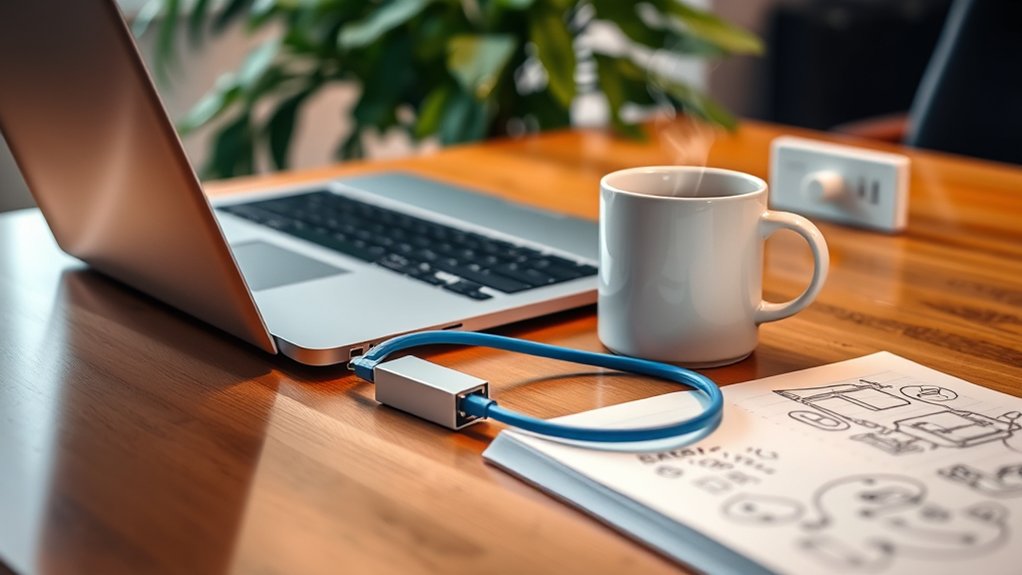
The easiest way to connect a laptop to Ethernet without a built-in port is to use a USB-to-Ethernet adapter. Plug the adapter into a USB-A or USB-C port, connect your Ethernet cable, and enable the Ethernet connection in your network settings if needed.
Key Takeaways
- A USB-to-Ethernet adapter is the simplest fix for most laptops without Ethernet ports.
- Powerline and MoCA adapters can extend wired internet to rooms where running Ethernet cable is difficult.
- Wireless bridges and extenders with Ethernet ports can help when your device needs a wired input but your router is far away.
- Mobile hotspots and USB Wi-Fi adapters are useful backups, but they do not provide the same wired stability as Ethernet.
- If the connection fails, check the adapter, cable, router port, network profile, and driver updates before replacing hardware.
At a Glance
| Time Required | 5 minutes for a USB adapter; 10–30 minutes for Powerline, MoCA, or bridge setup |
| Difficulty | Easy for USB adapters; moderate for whole-home wired workarounds |
| Tools Needed | USB-to-Ethernet adapter, Ethernet cable, router access, and optional Powerline, MoCA, or bridge hardware |
| Cost | Low for a basic adapter; higher for MoCA or multi-room networking kits |
Deal tip: Shopping for a new laptop? Our October Prime Day laptop deals cover MacBook Air, Windows 2-in-1s, Chromebooks and a gaming laptop for Prime Big Deal Days, October 6–7.
Understanding the Need for Ethernet Connections
When you need a stable internet connection, Ethernet is often the best choice. Ethernet connections provide a reliable and secure link, which helps with video conferencing, online gaming, remote work, cloud backups, and large file transfers.
If you’re in an area with weak Wi-Fi signals, switching to Ethernet can improve performance and reduce latency, especially when your laptop is far from the router. A wired connection can also reduce interference from walls, appliances, neighboring networks, and crowded Wi-Fi channels.
For sensitive data, Ethernet can also feel more dependable because your device connects directly to the network through a cable rather than relying on a wireless signal. Ethernet also supports full duplex capability, allowing simultaneous sending and receiving of data, which improves efficiency on compatible networks (IEEE 802.3, 2025-08).
Because many slim laptops no longer include built-in Ethernet ports, external solutions have become important for anyone who wants wired reliability without giving up a lightweight laptop design.
Choosing the Best Method for Your Situation
The right workaround depends on where your router is, what ports your laptop has, and whether you need true wired stability or just better internet access.
| Best Option | Use It When | Main Advantage |
| USB-to-Ethernet adapter | Your laptop has USB-A or USB-C and you can run a cable to the router | Fastest and simplest setup |
| Powerline adapter | Your router is in another room and your electrical wiring supports stable performance | Uses existing electrical wiring |
| MoCA adapter | Your home has coaxial cable outlets near the router and laptop area | Strong wired-like performance over coax |
| Wireless bridge or extender | You cannot run cable but need an Ethernet output nearby | Flexible placement |
| Mobile hotspot | You need internet away from your home network | Portable backup connection |
Exploring USB-to-Ethernet Adapters
For most people, a USB-to-Ethernet adapter is the best solution for laptops without built-in Ethernet ports. These adapters convert USB signals into Ethernet connections, so you can connect to a wired network without opening the laptop or changing internal hardware.
Choose the adapter based on your laptop’s available port. If your laptop has USB-C, use a USB-C Ethernet adapter or a USB-C hub with Ethernet. If your laptop has USB-A, use a USB-A adapter, preferably one that supports USB 3.0 or newer for better performance.
With high data transfer rates—some up to 2.5 Gbps—these adapters work well for bandwidth-heavy tasks like streaming, gaming, backups, and large downloads (Realtek RTL8156B, spec page, accessed 2025-09-19).
The plug-and-play functionality means you can usually plug the adapter into a USB port and start using it without installing extra drivers on most modern systems.
Plug in the adapter, connect your Ethernet cable, and enjoy instant connectivity on most modern laptops.
Their compact and portable design makes them ideal for travelers, students, remote workers, and anyone who moves between desks. Plus, compatibility with USB 3.0, USB 3.1, and USB-C ports gives you flexibility as your setup changes over time.
Pro Tip: If you have gigabit internet, avoid very old USB 2.0 Ethernet adapters. A USB 3.0 or USB-C gigabit adapter gives you more room for full-speed performance.
How to Connect Ethernet With a USB Adapter
Setting up Ethernet through a USB adapter only takes a few minutes. Use this method when your laptop has no Ethernet jack but you can reach your router, modem, wall jack, or network switch with a cable.
- Plug the USB-to-Ethernet adapter into your laptop’s USB-A or USB-C port.
- Connect one end of an Ethernet cable to the adapter.
- Connect the other end to your router, modem, wall Ethernet jack, or switch.
- Wait a few seconds for your operating system to detect the adapter.
- Open your network settings and confirm that Ethernet is connected.
- Run a speed test or load a website to confirm the connection works.
If the connection does not work right away, unplug and reconnect the adapter, try another Ethernet cable, or test a different router port. You can also restart your laptop after the adapter is connected.
Setting Up a Wireless USB Adapter
Setting up a wireless USB adapter is a straightforward process that can quickly restore your laptop’s Wi-Fi capabilities. This option does not create a true Ethernet connection, but it can help when your built-in Wi-Fi is weak, broken, or outdated.
Simply plug the adapter into your USB port, and it’s usually ready to go, thanks to plug-and-play functionality. This device can connect you to various wireless networks and improve your online experience if the adapter has stronger antennas or newer Wi-Fi support than your laptop.
Here’s a quick comparison of some popular option types:
| Adapter Model | Data Rate (Mbps) | Dual-Band Support |
|---|---|---|
| Model A | 600 | Yes |
| Model B | 300 | Yes |
| Model C | 150 | No |
| Model D | 450 | Yes |
With a high-quality adapter, you can enjoy smoother browsing, streaming, and gaming on your wireless network. For the best results, choose dual-band support and connect to the 5 GHz or 6 GHz band when your router supports it.
Note: A USB Wi-Fi adapter is helpful, but it is still wireless. If you need the lowest latency and highest stability, use USB-to-Ethernet, MoCA, or Powerline instead.
Creating a Mobile Hotspot for Internet Access
Creating a mobile hotspot can give your port-less laptop internet access when Ethernet and Wi-Fi are unavailable. Your phone or mobile device shares its cellular data connection, allowing your laptop and other devices to connect.
You’ll need to follow specific setup steps based on your operating system, while also considering device compatibility and managing your data usage.
Securing your hotspot with a strong password is essential to protect your connection and avoid extra charges from unauthorized users.
Mobile Hotspot Setup Steps
If you need internet access on your port-less laptop while traveling or working away from home, setting up a mobile hotspot is a convenient solution. Follow these steps to get started:
- Open the “Settings” app on your phone or mobile-enabled device.
- Select “Network & Internet,” “Connections,” or the hotspot option used by your device.
- Turn on the “Share my Internet connection with other devices” toggle and select your connection, such as cellular data.
- Click “Edit” to customize the hotspot name and password for security. Windows 11 supports editing the name and password under Mobile hotspot > Properties > Edit (Lifewire, 2021-09-01; updated 2025).
Once set up, connect your laptop by searching for the hotspot name in Wi-Fi settings and entering the password you created.
| Step | Action |
|---|---|
| 1 | Open “Settings” |
| 2 | Enable “Mobile hotspot” |
| 3 | Customize name & password |
| 4 | Connect your laptop |
Monitor your data usage to avoid exceeding your plan limits. Hotspots are useful backups, but they can drain battery and use mobile data quickly.
Device Compatibility Considerations
When using a mobile hotspot for internet access, it’s important to evaluate your device’s compatibility. Many modern laptops lack an Ethernet port, so creating a mobile hotspot can be a smart workaround when no wired network is available.
First, check whether your phone, tablet, or mobile-enabled laptop supports hotspot functionality. Not all devices, especially older models or carrier-restricted plans, allow tethering. If your laptop connects to a mobile data network or another Wi-Fi source, enabling the mobile hotspot feature in your settings allows other devices to connect and share your internet connection.
Just remember, tethering can use significant data, so verify data limits with your mobile provider to avoid unexpected charges. By ensuring compatibility first, you can enjoy smoother internet access without needing an Ethernet port.
Data Usage Management Tips
While using a mobile hotspot can provide convenient internet access, managing your data usage effectively is essential to avoid exceeding your plan’s limits.
Start by ensuring your smartphone’s data plan allows hotspot usage, as it can consume a lot of data, especially when streaming videos, downloading large files, syncing cloud folders, or joining long video meetings.
Navigate to your settings, often under “Network & Internet” or “Connections,” to enable the mobile hotspot feature and customize its name and password.
Test connection speeds in various locations to find the best performance. Moving closer to a window or a stronger cellular area can improve the connection.
To maximize battery life while using your phone as a hotspot, plug it into a charger, especially when multiple devices connect.
These data usage management tips will keep your internet experience smooth without unnecessary overages.
Warning: Avoid using public or shared hotspots for sensitive work unless you trust the network. Use HTTPS websites and a secure VPN when handling private files, banking, or work accounts.
Using Powerline Networking Solutions
Powerline networking solutions offer a convenient way to extend your Ethernet network without running long cables through your home. These kits use your existing electrical wiring to carry network signals between rooms.
To use Powerline, plug one adapter into a wall outlet near your router and connect it with Ethernet. Then plug the second adapter into a wall outlet near your laptop and connect it to your USB-to-Ethernet adapter, docking station, or Ethernet-capable device.
Here’s what to know:
- You need at least two powerline adapters: one near your router and another in your desired location.
- Installation is typically plug-and-play, requiring no complex configurations.
- Performance may vary based on your home’s electrical wiring quality and layout.
- Many current adapters advertise gigabit-class speeds (1–2 Gbps PHY) with HomePlug AV2 or G.hn—actual throughput is much lower in practice (Zyxel AV2 1800 Mbps, accessed 2025-09-19; Zyxel G.hn 2400 Mbps, accessed 2025-09-19).
- Be aware that actual speeds might be lower due to environmental factors.
Harnessing powerline networking can liberate you from cable chaos while providing reliable connections in rooms where Wi-Fi struggles.
For best results, plug Powerline adapters directly into wall outlets instead of power strips or surge protectors. Also, avoid placing them near noisy electrical devices when possible.
Implementing Ethernet Over Coax (MoCa)
If you’re looking for another effective way to enhance your internet connectivity, consider Ethernet Over Coax, also called MoCA technology. This solution uses your home’s existing coaxial cable wiring, offering high-speed internet access without installing new Ethernet cables.
Worth knowing before you go down this route: the coax already running to your modem is doing similar work. Some modems provide more than one wired output, so a second device can be fed directly without any adapter at all — the SB8200 and its two Gigabit Ethernet ports are one example.
With MoCA adapters, you can connect to a coaxial wall outlet and get Ethernet ports for your devices. This can provide minimal latency and strong performance compared with many wireless options. You’ll need at least two adapters—one at your router and another at your device location—for a simple plug-and-play setup.
Supporting speeds up to 2.5 Gbps with MoCA 2.5, Ethernet Over Coax is a strong option for streaming, gaming, home offices, and smart TV setups (MoCA Alliance, spec page, accessed 2025-09-19). Just verify compatibility and check your coaxial wiring for peak performance.
MoCA works best when your coaxial wiring is active, properly split, and not used in a way that conflicts with your internet or TV service. If you use cable internet, check whether your modem, router, and splitters support the frequencies required by your MoCA adapters.
Configuring Wireless Bridges and Extenders
How can you expand your network’s reach without running new cables? Configuring wireless bridges and extenders is a practical solution.
These devices connect to your existing WiFi and provide Ethernet outputs, letting you connect an Ethernet cable to your port-less laptop through an adapter or dock. This setup is not as pure as a direct Ethernet run because part of the path is still wireless, but it can help when your router is too far away.
Here are some tips to get started:
- Use a WiFi range extender with Ethernet ports for added connectivity.
- Repurpose an older router as a wireless bridge by reconfiguring it. Bridge/AP mode is commonly supported; see community docs such as OpenWrt Bridged AP, 2025-03.
- Properly place your bridge or extender to avoid physical obstructions.
- Connect the bridge to your WiFi network and then link it to your device using an Ethernet cable.
- Test the connection strength and adjust placement as needed for peak performance.
With these steps, you can enjoy a stable wired-style connection in places where running a long cable is inconvenient.
Using a Docking Station or USB-C Hub With Ethernet
A docking station or USB-C hub with Ethernet is another clean solution for laptops without built-in Ethernet ports. This option works especially well if you already connect your laptop to an external monitor, keyboard, mouse, or charger at a desk.
Instead of using a single-purpose Ethernet adapter, a dock gives you multiple ports in one device. Many USB-C docks include Ethernet, HDMI or DisplayPort, USB-A ports, SD card slots, and power delivery.
Choose a dock that matches your laptop’s USB-C, Thunderbolt, or USB4 support. Also, confirm whether the Ethernet port supports 1 Gbps or 2.5 Gbps if speed matters to you.
This setup is ideal for home offices because you can plug in one cable and instantly connect to power, accessories, displays, and wired internet.
Checking Your Laptop Ports Before Buying
Before buying any adapter, check which ports your laptop actually has. This prevents ordering the wrong connector or limiting your network speed by accident.
- USB-A: Use a USB-A Ethernet adapter. Choose USB 3.0 or newer for better performance.
- USB-C: Use a USB-C Ethernet adapter or USB-C hub with Ethernet.
- Thunderbolt: Use a Thunderbolt or USB-C dock with Ethernet if you want a full desk setup.
- No free ports: Use a hub or dock so you can connect Ethernet and other accessories at the same time.
You should also check your internet plan and router speed. A 2.5G Ethernet adapter will not create 2.5 Gbps speeds if your router, cable, switch, or internet plan does not support that speed.
Troubleshooting Common Connection Issues
Troubleshooting connection issues can feel frustrating, especially when you rely on a wired setup for stability.
Start by verifying your USB-to-Ethernet adapter is compatible with your laptop’s USB ports, as some adapters need USB 3.0 for peak performance. If your connection isn’t established, check that the adapter is securely plugged in and that the Ethernet cable connects properly to both the adapter and the router.
Next, access your network settings to confirm the Ethernet connection is enabled. Test different Ethernet cables or ports if the problem persists. Confirm you’ve selected the correct network profile, such as Private or Public, for proper connectivity.
Access your network settings to ensure the Ethernet connection is active, and try different cables or ports if issues continue.
Finally, restart your laptop and router. This simple step often resolves lingering issues with your adapter, router, access point, or saved network configuration.
Common Fixes by Problem
| Problem | What to Try |
| Adapter not detected | Try another USB port, restart the laptop, or install the adapter driver from the manufacturer. |
| Ethernet says connected but no internet | Restart the router, test another cable, and confirm the router port works with another device. |
| Speed is slower than expected | Use Cat5e or Cat6 cable, check router speed, and avoid older USB 2.0 adapters. |
| Connection drops often | Update drivers, disable aggressive power saving for the adapter, and test another cable. |
Optimizing Network Settings for Better Performance
To maximize your laptop’s Ethernet performance, tweak your network settings carefully. A few simple adjustments can improve both your local network and internet experience.
Here are some steps to take into account:
- Enable network discovery to detect other devices and improve connectivity on trusted private networks.
- Set your Ethernet connection type to “Private” on your home network for better device discovery and sharing options.
- Use high-quality Cat6 Ethernet cables to support faster speeds and lower latency.
- Regularly update your network adapter drivers for stability and speed enhancements.
- Optimize your router settings, like Quality of Service (QoS), to prioritize bandwidth for your wired connections.
Implementing these strategies will help unlock your laptop’s potential and provide a seamless online experience.
You can also disable Wi-Fi temporarily after connecting Ethernet if your laptop keeps choosing the weaker wireless connection. Many systems prioritize Ethernet automatically, but checking the active connection can prevent confusion.
Cost-Effective Solutions for Wired Connections
While modern laptops often lack built-in Ethernet ports, you can still tap into the benefits of a wired connection through various cost-effective solutions.
A USB to Gigabit/2.5G Ethernet adapter is a practical way to enhance your network stability and speed, with widely available 2.5G models (Realtek RTL8156B, accessed 2025-09-19).
If you want to connect devices across different rooms, consider Powerline networking solutions that advertise up to 1–2 Gbps PHY depending on the standard (HomePlug AV2 example, accessed 2025-09-19).
Wireless bridges also allow you to connect to existing Wi-Fi networks and provide Ethernet outputs. This can be more affordable than running cable through walls, though performance still depends on Wi-Fi strength.
For homes with coaxial wiring, Ethernet over Coax (MoCA) adapters offer nearly lossless performance with MoCA 2.5 up to 2.5 Gbps (MoCA Alliance, accessed 2025-09-19).
Finally, USB Wi-Fi dongles at budget prices are widely available, including N150 nano adapters commonly listed around $9.99 as of the cited check date (Amazon listings, accessed 2025-09-19). Prices can change, so check the latest listing before buying.
Security Tips for Wired and Wireless Workarounds
Whether you use Ethernet, Powerline, MoCA, a bridge, or a hotspot, basic security still matters. Wired connections are generally harder to intercept than open Wi-Fi, but poor settings can still expose your data or devices.
- Use a strong router password and update the default admin login.
- Keep your router firmware and laptop network drivers updated.
- Use WPA2 or WPA3 encryption for Wi-Fi and hotspot connections.
- Avoid open public networks for private work when possible.
- Set your network profile to Private only on networks you trust.
- Disconnect or disable hotspot sharing when you no longer need it.
These small habits help protect your connection while you enjoy the convenience of a laptop without a built-in Ethernet port.
Related Guides
Frequently Asked Questions
How do I connect my laptop to Ethernet without a port?
You can connect your laptop to Ethernet without a built-in port by using a USB-to-Ethernet adapter. Plug the adapter into your USB-A or USB-C port, connect your Ethernet cable, and wait for your laptop to detect the wired connection.
Can you add Ethernet to a laptop?
Yes, you can add Ethernet to your laptop using USB-to-Ethernet adapters, USB-C hubs, docking stations, Powerline networking, or MoCA adapters. These methods let you enjoy a stable wired connection without needing a built-in Ethernet port.
Why are laptops removing Ethernet ports?
Many laptops are removing Ethernet ports to prioritize thinner designs, lighter bodies, and versatile USB-C ports. Manufacturers also assume many users rely on Wi-Fi, docks, or external adapters instead of traditional built-in Ethernet jacks.
Can I connect an Ethernet cable directly to my laptop without a router?
You can connect an Ethernet cable to your laptop through a USB-to-Ethernet adapter, but the cable still needs to connect to a working network source, such as a router, modem, switch, wall jack, or another properly configured device.
Is USB-to-Ethernet faster than Wi-Fi?
USB-to-Ethernet can be faster and more stable than Wi-Fi when your adapter, cable, router, and internet plan support higher speeds. It also tends to reduce latency and interference compared with crowded wireless networks.
Do I need drivers for a USB Ethernet adapter?
Most modern USB Ethernet adapters work automatically on current Windows, macOS, ChromeOS, and many Linux systems. If your laptop does not detect the adapter, download the correct driver from the adapter manufacturer.
Conclusion
Finding a reliable internet connection for your port-less laptop can seem challenging, yet it’s usually straightforward. A USB-to-Ethernet adapter is the easiest fix when you can connect directly to a router, wall jack, or switch.
If your router is in another room, Powerline solutions, MoCA adapters, wireless bridges, and docking stations can extend your options. Mobile hotspots and USB Wi-Fi adapters also work well when you need flexible internet access away from a wired network.
Whether you’re working from home, gaming, streaming, or traveling, you’ve got practical solutions at your fingertips for seamless online access.
Sources
- IEEE 802.3 overview — Ethernet standards and full duplex context.
- Realtek RTL8156B product page — 2.5G USB Ethernet controller capability.
- Zyxel HomePlug AV2 powerline adapter — Powerline advertised speed example.
- Zyxel G.hn powerline specifications — G.hn powerline speed example.
- MoCA Alliance MoCA 2.5 — MoCA 2.5 speed and coax networking information.
- OpenWrt Bridged AP guide — Wireless bridge and access point setup concept.


1 thought on “Connect a Laptop to Ethernet Without a Port (2026 Guide)”