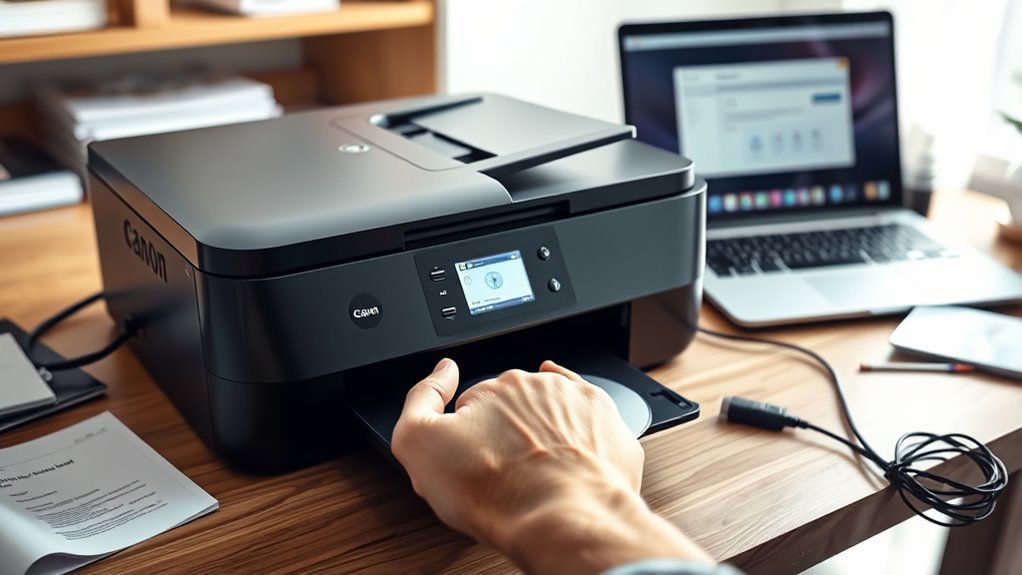
A new Canon G3270 that keeps prompting to install usually has a setup blockage rather than a serious defect. The print head or ink tanks may be misseated, or packing tape may still be attached under the covers. A blocked lid sensor can also stop installation. Power cycling the printer, reseating parts, or resetting it may clear the fault. If the prompt remains, the driver or hardware may need closer inspection, which is covered next.
Key Takeaways
- Leftover packing tape or materials on the Canon G3270 can trigger the install message.
- Make sure the print head and ink tanks are seated correctly and all protective tape is removed.
- Check the lid sensor for obstructions, since blocked sensors can prevent setup from finishing.
- Power cycle the printer by unplugging it for 30 seconds to clear temporary faults.
- If the message continues, reinstall Canon drivers or contact support for a deeper hardware issue.
Why Is My Canon G3270 Stuck on Install?
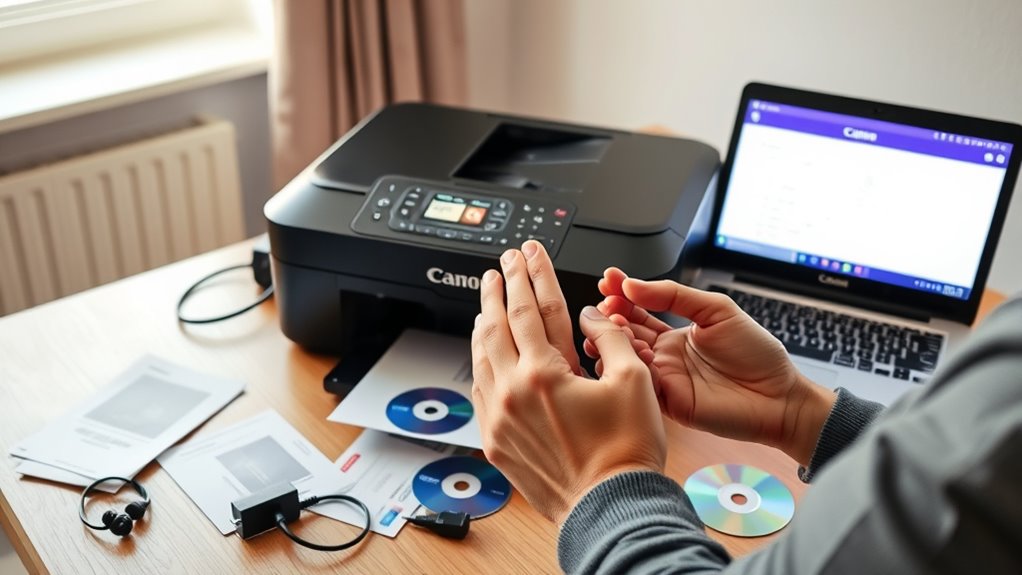
A Canon G3270 can remain stuck on the install screen when packing materials or protective tape were not fully removed from the print head or ink tanks, or when the lid sensor is obstructed.
This installation failure usually signals a physical interference, not a fatal defect. A careful inspection should confirm that no leftover tape, foam, or packaging blocks sensor paths or moving parts.
This usually signals a physical interference, not a fatal defect; inspect for leftover tape, foam, or packaging.
The printer may also loop on setup prompts if the system detects an incomplete start sequence. Power cycling the unit by unplugging it for at least 30 seconds can clear temporary faults and restore normal installation behavior.
If the display still does not advance, firmware updates should be verified, since outdated code can preserve the fault state. For users seeking operational freedom, eliminating obstruction and confirming current firmware are the most direct corrective steps.
If needed, a clean restart often releases the printer from a stalled state without further intervention.
Check the Print Head and Ink Tanks
The print head should be reseated firmly in its slot to confirm proper electrical and mechanical contact.
The ink tanks must be verified for correct placement, with all protective tape and seals removed before installation.
If the printer still reports an install error, the print head and ink tanks should be checked again for alignment and secure seating.
Reseat Print Head
Reseating the print head can resolve installation prompts on the Canon G3270 when the unit is not fully recognized.
Power off the printer, then carefully remove the print head and reseat it in the designated slot until it locks firmly. This step helps the printer detect the component properly and prevents false install messages.
Inspect the print head and ink tanks for packing material or protective tape, and remove anything that could block contact or movement.
Confirm that the print head and tanks match the G3270 model, since incompatible parts can trigger errors.
If the prompt remains after a proper reseat, a power cycle or factory reset may clear temporary recognition faults and restore normal operation.
Verify Ink Tank Placement
Next, the ink tanks should be checked for proper seating in their assigned slots, since even slight misalignment can trigger an installation prompt on the Canon G3270. Verify each ink tank rests flush, clicks firmly, and matches the printer’s designated bay. A loose tank can interrupt recognition and keep the installation message active.
| Check | Result | Meaning |
|---|---|---|
| Tank seated | Yes | Signal path remains stable |
| Tank locked | Yes | Installation status clears |
| Model match | G3270 | Compatibility confirmed |
The print head must also stay locked in place, because movement can break contact and mimic a missing component. If placement is correct and the prompt persists, power-cycle the printer to reset temporary errors. This process restores control to the user and removes unnecessary barriers.
Check Protective Tape
Protective tape and any packing material should be fully removed from the print head and ink tanks, since even a small strip can prevent proper seating and trigger an installation prompt.
The user should check protective tape around the carriage, cartridge bays, and tank caps, then confirm the print head is locked firmly into its slot.
Any obstruction near the print head area should be cleared without force. The ink tanks must sit in the correct position and click into place, or installation prompts may continue.
A quick inspection of the lid sensor is also prudent, because a blocked sensor can make the printer report an open cover.
Removing these barriers restores control, allowing the machine to recognize components and complete setup.
Remove Packing Materials and Tape
All packing materials and protective tape should be removed from the Canon G3270 before setup continues, including any tape on or beneath the print head and around the ink tanks.
Every strip, insert, and spacer must be cleared so the machine can operate without restraint. If protective tapes remain, the printer may read the state as incomplete and display installation prompts. Such residue can also cause setup failures by obstructing internal sensors and preventing component recognition.
A careful inspection should include hidden areas under the print head and along the ink tank assembly, where tape may not be obvious.
The process to remove packing materials should be deliberate and complete. The user manual should be consulted for the exact locations and removal steps, since model-specific guidance reduces error.
Once all materials are cleared, the printer is freer to initialize properly and proceed to normal use without avoidable delays.
Make Sure the Lid Sensor Isn’t Blocked
Once packing materials have been removed, the lid sensor on the Canon G3270 should be checked for obstruction. This sensor confirms whether the lid is fully closed during setup and operation.
If protective tape, foam, or stray packing materials remain near the lid area, the sensor may misread the printer state and repeatedly display an install prompt. A blocked lid sensor can keep the device in an apparent setup condition, preventing normal functionality.
Inspection should be direct and careful: open the lid, observe the sensor location, and verify that no debris, tape, or residue interferes with its movement or detection path. The area must remain clear for reliable response.
Regular checks are advisable, especially after unpacking or transport, because even small obstructions can disrupt operation. Restoring an unobstructed lid sensor helps the printer recognize closure correctly and return to normal functionality without unnecessary setup interruptions.
Power Cycle the Canon G3270
The Canon G3270 should be powered off and unplugged from the power source to begin a proper reset.
It should remain disconnected for at least 30 seconds to clear temporary software faults.
After reconnecting all cables securely, the printer can be restarted and checked for any remaining error indicators.
Unplug And Wait
Unplug the Canon G3270 from the electrical outlet and leave it disconnected for at least 30 seconds to perform a power cycle.
This controlled unplug, wait sequence can clear transient installation prompts by resetting internal components. The printer should be fully powered off before removal, reducing risk of data loss or corruption.
After the wait period, reconnect power and switch the unit on. This simple reset often resolves installation issues linked to temporary firmware, connectivity, or software faults.
If the prompt disappears, the device has likely recovered from a minor glitch and regained normal function. Regular power cycling can preserve operational freedom by preventing recurring errors.
If the message remains, the fault is not temporary and requires further diagnosis.
Restart Printer Properly
Power cycling the Canon G3270 begins by turning the printer off and disconnecting it from the power source for at least 30 seconds to reset its internal circuitry.
After the pause, one should plug the unit back in and power it on so it can reboot cleanly. This power cycle often clears installation prompts and other temporary faults that block normal operation.
- Verify all cables are firmly seated.
- Confirm the display responds after startup.
- If errors persist, hold Stop until the alarm lamp flashes 21 times.
Regular rebooting helps liberate the device from software glitches after updates or installation changes.
It also restores recognition of components and supports stable performance without unnecessary intervention.
Reset the Canon G3270 to Factory Defaults
Access the Canon G3270’s Setup menu on the control panel, then open Device Settings and scroll to Reset all to restore the printer to factory defaults. Confirm the reset to clear stored preferences and return the unit to a clean state.
This action can remove persistent issues such as repeated install prompts, stuck setup screens, and other configuration faults. Because a factory reset erases all custom settings, any important options should be recorded before proceeding.
After the reset completes, the printer may require reentry of network settings to regain wireless access. If the device was previously customized for a specific environment, those values must be restored manually.
The reset is a direct method for reclaiming control when the system appears trapped in a loop. It does not replace later reconfiguration, but it can break the cycle and provide a fresh starting point.
Reinstall the Canon G3270 Driver
Reinstalling the Canon G3270 driver can often clear persistent install prompts by replacing outdated or missing software with the latest version from Canon’s official website.
Before the reinstall, remove any prior Canon software so residual files do not interfere with the new driver package. This clean start restores control and reduces setup friction.
- Download the current Canon G3270 driver only from Canon’s official support page.
- Follow the setup steps exactly, selecting USB or Wi‑Fi when the installer requests it.
- Restart both the printer and the computer so the system recognizes the new driver.
If the install loop continues after the driver reinstall, verify that no obstruction blocks the lid sensor, since the printer may not register readiness.
Once the Canon G3270 is properly recognized, the installer should complete without repeated prompts.
When the Canon G3270 Has a Hardware Problem
If the Canon G3270 continues to prompt for installation after the driver has been reinstalled, the cause may be a hardware fault rather than a software issue.
A repeated installation prompt can reflect a hardware malfunction in the print head, ink tank seating, or internal detection circuit. Check that all protective packing materials and tape have been removed; any obstruction can prevent proper setup and keep the machine from completing initialization.
A power cycle may clear temporary glitches: unplug the printer for at least 30 seconds, then restore power and test again.
Inspect the lid sensor area as well; if the sensor is blocked or defective, the device may continue to request installation.
If these checks do not stop the prompt, the fault is likely deeper in the hardware path. At that point, professional diagnostics are needed to restore reliable operation without unnecessary delay.
When To Contact Canon Support
When repeated installation prompts continue after hardware checks and basic resets, Canon support should be contacted for further diagnosis. Persistent alerts often signal software, firmware, or component faults beyond routine troubleshooting issues.
Persistent installation prompts after basic resets often signal deeper faults, making Canon support the next best step.
If the printer remains offline after correct driver installation, unresolved connectivity may require network review or compatibility verification. A blank display or inactive control panel also indicates a likely internal failure that should be escalated.
- Confirm all packing materials are removed.
- Verify cable, Wi-Fi, and driver setup.
- Record exact error codes before calling Canon support.
If installation prompts still appear, support can isolate whether the issue stems from setup corruption, a damaged part, or a configuration mismatch. Their guidance helps restore control and keeps the user from being trapped in repetitive resets.
For a G3270 that will not stabilize, timely Canon support contact is the clearest path to resolution and operational freedom.
Frequently Asked Questions
How to Setup a Canon G3270 Printer?
He should remove packing materials, connect power, and follow the wireless setup guide. Then install Canon software, check printer configuration tips, and apply installation troubleshooting steps for software compatibility issues before loading ink and paper.
Why Can’t I Install My Canon Printer?
Printer installation issues often arise from a delicate setup interruption, lingering packing materials, driver compatibility problems, or offline status. Troubleshooting Canon should follow user manual guidance, with updated software and Canon PRINT reinstallation before support.
My Canon G327 Printer Isn’t Connecting to Wi-Fi. What Can I Do?
He should start with Wi Fi troubleshooting: confirm router range, SSID, and password. Then check network settings in Canon PRINT, perform a printer reset if needed, and apply driver updates from Canon support.
How Do I Set up the Canon Megatank G3272 Printer?
Set up begins by removing packing materials, installing ink tanks until they click, powering on, and configuring language and Wi‑Fi for wireless printing. Then complete ink refilling checks, printer maintenance, driver installation, and troubleshooting tips.
Conclusion
To sum up, a Canon G3270 that remains stuck on “install” is often signaling a simple setup issue, not a fatal fault. Start by verifying the print head, ink tanks, tape removal, lid sensor, and power cycle, then proceed to reset and driver reinstallation if needed. If the message persists, the device may be suffering from a hardware defect. Like a locked door, the printer often requires the correct sequence before it opens for normal operation.

