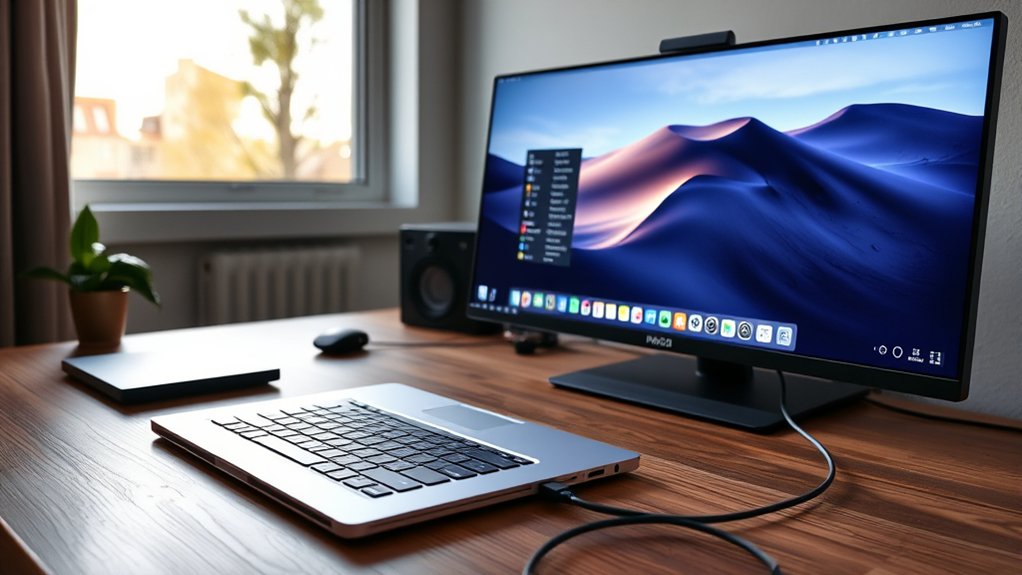
To disable sleep mode when closing the laptop lid while an external monitor is connected, users should access the Control Panel and navigate to Power Options. Here, they can set the “When I close the lid” option to “Do Nothing” for both battery and plugged-in modes. It’s crucial to save changes and reboot the laptop. Additionally, checking for conflicting settings and adjusting display configurations can enhance productivity. More insights on this process are available further along.
Adjust Power Settings to Keep Your External Monitor Active
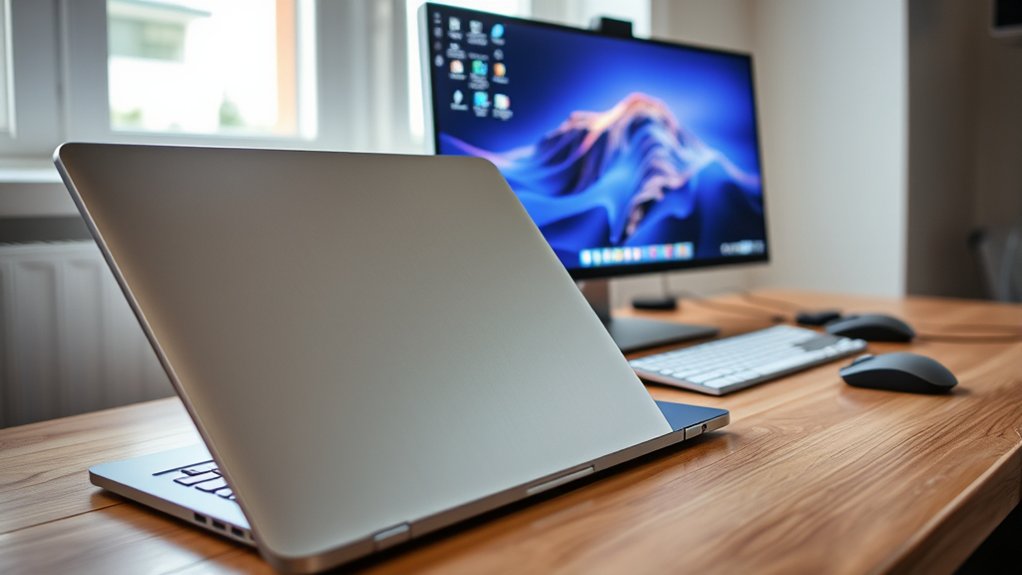
To maintain productivity while using an external monitor, users must adjust their laptop’s power settings to prevent sleep mode activation upon closing the lid. Accessing the Power Options in the Control Panel is vital for this adjustment. Users should set both “When I close the lid” options to “Do Nothing” for battery and plugged-in modes.
This modification guarantees that closing the lid does not disrupt the external display, allowing for uninterrupted productivity.
It is important to confirm that these changes are saved and to reboot the laptop to verify that the new settings take effect. If issues persist, users should investigate potential conflicting settings within the system or explore BIOS options, especially on older laptop models, which may provide further configurations for lid behavior.
Correctly configuring these Power Options leads to improved workflow and reduced frustration, enabling seamless use of multiple displays without interruptions.
Configure Lid Closure Actions for Seamless Workflow
Configuring lid closure actions is essential for users who rely on an external monitor while working on a laptop. Properly managing the laptop lid settings can enhance productivity and guarantee a seamless workflow.
Configuring lid closure actions is crucial for optimizing productivity, especially for users with external monitors.
To achieve this, follow these steps:
- Access the Control Panel and navigate to “Power Options” under “Hardware and Sound.”
- Set both “On battery” and “Plugged in” options for closing the lid to “Do nothing.”
- Save the changes and reboot the laptop to confirm the adjustments.
- Check for conflicting settings that may override preferences for lid closure actions.
How to Fix Common Lid Issues?
Addressing common lid issues is essential for users who depend on their laptops while connected to external monitors. To prevent sleep when closing the lid, users should navigate to Control Panel > Hardware and Sound > Power Options, setting “Choose what closing the lid does” to “Do Nothing” for both battery and plugged-in modes.
Rebooting the laptop after making these changes helps confirm that the new configurations are effective.
However, some laptops may have BIOS settings that override Windows power options. Users experiencing ongoing issues should check their BIOS for conflicting settings.
Additionally, older laptop models might not support external displays when closing the lid, making hardware compatibility verification vital.
If problems persist, consulting community forums or manufacturer support can provide valuable insights into specific model-related lid behavior, guiding users towards a liberated and uninterrupted workflow.
Configure Display Settings for Optimal Use With External Monitors
Effective use of external monitors requires careful configuration of display settings to guarantee seamless operation. By optimizing these settings, users can enhance their productivity and visual experience while maintaining freedom in their workflow.
- Press Windows key + P and select “Second screen only” to secure display continuity with the laptop lid closed.
- Confirm primary monitor settings are correctly configured to avoid workflow disruptions.
- Adjust resolution settings for both the laptop and external monitors to prevent scaling issues and enhance visibility.
- Check if the laptop supports extended display mode while the lid is closed; some models may have limitations based on hardware.
Regularly updating graphics drivers is essential for compatibility and performance, ensuring that users can fully leverage their external display capabilities.
Benefits of Keeping Your External Monitor Active
Optimized display settings not only enhance the experience with external monitors but also provide significant benefits when keeping the laptop lid closed. This practice fosters enhanced productivity by enabling uninterrupted multitasking without the need to frequently open and close the laptop.
| Benefit | Description |
|---|---|
| Larger Screen Real Estate | Improves workflow efficiency and reduces eye strain. |
| Seamless Presentations | Facilitates professional appearances in remote work setups. |
| Prevention of Data Loss | Avoids disruptions during long processes like downloads. |
Frequently Asked Questions
How to Stop Computer From Sleeping When Closing Lid?
To stop a computer from sleeping when closing the lid, one should adjust the Power Settings in the Control Panel. Select “Do nothing” for both battery and plugged-in options, then save changes and reboot.
Why Does My Macbook Sleep When the Lid Is Closed When I Use an External Monitor?
The MacBook’s lid behavior is designed to conserve energy, leading to sleep when closed, even with an external monitor. Adjusting settings or using third-party apps can prevent this, enabling continuous operation and user liberation.
How to Stop Laptop From Sleeping When Connected to Monitor?
To prevent a laptop from sleeping when connected to a monitor, adjust the Power Settings in the Control Panel. Select “Choose what closing the lid does” and set both options to “Do Nothing.” Save changes.
How Do I Disable Sleep Mode on My Monitor?
To disable sleep mode on a monitor, access the on-screen display menu, navigate to Power Settings, and turn off the sleep timer or adjust it to a longer duration. Save changes before exiting the menu.
Conclusion
In a world where productivity often hinges on seamless shifts, keeping an external monitor active while the laptop lid remains closed transforms the workspace into a harmonious symphony of efficiency. By adjusting power and display settings, users access the potential of their devices, ensuring that creativity flows unhindered. Embracing these simple configurations not only enhances workflow but also empowers individuals to navigate their digital domains with finesse and confidence, turning obstacles into stepping stones for success.

