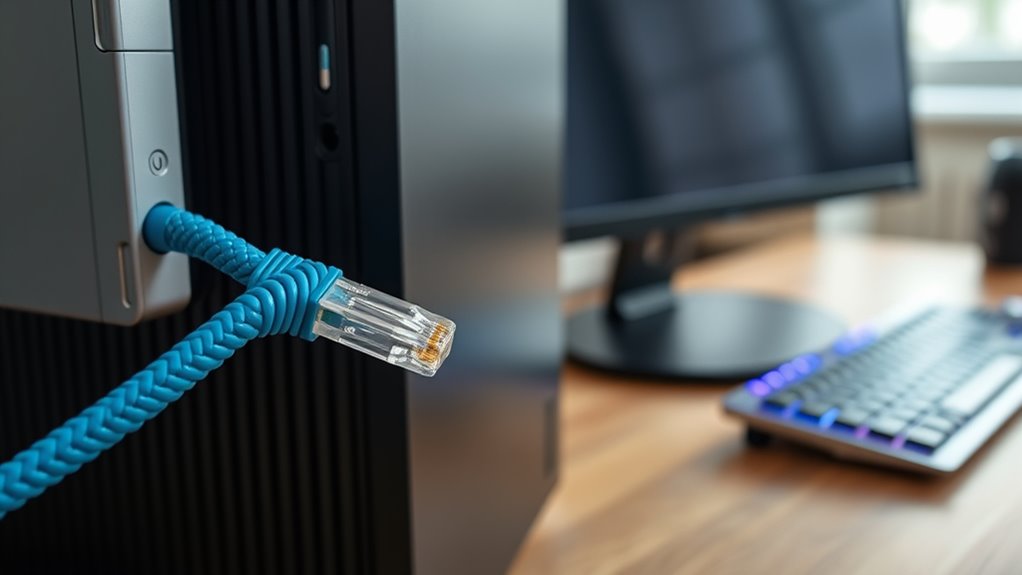
To connect an Ethernet device directly to a Windows PC, a working Ethernet port or USB-to-Ethernet adapter and a compatible cable are required. The cable should be plugged into the PC and the device or router port until the link light appears. In Windows, the adapter should be assigned a static IP address in the same subnet as the device. If the connection fails, the adapter status, drivers, cable, and port should be checked next. Further steps clarify the full process.
Key Takeaways
- Use a compatible Ethernet cable and a working PC Ethernet port or USB-to-Ethernet adapter.
- Connect one end to your Windows PC and the other to the Ethernet device or router port.
- Set a static IP address in Windows with the correct IP, subnet mask, and gateway.
- Check adapter status in Network Connections and confirm it shows Connected, not Cable unplugged.
- Troubleshoot with cable, port, driver, and alternate PC tests to isolate hardware or settings issues.
What You Need to Connect Ethernet Directly
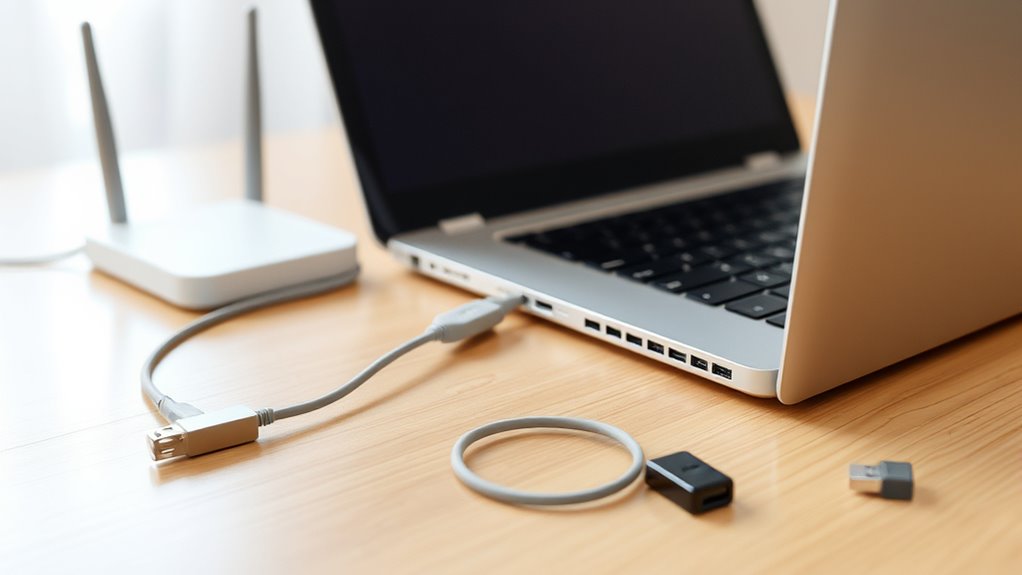
To connect an Ethernet device directly to a Windows PC, the required hardware must be in place: a compatible Ethernet cable, a functioning Ethernet port on the computer or a USB-to-Ethernet adapter, and a modem or router with an open port if the connection will pass through network equipment.
The Ethernet cable should match the device; a standard cable suits most modern hardware, while legacy devices may require a crossover type. The Ethernet port on the PC must be operational, or a USB to Ethernet adapter must provide the same interface without degradation.
The Ethernet cable should suit the device, while the PC’s port or adapter must function reliably.
A modem or router with an unused port is necessary when intermediary networking hardware is involved. The system should also support a static IP address in the same subnet as the device, enabling direct communication without dependence on external assignment.
All components must be tested and functional, because defective cabling or adapters can interrupt the connection and limit user control over the network link.
Plug in the Ethernet Cable
With the required hardware verified, the next step is to connect the Ethernet cable. One end should be inserted into the Ethernet port on the Windows PC, and the other end into an open port on the modem or router.
Each connector must click into place and remain firmly seated; a loose fit can interrupt data flow and weaken network stability. If the PC has no built-in Ethernet port, a USB to Ethernet adapter can be used to establish the link.
The cable itself should be inspected for visible damage before use, and a different cable can be tested if connection problems persist.
After the cable is in place, the PC should detect the Ethernet link automatically within seconds and show a Connected status in Network settings.
This direct physical connect method gives the user a stable path to the network with minimal configuration, supporting a more independent and unrestricted computing environment.
Set a Static IP Address in Windows
A static IP address should be assigned in Windows through the adapter’s IPv4 properties, using a value that is unique on the network.
The chosen address, subnet mask, and gateway must match the device’s subnet to preserve connectivity.
Once saved, the device browser can be opened to verify access and confirm the configuration.
Choose A Static IP
Configure a static IP address in Windows by opening Control Panel, going to Network and Sharing Center, and selecting Change adapter settings for the Ethernet connection.
Right-click the Ethernet adapter, open Properties, then select Internet Protocol Version 4 (TCP/IPv4) and click Properties to configure IP settings.
Choose Use the following IP address and assign a static IP address, subnet mask, and default gateway that match the network plan. The address should remain within the same subnet as the Ethernet device to preserve direct control and avoid unnecessary barriers.
Enter the values carefully, confirm with OK, and restart the Ethernet connection so the new configuration takes effect.
This precise setup gives the system a fixed endpoint and supports stable, independent communication with the device.
Match Device Subnet
To communicate directly with an Ethernet device, Windows must be assigned a static IP address in the same subnet as the device, such as setting the PC to 192.168.2.22 when the device uses 192.168.2.20.
This match device subnet step places the Ethernet connection on a shared local network segment, enabling direct communication without external routing.
Open Network and Sharing Center, then Change adapter settings. Right-click the Ethernet connection, select Properties, and open Internet Protocol Version 4 (TCP/IPv4).
Enter the static IP address, a subnet mask such as 255.255.255.0, and leave gateway and DNS blank for a direct link.
Confirm with OK, then restart the adapter. The system should now align with the device and remain ready for autonomous access.
Access Device Browser
Accessing the device browser begins with assigning the Windows PC a static IP address in the same subnet as the device, such as setting the computer to 192.168.2.22 when the device uses 192.168.2.20.
In Control Panel or Settings, open Network and Internet, then Change adapter options. Right-click the Ethernet adapter, choose Properties, select Internet Protocol Version 4 (TCP/IPv4), and open Properties again.
Select Use the following IP address, enter the static IP address, and leave gateway and DNS blank; they are unnecessary for direct access and do not help connect to the internet.
After saving, the network connections are isolated for device control. Open a web browser and enter the device IP to reach its management interface, enabling direct, autonomous configuration.
Verify the Ethernet Adapter Is Enabled
- Open Network Connections from the Start menu.
- Locate the Ethernet connection entry.
- Review the Status field for connection state.
- Confirm driver currency to avoid false disablement.
Clicking the adapter and viewing Status may show Connected or Network cable unplugged, which clarifies whether the hardware is active.
If the adapter still appears inactive, updated drivers should be installed, since outdated software can suppress proper detection and limit access to the network interface.
Fix Common Windows Ethernet Problems
Common Windows Ethernet problems often begin with a faulty physical link, so the cable and port connections should be checked first, with cable replacement if needed.
If the link remains unstable, restarting the modem, router, and PC can clear transient network faults and restore the ISP connection.
As a final step, a network reset in Windows can restore default settings when standard troubleshooting fails.
Check Cable And Ports
Start by confirming that both ends of the Ethernet cable are firmly seated in the router and the Windows PC, since a loose connection can interrupt network access. A secure cable path restores control over the connection and supports reliable data flow through the router.
- Inspect port fit on both devices.
- Verify adapter compatibility if using USB to Ethernet.
- Observe status lights; green often signals a valid link.
- Test the cable on another device, then replace it if needed.
If the adapter reports “Network cable unplugged,” reseat the plug or use another cable.
Damaged ports can block liberation from network faults, so compare behavior across ports before concluding the hardware is sound.
Restart Router And PC
A full power cycle of the router, modem, and Windows PC can clear temporary Ethernet faults and reestablish a stable link.
To restart, the power cables from the router and modem are unplugged, then left disconnected for 30 seconds before being reconnected. This pause allows each device to fully reset and recover from transient errors.
After power returns, the status lights on the router and modem should show normal power and internet indicators.
Once both devices are online, the Ethernet cable is reconnected to the PC and the link is verified.
If the connection remains unstable, the issue may persist beyond this restart step, and further Windows diagnostics can be used later.
Reset Network Settings
If the Ethernet link continues to fail after a router and PC power cycle, Windows network settings can be reset to clear persistent configuration errors.
In Settings > Network & Internet > Advanced network settings, select Network reset. This restores defaults, removes installed adapters, and can free the system from corrupted controls that block an Ethernet connection.
Afterward, reinstall required networking software and verify device drivers.
- Open Command Prompt.
- Run `ipconfig /release`.
- Run `ipconfig /renew` to refresh the IP address.
- Reconfigure static IP address settings if the device requires them.
A reset network settings action often resolves stubborn faults by purging invalid parameters. It should be used deliberately, as the network stack returns to baseline and must be rebuilt.
Test Another PC or Adapter
Testing the Ethernet device with another Windows PC can help isolate whether the problem originates from the original computer or the connection itself. To test another pc, use the same Ethernet cable and, if present, the same USB to Ethernet adapter. Verify the test PC has correct network settings, including static IP parameters when required, so the Ethernet connection can be evaluated accurately.
| Check | Expected result | Meaning |
|---|---|---|
| Network Connections | Adapter detected | Cable and port are active |
| IP settings | Match device requirements | Communication is possible |
| Alternate PC test | Connects successfully | Original PC is likely faulty |
If the adapter works on a second system, the issue usually lies in the first machine’s hardware or network settings. If the adapter fails everywhere, the adapter or cable is defective. This method removes ambiguity and restores control.
Frequently Asked Questions
How to Connect Ethernet to PC Windows?
Connect the Ethernet cable from the PC’s Ethernet port, or USB adapter, to the device, then check Network settings for Connected status. If needed, apply static IP and use Troubleshooting tips for failed links.
Why Isn’t My PC Detecting My Ethernet?
The PC may not detect Ethernet due to loose cabling, disabled adapters, or faulty drivers. Ethernet troubleshooting tips include Cable connection checks, Driver update solutions, restarting hardware, and running Windows diagnostics for liberation from network blockage.
How Do I Connect My PC to Ethernet Instead of Wi-Fi?
He should connect an Ethernet cable from the PC to a router or modem, then disable Wi‑Fi; like a switch from storm to harbor, Ethernet advantages include stronger Network stability and cleaner Cable management.
How to Connect Directly to Ethernet?
Connect directly by plugging a suitable Ethernet cable into the PC and device, then set matching static IPs. Ethernet troubleshooting tips include checking links, cable types, and Network speed optimization through restart and status verification.
Conclusion
To conclude, direct Ethernet connection to a Windows PC remains a straightforward task when the proper cable, adapter settings, and IP configuration are in place. Like a well-laid bridge, the link depends on each component working in sequence: physical connection, enabled adapter, correct addressing, and systematic troubleshooting. When one element fails, the connection often falls silent, but careful verification usually restores it. With these steps, the path to stable wired communication is clear and dependable.

