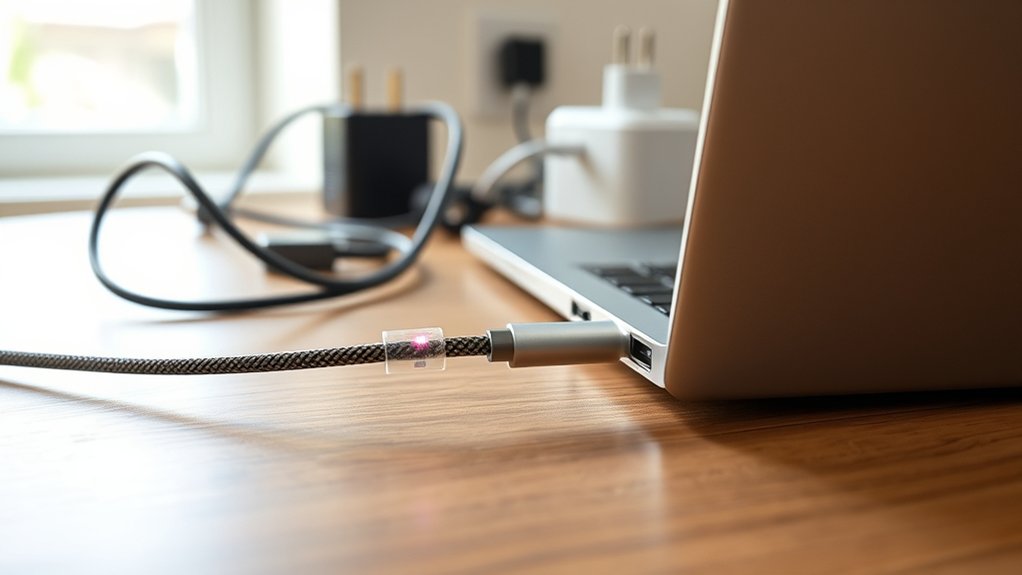
You can charge a laptop with USB-C, but only when the laptop supports charging through that connection. A USB-C port alone does not guarantee compatibility, and the wrong charger or cable can cause slow or failed charging. Before connecting a replacement adapter, check the laptop’s charging port, required wattage, and supported USB Power Delivery standard.
Quick Answer
Yes, you can charge a laptop through USB-C if its port accepts USB Power Delivery (PD) input. Many laptops use 45W to 100W adapters, although some require less or more. Choose a compatible PD charger, check its supported output, and use a cable rated for the required power. USB-A is generally unsuitable.
At a Glance
| Difficulty | Easy when USB-C charging is supported |
| Tools Needed | Laptop specifications, compatible USB-C PD charger, and appropriately rated USB-C cable |
Can Your Laptop Charge Through USB-C?
)
A laptop can charge through USB-C when its charging circuitry accepts power through that port. Most compatible systems use USB Power Delivery, a standard that lets the charger and laptop agree on the power to transfer.
However, USB-C describes the connector’s shape, not every feature it supports. Some ports transfer files, connect monitors, or power accessories without accepting enough power to charge the laptop.
A lightning bolt symbol may indicate Thunderbolt rather than laptop charging. The port’s exact capabilities depend on the manufacturer and model.
USB-C charging is useful because one suitable adapter can often charge multiple devices, including laptops, phones, and tablets. Compatibility still needs to be confirmed for each device.
Power Delivery is not limited to 100W. The USB-IF Power Delivery specification supports up to 240W under USB PD 3.1, using compatible chargers, devices, and cables.
However, this maximum does not mean every USB-C laptop accepts 240W. The laptop determines which power levels it can use, and some high-performance models have additional charging restrictions.
See If Your USB-C Port Accepts Charging
The most reliable way to identify a USB-C charging port is to check the laptop’s specifications. Look for wording such as USB-C Power Delivery input, USB-C charging, or power input through USB-C.
Port symbols can provide clues, but manufacturers use different markings.
- Identify your exact laptop model. Look at the product label, system information, or original packaging.
- Examine the USB-C ports. Look for a charging symbol, power icon, or manufacturer’s port label.
- Read the manufacturer’s specifications. Find the section covering USB-C ports and power input.
- Confirm charging direction. Make sure the port accepts power into the laptop rather than only supplying power to accessories.
- Check the accepted wattage. Determine whether the laptop has a minimum or maximum USB-C charging input.
For example, ASUS explains how to identify USB-C port functions using port markings, technical specifications, and product manuals.
Be especially careful with older laptops. A USB-C connector may support data transfer and external displays without supporting charging input.
Also, do not assume every USB-C port on the same laptop has identical features. Some models allow charging through specific ports only.
If the manual lists USB-C Power Delivery output but not input, that does not establish that the laptop can charge through the port.
Match the USB-C Charger to Your Laptop
Choose a USB-C charger that supports the laptop’s charging requirements, including its accepted Power Delivery profiles. Many everyday laptops use 45W, 65W, or 100W adapters, while lighter or more powerful models may fall outside that range.
The wattage printed on a charger is its maximum output, not the amount it automatically pushes into the laptop.
With compatible USB Power Delivery equipment, the laptop requests an appropriate supported voltage and current. A higher-capacity charger can therefore be suitable for a lower-power laptop.
Apple confirms this principle in its Mac power adapter guidance, while recommending sufficient wattage for the best charging performance.
Use these checkpoints before purchasing a replacement charger.
| Checkpoint | Why it matters |
|---|---|
| Wattage match | Helps prevent slow charging, limited performance, or battery drain under load |
| PD support | Allows compatible equipment to negotiate charging voltage and current |
| Output profiles | Confirms the charger can provide a voltage and current combination the laptop accepts |
| USB-C port output | Shows the power available from the specific charger port being used |
| Manufacturer restrictions | Identifies laptops that limit third-party charging or require particular adapters |
How Much Charger Wattage Do You Need?
The correct wattage depends on the laptop’s power requirements and whether you charge while working or while the laptop is idle.
- 45W: Suitable for laptops designed to accept this input level.
- 65W: A common rating for everyday productivity laptops that support it.
- 90W to 100W: Useful for compatible laptops with higher power demands.
- Above 100W: Requires specific compatibility checks and may use USB PD 3.1 Extended Power Range or a manufacturer-specific charging system.
These ratings are examples, not universal requirements. The laptop’s stated USB-C input rating takes priority over general recommendations.
If a laptop originally uses a 65W USB-C charger, a compliant 100W PD charger is generally acceptable when it supports the required power profile.
A 30W charger, however, may charge the same laptop slowly while it is sleeping or fail to provide enough power during use.
Some chargers divide their available wattage between several ports. Check the individual USB-C output rating when other devices are connected.
How to Charge a Laptop With USB-C
Once you have confirmed compatibility, connecting the charger is straightforward. Use these steps to avoid plugging into the wrong port or misreading a charging problem.
- Check the laptop’s power requirements. Confirm the charging port and supported input wattage.
- Choose a compatible PD charger. Verify its output specifications and available power.
- Select the correct USB-C cable. Make sure its power rating is sufficient.
- Connect the charger to a wall outlet. Ensure the power connection is secure.
- Connect the USB-C cable. Insert it into the laptop’s designated charging port.
- Check the charging status. Look for the battery charging indicator or power status message.
- Monitor charging under normal use. Confirm the battery percentage increases rather than continuing to fall.
If the laptop reports a slow charger, it may still be receiving power. However, the available wattage may be insufficient for normal operation and battery charging at the same time.
Choose a USB-C Cable for Laptop Charging
A suitable USB-C cable must carry the amount of power the laptop and charger negotiate. Power rating matters more than data-transfer speed when the cable is being used only for charging.
A cable can support basic USB data speeds and still be suitable for laptop charging. The important checks are its power rating, compliance, connector quality, and condition.
USB-C Cable Wattage
Standard compliant USB-C cables support up to 3A, commonly allowing 60W at 20V. Higher-power charging requires a suitable electronically marked cable designed to support the higher current and applicable power range.
USB-IF-certified USB-C cables use power markings that identify supported capability.
- 60W cable: Appropriate for charging within its rated power limit.
- 100W-capable cable: May support up to 20V at 5A when appropriately rated and compatible.
- 240W cable: Designed for USB PD Extended Power Range applications, while remaining usable with compatible lower-power equipment.
A 60W cable can limit a 100W charger and laptop to a lower charging level. In that situation, buying a higher-wattage charger alone will not remove the cable’s restriction.
For a laptop that requires 65W or more through USB-C, select an appropriately rated higher-power cable.
Remember that a 240W cable does not make a 65W charger deliver 240W. The actual charging power depends on the entire connection.
Power Delivery Support
USB Power Delivery works by negotiating power between compatible devices. The charger and laptop communicate, while the cable’s capabilities determine which power levels can safely pass through the connection.
For charging above 60W, the cable must support the required higher current. Suitable electronically marked cables identify their capabilities to connected equipment.
The USB PD standard includes different voltage and current combinations. For example, traditional 100W charging can use 20V at 5A, while newer Extended Power Range modes allow higher power levels.
Charging performance depends on the weakest compatible part of the setup:
- The laptop’s supported charging input
- The charger’s supported output profiles
- The cable’s power capacity
- Any charging restrictions or limits imposed by the laptop
Even a powerful charger may provide less than its maximum rating if the laptop does not support the necessary profile.
Cable Safety Ratings
Choose USB-C cables from reputable manufacturers that clearly state their charging capabilities. Verified USB-IF certification provides a stronger indication of standards compliance than vague marketing claims.
The USB-IF cable certification program specifies testing and marking requirements for different cable capabilities.
For certified USB-C-to-USB-C cables, USB-IF uses 60W and 240W power-rating markings. Older or uncertified products may use different marketing labels, so confirm the actual specifications.
- Look for an appropriate USB-IF certification mark and power rating.
- Choose a cable rated for the laptop’s expected charging load.
- Avoid cables with exposed wires, damaged insulation, or loose connectors.
- Use a practical cable length without unnecessary extensions or adapters.
- Check the construction quality rather than relying on wire thickness alone.
UL certification can provide useful safety information for products evaluated under applicable standards. CE marking indicates a manufacturer’s declaration of conformity and should not be treated as proof of independent laboratory testing.
Wire gauge can affect resistance, but a particular gauge such as 20 AWG is not a universal requirement for safe laptop charging. Cable design and verified ratings matter more.
Long or poorly constructed cables can introduce voltage drop, although compliant cables are designed to operate within applicable electrical limits.
Use USB-C PD Adapters for Barrel-Charge Laptops
Some laptops charge through a round barrel connector instead of USB-C. A compatible USB-C PD-to-barrel adapter may allow one of these laptops to receive power from a USB-C PD charger.
However, this is different from plugging a USB-C cable into a laptop that already supports USB-C charging.
A barrel adapter must request an appropriate voltage from the USB-C PD charger and provide the electrical connection the laptop expects.
Before using one, check:
- Output voltage: Match the laptop’s required input, often 19V or 20V on compatible models.
- Power capacity: Ensure the charger and adapter can provide the required wattage.
- Connector dimensions: Match the outer diameter, inner diameter, and physical fit.
- Polarity: Confirm the positive and negative electrical connections are correct.
- Identification requirements: Some laptops use additional connector signals to recognize an approved power adapter.
Warning: Never use a generic USB-C-to-barrel adapter without confirming its voltage, polarity, connector fit, and compatibility. Incorrect electrical output can damage the laptop. Use a manufacturer-approved solution whenever possible.
Not every barrel-powered laptop supports this type of conversion. Some require proprietary power supplies, identification circuitry, or higher power than a particular USB-C setup provides.
For these systems, the original manufacturer’s charger is usually the safest choice unless a suitable alternative is explicitly supported.
Don’t Expect USB-A to Charge a Laptop
USB-A is generally not a practical laptop charging connection. Standard USB-A ports deliver much less power than most laptops need and do not provide the same USB-C Power Delivery charging system.
Although some USB-A chargers use proprietary fast-charging methods, that does not make them suitable for ordinary laptop USB-C charging.
USB-A Power Limits
Many common USB-A connections deliver relatively low power, often around 4.5W to 12W depending on the port and charging implementation. Some proprietary USB-A charging systems can exceed that range.
Most mainstream laptops need substantially more power for dependable operation and charging.
Consequently, connecting a USB-A phone charger through a USB-A-to-USB-C cable usually will not provide the required laptop charging capability.
The main limitation is not simply that USB-A is older. It is that ordinary USB-A charging does not offer the same standardized high-power negotiation as USB-C Power Delivery.
Voltage and Wattage Mismatch
A laptop charger must supply a voltage and current combination the laptop can accept. A common USB-A connection cannot normally provide the approximately 19V to 20V input many traditional laptops require.
USB-A commonly uses a 5V starting point, while USB-C Power Delivery supports negotiated higher-voltage operation.
If a charger cannot provide the required power, the laptop may reject it, charge slowly, or continue drawing battery power during use.
This is especially noticeable during demanding work, such as video editing, gaming, or other high-load activities.
A physical connector adapter cannot automatically overcome incompatible charging standards or inadequate wattage.
Why USB-C Works
USB-C can support higher laptop charging power because compatible connections use USB Power Delivery to negotiate voltage, current, and power direction.
The charging system does not simply send the highest available voltage into the laptop. Instead, compatible components establish an appropriate power contract.
USB PD supports power levels up to 240W with suitable equipment, although an individual laptop may support only a smaller range.
The reversible USB-C connector also makes charging more convenient. Its compatibility across many products can reduce the number of different chargers needed for travel or daily work.
For laptops that support it, USB-C offers greater flexibility than traditional fixed-purpose charging connectors.
Avoid Low-Watt Chargers and Wrong Cables
A common mistake is assuming that any USB-C charger can power any USB-C laptop. In reality, the charger, cable, and laptop must support a compatible charging arrangement.
A low-wattage charger may work while the laptop is off but fail to maintain the battery level during active use.
Microsoft explains that inadequate chargers and cables can cause slow charging or battery drain even while a laptop is connected to power.
Common purchasing mistakes include:
- Choosing a charger based only on its maximum advertised wattage.
- Ignoring the individual output limit on multiport chargers.
- Buying a 60W cable for a setup that requires more than 60W.
- Assuming Thunderbolt support guarantees charging-input compatibility.
- Expecting a gaming laptop to run demanding workloads using a lower-power travel charger.
- Using a USB-C hub or dock without checking how much power it passes to the laptop.
Some gaming laptops can use USB-C PD as a secondary charging option rather than a complete replacement for their original power adapter.
For example, ASUS describes USB-C PD charging on supported gaming notebooks and explains how lower-power adapters can be useful during lighter workloads.
A 65W or 100W PD charger may be suitable for travel or office tasks on a compatible gaming laptop, while the original high-power adapter may still be necessary for maximum performance.
Pro Tip: When buying a multiport USB-C charger, check its output table for simultaneous charging. A charger advertised at 100W total may deliver less than 100W to your laptop when another device is connected.
A compatible charger with a higher maximum wattage is not inherently harmful to a laptop using standard USB Power Delivery. The laptop normally negotiates the power it needs.
However, unapproved adapters, damaged cables, and poor-quality electrical equipment can create overheating or hardware risks.
Troubleshoot a Laptop That Won’t Charge by USB-C
If your laptop does not charge through USB-C, start with compatibility and simple connection checks. Most charging problems can be narrowed down by testing the port, charger, cable, and power source separately.
Follow these steps in order.
- Confirm the charging port. Check the laptop manual to ensure the selected USB-C port accepts power input.
- Check the power outlet. Connect another working device to confirm the outlet supplies electricity.
- Review the charger rating. Make sure it supports the laptop’s required USB PD power profile.
- Check the cable. Inspect both connectors and replace the cable with a known-good, adequately rated alternative if available.
- Connect directly. Temporarily remove USB-C hubs, docks, and extensions to rule out power delivery limitations.
- Try another supported charging port. Use an alternative only if the manufacturer confirms it accepts charging input.
- Inspect the laptop port. Look for visible debris, damage, or an unusually loose connection.
- Reduce laptop power demand. Close demanding programs, put the laptop to sleep, or shut it down and check whether charging begins.
- Restart the laptop. A restart may help resolve temporary power-management or controller problems.
- Check the manufacturer’s diagnostics. Review applicable firmware, battery diagnostics, and power-management guidance for your exact model.
Microsoft provides additional fixes in its Windows USB-C troubleshooting guidance, including checks for incompatible chargers, inadequate cables, and debris in charging ports.
How to Tell Whether the Laptop Is Actually Charging
A connected charger does not always mean the battery is gaining charge.
Look for these signs:
- The operating system displays a charging indicator.
- The battery percentage rises after the laptop has been connected for a while.
- No persistent slow-charger or incompatible-adapter warning appears.
- The laptop remains powered without unexpected battery drain during ordinary use.
A battery charging limit can also make a working charger appear ineffective.
Some laptops deliberately stop charging before 100% to protect battery health. This is different from a charging failure.
When to Seek Professional Repair
Professional inspection may be necessary if the laptop refuses to charge with a known-good compatible charger and cable.
Possible causes include a damaged USB-C connector, faulty charging circuitry, battery problems, or internal power-management faults.
Stop using the connection if you notice excessive heat, smoke, a burning smell, visible connector damage, or battery swelling.
Do not force connectors into damaged ports or continue using equipment that appears electrically unsafe.
If charging works normally with the original adapter but fails through USB-C, first confirm that USB-C input is actually supported. The problem may be a design limitation rather than broken hardware.
Key Takeaways
- The USB-C connector’s appearance does not prove that a laptop supports charging input.
- USB PD 3.1 supports up to 240W, but each laptop has its own accepted charging limits.
- USB-C cable power ratings matter independently of data-transfer speed.
- A compatible higher-wattage PD charger generally supplies only the power the laptop negotiates.
- Gaming laptops may support USB-C charging only for lighter workloads or as a secondary option.
- If charging fails, test the charger, cable, port, and power source before replacing the battery.
Frequently Asked Questions
Is It Safe to Charge a Laptop Through USB-C?
Yes, USB-C charging is generally safe when the laptop supports USB Power Delivery input and the charger and cable meet its requirements. Compatible equipment negotiates the appropriate charging power. Avoid damaged cables, questionable adapters, and chargers that do not meet applicable safety standards.
Can Any USB-C Be Used to Charge a Laptop?
No, not every USB-C port supports laptop charging input. Some ports provide data transfer, video output, or accessory power only. The charger must also support a compatible power profile, and the cable must carry the required power. Check the laptop’s specifications before connecting a replacement charger.
Should I Charge My Laptop When I First Get It?
You can charge your new laptop before using it, but a universal first charge to 100% is not required to establish battery lifespan. Modern lithium-ion batteries do not need traditional break-in charging. Some manufacturers recommend an initial full charge for battery calibration or setup, so follow your laptop’s instructions.
How Do I Know Which Charger to Buy for My Laptop?
Check your laptop’s model-specific charging requirements, including wattage, supported USB Power Delivery profiles, and accepted charging ports. Choose a reputable charger that meets those requirements. Also select a cable rated for the necessary power. Manufacturer-approved chargers are a reliable starting point when compatibility is uncertain.
Conclusion
You can charge a laptop with USB-C when its port, charger, and cable support the required power input. The most important step is confirming compatibility rather than assuming every USB-C connection works the same way.
Check your laptop’s charging specifications, match the Power Delivery requirements, and select a properly rated cable. If charging fails, test the basic connections before considering hardware repairs. For laptops without USB-C charging input, use an approved charging solution instead of an unverified adapter.
Sources
- ASUS — How to Determine USB-C Interface Specifications: Identifying charging-capable ports and checking official laptop specifications.
- USB Implementers Forum — USB Power Delivery: USB PD operation, voltage negotiation, and power delivery up to 240W.
- Apple Support — Use a Power Adapter With Your Mac: Compatible charger wattage and use of higher-capacity USB-C adapters.
- USB Implementers Forum — Cables and Connectors: USB-C cable certification, power ratings, and labeling requirements.
- ASUS — Type-C PD Charging for Gaming Notebooks: USB-C charging behavior and lower-power charging options on supported gaming laptops.
- Microsoft Support — PC Is Charging Slowly or Discharging While Plugged In: Causes of inadequate charging power and charger compatibility problems.
- Microsoft Support — Fix USB-C Problems in Windows: Troubleshooting charging ports, cables, chargers, and connection faults.
- Microsoft Support — Use Smart Charging in Windows: Battery charging limits and battery-health management.