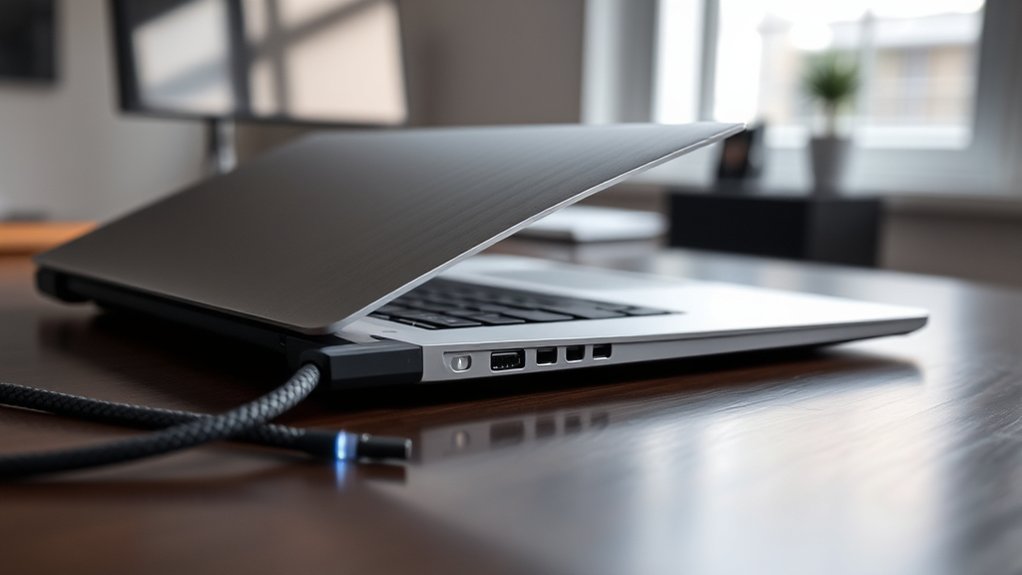
Lid close actions on laptops considerably influence power management and user experience. Options include Do Nothing, Sleep, Hibernate, and Shut Down. Each choice impacts energy consumption differently, with specific settings potentially limiting functionality. Adjusting these settings can enhance efficiency, especially when using external displays. Access the Power Options or BIOS settings to customize actions. Exploring optimization tips and troubleshooting methods can further improve power management. For more details on configuring these settings effectively, further insights await.
Choosing Your Lid Close Action: Do Nothing, Sleep, Hibernate, or Shut Down?
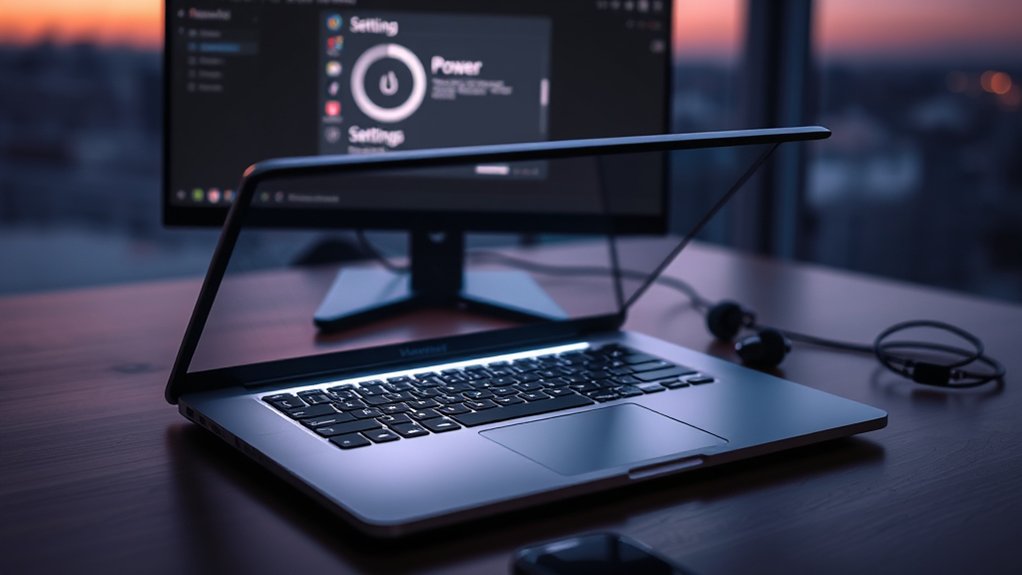
How should one decide on the appropriate lid close action for a laptop? The choice hinges on individual needs and usage patterns.
Options include “Do Nothing,” which allows users to continue utilizing an external display; “Sleep,” conserving power while pausing activity; and “Hibernate,” which saves the session to disk for a full shutdown without data loss.
Hibernate offers greater energy savings than Sleep but may cause brief interruptions in external monitor output upon resuming. Alternatively, selecting “Shut Down” completely powers off the device, ensuring maximum energy conservation, albeit with a longer start-up time.
Hibernate maximizes energy savings compared to Sleep but may briefly interrupt external monitor output upon resuming; Shut Down offers complete power savings with longer startup times.
Each lid close action can be customized through the operating system settings, though BIOS restrictions may limit options for some devices.
Ultimately, understanding these choices enables users to tailor their laptop experience, balancing convenience and energy efficiency effectively.
How Lid Close Settings Impact Power Management
Lid close settings greatly influence power management by determining whether a laptop enters modes such as Sleep, Shut Down, or remains active.
These settings also affect display behavior, with some devices automatically turning off the screen, which can disrupt external monitor usage.
Understanding the implications of these configurations is essential for optimizing energy efficiency and maintaining seamless user experiences.
Lid Close Action Options
Configuring lid close action settings greatly influences power management on laptops. Users can choose among several options, each affecting energy conservation uniquely. The possible settings include:
- Do Nothing – The laptop remains active, leading to continued power consumption.
- Sleep – This option conserves power while allowing for quick resumption of activity.
- Shut Down – The most energy-efficient choice, completely powering off the device.
However, some laptops may have BIOS restrictions that limit these settings, resulting in varied user experiences.
Additionally, users may need to manually adjust sound and window placements when switching to external displays due to lid closure.
Understanding these lid close action impacts is essential for optimizing power management and enhancing productivity.
Display Behavior During Closure
The choice of lid close settings greatly influences display behavior and overall power management in laptops. Configurations can be set to Do Nothing, Sleep, or Shut Down, each affecting how the device reacts when the lid is closed.
For instance, closing the lid may automatically turn off the display, disrupting external monitor output and ongoing activities, such as music playback. User experiences with these close actions vary widely due to hardware differences, complicating effective power management.
Additionally, certain BIOS settings can restrict adjustments to lid close actions, limiting user control. Persistent use of an external monitor while closing the laptop lid can lead to increased power consumption if the system fails to maintain display signals.
How to Set Lid Close Settings on Your Laptop
Setting lid close actions is essential for optimizing laptop functionality. Proper configuration guarantees seamless shifts between laptop use and external monitor compatibility.
Users can follow these steps to set their lid close settings effectively:
- Access Power Options in the Control Panel and select “When I close the lid.” Choose your preferred action—options include Do Nothing, Sleep, or Shut Down.
- If options are limited, check the BIOS configuration settings. Different laptop models may have unique settings affecting lid actions.
- For advanced customization, utilize the command line tool `POWERCFG` to manage lid close settings. Identify the correct GUID for actions and adjust values accordingly.
How Lid Close Settings Affect Power Consumption
Understanding how lid close settings influence power consumption is vital for laptop users aiming to optimize energy efficiency. Lid close actions can greatly affect energy usage; for instance, some laptops automatically turn off displays when closed, promoting energy savings.
Conversely, configuring the lid to “Do Nothing” can maintain external monitor usage but may result in increased power consumption if the laptop display remains active.
Different laptop models exhibit varied behaviors concerning lid close settings, with some featuring physical switches that impact power management.
While persistent use of an external monitor might incur slightly higher initial power consumption, proper lid settings can ultimately lead to energy savings.
User behavior impacts these outcomes; effective training in managing lid close configurations is important to minimize unintended power waste.
Troubleshooting Lid Close Issues
Troubleshooting lid close issues requires careful examination of both software and hardware configurations. Users often encounter disruptions in output to external monitors, which can be attributed to device compatibility challenges.
Addressing these issues involves several key steps:
- Check BIOS Settings: Some laptops restrict lid close actions, impacting power settings and display behavior. Accessing the BIOS can reveal options for lid functionality enhancements.
- Explore Configuration Options: Different models may allow users to set the lid action to “Do Nothing,” “Sleep,” or “Shut Down.” Experimenting with these settings can improve user experience feedback.
- Consult Resources: User forums and manufacturer support sites provide valuable insights based on shared experiences, helping to identify solutions that suit specific laptop brands, such as HP and Lenovo.
Tips for Optimizing Power Management
Effective power management can greatly enhance a laptop’s performance and battery life. Implementing battery optimization techniques is essential; for instance, adjusting the lid close action settings to “Do Nothing” can prevent disruptions to external monitor output during activities like music playback.
Utilizing energy efficient settings through the Power Options menu allows users to customize display behavior, conserving power when the laptop is inactive. Decreasing screen brightness, especially on LED backlit IPS panels, leads to significant power savings and boosts battery longevity.
Regular reviews of power schemes, using commands such as `POWERCFG -SETACTIVE schemeGUID`, enable users to optimize performance according to their current needs, like switching to “Power Saver” mode when on battery.
Finally, understanding device-specific features and BIOS settings is vital, as these can influence lid close action capabilities across various laptop models, ensuring thorough laptop performance enhancements.
Frequently Asked Questions
How Do I Adjust the Power and Sleep Buttons and Lid Settings on My PC?
To adjust power management settings, users can customize sleep modes and button actions through the system settings. Access options for the power and sleep buttons, and configure lid close actions according to personal preferences.
How Do I Change the Power Settings?
To change power settings, one must navigate through the labyrinth of options, discovering power management tips, battery-saving techniques, and sleep mode benefits, ultimately achieving a harmonious balance between performance and liberation from constant charging.
How Do I Adjust the Power Button Options in Windows 11?
To adjust power button options in Windows 11, users access Settings, selecting power button customization. This allows choices like Sleep mode, enhancing energy efficiency and offering personalized control over device power states for liberation from unnecessary power usage.
How Do I Change What Happens When I Close the Lid?
To alter lid behavior customization, users can access Power Options in Control Panel. Effective power management tips include selecting sleep mode or shutting down, which enhances productivity and guarantees a seamless experience upon lid closure.
Conclusion
In the domain of laptop care, the lid serves as a gatekeeper, determining the balance between wakefulness and slumber. Choosing the right close action is akin to a wise ruler deciding the fate of a kingdom—each option holds the power to conserve energy or invite chaos. By mastering these settings, users can create a harmonious environment where productivity thrives and battery life flourishes, ensuring their digital territory remains vibrant and efficient for all endeavors.

