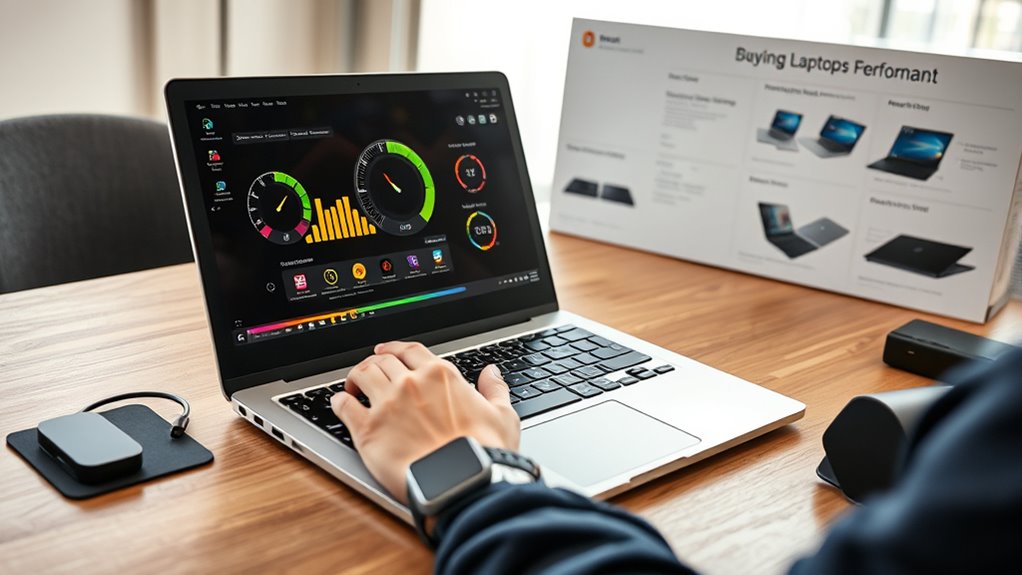
Laptop system temperature can be checked in BIOS/UEFI or with monitoring software before buying or troubleshooting. BIOS offers a basic idle reading through the Hardware Monitor, while tools like Core Temp, HWMonitor, and HWiNFO provide real-time CPU, fan, and voltage data. Safe load temperatures are generally 60°C to 90°C, with 85°C or higher suggesting heat stress. Dust, poor airflow, and aging thermal paste are common causes, and more details follow below.
Key Takeaways
- Check laptop temperature in BIOS/UEFI hardware monitor for a quick idle reading without installing software.
- Use apps like Core Temp, HWMonitor, HWiNFO, or Open Hardware Monitor for real-time CPU temperature monitoring.
- Normal laptop temperatures are often 35°C–60°C idle and 80°C–95°C under heavy load.
- Temperatures above 85°C may indicate overheating and can cause thermal throttling or shutdowns.
- Improve cooling by cleaning vents, reducing workload, using a cooling pad, and avoiding soft surfaces or direct sunlight.
How to Check Laptop Temperature in BIOS/UEFI
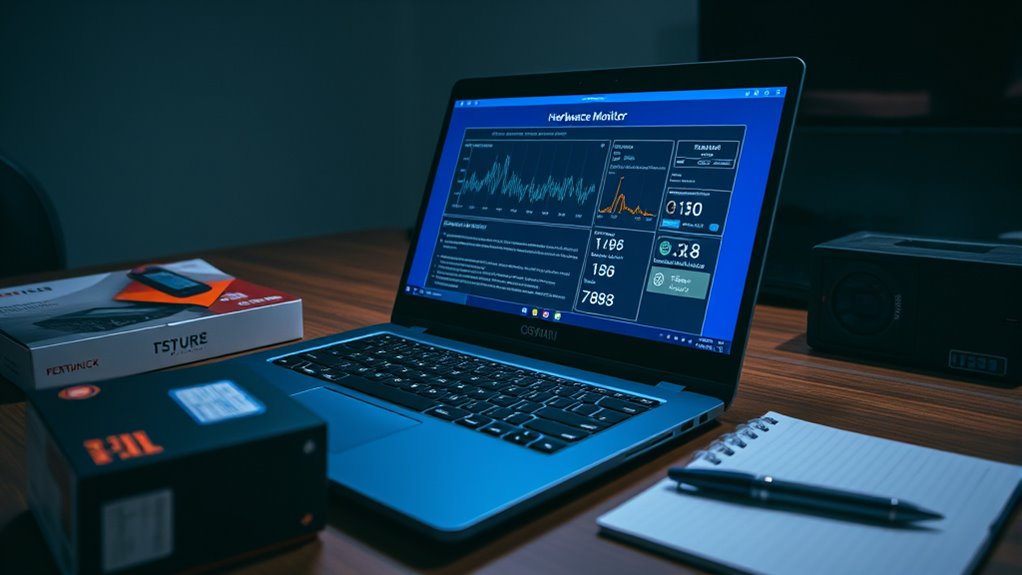
One reliable way to check a laptop’s temperature is through the BIOS or UEFI setup utility. The user restarts the system and presses the manufacturer’s startup key, such as F2, F10, Delete, or Esc, to enter BIOS/UEFI before the operating system loads.
Inside the interface, the Hardware Monitor section, or an equivalent menu, usually displays the current CPU temperature. This temperature check reflects a static idle reading, so it does not provide historical trends, load behavior, or long-term analysis.
For troubleshooting, the method is useful because it requires no additional software installation and reduces security risks associated with third-party tools. After reviewing the reading, the system should be exited without saving changes to avoid unintended modifications to firmware settings.
This approach gives direct access to core thermal data and supports informed, self-directed maintenance decisions.
How to Check Laptop Temperature With Software
Using software is a practical way to monitor laptop temperature in real time, with tools such as Core Temp, HWMonitor, and MSI Afterburner providing detailed readings for individual CPU cores and overall system activity.
CPU temperature monitoring through free software lets a user check CPU temperature without opening the chassis or relying on guesswork. Most third-party software displays idle and load values, with typical idle ranges of 35°C to 60°C and heavy-use readings of 80°C to 95°C.
If temperatures exceed those ranges, the cooling system may need cleaning, improved airflow, or replacement. Some utilities also issue alerts for abnormal heat and can show on-screen overlays during demanding tasks, making conditions visible at the moment they change.
Regular monitoring reduces the risk of thermal throttling, preserves performance, and helps extend hardware life by exposing problems before they escalate into failure or instability.
Best Apps for Live CPU Temperature Monitoring
For live CPU temperature tracking, Core Temp provides per-core readings in real time, along with configurable alerts and detailed statistics at no cost.
Free monitoring tools such as HWMonitor, HWiNFO, and Open Hardware Monitor expand coverage to voltage, fan speed, and broader system telemetry while remaining lightweight and reliable.
For gaming-focused use, NZXT CAM adds an on-screen overlay that displays CPU temperature alongside performance metrics during active workloads.
Core Temp Tracking
Core Temp provides real-time CPU temperature monitoring through a lightweight, free interface that displays individual core readings as the system runs.
As monitoring software, it reads each temperature sensor and reports CPU temperatures in Celsius or Fahrenheit, giving users immediate visibility into thermal behavior under load.
The application supports Intel and AMD processors, with clear navigation that suits technical review or everyday oversight.
Its logging function records temperature changes over time, enabling precise analysis of heat patterns during gaming, rendering, or multitasking.
Customizable alerts can trigger when readings cross defined thresholds, helping prevent overheating without constant manual checking.
Because it uses minimal system resources, Core Temp runs quietly alongside other tools, preserving performance and keeping control of the machine in the user’s hands.
Free Monitoring Apps
Several free monitoring apps provide live CPU temperature tracking and broader system telemetry, making it easier to compare tools based on detail, interface, and resource use.
Core Temp delivers precise real-time CPU temperature per core while remaining lightweight, a strong option when minimal overhead matters.
HWMonitor expands monitoring to voltage, fan speeds, and other system metrics, with free and paid editions.
Open Hardware Monitor is open-source, customizable, and useful for users who prefer transparent tools available for tracking performance.
HWiNFO supplies highly detailed readings and is known for accuracy in professional environments.
NZXT CAM emphasizes ease of use and real-time visibility, especially for users seeking a clearer interface.
Together, these free monitoring options support informed, independent hardware oversight.
Gaming Overlay Tools
Gaming overlay tools extend temperature monitoring directly into gameplay, allowing CPU heat to be tracked without leaving the screen. For users seeking control, a gaming overlay gives real-time temperature monitoring and broader system performance metrics without interrupting focus.
MSI Afterburner remains a leading monitoring tool, especially when paired with RivaTuner Statistics Server for precise on-screen display placement and CPU temperature readouts.
NZXT CAM offers a streamlined interface, while Open Hardware Monitor and HWMonitor provide open or lightweight alternatives for players who prefer flexible oversight.
- MSI Afterburner: customizable overlay
- NZXT CAM: simple live tracking
- RivaTuner Statistics Server: overlay control
- Open Hardware Monitor/HWMonitor: practical alternatives
What Is a Safe Laptop Temperature?
Safe laptop temperatures typically fall between 50°C and 90°C under load, with 70°C to 85°C common during gaming or other intensive tasks.
Temperatures below 80°C during standard use are generally preferable for long-term reliability.
CPU readings near 90°C to 95°C may occur under heavy workloads, but sustained exposure at those levels can trigger thermal throttling and accelerate wear.
Warning signs of excessive heat include frequent fan ramping, reduced performance, and thermal protection responses when built-in sensors approach roughly 90°C.
Safe Temperature Ranges
A laptop’s thermal envelope is typically considered healthy when it stays between 140°F and 176°F (60°C to 80°C) under normal workloads, while idle temperatures often fall closer to 95°F to 140°F (35°C to 60°C).
These safe temperature ranges define the normal operating temperature for most systems and help preserve battery life, component stability, and user autonomy.
- CPU temperature should remain below 185°F (85°C) during sustained use.
- Critical temperatures begin near 185°F (85°C), where throttling may occur.
- The overheating threshold is often around 194°F (90°C), triggering protection.
- Environmental impact from heat and airflow can raise readings quickly.
Maintaining open ventilation and avoiding enclosed surfaces supports efficient cooling and sustained performance.
Warning Signs Of Heat
When laptop temperatures move beyond the normal operating range of roughly 140°F to 160°F (60°C to 71°C), warning signs of heat often become noticeable in system behavior before permanent damage occurs.
A rising CPU temperature above 185°F (85°C) may signal overheating issues, while critical conditions near 212°F (100°C) can trigger throttling or sudden shutdowns. Monitoring your CPU temperature with software tools provides real-time data that exposes these warning signs early.
Dust buildup in vents and fans reduces airflow, increasing internal heat and hardware stress. Soft surfaces and hot environments can worsen thermal load by blocking ventilation.
Preventive actions, including cleaning, improving airflow, and repositioning the laptop, help maintain safer operation and preserve user autonomy.
Why Is My Laptop Running So Hot?
Laptop overheating is often the result of a combination of heavy processing demands and restricted heat dissipation. During gaming, video editing, or similar workloads, CPU temperature can rise to 158-176°F (70-80°C), placing the machine under sustained thermal stress. Several factors commonly drive this condition:
- Dust buildup in vents and fans reduces airflow, limiting heat removal.
- Poor ventilation on beds or couches traps exhaust and raises surface and internal temperatures.
- Direct sunlight adds external heat and can push systems above 176°F (80°C).
- Degraded thermal paste between the CPU and heatsink weakens transfer efficiency.
A cooling pad may improve intake airflow, but it does not replace clean vents, stable ventilation, or proper maintenance.
These conditions can be understood as technical constraints rather than personal failure; the hardware simply responds to resistance in heat exchange.
Regular fan cleaning and attention to placement help preserve performance, reduce overheating, and extend service life.
How to Lower Laptop Temperature Fast
Rapid temperature reduction on a laptop usually depends on reducing heat generation and improving heat removal at the same time.
A practical first step is to close unnecessary applications and background processes so the CPU has less work and produces less temperature rise. Dust should be cleared from vents and fans with compressed air, since buildup blocks airflow and weakens cooling efficiency.
A cooling pad can help move air beneath the laptop, which is especially useful during gaming or video editing. The device should also be kept away from direct sunlight and hot rooms, because external heat can intensify overheating.
If high temperatures persist, renewing the thermal paste on the CPU every 2 to 3 years can restore heat transfer.
Taken together, these measures reduce CPU stress, support freer thermal performance, and help the laptop remain stable under load without unnecessary thermal throttling.
How to Choose Laptop Temperature Software
Choosing laptop temperature software starts with verifying that it provides real-time temperature readings through a clear, user-friendly interface, such as those offered by Core Temp or HWiNFO.
Effective software should support CPU monitoring without unnecessary complexity, allowing users to inspect core temperature and overall package data at a glance. Compatibility matters: tools tuned for Intel or AMD processors produce more reliable readings and reduce diagnostic guesswork.
- Confirm real-time temperature display.
- Verify Intel or AMD support.
- Prefer logging and alerts for temperature spikes.
- Consider open-source software like Open Hardware Monitor for flexible, cost-free monitoring.
A strong utility also exposes individual core values, enabling precise assessment of thermal behavior under load.
Logging helps identify recurring temperature spikes, while alerts can notify the user before throttling begins. For those seeking control and transparency, the best software delivers accurate CPU monitoring with minimal overhead and clear presentation.
How to Monitor Laptop Temperature While Gaming
When gaming, temperature monitoring becomes a live performance check rather than a static diagnostic. The software selected earlier can be put to practical use with tools such as MSI Afterburner or HWMonitor.
These utilities let a user monitor laptop temperature in real time, exposing system temperatures for the CPU and GPU without interrupting play. An on-screen overlay can display CPU temps, frame rates, and load data, allowing immediate verification of whether heat remains within safe limits.
During sustained sessions, a sensible target is 70°C to 80°C for the processor and below 85°C for graphics hardware. If values rise beyond that range, the user should check your CPU temperature, reduce settings, and assess airflow.
Dust in vents and fans can restrict cooling, so regular cleanup is essential. For longer sessions, cooling solutions such as a laptop cooling pad can improve airflow, support stable performance, and preserve operational freedom.
Frequently Asked Questions
How to Check Laptop System Temperature?
They check laptop temperature using monitoring software like Core Temp or HWMonitor, or BIOS/UEFI at startup. These readings reveal laptop cooling status, overheating issues, fan noise, thermal paste condition, and hardware upgrades needs.
Is 80 C Too Hot for a CPU Laptop?
80°C is not too hot for a laptop CPU during high performance tasks, though it warrants attention. Effective CPU heat management, cooling pad benefits, and monitoring overheating signs reduce thermal throttling effects and support laptop longevity tips.
Is 90 C Bad for CPU?
Yes, 90°C is bad for a CPU if sustained, because CPU overheating can trigger thermal throttling, reduce performance, and shorten hardware lifespan. Monitoring software should prompt cooling solutions such as improved airflow or repasting.
Is 120 F Hot for CPU?
120°F is not hot for a CPU; it is generally safe. Proper CPU cooling, thermal paste, heat management, and monitoring software help preserve hardware longevity, preventing performance throttling during sustained workloads and maintaining liberation from overheating concerns.
Conclusion
In the end, laptop temperature becomes more than a number on a screen; it is a signal of strain, balance, and design. A warm chassis may symbolize heavy workload, while a stable reading reflects quiet efficiency. Monitoring tools, BIOS checks, and careful cooling habits help preserve performance and longevity. For buyers, temperature awareness is not an accessory but a safeguard, revealing whether a machine can endure pressure without losing its core strength.

