Last updated: September 22, 2026
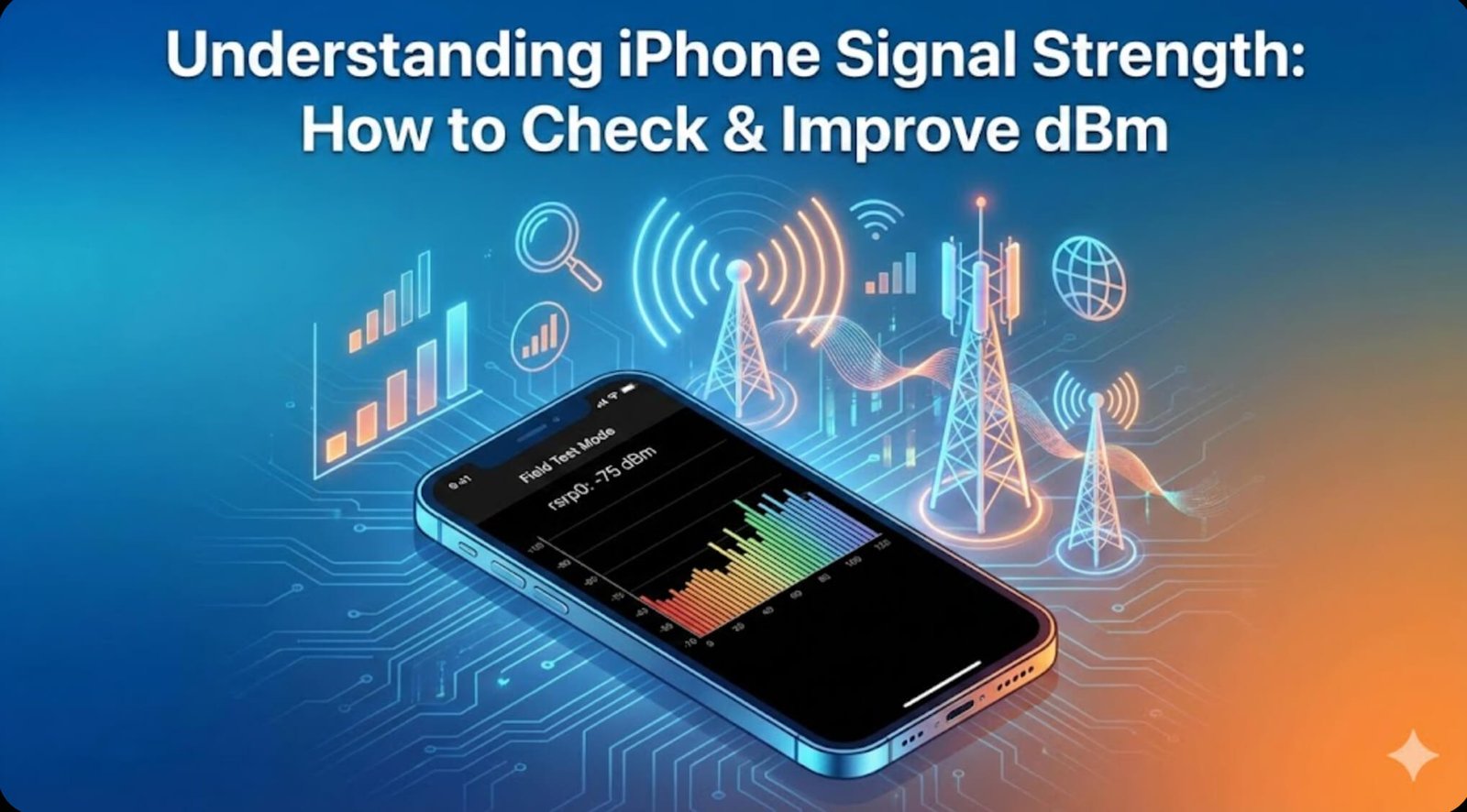
To check iPhone signal strength in dBm, open the Phone app, dial *3001#12345#*, and tap Call to open Field Test Mode. Look for RSRP, the most useful LTE/5G strength reading for this purpose. RSRP is a negative dBm value, and a number closer to zero means a stronger received signal. Menu names can vary by iOS version, carrier, iPhone model, and network type, so look for labels such as Cell Info, Serving Cell, All Metrics, or simply RSRP.
Quick Answer
Use the RSRP reading to compare cellular strength between locations. As a rough guide, around -80 dBm or better is strong, readings from about -80 to -100 dBm are often usable but can vary, and readings below about -100 dBm are increasingly weak. These are practical ranges, not Apple-published pass/fail thresholds, and speed can still be poor when a tower is congested or signal quality is low.
To check the real cellular signal strength on an iPhone, dial *3001#12345#* in the Phone app and tap Call. Field Test Mode should open when supported by the device, carrier, and current network. Find RSRP; older layouts may show rsrp0 or rsrp1. Because RSRP is shown as a negative dBm value, -75 dBm is stronger than -105 dBm. Use the number mainly to compare locations under similar conditions rather than treating one cutoff as a universal definition of “good” service.
Key Takeaways
- Signal bars are only a visual estimate; Field Test Mode gives a numeric reading you can compare.
- RSRP is the main LTE/5G strength value to look for. Older layouts may label it rsrp0 or rsrp1.
- RSRP is negative dBm. A value closer to zero is stronger, so -75 dBm is stronger than -105 dBm.
- Weak service can come from coverage, building materials, terrain, tower congestion, outages, SIM/eSIM provisioning, or device settings.
- For troubleshooting, compare several readings in the same network mode, then try Apple’s current reconnect, update, carrier-settings, and Wi-Fi Calling steps.
At a Glance
| Time Required | 1 to 3 minutes |
| Difficulty | Easy |
| Tools Needed | Your iPhone, Phone app, and an active cellular connection |
| Cost | Free |
What Do iPhone Signal Bars and dBm Mean?
Why Don’t Signal Bars Match Speed?
The iPhone’s signal bars are useful for a quick glance, but they do not tell you how busy the tower is, how clean the radio signal is, or how fast data will actually move. That is why an iPhone can show several bars and still have slow downloads, delayed messages, or poor call quality during congestion or interference.
Bars are also not a universal engineering scale that can be compared cleanly across every carrier, model, or network. When you need to compare rooms, floors, or outdoor locations, a numeric RSRP reading from Field Test Mode is more useful than the icon alone.
What Does dBm Mean on an iPhone?
Cellular received power is commonly shown in dBm (decibels relative to one milliwatt). The values you see for RSRP are negative. A number closer to zero is stronger, so -70 dBm represents a stronger received signal than -105 dBm.
There is no single Apple-published RSRP cutoff that guarantees a certain call or data experience. As a practical comparison guide, readings around -80 dBm or better are commonly treated as strong, while values below about -100 dBm indicate increasingly weak received power. Treat these as rough ranges, because network band, interference, congestion, and carrier configuration can change real-world performance.
A stronger iPhone signal is not shown by a bigger negative number. It is shown by a number closer to zero: -65 dBm is better than -95 dBm.
Interpreting Signal Strength Beyond the Bars
Use dBm as a comparison tool, not a speed score. For example, an RSRP reading near -90 dBm can still support normal use, but performance may fall if the tower is busy or the signal has heavy interference. A speed test measures throughput; RSRP measures received signal power.
Signal strength is only one part of the connection. If Field Test Mode exposes RSRQ or SINR, those values can add context about signal quality and interference. Not every iPhone, carrier, or network mode shows the same metrics, so do not assume a missing value means something is wrong.
How to Check Signal Strength on iPhone
Start with the status-bar signal icon for a quick estimate, then use Field Test Mode when you need a number you can compare. This is useful for checking different rooms, testing near a window versus outdoors, or deciding whether weak service is tied to one location.
For a more precise measurement, use Field Test Mode. Also note whether the phone is on 5G or LTE, because comparing readings is most useful when the network type is the same.
- Look at the signal bars in the upper-right corner of the iPhone screen.
- Open Settings > Cellular to confirm that cellular service is enabled.
- Open Settings > Cellular > Cellular Data Options > Voice & Data to review 5G/LTE options when your iPhone, carrier, and plan provide them. With Dual SIM, choose the cellular line first.
- Open Settings > General > About. If a carrier settings update appears, follow the prompt.
- Use Field Test Mode when you need the real dBm reading.
Note: Field Test Mode screens can look different depending on your iPhone model, iOS version, carrier, SIM type, and whether the phone is connected to LTE or 5G.
Using Field Test Mode to Check Signal Strength
Field Test Mode is a built-in diagnostic interface that exposes cellular measurements beyond the status-bar bars. Its layout is not fixed across every iOS release, carrier, or radio connection, but the access code remains widely used for checking RSRP.
- Open the Phone app.
- Dial
*3001#12345#*. - Press the green Call button.
After the dashboard opens, look for RSRP under a section such as Cell Info, Serving Cell, or All Metrics. Older layouts may show labels such as rsrp0 or rsrp1. The exact path can change, so focus on finding the RSRP value rather than matching one menu sequence exactly.
If more than one received-power value appears, record the value tied to the serving connection and note the current network type or band when it is shown. Use the readings to compare like with like; one isolated number is less useful than several readings from the same spot under similar conditions.
| Signal Metric | What It Means | General Reading Guide |
|---|---|---|
| RSRP (Reference Signal Received Power) | The main LTE/5G received-power metric to use when comparing cellular strength. | Closer to zero is stronger. Roughly -80 dBm or better is commonly considered strong; below about -100 dBm is increasingly weak. Use ranges as a guide, not a guarantee of speed. |
| RSRQ (Reference Signal Received Quality) | Adds context about LTE/5G signal quality and interference when the metric is available. | Closer to zero is generally better. Compare readings on the same carrier and network rather than relying on a universal cutoff. |
| SINR (Signal-to-Interference-plus-Noise Ratio) | Shows how much useful signal stands above interference and noise when the iPhone exposes this value. | Higher positive values indicate cleaner signal. SINR may not appear for every iPhone, carrier, or 5G connection. |
How to Compare Signal Readings Correctly
- Turn off Wi-Fi if you are testing cellular data performance so your phone does not quietly use Wi-Fi instead.
- Stand in one spot for about 30 seconds and let Field Test Mode refresh before writing down the reading.
- Record the RSRP value plus the network type or band when shown. Take more than one reading instead of trusting a single instant value.
- Repeat the same process near a window, outdoors, and in the problem area. Compare locations under similar conditions.
Pro Tip: The most useful test is repeatable. Compare the same carrier, network type, and location at similar times, then pair the RSRP reading with a speed test or call-quality check.
Field Test Mode is not a stable public settings screen, so Apple can change labels and layout between software versions. A current 2026 field-test reference from Waveform also documents the *3001#12345#* code, RSRP, and layout variation.
Troubleshooting Low Signal Strength on iPhone
Low signal can come from distance, building materials, terrain, tower congestion, carrier outages, SIM/eSIM provisioning, or a device problem. Start by separating a location problem from a phone or account problem.
If RSRP improves clearly outdoors or near a window, the building or local coverage is probably contributing. If service is poor across multiple locations, check the carrier account, outage status, cellular line, SIM/eSIM provisioning, software, and then hardware.
Step-by-Step Troubleshooting Checklist
- Toggle Airplane Mode: Turn Airplane Mode on for at least 15 seconds, then turn it off. This matches Apple’s current reconnect guidance.
- Restart the iPhone: A restart can clear temporary network glitches.
- Check Cellular Data: Go to Settings > Cellular and confirm that cellular data is enabled.
- Check for iOS updates: Go to Settings > General > Software Update.
- Check carrier settings: Go to Settings > General > About. If an update appears, follow the prompt. Apple says carrier settings updates can improve cellular connectivity and add support for features such as 5G or Wi-Fi Calling; see Apple’s carrier settings guide.
- Check your cellular line: If you use Dual SIM, go to Settings > Cellular, choose the affected line, and confirm that it is turned on. If a physical SIM is damaged or no line appears, contact your carrier.
- Test another location: Try outdoors or in a different part of town to see whether the issue follows the phone or stays in one area.
- Reset network settings: Go to Settings > General > Transfer or Reset iPhone > Reset > Reset Network Settings.
Warning: Reset Network Settings removes saved network settings, including previously used Wi-Fi networks and non-managed VPN settings, and cellular data roaming may be turned off. Use this after simpler fixes. See Apple’s reset-settings guide.
When to Contact Your Carrier
Contact your carrier if service stays weak in multiple locations, if other phones on the same carrier also have problems, if your SIM/eSIM recently changed, or if the iPhone repeatedly shows No Service, Searching, or SOS. Apple specifically directs users to the carrier for account status, coverage, outages, device blocking, plan setup, and SIM/eSIM provisioning checks. See Apple’s No Service/SOS troubleshooting guide.
When to Contact Apple Support
Contact Apple Support if the carrier confirms that the account and network are working but the iPhone still cannot connect, especially after physical damage, liquid exposure, or a repair. Apple also notes that iPhones on iOS 18 or later can use the latest Apple Support app for additional diagnostics when troubleshooting No Service or SOS issues.
Tips for Improving Signal Strength on iPhone
Some fixes change the radio conditions around the phone; others simply help the iPhone reconnect or use a more reliable path for calls. Try the low-risk steps first.
- Change Location: Move closer to windows or step outside to reduce obstructions between the device and cell towers.
- Toggle Airplane Mode: Turn it on for at least 15 seconds, then turn it off so the iPhone reconnects to the cellular network.
- Check the SIM/eSIM line: Make sure the correct cellular line is enabled, especially after changing carriers, adding an eSIM, or using Dual SIM.
- Use Wi-Fi Calling: If your carrier supports it, Wi-Fi Calling can route calls over a Wi-Fi network when cellular signal is low. See Apple’s Wi-Fi Calling guide.
- Keep iOS Updated: Software updates can include modem, carrier, and stability improvements.
- Avoid Blocking the Antenna Area: Try not to cover too much of the phone with your hand during calls or hotspot use.
- Test 5G Auto or LTE: On supported iPhones, Settings > Cellular > Cellular Data Options > Voice & Data can offer 5G Auto or LTE. Apple notes that 5G Auto can switch to LTE when 5G does not provide noticeably better performance.
- Check for Local Outages: If several people nearby have the same problem, the issue may be with the carrier network, not your iPhone.
Note: An app cannot increase the physical power of your iPhone antenna. Real improvement usually comes from better placement, cleaner signal quality, updated settings, Wi-Fi Calling, or carrier support.
Can Signal Booster Apps Improve iPhone Signal?
Apps such as OpenSignal can help with coverage maps, speed tests, and location comparisons, but they do not increase the iPhone antenna’s transmit or receive power. Treat them as diagnostic or mapping tools, not as software signal boosters.
These apps are most useful for separating a coverage problem from a performance problem. A speed test may be slow even when RSRP is decent because congestion, interference, or plan/network conditions can limit throughput.
What Signal Apps Can Help With
- Comparing crowdsourced coverage patterns between locations.
- Comparing mobile data speed in different rooms or neighborhoods.
- Comparing RSRP with a speed test to see whether weak power or network conditions are more likely.
- Keeping a record of problem spots before contacting your carrier.
What Signal Apps Cannot Do
- They cannot turn a weak antenna into a stronger one.
- They cannot guarantee faster 5G or LTE speeds.
- They cannot bypass carrier coverage limits.
- They cannot fix a damaged SIM, eSIM, modem, or antenna.
Why 5G, LTE, and Wi-Fi Can Show Different Signal Results
Your iPhone can behave differently on 5G and LTE because they may use different spectrum, bands, and network layers. A “5G” icon does not guarantee faster service at every moment. On supported models, Apple’s 5G Auto setting can switch to LTE when 5G does not provide noticeably better performance.
Wi-Fi is separate from cellular signal strength. If cellular service is weak at home but Wi-Fi is strong, Wi-Fi Calling can improve call reliability when your carrier supports it. If Wi-Fi is also weak, troubleshoot the Wi-Fi network separately before assuming the iPhone has a cellular-radio problem.
| Connection | What to Know |
|---|---|
| 5G | Can be very fast, but performance depends heavily on coverage, building materials, spectrum type, and tower load. |
| LTE | Often reliable and widely available. In some weak 5G areas, LTE may provide steadier service. |
| Wi-Fi Calling | Uses your Wi-Fi network for calls when cellular coverage is weak, if supported by your carrier. |
Common Reasons Your iPhone Signal Is Weak
Weak signal does not always mean your iPhone is broken. In most cases, the cause is your environment or carrier coverage. The most common reasons include:
- Distance from the tower: The farther you are from a cell tower, the weaker the signal usually becomes.
- Building materials: Concrete, brick, metal, low-emissivity glass, elevators, and basements can reduce reception.
- Network congestion: Busy events, rush hour, airports, stadiums, and dense neighborhoods can slow data even with several bars.
- Terrain: Hills, valleys, trees, and large buildings can block or reflect signals.
- Carrier coverage gaps: One carrier may work well in an area while another struggles.
- Carrier or line settings: Outdated carrier settings or a disabled cellular line can affect the phone’s ability to connect, even though they do not physically increase or decrease radio power.
- SIM or eSIM issues: A provisioning issue can prevent the iPhone from connecting properly.
- Hardware damage: Drops, liquid exposure, or poor repairs can affect antennas or cellular components.
Conclusion
For a real iPhone signal check, use Field Test Mode and compare RSRP readings instead of relying only on bars. Record several readings in the same network mode, then compare them with actual call quality or a cellular speed test.
If service is weak, start with location, Airplane Mode, restart, iOS updates, and carrier settings. If the problem follows the phone across multiple locations, ask the carrier to check the account, outage status, and SIM/eSIM provisioning before escalating to Apple Support.
For another iPhone connectivity use case, see our guide to using an iPhone hotspot for Rokoko.
Related Guides
Frequently Asked Questions
What is signal strength on iPhone?
Signal strength is the received cellular power at your iPhone. In Field Test Mode, the most useful LTE/5G strength metric is usually RSRP, shown in dBm. Signal quality is related but separate, so strong RSRP does not guarantee fast data when interference or congestion is high.
How can I check the real signal strength on my iPhone?
Dial *3001#12345#* in the Phone app and tap Call to open Field Test Mode. Look for RSRP under Cell Info, Serving Cell, All Metrics, or a similar menu. Older layouts may show rsrp0 or rsrp1.
What is a good dBm signal strength for an iPhone?
There is no single Apple-published “good” RSRP cutoff. As a rough practical guide, around -80 dBm or better is commonly considered strong, while values below about -100 dBm are increasingly weak. Compare several readings and your actual call/data performance.
Can I improve signal strength on my iPhone?
You can often improve service by changing location, turning Airplane Mode on for at least 15 seconds and back off, restarting the iPhone, updating iOS and carrier settings, checking the active SIM/eSIM line, or using Wi-Fi Calling when your carrier supports it.
Why do my signal bars not match my actual speed?
Signal bars are a rough visual estimate and do not fully show network congestion, interference, signal quality, or tower load. You might have full bars but slow speeds if the tower is crowded or if the signal quality is poor.
Why does my iPhone show SOS or No Service?
SOS, No Service, or Searching means the iPhone is not connected normally to your carrier. Causes can include coverage, an outage, account or plan issues, SIM/eSIM provisioning, line settings, or hardware. Where supported, SOS may still allow emergency calls through another carrier network.
Do signal booster apps really boost iPhone signal?
No. Signal apps can map coverage, show speed tests, and help you find better locations, but they cannot increase the physical power of your iPhone antenna or force a carrier tower to provide faster service.

