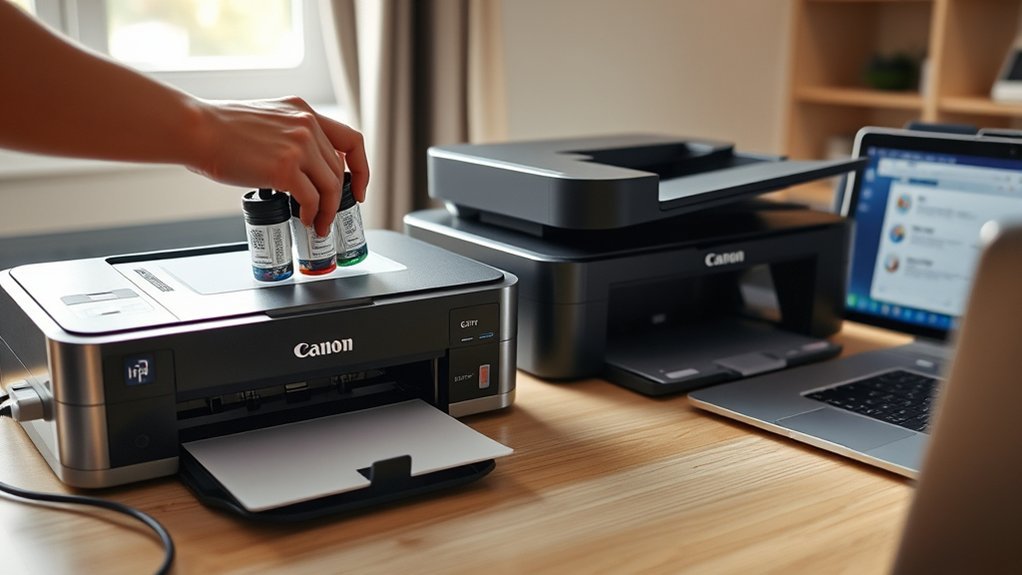
Setting up your Canon PIXMA MegaTank G3270 or G4770 is straightforward when you follow the correct order. Both printers need print heads installed, ink tanks filled, and paper loaded before you finish connecting them to a computer or phone. This guide walks you through first-time setup, wireless connection, driver installation, and common problems.
Quick Answer
To set up a Canon PIXMA G3270 or G4770, remove all packing materials, connect the power cord, and turn on the printer. Install both print heads, fill the matching ink tanks, and load A4 or Letter paper. Then use Canon’s setup software or Canon PRINT app to connect the printer and print a test page.
At a Glance
| Difficulty | Beginner-friendly; follow the printer’s on-screen instructions |
| Tools Needed | Supplied print heads, compatible ink bottles, power cord, A4 or Letter paper, and a computer or smartphone |
Unbox and Power On Your Canon G3270/G4770
Start by removing all shipping materials and placing the printer on a stable, level surface. Keep enough room around the printer to open its covers, extend the paper trays, and reach the ink tanks.
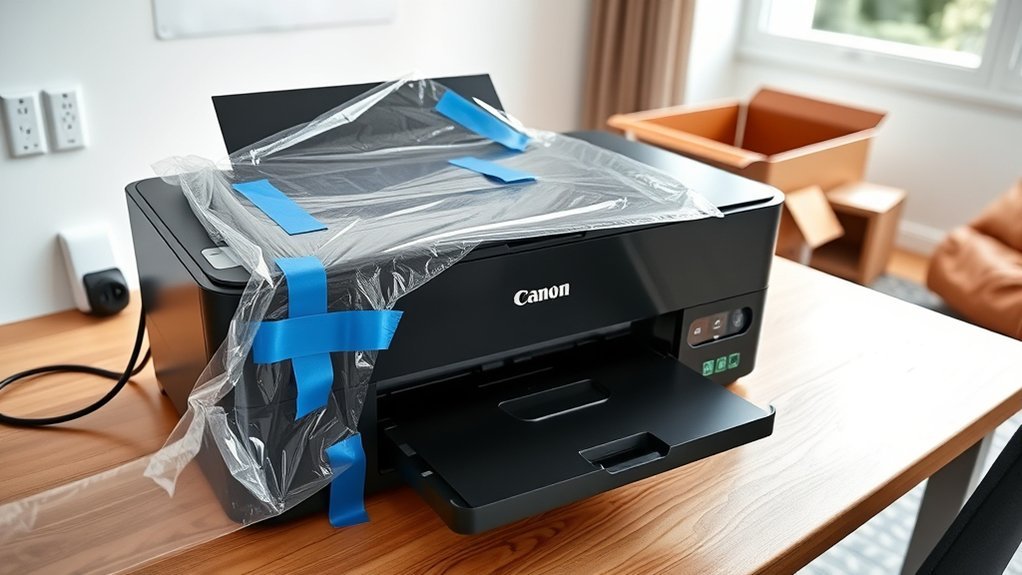
- Remove the printer from its box and take off the protective plastic.
- Remove all orange shipping tape, foam, and packing materials from the outside and accessible interior areas.
- Check the paper tray, scanner cover, and other moving parts for leftover packing material.
- Place the printer close to an electrical outlet on a flat surface.
- Connect the supplied power cord to the printer and plug it into the outlet.
- Press the ON button and wait for the LCD to respond.
- Choose your preferred language if the printer prompts you to do so.
The printer may make operating sounds while it prepares for setup. Follow the LCD instructions and avoid opening covers while an internal process is running.
Install the Print Heads Before Adding Ink
Both models use separate black and color print heads. Installing them is an essential first-time setup step that must happen before the ink-filling stage.
- Follow the printer’s LCD instructions to open the scanning unit and expose the print-head holder.
- Wait until the print-head holder stops moving.
- Take the supplied black and color print heads out of their packaging.
- Remove their protective labels and tape as illustrated in the setup instructions.
- Install the color print head in the color position and the black print head in the black position. Match the labels and markings on the printer.
- Secure the print-head locking cover until it is properly closed.
- Close the scanning unit and follow the next instructions on the LCD.
Canon provides separate illustrations for the G3270 print-head installation and G4770 print-head installation.
Warning: Do not touch the electrical contacts or nozzle surface of a print head. Avoid forcing the holder or operating the printer with the print heads incorrectly installed.
Fill the Ink Tanks and Load Paper
Once the print heads are installed, fill the four ink tanks and load plain paper. The printer uses separate tanks for black, cyan, magenta, and yellow ink.
Step 1: Check the Correct Ink Bottles
Before opening a bottle, confirm that its ink series is compatible with your exact printer model and region.
- PIXMA G3270: Canon lists GI-21 black, cyan, magenta, and yellow ink bottles for the North American model.
- PIXMA G4770: Canon’s South and Southeast Asia specifications list GI-71 ink bottles, with GI-71S options.
These are not interchangeable ink series. Match the bottle labels with your printer’s supplied documentation. Canon provides model-specific information for the PIXMA G3270 and PIXMA G4770.
Step 2: Fill Each Ink Tank
- Open the printer’s scanning unit and access the ink tank caps as directed by the LCD.
- Identify the tank for the color you are about to fill.
- Open that tank’s cap carefully.
- Keep the matching ink bottle upright while removing its cap.
- Align the bottle nozzle with the matching tank inlet.
- Insert the bottle carefully and let the ink flow into the tank.
- Remove the bottle when the ink reaches the upper limit line. Do not overfill.
- Close the tank cap securely and repeat for the remaining colors.
- Close the scanning unit when all tanks are filled.
Use the bottle and tank markings rather than relying on color alone. Do not squeeze or shake the bottles unnecessarily because ink can spill or stain clothing.
After filling, follow the printer’s instructions for its initial ink preparation process. Let the process finish without turning off the printer.
Step 3: Load A4 or Letter Paper
Both printers use a rear paper tray for plain paper. Prepare the tray before printing a setup or alignment page.
- Open the rear paper tray and extend its paper support.
- Move the paper guide outward.
- Place a neat stack of A4 or US Letter paper into the rear tray with the printing side facing up.
- Slide the paper guide against the stack without bending the sheets.
- Open the paper output tray.
- Confirm the paper size and type if the LCD requests them.
Keep the paper below the tray’s maximum-load marking. A poorly aligned stack can lead to crooked printing, feeding errors, or paper jams.
Download Canon G3270/G4770 Setup Software
Canon’s setup software helps your computer recognize the printer and install the printing and scanning components it needs. Select your exact printer model and operating system before downloading anything.
Install the Printer on Windows
- Open Canon’s official printer setup or regional support website.
- Search for PIXMA G3270 or PIXMA G4770, matching the name on your printer.
- Select the Windows version installed on your computer.
- Download the available setup package or compatible printer driver.
- Open the downloaded installer and follow its instructions.
- Choose the connection method requested by the installer, such as Wi-Fi or USB.
- Allow the installer to search for and register the printer.
- Finish the installation and print a test page.
Canon’s G3270 Windows setup instructions provide the model-specific download and installation workflow.
Install the Printer on macOS
For a Mac, choose the macOS setup option on Canon’s support site. Download the compatible software if Canon provides an installer for your system.
Run the setup process, select your printer, and follow the instructions to connect it. Some macOS configurations can also add a supported Canon printer through the system’s built-in printing features.
If the printer is not detected, confirm that the Mac and printer are connected to the correct network, or use a supported USB connection.
Set Up Printing From a Smartphone
On Android or iPhone, you can use the Canon PRINT app for guided printer setup.
- Install Canon PRINT from the official app store for your device.
- Turn on the printer and complete its physical setup.
- Connect your phone to the Wi-Fi network you want the printer to use.
- Open Canon PRINT and start the add-printer process.
- Follow the prompts to detect and register the printer.
- Try printing a document or photo.
You may need to allow the app access to nearby devices or your local network, depending on your phone’s operating system.
Connect Your Canon G3270/G4770 to Wi-Fi
You can connect either printer to a wireless router through Canon PRINT, the computer setup software, or the printer’s own control panel. Two useful methods are Easy Wireless Connect and manual Wi-Fi setup.
Method 1: Easy Wireless Connect
Easy Wireless Connect allows Canon software on your phone or computer to pass network information to the printer. It avoids typing a long Wi-Fi password with the printer’s buttons.
- Turn on the printer and wait until it finishes any cleaning or preparation task.
- Locate the dedicated Wireless connect button on the printer’s operation panel.
- Press and hold it for about three seconds.
- Wait for the LCD to display the Easy Wireless Connect setup message.
- Return to the Canon PRINT app or the setup program on your computer.
- Follow the instructions to connect the printer to your router.
- Wait for the connection confirmation.
Canon documents this procedure in its Easy Wireless Connect instructions for the relevant printer series.
The Wireless connect button is different from the alarm indicator. A flashing alarm light can indicate an error, so it should not be treated as confirmation that wireless setup has started.
Method 2: Connect Through the Printer Control Panel
If you prefer to enter your network information manually, use the LCD and control-panel buttons.
- Press HOME.
- Select Settings and press OK.
- Select LAN settings.
- Choose Wi-Fi.
- Select Wi-Fi setup.
- Choose Manual connect.
- Select your wireless router’s network name, also called its SSID.
- Enter the correct Wi-Fi password, paying attention to capital letters.
- Confirm the password and wait for the connection result.
- Return to the home screen and check the Wi-Fi status indicator.
This menu sequence follows Canon’s manual Wi-Fi connection guide. Some screens may look different depending on the printer model or firmware.
Check Whether Wi-Fi Is Connected
After setup, look for the connected Wi-Fi indicator on the printer’s home screen. A disconnected or disabled symbol means the wireless connection is not ready.
You can also print the printer’s network settings from the relevant LAN or printer information menu. Check that the report shows the intended network name and a valid network connection.
Finally, send a test print from your computer or phone. A successful test confirms that the device can communicate with the printer.
Fix Wi-Fi, Driver, and Ink Setup Issues
If setup fails, begin with basic connection checks before changing printer settings. Most common problems involve an incorrect Wi-Fi password, a device on the wrong network, an incomplete driver installation, or an unfinished ink preparation process.
Printer Cannot Find or Connect to Wi-Fi
- Make sure the printer and wireless router are turned on.
- Move the printer closer to the router if the signal is weak.
- Check the selected network name and Wi-Fi password.
- Confirm that the network’s frequency and security settings are compatible with your printer’s regional specifications. Try a compatible 2.4 GHz network when appropriate.
- Restart the router and retry wireless setup.
- If the router supports WPS and the printer offers that option, you may try its guided WPS connection method.
- Check whether the printer and computer are on the same local network.
Canon also recommends checking network settings and using its Wi-Fi Connection Assistant when a printer cannot be found. See the official network troubleshooting instructions for further diagnostic steps.
Computer Cannot Find the Printer
A printer can connect to Wi-Fi successfully but still fail to appear in Windows or macOS.
- Confirm that the printer is powered on and connected.
- Check that your computer is using the intended local network, not an isolated guest network.
- Restart the Canon setup program and search for the printer again.
- Allow the Canon software to communicate through your computer’s firewall if prompted.
- Remove an incorrectly installed printer entry and add the printer again if necessary.
Canon Driver Installation Fails
If the printer driver does not install, download the correct package for your model and operating system again.
Close any incomplete setup window, restart the computer, and run the installer. Check whether your operating system supports the particular Canon driver before repeatedly attempting installation.
If the printer works over USB but not Wi-Fi, troubleshoot the network connection separately rather than assuming the print heads or ink tanks are at fault.
Ink Is Not Flowing or the First Print Looks Blank
Check the ink tanks and print-head installation if the printer produces blank pages, missing colors, or streaks after setup.
- Look through the tank windows and confirm that the ink levels are sufficient.
- Make sure each tank contains the correct color.
- Confirm that all tank caps and covers are closed.
- Check whether the printer has completed its initial ink preparation.
- Print a nozzle check pattern using the Maintenance menu.
- If the nozzle check shows missing lines, run the appropriate print-head cleaning procedure and check again.
Do not repeatedly run deep cleaning without checking the results. Cleaning consumes ink, and the printer’s maintenance procedures should be followed in the recommended order.
When to Reset or Contact Canon Support
A reset may help with certain persistent network problems, but it should not be your first troubleshooting step. Resetting network settings means you must configure the connection again.
If the printer shows a recurring support code, makes unusual noises, or fails to recognize an installed print head, stop and identify the specific error through Canon’s support documentation. Contact Canon support if the recommended steps do not resolve it.
Frequently Asked Questions
How Do I Set Up My Canon PIXMA Printer to My Computer?
Turn on the printer, complete its ink and paper setup, and download compatible Canon software for your computer. Connect the printer through Wi-Fi or a supported USB cable. Finish the installation, add the printer if prompted, and print a test page to check communication.
How Long Does First-Time Canon Printer Setup Take?
Setup time varies depending on the printer’s ink preparation, software downloads, and network connection. Allow enough time to complete every on-screen step without interruption. Installing the print heads, filling the ink tanks, connecting to Wi-Fi, and printing a test page are all part of the process.
Is the Canon G3270 a Good Printer?
The Canon G3270 is a reasonable choice for home users who want refillable ink tanks, wireless printing, scanning, and copying. Its main appeal is high-volume printing with bottled ink. However, it does not provide the G4770’s automatic document feeder or fax functionality, so your document-handling needs matter.
My Canon G3270 Printer Won’t Connect to Wi-Fi. What Can I Do?
Check that your router is working, confirm the network name and password, and move the printer closer to the router. Retry Easy Wireless Connect or manual setup. If the printer still cannot connect, restart the router and printer, then check Canon’s network troubleshooting instructions.
Can I Set Up the Canon G3270 or G4770 Without Wi-Fi?
Yes. Both models support a USB connection to a compatible computer. You need a suitable USB cable and the appropriate printer software or operating-system printing support. Wi-Fi is needed for normal wireless network printing, but it is not required to print through a supported USB connection.
What Is the Difference Between the Canon G3270 and G4770?
Both are refillable MegaTank printers with wireless printing, scanning, and copying. The G4770 also offers fax functionality and a 35-sheet automatic document feeder for scanning or copying multiple pages. Their compatible ink series also differ by model and region, so use the consumables listed for your exact printer.
Conclusion
A successful Canon PIXMA MegaTank G3270 or G4770 setup starts with careful unpacking and correct print-head installation. Fill the matching ink tanks, load paper, complete the printer’s preparation process, and connect it through your preferred method.
Before using the printer regularly, print a test page and confirm that documents come out clearly. Keeping the correct drivers installed, checking ink levels, and using the printer’s maintenance tools when needed will help prevent avoidable printing problems.
Sources
- Canon G3270 Print-Head Setup: Official first-time print-head installation sequence.
- Canon G4770 Print-Head Setup: Model-specific print-head installation instructions.
- Canon PIXMA G3270 Product Information: Printer functions and supplied consumables.
- Canon PIXMA G4770 Specifications: Ink compatibility, wireless features, document feeder, and fax capabilities.
- Canon G3270 Windows Setup: Official software installation and computer connection instructions.
- Canon Easy Wireless Connect Guide: Wireless Connect button procedure and app setup.
- Canon Manual Wi-Fi Connection Guide: Printer control-panel navigation.
- Canon Network Troubleshooting Guide: Diagnosing printer discovery and wireless connection problems.

