
Transferring files from your old laptop to a new one doesn’t have to feel stressful. With a clear plan, you can move your documents, photos, videos, downloads, browser files, and other personal data without cluttering your new device. Start by deciding what you truly need, back up anything important, prepare both laptops, choose the right transfer method, and verify the files before you wipe or retire the old laptop.
Quick Answer
To transfer files from an old laptop to a new one, sort your files first, back them up, choose a transfer method such as an external drive, cloud storage, Wi-Fi sharing, or a transfer cable, then copy the files in batches. Afterward, open key files, organize folders, reinstall apps, and keep a backup before deleting anything from the old laptop.
Key Takeaways
- Transfer only the files you need so your new laptop starts clean and organized.
- Back up important data before deleting or moving anything from the old laptop.
- Use an external drive for large transfers, cloud storage for convenience, Wi-Fi for wireless sharing, or a transfer cable for a direct connection.
- Reinstall most applications instead of copying program folders, because software licenses and settings often do not transfer automatically.
- Verify your files on the new laptop before resetting, selling, donating, or recycling the old one.
At a Glance
| Time Required | 30 minutes to several hours, depending on file size and transfer speed |
| Difficulty | Easy to moderate |
| Tools Needed | External drive, USB flash drive, cloud storage account, Wi-Fi network, or compatible transfer cable |
| Cost | Free if you already have storage or cloud space; paid only if you need extra storage or a cable |
Assess Your Files and Determine What to Transfer
Before diving into the transfer process, take a moment to assess your files and decide what is truly worth moving.
Start by organizing your documents, photos, videos, downloads, desktop items, music, browser exports, and project folders into clear categories. Ask yourself which files you use regularly, which ones hold sentimental value, and which ones you may need for work, school, taxes, or personal records.
Organize your documents, photos, and applications by category to identify what’s essential and what can be left behind.
Don’t hesitate to let go of outdated or unnecessary items. Old installers, duplicate screenshots, temporary downloads, and unused files can quickly clutter your new laptop. Before you delete anything, create a backup on cloud storage or an external drive so nothing important slips through your fingers.
Pay special attention to folders that are easy to forget. Check your Desktop, Downloads, Documents, Pictures, Videos, Music, browser bookmarks, email exports, password manager backups, game saves, accounting files, and any custom folder you created outside the default library folders.
Applications also need careful handling. In most cases, you should not simply copy an app folder from the old laptop to the new one. Many programs need to be reinstalled because they rely on system files, license activation, registry entries, or background services.
Note: Personal files can usually be copied directly, but software programs often need a fresh installation on the new laptop. Keep license keys, login details, and installer links handy before you start.
Prioritizing your files not only streamlines the transfer but also gives you the freedom to start fresh on your new device, without carrying over years of digital clutter.
Embrace this opportunity for a clean slate while keeping the files that truly matter.
Choose Your Transfer Method
Once you’ve organized your files, choose the best method for transferring them to your new laptop. The right option depends on how many files you have, how fast your internet is, whether both laptops still work, and whether you prefer a wired or wireless transfer.
Using an external hard drive or large USB flash drive is one of the simplest options. It works well for large photo libraries, videos, work folders, and backups because you do not need to rely on internet speed. Copy files from the old laptop to the drive, then copy them from the drive to the new laptop.
If both laptops are connected to the same network, consider transferring files over Wi-Fi. This can work well for smaller transfers or when you do not want to use extra hardware. However, wireless transfers may be slower than a good external drive, especially with large video files.
Alternatively, cloud storage services like Google Drive or Dropbox let you upload files from your old laptop and download them on your new one. Cloud storage is convenient because it also creates an online backup, but it can take longer if your upload speed is slow or your files are very large.
For a more direct approach, a transfer cable can connect the two laptops for quick file sharing when both devices support the cable and transfer software. This can be useful if you want a guided process, but you should follow the cable maker’s setup instructions carefully.
You can also mix methods. For example, you might use cloud storage for documents and bookmarks, then use an external drive for large videos, photos, and project folders. This often gives you the best balance of speed and convenience.
Pro Tip: For large transfers, move files in batches instead of copying everything at once. Smaller batches make errors easier to spot and help you avoid restarting one huge transfer if something fails.
Evaluate your needs and preferences, whether you prioritize speed, convenience, privacy, or simplicity. Then select the method that fits your transfer size, comfort level, and available tools.
[Amazon Products Picked for You]

IN THE BOX: (1) 6-foot high-speed multi-shielded USB 2.0 A-Male to B-Male cable
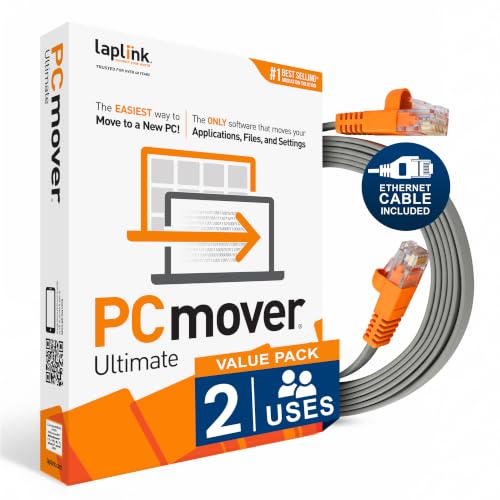
Fast And Efficient Transfer Options - Seamlessly migrate your PC with Laplink’s PCmover, including download instructions for PCmover and SafeErase to securely wipe old data, plus an optional Super Speed USB 3.0 Transfer Cable. Now with Wi-Fi Direct for faster connections. One license covers unlimited transfer attempts from one source to one destination; additional licenses are needed for more PCs.

𝐇𝐢𝐠𝐡-𝐒𝐩𝐞𝐞𝐝 𝐔𝐒𝐁 𝐄𝐭𝐡𝐞𝐫𝐧𝐞𝐭 𝐀𝐝𝐚𝐩𝐭𝐞𝐫 - UE306 is a USB 3.0 Type-A to RJ45 Ethernet adapter that adds a reliable wired network port to your laptop, tablet, or Ultrabook. It delivers fast and stable 10/100/1000 Mbps wired connections to your computer or tablet via a router or network switch, making it ideal for file transfers, HD video streaming, online gaming, and video conferencing.
Compare Common File Transfer Options
Each transfer method has strengths and trade-offs. Use the table below to choose the best fit before you start copying files.
| Method | Best For | Main Advantage | Possible Drawback |
| External hard drive | Large files, full folder backups, photos, and videos | Fast and does not depend on internet speed | Requires a drive with enough space |
| Cloud storage | Documents, school files, small media libraries, and ongoing sync | Creates an online backup while transferring | Can be slow with limited internet or storage space |
| Wi-Fi sharing | Wireless transfers between laptops on the same network | No extra drive needed | Speed depends on network strength and setup |
| Transfer cable | Direct laptop-to-laptop transfers | Guided and direct when compatible | Requires compatible hardware and software |
[Amazon Products Picked for You]
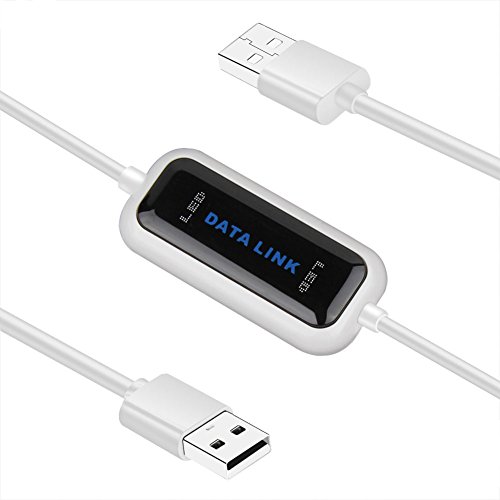
High Speed: This is high-speed USB 2.0 chip,the actual test speed is about 480Mb/s (the actual speed also base on computer hardware,systems,etc.)

[5GBPS SYNC & ANTI-INTERFERENCE] Transfer 10GB in 20s. Premium shielding drastically reduces EMI noise, helping to fix wireless mouse lag & Bluetooth drops. 24K gold-plated connectors ensure maximum signal integrity for cooling pads & drives.

Move Files Fast: Transfer music, movies, or entire seasons of TV shows in seconds at 40 Gbps.
Prepare Both Laptops for the Transfer
Preparing both laptops for the transfer is a key step to help everything go smoothly.
First, make sure both devices are charged or plugged into power. If you’re using a cloud service or Wi-Fi sharing, connect both laptops to a stable Wi-Fi network. A dropped connection can pause, slow down, or interrupt the transfer.
Next, update the operating systems on both laptops if updates are already pending. This can help reduce compatibility issues with cloud apps, external drives, file sharing tools, and device drivers.
Check that you have enough storage space on your new laptop to accommodate the files from your old one. If the new laptop has less storage, transfer only the most important files first and keep large archives on an external drive or cloud storage.
Disable sleep mode temporarily while the transfer runs. If either laptop goes to sleep during a large copy process, the transfer may stop before it finishes. You can change power settings back after the transfer is complete.
Be careful with firewall or antivirus settings. Instead of turning protection off completely, first allow the trusted transfer app or switch to an external drive or cloud method. If you must pause protection for a specific transfer tool, turn it back on as soon as the transfer finishes.
Warning: Do not erase, reset, sell, donate, or recycle the old laptop until you have opened and checked your important files on the new laptop and saved at least one backup copy.
Finally, organize your files on the old laptop. This makes it easier to identify what you want to transfer and helps you avoid dragging unnecessary clutter onto your new machine.
[Amazon Products Picked for You]

【Versatile Storage Expansion – For Gaming, Work & Everyday Use】 Running out of space on your PS5 or Xbox Series X/S? This external hard drive lets you store and play PS4 / Xbox One games directly, instantly freeing up your console’s internal storage for next‑gen titles. At the same time, it handles work file backups, media libraries, and cross‑device data transfers with ease. One drive, all your needs. *(Note: PS5 / Xbox Series X|S games cannot be run or stored directly from the external hard drive. However, by offloading your PS4 / Xbox One games, you can free up valuable space for newer titles.)*

[Upgraded Version] - This external hard drive features a mirrored logo stripe combined with a striped anti-slip design, and the rounded corners of the casing make it easier to grip. The stripes also have a heat dissipation function, ensuring stable and fast data transfer.

Ultra fast data transfers: the external hard drive works with USB 3.0 thickened copper cable to provide super fast transfer speeds. Theoretical read speed is as high as 110MB/s-133MB/s and write speed is as high as 103MB/s.
Execute the File Transfer
Now that you’ve prepared both laptops, it’s time to execute the file transfer. Follow these steps to keep the process smooth and easy to check:
- Choose Your Method: Decide whether to use a USB drive, external hard drive, cloud storage, Wi-Fi sharing, or a direct cable connection. Each method has benefits, so pick what suits your file size, speed needs, and comfort level.
- Create a Backup First: Before moving or deleting anything, copy important files to a backup location. This protects you if a transfer is interrupted or a file does not copy correctly.
- Initiate Transfer: If you’re using a USB drive or external drive, connect it to the old laptop first, copy the selected files, safely eject the drive, then connect it to the new laptop. For cloud storage, upload files from the old laptop and download or sync them on the new one.
- Use Clear Folder Names: Name folders in a way that makes sense, such as Documents, Family Photos, Work Projects, School Files, or Old Laptop Backup. This makes your new laptop easier to search later.
- Monitor Progress: Keep an eye on the transfer. If any errors occur, address them promptly and repeat only the affected batch instead of restarting the whole process.
If you are transferring a large number of files, start with your most important folders first. Move documents, photos, and personal records before less important downloads, old videos, or archived projects. This way, your most valuable files are handled early.
For cloud transfers, leave both laptops powered on and connected until syncing finishes. A folder may appear on the new laptop before every file has fully downloaded, so check the sync status before disconnecting or shutting down either device.
Handle Apps, Settings, and Browser Data
File transfers are only part of the move. You may also need your apps, browser bookmarks, passwords, email accounts, printer settings, and personal preferences on the new laptop.
Start with your browser. Sign in to your browser account if you use sync, or export bookmarks from the old laptop and import them on the new one. If you use a password manager, make sure you can sign in and access your saved logins before wiping the old computer.
Next, reinstall your most important applications from their official installers or app stores. Common examples include office apps, creative software, messaging tools, video meeting apps, photo editors, accounting tools, and security software.
Some programs store data in special folders instead of the main Documents folder. Check app-specific export tools for email archives, accounting records, design projects, game saves, or database files. Copying only the visible document folders may not capture everything.
Finally, check software licenses. Some paid apps allow you to sign in on a new laptop, while others may require you to deactivate the old device first. If you are unsure, open the app on the old laptop and look for account, license, or device management settings before uninstalling it.
Verify and Organize Your Files on the New Laptop
After executing the file transfer, the next step is to verify and organize your files on the new laptop.
Start by checking if all your important documents, photos, videos, and project folders are present. Open a few files from each main folder to confirm they’ve transferred correctly and aren’t corrupted.
Compare the old and new folders by file count, folder size, and key file names. This does not have to be perfect for every tiny folder, but it helps catch obvious missing batches before you move on.
Once you’re satisfied, it’s time to organize. Create folders that reflect your needs, such as Work, Personal, School, Photos, Videos, Finance, and Media. Use clear labels so you can find everything easily later.
Don’t forget to delete duplicates or unnecessary files from the new laptop to free up space and reduce clutter. However, delete only after you confirm the files are safely backed up elsewhere.
Finally, back up your organized files to an external drive or cloud service, ensuring your data remains safe and accessible. A new laptop is not a backup by itself, because files can still be lost through accidental deletion, damage, theft, or drive failure.
Enjoy the freedom of a well-organized digital space.
Troubleshoot Common Transfer Problems
Even a simple file transfer can run into issues. Most problems are easy to fix once you know where to look.
- The transfer is too slow: Move closer to the Wi-Fi router, use an external drive, close unnecessary apps, or transfer smaller batches.
- The external drive is not showing: Try another USB port, check the cable, restart the laptop, or test the drive on a different computer.
- The new laptop does not have enough space: Transfer only essential files, move large media files to external storage, or use cloud storage for archives.
- Files will not open: Make sure the matching app is installed on the new laptop. Some files need specific software to open correctly.
- Cloud sync looks incomplete: Check the sync status, stay connected to Wi-Fi, and wait until the cloud app confirms everything is up to date.
- Permission errors appear: Sign in with the correct account, copy the file to a local folder, or check whether the file was encrypted or protected on the old laptop.
If one method keeps failing, switch methods. For example, if Wi-Fi transfer is unstable, use an external drive. If cloud storage is too slow, transfer the largest folders with a drive and keep cloud storage for smaller files.
What to Do With the Old Laptop After Transfer
Once you have verified your files, decide what to do with the old laptop. You may keep it as a backup, reset it for a family member, sell it, donate it, or recycle it.
Before the old laptop leaves your possession, sign out of personal accounts, remove saved passwords, unlink cloud storage, and reset the device using the operating system’s built-in reset or erase option. This helps protect your personal information.
If you plan to keep the old laptop, store it with the charger and a note about what it contains. If you plan to donate, sell, or recycle it, make sure your files are backed up and the device no longer contains your personal data.
Frequently Asked Questions
Can I Transfer Files Wirelessly Between Laptops?
Yes, you can transfer files wirelessly between laptops. Use cloud storage, file-sharing apps, or direct Wi-Fi sharing. Make sure both devices are connected to the same stable network, keep them powered on, and transfer large folders in smaller batches if the connection is slow.
What if My New Laptop Has Less Storage?
If your new laptop has less storage, prioritize essential files first. Move documents, current projects, and important photos before large archives. Store older videos, duplicate photos, and inactive projects on an external drive or cloud storage instead of filling the new laptop immediately.
How Do I Handle Large File Transfers Efficiently?
To handle large file transfers efficiently, use an external hard drive when possible, split files into smaller batches, and avoid running too many apps during the transfer. You can also compress folders, but only do this when you are comfortable extracting them later on the new laptop.
Will My Software Licenses Transfer to the New Laptop?
Your software licenses might not automatically transfer. For instance, if you purchased Adobe Creative Cloud or another paid app, you may need to sign in, deactivate the old laptop, or reinstall the software on the new laptop. Check each software account or license page before removing it from the old device.
What if I Encounter Transfer Errors?
If you encounter transfer errors, don’t panic. Check your connections, restart both devices, confirm that the new laptop has enough storage, and try the transfer again in smaller batches. If the same method keeps failing, switch to another option such as an external drive or cloud storage.
Can I Transfer Programs From My Old Laptop to My New Laptop?
Usually, you should reinstall programs instead of copying their folders. Many apps need system files, activation records, drivers, or background services that do not move through a normal file transfer. Copy your personal project files, then reinstall the apps and sign in again on the new laptop.
Should I Delete Files From the Old Laptop After Transferring Them?
Do not delete files from the old laptop right away. First, open and check your important files on the new laptop, then create a separate backup. Once you are confident everything transferred correctly, you can clean, reset, sell, donate, or recycle the old device.
Conclusion
In summary, transferring files from your old laptop to your new one doesn’t have to be an intimidating task. By following these smooth steps, you can create a seamless shift from one device to the other while keeping your most important files protected.
The key is to slow down before you start copying. Assess what you need, choose the right transfer method, prepare both laptops, move files in manageable batches, and verify everything before deleting data from the old device. Many people overlook the backup step during a laptop move, which can lead to lost files if something goes wrong.
By taking the time to assess, prepare, transfer, verify, and back up your files, you’ll safeguard your important information and enjoy your new laptop with less clutter and more confidence.
