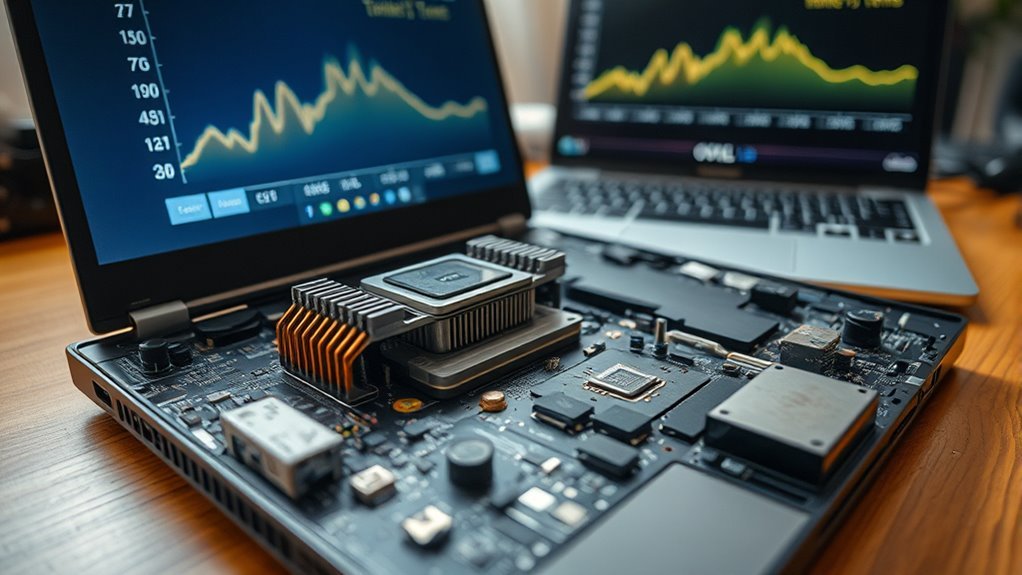
Laptop idle temperatures vary more than a single “safe” number suggests. Many laptops settle somewhere around 30°C to 50°C when truly idle, but performance models can run warmer because of room temperature, fan-stop modes, power settings, background processes, and compact cooling systems. A sustained reading above 60°C at very low CPU usage is worth investigating, but it does not prove that the thermal paste is bad.
Quick Answer
A laptop that idles around 30°C to 50°C is commonly within a comfortable range, but there is no universal idle-temperature limit. If temperatures stay unusually high while CPU and GPU usage are low, check background activity, power mode, vents, fans, firmware, and ambient temperature before blaming thermal paste.
Key Takeaways
- A 30°C to 50°C idle CPU temperature is a useful general reference, not a specification that applies to every laptop.
- A sustained idle temperature above roughly 60°C deserves investigation when CPU and GPU utilization are genuinely low, but temperature alone cannot identify bad thermal paste.
- Check background processes, thermal profiles, room temperature, vents, dust, fans, BIOS updates, and power settings before opening the laptop.
- CPU thermal limits are model-specific. Some modern mobile processors are designed to operate close to 100°C or higher under heavy boost before thermal-control mechanisms reduce performance.
- Do not assume every laptop uses ordinary paste. Some gaming laptops use liquid metal, phase-change material, thermal putty, pads, or a combination of materials.
- Repasting is most appropriate when diagnostics point to poor heatsink contact or degraded thermal-interface material, or whenever the heatsink has been removed and the service procedure requires a fresh interface.
At a Glance
| Time Required | 10–30 minutes for diagnosis; internal cleaning or repasting varies by laptop model. |
| Difficulty | Easy for monitoring and airflow checks; moderate to advanced for internal cooling-system service. |
| Tools Needed | Temperature-monitoring software; manufacturer service documentation; model-appropriate cleaning and repair tools if internal service is required. |
| Cost | Basic software and airflow checks can be free. Cleaning supplies, replacement thermal-interface material, or professional service depend on the laptop. |
What Idle Laptop Temps Are Too Hot?
There is no universal temperature at which every laptop becomes “too hot” at idle. A CPU sitting around 30°C to 50°C is common on many systems, but thin laptops and high-performance gaming models can idle higher because of fan profiles, ambient temperature, background activity, and aggressive boost behavior.
A sustained reading above about 60°C while the machine is genuinely idle is a useful reason to investigate. It is not, by itself, proof that the processor is overheating or that the thermal paste has failed.
The more important comparison is between the current temperature and three things: CPU utilization, the laptop’s previous behavior, and the manufacturer’s thermal specification. Intel states that maximum operating temperature varies by processor and is commonly in the 100°C to 110°C range. For example, the Intel Core Ultra 9 185H is specified with a 110°C maximum operating temperature.
Note: Maximum operating temperature is not a recommended idle temperature. It is a processor-specific thermal limit. Idle readings should be judged in context rather than compared directly with that maximum.
Temperatures become more concerning when unusually high readings occur together with low utilization, constant high fan speed, reduced clock speeds, stuttering, thermal warnings, unexplained shutdowns, or a sudden change from the laptop’s normal behavior.
What Counts as True Laptop Idle?
A laptop is not truly idle just because no application window is open. Windows updates, antivirus scans, cloud synchronization, game launchers, browser processes, indexing, RGB utilities, driver services, and other background tasks can continue using the CPU or GPU.
Before judging the temperature, restart the computer if necessary, let startup activity settle, place the laptop on a hard surface, and check CPU and GPU utilization. On Windows, Task Manager can show which processes are using processor resources.
A useful test is to leave the laptop alone for several minutes after startup activity finishes and then record:
- CPU utilization
- GPU utilization
- CPU package temperature
- GPU temperature
- fan behavior
- power or thermal profile
- room temperature
Pro Tip: Your laptop’s own historical baseline is often more useful than a generic internet temperature chart. A machine that suddenly begins idling 15°C hotter under the same room temperature, power mode, and workload deserves investigation even if it has not reached its processor’s maximum temperature.
Why Do Gaming Laptops Run Hot at Idle?
Gaming laptops can idle warmer than basic notebooks because they contain higher-power CPUs and GPUs in a compact chassis. Their firmware may also favor performance over minimum temperature.
Common reasons include:
- Background CPU activity: updates, launchers, antivirus software, browser processes, downloads, and system services can prevent the processor from reaching its lowest-power state.
- Dedicated GPU activity: some applications or external-display configurations can keep the discrete GPU awake instead of allowing the integrated graphics processor to handle light work.
- Performance profiles: Turbo or Performance modes may maintain higher clocks, voltage, power limits, or fan behavior than Balanced or Silent modes.
- Fan-stop modes: some laptops deliberately stop their fans under light workloads and allow component temperature to rise before the fans start.
- Compact cooling: thin chassis have limited space for heatsinks, heat pipes, vapor chambers, and airflow.
- High ambient temperature: warmer intake air reduces the cooling system’s ability to move heat away from the laptop.
For example, ASUS documents 0dB fan-stop behavior on some ROG gaming laptops, where fans can remain off during low-power tasks until component temperature increases.
How Missing Thermal Paste Raises Idle Heat
When a laptop is designed to use conventional thermal paste, the compound fills microscopic imperfections between the processor surface and the heatsink. Air transfers heat poorly, so the interface material helps move heat into the cooling assembly more efficiently.
If conventional paste is missing, badly distributed, severely degraded, or the heatsink has poor mounting pressure, temperatures can rise unusually quickly even under modest load. Fan speed may increase, boost performance can fall, and the processor may eventually reach its thermal-control limit.
| Condition | Possible Effect |
|---|---|
| Healthy thermal interface | Heat transfers efficiently into the cooling assembly. |
| Missing conventional paste | Poor heat transfer and rapid temperature rise. |
| Poor heatsink contact | High temperature despite working fans. |
| Restricted airflow | Heat remains in the cooling fins even if the chip-to-heatsink interface is good. |
However, not every modern laptop uses ordinary paste. Some systems use liquid metal, phase-change thermal material, thermal putty, thermal pads, or several interface materials at once. Never assume a laptop should be repasted with conventional compound without checking its service information.
What Symptoms Point to Thermal Paste Problems?
Bad thermal-interface contact usually produces a pattern of symptoms rather than one magic temperature reading.
- Temperatures rise extremely quickly when even a moderate CPU load begins.
- Fans become loud but temperatures remain abnormally high despite clear vents and normal fan operation.
- Clock speeds or performance fall as the processor approaches its thermal-control limit.
- The laptop behaves much hotter than it did previously under the same workload and room conditions.
- Temperatures remain abnormal after software load, power settings, dust, firmware, and airflow problems have been ruled out.
- A recent heatsink removal or repair preceded the problem, suggesting incorrect mounting pressure or disturbed thermal-interface material.
These symptoms make a thermal-interface problem more plausible, but they can also result from a failed fan, clogged heatsink fins, damaged heat pipe, incorrect thermal pad placement, or poor heatsink mounting.
How Can You Check Laptop Temps Correctly?
Use the same testing conditions each time so the numbers are comparable. On Windows, a hardware-monitoring utility such as CPUID HWMonitor can display CPU and GPU temperatures, utilization, power, clocks, and fan-related sensor data where supported.
| Check | What It Tells You |
|---|---|
| Task Manager | Whether the laptop is actually idle or a process is using CPU resources. |
| HWMonitor or another reputable sensor utility | CPU/GPU temperature, utilization, clocks, and other hardware readings. |
| OEM diagnostics | Fan or hardware faults detected by the laptop manufacturer. |
| Repeatable workload | Whether temperatures stabilize normally or rise until throttling occurs. |
| Before/after log | Whether a cleaning, setting change, or repair actually improved cooling. |
BIOS or UEFI temperature readings can provide additional information on some laptops, but they should not automatically be treated as a directly comparable Windows “idle” measurement because processor power states and fan control can differ outside the operating system.
Diagnose High Idle Temperatures in the Right Order
Use this sequence before deciding that thermal paste needs replacement.
- Confirm the laptop is actually idle. Check CPU and GPU utilization and stop unnecessary background work.
- Use a hard, flat surface. Keep intake and exhaust vents unobstructed.
- Check the power and thermal profile. Compare Balanced, Optimized, Quiet, or equivalent OEM modes where available.
- Check room temperature. A hot room raises the baseline temperature of the entire cooling system.
- Inspect airflow. Confirm that exhaust air is moving and that fans respond as load increases.
- Inspect vents and heatsinks for dust. Follow the laptop manufacturer’s cleaning procedure.
- Update relevant BIOS, firmware, chipset, graphics, and thermal-management software. Manufacturers sometimes update fan or thermal behavior through firmware and drivers.
- Run OEM diagnostics. Look for fan errors, thermal errors, or hardware failures.
- Compare temperatures under a repeatable load. Look for throttling, shutdowns, or abnormal temperature rise.
- Only then consider internal cooling-system service. Inspect the heatsink mounting, fan, heat pipe, thermal pads, putty, and processor thermal interface according to the model’s service procedure.
Dell’s current overheating guidance follows a similar approach: check software and BIOS, inspect vents and fans, provide adequate ventilation, restart the system, and use supported thermal-management controls before escalating to hardware repair.
Which Cleaning Steps Lower Idle Temperatures?
Cleaning can reduce temperatures when dust is restricting the cooling path. Dust can build up around intake openings, fan blades, exhaust vents, and the fine fins of the heatsink.
- Shut the laptop down before cleaning its vents.
- Disconnect external power and peripherals.
- Follow the manufacturer’s cleaning instructions. Procedures differ by model.
- Keep the intake and exhaust openings clear.
- Use the laptop on a hard surface rather than a bed, blanket, pillow, or other material that can block airflow.
- If internal cleaning is required, follow the service manual rather than forcing air or tools through unfamiliar openings.
Both Dell and HP identify restricted vents and dust buildup as important causes of excess fan activity and heat, although their recommended cleaning procedures can differ. That is why the instructions for the specific laptop should take priority over generic cleaning advice.
When Should You Reapply Thermal Paste?
Thermal paste should not be replaced simply because a laptop has reached a particular age. There is no universal one-year, two-year, or three-year replacement schedule that applies to every machine.
Repasting becomes reasonable when:
- the heatsink has already been removed and the service procedure requires fresh interface material;
- temperatures have worsened significantly compared with the laptop’s previous baseline;
- software load, vents, dust, fan operation, firmware, power mode, and ambient conditions have been checked;
- the processor reaches its thermal limit unusually quickly under a repeatable workload;
- mounting pressure or previous repair work appears suspect; or
- the manufacturer or service documentation specifically instructs replacement.
A laptop that has always run warm but remains within its designed limits, holds normal performance, and passes its diagnostics does not automatically need new thermal paste.
How Do You Fix Poor Thermal Paste Application?
Warning: Opening a laptop can expose the battery and delicate components. Fully power the machine down, unplug it, follow the manufacturer’s service procedure, and disconnect the internal battery before working on the cooling system. Stop if the laptop uses liquid metal or an unfamiliar thermal-interface system that you are not equipped to service safely.
If diagnostics point to poor processor-to-heatsink contact and the laptop uses conventional paste, the general process is:
- Find the exact service manual or repair procedure for the laptop model.
- Shut the laptop down completely and disconnect external power.
- Open the machine using the correct tools and disconnect the internal battery.
- Document the original locations of thermal pads, putty, shields, screws, and cables.
- Remove the heatsink in the sequence specified by the manufacturer.
- Clean old conventional thermal compound from the mating surfaces using an appropriate electronics-safe method.
- Apply the replacement thermal-interface material using the method specified for that material and laptop.
- Do not substitute ordinary paste for thermal pads, putty, phase-change material, or liquid metal unless the manufacturer specifically allows it.
- Reinstall the heatsink evenly and tighten numbered screws in the required sequence.
- Reconnect the battery, reassemble the laptop, and repeat the same temperature tests used before the repair.
The general iFixit laptop repasting procedure also stresses complete shutdown, unplugging the laptop, disconnecting the internal battery, and adapting the process to the specific model.
Why Do Liquid Metal and Thermal Pads Need Special Care?
Some modern gaming laptops use thermal systems that are very different from ordinary CPU paste. ASUS, for example, currently lists liquid-metal thermal compound on several ROG gaming laptops.
Liquid metal requires special handling because its application and containment are part of the laptop’s cooling design. Replacing it casually with conventional paste, applying too much, or allowing conductive material to reach surrounding electronics can create problems.
Thermal pads and thermal putty also matter. They often cool components such as VRAM and voltage-regulation hardware while maintaining a specific gap between the heatsink and motherboard. Using the wrong material or thickness can prevent the main CPU or GPU plate from seating correctly.
If you cannot identify the original thermal materials with confidence, professional service is safer than experimenting.
What Cooling Upgrades Lower Laptop Idle Temps?
The most useful laptop cooling improvements focus on airflow and configuration rather than desktop-style hardware modifications.
| Change | When It Helps |
|---|---|
| Hard, flat surface | Prevents bottom intake vents from being blocked. |
| Laptop stand | Can improve clearance under laptops with bottom-mounted intake vents. |
| Cooling pad | May help when its airflow aligns with the laptop’s intake design; results vary by chassis. |
| OEM Balanced/Optimized profile | Can reduce unnecessary power draw during light work. |
| Dust removal | Restores airflow when vents or heatsink fins are obstructed. |
| Cooling-system repair | Appropriate when a fan, heatsink, heat pipe, mounting system, or thermal interface is actually faulty. |
There is no guaranteed temperature reduction from a cooling pad or repaste. A correctly assembled laptop with clean vents may change very little, while a machine with a genuine cooling fault can improve substantially once that fault is corrected.
How Do You Know If the Fix Worked?
Always compare temperatures under the same conditions used before the fix. Keep the room temperature, power mode, surface, background workload, and monitoring method as consistent as possible.
A successful fix may show one or more of these changes:
- lower temperature at the same CPU power or workload;
- slower temperature rise;
- less thermal throttling;
- higher sustained clock speed at the same temperature;
- quieter fans during the same workload;
- normal fan response instead of constant maximum speed;
- no thermal warnings or unexpected shutdowns.
Temperature alone does not diagnose laptop cooling. Utilization, clock speed, fan behavior, processor limits, ambient conditions, and the machine’s previous baseline provide the context that makes the number meaningful.
When Should You Get Professional Laptop Service?
Professional service is appropriate when the laptop repeatedly shuts down from heat, reports fan or thermal hardware errors, has a failed or grinding fan, remains near its thermal limit under light workloads after basic troubleshooting, or uses a cooling system you cannot safely identify.
Service is also the better option when the laptop is under warranty, uses factory liquid metal, has a swollen battery, requires extensive motherboard removal to reach the heatsink, or needs thermal pads whose original specifications are unknown.
Frequently Asked Questions
What’s a good idle CPU temperature for a laptop?
Around 30°C to 50°C is a common reference range for many laptops, but it is not a universal specification. Gaming laptops, fan-stop designs, warm rooms, and performance-oriented power modes can produce higher readings. Judge the temperature alongside utilization, fan behavior, processor specifications, and the laptop’s normal baseline.
Is 60°C hot for a CPU at idle?
A sustained 60°C reading at genuinely low CPU usage is warmer than expected for many laptops and is worth checking, but it does not automatically mean the CPU is unsafe or the thermal paste has failed. Check background processes, power mode, room temperature, airflow, fans, dust, and manufacturer guidance first.
Is 90°C bad for a laptop CPU?
It depends on the processor and workload. Some modern laptop CPUs can approach 90°C or higher under heavy boost while remaining within their specified operating range. Check the exact processor’s maximum operating temperature and look for sustained throttling, abnormal performance loss, thermal warnings, or shutdowns.
Is 70°C too hot for a CPU at idle?
A sustained 70°C reading with very low CPU and GPU utilization is unusually warm for most laptops and deserves troubleshooting. Verify that the machine is truly idle, check its thermal profile and ambient temperature, inspect airflow and fan operation, and compare the result with the manufacturer’s specifications and the laptop’s previous behavior.
How can I tell if thermal paste is the problem?
Thermal paste becomes a stronger suspect when temperatures rise abnormally fast, fans and vents are working correctly, utilization is known, firmware and power settings are normal, and the laptop still reaches its thermal limit much sooner than it previously did. A problem that began immediately after heatsink service also points toward mounting or thermal-interface issues.
How often should a gaming laptop be repasted?
There is no universal repasting interval. Replace the thermal interface when diagnostics indicate a problem, when the heatsink has been removed and the service procedure requires replacement, or when the laptop manufacturer specifies service. Do not automatically replace factory liquid metal, thermal pads, phase-change material, or putty with conventional paste.
Conclusion
High laptop idle temperatures can result from background workload, performance settings, blocked airflow, dust, fan problems, high room temperature, firmware behavior, or a faulty thermal interface. A reading above 60°C at low utilization is a useful troubleshooting clue, but it does not diagnose thermal-paste failure by itself.
Start with software load, power mode, airflow, fan operation, firmware, and cleaning. If the laptop still behaves abnormally, compare its readings with the processor and laptop manufacturer’s specifications before opening the cooling system. When internal service is justified, identify the original thermal-interface materials and follow the exact model-specific procedure rather than applying generic desktop repasting rules.
Sources
- Intel — Maximum Operating Temperature of Intel Processors — explains processor-specific Tjunction/Tcase limits and the typical 100°C–110°C range.
- Intel — Processor Thermal Throttling — explains thermal-control behavior and clock reduction at thermal limits.
- Dell — Laptop Overheating Troubleshooting — supports airflow, vent cleaning, firmware, diagnostics, and thermal-profile troubleshooting.
- HP — Notebook Fan and Heat Troubleshooting — supports checking processes, vents, thermal profiles, and BIOS updates.
- CPUID — HWMonitor — documents CPU, GPU, fan, power, and temperature sensor monitoring.
- iFixit — How to Repaste a Laptop — supports model-specific disassembly, complete shutdown, and battery-disconnection precautions.

