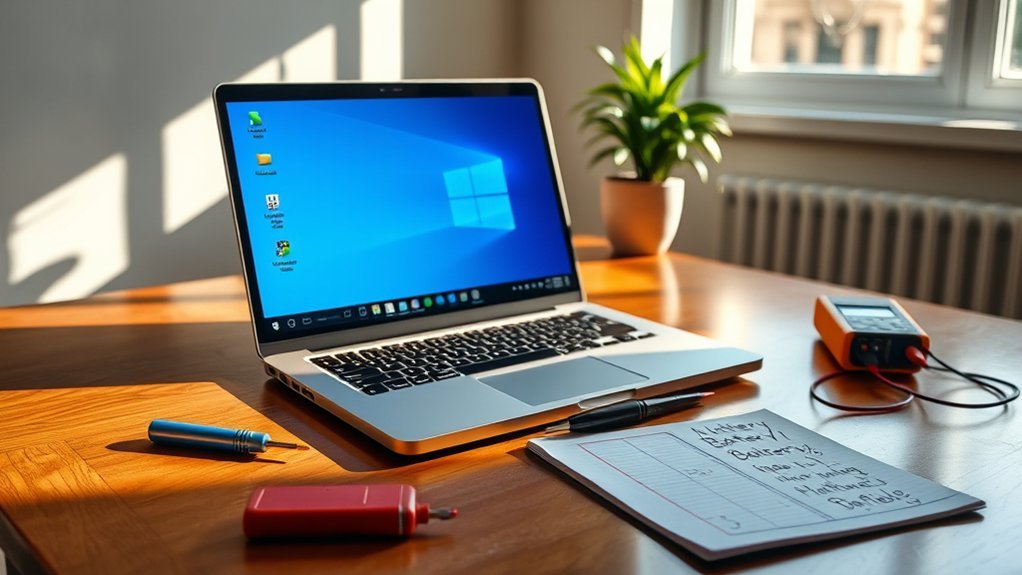
You can extend your laptop’s battery life with a few practical settings changes and maintenance habits. Start by lowering power use, closing resource-hungry apps, reducing screen brightness, and checking battery health. These quick fixes help your laptop last longer between charges and can also reduce unnecessary wear over time.
Quick Answer
To improve laptop battery life, switch to a battery-saving power mode, lower screen brightness, close background apps, disable unused Bluetooth or Wi-Fi, and keep your operating system updated. For longer-term results, check battery health, avoid overheating, and replace the battery when it no longer holds a useful charge.
Key Takeaways
- Power Saver or battery-saving mode is one of the fastest ways to reduce energy use.
- Screen brightness, background apps, startup programs, and wireless hardware can all drain your battery.
- Operating system updates often include power management, security, and performance improvements.
- Battery health reports help you decide whether the issue is settings-related or battery-related.
- Hardware upgrades such as an SSD or extra RAM may improve efficiency on older laptops.
At a Glance
| Time Required | 10 to 30 minutes for basic settings changes; longer if you inspect battery health or upgrade hardware |
| Difficulty | Easy for software fixes; moderate for hardware upgrades |
| Tools Needed | Laptop settings, Task Manager or Activity Monitor, charger, and optional battery health report |
| Cost | Free for most fixes; battery replacement or upgrades vary by laptop model |
Check Your Power Settings
One of the quickest ways to extend your laptop’s battery life is by checking your power settings. Open your system settings and look for the power or battery section. Most laptops include preset plans such as “Balanced,” “Best Performance,” or a battery-saving option.
Choosing a battery-saving mode can reduce energy use by limiting background activity, lowering display power, and adjusting performance. On Windows, you can use Battery Saver or Energy Saver from the battery settings. On macOS, you can review Battery settings and choose options that reduce energy use while unplugged.
Don’t stop with the preset plan. Customize these settings to match how you use your laptop. Lower the screen brightness, shorten the time before the display turns off, and set the laptop to sleep sooner when inactive. These small adjustments add up and help you reclaim valuable battery time.
Pro Tip: Create two habits: use a battery-saving mode when unplugged, then switch back to a balanced or performance mode only when you need extra speed for demanding work.
[Amazon Products Picked for You]

Saves all drive-ability codes and settings changing a vehicle's starter battery.

Preserves Vehicle Settings: Memory saver maintains the settings of the car’s electronic systems, such as radio presets, clock, seat positions, and climate control preferences, which would otherwise be lost during battery disconnection.

🔹【𝐖𝐢𝐫𝐞𝐥𝐞𝐬𝐬 𝐂𝐨𝐧𝐧𝐞𝐜𝐭𝐢𝐯𝐢𝐭𝐲】With advanced 2.4GHz wireless technology, this gaming mouse wireless supports stable connections up to 33 feet (10 meters). Experience the freedom of movement without the limitations of a wired setup.
Monitor Background Applications
To keep your laptop’s battery healthy, you need to monitor background applications closely. Apps that run quietly in the background can use CPU, memory, network activity, and battery power even when you are not actively using them.
Start by identifying resource-intensive apps that drain power. Then limit unnecessary startup programs and use your system’s built-in monitoring tools to stay in control. This step is especially useful if your laptop drains quickly while doing basic tasks like writing, browsing, or streaming.
Identify Resource-Intensive Apps
Have you ever wondered why your laptop battery drains so quickly? One major culprit could be resource-intensive apps running in the background. To find them, open your system’s app monitor.
On Windows, press Ctrl+Shift+Esc to open Task Manager. On macOS, open Activity Monitor from Applications > Utilities. Look for apps using high CPU, memory, energy, or network resources. Common battery drainers include video editing software, games, cloud sync tools, messaging apps, and web browsers with too many tabs open.
If you notice an app using more power than expected, close it when you do not need it. You can also look for a lighter alternative, update the app, or reduce how often it runs in the background. By keeping a close eye on these resource hogs, you can reclaim battery life and work longer without constantly searching for a power outlet.
Limit Startup Programs
Reducing the number of startup programs can greatly enhance your laptop’s battery life. When you boot up your device, unnecessary applications may launch right away and keep running in the background. That creates extra load before you even begin working.
Take a moment to evaluate which programs you actually need when your laptop starts. Keep security tools, essential drivers, and daily work apps enabled. Disable apps that you only use occasionally, such as game launchers, extra cloud tools, music apps, or manufacturer utilities you do not need every session.
To manage startup programs, head to your settings and look for the startup section. On Windows, you can also use the Startup tab in Task Manager. Disable anything you don’t use daily. This simple action not only speeds up your boot time but also helps your battery last longer by reducing background activity.
Use Task Manager Efficiently
After limiting startup programs, keep an eye on the applications running in the background. Open Task Manager by right-clicking on the taskbar and selecting it from the menu, or use Ctrl+Shift+Esc. Once it opens, go to the “Processes” tab.
Here, you’ll see a list of running apps and how much CPU and memory they’re consuming. Look for any resource-hungry apps that you don’t need at the moment. Right-click on them and select “End Task” to close them.
Use this feature carefully. Avoid ending system processes or anything you do not recognize. Focus on normal apps you opened yourself, such as browsers, media players, design tools, or games. Monitoring your background applications regularly helps you identify battery drain culprits, giving you better control over laptop performance and battery life.
Warning: Do not force-close security software, drivers, system services, or update tools unless you know what they do. Closing the wrong process can cause errors, crashes, or missing device features.
Update Your Operating System
Updating your operating system is essential for maintaining your laptop’s performance, security, and battery life. Updates often include bug fixes, driver improvements, and power management changes that help your device run more efficiently.
If your laptop suddenly drains faster after months of normal use, check for pending updates. A stuck update, outdated driver, or power management bug can sometimes affect battery performance. Keeping your system current reduces that risk.
Importance of Updates
While you might not think about it often, keeping your operating system updated is important for maintaining your laptop’s battery health and everyday performance. Updates can improve sleep behavior, display handling, processor efficiency, and compatibility with newer apps.
By ignoring updates for too long, you may risk inefficient battery usage, security issues, and app conflicts that create extra background load. Software updates may also introduce new features that help you monitor and control energy consumption more effectively.
Regularly updating your operating system isn’t just about security. It also helps your laptop run smoothly without unnecessary strain. Make it a habit to check for updates, especially after you notice faster battery drain, overheating, or unusually slow performance.
How to Update
To guarantee your laptop runs at its best, you need to know how to update your operating system effectively. Regular updates can improve performance, enhance security, and support better battery behavior. Here’s a simple guide:
| Step | Action |
|---|---|
| Check Updates | Go to settings and select the update section |
| Download | Click “Download” if an update is available |
| Install | Click “Install” after the download completes |
| Restart | Restart your laptop to apply changes |
| Verify | Check again for any additional updates |
Staying updated helps your laptop avoid avoidable software issues and may prevent battery drain caused by outdated components. Don’t skip this critical step if you want a stable, efficient laptop.
Adjust Screen Brightness
Adjusting your screen brightness can greatly extend your laptop’s battery life. A bright screen uses more power, especially on larger displays or laptops with high-resolution panels. Lowering brightness is one of the easiest changes you can make when you need more unplugged time.
Most laptops allow you to adjust brightness through keyboard shortcuts, quick settings, or system settings. Try to find a balance that’s comfortable without making the screen hard to read. If you’re in a dimly lit room, lower it even further to maximize battery life.
You can also reduce power use by turning on adaptive brightness if your laptop supports it. This feature adjusts the display based on surrounding light. Also consider using a dark theme if your display type benefits from it, especially on OLED screens.
Lower brightness can also reduce eye strain during long sessions. You’ll likely notice the difference in battery longevity, giving you more freedom to work, browse, or study without being tied to a charger.
Disable Unused Hardware
If you want to prolong your laptop’s battery life, disabling unused hardware is a smart move. Wireless radios and connected accessories can consume power even when you are not actively using them.
Start by turning off Bluetooth if you’re not connected to any devices. Next, disable the Wi-Fi when you don’t need internet access. You can do this through your laptop’s settings, quick controls, airplane mode, or function keys.
Also disconnect external devices you are not using. USB drives, external hard drives, phones, webcams, cooling pads, and RGB accessories can draw power from your laptop. If your laptop has a backlit keyboard, dimming or turning off the backlight can also help.
By eliminating unnecessary hardware activity, you save energy for the tasks that truly matter. These simple steps can lead to noticeable improvements in battery life, especially when you are traveling, attending class, or working away from a power outlet.
Note: If you rely on Bluetooth headphones, a wireless mouse, or cloud syncing, turn off only the features you are not using. Battery savings should not make your laptop harder to use.
Manage Startup Programs
Managing startup programs can greatly enhance your laptop’s battery performance. When you reduce the number of applications that launch at startup, you decrease the load on your system. That helps it run more efficiently and may extend battery life during each session.
Here are three steps you can take:
- Access Task Manager: Right-click the taskbar and select Task Manager, or press Ctrl+Shift+Esc.
- Navigate to Startup Tab: Click on the “Startup” tab to see the list of programs that start with your laptop.
- Disable Unnecessary Apps: Right-click on any app you don’t need at startup and choose “Disable.”
On macOS, open System Settings, choose General, and review Login Items. Remove apps that do not need to open automatically. This keeps your laptop cleaner at startup and reduces hidden battery drain.
Focus on apps with a high startup impact or apps you rarely use. You do not need to remove the apps from your laptop. You are only stopping them from launching automatically. You can still open them manually when needed.
Inspect Battery Health
A healthy battery is essential for your laptop’s overall performance and longevity. If your battery drains unusually fast even after settings changes, check its health status. This helps you understand whether the problem comes from software, settings, heavy usage, or the battery itself.
Most operating systems have built-in tools to help you with this. On Windows, you can create a battery report by opening Command Prompt and running powercfg /batteryreport. The report shows design capacity, full charge capacity, recent usage, and battery life estimates.
On macOS, hold the Option key and click the Apple menu, or open System Settings and review the battery condition. Look for signs of wear, such as reduced capacity, service warnings, or frequent charging cycles.
If your battery health is poor, or the full charge capacity has dropped sharply compared with the design capacity, it may be time to consider a replacement. Also watch for physical warning signs such as swelling, a warped trackpad, or a laptop base that no longer sits flat.
Warning: Stop using the laptop and seek professional service if you notice battery swelling, unusual heat, a chemical smell, or a damaged charger. A swollen or damaged lithium-ion battery can be unsafe.
[Amazon Products Picked for You]

Package Contents and Policies: HT03XL Battery, 2 Screwdrivers, User Manual for L11119-855 battery. For assistance with the HTO3XL Hp Laptop Battery or the hp ht03xl rechargeable li-ion battery, please visit our product detail page. Note: Both HT03XL and HW03XL are compatible with HP Pavilion 15 17 Series. But HT03XL Battery is not compatible with HW03XL

Voltage: 14.8V Cells: 4-cell Grade A cells ensure fast charges and low power consumption; Built-in circuit protection ensures both safety and stability.
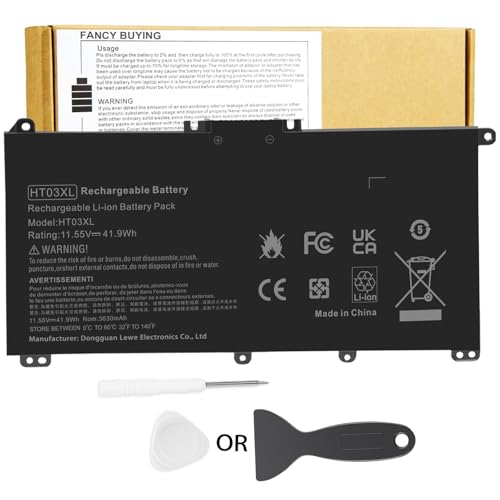
Battery Model: HT03XL ,Battery Type: Polymer. Voltage: 11.55V Capacity: 41.9WH ; Cells: 3-cell; Color: Black, Packages includes: 1x HT03XL battery , with two auxiliary installation tool and user manual;ht03xl for l11119-855 hp battery,for hp spare l11119-855 battery,for hp pavilion 15 battery replacement
Consider Hardware Upgrades
After checking your battery health, consider hardware upgrades to boost your laptop’s performance and battery efficiency. Upgrading certain components can help an older laptop complete tasks faster, which may reduce the time it spends under heavy load.
Here are three upgrades to think about:
- SSD Upgrade: Switching from a traditional hard drive to a solid-state drive can greatly improve your laptop’s speed. An SSD has no moving parts and often helps older laptops feel more responsive.
- RAM Upgrade: Increasing your RAM helps your laptop run multiple applications more efficiently. This can reduce slowdowns caused by constant memory swapping.
- Cooling Solutions: Cleaning vents, replacing worn thermal paste, or improving airflow can help prevent overheating. Better cooling allows your laptop to maintain stable performance without working harder than necessary.
These upgrades not only enhance your laptop’s lifespan but can also reduce frustration from slow performance and constant charging. Before buying parts, check your laptop model’s upgrade options. Some modern laptops have soldered RAM, sealed batteries, or limited storage upgrade paths.
[Amazon Products Picked for You]

1600MHz (PC3 12800) 204-pin CL11 SODIMM for laptop memory


Adherence to JEDEC and compliance to RoHS with respect to environmental protection regulation, production and manufacturing
Build Better Charging Habits
Battery settings help right away, but your daily habits also matter. Avoid letting your laptop overheat, especially while charging. Heat can speed up battery wear and reduce long-term battery performance.
Try to use your laptop on a hard, flat surface so air can move through the vents. Avoid using it on blankets, pillows, or soft furniture for long periods. If your laptop becomes hot during gaming, editing, or heavy multitasking, give it better airflow or take a break.
You can use your laptop while it charges, but make sure the charger is in good condition and the laptop can cool properly. If your laptop includes a battery charge limit or optimized charging feature, turn it on to reduce long-term wear.
Frequently Asked Questions
How can I extend my laptop’s battery lifespan?
To extend your laptop’s battery lifespan, reduce screen brightness, close unused apps, disable Bluetooth and Wi-Fi when not needed, and avoid extreme heat. Keep your software updated, use battery-saving settings when unplugged, and enable optimized charging if your laptop supports it.
Is it safe to use my laptop while charging?
Yes, it is generally safe to use your laptop while charging if the charger, battery, and cooling system are working properly. Keep the laptop on a hard surface, avoid blocking vents, and stop using it if you notice swelling, overheating, burning smells, or charger damage.
Can a faulty charger affect battery performance?
Yes, a faulty charger can affect battery performance. If it does not deliver the correct power, your laptop may charge slowly, fail to charge, run only on battery, or show warning messages. Use the correct charger for your laptop model whenever possible.
What are signs of a dying laptop battery?
Common signs include fast battery drain, sudden shutdowns, failure to charge fully, inaccurate battery percentage, service warnings, swelling, or a laptop that only works while plugged in. Swelling is a safety issue and should be handled by a qualified repair professional.
How often should I replace my laptop battery?
Many laptop batteries last several years, but replacement depends on usage, heat exposure, charge cycles, and battery quality. Replace the battery when runtime becomes too short for your needs, battery health drops significantly, or your operating system recommends service.
Why does my laptop battery drain even when I am not using it?
Battery drain during idle time can come from background apps, cloud syncing, wake timers, connected devices, Bluetooth, Wi-Fi activity, or sleep settings that keep the laptop partially active. Review startup apps, sleep settings, and battery usage reports to find the cause.
Should I keep my laptop plugged in all the time?
Keeping a laptop plugged in is usually fine if the device manages charging properly, but heat and constant high charge levels can affect long-term battery wear. Use optimized charging or a charge limit feature if your laptop offers one.
Conclusion
If you want your laptop battery to last longer, begin with the fixes that take only a few minutes. Switch to a battery-saving power mode, dim your screen, close background apps, disable unused hardware, and reduce unnecessary startup programs.
Next, check your battery health so you know whether your laptop needs better settings or a physical battery replacement. If your laptop is older, upgrades like an SSD, more RAM, or better cooling may also help it run more efficiently.
With a few smart changes, you can turn a power-hungry laptop into a calmer, energy-efficient companion. You’ll spend less time hunting for an outlet and more time working, browsing, studying, or creating wherever you need to be.
Sources
- Microsoft Support — Windows battery, update, and power settings guidance.
- Apple Support — Mac battery condition, charging, and power management guidance.
- ENERGY STAR — General energy-saving principles that support reducing unnecessary device power use.
