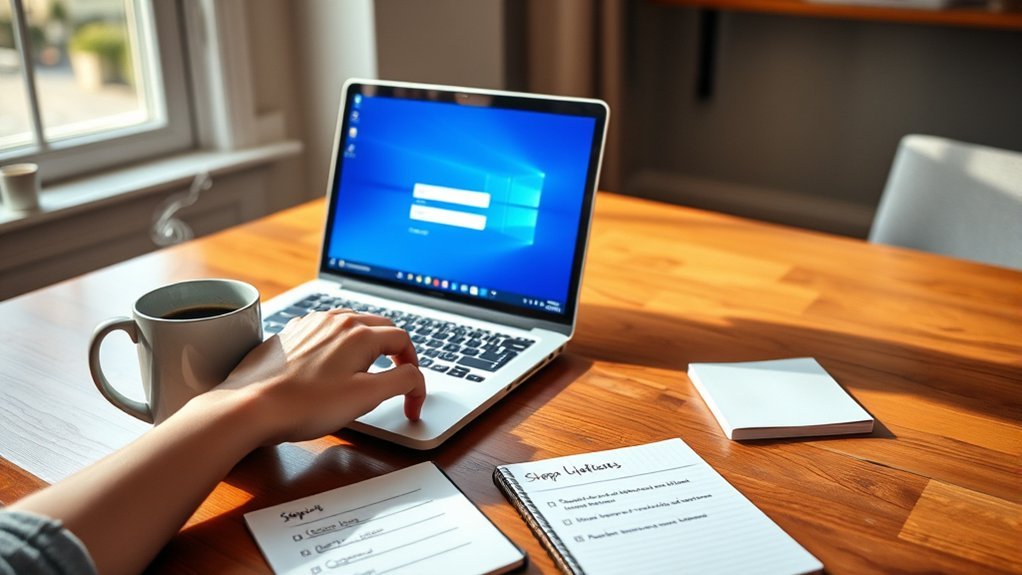
Creating a local account on Windows is easier than many people think. A local account lets someone use the PC without signing in with a Microsoft account, which can be useful for family members, shared computers, workstations, or anyone who wants a more private offline sign-in option. The exact menu names can vary slightly between Windows 10 and Windows 11, but the process is still simple.
Quick Answer
To create a local account on Windows, open Settings, go to Accounts, choose Other users or Family & other users, select Add account, then choose the options to add a user without Microsoft account sign-in. Enter a username, password, and security questions to finish setup.
Key Takeaways
- A local Windows account works on one PC and does not require Microsoft account syncing.
- Windows 11 usually uses Settings > Accounts > Other users, while Windows 10 often shows Family & other users.
- You should add a strong password and security questions so you can recover the account more easily.
- You can later change the account type, switch to a Microsoft account, or remove the local account if needed.
At a Glance
| Time Required | About 3 to 5 minutes |
| Difficulty | Easy |
| Tools Needed | Windows Settings app and an administrator account |
| Cost | Free |
Accessing the Settings Menu
Start by opening the Settings menu on your Windows device. Click the Start button on the taskbar, then select the gear icon for Settings.
You can also press Windows key + I on your keyboard. This shortcut opens Settings directly and works well if you do not want to search through the Start menu.
Once Settings opens, choose Accounts. This section lets you manage sign-in options, passwords, account type, privacy-related account settings, and other users on the same computer.
A local account is tied to one Windows device. It does not automatically sync settings, files, or preferences across multiple PCs.
For this task, you need access to an account with administrator permissions. Standard users may not be able to add, remove, or change other accounts on the PC.
Note: Windows menu names can differ by version. On Windows 11, look for Other users. On Windows 10, you may see Family & other users.
Adding a New User Account
To add a new user account on your Windows device, stay inside the Settings menu and follow the path that matches your version of Windows.
Windows 11 Local Account Steps
- Open Settings.
- Click Accounts.
- Select Other users.
- Click Add account next to Add other user.
- Choose I don’t have this person’s sign-in information.
- Select Add a user without a Microsoft account.
- Enter a username, password, and password hint or security questions when prompted.
- Click Next to create the local account.
Windows 10 Local Account Steps
- Open Settings.
- Click Accounts.
- Select Family & other users from the left sidebar.
- Under Other users, click Add someone else to this PC.
- Choose I don’t have this person’s sign-in information.
- Select Add a user without a Microsoft account.
- Complete the username, password, and recovery fields.
- Click Next to finish.
This creates a new local account on the computer. The new user can sign in from the lock screen after you restart, sign out, or switch users.
Pro Tip: Use a clear username, such as “Guest,” “Kids,” or the person’s first name. This makes the account easier to identify later in Windows Settings.
Choosing Standard or Administrator Access
After you create the account, decide whether it should be a standard user or an administrator. This choice affects what the person can change on the computer.
A standard account is best for children, guests, shared users, or anyone who only needs to browse, use apps, and save personal files. It helps prevent accidental changes to system settings.
An administrator account can install apps, change system settings, manage other users, and make wider changes to the PC. Only give administrator access to someone you trust.
To change the account type, go to Settings > Accounts > Other users or Family & other users. Select the account, choose Change account type, then pick Standard User or Administrator.
Warning: Avoid giving administrator access to casual users. An administrator can remove accounts, install software, change security settings, and affect every user on the device.
[Amazon Products Picked for You]
![DeskFX Free Audio Effects & Audio Enhancer Software [PC Download]](https://m.media-amazon.com/images/I/41fXbDohyuS._SL500_.jpg)
Transform audio playing via your speakers and headphones

![Free Fling File Transfer Software for Windows [PC Download]](https://m.media-amazon.com/images/I/41Vq6ZqHfjL._SL500_.jpg)
Intuitive interface of a conventional FTP client
Customizing Your Local Account Settings
After creating your local account, you can customize its settings to better fit your needs.
First, access the Settings menu by clicking the Start button and selecting the gear icon. From there, choose Accounts to adjust profile details, sign-in options, password settings, and related account controls.
A strong local account setup should include a password, security questions, and the correct account type.
You can also manage privacy settings to control what information apps can access. For example, you can review permissions for location, camera, microphone, notifications, and background app activity from the Privacy & security area in Settings.
If you want to personalize the experience further, open the Personalization section. You can change the desktop background, colors, lock screen, themes, and other visual settings for that user profile.
Don’t forget to set up your preferred security options, such as a password or PIN, when available. A password protects the account from casual access, while a PIN can make sign-in faster on supported devices.
What to Do After Creating the Local Account
Once the account is ready, sign out of your current account and test the new one. This confirms that the username and password work before the account is needed.
After signing in, Windows may create a fresh desktop, user folders, and default settings for the new profile. This is normal for a first-time sign-in.
You may also want to complete these basic setup steps:
- Set a strong password that the user can remember.
- Confirm security questions or recovery options if Windows asks for them.
- Choose whether the user should be standard or administrator.
- Install only the apps that user needs.
- Review privacy permissions for camera, microphone, location, and notifications.
- Make sure important files are stored in the correct user folder.
Local Account vs. Microsoft Account
A local account and a Microsoft account both let you sign in to Windows, but they work differently.
A local account stays on one device. It does not require an email address, does not automatically sync settings, and gives you a simpler offline sign-in experience.
A Microsoft account uses an email address and can connect Windows with Microsoft services. This can help with syncing settings, using OneDrive, downloading apps from the Microsoft Store, and recovering access more easily.
Choose a local account if you want a simple account for one PC, a guest-style setup, or less cloud syncing. Choose a Microsoft account if you want easier syncing across devices and stronger integration with Microsoft services.
[Amazon Products Picked for You]
Hard bound, permanent storage columnar account books are made with acid-free paper

Easy To Track Your Finances: HAUTOCO accounting ledger book keeps you on top of your expenses and income! Help you keep your money organized, spend well, and set and achieve financial goals

Troubleshooting Common Local Account Issues
If you do not see the local account option right away, look for the smaller text links during account creation. Windows may first encourage you to use a Microsoft account, but the local account option is usually available through I don’t have this person’s sign-in information and Add a user without a Microsoft account.
If the Add account button is missing or disabled, make sure you are signed in with an administrator account. You may also need to check whether your PC is managed by a school, workplace, or organization.
If the new user cannot sign in, check the spelling of the username and password. Passwords are case-sensitive, so capital letters matter.
If Windows asks you to connect online during setup, complete the prompts shown on your version of Windows. Menu wording may change between Windows editions and updates, so follow the option that clearly creates an offline or local user.
[Amazon Products Picked for You]

Dual USB-A & USB-C Bootable Drive – compatible with nearly all laptops, desktops, mini-PCs, Windows tablets or servers, supporting both Legacy BIOS and UEFI boot modes.

🔑 RESET WINDOWS PASSWORDS IN MINUTES Quickly reset forgotten local Windows user and administrator passwords without reinstalling Windows or losing important files. Fast and simple offline recovery process.

Related Guides
Frequently Asked Questions
Can I create a local account without an internet connection?
Yes, you can create a local account without an internet connection in many Windows setup situations. During setup, choose the offline or local account option when it appears. If you are already inside Windows, you can create the account from Settings without using a Microsoft email address.
How do I switch between local and Microsoft accounts?
Go to Settings > Accounts > Your info. From there, choose the option to sign in with a local account or sign in with a Microsoft account instead. Follow the prompts, confirm your password, and restart or sign in again if Windows asks you to.
What if I forget my local account password?
If you set up security questions, use the password reset option on the sign-in screen. If another administrator account exists on the PC, that administrator may be able to reset the password. If you have no recovery option and no other administrator account, regaining access can be much harder, so set recovery details when you create the account.
Can I delete a local account later?
Yes, you can delete a local account later from Settings > Accounts > Other users or Family & other users. Select the account and choose the remove option. Before deleting it, back up any files stored inside that user profile.
Are local accounts more secure than Microsoft accounts?
Local accounts can reduce online exposure because they are not directly tied to Microsoft cloud syncing. However, Microsoft accounts can offer helpful recovery and security features. The safer choice depends on how you use the PC, how strong your password is, and whether you keep administrator access limited.
Can a local account install apps?
A local account can install some apps if it has administrator permission. A standard local account may need an administrator password to install software or make system-level changes.
Can I create more than one local account?
Yes, you can create multiple local accounts on the same Windows PC. This is useful when several people share one computer but need separate desktops, files, settings, and permissions.
Conclusion
Now that you know how to create a local account on Windows, you can set up a separate user profile with more control over privacy, permissions, and device access. Local accounts are useful for shared PCs, family members, guests, and users who prefer not to connect every Windows sign-in to an online account.
For the best setup, create the account through Settings, choose the right account type, add a strong password, and test the sign-in before you rely on it. That simple routine gives you a cleaner, safer, and more organized Windows experience.
