
The “DNS Server Not Responding” error means your laptop cannot reliably reach the service that translates website names into IP addresses. On a Windows laptop, start by checking whether the problem affects only one device or every device on the network. Then restart the laptop and router, run Windows network diagnostics, flush the DNS cache, and test a trusted public DNS server. If IP connectivity works but domain names do not resolve, the problem is much more likely to be DNS than Wi-Fi itself.
Last updated: September 21, 2026 — Windows 11 troubleshooting, DNS-over-HTTPS guidance, IPv6 advice, and network reset steps rechecked.
Quick Answer
To fix “DNS Server Not Responding” on a Windows laptop, first test whether other devices can access the internet. If only the laptop fails, restart it, reconnect to Wi-Fi or Ethernet, run Windows network diagnostics, flush the DNS cache with ipconfig /flushdns, and try a trusted public DNS server. If every device fails, troubleshoot the router, modem, ISP, or DNS provider before changing laptop settings.
Key Takeaways
- The error means Windows cannot reliably complete DNS name resolution; it does not automatically mean the entire internet connection is down.
- If several devices fail on the same network, check the router, modem, ISP, or DNS provider before changing one laptop.
- If IP connectivity works but website names fail, flushing the DNS cache or changing DNS servers is more likely to help.
- VPNs, proxy settings, browser secure-DNS settings, security software, and network drivers can interfere with name resolution.
- Do not permanently disable IPv6 as a routine DNS fix. Windows is designed to use IPv6, and it should normally remain enabled.
At a Glance
| Time Required | 5 to 30 minutes for most fixes |
| Difficulty | Easy to moderate |
| Tools Needed | Laptop, router or modem access, Windows Settings, Get Help, Command Prompt, Device Manager |
| Cost | Usually free, unless hardware or ISP support is required |
What Is the “DNS Server Not Responding” Error?
When you encounter the “DNS Server Not Responding” error, it means your laptop cannot communicate reliably with the DNS resolver it is using to translate domain names into IP addresses.
For example, when you type a website name into your browser, DNS helps your device locate the server for that site. If name resolution fails, your browser may display messages such as “DNS Server Not Responding,” “The DNS server isn’t responding,” “DNS_PROBE_FINISHED” errors, or “This site can’t be reached.”
The error does not automatically mean your internet service is completely down. Your laptop might still be connected to the router while DNS requests fail because of incorrect DNS settings, a resolver outage, a router problem, stale cached records, a VPN or proxy conflict, or software filtering network traffic.
The most useful first step is to identify the scope of the failure before changing settings.
Common Causes of the DNS Server Not Responding Error
Several problems can stop a Windows laptop from resolving website names.
A DNS resolver may be temporarily unreachable. Weak Wi-Fi, a damaged Ethernet cable, router trouble, or an ISP outage can also interrupt the path between your laptop and the DNS server.
A DNS error can originate on the laptop, in the browser, inside a VPN or security filter, at the router, at the DNS resolver, or farther upstream at the ISP.
Incorrect DNS addresses or stale cached DNS records can cause name-resolution failures even while the underlying connection remains usable.
VPN clients, proxy settings, browser DNS-over-HTTPS settings, third-party security software, and faulty network drivers can create similar symptoms.
Before changing anything, determine whether the problem affects one website, one browser, one laptop, or every device on the network.
How to Fix DNS Server Not Responding on a Laptop
Work through the fixes in order, starting with diagnostics that do not change your configuration. Stop when the connection begins working again. Avoid jumping directly to Network Reset, driver removal, or protocol changes because those steps are more disruptive.
Confirm It Is Actually a DNS Problem
First determine whether Windows can reach the network but cannot resolve names.
- Try the same website on another phone or computer connected to the same network.
- Try a second website to rule out a single-site outage.
- Open Command Prompt and run
nslookup bing.com. - Note whether the command returns an IP address or reports a timeout or DNS-server failure.
- If needed, compare the result with a known resolver by running
nslookup bing.com 1.1.1.1.
If the normal lookup fails but the lookup through a known public resolver succeeds, your configured DNS path is a strong suspect. If neither works and other internet traffic also fails, troubleshoot the connection, router, or ISP before treating the issue as DNS-specific.
Decision shortcut: If every device fails, investigate the router, modem, ISP, or DNS provider. If only one laptop fails, concentrate on that laptop’s adapter, DNS settings, VPN, proxy, browser, and security software.
Check Your Network Connectivity
Before changing DNS servers, confirm that your laptop has a usable Wi-Fi or Ethernet connection.
If you use Wi-Fi, check the signal strength and make sure you are connected to the intended network. If you use Ethernet, inspect the cable and confirm both ends are seated securely.
Windows network diagnostics can identify adapter, gateway, DHCP, and general connectivity problems before you make manual DNS changes.
Verify Wi-Fi Connection Status
Check your Wi-Fi connection status before moving to deeper DNS troubleshooting.
Follow these steps:
- Open Windows Settings and go to Network & Internet.
- Confirm that the laptop is connected to the correct Wi-Fi network.
- Check the Wi-Fi signal strength and move closer to the router if the signal is weak.
- Make sure Airplane mode is off and Wi-Fi is enabled.
- Disconnect from the network, reconnect, and test several websites again.
If another device works normally on the same Wi-Fi while the laptop does not, the problem is more likely to be local to the laptop.
Inspect Ethernet Cable Integrity
If you use a wired connection, confirm that the Ethernet link is healthy before troubleshooting DNS.
Check for visible cable damage such as cuts, crushed sections, broken connector clips, or severe bends.
Confirm the cable is securely plugged into both the laptop or adapter and the router or switch.
If possible, test another Ethernet cable or another router port. If the connection starts working with the replacement, the original cable or port was the likely cause.
Link/activity lights can also help. A port with no link light when one is normally expected may indicate a physical connection problem rather than DNS failure.
Run Network Diagnostics Tool
On current Windows 11 systems, use the automated Network and Internet troubleshooter in the Get Help app.
- Open the Get Help app.
- Search for connect to network and internet.
- Select Run network diagnostics.
- Follow the recommended tests and fixes.
On Windows 10, you can also open Settings > Network & Internet > Status and run the Network troubleshooter.
If diagnostics reports a broader adapter, gateway, or internet-connectivity problem, address that result before changing DNS servers.
Restart Your Laptop and Modem
Restarting the laptop and network equipment can clear temporary DHCP, routing, DNS-forwarding, and connection-state problems.
If the problem repeatedly returns after a restart, do not assume the modem is automatically defective. Recurring failures can also come from the router, ISP, DNS provider, overheating equipment, firmware, cabling, or the laptop itself. If testing eventually points to aging cable-modem hardware, our ARRIS SURFboard SB8200 review explains what to check before replacing a modem.
Follow these steps:
- Restart your laptop: Save your work and perform a normal Windows restart.
- Power-cycle the modem and router: Disconnect their power for about 30 seconds.
- Reconnect the modem first: If the modem and router are separate, let the modem establish service before powering the router back on.
- Wait for full startup: Allow the network equipment to reconnect before testing websites.
Note: If every device on the network fails at the same time, prioritize the router, modem, ISP, and DNS provider. If only the laptop fails, prioritize its settings, adapter, VPN, browser, and security software.
Change Your DNS Server Settings
Changing DNS servers is useful when your current resolver is unavailable, incorrectly configured, or failing while the rest of your connection still works.
On Windows 11, open Settings > Network & internet, choose your active Wi-Fi or Ethernet connection, and locate the DNS server assignment or DNS settings. Select Edit and enter the DNS addresses you want to test.
On Windows 10, or when using the classic interface, open Control Panel > Network and Internet > Network and Sharing Center, open your active connection, choose Properties, select Internet Protocol Version 4 (TCP/IPv4), and open Properties.
Change only the DNS fields unless you specifically know that your network requires a manual IP address, subnet, gateway, or other static configuration.
Common public DNS options include:
- Google Public DNS: 8.8.8.8 and 8.8.4.4
- Cloudflare DNS: 1.1.1.1 and 1.0.0.1
- Quad9 DNS: 9.9.9.9 and 149.112.112.112
For a normal home network, keep automatic IP addressing enabled unless you already use a documented static configuration.
Windows 11 can also use DNS over HTTPS (DoH) with compatible DNS services. If Windows offers an automatic encrypted-DNS template for the resolver you choose, you can enable it. If an encrypted-DNS configuration prevents resolution on a particular network, restore the previous setting and test again.
After saving the DNS change, reopen your browser or restart the connection and test several websites.
Flush the DNS Cache
Flush the DNS resolver cache when Windows may be reusing stale or negative DNS records.
Here’s how on Windows:
- Open the Start menu.
- Type “Command Prompt.”
- Right-click Command Prompt and choose “Run as administrator.”
- Type
ipconfig /flushdns. - Press Enter.
- Test the failing website again.
This is most useful when a site recently changed DNS records, Windows cached a failed lookup, or name resolution behaves incorrectly while the basic connection still works.
Flushing DNS does not repair a disconnected Wi-Fi adapter, damaged Ethernet cable, failed router, or ISP outage.
Reset the TCP/IP Stack and Renew Your IP Address
If DNS changes and cache flushing do not work, deeper Windows network resets can repair a corrupted TCP/IP or Winsock configuration.
Before running these commands, make sure the laptop does not depend on undocumented static IP, work, school, VPN, or specialized networking settings.
Open Command Prompt as an administrator, then run the appropriate commands one at a time:
netsh winsock resetnetsh int ip resetipconfig /releaseipconfig /renew
The /release and /renew commands are intended for adapters using DHCP. Do not rely on them as a fix for a manually configured static address.
Restart the laptop after the reset commands, reconnect to Wi-Fi or Ethernet, and test name resolution again.
Warning: Network reset commands can affect custom networking software and configuration. On a managed work or school computer, contact IT before resetting TCP/IP, Winsock, VPN, proxy, or static network settings.
[Amazon Products Picked for You]

MCAFEE TOTAL PROTECTION IS ALL-IN-ONE PROTECTION — delivering award-winning antivirus for 3 devices, with identity monitoring and VPN

ALL-IN-ONE PROTECTION – award-winning antivirus, total online protection, works across compatible devices, Identity Monitoring, Secure VPN
![Norton 360 Platinum Antivirus, 20 Devices, 3 Months Free [Download]](https://m.media-amazon.com/images/I/51V+tDx7RhL._SL500_.jpg)
ONGOING PROTECTION Download instantly & install protection for 20 PCs, Macs, iOS or Android devices in minutes!
Check Antivirus, Firewall, and Network Filtering
Security software can sometimes interfere with DNS when a recently changed firewall rule, web filter, VPN module, or third-party network filter blocks name-resolution traffic.
Do not leave antivirus or firewall protection disabled as a permanent DNS fix.
[Amazon Products Picked for You]

【Five Gigabit Ports】1 Gigabit WAN Port plus 2 Gigabit WAN/LAN Ports plus 2 Gigabit LAN Port. Up to 3 WAN ports optimize bandwidth usage through one device.
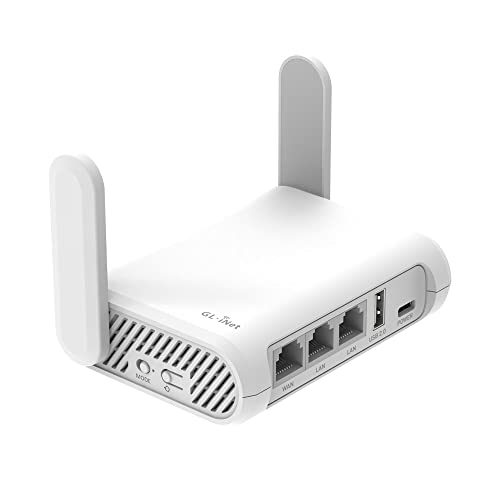
【AC1200 Dual-band Wireless Router】Simultaneous dual-band with wireless speed up to 300 Mbps (2.4GHz) + 867 Mbps (5GHz). 2.4GHz band can handles some simple tasks like emails or web browsing while bandwidth intensive tasks such as gaming or 4K video streaming can be handled by the 5GHz band.*Speed tests are conducted on a local network. Real-world speeds may differ depending on your network configuration.*
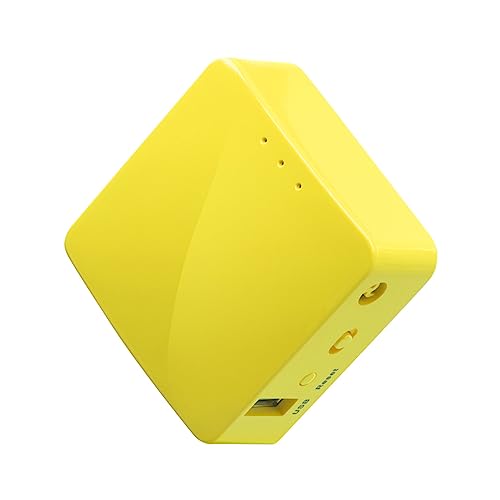
【WIRELESS MOBILE MINI TRAVEL ROUTER】 Convert a public network (wired or wireless) to a private Wi-Fi for secure surfing. Tethering. Powered by any laptop USB, power banks or 5V/2A DC adapters (sold separately). 39g (1.41 Oz) only, portable and pocket friendly. 2.4GHz ONLY
Assessing Interference Sources
Use the timing of the problem to narrow the cause.
- Check whether the DNS failure began after installing or updating antivirus, firewall, VPN, parental-control, or web-filter software.
- Disconnect a VPN temporarily and test the normal connection.
- Review third-party security software for blocked network or DNS events.
- If the software vendor provides a safe temporary-disable test, use it only long enough to diagnose the issue.
- Immediately restore protection after testing.
If the internet works only when a security product is paused, update the product, repair its network filter, restore default rules, or follow the vendor’s support procedure instead of leaving protection off.
Adjusting Security Settings
If testing identifies a security rule as the cause, correct that specific rule rather than broadly disabling protection.
Pay particular attention to third-party DNS filtering, HTTPS inspection, VPN network adapters, custom firewall policies, and recently installed web-protection modules.
On a managed computer, let the organization’s IT administrator change these settings because corporate DNS and firewall policies may be intentional.
Pro Tip: VPN software commonly changes DNS routing. If the error occurs only while a VPN is connected, test the same connection with the VPN disconnected before resetting Windows networking.
Check Browser, VPN, and Proxy Settings
If the error occurs in only one browser, troubleshoot that browser before resetting the laptop’s entire network stack.
Open the same website in another browser. If the second browser works, clear the affected browser’s network/cache state, disable recently installed extensions, and review its secure DNS or DNS-over-HTTPS setting.
Next, check VPN and proxy settings. A VPN may use its own DNS resolver, while a proxy sends traffic through a separate network path. A failed service can therefore make normal websites appear unavailable.
On Windows, open Settings > Network & internet and review VPN and Proxy. Disable an unneeded or unrecognized proxy, then test again.
If the laptop belongs to a workplace or school, do not remove required VPN or proxy settings without permission.
[Amazon Products Picked for You]

𝐋𝐨𝐧𝐠 𝐑𝐚𝐧𝐠𝐞 𝐀𝐝𝐚𝐩𝐭𝐞𝐫 – This compact USB Wi-Fi adapter provides long-range and lag-free connections wherever you are. Upgrade your PCs or laptops to 802.11ac standards which are three times faster than wireless N speeds.
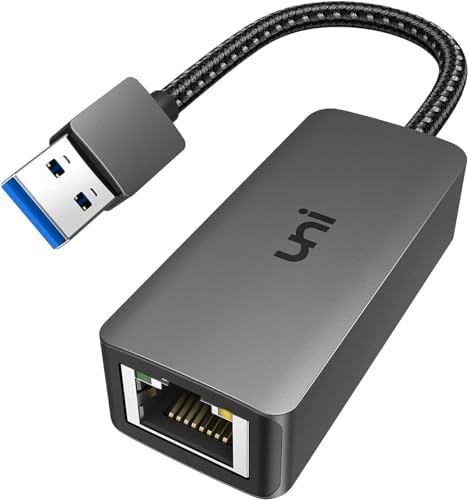
【USB 3.0 Fast Transmission】uni Ethernet Adapter supports 10/100/1000 Mbps at fast USB 3.0 speeds and is also backward compatible with both USB 2.0 and USB 1.1. Note: To reach 1Gbps, make sure to use CAT6 & up Ethernet cables. The speed of USB 2.0 will be limited to 10/100M.

Driver-Free -Easy Installation: wifi usb adapter for pc is built-in pre-installed drivers, plug it into the USB port of your PC, the driver will be read automatically, click once to run and it will complete the installation automatically. No need CD or download the driver online. Very convenient and fast
Update Your Network Adapter Driver
Check the Wi-Fi or Ethernet adapter driver when DNS and connectivity failures began after a Windows update, driver change, sleep/wake problem, or adapter malfunction.
Identify Driver Issues
Signs of an adapter or driver problem include repeated disconnects, a missing adapter, a warning icon in Device Manager, failure after waking from sleep, or problems that affect all network traffic rather than DNS alone.
If other devices on the network work normally and the laptop repeatedly drops its connection, the adapter deserves closer attention.
Access Device Manager
Right-click the Start button and select Device Manager.
Expand Network adapters and identify the Wi-Fi or Ethernet adapter currently in use.
If the device shows an error or warning, open its properties and note the status before changing the driver.
Install Latest Drivers
- In Device Manager, right-click the relevant network adapter.
- Select Update driver.
- If Windows does not find a suitable update and the problem persists, check the laptop or adapter manufacturer’s support page from another working device.
- If the driver appears corrupted, you can uninstall the adapter and restart Windows so it can detect the hardware again.
If the laptop cannot access the internet at all, download any required manufacturer driver on another device before uninstalling the current one.
Do Not Disable IPv6 as a Routine DNS Fix
IPv6 should normally remain enabled in Windows. Microsoft does not recommend disabling or unbinding IPv6 as a general networking fix because Windows components are designed to use it.
If a network administrator has confirmed a specific IPv6 routing or name-resolution problem, IPv6 behavior can be tested as part of advanced troubleshooting. That is different from permanently unchecking IPv6 simply because a DNS error appeared.
If you previously disabled Internet Protocol Version 6 (TCP/IPv6) while troubleshooting and it did not solve the problem, re-enable it on the network adapter.
Better approach: Diagnose whether the failure is specific to IPv6 first. On business or managed networks, ask the network administrator before changing IPv6 behavior.
Reset Network Settings if Nothing Else Works
Use Windows Network Reset only after simpler fixes fail. It removes and reinstalls network adapters and restores many network settings to their defaults.
On Windows 11, open Settings > Network & internet > Advanced network settings > Network reset. Select Reset now and confirm.
On Windows 10, open Settings > Network & Internet > Status > Network reset.
Before resetting, record any custom VPN, proxy, static IP, virtual-switch, or other networking configuration you may need afterward.
After Windows restarts, reconnect to your network and test several websites.
Warning: Network Reset may remove or reset network adapters and settings used by VPN clients, virtual networking software, and custom configurations. Avoid this step on a managed work or school laptop without authorization.
Seek Professional Assistance if Problems Persist
If the DNS failure remains after the earlier tests, use the failure pattern to decide who should investigate next.
Professional IT support can:
- Identify advanced DNS or DHCP configuration problems.
- Inspect adapter, routing, firewall, VPN, and proxy behavior.
- Determine whether the failure is on the laptop or upstream.
- Restore managed network settings without disrupting required policies.
- Collect network diagnostics when intermittent failures are difficult to reproduce.
Contact your internet service provider when several devices on the same connection fail together, especially after the router and modem have been restarted. That pattern is more consistent with a router, modem, upstream DNS, or ISP problem than with one laptop.
Frequently Asked Questions
Why is my laptop DNS server not responding?
A laptop can show a DNS server error because its configured DNS resolver is unreachable, the connection is unstable, the router is not forwarding DNS correctly, cached DNS data is stale, or a VPN, proxy, browser, security filter, or adapter problem is interfering with name resolution.
How can I tell whether the problem is DNS or my internet connection?
Check another device on the same network and run a DNS lookup such as nslookup bing.com. If the laptop has basic connectivity but normal hostname lookups fail, DNS is a stronger suspect. If other devices and non-DNS traffic also fail, investigate Wi-Fi, Ethernet, the router, modem, or ISP first.
How do I fix DNS problems in Windows 11?
Start with the Network and Internet troubleshooter in the Get Help app, restart the laptop and router, flush the DNS cache, and test a trusted public DNS server. If the problem remains, check VPN and proxy settings, update the network driver, reset Winsock or TCP/IP, and use Network Reset only as a later step.
How do I flush DNS on a Windows laptop?
Open Command Prompt as administrator, run ipconfig /flushdns, and then test the website again. This clears Windows DNS resolver cache entries but does not repair a failed Wi-Fi, Ethernet, router, or ISP connection.
Should I use Google DNS, Cloudflare DNS, or Quad9?
All three are established public DNS options. Google Public DNS uses 8.8.8.8 and 8.8.4.4, Cloudflare uses 1.1.1.1 and 1.0.0.1, and Quad9’s secure resolver uses 9.9.9.9 and 149.112.112.112. Test one service at a time and keep the configuration that works correctly on your network.
Should I disable IPv6 to fix DNS Server Not Responding?
Not as a routine fix. Windows is designed to use IPv6, and Microsoft recommends against disabling or unbinding it generally. Investigate a specific IPv6 problem first, and on managed networks ask the administrator before changing protocol settings.
Can a router cause the DNS server not responding error?
Yes. A router can contribute to DNS failures through incorrect DNS forwarding, temporary software problems, upstream connectivity trouble, or other configuration issues. If several devices fail at the same time, restart the router and modem and check the ISP before changing every device individually.
Conclusion
To fix “DNS Server Not Responding” efficiently, identify the scope first. If only one Windows laptop is affected, check its connection, DNS cache, DNS server assignment, VPN, proxy, browser, security filters, and network adapter.
If the issue continues, reset Winsock or TCP/IP and use Windows Network Reset only after less disruptive fixes fail. Keep IPv6 enabled unless a specific, confirmed problem requires advanced testing.
If every device on the same network fails, stop changing individual laptop settings and focus on the router, modem, DNS provider, or ISP instead.
