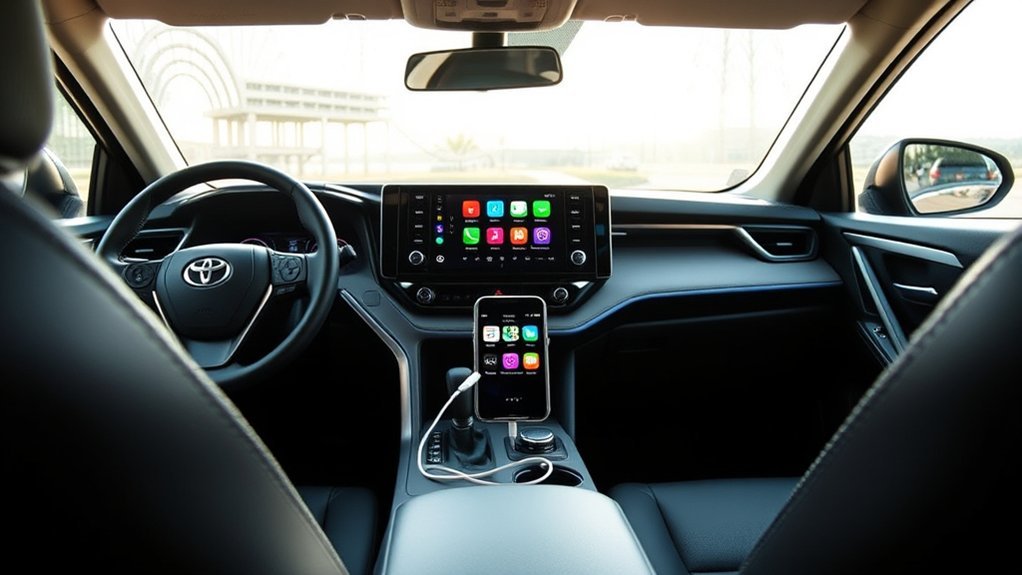
To connect an iPhone to a Toyota RAV4, first identify the vehicle’s model year and multimedia system. U.S.-market 2019–2022 RAV4 models use factory Apple CarPlay through the USB media port, while 2023–2026 models include standard wireless Apple CarPlay. A 2018-or-older RAV4 generally relies on Bluetooth for calls and audio unless it has an aftermarket CarPlay upgrade. The steps below cover wired CarPlay, wireless CarPlay, Bluetooth pairing, and troubleshooting.
Last updated: September 19, 2026 — model-year compatibility, 2026 RAV4 support, Apple setup steps, Bluetooth pairing, and safety data were rechecked against current Toyota, Apple, and NHTSA guidance.
Quick Answer
Park your RAV4 before setup. For a U.S. 2019–2022 RAV4, enable Siri and connect the iPhone to the USB media port with a data-capable cable. For a 2023–2026 RAV4, turn on Siri, Bluetooth, and Wi-Fi, then pair through the Toyota multimedia system and approve CarPlay. If your RAV4 does not have factory CarPlay, Bluetooth can still handle compatible calls and audio.
Key Takeaways
- Factory Apple CarPlay is available on U.S.-market Toyota RAV4 models from 2019 onward.
- 2019–2022 RAV4 models normally use wired CarPlay through the USB media port.
- Standard wireless Apple CarPlay arrived across the U.S. RAV4 lineup for model year 2023.
- Wireless CarPlay requires both Bluetooth and Wi-Fi, not Bluetooth alone.
- Use a direct, data-capable cable and not a charging-only cable when connecting by USB.
- Factory CarPlay itself does not require a Toyota subscription; mobile data and paid app subscriptions may still cost extra.
At a Glance
| Time Required | About 5–10 minutes |
| Difficulty | Easy |
| Tools Needed | Compatible iPhone; a data-capable USB cable only for wired CarPlay |
| Cost | No Toyota subscription for factory CarPlay or Bluetooth; mobile data or paid apps may cost extra |
How to Connect Your iPhone to Toyota RAV4 With Apple CarPlay
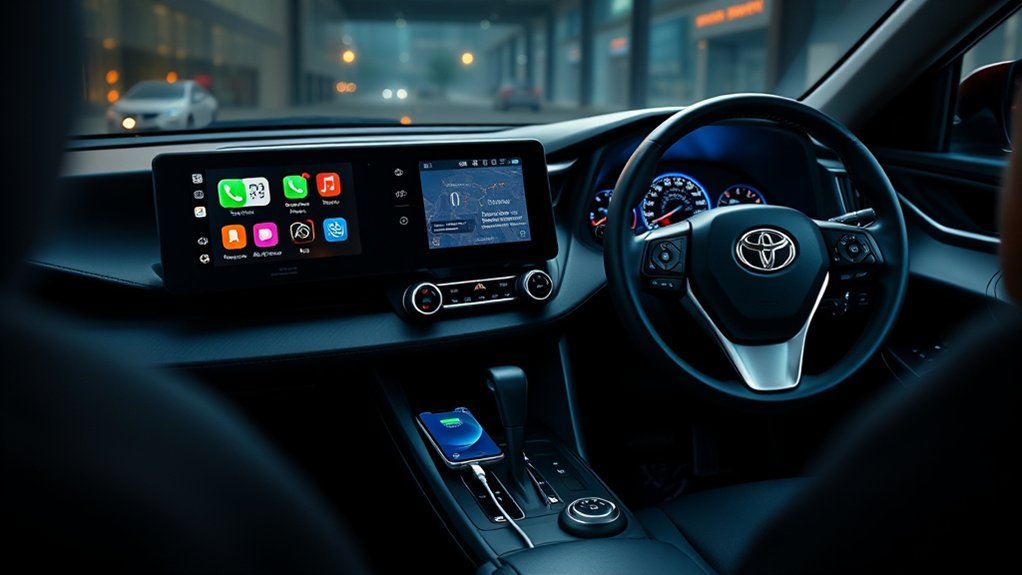
Before connecting your iPhone, park the RAV4 in a safe location and turn on the multimedia system. Unlock your iPhone, enable Siri, and install the latest iOS version available for your device.
You also need to identify which type of CarPlay connection your RAV4 supports. Most U.S.-market 2019–2022 RAV4 models require a wired connection. Models from 2023–2026 have standard wireless CarPlay, although the menus and available USB functions can vary by model and software version.
- For wired CarPlay: Use a direct, data-capable USB cable that matches your iPhone and the RAV4’s USB media port.
- For wireless CarPlay: Turn on both Bluetooth and Wi-Fi on your iPhone.
- For either method: Accept the CarPlay permission prompts on the iPhone and Toyota display.
Warning: Complete the initial setup and any troubleshooting while safely parked. Voice controls can reduce the need to handle your phone, but using navigation, messages, or entertainment features can still distract you from driving.
[Amazon Products Picked for You]
![3-Pack iPhone Charger Cord,[MFi Certified] USB A to Lightning Cable,3.3FT](https://m.media-amazon.com/images/I/31zYC95N3TL._SL500_.jpg)
Compatible Models:This CarPlay data cable is fully compatible with iPhone 14/14 Plus/14 Pro/14 Pro Max/13/13 Mini/13 Pro/13 Pro Max/12/12 Mini/12 Pro/12 Pro Max/11/11 Pro/11 Pro Max/XS Max/XS/XR/X/SE 3rd Gen/SE 2nd Gen/SE 1st Gen/8 Plus/8/7 Plus/7/6s/6s Plus/6/5s/5c/5. It also supports iPad Pro, iPad Air, iPad mini and AirPods equipped with Lightning ports.
![BLITEZZ 2Pack iPhone Charger Fast Charging USB to Lightning Cable 3ft for Apple Charger Cord, [Apple MFi Certified] Nylon Braided iPhone Cord Wire CarPlay Cable for iPhone 14/13/12/11/X/SE/8/7/6/iPad](https://m.media-amazon.com/images/I/51hEtaz-yGL._SL500_.jpg)
Fast Charging & Sync Capability: These iPhone charger cord support fast charging, allowing you to quickly and efficiently power up your iPhone. This iPhone charging cable charges as fast as the original iPhone charging cable, Say goodbye to long charging times . Meanwhile the iPhone Wire transmission speed can reach 480Mbps, the usb to lightning cable no warning message will pop up and that your iPhone or other Mac devices are charged safely. This charging cable is a USB A to Lightning cable, not a USB C to USB C cable. It cannot charge USB-C devices.

Simple Use and Storage: Tuck the cable away smoothly and use it effortlessly thanks to the tangle-resistant design.
Which Toyota RAV4 Model Years Support Apple CarPlay?
For U.S.-market vehicles with their original factory multimedia systems, the following model-year guide provides a reliable starting point:
| RAV4 model year | Factory CarPlay availability | Normal connection |
|---|---|---|
| 2018 and earlier | Generally not included with the original U.S. factory system | Bluetooth audio, USB audio, or a compatible aftermarket upgrade |
| 2019–2022 | Factory Apple CarPlay included | Wired connection through the USB media port |
| 2023–2025 | Standard wireless Apple CarPlay | Wireless pairing through Toyota Audio Multimedia |
| 2026 | Standard wireless Apple CarPlay | Wireless pairing through the current Toyota Audio Multimedia system |
Toyota introduced Apple CarPlay across the U.S. 2019 RAV4 lineup. It changed the full RAV4 range to standard wireless Apple CarPlay for model year 2023, and Toyota continues to list standard wireless CarPlay on the redesigned 2026 RAV4. You can verify these changes through Toyota’s information for the 2019 RAV4, its 2023 model-year updates, and the 2026 RAV4 technology announcement.
Note: Equipment can differ by country, trim, production date, previous software updates, or an installed aftermarket stereo. Check the multimedia manual for your exact vehicle when its menus do not match these instructions.
Apple’s current CarPlay compatibility page still lists iPhone 5, iPhone 5c, and iPhone 5s among supported devices, along with later generations shown on the page. Older iPhones cannot install the newest iOS releases, so available features may differ. Check Apple’s current CarPlay-compatible iPhone list for your exact model.
How Do You Set Up Apple CarPlay in a Toyota RAV4?
[Amazon Products Picked for You]

Fast Charging USB A to USB C CarPlay Cable: This USB-A to USB-C fast charging Car Play cable delivers up to 5V/3A max output for efficient and reliable charging. When used with a compatible car/wall charger(not included), this usb-c cord for iPhone can charge an iPhone 17 Pro Max up to 60% in about 30 minutes, offering up to 2x faster charging compared to standard 2.4A cables-perfect for daily commuting and short drives

【2Pack USB A to USB C Charging Cable】Cord current output of up to 3A, allows you to enjoy high-speed data transfer up to 480 Mbps, whether at home, in the office or on the go, this charging cable can meet all your daily charging needs.

Widely Compatibility: This car carplay cable connects and perfect compatible with your iPhone Duo, iPhone 18 Pro/18 Pro Max/18, iPhone 17/17 Pro/17 Pro Max/17e, iPhone Air 2025, 16e/16 Plus/16 Pro/16 Pro Max/16, iPhone 15/15 Plus/15 Pro/15 Pro Max, iPad Pro 13-inch, 12.9-inch, 11-inch, iPad Air 6th/5th/4th Gen, iPad Mini 6th Gen, Apple TV Remote (3rd Generation), and the car carplay cord also for Samsung, Google, LG, Moto, Android Phones/Auto and more
How to Set Up Wired CarPlay in a 2019–2022 RAV4
- Park and start the vehicle. Turn on the RAV4’s multimedia system and keep the transmission in Park.
- Enable Siri. Open your iPhone’s Settings app and search for Siri. Depending on your iOS version, the menu may appear as “Apple Intelligence & Siri” or “Siri & Search.” Enable the side-button and voice-activation options you want to use.
- Choose the correct cable. Use a direct, data-capable cable that matches the connector on your iPhone and the RAV4’s media port. Lightning iPhones and USB-C iPhones require different phone-side connectors.
- Find the USB media port. Connect the cable to the port intended for smartphone data. A charge-only port may power the phone without launching CarPlay.
- Unlock the iPhone. Connect it to the cable and approve any prompt asking whether CarPlay can operate while the phone is locked.
- Approve the Toyota prompt. Select “Always Enable,” “Enable Once,” or the equivalent permission shown on the multimedia display.
- Open CarPlay. If it does not appear automatically, select the Apple CarPlay icon from the Toyota multimedia screen.
How to Set Up Wireless CarPlay in a 2023–2026 RAV4
- Park the vehicle. Start the RAV4 and leave it in Park during the first connection.
- Enable Wi-Fi and Bluetooth. Both must be on because wireless CarPlay does not operate through Bluetooth alone.
- Open the Toyota pairing menu. On the vehicle display, open Settings and select Bluetooth & Devices, Add Device, or the equivalent option shown by your software version.
- Open the iPhone CarPlay menu. Go to Settings > General > CarPlay.
- Select the RAV4. Choose your Toyota under Available Cars and confirm that the pairing codes match.
- Approve CarPlay. Accept the prompts on both screens and allow CarPlay to connect while the iPhone is locked.
- Check Auto-Join. If prompted, allow the iPhone to join the vehicle’s CarPlay Wi-Fi network automatically on future drives.
You can also press and hold the steering-wheel voice-command button when your vehicle supports wireless pairing. Then select the RAV4 from Settings > General > CarPlay on the iPhone.
Pro Tip: When wired CarPlay disconnects over bumps or launches only occasionally, replace the cable before changing other settings. Short, direct, data-capable cables usually work more reliably than worn cables, hubs, extensions, or multiple adapters.
How Do You Connect an iPhone to a Toyota RAV4 With Bluetooth?
Bluetooth is the fallback when you only need hands-free calling or audio streaming, or when the RAV4 does not have factory CarPlay. Bluetooth by itself does not provide the full CarPlay interface, maps, or CarPlay apps on the Toyota screen.
- Park the RAV4 and turn on Bluetooth. On the iPhone, open Settings > Bluetooth and leave that screen open.
- Open the Toyota device menu. On newer Toyota Audio Multimedia systems, select Settings > Bluetooth & Devices, then Search for Devices or Add Another Device. Older Entune-style systems may use Menu > Setup > Bluetooth > Add New Device.
- Select the iPhone. Choose the phone on the Toyota display, or choose the Toyota system from the iPhone’s Bluetooth list if the vehicle instructs you to do so.
- Confirm the code. Make sure the verification code matches on the iPhone and Toyota display, then approve the pairing.
- Choose permissions. Allow contacts, calls, notifications, and audio access only as needed.
Toyota provides separate instructions for Bluetooth pairing on current and legacy multimedia systems. For a more detailed RAV4-only walkthrough, see our Toyota RAV4 Bluetooth pairing guide.
What to Do If CarPlay Doesn’t Work?
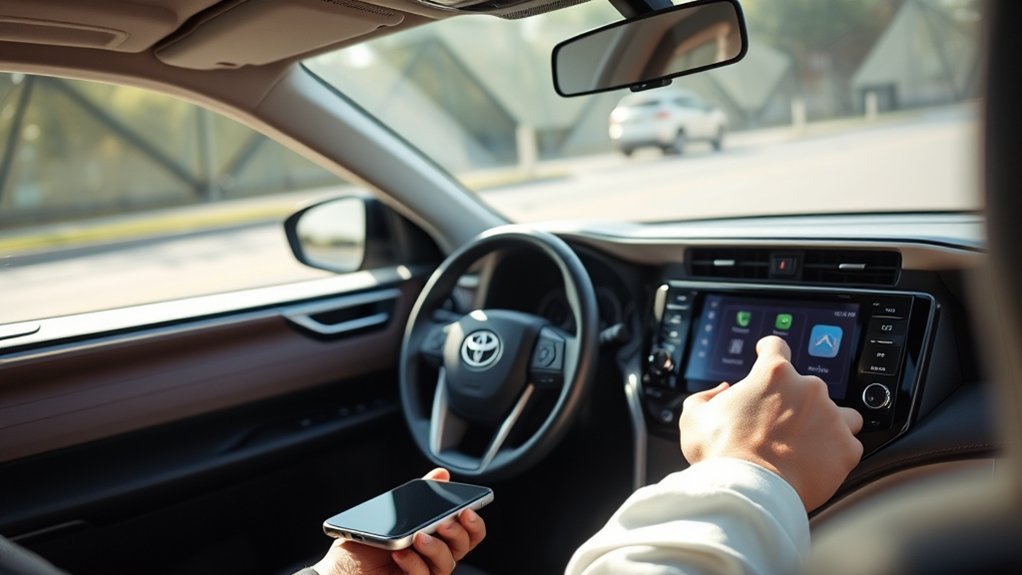
Start with the symptom you see rather than resetting every setting at once. The following checks solve many common Toyota RAV4 CarPlay problems.
| Problem | What to check |
|---|---|
| The iPhone charges, but CarPlay does not open | Use the designated USB media port and try a different data-capable cable. Some ports and cables provide power without transferring data. |
| The RAV4 does not appear under Available Cars | Confirm that the vehicle supports wireless CarPlay, then turn on Wi-Fi and Bluetooth and place the Toyota system in pairing mode. |
| Wireless CarPlay repeatedly disconnects | Make sure Auto-Join is enabled for the CarPlay network. Disconnect other phones that may be trying to pair automatically. |
| The CarPlay option is missing on the iPhone | Open Settings > Screen Time > Content & Privacy Restrictions and check the allowed-app or feature controls for CarPlay. Menu labels can vary by iOS version. |
| CarPlay stopped working after an update | Restart the iPhone and vehicle. Then go to Settings > General > CarPlay, select the RAV4, tap Forget This Car, and pair it again. |
| CarPlay opens but has no sound | Raise the media or navigation volume while audio is playing, check that the system is not muted, and disconnect other active audio devices. |
If the problem continues, work through these steps in order:
- Confirm that your RAV4 and iPhone support the connection method you are trying to use.
- Restart the iPhone and turn the vehicle fully off and back on.
- Make sure Siri is enabled.
- Install the latest iOS version available for your iPhone.
- For wireless CarPlay, verify that Wi-Fi, Bluetooth, and Auto-Join are enabled.
- For wired CarPlay, test another direct cable and the correct USB media port.
- Check Screen Time restrictions and make sure CarPlay is allowed.
- Forget the RAV4 from the iPhone’s CarPlay settings and pair it again.
- Check the vehicle manual or ask Toyota whether a multimedia-system update is available.
Apple maintains an updated CarPlay troubleshooting guide covering restrictions, wireless settings, restarts, re-pairing, and vehicle firmware.
[Amazon Products Picked for You]

The Ultimate Smarter Copilot: Stay on Top of Your Driving- The 3A magic link CarPlay box control everything with a word, Or a touch, Or a twist. Save your 40% of time by quick auto conn and seamless operation, such as navigation, music playing, Siri assistant, phone calls, radio etc(Our Carplay Only Compatible with wired Apple CarPlay Car systems)

Upgrade to Wireless CarPlay & Android Auto The 2 in 1 Wireless CarPlay and Android Auto Adapter converts your factory wired system into a wireless experience. It’s perfect for families using both iPhone and Android phones, allowing effortless switching without unplugging or swapping cables. This adapter is compatible with over 1,000 vehicle models—supporting 800+ with wired CarPlay and 500+ with wired Android Auto. Works with iPhone 6 or later and Android 11 or above devices.

【Ultra-Stable Military-Grade Connection, Zero Dropouts】 Powered by the 2026 A7-Ultra chip with Wi-Fi 6, dual-band 2.4GHz+5.8GHz and Bluetooth 5.4, this Toyota RAV4 wireless CarPlay adapter delivers 99.99% connection stability and 40% faster pairing. It auto-reconnects within 3 seconds and performs reliably in extreme temperatures (-4°F to 158°F), eliminating disconnections, lag, and signal interference—perfect for long hauls in your RAV4.
Wireless vs. Wired CarPlay: What You Need to Know
Wired and wireless CarPlay provide a similar interface, but each method has practical advantages.
| Feature | Wired CarPlay | Wireless CarPlay |
|---|---|---|
| Convenience | You must connect the cable for each drive. | Connects automatically after the initial pairing. |
| Reliability | Usually stable when the port and cable are in good condition. | Can be affected by pairing conflicts, Wi-Fi settings, or wireless interference. |
| Charging | Charges the iPhone while CarPlay is operating. | Does not charge the phone unless you also use a cable or compatible charging pad. |
| Battery use | Usually maintains or increases the battery level. | Navigation, audio, Wi-Fi, and Bluetooth can increase battery use. |
| RAV4 availability | Normal factory method for U.S. 2019–2022 models. | Standard factory method for U.S. 2023–2026 models. |
Choose wired CarPlay when stable operation and phone charging are your priorities. Wireless CarPlay is more convenient for short trips because you can leave the phone in a pocket, bag, or storage area. Toyota states that Apple CarPlay itself does not require a Toyota subscription or registration, although your phone’s data plan and paid apps may have separate costs.
How Do You Use Siri With RAV4 Apple CarPlay?
Siri handles many CarPlay functions, including calls, messages, directions, reminders, and audio playback. Apple also requires Siri to be enabled during CarPlay setup.
Open the iPhone’s Settings app and search for “Siri.” The menu name can vary by iOS version. Enable the option to activate Siri with the side button and, when desired, the voice-activation option.
Once connected, you can normally activate Siri in one of these ways:
- Press and hold the voice-command button on the RAV4 steering wheel.
- Touch and hold the CarPlay Home or Dashboard button on the multimedia screen.
- Say the enabled Siri activation phrase when your iPhone and vehicle support it.
If Siri does not respond, confirm that the iPhone has an internet connection for online requests, raise the Siri volume while Siri is speaking, and restart the phone. You can also switch Siri off and back on before reconnecting CarPlay.
What Can Apple CarPlay Do That Bluetooth Alone Cannot?
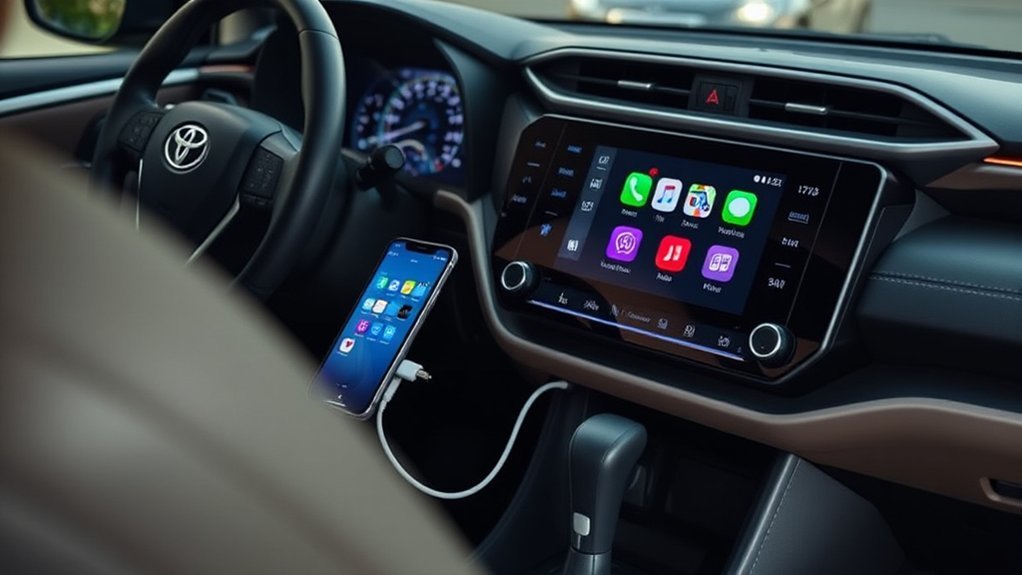
Bluetooth is enough for basic hands-free calling and audio streaming, but Apple CarPlay adds a driving-focused app interface to the RAV4’s multimedia display. That difference matters when you want on-screen navigation, supported apps, Siri-driven messaging, or a customizable app layout.
- Familiar navigation: Use supported navigation apps for directions, route changes, and traffic information when data service is available.
- Voice-controlled communication: Ask Siri to place calls, read supported messages, or dictate a reply.
- Audio access: Play downloaded or streamed music, podcasts, and audiobooks through compatible apps.
- Vehicle controls: Operate CarPlay through the touchscreen, steering-wheel controls, or Siri instead of handling the iPhone.
- Customizable app layout: Add, remove, and rearrange supported apps from the iPhone’s CarPlay settings.
To customize the display, go to Settings > General > CarPlay on your iPhone, select your RAV4, and tap Customize. Drag apps into your preferred order or remove apps you do not want on the vehicle screen. Only CarPlay-supported apps will appear.
NHTSA reports that crashes involving distracted drivers claimed 3,208 lives in the United States during 2024. Set up your route and audio before moving, even when you plan to use voice controls.
Tips for Safe CarPlay Use While Driving
CarPlay can reduce physical phone handling, but it cannot make every interaction distraction-free. NHTSA defines distracted driving as any activity that diverts attention from driving, including adjusting navigation or entertainment systems.
| Safety practice | How to apply it |
|---|---|
| Prepare before driving | Enter the destination, select audio, and review the route while parked. |
| Use short voice requests | Use Siri for simple calls, directions, and audio controls instead of navigating several menus. |
| Limit screen interaction | Do not browse long lists, type messages, or troubleshoot a connection while moving. |
| Use Driving Focus | Configure Apple’s Driving Focus to silence or limit nonessential notifications. |
| Pull over when necessary | Stop in a legal, safe location when a task needs more than a brief voice command. |
Keep the iPhone in a secure location where it cannot slide under the pedals or tempt you to handle it. Review the NHTSA distracted-driving guidance for additional safety information.
Where to Find Support for Apple CarPlay in Your Toyota
Start with official instructions that match your RAV4’s model year. Multimedia menus can change between Entune 3.0, Toyota Audio Multimedia, software versions, and aftermarket systems.
Online Toyota Resources
- Toyota owner’s manual: Use Toyota’s Manuals and Warranties portal to select your exact RAV4 year.
- Toyota CarPlay support: Review Toyota’s Apple CarPlay setup guidance.
- Apple setup instructions: Follow Apple’s current CarPlay connection and customization guide.
- Apple troubleshooting: Use Apple’s CarPlay help page for restrictions, re-pairing, Wi-Fi, and firmware checks.
Community Forums Assistance
RAV4 owner communities can help identify unusual problems involving specific iPhone models, cables, aftermarket wireless adapters, or software updates. Useful discussions often cover connection failures, app behavior, phone pairing, and model-specific multimedia differences.
Treat forum advice as supplemental. Confirm procedures against the owner’s manual or official Apple and Toyota guidance before resetting the system, disconnecting vehicle components, or buying replacement equipment.
Certified Technician Support
Contact a Toyota dealership or qualified automotive electronics technician when CarPlay remains unavailable after you have checked compatibility, ports, cables, restrictions, pairing records, and software updates.
Professional help is especially useful when:
- The multimedia screen freezes, restarts, or fails to recognize every compatible phone.
- The USB media port has no power or data connection.
- The vehicle has an aftermarket stereo, adapter, or modified wiring.
- Toyota has issued a multimedia-system software update that requires dealer assistance.
- You want to add CarPlay to a RAV4 that did not include it from the factory.
When an aftermarket head unit or wireless adapter is installed, obtain support from the product manufacturer or installer. Toyota may not be able to diagnose non-factory hardware.
Related Guides
Frequently Asked Questions
Can I use CarPlay without a data connection?
CarPlay can open without cellular data, but available functions will be limited. Downloaded music, podcasts, audiobooks, and offline maps may continue to work. Live traffic, streaming, online searches, and many Siri requests need internet access. Calls and messages depend on the applicable cellular or carrier-supported service.
Does CarPlay support third-party apps?
Yes. CarPlay supports approved third-party navigation, audio, messaging, parking, charging, and other driving-related apps. The vehicle display shows only apps designed to work with CarPlay, and their features may be more limited than their full iPhone versions.
Can I customize the CarPlay layout?
Yes. On your iPhone, go to Settings > General > CarPlay, select your RAV4, and tap Customize. You can rearrange supported apps and remove optional apps that you do not want displayed.
What iPhone models are compatible with CarPlay?
Apple’s current compatibility page lists iPhone 5, iPhone 5c, iPhone 5s, and later generations shown on the page. Older phones may not support current iOS releases or newer CarPlay features, so check Apple’s current list for your exact iPhone.
Can I use CarPlay with an iPad?
No. Apple CarPlay is designed for compatible iPhones, not iPads. You may still connect an iPad for supported Bluetooth or USB audio functions, depending on the RAV4’s multimedia system.
Why does my iPhone charge without launching CarPlay?
The phone may be connected to a charge-only USB port, or the cable may not support data transfer. Connect it to the RAV4’s USB media port and test a different direct, data-capable cable. Also unlock the iPhone and approve any CarPlay permission prompts.
Can I add wireless CarPlay to a 2019–2022 RAV4?
The original U.S. factory system in these model years normally uses wired CarPlay. Some aftermarket adapters can convert a working wired connection to wireless operation, but reliability and compatibility vary. An aftermarket receiver is another option for vehicles that lack factory CarPlay.
Does my Toyota RAV4 support wireless Apple CarPlay?
For U.S.-market factory systems, wireless Apple CarPlay became standard across the RAV4 lineup for model year 2023 and continues on the 2026 RAV4. Most 2019–2022 RAV4 models use wired factory CarPlay through the USB media port.
Can I connect an iPhone to a RAV4 without CarPlay?
Yes. Pair the iPhone through Bluetooth for compatible hands-free calls and audio streaming. Bluetooth does not provide the full CarPlay app interface, so navigation and other CarPlay features still require a supported wired, wireless, or aftermarket CarPlay system.
Conclusion
You can connect an iPhone to a Toyota RAV4 through wired CarPlay, wireless CarPlay, or Bluetooth. Use the USB media port for most U.S. 2019–2022 factory CarPlay systems, wireless pairing for 2023–2026 RAV4 models, and Bluetooth when you only need compatible calls or audio. Enable Siri for CarPlay, use the correct data port or wireless settings, and approve the prompts on both screens.
When CarPlay fails, check the cable, media port, Wi-Fi, Bluetooth, Screen Time restrictions, paired-device records, and available software updates. Complete those checks while parked. CarPlay can reduce the need to handle your phone, but your full attention must remain on driving.
Sources
- Apple Support: Use CarPlay with your iPhone — wired and wireless setup, Siri, app arrangement, and vehicle controls.
- Apple Support: If you need help with CarPlay — troubleshooting, restrictions, Wi-Fi, re-pairing, cables, and firmware.
- Apple CarPlay Available Models — supported Toyota RAV4 model years and vehicle-compatibility caveats.
- Toyota: All-New 2019 RAV4 — standard Apple CarPlay introduction for the U.S. 2019 RAV4 lineup.
- Toyota: 2023 RAV4 Updates — standard wireless Apple CarPlay across all U.S. RAV4 grades.
- Toyota: All-New 2026 RAV4 — current Toyota Audio Multimedia system and standard wireless Apple CarPlay.
- Toyota Bluetooth Support — pairing instructions for current and legacy Toyota multimedia systems.
- Toyota Connected Services: Apple CarPlay — CarPlay features and Toyota subscription/registration information.
- National Highway Traffic Safety Administration: Distracted Driving — distraction definition, safety guidance, and 2024 crash data.
