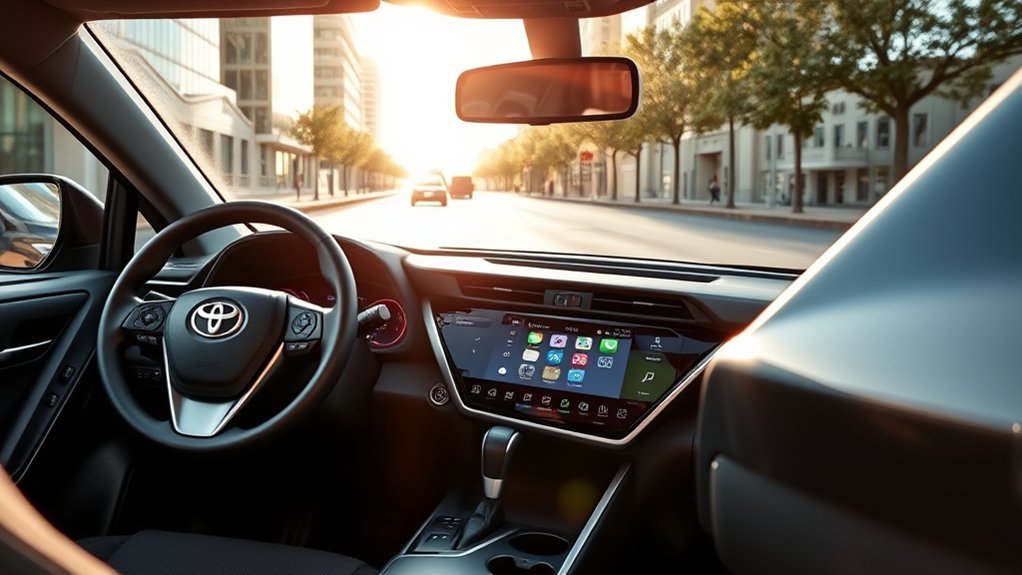
The Toyota RAV4 supports Apple CarPlay, but whether it connects wirelessly depends on the model year and market. In the United States, the 2023 and newer RAV4 include factory wireless Apple CarPlay. RAV4 models from 2019 through 2022 support factory Apple CarPlay through the USB media port instead.
Quick Answer
In the United States, factory wireless Apple CarPlay starts with the 2023 Toyota RAV4. Models from 2019 through 2022 have factory CarPlay but normally require a USB data cable. Availability can differ by country and multimedia equipment, so check your vehicle’s manual when the model year or system is uncertain.
Key Takeaways
- 2023–2026 U.S. RAV4 models: Factory wireless Apple CarPlay is available as part of the Toyota multimedia system.
- 2019–2022 U.S. RAV4 models: Factory Apple CarPlay connects through the vehicle’s USB media port.
- Wireless setup requires a compatible iPhone, the latest available iOS version, Siri, Bluetooth, and Wi-Fi.
- Apple CarPlay itself does not require a Toyota subscription, although mobile data, paid apps, and Toyota Connected Services may involve separate charges.
- Complete the initial setup while the RAV4 is parked.
At a Glance
| Time Required | About 3–5 minutes |
| Difficulty | Easy |
| Tools Needed | Compatible iPhone; a data-capable USB cable for wired CarPlay |
| Cost | $0 for built-in CarPlay; mobile data and optional app subscriptions may cost extra |
Which Toyota RAV4 Models Have Wireless Apple CarPlay?
For U.S.-market vehicles, the important distinction is between ordinary Apple CarPlay compatibility and a factory wireless connection. Apple lists the RAV4 as CarPlay-compatible beginning with the 2019 model year, while Toyota’s 2023 RAV4 brochure specifically identifies wireless Apple CarPlay. The preceding 2022 RAV4 brochure lists Apple CarPlay compatibility and a USB media port without describing a factory wireless connection.
| U.S. Model Years | Factory CarPlay Support | Connection Method |
|---|---|---|
| 2018 and older | Not listed by Apple as factory CarPlay-compatible RAV4 model years | An aftermarket receiver may be required |
| 2019–2022 | Factory Apple CarPlay | Wired connection through the USB media port |
| 2023–2026 | Factory wireless Apple CarPlay | Bluetooth and Wi-Fi pairing through the Toyota multimedia system |
Note: This model-year breakdown applies to U.S.-market RAV4s. Equipment and launch dates can differ in Canada and other markets. Check the multimedia section of your owner’s manual or enter your vehicle information on Toyota’s support site when you need confirmation for a specific vehicle.
How to Set Up Wireless Apple CarPlay in Your Toyota RAV4

Before pairing, confirm that your RAV4 has a wireless CarPlay-compatible multimedia system. You will also need a compatible iPhone running the latest available version of iOS.
Before You Begin
- Park the RAV4 in a safe location.
- Start the vehicle or switch it to accessory mode.
- Turn on Bluetooth and Wi-Fi on the iPhone.
- Make sure Siri is enabled.
- Unlock the iPhone and keep it near the infotainment display.
- Disconnect the iPhone from other vehicles or wireless CarPlay systems if it keeps joining the wrong one.
Warning: Complete the initial pairing and make any settings changes while parked. Do not handle the phone or navigate setup menus while driving.
Wireless Pairing Steps
- Open the Toyota multimedia system’s Settings, Bluetooth, Devices, or Connect Device menu. The exact wording varies by multimedia generation.
- Choose the option to add or pair a new phone.
- On the iPhone, open Settings > Bluetooth and select the Toyota multimedia system when it appears.
- Confirm that the pairing code shown on the iPhone matches the code on the RAV4 display.
- Accept the prompts for contacts, favorites, messages, and Apple CarPlay as desired.
- When asked whether to use Apple CarPlay, approve the connection on both the iPhone and the vehicle display.
- Wait for the CarPlay dashboard to appear. After the first setup, the iPhone should reconnect automatically when the vehicle starts, provided Bluetooth and Wi-Fi remain enabled.
You can also open Settings > General > CarPlay on the iPhone and select the RAV4 under available vehicles. Apple’s current CarPlay setup guide provides additional instructions for vehicles that support both wireless and USB connections.
How to Use Wired Apple CarPlay in a 2019–2022 RAV4
A 2019–2022 U.S.-market RAV4 normally uses a USB data connection for factory Apple CarPlay. Bluetooth pairing by itself will not convert the factory system to wireless CarPlay.
- Start the RAV4 and leave it parked.
- Use a good-quality, data-capable cable that fits both your iPhone and the vehicle’s USB media port.
- Connect the cable to the USB port marked for media or smartphone integration. A charge-only port may power the phone without launching CarPlay.
- Unlock the iPhone and approve any prompts asking whether to allow CarPlay while the phone is locked.
- Select the Apple CarPlay icon on the Toyota display if the interface does not open automatically.
For an iPhone with USB-C, use a compatible USB-C data cable or adapter that matches the RAV4’s media port. A damaged cable is one of the most common reasons wired CarPlay charges the phone but fails to open.
Note: A third-party wireless adapter may make an existing wired CarPlay system connect without a cable, but it does not add CarPlay to a vehicle that lacks factory or aftermarket wired CarPlay. Adapter reliability, startup time, audio quality, and compatibility vary.
Troubleshooting Common Wireless CarPlay Issues
If wireless Apple CarPlay does not connect, work through the following steps in order. Testing one change at a time makes it easier to identify the cause.
1. Confirm the Basic Requirements
- Verify that the RAV4 actually supports factory wireless CarPlay.
- Install the latest available iOS update on the iPhone.
- Turn on Bluetooth, Wi-Fi, and Siri.
- Make sure Airplane Mode is off.
- Confirm that the vehicle is not already using another phone as its active CarPlay device.
2. Check the iPhone’s CarPlay and Wi-Fi Settings
Open Settings > General > CarPlay and select the RAV4. Also open the Wi-Fi settings, select the CarPlay network if shown, and confirm that Auto-Join is enabled.
3. Look for Restrictions
On the iPhone, open Settings > Screen Time > Content & Privacy Restrictions > Allowed Apps & Features. Make sure CarPlay is allowed. Managed work phones may also have administrator restrictions that prevent CarPlay use.
4. Restart Both Systems
Restart the iPhone, turn the RAV4 off, open and close the driver’s door, and then restart the vehicle. This can clear a temporary Bluetooth, Wi-Fi, or multimedia-system error.
5. Remove and Recreate the Pairing
- On the iPhone, open Settings > General > CarPlay, select the RAV4, and tap Forget This Car.
- Remove the iPhone from the Toyota multimedia system’s saved-device list.
- Delete any duplicate Toyota Bluetooth entries from the iPhone.
- Repeat the original wireless pairing process while parked.
6. Check for Multimedia-System Updates
Vehicle software can affect Bluetooth and CarPlay performance. Review the multimedia settings for an available update or ask a Toyota dealer to check whether a software update applies to your system. Apple’s official CarPlay troubleshooting guide also recommends using the latest vehicle firmware.
7. Fix Frequent Disconnections
- Keep the iPhone away from overheating conditions and remove a case temporarily if the phone becomes unusually hot.
- Turn off any personal hotspot or VPN temporarily to test whether it is interfering with the connection.
- Remove unused phones from the Toyota device list.
- Test with another compatible iPhone to determine whether the problem follows the phone or remains with the vehicle.
- Use wired CarPlay temporarily when wireless interference or battery use is a concern.
8. Fix Missing or Misrouted Audio
If CarPlay appears but audio comes from the phone, select Apple CarPlay as the source on the Toyota display. Raise the media volume while music or spoken directions are actively playing because navigation, call, and media volume levels may be controlled separately.
Pro Tip: When several family phones are saved in the RAV4, remove devices that are no longer used and set the preferred phone as the active device. Competing automatic connections can make CarPlay seem unreliable even when the hardware is working normally.
Wireless Apple CarPlay Features in the RAV4

Apple CarPlay places a driving-focused version of compatible iPhone apps on the RAV4’s display. Available features depend on the apps installed on the phone, the phone’s data connection, and the vehicle’s multimedia controls.
- Navigation: Use Apple Maps or compatible third-party apps such as Google Maps and Waze for directions and traffic information.
- Calls and messages: Ask Siri to place calls, hear incoming messages, and dictate replies without typing on the phone.
- Music and podcasts: Access Apple Music, Podcasts, Spotify, and other compatible audio apps.
- Calendar information: View upcoming appointments and receive directions to locations saved in supported events.
- Dashboard view: See navigation, audio, and suggested actions together when the vehicle and app support the layout.
- Steering-wheel and voice controls: Use supported Toyota controls or Siri to manage common functions.
Apple reports that CarPlay is available in more than 800 vehicle models, but individual features and connection methods still depend on the specific vehicle and multimedia system.
CarPlay can reduce the need to handle an iPhone, but it does not remove the driver’s responsibility to remain attentive. Use voice commands when practical and avoid reading long messages or adjusting apps while the vehicle is moving.
Toyota RAV4 Features and Connected Services
Apple CarPlay and Toyota Connected Services appear on the same vehicle but serve different purposes. CarPlay projects compatible iPhone functions onto the multimedia display. Toyota Connected Services communicate with the vehicle through Toyota’s systems and the Toyota app.
| Service | What It Does | Possible Cost or Requirement |
|---|---|---|
| Apple CarPlay | Displays compatible iPhone navigation, communication, and media apps | No Toyota CarPlay subscription; cellular data and paid app content may cost extra |
| Remote Connect | May provide remote vehicle controls and status information through the Toyota app | Compatible vehicle, active account, trial, or paid subscription may be required |
| Service Connect | May provide vehicle health information and maintenance alerts | Availability varies by vehicle and connected-services enrollment |
| Safety Connect | May provide emergency assistance, collision notification, and stolen-vehicle support | Compatible equipment and an active trial or subscription may be required |
| Drive Connect | May add Toyota cloud navigation, an intelligent assistant, and destination support | Availability and subscription requirements vary |
Review Toyota’s current Connected Services information for vehicle eligibility, trial periods, subscription terms, and feature limitations. Do not assume that every service is included solely because the RAV4 supports Apple CarPlay.
Maximizing Your Wireless Apple CarPlay Experience

A few settings can make wireless Apple CarPlay faster to connect and easier to use. Review them while the vehicle is parked.
| Feature | Recommended Action |
|---|---|
| iOS updates | Install the latest iOS version available for the iPhone. |
| Siri | Enable Siri and learn a few basic voice commands for calls, messages, navigation, and music. |
| Automatic connection | Keep Bluetooth, Wi-Fi, and Auto-Join enabled for the RAV4 connection. |
| App layout | On the iPhone, open Settings > General > CarPlay, select the RAV4, and use Customize to add, remove, or rearrange supported apps. |
| Battery use | Charge the phone during longer trips, especially when using navigation, cellular data, and streaming audio together. |
| Multiple drivers | Keep the preferred phone active and remove old devices that compete for an automatic connection. |
Wireless CarPlay can increase battery use because the phone is maintaining wireless connections while running navigation, voice, and media services. A built-in wireless charging pad or a charging cable can help during long drives, although charging performance varies with the phone, case, temperature, and vehicle equipment.
Frequently Asked Questions
Which Toyota RAV4 years include factory wireless Apple CarPlay?
For U.S.-market vehicles, factory wireless Apple CarPlay begins with the 2023 Toyota RAV4 and continues on current models. The 2019–2022 RAV4 supports factory Apple CarPlay through a wired USB connection. Equipment can differ outside the United States.
Does the 2020 Toyota RAV4 have wireless Apple CarPlay?
A U.S.-market 2020 RAV4 has factory Apple CarPlay, but the factory connection is wired through the USB media port rather than wireless. A compatible third-party adapter may create a wireless link to the existing wired CarPlay system, but performance varies.
Is there a subscription fee for wireless Apple CarPlay?
Toyota does not charge a separate subscription merely to use built-in Apple CarPlay. Your cellular plan, paid apps, premium media subscriptions, or Toyota Connected Services may involve separate charges.
Can an Android phone use Apple CarPlay?
No. Apple CarPlay is designed for compatible iPhones. Android users should use Android Auto when it is supported by the RAV4’s multimedia system.
Does wireless Apple CarPlay use more iPhone battery?
It can. Wireless connections, navigation, cellular data, GPS, and streaming audio can all increase battery use. Charging the iPhone during longer trips can prevent the battery from running low.
Will an older iPhone work with the RAV4’s Apple CarPlay system?
It may, provided Apple lists the phone as CarPlay-compatible and the device can run a suitable iOS version. Update the phone to the latest iOS version available for that model and check Apple’s current compatibility information if pairing fails.
Can a wireless adapter add CarPlay to an older RAV4?
A wireless adapter can sometimes convert an existing wired CarPlay connection into a wireless one. It cannot add CarPlay to a factory system that has no wired CarPlay support. An older RAV4 without CarPlay generally needs a compatible aftermarket receiver instead.
Conclusion
The Toyota RAV4 offers a useful Apple CarPlay experience once you match the connection method to the correct model year. U.S. 2023 and newer models provide factory wireless CarPlay, while 2019–2022 models use the USB media port. Keep the iPhone and multimedia software updated, complete pairing while parked, and use the structured troubleshooting steps above if the connection becomes unreliable.
Sources
- Toyota 2023 RAV4 Brochure — confirms wireless Apple CarPlay in the U.S. 2023 RAV4.
- Toyota 2022 RAV4 Brochure — documents Apple CarPlay compatibility and the USB media connection in the preceding model year.
- Apple: Use CarPlay with Your iPhone — official wired and wireless setup instructions.
- Apple: If You Need Help with CarPlay — official troubleshooting, restriction, update, and re-pairing guidance.
- Apple CarPlay Available Models — lists Toyota RAV4 model-year compatibility.
- Toyota Connected Services — explains connected features, eligibility, trials, subscriptions, and the distinction from Apple CarPlay.

