
You can watch videos in or around a Toyota RAV4, but the factory dashboard screen usually does not provide native Netflix, YouTube, or general phone-screen mirroring. Your available options depend on the RAV4’s model year, multimedia system, USB ports, and any third-party equipment. For safety, front-screen video should only be used while the vehicle is legally parked.
Quick Answer
Most Toyota RAV4 factory multimedia systems do not natively play Netflix, YouTube, or other video-streaming apps. You can watch on a phone or tablet while parked, or use a compatible aftermarket streaming adapter or display. Compatibility varies, and video visible to the driver should never play while the vehicle is moving.
Key Takeaways
- Toyota’s factory Apple CarPlay and Android Auto features focus on navigation, communication, and audio rather than general video streaming.
- A normal USB flash drive does not turn the RAV4 screen into a video player. Current Toyota documentation describes compatible USB music playback.
- Some third-party streaming adapters can run video apps, but they require specific vehicle, port, software, and internet compatibility.
- A securely mounted rear-seat tablet or portable display is often the simpler option for passengers.
- Do not watch or operate video visible to the driver while the RAV4 is moving.
Understanding Factory Limits for Video Playback in the RAV4
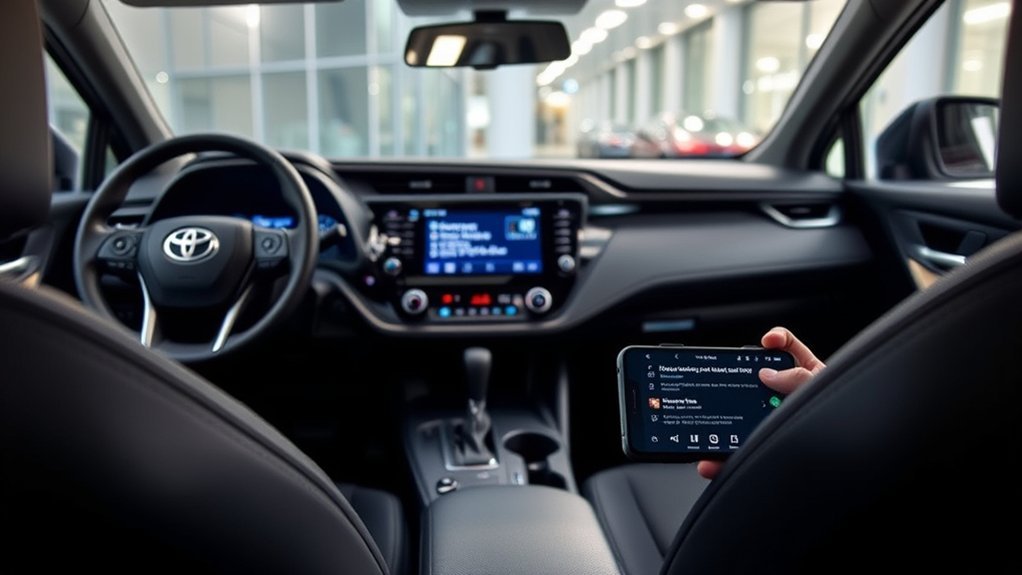
Toyota RAV4 multimedia equipment varies by model year, trim, country, and installed options. Before buying an accessory, identify your model year and check the multimedia manual supplied with your vehicle.
Current RAV4 models advertise Toyota Audio Multimedia with Apple CarPlay and Android Auto compatibility. These systems let you use supported navigation, communication, and audio applications. Toyota does not list Netflix or YouTube as standard native RAV4 dashboard applications.
Apple CarPlay and Android Auto also do not normally mirror every app or everything displayed on your phone. Apple describes CarPlay as a way to use functions such as directions, calls, messages, and music. Google similarly describes Android Auto as a platform for maps, calls, messages, and audio.
Bluetooth can carry audio from your phone, but it does not normally send a video image to the RAV4 display. You may hear a video through the vehicle’s speakers while the picture remains on your phone.
The same limitation applies to many USB connections. The Toyota Multimedia Owner’s Manual describes USB flash-drive support for compatible music files. Some RAV4 USB ports are also marked as charging-only and cannot transfer media data.
Note: A USB connector that physically fits your RAV4 does not guarantee video, CarPlay, Android Auto, or adapter compatibility. Confirm that you are using the vehicle’s data-capable media port rather than a charging-only port.
Safety First: How to Watch Videos Safely While Parked
The safest approach is simple: stop in a legal parking area, shift into Park, secure the vehicle, and finish all setup before starting a video. Do not rely on voice control, a passenger, or an aftermarket device as a reason to leave video visible to the driver while moving.
Warning: Never defeat a parking-brake wire, speed signal, factory lockout, or other safety feature to make video play while driving. Entertainment displays can create visual and cognitive distraction, and local laws may restrict screens visible to the driver.
Parked Vehicle Only
Park somewhere that does not block traffic or create a hazard. Apply the parking brake and make sure the vehicle cannot roll. If you are stopping for an extended period, follow posted parking and anti-idling rules.
Passengers can use handheld or rear-seat devices while traveling where local law permits, but the equipment should be securely mounted. Loose phones, tablets, adapters, cables, and power banks can become dangerous objects during sudden braking or a collision.
Responsible Device Usage
Use the following practices to reduce distraction, battery drain, heat, and unnecessary data use:
| Action | Why It Matters | Recommended Practice |
|---|---|---|
| Start video only after parking | Prevents driver distraction | Complete account, hotspot, and volume setup before playback |
| Limit accessory-mode use | Helps protect the 12-volt battery | Avoid long sessions with the vehicle completely off or left only in accessory mode |
| Secure every device and cable | Reduces impact and snagging hazards | Use a stable mount and route cables away from pedals, airbags, and controls |
| Protect accounts and hotspots | Limits unauthorized access | Use a strong hotspot password and sign out before selling or returning a device |
Aftermarket Options for In-Car Video Streaming
You have several ways to add video without assuming the factory RAV4 screen can do everything. The best option depends on who will watch, whether the vehicle is moving, and how much installation you are comfortable with.
[Amazon Products Picked for You]

Compatibility Requirements: Before making a purchase, please refer to the provided picture to confirm if your vehicle is supported. Your car must have a factory wired CarPlay system. NOTE: Not compatible with BMW, Tesla. This Wireless Carplay and Android Auto adapter comes with USB-C to USB-A/USB-C cable, suitable for more than 800 car models after 2016 with factory wired Carplay.

Wireless Freedom, Cable-Free Driving:Transform your factory wired CarPlay or Android Auto into a seamless ai box carplay experience. Simply plug and play — no complex setup, no cable clutter. Once paired, enjoy fast auto-connect within seconds every time you start your car. Compatible with OEM wired CarPlay touchscreen vehicles (2016+ models) and iOS 10+ / Android 11+ smartphones.

【Convert Factory Wired CarPlay to Wireless】 Tired of plugging in your phone every time you get in the car? Perfect for daily commutes or quick errands, this Ottocast ai box instantly upgrades your factory wired CarPlay to wireless CarPlay and Android Auto. Just start your car, and your phone connects automatically in seconds without ever leaving your pocket.
Phone or Tablet
A phone or tablet is usually the simplest choice for parked viewing. It already supports major streaming apps, offline downloads, headphones, and account security. For rear passengers, use a crash-resistant mount designed for the seat or headrest.
This option avoids compatibility problems involving the RAV4’s software. It also lets passengers control their own content without changing the navigation or audio screen used by the driver.
Aftermarket CarPlay AI Box or Streaming Adapter
Some third-party adapters connect to a vehicle’s wired CarPlay data port and run their own Android-based interface. Depending on the adapter, they may support downloadable streaming apps, Wi-Fi, Bluetooth, microSD storage, or screen casting.
These products are not Toyota factory accessories, and compatibility varies. Before purchasing one, confirm all of the following:
- Your exact RAV4 model year and factory multimedia unit appear on the manufacturer’s compatibility list.
- The vehicle supports wired CarPlay through a data-capable USB port. Wireless CarPlay alone may not be enough.
- The adapter supports your RAV4’s screen size, touch controls, steering-wheel controls, and audio connection.
- The device supports the streaming app, operating-system version, region, and video-protection requirements you need.
- The seller provides firmware updates, technical support, and a reasonable return policy.
- The device does not require you to alter factory wiring or bypass a safety interlock.
Pro Tip: Test the adapter before permanently routing cables or attaching mounts. Confirm startup, sound, touch response, hotspot reconnection, and app playback during the seller’s return period.
Portable Rear-Seat Display
A portable display with HDMI or built-in streaming can be a better choice for children or other rear passengers. It keeps entertainment away from the driver’s main display and may accept inputs that the factory RAV4 screen does not.
Choose a mount designed for vehicle use and check that the power cable will not cross an airbag, seat track, door opening, or walking area.
Aftermarket Multimedia Receiver
An aftermarket receiver may offer HDMI, screen mirroring, or additional app support. However, replacing the factory unit can affect cameras, steering-wheel controls, microphones, vehicle settings, amplifiers, and other integrated functions.
Use a qualified installer who understands your exact RAV4 configuration. Ask how the installation preserves factory controls and whether any added module can be removed without damaging the original wiring.
How to Set Up a Compatible Streaming Adapter
The original “Node device” description does not identify a verifiable product. The following steps apply generally to a compatible aftermarket AI box or streaming adapter. Always follow the instructions supplied by the device manufacturer.
At a Glance
| Time Required | About 10 to 20 minutes for initial connection, updates, and account setup |
| Difficulty | Easy when the adapter is confirmed compatible |
| Tools Needed | Compatible adapter, supplied data cable, smartphone hotspot, and streaming-account credentials |
| Cost | Varies by device, mobile-data plan, and streaming subscriptions |
[Amazon Products Picked for You]

⚠️ Please note: Not compatible with the 12-pin auto-dimming mirror connector located directly behind the rearview mirror, as it does not supply power.
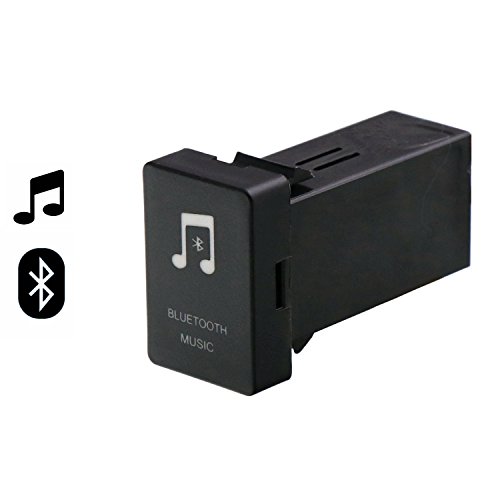
【Wide Compatibility】: Built with Bluetooth 4.0,you can enjoy music from your smartphone in premium-quality sound.Support Smartphone, Android, Apple iPhone,Tablets, other media players, and more

【Ultra-Stable Military-Grade Connection, Zero Dropouts】 Powered by the 2026 A7-Ultra chip with Wi-Fi 6, dual-band 2.4GHz+5.8GHz and Bluetooth 5.4, this Toyota RAV4 wireless CarPlay adapter delivers 99.99% connection stability and 40% faster pairing. It auto-reconnects within 3 seconds and performs reliably in extreme temperatures (-4°F to 158°F), eliminating disconnections, lag, and signal interference—perfect for long hauls in your RAV4.
Installation Steps Simplified
- Park the RAV4 safely. Shift into Park, apply the parking brake, and complete the setup while stationary.
- Identify the correct media port. Use the USB port that supports wired CarPlay or media data, not a charging-only port.
- Connect the supplied cable. Avoid an unpowered hub, extension, or damaged cable during the first test.
- Wait for the adapter to start. The RAV4 may first identify it as a CarPlay device before displaying the adapter’s interface.
- Connect the adapter to Wi-Fi. Use your phone’s hotspot or another secure internet connection.
- Install available updates. Update the adapter’s firmware and approved apps before signing into streaming accounts.
- Configure audio. Select the correct CarPlay, Bluetooth, or media source according to the adapter instructions.
- Test while parked. Check video, sound, touch response, account access, and automatic reconnection.
Do not force a connector into the port. Stop using the adapter if it repeatedly restarts, becomes unusually hot, produces a burning smell, or causes the multimedia system to malfunction.
Connecting to a Mobile Hotspot
Open the hotspot settings on your phone and create a password-protected network. On the adapter, open Wi-Fi settings, select the hotspot name, enter the password, and wait for the connected status.
Video can use substantial mobile data. Reduce the app’s video-quality setting when your plan has a limited allowance. Offline downloads on a phone or tablet may be more reliable for trips through areas with weak cellular coverage.
Do not leave the hotspot open without a password. Avoid entering banking, work, or other sensitive credentials on an unfamiliar adapter. Sign out and factory-reset the device before returning, selling, or giving it away.
Troubleshooting Common Adapter Problems
| Problem | What to Check |
|---|---|
| Adapter is not detected | Confirm wired CarPlay support, use the data port, reconnect the supplied cable, and restart the multimedia system. |
| Screen is black or frozen | Allow more startup time, remove other USB devices, install firmware updates, and test with another approved cable. |
| Video plays without sound | Select the correct audio source, raise media volume on both devices, and check the adapter’s Bluetooth or CarPlay audio setting. |
| Hotspot disconnects | Disable hotspot power-saving, keep the phone nearby, and verify that the phone has a stable cellular connection. |
| Streaming app shows an error | Update the app, confirm the device supports required video protection, check the region, and verify the subscription. |
| Touch controls do not work | The adapter may not support that RAV4 display. Check its compatibility list or use the included remote or phone control if provided. |
Best Apps for Streaming in Your RAV4
Streaming-app availability depends on the device running the app. Netflix, Disney+, Amazon Prime Video, and YouTube may work on a phone, tablet, certified portable display, or compatible aftermarket Android adapter. They are not automatically added to the factory system through CarPlay, Android Auto, Bluetooth, or a basic USB cable.
- Netflix: Useful for films and series on a compatible device. Offline downloads may be available on supported mobile devices and plans.
- Disney+: Offers family-oriented films and series, which can work well on a rear-seat tablet.
- Amazon Prime Video: Supports streaming and selected offline downloads on compatible devices.
- YouTube: Suitable for shorter videos, but playback support can vary on third-party adapters.
You still need the appropriate account, subscription, app version, internet connection, and regional availability. A device may open an app yet fail to play protected video if it lacks the required certification or digital-rights support.
For children, consider downloading approved content before leaving home. This avoids hotspot interruptions and gives you more control over what is available during the trip.
[Amazon Products Picked for You]

Fits: Removable headrests with metal posts (0.4″–7.1″ apart). ⚠️ Doesn't Fit: Fixed headrests Tesla Volvo Chevy Tahoe/Suburban GMC Yukon/Sierra Honda Pilot/CR-V Jeep Wagoneer. Need help? Check your headrest for 2 Round metal poles

【 Unique Biaxial Extension Arm】 Twist the extendable arm in different angles allowing you to change the view distance, great for enjoying entertainment with family and friends; The articulating arm is easy to pull out or retract as needed, kids can also operate easily
![Lamicall Tablet Holder for Car Headrest - [Thick Case Friendly]](https://m.media-amazon.com/images/I/41D3FsFsPOL._SL500_.jpg)
【360° Rotation】 The 360 degree rotating design allows you to find the best view angle so kids don't have to look down the whole time, avoid neck pain. Easy adjustment to horizontal or vertical viewing without the need to remove and install again. NOTICE: The stretch length of the elastic band is 19-31". Please check the size of the car headrest before purchasing.
Which Streaming Services Can You Use in Your RAV4?
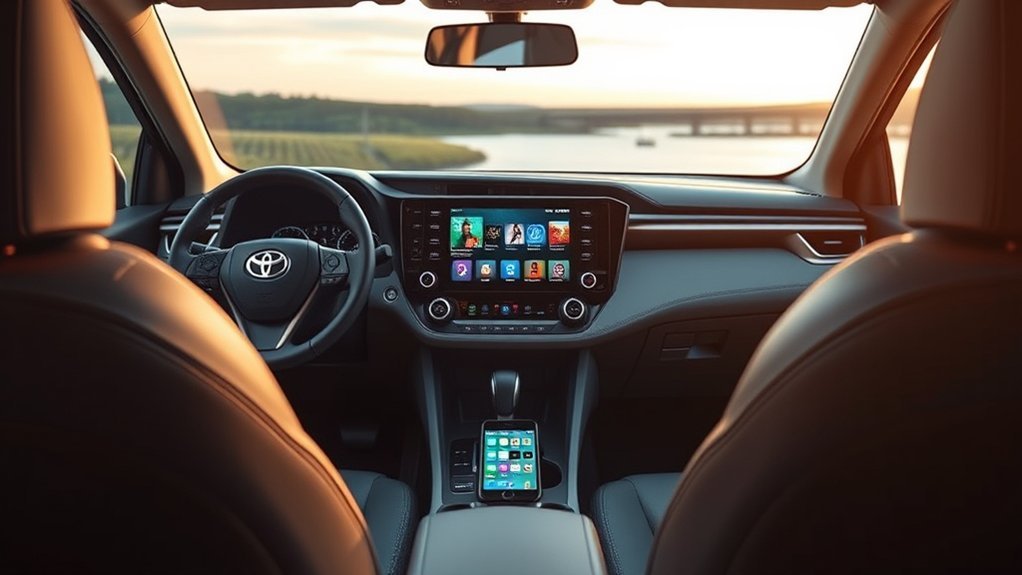
The answer depends more on the playback device than on the RAV4 itself. The comparison below shows what you should generally expect.
| Method | Expected Video Support | Main Limitation |
|---|---|---|
| Factory Apple CarPlay | No normal Netflix or YouTube dashboard playback | Only supported CarPlay functions and apps appear |
| Factory Android Auto | No normal general-purpose video projection | Designed around supported driving-focused apps |
| Bluetooth | Audio only in normal use | The video remains on the source device |
| USB flash drive | Current Toyota documentation specifies compatible music playback | A storage drive is not an HDMI video source |
| Phone or tablet | Broad app support | Use only while parked when visible to the driver |
| Compatible AI box | May support Netflix, YouTube, Disney+, and Prime Video | Compatibility, certification, reliability, and safety vary |
| Portable rear-seat display | Depends on built-in apps or HDMI source | Requires secure mounting and safe cable routing |
Battery, Heat, Data, and Warranty Considerations
Protecting the 12-Volt Battery
The multimedia system, hotspot, display, adapter, and audio system all consume power. Long viewing sessions with the vehicle off or left in accessory mode can discharge the 12-volt battery, especially if the battery is already weak.
Keep sessions reasonable and follow the instructions in your RAV4 owner’s manual. Never run a gasoline engine in a closed garage or another poorly ventilated area. Hybrid engines can start automatically while the vehicle is in READY mode, so the same exhaust precautions apply.
Heat and Device Care
Do not leave a phone, tablet, power bank, or streaming adapter inside a hot parked vehicle. Excessive cabin heat can damage batteries, displays, cables, and internal electronics. Allow an overheated device to cool before charging or using it.
Mobile Data and Subscriptions
Streaming requires a phone hotspot, vehicle Wi-Fi service, or another internet connection unless the content has been downloaded. Your mobile carrier may limit hotspot speed or data, and each streaming service may require its own subscription.
Warranty Coverage
Installing a third-party accessory does not automatically cancel an entire U.S. vehicle warranty. However, Toyota states that non-genuine accessories and damage or failures resulting from their use are not covered by Toyota’s warranty. The Federal Trade Commission’s auto-warranty guidance explains that a manufacturer may deny coverage for damage caused by a defective or improperly installed aftermarket part.
A plug-in adapter is generally easier to remove than a hardwired modification. Keep purchase records, installation instructions, and the original factory configuration in case troubleshooting is needed.
Related Guides
Frequently Asked Questions
Can I watch videos using my smartphone in the RAV4?
Yes. You can watch directly on the phone while the RAV4 is legally parked. Bluetooth may send the sound through the vehicle’s speakers, but it does not normally place the phone’s video on the factory screen. CarPlay and Android Auto also do not provide general phone-screen mirroring.
Can I watch Netflix or YouTube through Apple CarPlay?
Not through normal factory CarPlay operation. Apple CarPlay displays supported driving-oriented functions and apps rather than arbitrary iPhone video. A third-party AI box may run separate streaming apps, but it is not a factory CarPlay feature.
Are there legal restrictions on watching videos while driving?
Laws vary by country, state, province, and territory. Screens visible to the driver may be restricted, and distracted-driving laws can apply even when a specific device is not named. The safest rule is to keep front-screen video off whenever the RAV4 is moving and check the laws where you drive.
How does watching video affect the RAV4’s battery?
The screen, audio system, hotspot, and connected devices draw power from the vehicle’s electrical system. A long session with the vehicle off or in accessory mode may discharge the 12-volt battery. Limit viewing time and follow the power-use guidance in your owner’s manual.
Can I connect a gaming console to the RAV4’s factory screen?
A typical RAV4 factory front display does not provide a general-purpose HDMI input for a console. You would normally need a securely mounted portable HDMI monitor or a verified aftermarket receiver. You must also provide safe power, ventilation, and cable routing and use the system only while parked.
Will a streaming adapter void my Toyota warranty?
Using an aftermarket adapter does not automatically void the entire warranty. However, the adapter itself is not covered by Toyota, and Toyota may exclude repairs for damage caused by the device or its installation. Avoid cutting factory wiring and keep records of the product and installation.
Do all Toyota RAV4 model years support streaming adapters?
No. Many adapters require factory wired CarPlay, which is not available on every RAV4 year or multimedia unit. Port type, firmware, display controls, and regional specifications can also affect compatibility. Verify the exact year and system before purchasing.
Conclusion
You can enjoy video entertainment in a Toyota RAV4, but you should not assume the factory display includes Netflix, YouTube, screen mirroring, or USB video playback. A phone, tablet, securely mounted rear-seat display, or properly verified aftermarket adapter can provide more options.
Check your exact model year and multimedia manual before buying equipment. Keep video away from the driver while moving, avoid bypassing factory safety features, secure every device, and protect the 12-volt battery during longer parked sessions.
Sources
- Toyota RAV4 Features — current Toyota Audio Multimedia, Apple CarPlay, and Android Auto availability.
- Toyota Multimedia Owner’s Manual — USB media, Apple CarPlay, Android Auto, and safety guidance.
- Apple: Use CarPlay with Your iPhone — supported CarPlay purposes and connection guidance.
- Google: Get Started with Android Auto — supported Android Auto functions.
- National Highway Traffic Safety Administration: Distracted Driving — risks created by entertainment and other attention-diverting activities.
- Federal Trade Commission: Auto Warranties and Service Contracts — warranty treatment of aftermarket parts and part-caused damage.
