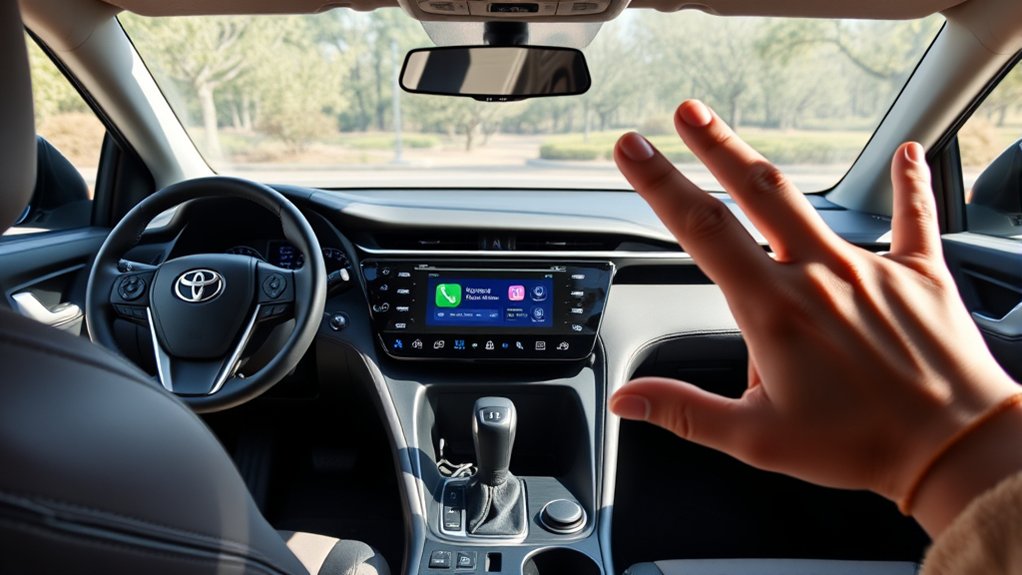
Getting Android Auto in a Toyota RAV4 depends mainly on the vehicle’s model year and multimedia hardware. For U.S.-market vehicles, the 2020–2022 RAV4 supports factory wired Android Auto, while 2023 and newer models support factory wireless Android Auto. Earlier RAV4s generally require an aftermarket solution rather than a routine phone pairing or software update.
Quick Answer
A U.S.-market 2020–2022 Toyota RAV4 normally connects to Android Auto through the multimedia USB data port. A 2023 or newer RAV4 can connect wirelessly with a compatible phone. Most 2019 and older RAV4s do not have factory Android Auto, so confirm the vehicle by VIN before paying for an update or accessory.
Key Takeaways
- Factory Android Auto began with the 2020 RAV4 in the United States.
- The 2020–2022 RAV4 uses a wired USB connection; wireless Android Auto became standard across RAV4 grades for 2023.
- Wireless operation requires support from both the RAV4 multimedia system and the Android phone.
- A phone that charges but does not launch Android Auto is often connected to a charging-only port or an unsuitable USB cable.
- Android Auto does not require a Toyota connected-services subscription, although navigation and streaming can use the phone’s mobile data.
At a Glance
| Time Required | About 5–15 minutes for first-time setup |
| Difficulty | Easy |
| Tools Needed | Compatible Android phone; high-quality USB data cable for a wired connection |
| Cost | $0 if compatible equipment is already available; commonly $10–$20 for a replacement USB cable |
Warning: Park the RAV4 before pairing a phone, accepting permissions, reorganizing applications, or changing multimedia settings. Voice control can reduce the need to handle a phone, but it does not remove every form of driver distraction.
Understanding Android Auto Compatibility With Toyota RAV4
The first step is to identify the RAV4’s model year and market. Toyota multimedia equipment varies by country, so the following chart applies to normal factory configurations for U.S.-market Toyota RAV4 models.
| RAV4 model year | Factory Android Auto | Normal connection | What the owner should know |
|---|---|---|---|
| 2019 and earlier | Generally no | Aftermarket receiver, if compatible | Do not assume a routine Toyota software update will add Android Auto. Ask a Toyota dealer to verify the VIN and installed head unit. |
| 2020–2022 | Yes | Wired USB | Use the multimedia USB data port. Bluetooth pairing by itself does not provide wireless Android Auto on the original factory system. |
| 2023–2026 | Yes | Wireless or USB | Toyota’s newer multimedia system supports standard wireless Android Auto. A compatible phone is still required. |
Toyota identifies Android Auto as a new multimedia feature on every 2020 U.S. RAV4 grade. Toyota then introduced its newer multimedia platform with standard wireless Android Auto for the 2023 RAV4.
For a U.S.-market RAV4, the practical dividing lines are 2020 for factory Android Auto and 2023 for factory wireless Android Auto.
Note: Registration year and model year are not always the same. Check the VIN label, registration, purchase documents, or Toyota owner’s manual before deciding which instructions apply.
Phone Requirements
According to Google’s current Android Auto requirements:
- Wired Android Auto: an Android phone running Android 9 or newer, an active data plan, a compatible vehicle, and a high-quality USB cable.
- Wireless Android Auto: a wireless-compatible vehicle and a compatible phone with an active data plan and 5 GHz Wi-Fi support. Google lists Android 11 as the general operating-system requirement for wireless projection.
- Android Go: Android Auto is not available on phones running Android Go edition.
- Applications: only applications designed to work with Android Auto appear on the vehicle display.
Android Auto is integrated into supported Android phones. Owners normally do not need to install a separate standalone Android Auto application before connecting to the RAV4.
What If the RAV4 Is Too Old for Factory Android Auto?
A 2019 or older U.S.-market RAV4 usually needs more than a phone update or USB cable. The realistic options are:
- Ask a Toyota dealer to check the VIN, multimedia unit, and any official regional upgrade programs.
- Install a reputable aftermarket Android Auto receiver that is compatible with the RAV4’s dashboard, steering-wheel controls, factory amplifier, backup camera, and other retained features.
- Continue using Bluetooth audio and calls, understanding that ordinary Bluetooth does not reproduce the Android Auto interface.
Before replacing a head unit, confirm whether the vehicle has a JBL amplifier, factory navigation, a 360-degree camera, or other features that require an additional integration module.
Step-by-Step Guide to Setting Up Android Auto in Your RAV4
Complete the first connection while the RAV4 is parked, the multimedia display is on, and the phone is unlocked. Accept the prompts on both screens before beginning the drive.
How to Connect Wired Android Auto
- Confirm compatibility. Use these instructions for a factory-equipped 2020–2022 U.S. RAV4 or another RAV4 whose manual specifically lists wired Android Auto.
- Prepare the phone. Update Android, the Google app, Google Play services, and relevant navigation or media applications. Make sure mobile data is available.
- Use the multimedia USB port. Connect to the front USB data port associated with the multimedia system. Rear console ports and some other USB outlets may provide charging only.
- Use a suitable cable. Choose a short, undamaged cable that supports both charging and data. Avoid hubs, adapters, and extensions during troubleshooting.
- Unlock and connect the phone. Plug the cable into the vehicle and phone. Keep the phone unlocked for the first connection.
- Accept the prompts. Approve the Android Auto terms, notification access, contacts, calls, location, and other requested permissions that you want to use.
- Enable projection if requested. If the Toyota display asks whether to start Android Auto, select the appropriate confirmation. On some systems, Android Auto can also be enabled under projection settings.
- Launch Android Auto. Tap the Android Auto icon if the interface does not open automatically.
Pro Tip: Google recommends trying a high-quality USB cable under 3 feet or 1 meter when Android Auto disconnects or the phone only charges. The cable supplied by the phone manufacturer is a useful first test when it supports the RAV4’s USB connector.
How to Connect Wireless Android Auto
- Confirm that the RAV4 supports wireless projection. Factory wireless Android Auto is standard on U.S.-market RAV4 models beginning with 2023.
- Prepare the phone. Turn on Bluetooth, Wi-Fi, Location Services, and mobile data. Keep the phone unlocked and near the center display.
- Open the Toyota device menu. Select the option to add or connect a Bluetooth device. The exact wording can vary with the multimedia version.
- Select the phone. Choose the phone from the discovered-device list and confirm that the pairing codes match.
- Approve Android Auto. Accept the phone and vehicle prompts that ask whether to use the device for Android Auto.
- Allow the Wi-Fi connection. Bluetooth handles the initial pairing, while Wi-Fi is used for wireless projection. Do not turn off Wi-Fi after Bluetooth pairing succeeds.
- Wait for the interface to launch. Android Auto should start within several seconds. Tap its icon on the Toyota display if necessary.
Google’s official setup instructions also recommend leaving Bluetooth, Wi-Fi, and Location Services on during the initial wireless connection.
Choosing Wired or Wireless: Best Connection Methods for Android Auto
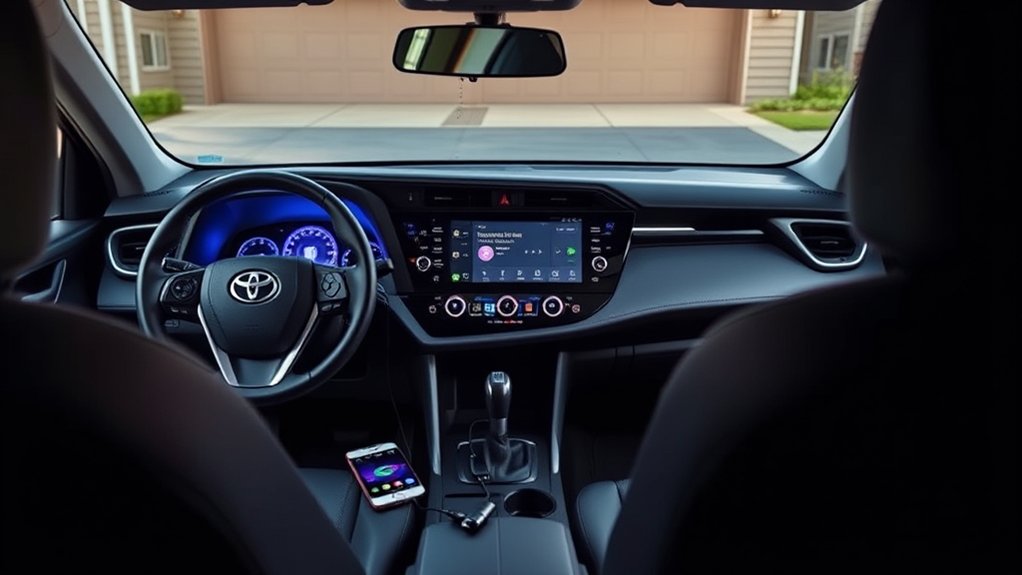
Neither connection method is automatically better for every driver. Vehicle support comes first: a factory 2020–2022 RAV4 is normally wired-only, while a 2023 or newer model gives the owner a choice.
| Consideration | Wired Android Auto | Wireless Android Auto |
|---|---|---|
| RAV4 availability | Factory support on 2020 and newer compatible models | Factory support on 2023 and newer U.S. models |
| Convenience | Requires plugging in for each trip | Can reconnect automatically after startup |
| Phone charging | Charges while connected | May drain the battery faster unless a charger is used |
| Connection stability | Often very stable with a good cable and clean ports | Convenient but can be affected by pairing, Wi-Fi, or competing-device issues |
| Best use | Long drives, charging, and troubleshooting | Frequent short trips and cable-free entry |
Using a third-party wireless adapter in a wired-only RAV4 may work because the adapter connects to the factory USB Android Auto interface. However, it remains an aftermarket workaround rather than a Toyota factory feature. Compatibility, startup time, call quality, firmware support, and reliability vary by adapter.
Fixing Common Android Auto Setup Problems
Start with the simplest checks: confirm the RAV4’s model year, verify that Android Auto is enabled, restart the phone and multimedia system, and test with the phone disconnected from other vehicles or wireless adapters.
| Problem | Likely cause | What to do |
|---|---|---|
| No Android Auto icon | Unsupported head unit, projection disabled, or setup incomplete | Verify the model year and manual. Check Toyota projection settings, reconnect the phone while parked, and ask a dealer to confirm the head unit by VIN if the vehicle is 2019 or older. |
| Phone charges but Android Auto does not start | Charging-only port or cable without reliable data conductors | Use the front multimedia USB data port and test another short, high-quality data cable. |
| Bluetooth works but wireless Android Auto does not | The RAV4 may be wired-only, or Wi-Fi and Location Services may be disabled | Remember that a factory 2020–2022 RAV4 normally requires USB. On a 2023 or newer model, enable Bluetooth, Wi-Fi, Location Services, and mobile data, then pair again. |
| Wireless pairing repeatedly fails | Corrupt saved pairing or another phone claiming priority | Delete the RAV4 from the phone’s Bluetooth and Android Auto vehicle lists. Delete the phone from the Toyota device list, restart both systems, and create a fresh pairing. |
| Frequent wired disconnects | Damaged cable, loose connector, dirty port, hub, or extension | Remove adapters, inspect both ports, carefully clear visible lint with the devices powered off, and test a different cable under 3 feet. |
| An application is missing | The app is unsupported, disabled, placed to sleep, or hidden from the launcher | Confirm the application supports Android Auto, open it on the phone, update it, and review the Android Auto launcher settings. |
| Voice commands do not work | Microphone permission, account, language, Google app, or assistant configuration issue | Check microphone permissions and update the Google app. Depending on the device and rollout, the voice assistant may be Gemini or Google Assistant. |
| No navigation or media data | Weak cellular service, exhausted data allowance, or restricted background data | Check the phone’s signal, data plan, data-saver settings, and permissions for the affected navigation or media application. |
| Temporary black screen or frozen interface | Temporary phone or multimedia software fault | Disconnect the phone, restart it, restart the Toyota multimedia system according to the owner’s manual, and reconnect after both systems fully load. |
Google’s official Android Auto troubleshooting guide recommends checking vehicle compatibility, confirming that Android Auto is enabled in the infotainment system, restarting the system, and testing a high-quality USB cable.
When to Contact Toyota or the Phone Manufacturer
Contact a Toyota dealer when the multimedia unit does not match the expected equipment for the model year, the data USB port appears damaged, projection settings are unavailable, or a factory software campaign may apply. Contact the phone manufacturer when Wi-Fi, Bluetooth, USB data, Location Services, or Android Auto fails in more than one compatible vehicle.
How to Use Android Auto for Easy Navigation and Communication
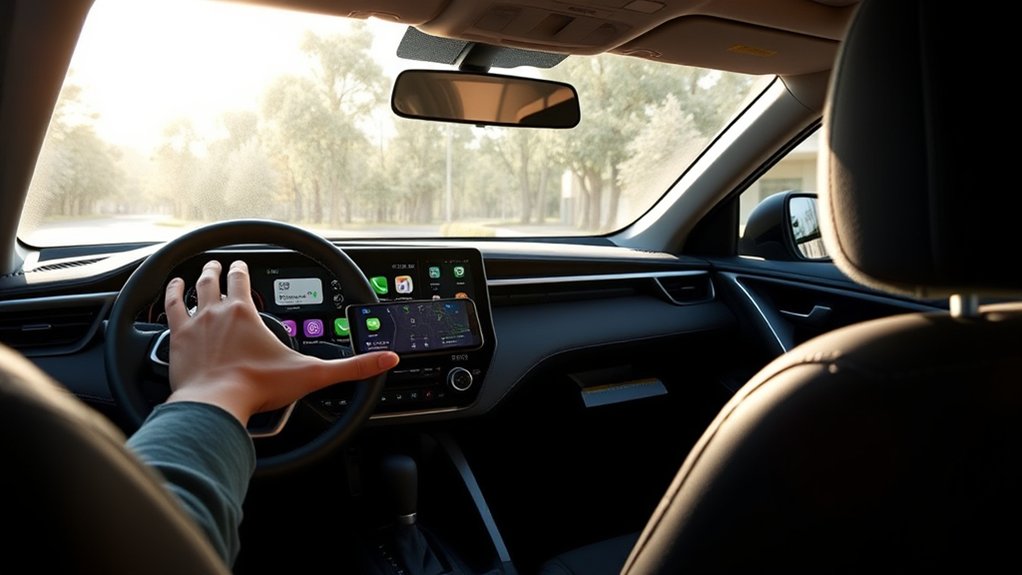
Android Auto places compatible navigation, communication, and media applications on the RAV4’s center display. The exact dashboard layout can change with the phone, screen size, application, and Android Auto software version.
Use Voice Control for Navigation, Calls, and Messages
Google is transitioning many users from Google Assistant to Gemini during 2026, so the voice interface may be labeled Gemini or Google Assistant. Google’s current guidance says either can be started by saying “Hey Google,” tapping the microphone, or pressing and holding the steering-wheel voice button in a compatible vehicle.
Useful requests include:
- “Navigate home.”
- “Find a gas station along my route.”
- “Call Jordan.”
- “Send a message to Alex that I will arrive in ten minutes.”
- “Play my driving playlist.”
Message reading and replying depend on the messaging app, notification permissions, account settings, and supported Android Auto features. Review or change those permissions while parked.
Switch Between Android Auto and the Toyota System
To return to Toyota’s native multimedia interface, open the Android Auto application launcher and select the Toyota icon when it is available. To reopen Android Auto, choose its icon from the Toyota multimedia screen. Menu wording and icon placement can differ between the older Toyota Multimedia system and the newer Toyota Audio Multimedia system.
Tips for Maximizing Your Experience With Android Auto in Your RAV4
- Keep the phone current. Install Android security updates and updates for the Google app, Google Play services, Maps, Waze, messaging apps, and media apps.
- Download content before a trip. Offline maps, playlists, and podcasts can reduce mobile-data use and help when cellular service is weak.
- Organize applications while parked. Hide applications you do not use and place frequently used compatible apps where they are easy to reach.
- Keep a cable available. Even in a wireless-compatible RAV4, a cable is useful for charging and troubleshooting.
- Avoid heat buildup. Wireless projection, navigation, streaming, and charging can warm the phone. Keep it out of direct sunlight and do not cover it with insulating objects.
- Manage multiple phones. Set the preferred Android Auto device in the Toyota system or disconnect a second phone when the wrong device connects automatically.
- Use voice controls selectively. Prepare complicated destinations and playlists before driving rather than performing long searches on the road.
Note: Android Auto itself does not require a Toyota Drive Connect, Wi-Fi Connect, or other Toyota connected-services subscription. Online navigation, live traffic, messages, and streaming normally use the phone’s cellular data unless content has been downloaded.
Related Guides
Frequently Asked Questions
Can I use Android Auto without a USB cable?
Yes, but both the phone and RAV4 must support wireless Android Auto. U.S.-market RAV4 models beginning with 2023 have factory wireless support. A factory 2020–2022 RAV4 normally requires a USB connection unless a compatible aftermarket wireless adapter is used.
Can Android Auto be added to a 2019 or older Toyota RAV4?
Most 2019 and older U.S.-market RAV4s do not have factory Android Auto. Ask a Toyota dealer to verify the VIN and head unit before purchasing an alleged software update. An aftermarket Android Auto receiver is the usual solution when no official regional retrofit is available.
Does Android Auto work with every Android smartphone?
No. Wired Android Auto currently requires a compatible phone running Android 9 or newer. Wireless Android Auto generally requires Android 11, 5 GHz Wi-Fi support, an active data plan, and a vehicle that supports wireless projection. Android Go edition is not supported.
Why does my phone charge without opening Android Auto?
The phone may be connected to a charging-only USB port, or the cable may not transfer data reliably. Use the RAV4’s multimedia USB data port and test a short, high-quality cable without a hub, extension, or adapter.
What are the data requirements for Android Auto?
Basic projection connects the phone to the vehicle, but online maps, live traffic, streaming audio, voice requests, and messages can use cellular data. Download maps and media before traveling when coverage or data allowance is limited.
Does Android Auto require a Toyota subscription?
No. Android Auto does not require Toyota Drive Connect or Wi-Fi Connect. The phone supplies the Android Auto applications and normally supplies their internet connection. Separate Toyota connected services may add native Toyota navigation, hotspot, remote, or assistance features.
Can I customize the Android Auto interface?
You can choose which compatible applications appear in the Android Auto launcher and change their order through Android Auto settings on the phone. The dashboard layout itself is partly controlled by Google and can vary with the display size and software version.
How do I update Android Auto on my smartphone?
Android Auto is integrated into supported Android phones. Install available Android system updates and update the Android Auto component, Google app, Google Play services, navigation apps, and media apps through the phone’s normal system and Google Play update menus.
Conclusion
For most U.S. owners, getting Android Auto in a Toyota RAV4 is straightforward once the model year is identified. A 2020–2022 RAV4 normally uses the multimedia USB data port, while a 2023 or newer model can pair wirelessly with a compatible phone. Owners of 2019 and earlier vehicles should verify the head unit by VIN and consider a properly integrated aftermarket receiver rather than assuming a software update will add factory support.
Sources
- Toyota USA Newsroom: 2020 Toyota RAV4 Multimedia Enhancements — confirms Android Auto was added across the 2020 RAV4 lineup.
- Toyota USA Newsroom: 2023 RAV4 Multimedia Update — confirms standard wireless Android Auto and Toyota Audio Multimedia for 2023.
- Google Android Auto Help: Requirements — supports current phone, operating-system, data-plan, USB, and wireless requirements.
- Google Android Auto Help: Setup Instructions — supports the wired and wireless pairing procedures.
- Google Android Auto Help: Troubleshooting — supports cable, compatibility, infotainment, and restart recommendations.
- National Highway Traffic Safety Administration: Distracted Driving — supports the safe-use and attention guidance.
