The maximum permissible CPU temperature depends on the specific processor, but most modern CPUs are designed to tolerate roughly 89°C to 105°C before throttling or protective shutdown occurs. In practical use, sustained temperatures above 85°C usually indicate inadequate cooling or restricted airflow. Idle temperatures commonly fall between 30°C and 45°C, while safe load temperatures generally remain within 60°C to 85°C. Intel and AMD limits differ slightly, and additional details clarify safe ranges, causes, and monitoring methods.
What CPU Temperature Is Normal?
What constitutes a normal CPU temperature depends primarily on system state and processor design. In technical terms, normal CPU operating temperatures are evaluated against workload, cooling capacity, and the manufacturer’s maximum operating temperature.
For sustained performance, ideal CPU temperatures under meaningful load usually remain between 65°C and 85°C, a range that preserves computational freedom without imposing unnecessary thermal stress.
CPU temperatures approaching architectural limits require scrutiny. Intel processors commonly tolerate 100°C to 105°C, while AMD models often specify 89°C to 95°C as the upper boundary.
A normal CPU profile thus is not a single fixed number, but a controlled thermal envelope shaped by silicon characteristics and usage intensity. When sustained readings exceed 95°C, inadequate cooling may be indicated, with thermal throttling becoming increasingly likely.
To preserve stability and autonomous performance, users should monitor CPU behavior regularly. Consistent observation of CPU temperatures helps identify deviations early and supports intervention before overheating compromises system reliability.
What CPU Temperature Is Normal at Idle?
At idle, a normal CPU temperature typically falls between 30°C and 45°C (86°F to 113°F), with the exact baseline determined by processor architecture, cooler efficiency, case airflow, and ambient room temperature.
At idle, most CPUs operate safely between 30°C and 45°C, influenced by cooling quality, airflow, design efficiency, and room temperature.
Within accepted CPU temperature ranges, these idle temperatures indicate a Safe Operating condition for most desktop and laptop systems. Newer processors often register lower idle readings than older designs because improved manufacturing efficiency reduces background heat output.
When idle values rise beyond 45°C, the data often suggests weakness in the cooling system, obstructed airflow, dust accumulation, or an elevated ambient temperature. Such conditions do not guarantee immediate failure, but they can signal developing performance issues and reduced thermal margin.
To maintain system sovereignty and stable operation, it is prudent to monitor the temperature regularly with reliable software tools. Consistent observation helps identify abnormal trends early, supports corrective maintenance, and preserves peak processor health without unnecessary intervention or avoidable thermal stress over time.
What Temp Is Safe Under Load?
Under sustained workload, a safe CPU temperature generally falls between 60°C and 85°C (140°F to 185°F), although the acceptable range depends on the specific processor model and its thermal design. This Safe CPU Temperature window supports stable performance while preserving autonomy from avoidable slowdowns during demanding tasks such as gaming, compiling, or video editing.
Analytically, operating temperatures should be interpreted against each chip’s Maximum temperature specification. Intel processors commonly tolerate 100°C to 105°C, whereas AMD models often peak around 89°C to 95°C. However, these figures define upper engineering limits, not preferred sustained conditions.
When load temperatures remain above 85°C, the data often points to insufficient cooling solutions, restricted airflow, or elevated ambient heat, all of which increase the probability of thermal throttling. To maintain control over system behavior, users should monitor CPU metrics during extended workloads and verify that fans, heatsinks, or liquid cooling systems keep thermal performance within a stable, efficient range.
When Is CPU Temperature Too High?
Generally, CPU temperature is considered too high once sustained readings move beyond about 85°C, because thermal headroom narrows and the likelihood of throttling, instability, and accelerated component wear increases. Beyond 80°C, long operating sessions may degrade performance and reliability, undermining safe, autonomous computing under heavy workloads.
| Range | Status | Response |
|---|---|---|
| Under 80°C | Generally safe | Maintain airflow |
| 80–85°C | Elevated | Check cooling |
| 85–90°C | High | Act immediately |
At 85°C and above, immediate cooling intervention becomes prudent. Excessive fan noise, sudden frame-rate drops, rendering slowdowns, and sporadic instability often signal that CPU thermal limits are being approached. High ambient room temperature further compresses Maximum safe margin, making case airflow, heatsink efficiency, and dust control decisive. Once readings advance toward 90–105°C on some processors, the system risks aggressive throttling and possible damage. Regular monitoring liberates users from avoidable thermal constraints and preserves sustained, efficient performance over time.
How Do Intel and AMD Temp Limits Differ?
Intel and AMD set different thermal ceilings, with many Intel CPUs rated for a TjMax of 100°C to 105°C.
In contrast, AMD Ryzen models commonly operate within an 89°C to 95°C range. These limits directly govern throttling behavior, as each platform reduces frequency and voltage according to its specified junction threshold.
The distinction also varies by form factor, since desktop and laptop implementations apply these thermal limits under different cooling constraints and power profiles.
Intel Vs AMD Ceilings
Although both brands rely on thermal throttling to avoid silicon damage, their maximum temperature ceilings are not identical. Intel processors commonly permit a higher maximum junction temperature, often spanning 100°C to 110°C; the Core Ultra 9 285K, for example, reaches 105°C.
By contrast, AMD Ryzen chips generally enforce a lower operating temperature ceiling, usually 89°C to 95°C, with the Ryzen 9 9950X3D capped at 95°C.
These differences reflect distinct package designs and thermal management priorities rather than simple brand philosophy. AMD’s 3D V-Cache layout constrains heat transfer and thus demands stricter CPU cooling discipline than more conventional designs.
For users seeking autonomy over performance and stability, recognizing each vendor’s thermal envelope enables more accurate cooler selection, airflow planning, and expectation-setting for sustained workloads.
TjMax And Throttling
Those ceiling differences are defined in practice by each processor’s TjMax, the maximum junction temperature at which thermal protection logic begins to intervene. Intel CPUs usually place TjMax around 100-105°C, whereas AMD Ryzen parts more often sit near 89-95°C, establishing a slightly lower maximum temperature limit.
Once CPU temps cross that boundary, thermal throttling cuts clock speed to preserve stability and prevent degradation. Intel Core Ultra models such as the Core Ultra 9 285K can operate up to 105°C before throttling asserts control; an AMD Ryzen 9 9950X3D is capped at 95°C for the same protective purpose.
Both vendors also implement emergency shutdown behavior beyond sustained excess heat. For users seeking greater control through overclocking, these thresholds define the real operating envelope and place clear demands on cooling systems design.
Desktop And Laptop Differences
A practical distinction emerges between desktop and laptop thermals because platform form factor constrains how closely real operating temperatures approach each processor’s maximum junction limit.
For Intel and AMD, the maximum operating temperature generally differs: Intel CPUs often tolerate 100-105°C, whereas many Ryzen parts peak around 89-95°C.
In practice, desktop CPUs usually sustain lower temperatures because larger coolers and greater airflow expand thermal management capacity.
Idle ranges commonly sit near 30-70°C for desktops, versus 40-65°C for laptop CPUs. Under load, desktop CPUs typically remain within 70-85°C, while laptop CPUs should ideally stay below 80°C to preserve peak performance.
Both Intel and AMD implement thermal throttling before unsafe conditions persist, yet constrained laptop cooling makes those thresholds more consequential for autonomous, stable, and efficient computing.
How Do You Check CPU Temp?
To check CPU temperature, users can access BIOS or UEFI firmware during startup—typically by pressing F2 or Delete—and review thermal data under sections such as “PC Status” or “Advanced Setup.”
For real-time monitoring within the operating system, third-party utilities such as Core Temp, HWMonitor, and NZXT CAM report per-core temperatures and related system metrics with greater detail.
This approach lets users check CPU behavior against temperature limits without dependence on manufacturer guesswork. Effective monitoring software exposes real-time CPU trends, helping identify higher temperatures during ordinary workloads or after thermal paste replacement.
Real-time monitoring reveals CPU temperature trends clearly, helping users detect abnormal heat before performance or reliability begins to decline.
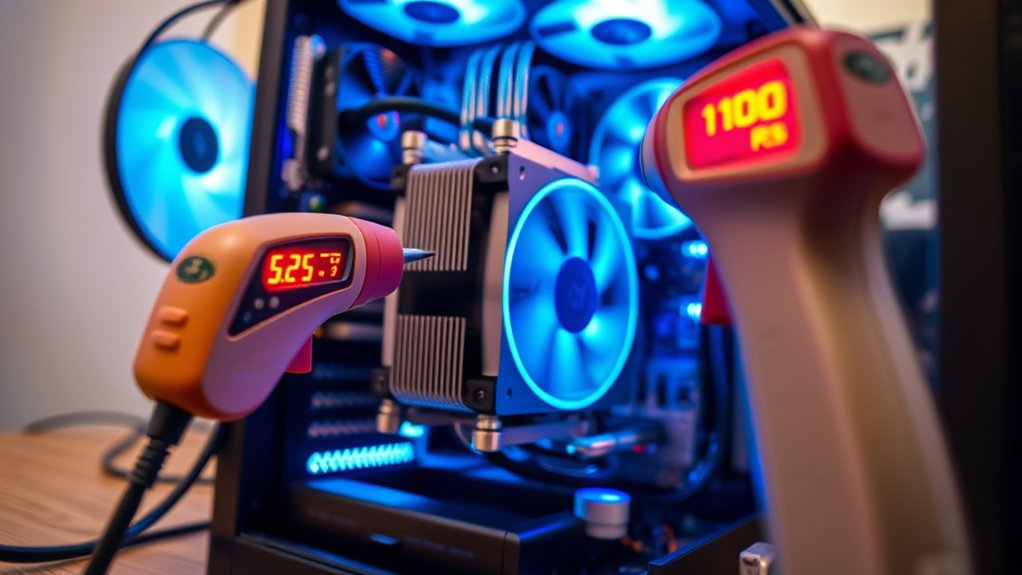
For users seeking greater autonomy, infrared thermometers offer software-free measurement, either through handheld units or thermal imaging devices, though readings are less direct than on-die sensors.
Stress tests such as Cinebench can further validate thermal performance under sustained load. Regular observation is analytically useful because rising values can be detected early, before instability, throttling, or permanent silicon degradation compromises system freedom and reliability.
Why Does CPU Temperature Run High?
Elevated CPU temperature usually reflects an imbalance between heat generation and heat removal. When a processor executes sustained workloads, such as gaming or video rendering, transistor activity rises and produces more thermal output.
If the CPU cooler is compromised by dust buildup, weak fan performance, or poorly applied thermal paste, heat dissipation declines and high temperatures emerge more quickly. This dynamic constrains performance freedom by forcing the processor closer to its thermal ceiling.
Environmental and system-level conditions also intensify thermal stress. A high ambient temperature reduces the cooling system’s ability to transfer heat away from the chip.
Poor case airflow, caused by blocked vents or ineffective fan arrangement, traps warm air around internal components and prevents stable thermal exchange. Overclocked CPUs amplify the problem because increased voltage and frequency sharply raise power consumption.
Under these conditions, temperature rises are not random; they are the predictable result of mechanical, electrical, and environmental limits.
How Do You Lower CPU Temperature?
Lowering CPU temperature requires reducing heat generation, improving heat transfer, or increasing the rate at which heat is removed from the system. Practical control begins with airflow: removing dust buildup from fans and heatsinks restores cooling efficiency and prevents insulated heat accumulation around each core.
| Method | Mechanism | Effect |
|---|---|---|
| Clean fans | Restores airflow | Less trapped heat |
| Reapply paste | Improves conduction | Lower junction temperature |
| Upgrade coolers | Increases dissipation | Better cooling under load |
Additional measures target thermal sources directly. Reapplying quality thermal paste every two to three years strengthens contact between the processor and cooler, improving heat transfer. Upgraded CPU coolers or added case fans expand thermal headroom and sustain performance during intensive workloads. Lower ambient room temperature, through ventilation, fans, or air conditioning, reduces the baseline from which the system must shed heat. Closing unnecessary applications limits CPU load, liberating processing capacity while suppressing avoidable thermal output.
Frequently Asked Questions
Is 72 Degrees Too Hot for a CPU?
No, 72°C is generally safe for a CPU; thermal throttling effects usually begin higher. Analysis considers gaming performance factors, ambient temperature influence, overclocking risks, thermal paste application, ideal cooling solutions, and CPU lifespan impact.
Is 90 C Too Hot for a CPU?
Yes, 90°C is generally too hot for a CPU; it risks thermal throttling, reduced CPU lifespan, and amplified overclocking effects. Proper cooling solutions, ambient temperature control, fresh thermal paste, and monitoring software restore operational autonomy.
Is 120 Degrees Too Hot for a CPU?
Yes—like Icarus nearing the sun, 120°C is dangerously excessive; thermal throttling effects, CPU lifespan impact, and overclocking consequences intensify. Monitoring software recommendations, cooling solutions comparison, airflow optimization tips, and thermal paste application become immediately essential.
Is 80 C Too Hot for CPU?
80°C is borderline, not immediately too hot, but it signals caution. Effective CPU cooling, heat sinks, liquid cooling, and temperature monitoring matter; ambient temperature and overclocking risks increase thermal throttling likelihood, constraining performance freedom.
Conclusion
To conclude, maximum permissible CPU temperature depends on the processor’s specified junction limit, but sustained operation near that ceiling is inadvisable. Most modern CPUs remain ideal well below thermal throttling thresholds under load. Like a turbine running at redline, a chip may survive brief peaks yet accumulates stress over time. For example, many Intel and AMD consumer CPUs throttle around 95–100°C, making consistent temperatures in the 70–85°C range a more stable target for performance, efficiency, and longevity.
