Adding a navigation app to your Toyota RAV4 usually means displaying a compatible phone app through Apple CarPlay or Android Auto. The correct setup depends on your RAV4’s model year, market, trim, and multimedia system. Some systems require a USB cable, newer systems may support wireless projection, and older RAV4s may need an aftermarket receiver.
Last reviewed: July 14, 2026
Quick Answer
First, confirm that your RAV4 supports Apple CarPlay or Android Auto. Park the vehicle, turn on the multimedia system, and connect through the data-capable USB port or pair wirelessly if your system supports it. Accept the prompts, open a compatible map app, and set your destination before driving.
Key Takeaways
- Check your exact RAV4 and multimedia system before assuming Apple CarPlay, Android Auto, or wireless projection is available.
- A standard Bluetooth connection can handle calls and audio, but it does not automatically display navigation apps on the vehicle screen.
- Use the vehicle’s data-capable USB port for a wired connection, not a charging-only port.
- Android Auto now requires a compatible Android phone running Android 9 or newer and is integrated into supported phones.
- Set your route while parked and use Siri, Gemini, or Google Assistant to reduce manual screen interaction.
At a Glance
| Time Required | About 5 to 10 minutes |
| Difficulty | Easy |
| Tools Needed | Compatible smartphone, data-capable USB cable if required, and your RAV4 owner’s manual |
| Cost | Phone projection normally has no separate activation charge, but mobile-data charges and optional app subscriptions may apply |
Warning: Complete the initial setup and enter your destination while the RAV4 is parked. Voice control may reduce manual input, but it does not remove all distraction. Pull over safely before making complicated route or settings changes.
Check Your RAV4 Navigation Compatibility First
Before connecting your phone, confirm what your RAV4’s factory multimedia unit supports. Availability can differ by model year, country, trim, installed options, and head-unit configuration.
Apple’s current compatibility list includes the 2019 through 2026 Toyota RAV4 for Apple CarPlay. Apple also notes that support may be limited to certain configurations or regions.
Android Auto availability should be checked through your RAV4’s source menu, projection settings, owner’s manual, or Toyota’s VIN-specific manual lookup. Wireless support is a separate feature, so a vehicle with wired CarPlay or Android Auto does not automatically support a wireless connection.
| What You See | What It Usually Means |
| CarPlay or Android Auto icon in the multimedia menu | The system supports that platform, although the connection may be wired only. |
| Phone Projection, Apple CarPlay, or Android Auto setting | Projection may need to be enabled before the first connection. |
| Bluetooth audio but no projection option | The system may support calls and music without displaying phone navigation apps. |
| Built-in Map or Navigation icon | The RAV4 has a separate factory-navigation feature, which is not the same as phone projection. |
| No compatible projection or navigation option | An older RAV4 may require a compatible aftermarket receiver to display phone apps. |
Note: Some newer RAV4s may also offer Toyota cloud or factory navigation through connected services. That feature is separate from Apple CarPlay and Android Auto, and a trial or subscription may be required.
Setting Up Apple CarPlay for Navigation
Park your Toyota RAV4, turn on the multimedia system, and make sure Siri is enabled on your iPhone. The next steps depend on whether your RAV4 supports wired or wireless CarPlay.
Wired Apple CarPlay Setup
- Use a direct, data-capable cable that fits your iPhone and the RAV4’s smartphone-data USB port.
- Connect the iPhone to the correct USB port. A charging-only port will not launch CarPlay.
- Unlock the iPhone and accept the CarPlay and communication permissions that appear.
- If CarPlay does not open automatically, select the CarPlay icon from the RAV4’s multimedia display.
- Open Apple Maps, Google Maps, Waze, or another CarPlay-compatible navigation app.
Wireless Apple CarPlay Setup
- Confirm that your specific RAV4 multimedia system supports wireless CarPlay.
- Turn on Bluetooth, Wi-Fi, and Siri on the iPhone.
- Press and hold the voice-command button on the steering wheel if your Toyota instructions call for it.
- On the iPhone, open Settings > General > CarPlay and select your RAV4.
- Follow the pairing and permission prompts on both screens.
Apple provides additional wired and wireless instructions in its official CarPlay setup guide.
Pro Tip: A direct USB cable is often more stable than a wireless connection on long trips, and it charges the iPhone while navigation is running.
To get directions without reaching for the screen, press and hold the steering-wheel voice button or use Siri. Set the destination before moving whenever possible.
Setting Up Android Auto for Navigation
Android Auto requires a compatible Android phone, a supported RAV4 multimedia system, and Android 9 or newer. Google states that Android Auto is integrated into supported phones, so you do not normally need to install a separate Android Auto app for the vehicle display.
Wired Android Auto Setup
- Park the RAV4 and turn on the multimedia system.
- Connect your phone to the RAV4’s data-capable USB port with a high-quality USB cable.
- Unlock the phone and follow the permission and setup prompts.
- Accept the Android Auto prompt on the vehicle display if one appears.
- Select Android Auto from the multimedia menu if it does not launch automatically.
- Open Google Maps, Waze, or another compatible navigation app.
Wireless Android Auto Setup
- Confirm that both the phone and the RAV4 support wireless Android Auto.
- Keep Bluetooth, Wi-Fi, and Location Services turned on.
- Open the phone’s Bluetooth settings and pair it with the RAV4.
- Follow the prompts on the phone and multimedia display.
- Select Android Auto on the vehicle screen if it does not start automatically.
Google’s official Android Auto setup instructions recommend completing the first connection while the vehicle is in Park.
You can request directions by saying “Hey Google,” tapping the microphone, or holding the steering-wheel voice button. Depending on your phone and Google’s rollout, the response may come from Gemini or Google Assistant.
Why Use a Navigation App in Your Toyota RAV4?
A compatible navigation app can display turn-by-turn directions, estimated arrival times, alternate routes, and nearby points of interest on the RAV4’s multimedia screen.
Apps such as Google Maps, Apple Maps, and Waze can provide live traffic information when your phone has a data connection. They may suggest another route when traffic, construction, or a road closure affects your trip.
Voice control can help you request a destination without typing on the touchscreen. However, it should support attentive driving rather than replace it. Set the route before leaving and pull over if the app requires detailed interaction.
Offline-map support is also useful in areas with poor cellular coverage. You normally need to download the map area before the trip. GPS positioning may continue without mobile data, but live traffic, current closures, searches, and some rerouting features may become unavailable.
Best Navigation Apps for Your Toyota RAV4
The best navigation app depends on your phone, driving habits, offline needs, and preferred interface. No single option is best for every RAV4 owner.
[Amazon Products Picked for You]
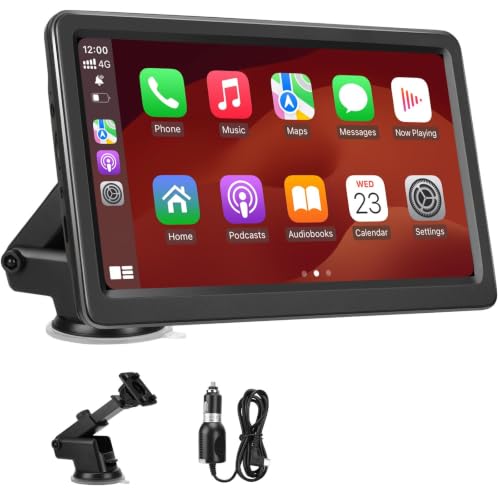
【Wireless CarPlay & Android Auto】This portable carplay screen supports wireless carplay and Android Auto. After the initial setup, your phone will automatically connect every time you start your vehicle—enabling seamless access to navigation, calls, music, and more

Upgrade to Wireless CarPlay & Android Auto The 2 in 1 Wireless CarPlay and Android Auto Adapter converts your factory wired system into a wireless experience. It’s perfect for families using both iPhone and Android phones, allowing effortless switching without unplugging or swapping cables. This adapter is compatible with over 1,000 vehicle models—supporting 800+ with wired CarPlay and 500+ with wired Android Auto. Works with iPhone 6 or later and Android 11 or above devices.

2-IN-1 WIRELESS UPGRADE: Convert factory wired CarPlay or Android Auto to wireless without replacing your original car stereo. The wireless CarPlay adapter keeps maps, music, calls, messages, Siri and Google Assistant ready without plugging in your phone every drive
Top Navigation Apps
| App | Best For | Important Consideration |
| Google Maps | Broad map coverage, traffic information, business searches, and offline downloads | Live features require mobile data |
| Waze | Community-reported traffic, hazards, and road conditions | Works best with a reliable data connection |
| Apple Maps | iPhone users who want close Siri and CarPlay integration | Available only through Apple devices |
| Sygic | Drivers who prioritize downloadable offline maps | Some features may require a paid plan or purchase |
| TomTom GO Navigation | Offline maps and route planning | Subscription requirements can vary by platform and plan |
Features To Consider
Compare the following features before choosing a navigation app:
- Vehicle-display compatibility: Confirm that the app supports Apple CarPlay, Android Auto, or both.
- Live traffic: Check whether the app can identify congestion, closures, construction, and alternate routes.
- Offline maps: Downloadable maps help when cellular service is weak or unavailable.
- Voice integration: Siri, Gemini, or Google Assistant support can reduce manual interaction.
- Route preferences: Useful options include avoiding tolls, highways, ferries, or unpaved roads.
- Privacy controls: Review location-history, account-sync, and personalized-data settings.
Access Navigation Apps on Your RAV4 Display

After Apple CarPlay or Android Auto connects, select its icon from the Toyota multimedia menu. The vehicle display will show only apps that are compatible with the active projection platform.
Select the navigation app from the CarPlay or Android Auto launcher. You can then search for a destination on the screen while parked or request directions through the relevant voice assistant.
Keep Location Services enabled and allow the navigation app to use your location. A mobile-data connection is also needed for live traffic, current searches, and other online information unless you downloaded the required map area beforehand.
If an installed navigation app does not appear, check whether it supports your projection platform. For CarPlay, open Settings > General > CarPlay > Your RAV4 > Customize on the iPhone. On Android, open the Android Auto launcher-customization settings and confirm that the app is enabled.
Fixing Common Navigation App Problems
Start with compatibility before changing phone settings. A USB port, Bluetooth connection, or touchscreen does not guarantee that the multimedia unit supports CarPlay or Android Auto.
[Amazon Products Picked for You]

Main Specifications: USB 2.0 fast data transmission and device charge power, 12V-30V input, 1.2 A 5V output, 9.84 inches / 25 cm car extension cable; USB socket extender replacement fits the hole of (1.34 " x 0.91 " ) 34 x 23 mm

Applicable Models: This upgraded dash kit is for Toyota RAV4 2001 2002 2003 2004 2005 2006. The stereo comes with an in-dash head unit, wiring harness cables and frame panel. No need to modify the cables of your car. Activation of steering wheel controls requires key learning in settings. Please check the power cable port on the detail page before purchasing

【Ultra-Stable Military-Grade Connection, Zero Dropouts】 Powered by the 2026 A7-Ultra chip with Wi-Fi 6, dual-band 2.4GHz+5.8GHz and Bluetooth 5.4, this Toyota RAV4 wireless CarPlay adapter delivers 99.99% connection stability and 40% faster pairing. It auto-reconnects within 3 seconds and performs reliably in extreme temperatures (-4°F to 158°F), eliminating disconnections, lag, and signal interference—perfect for long hauls in your RAV4.
Common Connectivity Issues
- Confirm the correct USB port: Use the port marked for smartphone data or projection. A charging-only port will power the phone without launching CarPlay or Android Auto.
- Replace the cable: Try a short, high-quality data cable without a USB hub, extension, or unnecessary adapter.
- Unlock the phone: The first connection may require the phone to be unlocked before permissions appear.
- Enable projection: Check the RAV4 multimedia settings for Apple CarPlay, Android Auto, or Phone Projection.
- Restart both systems: Restart the phone, turn the vehicle off safely, and restart the multimedia system.
- Forget and reconnect: Remove the RAV4 from the phone’s CarPlay, Android Auto, or Bluetooth list, then repeat the setup.
- Check wireless settings: Wireless projection requires compatible hardware with Bluetooth and Wi-Fi enabled.
App Update Requirements
Update the navigation app through Apple’s App Store or Google Play. Do not look for an app update inside the location-permission menu.
Also check for an available iOS or Android update. If the connection worked before but recently stopped, restart both devices before deleting app data or reinstalling the app.
Apple recommends checking whether the vehicle stereo has current manufacturer firmware when CarPlay problems continue. Android Auto users with an aftermarket receiver should also check the receiver manufacturer’s support page for firmware updates.
Location Services Settings
On an iPhone, open Settings > Privacy & Security > Location Services. Confirm that Location Services is on and that the navigation app can access your location while it is being used.
On Android, open the Location and app-permission settings. Enable location access for the navigation app and turn on precise location if the app needs it for accurate positioning.
If the position still jumps or remains inaccurate, move the phone away from objects that may block reception, restart the phone, and test the navigation app outside the vehicle.
Phone Charges but Navigation Does Not Start
This normally points to a charging-only USB port, a power-only cable, disabled phone projection, or an incompatible head unit. Try the designated smartphone-data port and a different data-capable cable before resetting other settings.
Navigation Directions Have No Sound
- Raise the guidance volume while the navigation app is speaking.
- Check whether guidance is muted inside the map app.
- Select the correct audio source on the RAV4 multimedia system.
- Disconnect other Bluetooth earbuds or speakers that may be receiving the sound.
- Check whether the app is set to play guidance as a Bluetooth phone call or media audio.
Multiple Phones Keep Interrupting the Connection
If several paired phones are in the vehicle, the RAV4 may connect to a different device than expected. Disconnect Bluetooth on the unused phones, change the preferred-device order if your multimedia system allows it, or remove old pairings.
Features to Look for in Navigation Apps
A useful Toyota RAV4 navigation app should have a simple vehicle-display interface, clear spoken directions, reliable rerouting, and controls that require as little attention as possible.
Real-time traffic is useful for commuting, but it depends on a working data connection. Offline maps are more important for rural drives, national parks, and other places with weak mobile service.
Also consider multi-stop routing, lane guidance, speed-limit information, parking searches, fuel or charging-station locations, accessibility settings, and the ability to avoid toll roads or highways.
Before relying on an app for a long trip, download any needed offline maps, save the destination, check the route, and confirm that spoken guidance works through the RAV4 speakers.
[Amazon Products Picked for You]

【11" CarPlay Screen with Net-flix & YouTube Apps】Turn your car into the ultimate entertainment hub. Built-in Net-flix and YouTube let you stream directly by connecting to your phone’s hotspot. Plus, wireless CarPlay & Android Auto make hands-free calls, music, and navigation effortless with voice commands. Say goodbye to boring drives—enjoy every time!

WIRELESS CONNECTIVITY: Features both wireless Apple CarPlay and Android Auto compatibility for seamless smartphone integration and hands-free operation

【Carplay and Android Auto with Voice Control】: APOKAMORI Portable Apple Car Screen blends seamlessly with your driving experience, offering a range of connectivity options. Simply talk to Siri or Google Assistant to get directions from maps, make calls, listen to voicemail, send and receive text messages and listen to music. And your phone will automatically Wireless link to the carplay screen Via Bluetooth and WiFi after first time setup.
Tips for a Safer Navigation Experience While Driving
NHTSA reports that distracted-driving crashes claimed 3,208 lives in the United States during 2024.
The National Highway Traffic Safety Administration warns that interacting with a phone, stereo, entertainment system, or navigation system can take attention away from driving.
- Set the route while parked: Enter the destination and review the first few turns before moving.
- Use voice control for simple requests: Ask Siri, Gemini, or Google Assistant for directions rather than typing.
- Pull over for complex changes: Stop safely before changing detailed settings, comparing routes, or troubleshooting.
- Keep the display easy to read: Adjust brightness and map orientation before driving.
- Do not follow unsafe instructions: Obey signs, closures, traffic laws, and actual road conditions even when they differ from the app.
- Keep the phone secure: Store it where it cannot fall near the pedals or distract you with unnecessary notifications.
Frequently Asked Questions
Can I use navigation apps without a smartphone connection?
You can use a phone navigation app without mobile data if you downloaded the required offline maps beforehand. The phone can still use GPS, but live traffic, current closures, searches, and some rerouting features may not work. Factory-installed Toyota navigation is a separate system.
Will using navigation apps drain my phone’s battery quickly?
Navigation uses GPS, mobile data, processing power, and sometimes the phone’s screen, so it can increase battery use. A wired CarPlay or Android Auto connection usually charges the phone. For wireless projection, use a suitable vehicle charger and keep the phone away from direct sunlight if it becomes hot.
Do I need a subscription for navigation app features?
Apple Maps, Google Maps, and Waze do not normally require a separate navigation subscription. Your mobile-data plan still applies. Some apps, including certain offline-navigation services, may charge for premium maps or features. Toyota built-in connected navigation may also have separate trial or subscription terms.
How do I update my navigation app on my smartphone?
On an iPhone, open the App Store and check the available app updates. On Android, open Google Play and manage your app updates. Also install relevant iOS or Android updates because operating-system changes can affect CarPlay or Android Auto compatibility.
Are navigation apps available in multiple languages?
Many navigation apps support multiple display and spoken-guidance languages. Available languages vary by app, phone operating system, region, and downloaded voice package. Check the app’s language or navigation-voice settings before your trip.
Can Bluetooth alone display Google Maps or Apple Maps on my RAV4 screen?
Ordinary Bluetooth pairing normally supports calls and audio only. Screen projection requires Apple CarPlay or Android Auto. A supported wireless system may begin with Bluetooth pairing, but it also uses a Wi-Fi connection to display and control apps.
Why does my older RAV4 not show Apple CarPlay or Android Auto?
The original multimedia unit may not contain the required projection hardware or software. Bluetooth and a touchscreen do not guarantee compatibility. Check your Toyota manual or dealer information. If the factory unit is unsupported, a professionally installed compatible aftermarket receiver may be an option.
Conclusion
To add a navigation app to your Toyota RAV4, first verify that the exact multimedia system supports Apple CarPlay or Android Auto. Use the correct data USB port for wired projection or complete the Bluetooth and Wi-Fi pairing process when wireless projection is supported.
Once connected, choose a compatible app such as Apple Maps, Google Maps, or Waze. Download offline maps before trips through weak-signal areas, keep your phone and apps updated, and complete all setup while parked. If the phone only charges or the app does not appear, check the USB port, cable, projection settings, permissions, and vehicle compatibility in that order.
Sources
- Toyota Audio Multimedia and Connected Services — Toyota information about Apple CarPlay, Android Auto, built-in navigation, and vehicle-specific availability.
- Apple CarPlay Available Models — current Toyota RAV4 CarPlay model-year listing and configuration caveats.
- Apple CarPlay Setup Guide — official wired, wireless, Siri, and app-customization instructions.
- Google Android Auto Setup Guide — official wired and wireless Android Auto setup instructions.
- NHTSA Distracted Driving Guidance — safety guidance and current distraction-involved crash statistics.
