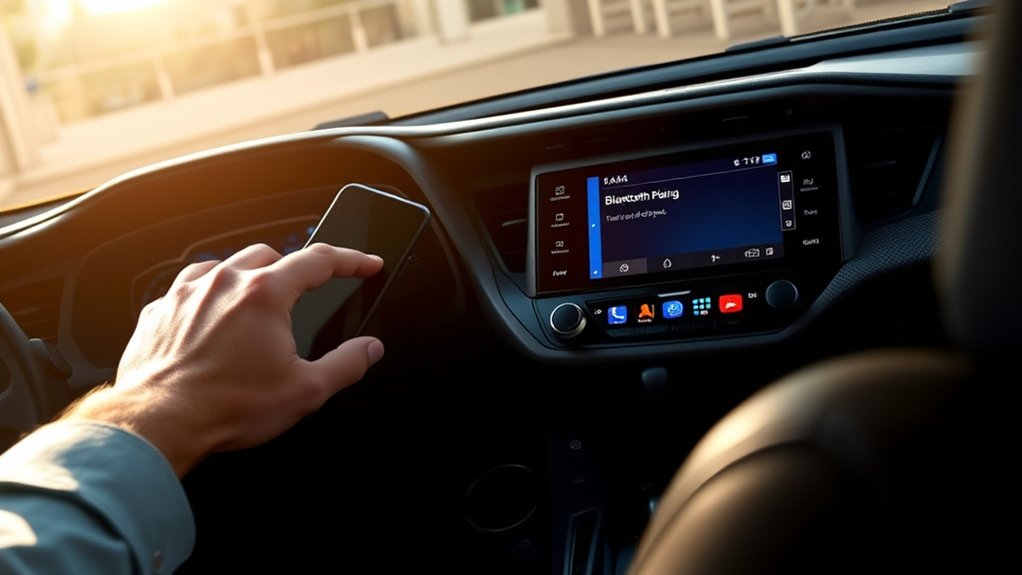
Connecting your phone to a Toyota RAV4 lets you make calls and play audio through the vehicle’s speakers without repeatedly handling your device. The exact menu names depend on the RAV4’s model year and multimedia system, but the basic process is to add a Bluetooth device, select your phone, confirm the matching code, and choose the permissions you want to allow.
Quick Answer
Park your RAV4, turn on its multimedia system, and open Bluetooth settings on your phone. On the vehicle display, choose Phone, Setup, or Settings, then add a new device. Select your phone, confirm the matching code, and allow contacts or messages only if you want those features.
Key Takeaways
- Complete the first pairing while the RAV4 is parked and the multimedia system is on.
- Common vehicle menu paths include Phone > Add Device, Settings > Bluetooth & Devices, or Menu > Setup > Bluetooth.
- Confirm that the same pairing code appears on the phone and vehicle before accepting it.
- Contact, call-history, favorite, and message permissions are optional and can usually be changed later.
- Bluetooth audio, Apple CarPlay, and Android Auto are related features, but they do not always use the same connection method.
At a Glance
| Time Required | About 3–10 minutes |
| Difficulty | Easy |
| Tools Needed | A compatible phone and your RAV4; a data-capable USB cable may be needed for wired CarPlay or Android Auto |
| Cost | No added cost for basic Bluetooth pairing; mobile service and app charges may still apply |
Warning: Park the RAV4 before pairing, changing permissions, entering a code, or troubleshooting the connection. Hands-free controls reduce the need to handle your phone, but they do not remove every form of driver distraction. Review the NHTSA distracted-driving guidance before using phone features on the road.
Check Your RAV4 System Before Pairing
Toyota has used several multimedia systems in the RAV4, so your buttons and menu labels may differ from those shown in another vehicle or online video. The available features can also depend on the model year, trim, installed head unit, phone, and market.
Common starting points include:
- Phone or a phone icon, followed by Add Device, Connect Device, or Register Device.
- Settings followed by Bluetooth & Devices and an option to add another device.
- Menu followed by Setup, Bluetooth, and Add New Device.
- A phone or voice-command button on the steering wheel that opens the phone setup screen.
For the exact path, select your model year and vehicle on the Toyota Manuals and Warranties page. Toyota also provides feature and compatibility information through its Audio Multimedia and Connected Services resources.
Note: An aftermarket stereo may use completely different menus. Follow the stereo manufacturer’s instructions when the vehicle no longer has its original Toyota multimedia unit.
Prepare Your Phone for Bluetooth Pairing
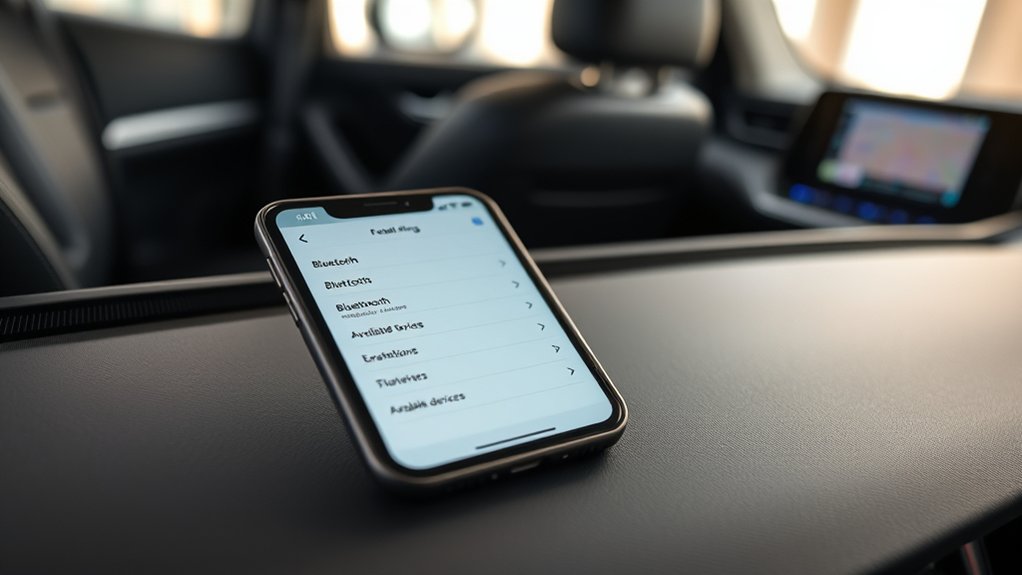
Unlock your phone and turn on Bluetooth before starting the vehicle search. Keeping the Bluetooth settings screen open can help the RAV4 find the phone during the initial pairing process.
Prepare an iPhone
- Open Settings.
- Tap Bluetooth.
- Turn Bluetooth on.
- Keep the Bluetooth screen open while you add the device through the RAV4 display.
Prepare an Android Phone
- Open Settings.
- Open Connected devices, Connections, or Bluetooth. The label varies by phone manufacturer.
- Turn Bluetooth on.
- Open the list of available devices or tap Pair new device if that option appears.
You normally do not need to erase unrelated Bluetooth devices from your phone. Delete an old RAV4 entry only when you are repairing a failed or corrupted connection.
Access the Bluetooth Menu in Your Toyota RAV4
Turn on the vehicle or place it in accessory mode so the multimedia display is operating. Make sure the transmission is in Park, then open the phone or Bluetooth settings.
Choose the option to add, connect, pair, or register a device. The RAV4 may begin searching immediately, or it may display the vehicle’s Bluetooth name and instruct you to select that name on your phone.
Select Your Phone From the Available Devices
Wait for the phone name to appear on the vehicle display, then select it. If the RAV4’s name appears on the phone instead, tap the vehicle name under the available Bluetooth devices.
Check that you have selected your own device, especially when several phones are inside the vehicle. The displayed name may be a custom device name rather than the phone’s model.
If your phone does not appear:
- Keep its Bluetooth settings screen open.
- Cancel the vehicle search and start it again.
- Turn Bluetooth off and back on.
- Move other previously connected phones away from the vehicle or temporarily disable Bluetooth on them.
- Check whether the RAV4’s saved-device list is full.
Verify the Bluetooth Code
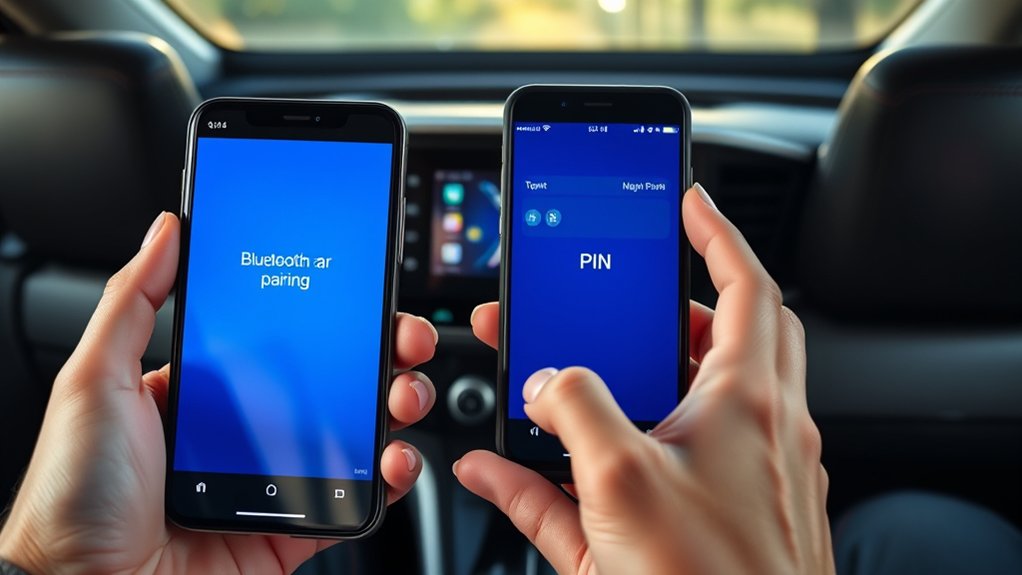
After selecting the device, a pairing code should appear on the RAV4 display and your phone. The code is sometimes called a PIN, passkey, or confirmation number.
Confirm Matching Codes
Compare every digit before accepting the request. When the codes match, choose Pair, OK, Yes, or Confirm on both screens.
If the codes do not match, cancel the request on both devices and restart the process. Do not approve a mismatched or unexpected pairing request.
Accept the Connection Request
Your phone may ask whether you want to share contacts, call history, favorites, or messages. These permissions are separate from the basic Bluetooth connection. Allow only the information you want available through the vehicle display.
Allow Contacts, Calls, and Messages
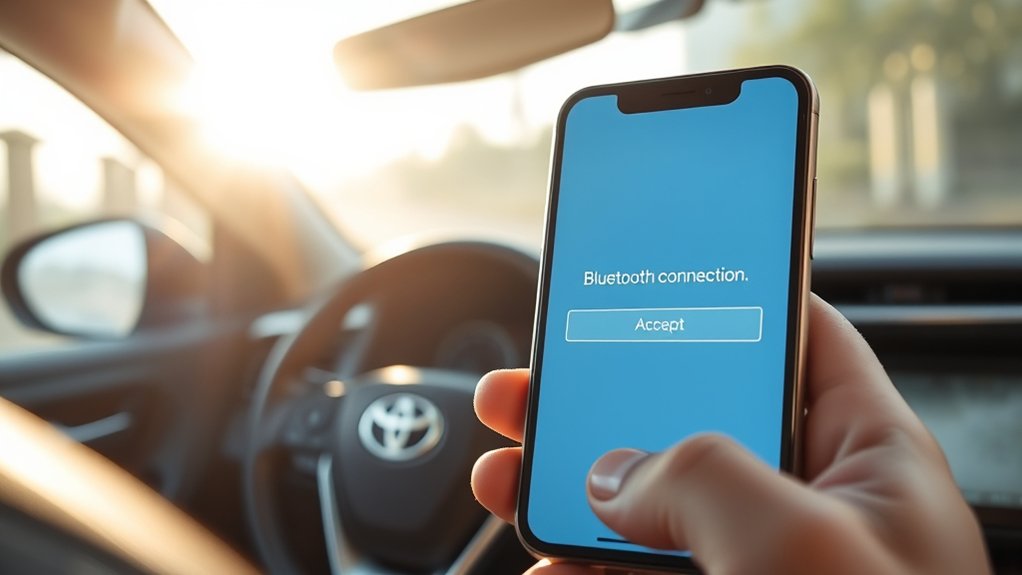
After you accept the matching code, follow any remaining prompts on the phone and RAV4 display. A successful connection message or Bluetooth icon should appear when pairing is complete.
| Permission | What It Does | Required? |
|---|---|---|
| Contacts and favorites | Lets the vehicle display names, saved contacts, and favorite numbers. | No |
| Call history | Displays recent incoming, outgoing, and missed calls. | No |
| Message access | May allow supported messages and notifications to appear through the vehicle system. | No |
| Phone calls | Routes supported calls through the vehicle microphone and speakers. | Needed for hands-free calling |
| Media audio | Routes music, podcasts, and other phone audio through the vehicle speakers. | Needed for Bluetooth audio |
If you share the vehicle with other people, consider limiting message and contact access. Before selling, returning, or permanently transferring the RAV4, delete your saved phone from the multimedia system and remove the RAV4 from your phone’s Bluetooth list.
Test the Bluetooth Connection
Test the connection before driving so you can correct any problem without looking away from the road.
- Place a short call and confirm that you can hear the other person through the vehicle speakers.
- Ask the other person whether the RAV4 microphone sounds clear.
- Open the contact list and confirm that names appear if you allowed contact access.
- Play a downloaded song, podcast, or other audio file.
- Check that the multimedia source is set to Bluetooth Audio when the sound does not switch automatically.
Key Bluetooth Features in a Toyota RAV4
Available functions depend on the vehicle, phone, permissions, and multimedia software. Common Bluetooth features include:
- Hands-free incoming and outgoing calls.
- Access to allowed contacts, favorites, and recent calls.
- Bluetooth music, podcast, audiobook, and navigation-prompt playback.
- Basic play, pause, and track controls through the vehicle display or steering-wheel controls.
- Voice-control access when supported by the phone and multimedia system.
- Automatic reconnection to a previously paired phone.
Hands-free controls can reduce the need to hold your phone, but you should still keep conversations brief and avoid adjusting menus while the vehicle is moving.
Stream Music and Podcasts
After the phone is paired, select Bluetooth Audio from the RAV4’s audio-source menu. Open your preferred music, audiobook, or podcast app and begin playback.
The vehicle may display the track name, artist, album, or playback controls. The amount of information and the available controls depend on the phone, app, and multimedia system.
A mobile data plan is not required to play audio already stored or downloaded on the phone. However, streaming content that has not been downloaded usually requires an internet connection and may use mobile data.
Pro Tip: Download playlists, maps, audiobooks, or podcast episodes before a long trip when you expect weak cellular coverage or want to reduce mobile-data use.
Bluetooth vs. Apple CarPlay in a RAV4
Bluetooth audio and Apple CarPlay are not the same feature. Bluetooth handles functions such as calls and basic audio, while CarPlay places supported iPhone apps and controls on a compatible vehicle display.
Use Wired Apple CarPlay
- Confirm that your RAV4 supports Apple CarPlay.
- Start the vehicle and make sure Siri is enabled on the iPhone.
- Connect the iPhone to the RAV4’s data-capable USB media port with a compatible cable.
- Accept the CarPlay prompts on the phone and vehicle display.
- Select the CarPlay icon if it does not open automatically.
Use Wireless Apple CarPlay
Wireless CarPlay is available only when both the RAV4’s multimedia system and the iPhone support it. Turn on Bluetooth and Wi-Fi, add the iPhone through the vehicle’s device menu, and approve the CarPlay prompt when it appears. Some systems first establish a wired connection and then offer wireless use on future drives.
See Apple’s current CarPlay setup instructions and your Toyota manual for the exact method supported by your vehicle.
Bluetooth vs. Android Auto in a RAV4
Android Auto can use a wired or wireless connection, depending on the phone and vehicle. Ordinary Bluetooth pairing does not guarantee that Android Auto is available.
Use Wired Android Auto
- Confirm that the RAV4 and phone support Android Auto.
- Park the vehicle and turn on the multimedia system.
- Connect the phone to the RAV4’s data-capable USB media port.
- Follow the prompts on the phone and vehicle display.
- Select Android Auto on the display if it does not start automatically.
Use Wireless Android Auto
For a compatible wireless system, keep Bluetooth and Wi-Fi enabled. The first connection normally begins by pairing the phone and vehicle through Bluetooth. Follow the on-screen prompts and keep any required phone services enabled during setup.
Google provides current wired and wireless instructions in its Android Auto setup guide.
Manage Multiple Paired Phones
Many RAV4 multimedia systems can remember more than one phone. The number of saved or simultaneously connected devices varies, so check the exact vehicle manual rather than assuming one universal limit.
To switch phones, open the vehicle’s Bluetooth or device list and select the phone you want to use for calls, media, or phone projection. You may need to disconnect the current device first. Turning off Bluetooth on an unwanted nearby phone can also prevent it from reconnecting automatically.
Temporarily Disconnect a Phone
Open the phone’s Bluetooth settings and tap Disconnect, or open the RAV4’s device list and deselect that phone. The saved pairing remains available for later use.
Remove a Phone Completely
- Open the RAV4’s Bluetooth or device-management screen.
- Select the saved phone.
- Choose Remove, Delete, or Forget Device.
- On the phone, open Bluetooth settings and forget or remove the Toyota entry.
Troubleshooting Common Bluetooth Pairing Issues
| Problem | What to Check | Recommended Fix |
|---|---|---|
| The phone does not appear | Bluetooth status, open settings screen, active search, and saved-device capacity | Turn Bluetooth off and on, restart the search, and remove an unused saved device if the list is full. |
| The codes do not match | Whether the correct phone and vehicle entry were selected | Cancel both prompts and restart pairing. Do not approve mismatched codes. |
| The phone pairs but no music plays | Audio source, media-audio permission, app volume, and phone volume | Select Bluetooth Audio, enable media audio for the connection, and raise the phone and vehicle volumes. |
| Calls work but contacts do not appear | Contact-sharing permission and synchronization status | Allow contact access in the phone’s Bluetooth settings, reconnect, and wait for synchronization. |
| The wrong phone connects automatically | Connection priority and other paired phones inside the vehicle | Select the preferred device through the RAV4 menu or disable Bluetooth on the unwanted phone. |
| The connection drops repeatedly | Phone software, multimedia software, duplicate pairings, and nearby devices | Restart both systems, install available updates, delete both saved entries, and pair again. |
| Wired CarPlay or Android Auto will not start | Vehicle compatibility, USB media port, cable condition, and cable data support | Use the correct media port and a short, data-capable cable in good condition. |
| Wireless CarPlay or Android Auto will not start | Wireless compatibility, Bluetooth, Wi-Fi, phone permissions, and saved connection | Confirm compatibility, enable the required wireless services, and repeat the initial setup while parked. |
If the connection still fails, check your model-specific multimedia manual. A Toyota dealer or the manufacturer of an aftermarket head unit can help when the problem appears to be hardware- or system-specific.
Frequently Asked Questions
Can I connect multiple phones to my Toyota RAV4?
Many RAV4 systems can save more than one phone, but the number of stored or simultaneously connected devices varies. Open the vehicle’s Bluetooth device list to choose which phone handles calls, media, or phone projection.
Will Bluetooth work if my phone is in a case?
An ordinary phone case should not prevent Bluetooth pairing inside the vehicle. Check the Bluetooth settings, saved-device list, permissions, and software before blaming the case. Remove unusual metal accessories only when the common troubleshooting steps do not work.
How do I disconnect or remove a phone from my RAV4?
Use Disconnect when you want to keep the saved pairing. To remove it completely, delete the phone through the RAV4’s Bluetooth device list and forget the Toyota connection through the phone’s Bluetooth settings.
What should I do if my RAV4 does not recognize my phone?
Confirm that Bluetooth is on, keep the phone’s Bluetooth settings screen open, restart the vehicle search, and check whether the saved-device list is full. If that fails, restart both systems, remove the old pairing from both devices, and pair them again.
Can I use RAV4 Bluetooth without a data plan?
Basic Bluetooth pairing and playback of downloaded or locally stored audio do not require mobile data. Calls require cellular voice service, while online music, live traffic, cloud navigation, and other internet-based features may require mobile data.
Why do phone calls work but Bluetooth music does not?
The call and media functions can have separate permissions. Select Bluetooth Audio on the RAV4, enable media audio for the Toyota connection on your phone, start playback, and check both volume controls.
Does every Toyota RAV4 support wireless CarPlay and Android Auto?
No. Availability depends on the model year, trim, market, and installed multimedia system. Check the exact vehicle manual and Toyota’s feature information before attempting a wireless connection.
Conclusion
To connect a phone to a Toyota RAV4, complete the setup while parked, add a device through the vehicle’s phone or Bluetooth menu, select the correct phone, and approve the matching code. You can then allow optional contacts and message permissions, test calls, and select Bluetooth Audio for music or podcasts.
Remember that Bluetooth, Apple CarPlay, and Android Auto are separate connection modes. Your RAV4 may support wired, wireless, or basic Bluetooth features depending on its multimedia system. When a menu or feature does not match these general steps, use the manual for your exact model year.
Sources
- Toyota Manuals and Warranties — model-specific owner and multimedia manual access.
- Toyota Audio Multimedia and Connected Services — Bluetooth, Apple CarPlay, Android Auto, and multimedia feature guidance.
- Apple Support: Use CarPlay With Your iPhone — wired and wireless CarPlay setup.
- Google Android Auto Help: Set Up Android Auto — wired and wireless Android Auto setup.
- National Highway Traffic Safety Administration: Distracted Driving — driver-attention and phone-use safety guidance.

1 thought on “How to Add a Phone to a Toyota RAV4: Bluetooth Pairing Step-by-Step”