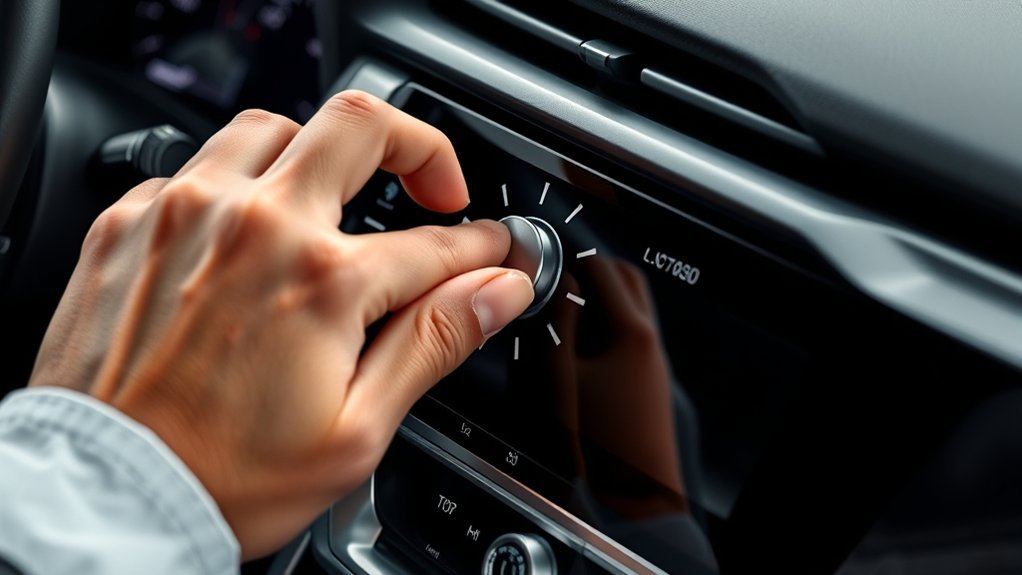
Setting the clock in a Toyota Camry usually takes only a few minutes, but the correct method depends on the model year, trim, market, and installed audio or navigation system. Older Camrys commonly use physical H, M, and :00 buttons, while later models place the clock controls in the touchscreen settings.
Quick Answer
First, park the Camry and identify its clock controls. If the dashboard has H and M buttons, press H to change the hour and M to change the minutes. On a touchscreen-equipped Camry, open Menu or Settings, select Setup or General, and choose Clock or Date & Time.
Key Takeaways
- There is no single clock-setting procedure for every Toyota Camry.
- Many 2007–2011 North American models use H, M, and :00 buttons rather than a mode button and arrows.
- A typical 2018 Entune 3.0 system uses Menu → Setup → General → Clock.
- A clock that is exactly one hour wrong usually needs its time-zone or daylight-saving setting corrected.
- If the time resets after every restart, the issue may involve the 12-volt power supply, a fuse, wiring, or the clock unit—not the setting procedure.
At a Glance
| Time Required | About 2–5 minutes |
| Difficulty | Easy |
| Tools Needed | A reliable time reference and, when needed, the exact owner’s or multimedia manual |
| Cost | $0 for a normal adjustment; diagnosis or repair costs vary |
Warning: Park the vehicle before navigating clock or multimedia menus. Do not attempt to work through touchscreen settings while driving.
Identify Which Toyota Camry Clock System You Have
Before pressing any buttons, look at the center of the dashboard and match your Camry with the closest description below. Equipment can vary within the same model year, especially when the vehicle has factory navigation, a different market specification, or an aftermarket radio.
| What You See | Procedure to Use |
| Separate H, M, and possibly :00 buttons beside the clock | Use the physical-button procedure below. This arrangement is common on many North American 2007–2011 Camrys without a touchscreen clock menu. |
| A touchscreen with Menu, Setup, or General options | Use the touchscreen procedure. The exact wording may be Clock, Date & Time, or Time Settings. |
| A factory navigation screen with different menu labels | Use the navigation or multimedia manual for that unit. Do not assume the standard audio-system path is identical. |
| An aftermarket radio or display | Use the radio manufacturer’s instructions. Toyota’s factory procedure may no longer apply. |
Pro Tip: Identify the actual buttons or menu labels before searching by model year. Two Camrys from the same year can have different clock procedures because of trim, navigation, market, or radio differences.
Why Set the Clock in Your Toyota Camry?

An accurate dashboard clock helps you check the time without reaching for a phone. It is useful after a daylight-saving change, a trip into another time zone, or a 12-volt battery disconnect.
The displayed clock is primarily a convenience feature. On most Camrys, an incorrect dashboard time does not prevent the vehicle from being driven or disable its core safety systems. However, it can make navigation arrival estimates, multimedia displays, and time-based reminders confusing.
Familiarizing Yourself With the Clock Controls
The clock location and controls depend on the dashboard. Older Camrys often have a small display in the center of the instrument panel, while later models show the time along the top of the multimedia screen.
Physical H, M, and :00 Buttons
On a physical-button clock:
- H advances the hour.
- M advances the minutes.
- :00, when fitted, rounds the displayed time to the nearest hour. It is not a save or confirmation button.
For example, the rounding button may return an early part of the hour to :00 and advance a later part of the hour to the next :00. Use H and M for normal adjustments when you do not want the time rounded.
Touchscreen Clock Controls
A touchscreen-equipped Camry may place clock controls under Menu, Setup, Settings, General, Clock, or Date & Time. Depending on the system, available choices may include:
- Manual hour and minute adjustment
- Automatic adjustment by GPS or another time source
- Time-zone selection
- Daylight-saving time
- 12-hour or 24-hour display format
Not every system provides every option. Use only the controls shown on your installed unit.
Importance of an Accurate Reference
Before changing the clock, compare it with a reliable source such as your network-synchronized phone or NIST’s official U.S. time display. If you are outside the United States, use your country’s official time authority or a correctly synchronized device.
How to Set a Toyota Camry Clock With H and M Buttons
Use these steps when your Camry has separate physical buttons marked H and M near the center clock:
- Park the vehicle and switch the ignition to accessory or on mode so the clock is powered. The engine normally does not need to run.
- Locate the H and M buttons beside the clock display.
- Press H repeatedly to advance the hour. On many units, holding the button advances the setting continuously.
- Press M repeatedly to advance the minutes.
- Stop pressing the buttons when the display matches your reference time.
- Wait a few seconds and switch the ignition off, then back to accessory or on mode to confirm that the time was retained.
Note: Some older Camry clocks do not show a separate AM or PM indicator. Set the displayed hour to match the current local time rather than searching for an AM/PM control that may not exist.
[Amazon Products Picked for You]

【Vehicle Fit】- Specialized for Toyota Full Series - Perfect compatibility with Tacoma(2005-2015)/Tundra(2007-2018)/Camry(2007-2011)/Corolla(2009-2013)/RAV4(2006-2012)/Priu...
How to Use the :00 Button
If the clock includes a :00 button, use it only when you intentionally want to round the minutes to the nearest hour. Do not press it after carefully setting the minutes, because it may replace your minute setting with 00 and may also advance the hour.
How to Set the Clock on a 2018 Toyota Camry
The 2018 Camry commonly uses an Entune 3.0 touchscreen, although the exact controls vary with the installed audio or navigation system. A typical procedure is:
- Park the Camry and place the ignition in accessory or on mode.
- Press the physical MENU button beside the screen.
- Select Setup.
- Select General.
- Select Clock.
- Set the time manually, or configure the available automatic-time, time-zone, daylight-saving, and display-format options.
- Return to the home screen and confirm that the correct time appears.
If your screen does not show this path, consult the multimedia or navigation manual for the installed head unit through Toyota’s Manuals and Warranties portal.
How to Set the Clock on Newer Toyota Camry Multimedia Systems
On newer Toyota Audio Multimedia systems, begin from the settings or gear icon and look under a section named General, System, Clock, or Date & Time. Menu names can change with the multimedia generation and software version.
If automatic time is available:
- Turn automatic adjustment on.
- Select the correct time zone.
- Set daylight-saving time correctly for your location.
- Confirm the preferred 12-hour or 24-hour format.
If the automatic setting remains wrong, turn it off temporarily and enter the time manually. You can also check Toyota Audio & Connected Services Support for guidance related to the installed system.
Double-Check Your Time Settings for Accuracy
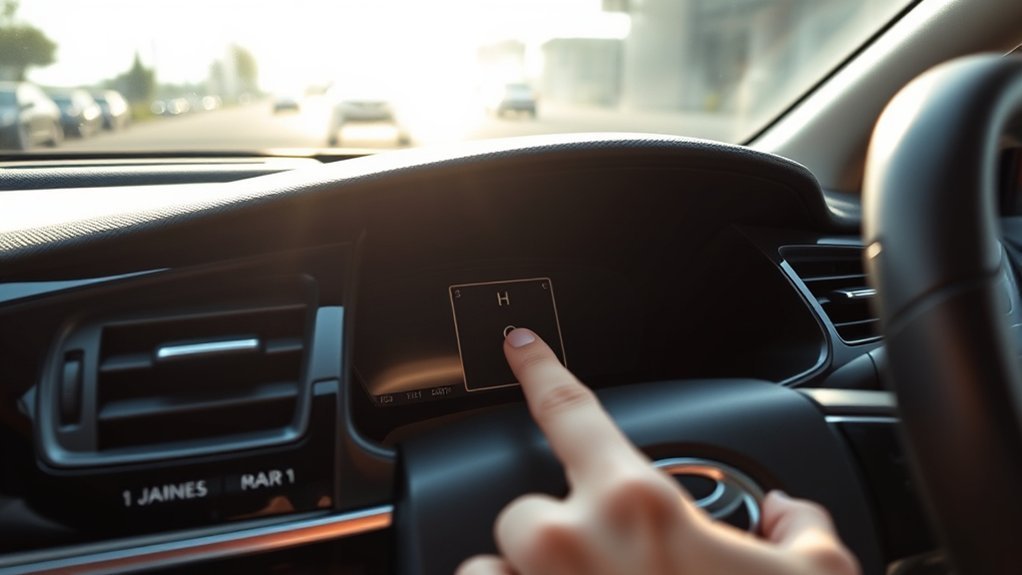
After making an adjustment, compare the dashboard display with a synchronized phone or official time source. Check more than the minutes: a one-hour error can indicate the wrong time zone or daylight-saving setting.
Also confirm that:
- The time remains correct after the ignition is switched off and back on.
- The system is using the intended 12-hour or 24-hour format.
- Automatic time, time zone, and daylight-saving settings do not conflict.
- The navigation display and dashboard clock agree if the vehicle shows time in more than one location.
A clock that is exactly one hour fast or slow usually needs a time-zone or daylight-saving correction, not repeated minute-by-minute adjustment.
How to Troubleshoot Toyota Camry Clock Problems
Use the symptom to narrow down the problem before resetting the multimedia system or replacing parts.
| Issue | Likely Cause | What to Do |
| Clock is exactly one hour wrong | Wrong daylight-saving or time-zone setting | Correct the time zone and daylight-saving option, then recheck automatic time. |
| Clock resets after every restart | Loss of constant 12-volt memory power, weak battery, fuse, wiring, or clock-unit fault | Check whether radio presets also reset. Have the 12-volt supply and applicable fuse circuit inspected if the problem continues. |
| Time changed after battery service | Stored clock data was lost when 12-volt power was disconnected | Reset the clock and any affected presets. This alone does not indicate a failed clock. |
| Automatic time is wrong | Incorrect time zone, daylight-saving option, unavailable signal, or system configuration | Correct the zone and daylight-saving settings. If necessary, disable automatic adjustment and set the time manually. |
| Touchscreen is frozen | Temporary multimedia-system fault | Park, switch the vehicle fully off, wait briefly, and restart it. Follow the manual if a model-specific reboot procedure is provided. |
| H or M button does not respond | Worn switch, failed clock assembly, power problem, or fuse issue | Confirm the ignition mode and clock power. If only one button fails, the switch or clock assembly may require diagnosis. |
| Toyota menu instructions do not match the screen | Different factory unit, navigation option, market specification, or aftermarket radio | Identify the head-unit model and use its dedicated multimedia or manufacturer’s manual. |
Verify the Settings Navigation
Read each menu label before selecting it. On one system, the clock may be under General; on another, it may be under System or Date & Time. Do not keep tapping unrelated settings in the hope of finding a hidden clock control.
Check the Infotainment System
If the clock menu will not open or save:
- Confirm that the vehicle is parked and the system is fully powered.
- Return to the home screen and reopen the settings menu.
- Switch the vehicle off, wait briefly, and restart it.
- Check Toyota support for information specific to the installed multimedia unit.
Caution: Do not perform a factory reset as a routine first step. A reset may erase paired phones, audio presets, navigation preferences, and other saved settings. Use it only when the exact manual or Toyota support procedure recommends it.
Check for a 12-Volt Power Problem
If the clock, radio presets, and other saved settings all reset whenever the vehicle is started, the clock may be losing its constant memory power. A weak 12-volt battery, loose connection, blown fuse, wiring fault, or failed component may be involved.
Use the fuse diagram in the exact owner’s manual before inspecting a circuit. Never replace a fuse with one of a higher amperage. If a correctly rated replacement fuse blows again, stop and have the circuit diagnosed.
Consult the Correct Vehicle Manual
Use Toyota’s official manual selector and enter the exact model year and vehicle information. The owner’s manual covers the vehicle controls, while a separate multimedia or navigation manual may contain the touchscreen procedure.
This is especially important for imported vehicles, hybrids, factory-navigation systems, and Camrys fitted with replacement radios.
Why Accurate Time Matters for Your Driving Experience
A correct clock makes it easier to manage appointments, compare navigation arrival estimates, and plan stops during a trip. It also prevents confusion after seasonal time changes or travel between time zones.
However, the practical benefit should not be overstated. For most Camrys, the displayed clock is a convenience feature. If the vehicle otherwise operates normally, a wrong clock usually calls for a settings correction rather than an urgent mechanical repair.
Seeking Help From a Toyota Service Center

Professional help is reasonable when the correct procedure does not work or the clock repeatedly loses its setting. A Toyota dealer or qualified automotive electrical technician can identify the installed system, test the 12-volt supply, inspect the appropriate fuse circuit, and diagnose failed switches or multimedia hardware.
Arrange an inspection when:
- The clock and radio presets reset after every restart.
- A correctly rated fuse repeatedly blows.
- The display is blank, flickers, or restarts unexpectedly.
- One or more physical clock buttons do not respond.
- The multimedia screen remains frozen after a normal vehicle restart.
- The issue began after wiring, radio, battery, or dashboard work.
Common Mistakes to Avoid When Setting the Clock
- Following the wrong model-year procedure: Match the instructions to the buttons or menu on the actual dashboard.
- Looking for a mode button that is not present: Many older units use H and M buttons directly.
- Pressing :00 as a save button: It rounds the time and can undo the minute setting.
- Searching for an AM/PM control on a clock that has none: Some older displays do not show an AM/PM indicator.
- Ignoring the time zone: Automatic time can still be wrong when the selected zone is incorrect.
- Leaving daylight-saving enabled in the wrong season or region: This commonly creates an exact one-hour error.
- Performing a factory reset too soon: It may erase useful data without fixing the cause.
- Adjusting the touchscreen while moving: Park before changing settings.
- Assuming an aftermarket radio uses Toyota menus: Follow the radio manufacturer’s manual instead.
Frequently Asked Questions
How do I set the clock on a Toyota Camry?
Identify the controls first. Press H and M on a physical-button clock. On a touchscreen-equipped Camry, open Menu or Settings, choose Setup or General, and select Clock or Date & Time. The exact path depends on the model year and installed multimedia system.
How do I set the clock on a 2018 Toyota Camry?
On a typical Entune 3.0 system, park the car, press Menu, select Setup, choose General, and open Clock. Adjust the manual time or the available automatic-time, time-zone, daylight-saving, and format settings. Use the multimedia manual if your menu differs.
How do I set the clock in a 2009 Toyota Camry?
If the center clock has H, M, and :00 buttons, switch the ignition to accessory or on mode, press H to advance the hour, and press M to advance the minutes. Avoid pressing :00 unless you want to round the time to the nearest hour. Navigation-equipped and non-North-American models may differ.
How do I set the clock in a 2010 Toyota Camry?
Many 2010 Camrys use physical H and M buttons beside the center clock. Press H for the hour and M for the minutes while the clock is powered. If your vehicle has a touchscreen or navigation system, use its Clock or Date & Time menu instead.
How do I change the time on my Toyota dashboard?
Look for H and M buttons or open the dashboard multimedia settings. Common touchscreen labels include Setup, General, Clock, System, and Date & Time. The exact menu depends on the Toyota multimedia generation.
Why is my Camry clock exactly one hour off?
Check the selected time zone and daylight-saving setting. Automatic time can still be one hour wrong when either option is incorrect. After correcting them, compare the display with a reliable local time source.
Why does the clock reset every time I start the car?
The clock may be losing its constant 12-volt memory supply. If radio presets also reset, possible causes include a weak battery, loose connection, applicable fuse, wiring problem, or failed clock or multimedia unit. Have the circuit diagnosed if the problem continues.
Conclusion
To set a Toyota Camry clock correctly, follow the controls installed in the vehicle rather than a universal model-name procedure. Use H and M on an older physical clock, or open the Clock or Date & Time settings on a touchscreen system. Afterward, verify the time, zone, daylight-saving option, and retention after restarting the vehicle.
If the clock repeatedly resets, the buttons do not respond, or the display malfunctions, consult the exact Toyota manual and have the 12-volt supply or multimedia system inspected instead of repeatedly resetting the settings.
Sources
- Toyota Manuals and Warranties — official model-year owner’s, multimedia, navigation, and warranty resources.
- Toyota Audio & Connected Services Support — support information for Toyota multimedia and connected systems.
- NIST Official U.S. Time — a reliable reference for checking the adjusted clock.
- NIST Internet Time Service — background on synchronized time services and UTC-linked time references.
