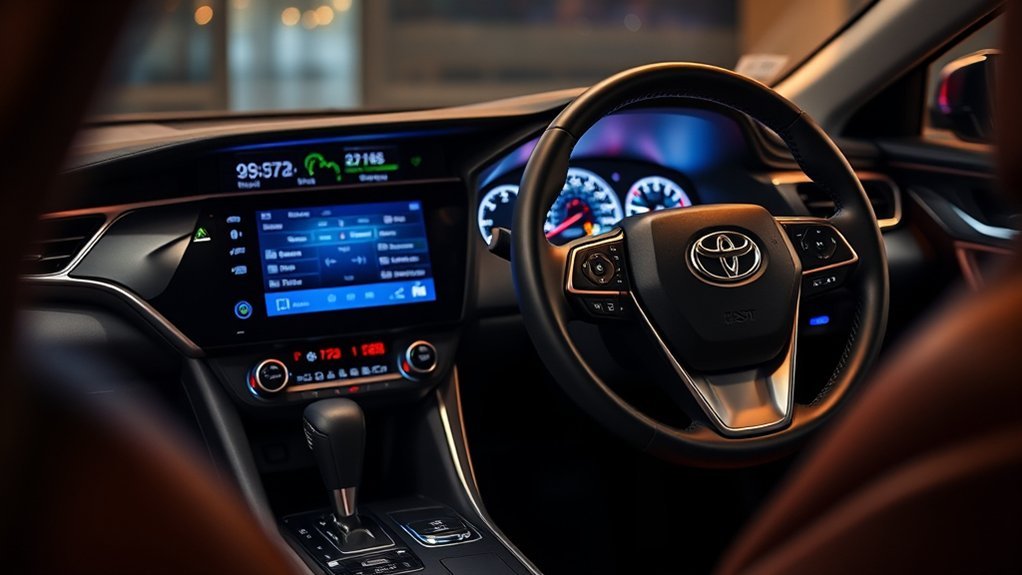
Customizing your Toyota Camry’s Multi-Information Display (MID) helps you keep the most useful driving information in front of you, such as fuel economy, trip data, warnings, audio details, and navigation prompts when equipped. The exact menus vary by model year, trim, and display size, so use this guide with your owner’s manual for your specific Camry.
Quick Answer
To customize a Toyota Camry MID, park safely, turn the vehicle to ON or READY, then use the steering-wheel MID control switches to open the settings display. Scroll through the available screens, select the items you want to show, adjust supported vehicle settings, and press OK or hold OK when the screen prompts you to reset trip data.
Key Takeaways
- Use the steering-wheel MID controls for the instrument-cluster display. The center touchscreen mainly controls multimedia settings.
- Available screens can include driving information, vehicle information, audio-linked display, navigation-linked display, settings, and warning messages.
- Menu names and layouts vary by Camry model year, trim, and display type, including 4.2-inch, 7-inch, and 12.3-inch clusters.
- Set up the display while parked. Avoid changing menus while driving because it can take your eyes off the road.
- If a tire pressure, warning, or settings issue will not clear, check the owner’s manual first, then contact a Toyota dealer if the warning remains.
At a Glance
| Time Required | 3 to 10 minutes |
| Difficulty | Easy |
| Tools Needed | No tools; your Camry owner’s manual helps if menu names differ |
| Cost | Free |
Accessing the Toyota Camry MID Settings
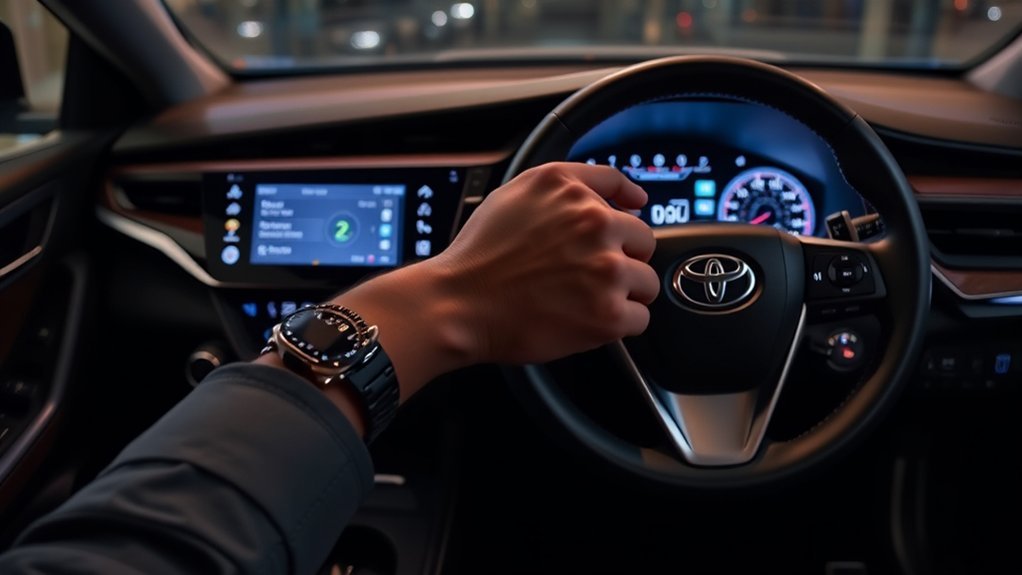
The Toyota Camry Multi-Information Display sits in the instrument cluster, directly in front of the driver. In most Camry models, you control it with the meter or MID switches on the steering wheel, not by touching the center multimedia screen.
Look for arrow buttons, a back button, and an OK or enter button on the steering wheel. Toyota’s 2025 Camry Quick Reference Guide describes these MID controls as the switches used to scroll, search screens, return to the previous screen, enter or set a selection, and reset some information by pressing and holding the enter button.
Before you start, park the vehicle in a safe place. Turn the ignition to ON, or READY on hybrid models, so the display is active. Then use the arrow buttons to move across the MID menu icons until you reach the settings display.
Warning: Do not customize the MID while driving. Display changes can distract you, especially if you need to scroll through several menus. Set up your preferred screens while parked, then use only quick glances while on the road.
Some Camry models also show related information through the center touchscreen, especially audio, phone, and navigation features. Still, the MID itself is usually changed through the steering-wheel controls. If a step does not match your car, check the “Multi-information display” section in your model-year owner’s manual.
Understand MID Display Types Before You Change Settings
Camry MID menus are not identical across every year and trim. Older models may use a smaller 4.2-inch display, many late-model trims use a 7-inch display, and newer or higher trims may have a 12.3-inch fully digital gauge cluster.
The larger digital cluster can show more information areas at once, while smaller screens may require more scrolling. Because of that, your Camry may use slightly different icons, menu names, or screen positions than another Camry.
| Display Type | What to Expect |
|---|---|
| 4.2-inch MID | Basic trip, fuel economy, warning, and vehicle information screens with more scrolling. |
| 7-inch MID or digital gauge cluster | More screen space for driving information, audio-linked display, vehicle information, settings, and warning messages. |
| 12.3-inch fully digital gauge cluster | Wider layout with multiple content areas on some trims, plus more visual display options. |
Note: Some features appear only when equipped. Navigation-linked display, head-up display settings, Road Sign Assist, tire pressure readings, and advanced driver-assistance settings may not appear on every Camry.
Customize Your MID Display Preferences
Once you open the settings display, scroll through the available options. Depending on your Camry, you may be able to change which driving information appears, adjust meter display settings, turn certain driver-assistance alerts on or off, or choose how some vehicle information is shown.
Common MID screens can include fuel economy, trip distance, digital speed, Eco driving information, audio-linked display, navigation-linked display, vehicle information, and warning messages. Toyota lists driving support information, driving information, vehicle information, audio system-linked display, settings display, and warning message display as MID categories in the 2025 Camry Quick Reference Guide.
Use the arrow buttons to highlight the item you want to change. Press OK or enter to open it. If the display shows a checkbox, toggle, or selection list, press OK again to change the setting. Use the back button to return to the previous screen.
Pro Tip: After changing a setting, turn the vehicle off, wait a moment, and restart it. If the MID keeps your choice, the setting saved correctly. If it reverts, check whether that screen is temporary, model-limited, or tied to a driver profile or vehicle condition.
Rearranging Information Layout for Easy Access
You may not be able to drag and drop widgets like you would on a phone. In most Camry MID systems, you use steering-wheel controls to choose supported screens, adjust display content, or change the order and style where your model allows it.
Think of the MID as a set of selectable information pages. Put the screens you use most often within easy reach, such as digital speed, current fuel economy, average fuel economy, tire pressure, or trip distance.
Selecting Display Preferences
Start with the information you check most often. For many drivers, that means speed, fuel economy, Trip A, Trip B, and warning messages. Hybrid Camry owners may also prefer energy monitor or Eco driving information when available.
Here’s a quick overview of common information categories you may see:
| Information Category | What It Shows | Best For |
|---|---|---|
| Fuel Economy | Current and average MPG, depending on model | Tracking efficient driving |
| Trip Information | Trip A, Trip B, distance, and average readings | Commutes, road trips, and fuel tracking |
| Tire Pressure | Tire pressure status or pressure readings if equipped | Routine tire checks and warning follow-up |
| Audio-Linked Display | Audio source, track, or station information when supported | Quick audio checks without looking at the center screen |
| Warning Messages | Vehicle alerts, service reminders, or system warnings | Checking alerts after a warning appears |
Scroll through the available settings and select the screens that match your routine. Save or exit according to the prompt on your display. Some settings save automatically after you select them.
Arranging Information Widgets
On Camry models that support a more flexible digital gauge layout, you may be able to choose what appears in the left, center, or right information area. On simpler displays, you may only be able to choose which page to view.
Use this practical layout if your display supports it:
- Center area: Keep the information you need most, such as digital speed or driver-assistance status.
- Left or right area: Use secondary data, such as fuel economy, range, or audio details.
- Warning screen: Leave warning messages easy to access so you can review alerts after they appear.
If your MID does not offer layout placement, you can still customize your driving view by choosing a preferred default screen before you start driving.
How to Use MID for Navigation and Audio Control
The MID can show navigation-linked and audio-linked information on equipped Camry models. This does not replace the center multimedia screen, but it can reduce how often you need to glance away from the instrument cluster.
For navigation, the MID may show turn-by-turn prompts when route guidance is active through the Toyota multimedia system or a supported connected phone feature. For audio, it may show the source, station, track, or artist information, depending on your system and active audio source.
| Function | Description | Important Note |
|---|---|---|
| Navigation-Linked Display | Shows route guidance or turn prompts when supported and active. | Requires compatible navigation or phone projection features. |
| Audio-Linked Display | Shows audio source or track details when supported. | Use steering-wheel audio buttons for quick changes when available. |
| Phone and Device Info | May show call or media information from a connected device. | Set up pairing while parked through the multimedia system. |
If navigation or audio details do not appear in the MID, check three things: the feature must be equipped, the compatible app or audio source must be active, and the MID must be set to the correct linked display screen.
Keeping an Eye on Vehicle Alerts and Info
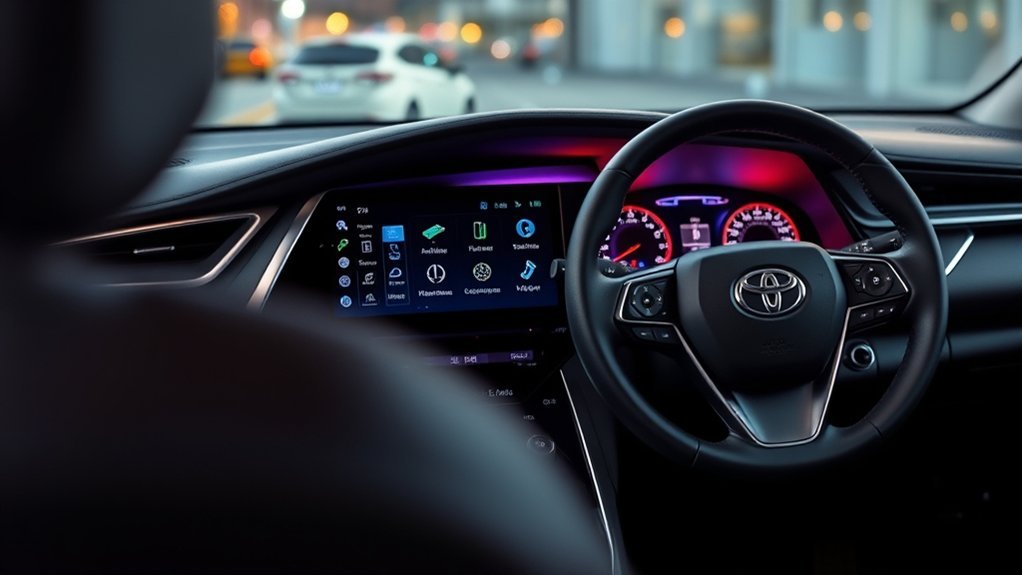
The MID is also a warning and vehicle-information hub. If your Camry detects a system issue, maintenance reminder, low tire pressure, or driver-assistance alert, the MID can show a message or icon to help you respond.
Do not ignore warning messages. Some are reminders, but others may involve safety systems, tire pressure, braking, hybrid system status, or driver-assistance features. If a warning stays on after basic checks, use your owner’s manual or contact a Toyota dealer.
Display Maintenance Alerts
Maintenance messages can remind you about service-related items, depending on model year and settings. Common reminders may involve scheduled service, oil maintenance, or tire service intervals.
After completing service, some reminders may need to be reset through the MID or vehicle settings menu. Only reset a maintenance reminder after the service has actually been completed.
Monitor Fuel Economy
The fuel economy screen helps you track how your driving habits affect MPG. Depending on your Camry, you may see current fuel economy, average fuel economy, range, Eco driving indicator, or trip-based fuel data.
Use Trip A for everyday driving and Trip B for a specific road trip, fuel tank, or maintenance interval. Resetting one trip meter does not need to erase all vehicle settings.
Tire Pressure Notifications
If your Camry shows a tire pressure warning, check the tires as soon as it is safe. The Tire Pressure Monitoring System can warn you when a tire is significantly underinflated, but it does not replace regular tire checks with a gauge.
The recommended cold tire pressure is listed on the Tire and Loading Information Label on the driver’s door area or in your owner’s manual. Check tire pressure when the tires are cold, meaning the vehicle has been parked for at least three hours.
If the TPMS light stays on after you inflate the tires correctly, your Camry may need a TPMS initialization or reset procedure. If the warning flashes and then remains on, the system may have a malfunction and should be inspected.
The MID is helpful, but it is not a replacement for the owner’s manual, regular tire pressure checks, or professional diagnosis when a warning message stays on.
Reset Your Trip Data and Restore Defaults
Resetting trip data is one of the most useful MID functions. It lets you track a commute, fuel tank, road trip, or maintenance interval from zero.
To reset trip data, use the MID controls to open the trip information screen. Select Trip A or Trip B. Then press and hold the OK, enter, or reset button until the selected trip reading resets. Toyota’s 2025 Camry guide notes that pressing the MID control button enters or sets a selection, while pressing and holding resets supported information.
Use this simple approach:
- Park safely and turn the vehicle to ON or READY.
- Use the steering-wheel arrows to open the trip or driving information screen.
- Select Trip A or Trip B.
- Press and hold OK, enter, or the reset control until the reading returns to zero.
- Confirm that you reset only the trip meter you intended to reset.
If you want to restore display settings to their default layout, open the settings display and look for a reset, default, or meter settings option. The exact wording varies. Be careful because a full reset can erase preferences you may want to keep.
Note: Resetting Trip A or Trip B usually affects only that trip meter. Restoring meter or vehicle settings can affect more display preferences, so read the confirmation prompt before selecting OK.
What You Can and Cannot Customize
A good MID setup depends on knowing the limits. You can usually choose from available information screens, adjust supported meter settings, view warning messages, and reset trip data. On equipped models, you may also adjust some driver-assistance display or alert settings.
You usually cannot add custom third-party widgets, drag icons freely across the MID, or upload a custom startup image through the MID. Some center touchscreen themes or startup behavior may vary by multimedia system, but that is separate from the instrument-cluster MID.
| Usually Supported | Usually Not Supported Through the MID |
|---|---|
| Choosing available display screens | Adding custom apps or third-party widgets |
| Resetting Trip A or Trip B | Uploading a custom startup image |
| Viewing warning messages | Replacing Toyota warning icons with custom icons |
| Changing supported driver-assistance settings | Changing safety-system behavior beyond Toyota’s available settings |
Troubleshooting Common Display Issues and Solutions
If the MID does not behave the way you expect, the cause is often a model difference, a disabled feature, an inactive audio or navigation source, or a temporary warning that needs attention.
| Problem | Likely Cause | What to Do |
|---|---|---|
| A menu is missing | The feature is not equipped or not active. | Check your trim, owner’s manual, and whether the related system is turned on. |
| Settings do not save | The screen may be temporary, or the change may not be supported. | Change the setting while parked, exit the menu properly, and restart the vehicle to test it. |
| Navigation does not show in the MID | Route guidance is not active, or navigation-linked display is not equipped. | Start a route and select the navigation-linked screen if available. |
| Audio info does not appear | The audio-linked screen is not selected, or the source does not provide track data. | Select the audio-linked display and try a different audio source. |
| TPMS warning stays on | One or more tires may be underinflated, or the TPMS may need initialization or service. | Check cold tire pressure, inflate to the door-label pressure, follow the manual reset procedure, and seek service if the warning remains. |
| Display is dim or hard to read | Brightness, headlight status, or day/night mode may affect visibility. | Adjust meter brightness while parked and check whether headlights are on. |
For persistent issues, look for software updates in the multimedia system if your model supports them, then review the owner’s manual. If a warning light or safety-system message remains, do not rely on a forum fix. Have the vehicle inspected.
Related Guides
Frequently Asked Questions
How do I customize my Toyota Camry screen?
To customize the Camry MID screen, use the steering-wheel MID controls to open the settings display. Scroll through the available information screens, select the items you want, and press OK or enter to change supported settings. Use the center touchscreen for multimedia settings, not every MID setting.
How do I change the Toyota dashboard screen?
Use the steering-wheel arrow buttons to move through the MID screens. When you reach the screen or setting you want, press OK or enter. On some models, pressing and holding the OK or reset control resets trip data or opens deeper settings.
Can I change the startup screen on my Toyota Camry?
Most Camry MID menus do not let you upload a custom startup image. Some multimedia-screen themes, profiles, or welcome settings may vary by model year and trim, but those settings are separate from the instrument-cluster MID. Check your owner’s manual before assuming the feature is available.
Can you customize a Toyota Camry MID layout?
Yes, but only within the options Toyota provides for your model. You can usually choose display screens, view warning messages, reset trip data, and adjust supported meter or vehicle settings. Full drag-and-drop widgets or custom app-style layouts are usually not available through the MID.
Why does my Camry MID look different from online videos?
Your display may differ because Toyota changes MID layouts by model year, trim, market, and equipment package. A Camry with a 12.3-inch digital gauge cluster will not show the same layout as an older model with a smaller 4.2-inch or 7-inch display.
How do I reset Trip A or Trip B on a Toyota Camry?
Open the trip information screen with the MID controls, select Trip A or Trip B, then press and hold the OK, enter, or reset control until the selected trip meter resets. Do this while parked so you do not distract yourself while driving.
Conclusion
Your Toyota Camry’s Multi-Information Display becomes more useful once you set it up around the information you check most. Start with the steering-wheel MID controls, choose your preferred driving and vehicle information screens, and keep warning messages easy to access.
Stick to the features your Camry actually supports, and avoid chasing settings from a different model year or trim. If a warning stays on, especially for tire pressure or a safety system, check the owner’s manual and handle the issue before your next long drive.
Sources
- Toyota 2025 Camry Quick Reference Guide — MID control switches, display categories, enter/set, and reset behavior.
- Toyota 2025 Camry Owner’s Manual page — official owner-manual access for model-specific MID and vehicle settings.
- Toyota 2025 Multimedia Owner’s Manual — multimedia, audio, phone, and navigation system operation.
- NHTSA TireWise Tire Safety — tire pressure, TPMS warnings, monthly tire checks, and tire maintenance guidance.
- U.S. Department of Transportation In-Vehicle Distraction Guidelines — safety guidance on limiting eyes-off-road tasks while using in-vehicle technology.

