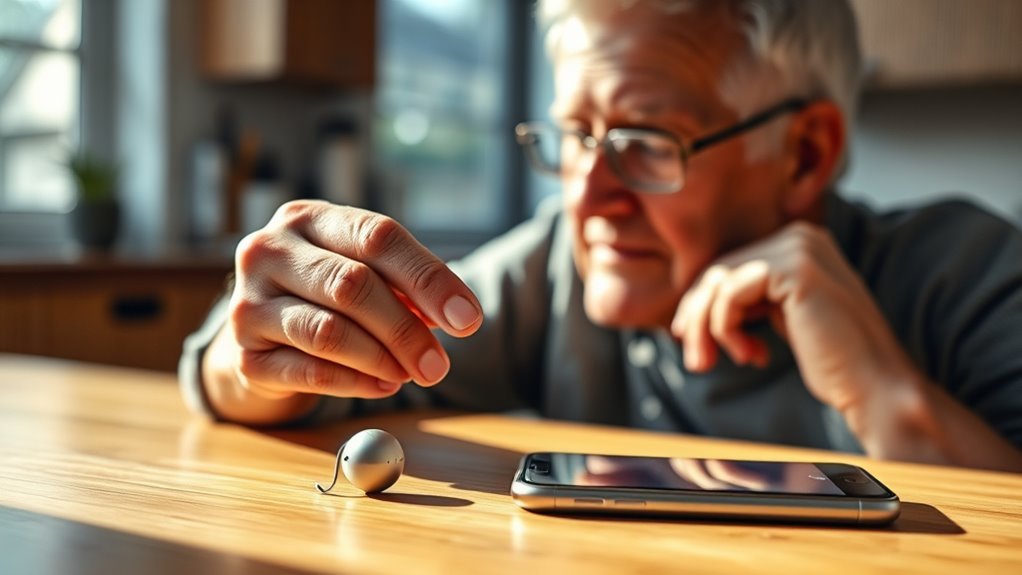
Phonak Audéo Sphere Infinio hearing aids can stream calls, music, videos, and other iPhone audio while the myPhonak app provides volume, program, and sound controls. The exact setup depends on whether the hearing aids use the newer Infinio Ultra software, because Ultra devices can combine app, call, and streaming setup into a simpler pairing process.
Quick Answer
To pair Phonak Sphere hearing aids with an iPhone, turn on Bluetooth, restart the hearing aids to open their three-minute pairing window, and follow the pairing prompts in myPhonak or Settings > Bluetooth. Infinio Ultra devices can enable app control, calls, and audio streaming during the same myPhonak setup.
Key Takeaways
- Current myPhonak versions support compatible iPhones running iOS 16 or newer.
- Phonak uses standard Bluetooth for calls and media plus Bluetooth Low Energy for app communication; it does not rely on Apple’s MFi hearing-aid pairing system.
- Infinio Ultra and newer devices use a simpler one-step myPhonak pairing process for app control, calls, and streaming.
- Earlier Sphere Infinio configurations may require separate pairing for myPhonak and for calls/media.
- If connections fail, restart Bluetooth, the hearing aids, and the iPhone before performing a full forget-and-re-pair reset.
At a Glance
| Time Required | About 5–10 minutes |
| Difficulty | Easy |
| Tools Needed | iPhone, Phonak Sphere hearing aids, charger, and myPhonak app |
| Cost | Free |
How to Pair Phonak Hearing Aids to iPhone
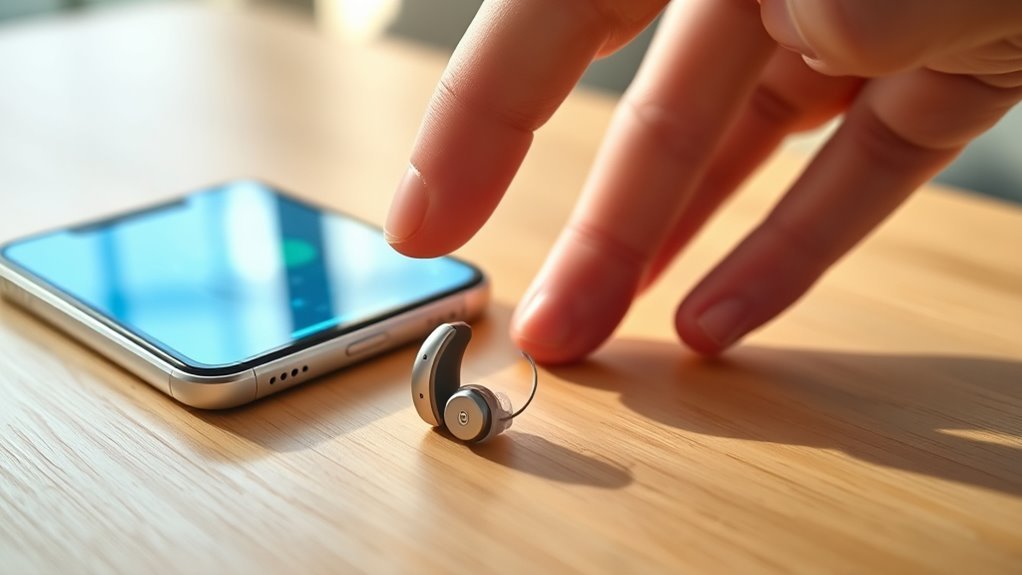
Before pairing, make sure the hearing aids have enough charge and that Bluetooth is enabled under Settings > Bluetooth on the iPhone. Current versions of myPhonak require a compatible iPhone running iOS 16 or newer.
Phonak places its hearing aids into Bluetooth pairing mode for about three minutes after they restart. For rechargeable Audéo Sphere devices, place them in a powered charger for several seconds and remove them, or use the buttons to switch them off and back on. A green indicator shows that the devices have restarted.
Pair Infinio Ultra Sphere Through myPhonak
If your Audéo Sphere Infinio hearing aids have the Infinio Ultra update or are a newer Phonak model, the simplest method is to pair them through myPhonak.
- Install or update the myPhonak app from the App Store.
- Open Settings > Bluetooth and make sure Bluetooth is on.
- Open myPhonak and continue through the initial setup screens.
- Choose Pair hearing aids.
- Restart both hearing aids so they enter their three-minute pairing window.
- Wait for both hearing aids to appear in myPhonak.
- Tap the pairing button and accept each Bluetooth pairing request that appears on the iPhone.
- Wait until myPhonak confirms that setup is complete.
For Infinio Ultra devices, pairing through myPhonak also enables compatible phone calls and Bluetooth audio streaming, so a second manual audio-pairing procedure should not normally be necessary. Phonak explains the current process in its myPhonak iPhone pairing guide.
Note: Existing Audéo Sphere Infinio hearing aids may have been upgraded to Infinio Ultra by a hearing care professional. If your Bluetooth screen or pairing process looks different from older instructions, the software version may be the reason.
Pair Earlier Sphere Infinio Versions for Calls and Media
If your Sphere Infinio hearing aids are running an earlier, non-Ultra configuration, pairing with myPhonak and pairing for calls/media may be separate processes.
- Open Settings > Bluetooth on the iPhone.
- Make sure Bluetooth is turned on.
- Restart the hearing aids to enter pairing mode.
- Wait for a name such as R-Phonak hearing aid, L-Phonak hearing aid, or a custom name chosen by your hearing care professional to appear.
- Tap the hearing-aid name.
- Wait for the confirmation tone or successful connection message.
On earlier generations, only one Bluetooth Classic entry may be used for calls and media even when two hearing aids are worn. Audio is then delivered through the paired hearing-aid system to both ears.
Phonak’s current manufacturer instructions are available in its iPhone Bluetooth pairing guide.
Pro Tip: If the hearing aids immediately reconnect to a nearby tablet, computer, or old phone instead of entering pairing mode for the iPhone, temporarily turn Bluetooth off on those other devices and restart the hearing aids again.
If you use another Phonak model with replaceable batteries rather than rechargeable Sphere devices, opening the battery doors for a few seconds and closing them restarts those models and begins their pairing window.
Set Up myPhonak for Streaming and Controls
The myPhonak app is Phonak’s supported control app for compatible hearing aids. It uses Bluetooth Low Energy to communicate with the hearing aids while calls and media use the hearing aids’ Bluetooth audio connection.
Phonak uses Bluetooth audio for calls and media and Bluetooth Low Energy for app communication, which is why more than one Phonak entry can appear in an iPhone’s Bluetooth list.
Depending on the Sphere version and fitting, myPhonak can provide controls for:
- hearing-aid volume;
- program selection;
- equalizer and sound personalization;
- the balance between streamed audio and surrounding sound;
- supported Audéo Sphere speech-focus and noise-reduction controls;
- battery information;
- custom programs;
- Remote Support appointments where the service is available; and
- Find My Hearing Aids on supported devices.
These controls modify the options made available by the hearing-aid fitting. They do not replace the underlying prescription or professional fitting performed by a hearing care professional.
Use Auto-on Correctly
For rechargeable Phonak hearing aids, Auto-on allows the devices to turn on automatically after they are removed from the charger. Phonak enables this feature by default on supported models, and it can be changed in myPhonak.
Placing the hearing aids in the charger is therefore useful when restarting them for pairing, but Auto-on does not mean that they turn on while they remain in the charger.
Set Up Find My Hearing Aids
On supported Audéo Sphere/Infinio devices, Find My Hearing Aids can show the last place the devices were connected and provide proximity guidance when you move closer to them.
The feature must be available and activated for the hearing aids, and myPhonak needs the required location permission to record their last connected location. Phonak describes current myPhonak features on its official myPhonak page.
Which iPhone Features Work With Phonak Hearing Aids?
Audéo Sphere Infinio supports the main iPhone functions most wearers expect: calls, media streaming and app-based hearing-aid control. However, it is important to distinguish Phonak’s universal Bluetooth connection from Apple’s separate Made for iPhone (MFi) hearing-device system.
| Feature | Sphere + iPhone Behavior |
| Phone calls | Yes. Compatible Phonak hearing aids can stream calls and support hands-free use. |
| Music, video and podcasts | Yes. Standard Bluetooth audio is streamed directly to the hearing aids. |
| myPhonak controls | Yes, when the phone and hearing aids meet myPhonak compatibility requirements. |
| Notification sounds | They can play through the Bluetooth stream when the iPhone generates an audible alert. |
| Find My Hearing Aids | Available through myPhonak on supported Sphere/Infinio configurations. |
| Apple MFi Hearing Devices menu | Do not expect the same controls as an Apple-listed MFi hearing aid because Phonak uses its universal Bluetooth system. |
Note: If an Apple instruction tells you to open Settings > Accessibility > Hearing Devices and your Phonak Sphere does not appear there as an MFi device, that does not mean normal Phonak Bluetooth streaming is broken. Check Settings > Bluetooth and myPhonak instead.
Apple maintains a separate list of Made for iPhone hearing devices. Phonak documents its own compatibility around standard Bluetooth audio profiles and myPhonak rather than Apple’s MFi pairing system.
How iPhone Notifications Behave
A text message, email alert, keyboard sound, lock sound or other audible notification can activate the hearing aids’ Bluetooth streaming program because the iPhone is sending an audio signal.
If frequent alerts keep interrupting listening, adjust the relevant options under Settings > Notifications and Settings > Sounds & Haptics. Muting the hearing-aid microphones inside myPhonak does not mute incoming iPhone calls or notification sounds.
Fix Phonak iPhone Pairing and Streaming Problems
If Phonak Sphere hearing aids stop connecting, separate the problem into two parts: myPhonak app communication and Bluetooth calls/media. One connection can sometimes work while the other does not.
Start With These Quick Fixes
- Make sure Bluetooth is on.
- Close and reopen myPhonak.
- Turn iPhone Bluetooth off and back on.
- Restart both hearing aids.
- Restart the iPhone.
- Confirm that both hearing aids have adequate battery charge.
- Update iOS and myPhonak if updates are available.
Phonak recommends these basic steps before deleting pairings or reinstalling the app.
If the Hearing Aids Do Not Appear in Bluetooth
The hearing aids are discoverable for only about three minutes after restarting. Restart them again if that window has expired.
Also turn off Bluetooth temporarily on other previously paired phones, tablets or computers. If two already-paired devices are nearby, the hearing aids may reconnect to them instead of remaining available for a new pairing.
If You See Several Phonak Bluetooth Entries
Multiple entries can be normal because myPhonak and streamed audio use different Bluetooth connections.
On older, pre-Ultra configurations, users may see a main R-Phonak or L-Phonak connection for calls and streaming plus separate low-energy entries for the left and right devices.
Infinio Ultra/newer configurations use an updated pairing design, so the number and naming of entries can differ. Do not delete low-energy entries simply because they display as disconnected when myPhonak is closed.
Perform a Full Bluetooth and myPhonak Reset
If ordinary restarts do not work, Phonak recommends removing the existing pairings and pairing again.
- Open Settings > Bluetooth on the iPhone.
- Find every Bluetooth entry associated with the Phonak hearing aids.
- Tap the information icon beside each relevant entry and select Forget This Device.
- Open myPhonak.
- Open Devices and the hearing-aid/product information area.
- Select Forget my devices.
- Restart the hearing aids.
- Return to myPhonak and complete pairing again.
If the connection still cannot be restored, Phonak recommends reinstalling myPhonak and repeating setup. See the manufacturer’s iPhone connection-repair instructions.
Warning: Forgetting Bluetooth devices removes the current phone pairing. Make sure you can restart the hearing aids and complete the pairing process before deleting the connections. Do not change professional fitting parameters simply to solve an iPhone Bluetooth problem.
If Only One Hearing Aid Connects to myPhonak
Open myPhonak and check whether both devices appear under the hearing-aid/device information area. If only one was paired during setup, forget the devices in myPhonak and pair the pair again together.
Also check the battery level of each hearing aid. If both aids still cannot be detected as a pair after a complete reset, the fitting relationship between the two devices may need to be checked by a hearing care professional.
If Bluetooth Audio Cuts Out or Sounds Static
Phonak lists several common causes of choppy streaming, static or dropouts:
- the phone is too far from the hearing aids;
- the phone is buried in a pocket or bag where the Bluetooth signal is partly blocked;
- other 2.4 GHz wireless devices are creating interference;
- too many phone applications are active;
- the iPhone or hearing-aid batteries are low;
- Power Saver settings are affecting communication; or
- the Bluetooth pairing needs to be recreated.
Keep the iPhone reasonably close with as few physical obstacles as possible. Restart and re-pair if the problem continues. Phonak provides additional recommendations in its Bluetooth audio troubleshooting guide.
If You Hear the Caller but They Cannot Hear You Clearly
Phonak hands-free calling normally uses the hearing-aid microphones for your voice. In a noisy place, that microphone input may not always give the other caller the clearest result.
On supported current iPhone software, Phonak documents an option to switch the call microphone input to the iPhone microphone while continuing to hear the caller through the hearing aids. Because iPhone menus can change between iOS releases, check the active-call controls if the hearing-aid microphone is not working well.
Phonak’s current instructions are available in its iPhone microphone troubleshooting guide.
Choose the Best Phonak Settings for Calls and Media
Audéo Sphere normally handles Bluetooth calls and media automatically, so there is usually no need to manually select a special “phone” or “TV” program each time the iPhone plays audio.
For Phone Calls
- Allow the Bluetooth call stream to activate automatically.
- Set the iPhone call volume to a comfortable level while the call is active.
- Use myPhonak to fine-tune hearing-aid volume or the balance between streamed sound and the microphones when those controls are available.
- If the other caller struggles to hear you, test the iPhone microphone option.
For Music, Videos and Podcasts
- Start the media on the iPhone and let the Bluetooth streaming program activate automatically.
- Adjust the phone volume first, then refine the hearing-aid sound in myPhonak.
- Use equalizer or streaming adjustments if your fitting and myPhonak version provide them.
- A TV Connector or TV-specific streaming input is a separate source and is not required for normal iPhone media playback.
For Everyday Listening
Let the hearing aids’ automatic listening system manage normal acoustic environments unless you have a reason to select a custom program. Audéo Sphere’s professional fitting remains the foundation; myPhonak adjustments are intended to personalize that fitting rather than replace it.
Keep the iPhone and myPhonak reasonably current because operating-system and app updates can fix compatibility problems. Firmware or fitting-software changes for the hearing aids themselves should be handled through your hearing care professional when required.
Frequently Asked Questions
What iPhone Settings Affect Hearing Aid Use?
The most important settings are Bluetooth, notification sounds, Sounds & Haptics, and any current call-audio controls available on the iPhone. myPhonak must also have the permissions it needs. Do not assume Apple’s MFi Hearing Devices menu applies to Audéo Sphere, because Phonak uses its own universal Bluetooth connection.
What Are the Pros and Cons of Audéo Sphere?
For iPhone users, useful Audéo Sphere features include direct Bluetooth calls and media, hands-free calling, myPhonak sound controls, automatic listening programs, and supported Find My Hearing Aids functions. A limitation is that Phonak does not use Apple’s MFi hearing-device system, so some MFi-specific Apple controls and menus do not work in the same way. Bluetooth performance can also be affected by distance, interference, phone placement and software issues.
How Do I Adjust the Settings for My Hearing Aid on My iPhone?
Open myPhonak after the hearing aids are paired. Depending on your model, fitting and app version, you can adjust volume, programs, equalizer settings, streaming balance and other personalization controls. Save a custom program if the app offers that option and you want to reuse the same adjustments later.
What Is the Best Hearing Aid App for iPhone?
For Phonak Audéo Sphere users, myPhonak is the manufacturer-supported app and is normally the appropriate app for controlling compatible Phonak features. There is no single “best” hearing-aid app for every iPhone user because hearing-aid apps are designed around specific brands and models.
Why Do I See More Than One Phonak Device in iPhone Bluetooth Settings?
Phonak uses different Bluetooth connections for app communication and audio streaming. Older configurations can therefore show a main R-Phonak or L-Phonak audio connection plus separate low-energy entries for myPhonak. Infinio Ultra changed this pairing architecture, so the number of visible entries can differ by software generation.
Why Do Notifications Keep Playing Through My Phonak Hearing Aids?
When the iPhone plays an audible notification, Phonak can treat that sound like other Bluetooth audio and activate the streaming program. Reduce unwanted interruptions by changing individual app notifications, keyboard sounds, lock sounds or other options under Notifications and Sounds & Haptics.
Conclusion
Phonak Audéo Sphere Infinio hearing aids work well with iPhone for Bluetooth streaming, hands-free calls and myPhonak control when the correct pairing process is used. The biggest setup difference is whether the devices are running Infinio Ultra, which simplifies app and audio pairing, or an earlier configuration that may use separate connections.
If the connection becomes unreliable, start with simple restarts before deleting Bluetooth pairings. For persistent dropouts, one-sided app connections, fitting issues or uncomfortable sound, contact a hearing care professional. myPhonak can personalize an established fitting, but it is not a substitute for professional audiological programming.
Sources
- Phonak — Pair hearing aids with iPhone for calls and media — pairing mode, Bluetooth setup and Infinio Ultra behavior.
- Phonak — myPhonak App — current app compatibility, controls, Remote Support and Find My Hearing Aids.
- Phonak — Bluetooth Compatibility — Bluetooth audio and smartphone compatibility requirements.
- Phonak — Repair myPhonak Connection Issues on iPhone — restart, forget-device and re-pair procedures.
- Phonak — Troubleshoot Poor Bluetooth Audio — dropouts, interference, phone placement and power-related troubleshooting.
- Apple — List of Made for iPhone Hearing Devices — current MFi hearing-device compatibility and system requirements.
