
A normal laptop can often operate at a CPU temperature of 80°C, especially under sustained load. Modern processors are built to tolerate heat in that range, but the margin is not ideal. Thermal stress may reduce efficiency over time and signal limited cooling capacity. The key question is not whether it can run, but how long it can remain there before performance, stability, and hardware wear begin to shift.
Is 80°C Safe for a Gaming Laptop CPU?
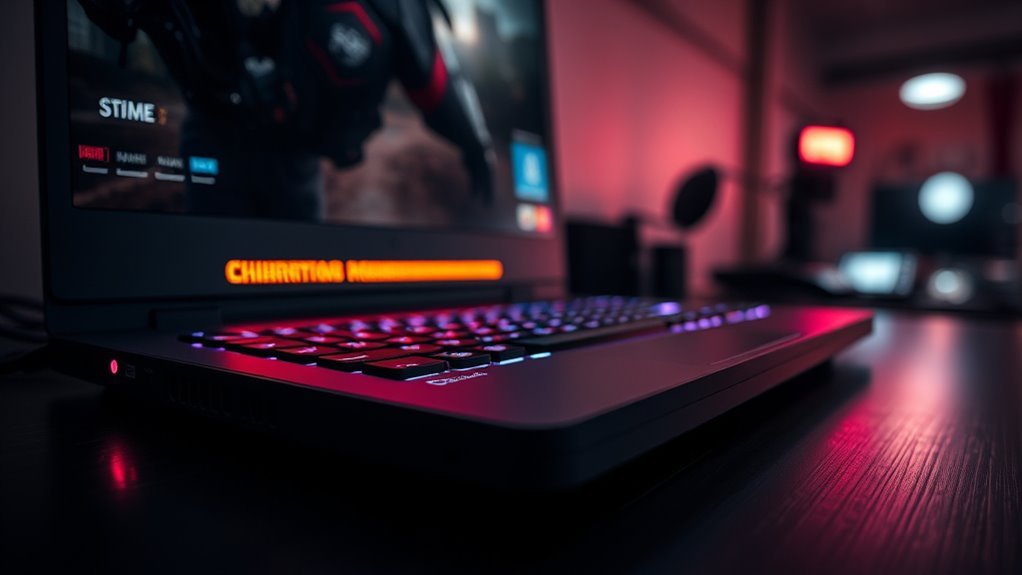
Yes—an 80°C CPU temperature during gaming is generally within the safe operating range for a modern gaming laptop. At this level, the processor is typically functioning as designed, with no immediate risk of damage.
For most high-performance systems, a CPU temperature between 70°C and 85°C is normal under sustained load, and brief spikes near 90°C are usually acceptable. However, sustained exposure to 80°C can incrementally shorten CPU lifespan over time, so monitoring remains prudent.
The presence of thermal throttling features, often triggered near 100°C, provides an additional safeguard against overheating. In practical terms, the key issue is not panic, but disciplined management.
Effective cooling solutions, adequate airflow, and regular maintenance help preserve performance and autonomy for the user. Within this framework, 80°C should be viewed as tolerable, though not ideal, for a gaming laptop under demanding conditions.
Why Gaming Laptops Heat Up Under Load?
Gaming laptops heat up under load because their CPUs and GPUs draw substantial power during demanding tasks, converting much of that energy into heat.
In compact Gaming Laptops, restricted chassis volume limits airflow, so heat accumulates faster than in desktops. As games become more demanding, the machine gets hot because rendering, physics, and AI workloads raise electrical demand and thermal output.
Fans and vents must expel this heat, yet dust, blocked intake paths, or degraded thermal paste reduce transfer efficiency. Ambient heat worsens the problem by narrowing the temperature gradient needed for cooling.
Overclocking and maximum graphics settings intensify power draw, increasing the load on every component. A cooling pad can help by improving external airflow, but it does not remove the root cause: dense hardware operating near its thermal limits.
- High power density creates rapid heat buildup.
- Limited airflow constrains dissipation.
- Thermal paste quality affects transfer efficiency.
- Cooling pad support can lower chassis temperatures.
What Laptop CPU and GPU Temps Are Normal?
Laptop CPU and GPU temperatures are generally considered normal when they remain within expected workload-specific ranges rather than staying at a single fixed value. For normal operating behavior, a laptop at idle usually shows 30-50°C on both chips, while light workloads often sit at 50-70°C. During gaming, CPU temperatures and GPU temperatures commonly rise to 70-85°C, with brief peaks near 90°C still acceptable if they do not persist.
| Condition | CPU | GPU |
|---|---|---|
| Idle | 30-50°C | 30-50°C |
| Light work | 50-70°C | 50-70°C |
| Gaming | 70-85°C | 70-85°C |
Sustained readings above 85°C deserve attention, because prolonged exposure beyond 90°C can trigger thermal throttling and gradual wear. Regular monitoring allows users to identify when the system is operating within safe limits and when cooling performance is no longer sufficient for free, stable computing.
How Can You Lower Gaming Laptop Temperatures?
When gaming loads push laptop temperatures toward the upper end of the normal range, several targeted measures can reduce heat output and improve airflow. A quality cooling pad with integrated fans can draw in cool air beneath the chassis, often cutting temperatures by 5-10°C.
Regular maintenance matters: clean exhaust vents and internal fans every 3-6 months with compressed air to limit dust buildup and preserve thermal efficiency.
Clean exhaust vents and internal fans every 3-6 months with compressed air to keep dust buildup low and efficiency high.
- Cap frame rates to reduce CPU and GPU load.
- Enable VSync when lower input urgency is acceptable.
- Set maximum CPU usage to 99% in power options.
- Reapply thermal paste on older or second-hand systems.
These adjustments lower heat generation without surrendering usable performance, supporting steadier operation and a longer laptop’s lifespan.
Strategic tuning restores control to the user, allowing the machine to run less constrained by wasteful thermal stress and more aligned with intended workloads.
When Does 80°C Become a Problem?
An 80°C CPU temperature is generally acceptable in a modern laptop during sustained heavy workloads, but it begins to matter when it remains there for long periods. At that point, the CPU temperature is less a momentary reading and more an indicator of thermal strain.
Intel processors usually engage thermal throttling near 100°C, so 80°C is not an immediate danger. However, gaming laptops that sit above 80°C continuously may have restricted airflow, dust buildup, or undersized cooling solutions.
If temperatures regularly exceed 85°C, performance can drop and component wear accelerates. Reaching 90°C or higher repeatedly is a stronger warning, because sustained heat can damage the CPU, battery, and nearby circuitry, raising the risk of hardware failure.
Monitoring tools and maintenance help preserve thermal freedom, prevent unnecessary throttling, and keep the system operating within a durable range.
Frequently Asked Questions
Is 80 Celsius Too Hot for a Laptop CPU?
80°C is generally not too hot for a laptop CPU, but it is near the upper edge of normal under load.
At this level, cooling solutions should be considered, along with fresh thermal paste, because sustained heat can shorten laptop lifespan and trigger performance throttling.
Regular monitoring for overheating signs remains essential.
In practical terms, the machine can function, yet thermal liberation from excess heat improves stability and long-term performance.
My CPU Is Running at 80 Degrees Celsius. Is This Normal?
Yes—80°C is often normal under load, like a furnace breathing through vents.
Monitoring Tools should confirm whether it appears during gaming or bursts, not idle. The Performance Impact is usually modest, though sustained heat can reduce Hardware Lifespan.
Inspect Cooling Solutions, clean dust, and consider new Thermal Paste if temperatures remain elevated.
For a liberated, well-tuned machine, steady thermal control preserves performance without surrendering to avoidable stress.
Is 80 Degrees Celsius Hot for a CPU During Gaming?
Yes, 80°C is generally hot but acceptable for a CPU during gaming. It usually indicates adequate CPU cooling under load, though sustained operation at that level can affect hardware longevity.
If temperatures rise further, thermal throttling may reduce gaming performance to protect the chip. Effective heat management, including clean vents and airflow, helps maintain stability.
For those seeking liberated use, this is typically within normal limits for modern systems.
What Temperature Is Too Hot for a Laptop CPU?
Too warm becomes a laptop CPU when sustained temperatures approach 85°C, with the danger zone nearing 95–100°C.
At that point, thermal throttling may appear, causing measurable performance impact.
Cooling solutions such as cleaning vents, improving airflow, or repasting can reduce strain.
For long term effects, repeated heat stress may shorten hardware longevity.
A liberated user benefits from monitoring temperatures and keeping heavy workloads below these thresholds whenever possible.
Conclusion
To sum up, a laptop CPU sitting at 80°C can still operate normally, much like an engine running hot on a steep climb. For many systems, this temperature remains within safe limits under heavy load, especially in gaming laptops. Yet sustained heat is a warning signal, not a verdict. If the temperature lingers like a trapped summer haze, cooling performance should be checked to prevent throttling, instability, and gradual wear over time.
