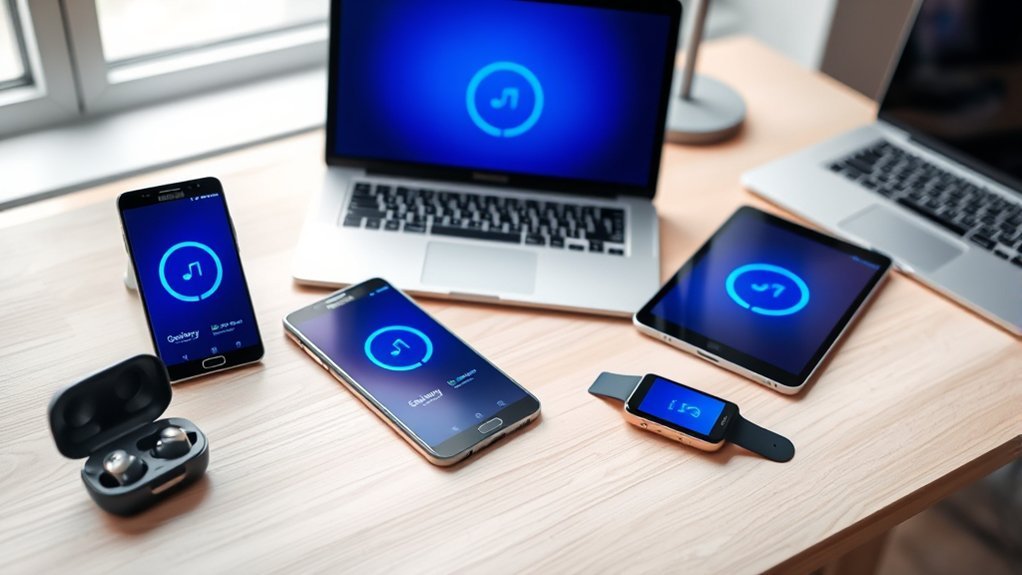
Samsung Galaxy ecosystem software lets your phone, tablet, and computer share files, continue tasks, and work together. However, each feature has its own device and software requirements. Setting up the right accounts, updating the necessary apps, and enabling the correct connection settings will help you avoid common pairing and synchronization problems.
Quick Answer
To set up Samsung Galaxy ecosystem software, update your devices, sign in with the same Samsung account, and enable Wi-Fi and Bluetooth. Configure Quick Share for file transfers, Phone Link for Windows integration, and Multi Control for shared keyboard and mouse input. Feature availability depends on your device model, operating system, and app versions.
At a Glance
| Difficulty | Basic account and device settings |
| Tools Needed | Compatible Galaxy devices, a Samsung account, and a supported Windows PC for computer features |
Check Samsung Galaxy Ecosystem Software Compatibility
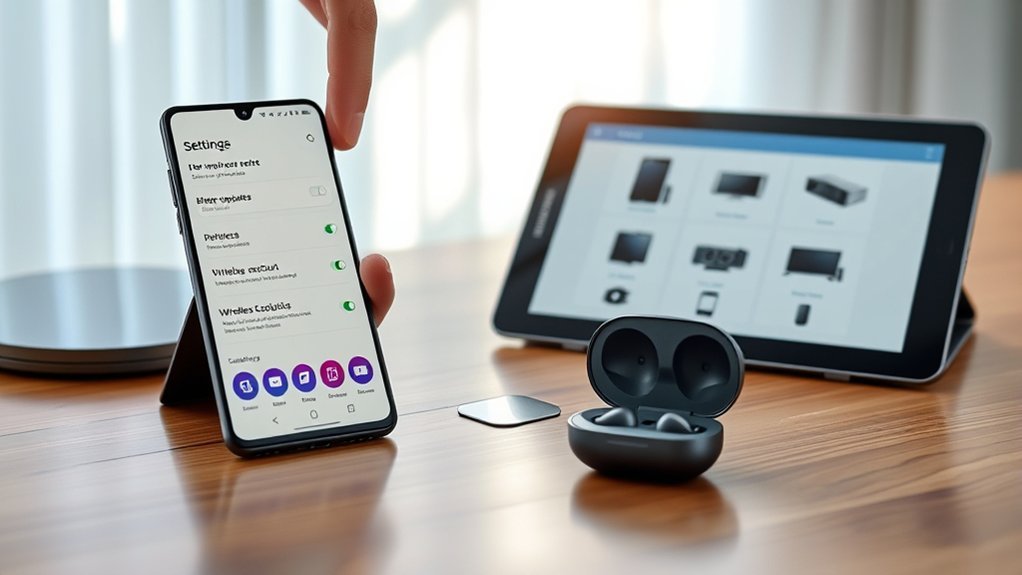
Before installing or configuring anything, check whether your devices support the features you want. Samsung Galaxy ecosystem software does not have one universal minimum One UI version. Quick Share, Recent Websites, Instant Hotspot, and Multi Control have different requirements.
Samsung’s connected experience documentation explains which device combinations support its cross-device features.
Galaxy Phone, Tablet, and PC Requirements
The following table shows the main compatibility requirements. These are feature-specific minimums, not a guarantee that every device with the listed software supports every function.
| Feature | Compatibility Requirements |
|---|---|
| Quick Share | Galaxy devices with Android 10 and One UI 2.1 or later. Supported Windows PCs generally require Windows 10 version 2004 or later and compatible wireless hardware. |
| Continue Apps | Compatible Galaxy phones and tablets running One UI 3.1 or later. |
| Recent Websites | Supported Galaxy S, Note, Z Fold, and Z Flip phones with One UI 3.1.1 or later, Samsung Internet, and compatible Phone Link software. |
| Phone Link | Android 10 or later and Windows 10 with the October 2022 update or later, or Windows 11. Some functions require selected Samsung models. |
| Instant Hotspot | Supported Galaxy phones with One UI 4.1.1 or later and Bluetooth-capable PCs running Windows 11 version 22H2 or later. |
| Multi Control | Compatible Galaxy phones, tablets, and supported Galaxy Book models. Requirements vary by device generation and software version. |
| Nearby Devices | Full functionality requires supported Galaxy phones or tablets with One UI 7 or later. Compatible Galaxy Books also need supporting Samsung software. |
Samsung lists Windows 10 version 20H1 as the original PC baseline for Recent Websites. However, Microsoft’s current Phone Link requirements specify Windows 10 with the October 2022 update or later. Use the newer requirement when configuring Phone Link.
Feature availability can also vary by region, carrier, model, and supported apps.
Check Your Installed Software Versions
Use these checks to identify your current software before attempting setup:
- On your Galaxy phone or tablet, open Settings.
- Tap About phone or About tablet.
- Open Software information to find your Android and One UI versions.
- On your Windows PC, open Settings and select System.
- Open About to view the installed Windows version.
- Compare the results with the requirements for the specific feature you want.
If your device does not support a required software version, updating individual apps will not necessarily make that feature available.
Instant Hotspot Has Additional Requirements
Instant Hotspot lets a supported Windows PC access your Galaxy phone’s mobile data connection without manually entering the hotspot password each time.
According to Samsung’s connected experience setup guide, this feature requires One UI 4.1.1 or later, Windows 11 version 22H2 or later, Bluetooth support, and updated Phone Link and Link to Windows apps.
Your phone must also have an active mobile data connection. Carrier restrictions and your mobile plan can affect hotspot use.
Update the Apps That Power Galaxy Features
Keeping your Galaxy apps updated helps prevent compatibility problems between connected devices. Android updates alone are not enough because several ecosystem features depend on separate Samsung and Microsoft applications.
Check the Galaxy Store, Google Play Store, and Microsoft Store rather than relying only on automatic update notifications.
Update Apps on Your Galaxy Phone or Tablet
Samsung provides two main app-update methods through the Galaxy Store and Google Play Store.
- Open Galaxy Store.
- Tap Menu, then Updates.
- Install available updates for Samsung apps and services.
- Open Google Play Store.
- Tap your profile picture and select Manage apps & device.
- Open Updates available and install the relevant updates.
- Open Settings and select Software update.
- Tap Download and install to check for system updates.
These procedures follow Samsung’s official app-update instructions.
Update Galaxy Book and Windows Applications
On your computer, open Microsoft Store and check for available app updates.
Pay particular attention to these applications when they are installed:
- Samsung Settings
- Samsung Flow
- Quick Share
- Microsoft Phone Link
- Multi Control
- Samsung Continuity Service
- Samsung Internet, where supported
Some applications are preinstalled on Galaxy Books, while others need to be installed separately. Their availability depends on the computer model.
Also install available Windows updates and supported Bluetooth and Wi-Fi driver updates.
An outdated wireless driver can prevent an otherwise compatible PC from discovering nearby devices.
Turn On Core Galaxy Ecosystem Features
After updating your software, configure your accounts and connection settings. The main goal is to make your devices discoverable and allow the specific information you want to share.
Start with the Samsung account, then configure each feature individually.
Step 1: Sign In With the Same Samsung Account
Open Settings on each Galaxy phone or tablet and check the Samsung account displayed near the top.
Use the same Samsung account on your Galaxy Book through Samsung Settings or the Samsung Account application.
A shared account supports functions such as cross-device settings, Samsung Notes synchronization, and compatible Multi Control connections.
However, a Samsung account does not replace the Microsoft account needed for Phone Link.
Step 2: Enable Wi-Fi and Bluetooth
Turn on Wi-Fi and Bluetooth on your connected devices.
For features that require a shared network, connect the devices to the same Wi-Fi network.
Bluetooth helps devices discover each other, while Wi-Fi supports data transfer and other connection functions.
Do not assume every feature requires the same connection method. Quick Share, Samsung Flow, and Phone Link have different networking requirements.
Step 3: Enable Continue Apps on Other Devices
Continue Apps lets you move supported Samsung Internet and Samsung Notes activities between compatible Galaxy phones and tablets.
Samsung documents the setup in its Continue Apps support guide.
- Open Settings on your Galaxy phone.
- Select Connected devices.
- Enable Continue apps on other devices.
- Repeat the process on your Galaxy tablet.
- Open Samsung Internet or Samsung Notes on the first device.
- Open the Recents screen on the second device.
- Select the available app continuation option.
Both devices must use the same Samsung account and compatible software.
On older One UI versions, this setting may appear under Advanced features instead of Connected devices.
Step 4: Configure Nearby Devices
Nearby Devices gives supported Galaxy products a central place to discover and connect compatible devices.
On supported One UI versions, open Quick Settings and select Nearby devices.
You can then select a discovered device and access its available connection features.
Full functionality requires compatible hardware and newer One UI software. If the option is missing, your device may not support it.
Step 5: Connect Galaxy Buds, Watches, and Other Devices
You can extend the ecosystem beyond phones, tablets, and computers.
- Galaxy Buds: Pair compatible earbuds through Bluetooth and manage available features through their supported settings or companion application.
- Galaxy Watch: Use the Galaxy Wearable app for pairing, supported settings, and software updates.
- Samsung Health: Configure supported health and fitness data synchronization.
- SmartThings: Add compatible smart-home devices and manage them through your Samsung account.
These services are optional. You do not need Samsung Health or SmartThings to use basic phone-to-PC features.
Use Quick Share, Link to Windows, and Multi Control
Quick Share, Phone Link, and Multi Control handle different tasks. Quick Share transfers files, Phone Link displays supported phone functions on Windows, and Multi Control lets you use one set of input devices across compatible Galaxy screens.
Choose the feature based on what you want to do rather than enabling every option unnecessarily.
Transfer Files With Quick Share
Quick Share sends photos, videos, documents, and other supported files between nearby devices.
Samsung’s Quick Share documentation confirms support for compatible Galaxy devices, Galaxy Books, and selected Windows computers from other manufacturers.
To send a file:
- Open the file on your Galaxy device.
- Tap Share.
- Select Quick Share.
- Choose the receiving device from the available list.
- Accept the transfer on the receiving device when prompted.
For nearby sharing, enable Wi-Fi and Bluetooth. The devices do not necessarily need to be connected to the same Wi-Fi network.
The receiving device should have its screen on and an appropriate Quick Share visibility setting. Devices signed into the same Samsung account can also share under Samsung’s supported account-based discovery rules.
Quick Share can transfer files without using mobile data when sharing directly with nearby devices.
Sharing through contacts or QR-code links works differently and can require an internet connection.
Connect Your Galaxy Phone to Windows
Link to Windows works with Microsoft’s Phone Link application. It lets you access supported phone functions from your Windows computer.
Depending on your device, available functions can include notifications, messages, photos, calls, and mobile apps.
Follow Microsoft’s Phone Link setup instructions:
- Open Phone Link on your Windows computer.
- Select Android when prompted.
- Sign in with your Microsoft account if required.
- Open Link to Windows on your Galaxy phone.
- Use the pairing option to scan the QR code displayed on your PC.
- Complete the Microsoft account verification process.
- Approve the requested phone permissions.
- Wait for the devices to finish connecting.
Once connected, open Phone Link to access the functions your device supports.
Some advanced features are limited to selected Samsung models. Not every Android phone supports the same Phone Link experience.
Use Multi Control Across Galaxy Screens
Multi Control lets you operate compatible Galaxy devices using one mouse, keyboard, or trackpad.
For example, you can move the pointer from your Galaxy Book onto your Galaxy phone and type without switching input devices.
To configure it on a supported Galaxy Book:
- Open Samsung Settings.
- Select Connected devices.
- Turn on Multi control.
- Enable Multi Control on the compatible phone or tablet.
- Select the device you want to connect.
- Arrange the screen positions to match your physical setup.
- Move your pointer toward the connected screen to confirm that the connection works.
Samsung’s Multi Control instructions also explain how to use the feature on compatible Galaxy Book models released in 2021 or later.
Supported setups can share clipboard content and transfer certain files between screens.
Drag-and-drop functions may be unavailable in some applications or on certain device combinations.
Use Samsung Flow as an Alternative Connection Method
Samsung Flow provides another way to connect supported Galaxy phones with Windows PCs or Galaxy tablets.
It supports functions such as file sharing, notification synchronization, and phone-screen viewing.
To connect devices:
- Install Samsung Flow on both devices.
- Open the application on your phone and computer or tablet.
- Select the connection option.
- Choose Bluetooth or Wi-Fi when available.
- Select the device you want to connect.
- Confirm that the displayed passcodes match.
- Approve the requested permissions.
Samsung provides the detailed process in its Samsung Flow setup guide.
Flow can be useful if you want file transfer or notification features without relying on the full Phone Link interface.
Fix Common Galaxy Ecosystem Connection Problems
If Galaxy devices stop connecting, identify which feature is failing before changing system settings. A Quick Share discovery problem is different from a Phone Link account error or an unsupported Multi Control device.
Work through the following fixes from easiest to most disruptive.
1. Check Account and Wireless Settings
Confirm that devices using Samsung’s account-based features are signed into the same Samsung account.
For Phone Link, check that the linked devices use the intended Microsoft account.
Next, verify Wi-Fi and Bluetooth settings and confirm that the devices meet the networking requirements of the feature you are using.
2. Check Quick Share Visibility
If a device does not appear in Quick Share, check the receiving device first.
- Turn on its screen.
- Open Quick Share settings.
- Check the available receiving permissions.
- Make sure Bluetooth and Wi-Fi are enabled.
- Move the devices closer together.
- Retry the transfer.
For sharing with another person’s device, the receiving setting may need to allow contacts or nearby users.
3. Restart the Affected Devices
Restart your phone, tablet, or PC if the connection appears stuck.
After restarting, reopen the affected application and attempt the connection again.
This is worth trying before reinstalling applications or changing saved network settings.
4. Review Application Permissions
Phone Link requires permission to access selected phone information.
If notifications, photos, or calls are missing, review the permissions granted to Link to Windows on your phone.
For Samsung Flow, confirm that you completed the required pairing and permission prompts.
If only one feature fails, focus on that feature rather than resetting the entire connection.
5. Check Device Compatibility Again
A missing Multi Control or Nearby Devices option can indicate unsupported hardware or software.
Confirm that the device model supports the feature and that its operating system meets the required version.
Installing an app does not override hardware or operating-system restrictions.
6. Reset Network Settings Only When Necessary
If other wireless connections are also failing, a network settings reset may help clear a persistent configuration problem.
Warning: Resetting network settings can remove saved Wi-Fi networks, Bluetooth pairings, and related connection preferences. Record important network details before proceeding. Do not perform a factory reset for a routine ecosystem pairing issue.
After resetting, reconnect to Wi-Fi, pair the necessary Bluetooth devices, and configure the affected feature again.
7. Run Samsung Diagnostics
If connection problems continue, Samsung Members can test supported hardware and system functions.
Open Samsung Members, find Diagnostics, and select Phone diagnostics.
Run the relevant Wi-Fi or Bluetooth test, or select Test all for a broader check.
If a test reports a problem, follow the available guidance or contact Samsung support for model-specific assistance.
Frequently Asked Questions
How Do I Set Up the Samsung Ecosystem?
Start by signing into the same Samsung account on your compatible Galaxy devices. Update their software, enable the connection features you need, and configure Quick Share or Phone Link. Use Galaxy Wearable for compatible accessories, SmartThings for supported smart-home devices, and Samsung Health for supported wellness data synchronization.
What Does *#9900# Do on Samsung Phones?
On supported Samsung phones, *#9900# opens a diagnostic menu commonly called SysDump. It provides access to technical logging and service functions rather than normal ecosystem settings. Availability varies by model and software. Avoid changing unfamiliar options or clearing diagnostic information unless Samsung support specifically instructs you to do so.
How Do I Access the Secret Menu on My Samsung?
On supported Galaxy phones, entering *#0*# in the Samsung Phone app can open a hardware test menu. Some carrier or software versions disable this code. Developer Options is a separate Android settings area. For routine testing, use Samsung Members diagnostics instead of undocumented service-menu functions.
What Is *#2663# on Samsung?
On supported Samsung models, *#2663# can open a service menu associated with touchscreen and touch-key firmware information. It is not a normal Android or One UI update method. The available options vary by model. Avoid starting firmware updates from this menu without official service instructions.
Conclusion
Getting Samsung Galaxy ecosystem software working starts with compatible devices, updated applications, and the right account settings. Configure Quick Share, Phone Link, and Multi Control according to the tasks you actually need.
If a feature fails, check its individual requirements before resetting anything. Once the connections work, you can transfer files, continue supported tasks, and use compatible Galaxy devices together with less manual setup.
Sources
- Samsung Connected Experience: Supported ecosystem features, software compatibility, and account requirements.
- Samsung Quick Share: Device compatibility, nearby sharing, wireless requirements, and receiving settings.
- Samsung App Update Guide: Galaxy Store and Google Play Store update procedures.
- Samsung Continue Apps Guide: Supported applications, setup instructions, and compatibility requirements.
- Microsoft Phone Link Requirements and Setup: Windows compatibility, Android requirements, account setup, and permissions.
- Samsung Multi Control Guide: Supported device connections and shared keyboard and mouse setup.
- Samsung Flow Setup Guide: Device pairing, connection methods, and supported functions.
- Samsung Galaxy Ecosystem User Guide: Instant Hotspot and related software requirements.
- Samsung Device Diagnostics: Samsung Members testing and troubleshooting procedures.

