Choosing a USB drive for the 2026 Toyota RAV4 involves more than finding a flash drive with a USB-C connector. The vehicle uses USB storage for music playback and exporting Drive Recorder footage, but its multimedia system has specific compatibility requirements. Understanding the correct port, file format, and storage limits will help you avoid buying a drive the vehicle cannot recognize.
Quick Answer
For the 2026 RAV4, choose a USB-C flash drive formatted to FAT32 and connect it to the center-console media port. Toyota’s multimedia specifications list support for drives up to 32GB. Larger options, including the SanDisk 128GB Extreme Fit, may work but require compatibility testing. The built-in Drive Recorder stores footage internally and uses USB for exporting clips.
Key Takeaways
- Use the center-console USB-C media port. The other USB-C ports are intended primarily for charging.
- Toyota lists FAT16/FAT32, USB mass-storage support, and a documented capacity limit of 32GB.
- Drive Recorder stores approximately 90 minutes of continuous footage in its internal memory.
- A USB drive is useful for exporting important footage before the vehicle overwrites older recordings.
- A compact drive reduces the risk of accidental pressure on the connector, but heat and poor connections can still cause problems.
What USB Drive Works in the 2026 RAV4?
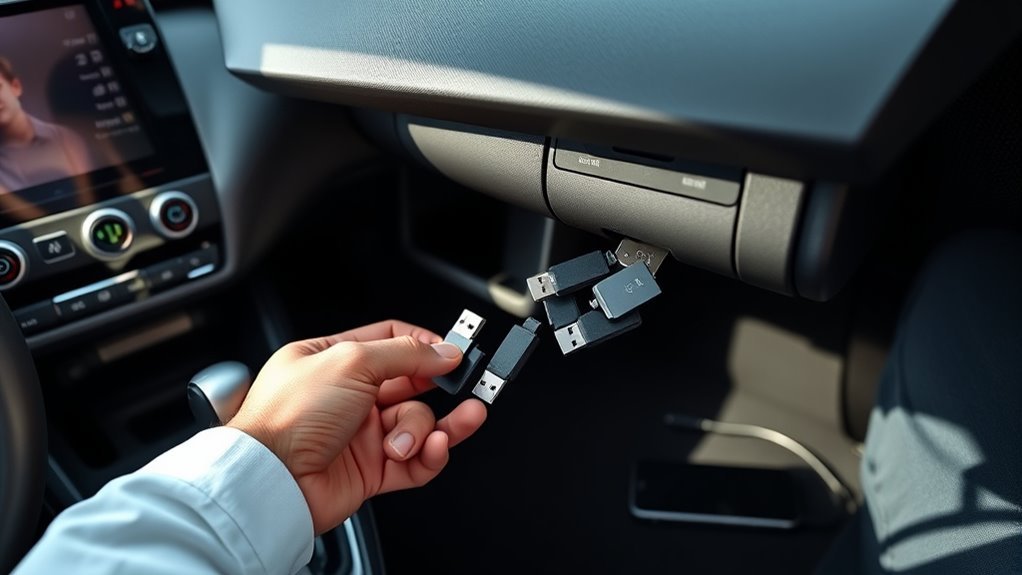
A compatible 2026 RAV4 USB drive must support data transfer, use a recognized file system, and connect to the vehicle’s USB-C media port. A charging-only accessory cannot provide access to stored files.
Toyota’s RAV4 multimedia USB specifications identify the following requirements:
- Connection: USB mass-storage device through the appropriate USB-C data port.
- File system: FAT16 or FAT32.
- USB communication: USB 2.0 High Speed, rated at 480Mbps.
- Documented capacity: Up to 32GB.
- Maximum individual media file: 2GB.
These are the documented compatibility specifications, not a promise that every flash drive meeting them will work.
A USB 3.2 drive can communicate with an older USB standard because USB technology is generally backward compatible. However, the vehicle’s interface determines the actual connection speed.
The SANDISK 128GB Extreme Fit USB-C is one compact option worth considering if you need additional storage and are willing to test compatibility. Its larger capacity should not be mistaken for official Toyota approval.
For the most predictable setup, start with a reputable 32GB FAT32 USB-C flash drive.
Why the RAV4 Drive Recorder Needs USB Storage
The 2026 RAV4 Drive Recorder does not require a USB flash drive to capture ordinary footage. It records using the vehicle’s cameras and stores footage in the multimedia system’s internal memory.
USB storage serves a different purpose: moving recordings out of the vehicle so you can preserve, review, or share them.
This distinction matters because inserting a larger USB drive does not automatically increase the recorder’s internal continuous-loop recording time.
According to Toyota’s Drive Recorder documentation, the system stores recordings internally until they are deleted or overwritten. Owners can export selected clips through the multimedia interface.
External storage becomes useful after an accident, unusual traffic event, or any situation where you want to retain footage beyond the recorder’s normal storage cycle.
You can also transfer the exported files to a computer and keep a separate backup.
Best USB Drive Size for RAV4 Media
The appropriate USB capacity depends on whether you need predictable music playback, occasional video exports, or a larger personal archive.
Although 128GB offers more theoretical storage than 32GB, Toyota’s documented multimedia compatibility specification stops at 32GB. Capacity alone does not make a drive more reliable.
Drive Recorder Capacity
The 2026 RAV4 Drive Recorder uses internal vehicle memory for its regular recording functions.
Toyota identifies approximately 90 minutes of continuous-loop recording capacity, although the actual duration can vary with recording conditions.
The system also has separate storage limits for protected recordings:
- Up to five driving-incident recordings.
- Up to four manually saved recordings.
- Approximately 90 minutes of continuous-loop footage.
These limits describe the recorder’s onboard storage. They should not be confused with the capacity of a removable USB flash drive.
Depending on the vehicle’s camera equipment, recordings may include front, rear, or additional camera views.
A flash drive provides a practical way to retain selected clips outside the internal storage system.
Best USB Size
A 32GB drive is the documented compatibility baseline for the 2026 RAV4 multimedia system. Larger drives may provide additional space when recognized, but Toyota does not guarantee their operation under the published specification.
| USB capacity | Practical use | Compatibility consideration |
|---|---|---|
| 32GB | Music playback and selected recorder exports. | Within Toyota’s documented capacity limit when properly formatted. |
| 128GB | Larger personal media collections and more exported clips. | Exceeds the documented limit; test recognition and export functions. |
| 256GB or more | Large archives that can also be managed on a computer. | Not within Toyota’s published capacity specification. |
If you choose a larger drive, test both music playback and recording export before depending on it.
How to Format a USB Drive for Toyota
FAT32 is the appropriate format for a USB drive intended for the 2026 RAV4. It provides broad compatibility and matches Toyota’s published multimedia requirements.
Formatting removes existing files, so copy anything important to another device first.
Warning: Formatting erases the selected drive. Verify its identity and back up existing files before continuing. Do not format a drive containing the only copy of important recorder footage.
Format a USB Drive on Windows
- Connect the USB flash drive to your computer.
- Open File Explorer and select This PC.
- Right-click the correct USB drive and select Format.
- Select FAT32 if it appears in the File system menu.
- Leave the allocation unit size at its default setting unless your vehicle documentation specifies otherwise.
- Select Start and confirm the formatting operation.
- Wait until Windows reports that formatting is complete.
- Safely eject the USB drive.
Windows may not offer FAT32 in its standard formatting menu for a drive larger than 32GB. This is another reason a 32GB drive is a convenient starting point.
Do not select NTFS or exFAT simply because those formats appear as alternatives. They are not listed in Toyota’s documented USB compatibility specification.
Format a USB Drive on macOS
Apple’s Disk Utility provides a straightforward way to prepare a compatible USB drive.
- Connect the flash drive to your Mac.
- Open Disk Utility.
- Select View, then Show All Devices.
- Select the correct USB device.
- Choose Erase.
- Select MS-DOS (FAT) as the format for a drive of 32GB or less.
- Select Master Boot Record as the partition scheme when that option is available.
- Confirm the operation and wait for completion.
- Eject the drive before disconnecting it.
Apple’s Disk Utility formatting instructions distinguish between FAT formatting for smaller drives and exFAT for larger ones.
After formatting, insert the drive into the RAV4’s media port and confirm that the multimedia system recognizes it.
Can You Use a USB-A Drive With an Adapter?
Yes. A conventional USB-A flash drive may work in the 2026 RAV4 through a compatible USB-A-to-USB-C adapter.
The adapter must pass data signals, and the flash drive must meet the vehicle’s file-system requirements.
An adapter changes the connector shape. It does not automatically change the drive’s capacity, formatting, or performance.
USB-A Drive Compatibility
An existing USB 2.0 thumb drive can be a reasonable option for occasional music playback or exporting recorder footage.
Before using it, confirm the following:
- The drive is formatted to FAT32 or another documented supported format.
- The adapter supports data transfer.
- The drive and adapter fit securely inside the console.
- The combined connection does not place pressure on the USB-C port.
Older drives may have slower transfer rates, but USB 2.0 itself is not a disqualifying feature.
If the system fails to recognize an adapted drive, test the drive directly on a computer before replacing it.
Adapter Data Transfer
A USB-A-to-USB-C adapter must support data communication to carry music files or exported videos.
Choose a compact adapter that fits firmly without excessive movement. An adapter with a loose connector can interrupt file access or transfers.
USB 3.x compatibility can be useful for transferring files to a computer, but it does not mean the RAV4 will operate at that same speed.
The vehicle’s USB interface and the connected drive both influence transfer performance.
A direct USB-C drive removes the extra adapter connection and is generally more convenient for regular use.
Which USB-C Drive Fits the RAV4 Best?
A short, low-profile USB-C flash drive is practical for the 2026 RAV4 because the media port sits inside the center console.
Large drives can interfere with items stored nearby or receive accidental pressure when the console is closed.
The SANDISK 128GB Extreme Fit USB-C is one compact option. According to the manufacturer’s specifications, it supports USB 3.2 Gen 1 and advertises read speeds up to 400MB/s for capacities from 128GB upward.
Its plug-and-stay design reduces the amount of the device protruding from the port.
However, three details deserve attention:
- Capacity: The 128GB model exceeds Toyota’s documented 32GB USB specification.
- Speed: The advertised figure is a maximum read speed, not a guaranteed vehicle transfer speed.
- Fit: The drive should sit securely without pressure from the console lid or stored objects.
For guaranteed-looking specifications, do not confuse manufacturer compatibility with confirmation that a specific Toyota multimedia system will recognize the product.
If you already own the Extreme Fit, test it before buying another drive. If you are purchasing storage specifically for the RAV4, a compatible 32GB USB-C model provides a more conservative starting point.
How the RAV4 Drive Recorder Saves Clips
The 2026 RAV4 Drive Recorder captures video through the vehicle’s camera system and stores recordings internally.
It supports continuous-loop recording, manually requested recordings, and incident recordings triggered by detected events.
The feature must be enabled through a registered user profile. Simply inserting a USB drive does not activate it.
Enable Drive Recorder
To use the recorder, load your registered profile and open the Drive Recorder settings in the multimedia system.
Enable the recording function and accept the privacy consent if prompted.
Once enabled, recording begins when the vehicle is operating under the required conditions.
Export a Recording to USB
To preserve a clip, insert a compatible USB drive into the center-console media port and use the multimedia screen.
- Turn on the vehicle and load your registered user profile.
- Insert the USB-C flash drive into the data port.
- Open Settings and select Drive Recorder.
- Select Library.
- Choose the desired recording category.
- Select the clip you want to export.
- Open the clip’s options menu.
- Select Export to USB or Export, following the displayed prompts.
- Wait for the confirmation that the export has finished.
You can also use the library’s management function to select multiple recordings for transfer.
Depending on the multimedia software, an Automatic clip storage setting may also be available for transferring supported recordings.
After exporting, inspect the files on a computer and keep a second copy of anything important.
Why the RAV4 Overwrites Old Recordings
The RAV4 uses loop recording because its internal memory has limited space. Once the continuous-recording area fills, the system replaces the oldest footage with newer recordings.
This allows the recorder to keep capturing recent driving activity without requiring the driver to delete files manually.
However, the rules differ between recording categories.
- Continuous recordings: The oldest footage is replaced as new footage is captured.
- Incident recordings: The system retains a limited number of protected clips and eventually replaces the oldest incident recordings.
- Manual recordings: These have a separate protected storage area. Overwriting can depend on the Manual recording overwrite setting.
This means an important clip should not be left indefinitely in the vehicle’s memory.
Export it promptly after the event, especially if you expect to keep driving.
A larger USB drive does not automatically prevent the internal recorder from overwriting its own storage.
The safest retention method is to export the selected footage and verify that the external copy opens correctly.
Reliable Setup Tips for RAV4 Recording
A dependable recording setup starts with a compatible USB drive, a working data port, and an enabled Drive Recorder.
The goal is to make sure footage can be captured internally and exported when needed, without depending on an untested storage device.
Use this practical checklist:
- Confirm recorder activation. Check that Drive Recorder is enabled under your registered profile.
- Prepare the drive. Use a correctly formatted USB device with enough free space for the clips you want to export.
- Use the correct port. Connect the drive to the USB-C media/data port inside the center console.
- Check physical clearance. Make sure the drive does not prevent the console from closing normally.
- Perform a test export. Save a noncritical recording and confirm that the file appears on the USB drive.
- Check the recording status. Verify that the recorder is operating normally after software updates, repairs, or profile changes.
- Back up important clips. Copy exported footage to another storage location.
These checks are more useful than relying on a flash drive’s advertised speed or capacity alone.
Pro Tip: Keep a dedicated USB drive available for recorder exports rather than using the only copy of your music collection. This makes it easier to find important video files and reduces the chance of accidentally deleting unrelated data.
Common USB Drive Problems to Avoid
Most USB storage problems involve the wrong port, unsupported formatting, connection issues, or insufficient free space.
Start with simple checks before assuming the multimedia system has failed.
| Problem | Likely cause | What to try |
|---|---|---|
| USB drive not recognized | Wrong port or unsupported file system. | Use the center-console data port and check FAT32 formatting. |
| Large drive fails | Capacity exceeds documented compatibility. | Test with a properly formatted 32GB drive. |
| Music does not play | Unsupported audio encoding or file structure. | Test a compatible audio file stored in a simple folder. |
| Export fails | Insufficient free space or unstable connection. | Free space and check the drive connection. |
| No recorder footage | Recorder disabled or recording interrupted. | Check the registered profile, recorder settings, and recording status. |
A damaged adapter or worn flash drive can also cause intermittent access. Test the accessory on a computer to help isolate the problem.
If multiple known-compatible drives fail in the vehicle’s data port, the port or multimedia system may require professional inspection.
Warning: Never unplug a USB drive during an active export. Interrupting the transfer can damage or corrupt files. Also avoid leaving a flash drive exposed to excessive vehicle-cabin heat, which can affect its reliability.
Frequently Asked Questions
How Many USB Ports Does the 2026 RAV4 Have?
The 2026 RAV4 has three USB-C ports in some trims and five in others. Toyota lists two front charging ports and one media/data port in the center console. Other trims add two rear charging ports. The vehicle does not list a built-in USB-A media port.
Can You Play Music From USB in RAV4?
Yes. Insert a compatible USB flash drive into the center-console media port and select USB as the audio source. Supported music formats include MP3, WMA, AAC, WAV, FLAC, and ALAC. The charging-only USB ports cannot read music files from a flash drive.
What Format Do I Need to Play a USB in My Car?
FAT32 is the documented choice for 2026 RAV4 USB playback, and Toyota also lists FAT16 as supported. Its multimedia specification lists drives up to 32GB. Do not assume that exFAT, NTFS, or a larger FAT32 drive will be recognized without testing.
What Infotainment System Does the 2026 Toyota RAV4 Have?
The 2026 RAV4 uses Toyota Audio Multimedia with a standard 10.5-inch touchscreen and an available 12.9-inch display. A separate 12.3-inch digital gauge cluster shows driving information. Drive Recorder is integrated into the multimedia system rather than operating as a separate USB-powered dashcam.
Does the RAV4 Need a USB Drive to Start Recording?
No. The built-in Drive Recorder stores video in the vehicle’s internal memory. You must enable the feature through a registered user profile. A compatible USB drive is useful for exporting and preserving footage before it is overwritten.
Conclusion
For the 2026 RAV4, choose a USB-C flash drive that supports data transfer, uses FAT32, and fits securely in the center-console media port. A 32GB drive follows Toyota’s documented capacity specification, while larger options such as the 128GB SanDisk Extreme Fit require compatibility testing.
Remember that the Drive Recorder stores footage internally. Keep a working USB drive available for exporting important clips, and verify each transfer before relying on the saved copy.
Sources
- Toyota RAV4 Multimedia Manual: USB communication standards, FAT16/FAT32 support, storage limits, and media compatibility.
- Toyota Canada Multimedia Help Centre: Drive Recorder activation, internal recording limits, playback, and USB export procedures.
- Toyota 2026 RAV4 Specifications: USB-C port configurations and multimedia equipment.
- SanDisk Extreme Fit USB-C Specifications: Product capacity, connector, advertised read speed, and compact design.
- Apple Disk Utility Support: Formatting USB storage and selecting a compatible file system.

