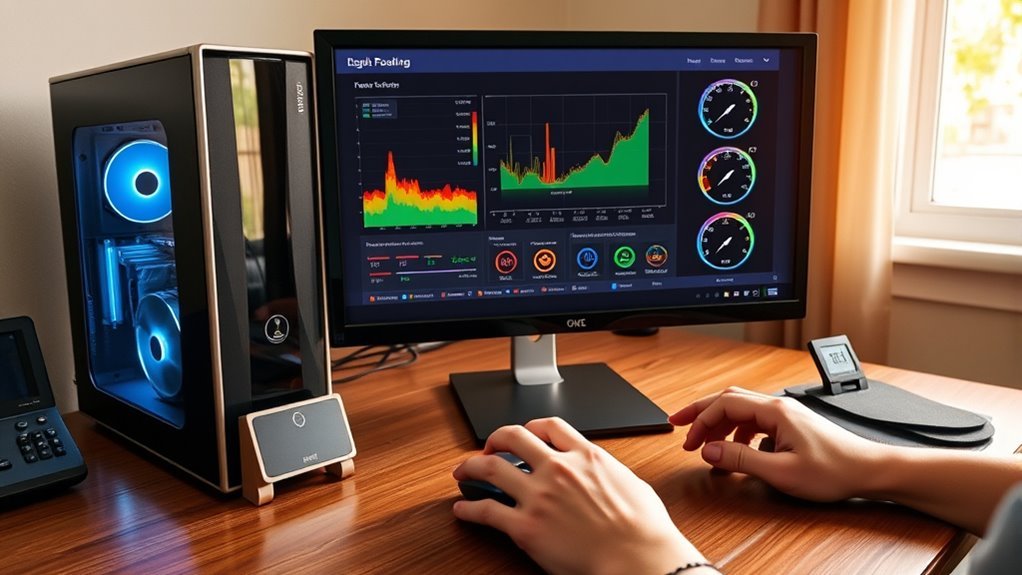
To check a PC’s temperature, install a free monitoring tool like Core Temp or HWMonitor in Windows and open it to view CPU readings, load, and min/max values. For a quick check, restart the PC and enter BIOS or UEFI with F2 or Delete, then look under Hardware Monitor or PC Health Status. Normal idle CPU temperatures are often 35°C to 60°C. If temps run high, cleaning and cooling fixes may help, and more details follow.
Key Takeaways
- Use tools like Core Temp or HWMonitor to see your PC’s CPU temperature in real time.
- Check temperatures in BIOS/UEFI by restarting and entering Hardware Monitor or PC Health Status.
- Keep CPU temperatures roughly below 50°C at idle and under 80°C during heavy use.
- Watch for overheating signs like slowdowns, crashes, or sudden shutdowns.
- Lower temperatures by cleaning dust, improving airflow, and replacing old thermal paste.
Check CPU Temperature in Windows
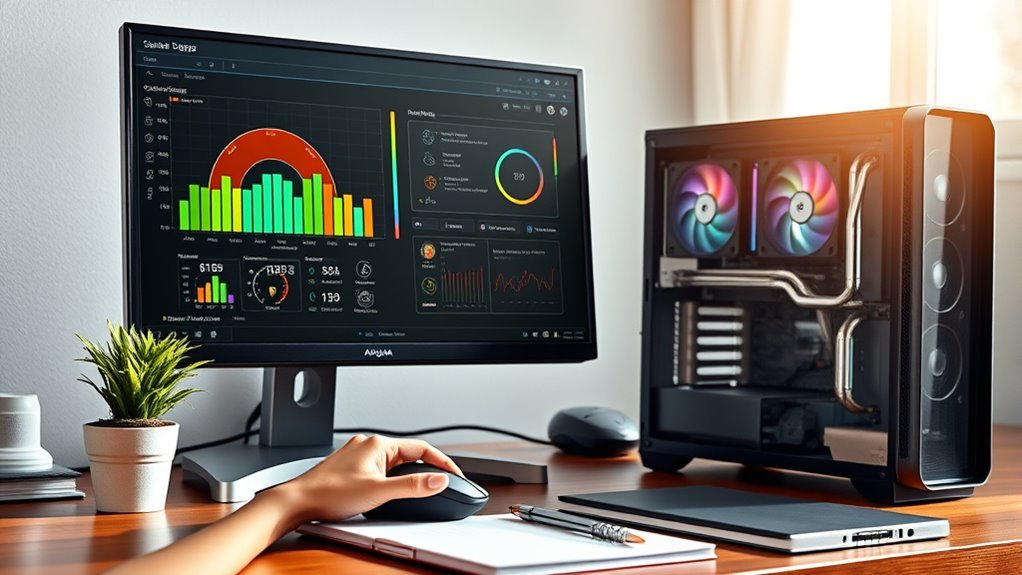
To check CPU temperature in Windows, a user can install a monitoring tool such as Core Temp or HWMonitor, both of which display real-time readings for each CPU core.
After installation, launch the monitoring software and review current CPU temps, minimum and maximum values, and CPU load percentages. This simple CPU temperature monitoring routine helps reveal whether the system is running within healthy limits.
Review current CPU temps, minimum and maximum values, and CPU load to confirm healthy system performance.
For most machines, ideal idle temperatures sit around 30-50°C, while safe under-load temperatures should stay below 80°C. If the numbers climb too high, the user should reduce heavy tasks, improve airflow, or clean dust from the case.
Stress testing with tools like Prime95 or AIDA64 can also show maximum temperatures under pressure. Although BIOS or UEFI can provide a snapshot, Windows tools give a clearer, ongoing view of performance and freedom from overheating.
Check CPU Temperature in BIOS
To check CPU temperature in BIOS, the computer should be restarted and the BIOS/UEFI entry key, often F2 or Delete, should be pressed during startup.
After entering BIOS, the user should open sections such as Hardware Monitor or PC Health Status to find the temperature reading.
This value is a single idle snapshot and may not appear on every motherboard.
Accessing BIOS Temperature
Restarting the PC and pressing the designated key, often F2 or Delete, during startup opens the BIOS/UEFI interface where CPU temperature can be checked.
From there, move to hardware monitor or PC Health Status and look for CPU temperature or similar temperature readings.
These BIOS values usually show the processor’s idle temperature only, giving a single snapshot rather than real-time monitoring.
That means they cannot reveal changes under load or warning signs such as thermal throttling.
If the reading is absent, consult the motherboard manual, since not every board displays it.
For a comprehensive understanding of thermal performance, compare BIOS data with software tools in Windows.
Reading Hardware Monitor
After entering the BIOS/UEFI setup, the next step is to open Hardware Monitor, PC Health Status, or a similar menu to find the CPU temperature reading, usually shown in degrees Celsius.
If the menu appears, the user can check CPU temps at a glance and note the idle temperatures before leaving the screen. This BIOS hardware monitor gives a quick snapshot, not live tracking, so it does not replace monitoring tools or software in Windows.
If no temperature appears, the motherboard may hide that data; the manual should be consulted. For a fuller view of performance, the BIOS reading should be compared with software results.
This simple step helps users understand CPU health and keep control of their system.
What Is a Normal CPU Temperature?
A normal CPU temperature usually sits between 35°C and 60°C when the system is idle or under light use.
During moderate workloads, safe temperatures often range from 65°C to 80°C, while heavier tasks may push a CPU into the 80°C to 95°C range.
If temperatures rise above 95°C, cooling should be improved to reduce the risk of throttling or shutdown.
Idle Temperature Range
Normal idle CPU temperatures typically fall between 35°C and 60°C, though the exact range depends on the processor and cooling setup.
To check CPU temperatures, one should first note the idle temperature range while the system rests. A normal CPU may sit near 40°C on AMD Ryzen, while many Intel CPU coolers keep Intel CPU models closer to 30°C to 50°C.
Ambient room temperature, airflow, and case design all shape the result. Regularly monitor CPU temperature to spot overheating issues early.
Practical cooling solutions include cleaning dust, improving ventilation, and verifying fan operation.
- Compare the reading with the idle temperature range.
- Watch for sudden spikes after startup.
- Confirm airflow is not blocked.
- Review cooling solutions if temperatures stay above 60°C.
Safe Load Temperatures
Under light to moderate use, a CPU should usually stay between 65°C and 80°C, which is generally considered a safe load range.
To check your CPU temperature, open monitoring programs and compare the average temperature with the operating temperature shown during normal use. If CPU usage rises during games or work, brief spikes near 90°C may happen, but sustained heat above 80°C can trigger thermal throttling.
Keep system monitoring active, especially on AMD Ryzen or high-end Intel chips, because both may tolerate higher limits, yet a safe temperature still depends on the cooling system.
If readings stay close to 95°C, reduce load, improve airflow, or service the cooler. Regular checks help preserve performance and keep hardware free.
How to Spot an Overheating CPU
Spotting an overheating CPU starts with watching for clear warning signs: performance may slow down, the system may crash during demanding tasks, or the computer may shut off unexpectedly.
To check CPU temperatures, a software solution such as Core Temp or HWMonitor offers real-time monitoring and helps confirm whether overheating is occurring. Idle readings should usually stay under 50°C, while load temperature should remain below 80°C. If temperatures rise above 95°C, thermal throttling may begin, cutting performance to protect the chip.
- Watch for performance slowdowns during heavy work.
- Note unexpected shutdowns or repeated crashes.
- Use monitoring tools to compare idle and load temperature.
- Inspect for cleaning dust and consider thermal paste wear.
This step-by-step check gives clear evidence before problems grow. By recognizing CPU temperatures early, users keep control and reduce the risk of damage without guesswork.
How to Lower CPU Temperature
Once high CPU temperatures are confirmed, the next step is to reduce the heat at its source. First, check CPU temp and compare it with the normal CPU temperature range for the processor model. Then, clean your PC: remove dust from fans, vents, and heatsinks so airflow can move freely. Verify fan speed, direction, and operation; a stalled fan cannot protect the system.
| Step | Action | Result |
|---|---|---|
| 1 | Reduce CPU load | Lower heat during light tasks |
| 2 | Reapply thermal paste | Improve heat transfer |
| 3 | Upgrade PC cooling solutions | Stronger temperature control |
If the system still runs hot, replace aging thermal paste every 2 to 3 years and consider a high-performance air cooler or a closed-loop liquid unit. Simple power settings can also reduce CPU load and help lower your CPU without sacrifice. By checking conditions and making these changes, users can monitor cooling temps and reclaim stable, quieter performance.
How to Track CPU Temperature Trends
To track CPU temperature trends, users can log readings with software such as Core Temp or AIDA64, which records real-time temperatures over time for analysis.
For broader CPU monitoring, software like HWiNFO can help monitor temperature during idle, gaming, and stress tests.
Step by step, check your computer’s CPU at set times, record temperatures, and compare results. This process helps identify patterns, including spikes during heavy tasks and steady behavior at rest.
Manual logging in Excel or Notepad can support clearer review and freedom from guesswork. Average temperatures should be compared with safe ranges: below 50°C at idle and below 80°C under load.
Regular review of temperature trends shows when changes occur and whether maintenance may be needed.
- Track CPU readings daily
- Record temperatures across workloads
- Identify patterns and spikes
- Compare average temperatures to safe ranges
CPU Temperature Safety Tips
Keeping CPU temperatures in a safe range helps prevent throttling and long-term damage. To check a CPU temperature, use software tools such as Core Temp or NZXT CAM, then monitor idle and load readings. Aim for temperatures below 50°C at idle and under 80°C during heavy work. Most CPUs can reach 95°C safely, but staying near that limit weakens freedom from shutdowns and thermal throttling.
| Step | Safety tip |
|---|---|
| 1 | Monitor CPU temperature daily. |
| 2 | Clean dust from fans and heatsinks every few months. |
| 3 | Reapply thermal paste every 2-3 years. |
| 4 | Improve cooling if temperatures rise unexpectedly. |
If readings climb, check airflow, fan speed, and case obstructions. Better cleaning and fresh thermal paste restore thermal transfer and support stable cooling. Consistent attention gives the user control over hardware health and keeps performance steady.
Frequently Asked Questions
How Do I Check the Temps of My PC?
He checks temps with software tools like Core Temp or CAM, then verifies BIOS settings. This temperature monitoring supports hardware health, CPU cooling, fan speed, heat management, system stability, and reveals overclocking risks or bad thermal paste.
Is 90 C Bad for CPU?
Yes—90°C is bad for a CPU. It risks CPU overheating, thermal throttling, and performance impact. Monitoring tools, cooling solutions, airflow management, and heat sinks should be checked; overclocking risks may shorten hardware lifespan.
How to Get Temp to Show on PC?
Install temperature monitoring software options like Core Temp or HWiNFO; hardware sensors then reveal readings. If preferred, BIOS settings can show them too. Watch temperature thresholds, overheating issues, performance impact, gaming effects, temperature logs, cooling solutions.
Is 120 F Hot for CPU?
120°F is not hot for a CPU. It suggests safe operation, with temperature monitoring, fan speeds, ambient temperature, and thermal paste checks helping system stability, preventing CPU overheating, thermal throttling, hardware damage, and performance impact.
Conclusion
To sum up, monitoring a PC’s temperature helps prevent sudden slowdowns and serious system strain. By checking readings in Windows or BIOS, users can spot safe ranges, warning signs, and overheating early. Simple steps like improving airflow, cleaning dust, and tracking trends can keep the CPU cool and steady. With consistent checks and careful cooling, the computer can continue running smoothly, safely, and efficiently for longer.
