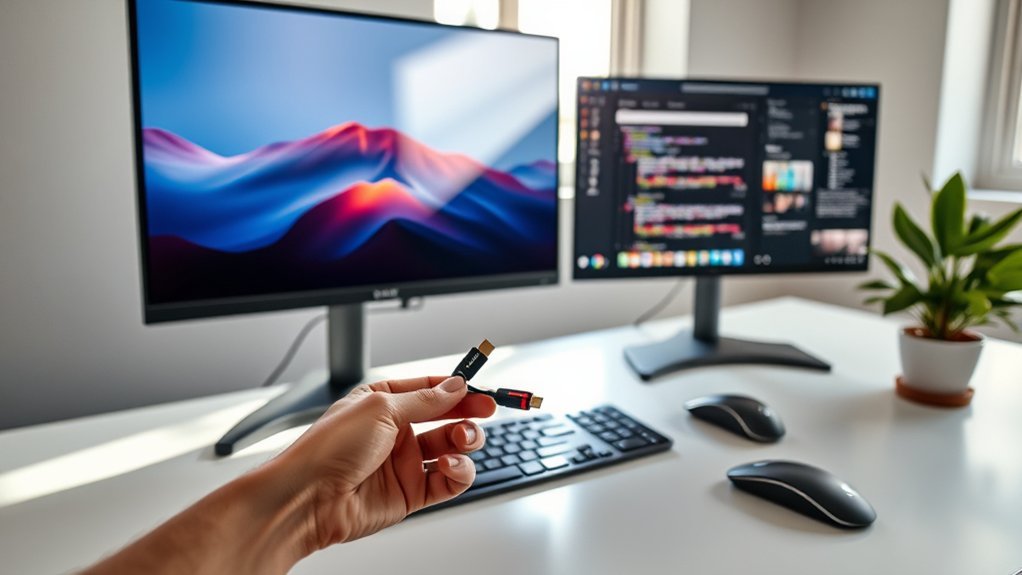
Connecting a second monitor on Windows 11 can feel like unlocking extra workspace for writing, browsing, video calls, spreadsheets, gaming, or creative work. With the right cable, port, and display settings, you can extend your desktop, duplicate your screen, or use the second display as your main workspace. Before you connect anything, review the essentials below so your setup works smoothly and looks sharp.
Quick Answer
To connect a second monitor on Windows 11, plug the monitor into your PC or dock using HDMI, DisplayPort, or USB-C, then open Settings > System > Display. Choose Detect if needed, arrange the displays, pick Extend or Duplicate, and set each monitor’s resolution and refresh rate.
Key Takeaways
- Use HDMI, DisplayPort, or USB-C with display support for the easiest wired connection.
- Press Win+P to switch quickly between Duplicate, Extend, and Second screen only.
- Set each monitor to its native resolution for the clearest text and images.
- Use Advanced display to adjust refresh rate, HDR, and other per-monitor settings.
- If Windows does not detect the monitor, check power, cables, input source, drivers, and the Detect button in Display settings.
At a Glance
| Time Required | 5–15 minutes for most wired setups |
| Difficulty | Easy |
| Tools Needed | Second monitor, power cable, HDMI/DisplayPort/USB-C cable, and optional dock or adapter |
| Cost | Usually free if you already have the monitor and cable; adapter or dock costs vary |
Last Updated:
Deal tip: Want a second screen you can take anywhere? The ARZOPA 16.1-inch portable monitor is one of our early October Prime Day tech deals.
Check Your Hardware Compatibility
Before you connect your second monitor, make sure your computer, cable, and display can work together. A quick hardware check prevents most “no signal” and “not detected” problems.
- Graphics capabilities: Make sure your integrated or dedicated GPU supports multiple displays and has enough bandwidth for your target resolution and refresh rate. Windows 11 supports multiple monitors, but your practical limit depends on your GPU, ports, dock, and cable quality. Microsoft Support explains how Windows handles multiple monitors.
- Ports on your PC and monitor: Common display options include HDMI, DisplayPort, and USB-C with display output support such as DisplayPort Alt Mode, Thunderbolt, or USB4. DVI and VGA are legacy connections, so use them only when older equipment requires them.
- USB-C note: A USB-C port does not always mean video output is available. Check your laptop, desktop, dock, or motherboard specs to confirm that the port supports DisplayPort Alt Mode, Thunderbolt, USB4, or another display-capable mode.
- Wireless displays: Miracast-compatible TVs and adapters can project your screen without a cable. Press Win+K to open wireless display options in Windows 11.
- Performance headroom: Running multiple displays can increase GPU and CPU demands. For high refresh rates such as 120 Hz, 144 Hz, or 240 Hz, or for QHD and 4K displays, prefer DisplayPort or a recent HDMI connection and use a cable rated for that resolution and refresh rate.
Warning: Do not force a connector into the wrong port. HDMI, DisplayPort, USB-C, DVI, and VGA use different shapes. Forcing the cable can damage the port or connector.
Gather the Necessary Cables
Before you connect your second monitor, gather the right cables and adapters. Match both ends of the connection, including the PC, dock, hub, and monitor. Also confirm that the cable supports the resolution and refresh rate you want to use.
Monitor Connection Types
Choose the right cable for a smooth setup:
- HDMI — HDMI carries digital video and audio over one cable. It is common on desktops, laptops, TVs, projectors, and monitors.
- DisplayPort — DisplayPort works well for high refresh rates, high resolutions, and features such as MST daisy chaining on supported hardware. VESA notes DisplayPort features such as MST and higher-bandwidth display support.
- USB-C — USB-C can output video when the port supports DisplayPort Alt Mode, Thunderbolt, USB4, or a compatible dock. It is common on thin laptops and compact workstations.
- DVI/VGA — DVI and VGA are older connectors. They can still work with legacy monitors, but they may limit resolution, refresh rate, audio, and modern display features.
Cable Compatibility Checklist
- Identify each device’s ports, including the PC, dock, hub, and monitor.
- Use cables that meet your resolution and refresh rate needs.
- Choose a cable length that reaches comfortably without strain.
- Avoid tight bends, crushed cables, and loose connections.
- If ports differ, use a compatible adapter or docking station.
- Check the monitor’s input menu so it uses the same connection you plugged in.
Essential Adapter Options
When your PC and monitor use different connectors, the right adapter keeps the setup simple:
- HDMI ↔ DisplayPort adapters — useful when one device has HDMI and the other has DisplayPort. Check the adapter’s supported direction, resolution, and refresh rate.
- USB-C → HDMI or DisplayPort adapters — useful for laptops with USB-C display output. Confirm your USB-C port supports video before buying an adapter.
- USB-C, Thunderbolt, or USB4 docks — useful when you want multiple monitors, Ethernet, USB accessories, and charging through one connection. Check the dock’s maximum display support before relying on it.
Note: Docking stations vary widely. One dock may support two 4K monitors, while another may support only one external display or lower refresh rates. Always check the dock’s display limits.
Connect Your Second Monitor
After you gather your gear, connect the cable between your PC, dock, or hub and the second monitor. Then connect the monitor’s power cable and turn on both devices.
Choose Your Connection Type
- HDMI — choose HDMI when you want a simple, widely compatible connection for video and audio.
- DisplayPort — choose DisplayPort when you want strong support for high refresh rates, higher resolutions, and MST daisy chaining on compatible monitors and GPUs.
- USB-C — choose USB-C when your computer supports display output through that port. Use a capable USB-C cable, adapter, or dock.
Step-by-Step Windows 11 Setup
- Plug the second monitor into power and turn it on.
- Connect the video cable from the monitor to your PC, laptop, dock, or hub.
- Use the monitor’s buttons or on-screen menu to select the correct input, such as HDMI 1, HDMI 2, DisplayPort, or USB-C.
- Right-click a blank area of the Windows desktop and choose Display settings.
- Look for two display tiles at the top of the Display page.
- If you see only one screen, expand Multiple displays and select Detect.
- Select Identify to show a number on each screen.
- Drag the display tiles so they match your physical desk layout.
- Choose Extend these displays, Duplicate these displays, or another display mode.
- Select each monitor and set the recommended resolution, scale, orientation, and refresh rate.
Configure Display Settings
Right-click the desktop and select Display settings. From there, you can adjust resolution, orientation, scaling, refresh rate, HDR, and how the displays work together.
| Setting | Where / What |
|---|---|
| Resolution | Use each monitor’s native or recommended resolution for the clearest image. Go to Settings > System > Display. |
| Orientation | Choose landscape or portrait for each display. |
| Multiple displays | Choose Extend, Duplicate, Second screen only, or PC screen only. Use Win+P for quick switching. |
| Scale & layout | Adjust text and app size per display for better readability. |
| Advanced display | Set refresh rate, check display information, and review variable refresh rate support where available. |
| HDR | Enable HDR on compatible displays and adjust SDR/HDR options when needed. Microsoft Support covers HDR settings in Windows. |
Arrange Monitor Positions
- Align displays: In Display settings, drag the monitor tiles so their on-screen positions match your desk. Select Identify to show numbers on each screen.
- Set your primary display: Select the monitor you want as your main screen, then choose Make this my main display. Your taskbar, Start menu behavior, and new app placement may follow this choice.
- Fine-tune refresh: For smoother motion, set each monitor’s refresh rate in Settings > System > Display > Advanced display. This matters most for gaming, scrolling, video editing, and high-refresh monitors.
- Match scale for comfort: If one monitor looks too small or too large, adjust the scale for that display only. Mixed monitor sizes often need different scaling.
Use a Wireless Display (Optional)
If you have a Miracast-compatible TV or adapter, press Win+K and pick your wireless display. Follow the on-screen prompts. Wireless displays are useful for presentations and casual viewing, but a wired monitor usually feels faster and more stable for daily work.
Power On Your Displays
Confirm both primary and secondary monitors are powered and connected. If a display shows “no signal,” reseat the cable, try another port, switch the monitor’s input source, or test a different cable. Then verify that Windows detects the second display.
- Check that the monitor’s power light is on.
- Confirm the cable is fully seated at both ends.
- Use the monitor’s input menu to choose the correct HDMI, DisplayPort, or USB-C source.
- Restart the PC after connecting the monitor if Windows does not respond.
- Try another cable or port to rule out hardware failure.
Adjust Display Settings
After Windows detects the second monitor, choose how you want the two displays to behave. Your setup can mirror the same screen, extend your desktop, or use only one display.
- Choose Display Mode: Press Win+P, then choose Duplicate, Extend, Second screen only, or PC screen only.
- Set Resolution: Pick the recommended or native resolution per display for crisp text and sharp images.
- Arrange Displays: Drag and drop the display tiles to match your physical layout. Use Identify if you are unsure which screen is which.
- Enable HDR if supported: Turn on HDR for compatible displays and calibrate brightness as needed.
- Set refresh rate: Open Advanced display and choose the refresh rate your monitor and cable support.
- Choose your main display: Select the screen you use most, then enable Make this my main display.
What’s new: Windows 11 updates have improved the multi-monitor taskbar experience, including better access to taskbar features on secondary monitors. This helps when you work across more than one display and do not want to return to the primary screen for every system action.
Pro Tip: Use Extend for productivity. It gives you one larger desktop across both monitors, so you can keep a browser, document, chat, or reference window open beside your main task.
Organize Your Workspace
Position your monitors at eye level and within comfortable reach. Use one screen for primary tasks and the other for reference material, email, messaging, video calls, or dashboards. A clean desk also helps reduce cable clutter and eye strain.
- Place your main monitor directly in front of you.
- Place the second monitor to the side you naturally turn toward.
- Keep the top of each screen near eye level.
- Use a monitor arm or stand if the screens sit too low.
- Route cables behind the desk to reduce clutter.
- Match brightness and color temperature as closely as possible for comfort.
Explore Multi-Tasking Features
Windows 11 includes several features that make a dual-monitor setup more useful. These tools help you arrange windows, split tasks, and keep projects organized.
- Snap Layouts: Hover over the maximize button or press Win+Z to arrange apps quickly. Microsoft explains how Snap Layouts help organize windows.
- Virtual Desktops: Create separate desktops for work, personal tasks, research, or meetings, then switch between them as needed.
- FancyZones in PowerToys: Create custom grid layouts across monitors for precise window placement. Microsoft Learn provides setup details for PowerToys FancyZones.
A second monitor works best when your physical desk layout matches your Windows display layout. If your cursor moves the wrong direction between screens, drag the display tiles in Settings until movement feels natural.
Troubleshooting
If your second monitor does not work right away, start with the simplest checks. Most issues come from a loose cable, wrong input source, unsupported dock, outdated driver, or display mode set to the wrong option.
- Not detected? Go to Settings > System > Display, expand Multiple displays, and select Detect. Also press Win+P and choose Extend.
- No signal? Confirm the monitor is powered on, the cable is secure, and the monitor input matches the cable you used.
- Wrong refresh rate or stutter? Open Advanced display and set the correct refresh rate for each monitor. For mixed refresh monitors, DisplayPort often performs more reliably.
- Blurry text? Use the monitor’s native resolution and adjust Scale & layout. Avoid stretching a low-resolution signal across a higher-resolution display.
- HDR looks washed out? Review HDR settings and adjust SDR content brightness. HDR quality depends on the monitor, content, cable, and Windows settings.
- Using a dock or hub? Check the dock’s maximum supported resolution, refresh rate, and number of external displays. Some docks share bandwidth across ports.
- Daisy chain over DisplayPort? Make sure the first monitor supports MST and that MST is enabled in its on-screen display menu. Then connect the next monitor from the first monitor’s DisplayPort-out connection. Bandwidth limits still apply.
- Wireless display issues? Make sure the TV or adapter supports Miracast. Update firmware and drivers, then try Win+K again.
- Driver problems? Use Windows Update, Optional updates, and your GPU manufacturer’s driver tools if the display still fails to work.
Quick Fixes by Symptom
| Problem | Best First Fix |
| Monitor says “No Signal” | Check the monitor input source, reseat the cable, and try another port. |
| Windows shows only one display | Open Display settings and select Detect. |
| Text looks too small | Increase scale for that display under Scale & layout. |
| Motion looks choppy | Set the correct refresh rate in Advanced display. |
| Colors look different | Adjust brightness, color temperature, HDR, and monitor picture mode. |
Frequently Asked Questions
Can I connect more than two monitors to my Windows 11 device?
Yes. Windows 11 can work with more than two monitors, but your GPU, ports, cables, dock, and available bandwidth determine how many displays you can run and at which resolution and refresh rate. DisplayPort MST can help on supported hardware.
What should I do if my second monitor is not detected?
Check the monitor power, cable connection, input source, and display mode first. Then go to Settings > System > Display, expand Multiple displays, and select Detect. If that fails, restart the PC and update your display drivers.
Are there specific display resolutions for multiple monitors?
Use each monitor’s native or recommended resolution for the sharpest image. You can also adjust Scale & layout for each screen if text or app windows look too small or too large.
Can I use different monitor brands and sizes together?
Yes. You can mix monitor brands, sizes, resolutions, and refresh rates. For the best experience, adjust each display’s scale, brightness, color mode, and refresh rate separately in Windows and in the monitor’s own menu.
How do I switch between display modes in Windows 11?
Press Windows + P, then choose PC screen only, Duplicate, Extend, or Second screen only. You can also change display mode from Settings > System > Display.
Is HDMI or DisplayPort better for a second monitor?
Both can work well. HDMI is simple and common, while DisplayPort is often better for high refresh rates, high resolutions, and MST daisy chaining. The better choice depends on your monitor, GPU, cable, and target refresh rate.
Can I use a TV as a second monitor in Windows 11?
Yes. You can connect a TV with HDMI or use a wireless display option if the TV or adapter supports Miracast. For daily work, a wired HDMI connection usually gives better stability and lower input delay.
Conclusion
Once you connect and configure your second monitor, Windows 11 gives you a more flexible workspace for multitasking, meetings, research, gaming, and creative work. Use the right cable, set the correct display mode, arrange the screens to match your desk, and fine-tune resolution, scale, refresh rate, and HDR. With those basics dialed in, your dual-monitor setup becomes a practical upgrade you can use every day.
Sources
- Microsoft Support — How to use multiple monitors in Windows — supports display arrangement, display modes, and multi-monitor setup steps.
- Microsoft Support — Troubleshoot external monitor connections in Windows — supports monitor detection and connection troubleshooting.
- Microsoft Support — Change the refresh rate on your monitor — supports refresh-rate adjustment guidance.
- Microsoft Support — HDR settings in Windows — supports HDR setup and adjustment guidance.
- Microsoft — Organize your screen with Snap layouts — supports Snap Layouts multitasking guidance.
- Microsoft Learn — PowerToys FancyZones — supports custom window layout guidance for multi-monitor workflows.

