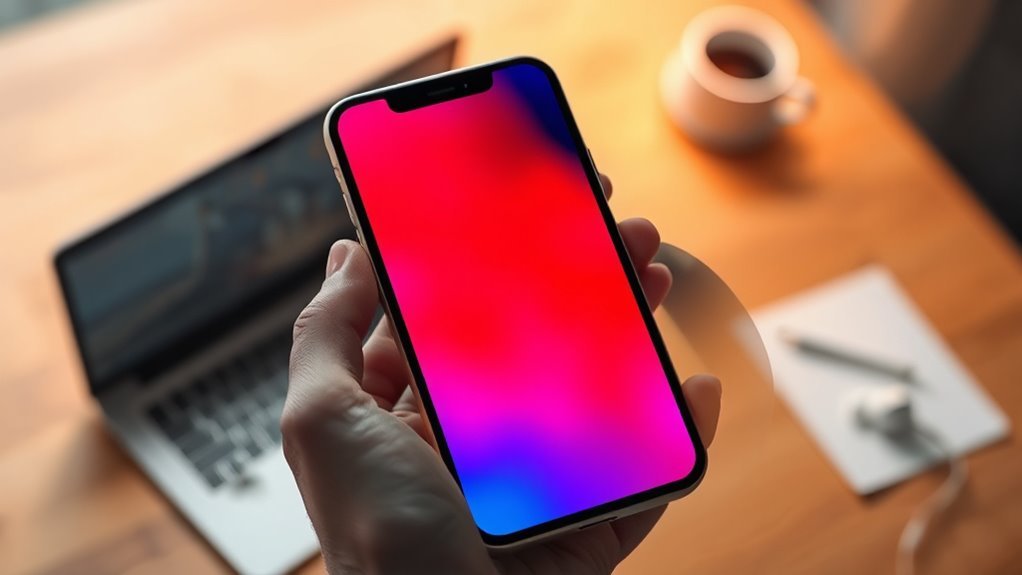
Yes, an iPhone screen can be changed to a red tint using built-in Accessibility tools. In Settings > Accessibility > Display and Text Size > Color Filters, Color Tint can be turned on and adjusted for a red screen effect. The Accessibility Shortcut can also be set for quick triple-click access. Night Shift and Invert Colors offer other display changes. Red tones may reduce blue light, glare, and eye strain, especially at night, and more details follow below.
Key Takeaways
- Yes, iPhone can display a red-tinted screen using Settings > Accessibility > Display and Text Size > Color Filters.
- Turn on Color Tint and adjust the sliders to increase red for a warmer, more comfortable display.
- Night Shift also reduces blue light in the evening, though it does not make the screen fully red.
- You can set Color Filters as an Accessibility Shortcut for quick triple-click access.
- These options help reduce glare, eye strain, and blue light exposure, especially at night.
Can You Make Your iPhone Screen Red?
Yes, an iPhone screen can be made red by going to Settings > Accessibility > Display and Text Size > Color Filters** and turning on Color Tint**, then adjusting the sliders to increase the red tone.
Yes, an iPhone screen can be tinted red through Accessibility’s Color Filters and Color Tint sliders.
This feature uses Color Filters to shift the display away from harsh brightness and toward a calmer red balance. The effect can reduce blue light, which is often linked to eye strain and disrupted sleep at night.
For insomniacs, light-sensitive users, and anyone seeking comfort during long screen sessions, the red screen can support easier reading and browsing in darker spaces. It can also help maintain a more relaxed viewing experience when liberation from glare matters.
An Accessibility Shortcut may later make the switch faster, but the core change begins with Color Filters and the red tint controls.
How to Turn on Color Filters
- Select Color Tint to adjust hue and intensity.
- Move the sliders until the desired Screen Red or blue effect appears.
- Use the setting at night to help reduce blue light exposure.
The turn on Color Filters**** option gives practical flexibility for those seeking comfort, visibility, or a stronger color shift.
With Color Tint, the screen can be pushed toward red, blue, or a balanced look, depending on preference.
The result is a simple, built-in method for changing the iPhone’s appearance while keeping the process clear and accessible.
How to Set Up the Accessibility Shortcut
To make color filters easier to access, the Accessibility Shortcut can be set up through Settings > Accessibility by scrolling to the bottom of the menu and selecting Accessibility Shortcut.
From there, the Color Filters option can be chosen, allowing the feature to be toggled quickly without searching through menus. Once configured, a triple-click of the side button activates the shortcut and switches the iPhone screen between standard viewing and filtered display.
This gives users greater control over how the device appears, especially when a softer red or blue tint is preferred for nighttime use. The color options themselves remain adjustable in the Color Filters section under Display and Text Size, where different settings can be selected as needed.
What Other iPhone Settings Affect Color?
Several other iPhone settings can change how colors appear on the screen. Color Filters can add a red or blue tint, shift tones, and support users who want stronger visual control.
Night Shift lowers blue light in the evening, changing the display warmth for easier viewing. Invert Colors also alters color balance, with Smart Invert preserving images and Classic Invert reversing all tones.
These tools give users more freedom to shape what they see.
These tools let users customize what they see, creating a clearer and more personal screen experience.
- Reduce Transparency makes backgrounds more solid, so text and icons stand out with greater clarity.
- Differentiate Without Color helps apps use shapes, labels, or patterns instead of relying only on color.
Together, these settings improve accessibility for people seeking a clearer, more independent screen experience.
iPhone Red Screen Tips for Night Use
For nighttime use, an iPhone red screen can be a practical way to soften display brightness while limiting blue light exposure. This warmer tint may support melatonin production and help the body settle toward sleep.
It also mimics sunset tones, which can feel calmer than a bright white display. For people reading or browsing in the dark, the red screen can improve visibility without harsh glare. That makes long sessions easier on the eyes and may reduce eye strain and headaches in low-light settings.
A useful step is to set up an Accessibility Shortcut for Color Filters, allowing the feature to be switched on or off quickly when conditions change. This gives users more control over their screen environment and supports a freer, more comfortable nighttime routine.
Used consistently, the setting can make iPhone use less disruptive after sunset.
Frequently Asked Questions
How to Change iPhone Display Color to Red?
He can change iPhone display color to red in Settings > Accessibility > Display & Text Size > Color Filters, then choose Color Tint and move Hue fully red. These color customization tips improve visual comfort settings and accessibility features.
How to Change the Display Color of Apps on iPhone?
Color controls change apps across iPhone through accessibility options. Settings > Accessibility > Display & Text Size offers Color Filters, Color Tint, and Invert Colors. These color settings enable limited app customization, with wider screen-wide effects.
Is a Red Color Filter Good for Eyes?
Yes. A red color filter can reduce eye strain by limiting blue light and easing glare, especially in dim settings. It may affect color perception, but it is not a substitute for red light therapy.
How to Make Your Phone Screen Red?
Open Settings, then Accessibility, then Display and Text Size, then Color Filters, selecting Color Tint. Like a sunset draped over glass, this screen customization serves color accessibility, matching visual preferences and supporting liberation from harsh blue light.
Conclusion
In the end, the iPhone can indeed be persuaded into wearing a red tint, as if it has joined a dramatic theater production for bedtime use. With Color Filters and the Accessibility Shortcut, the screen can shift from bright distraction to a softer, sleep-friendly glow. Other settings may also help fine-tune the effect. For anyone hoping for a blue-and-red app solution, the device offers options, though not exactly the neon circus one might imagine.
