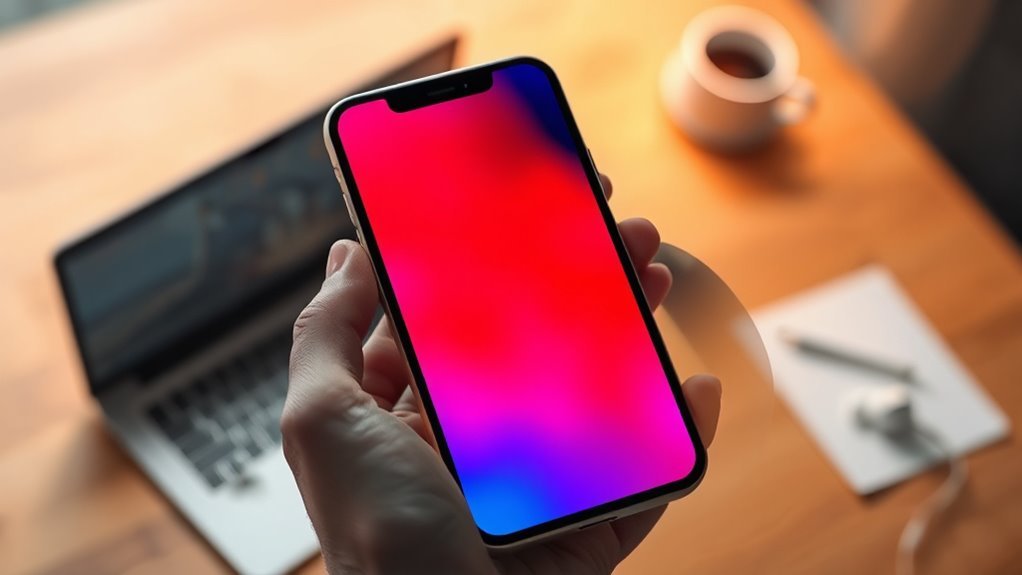
You can make your iPhone screen red without installing an app. Apple’s built-in Color Filters let you change the display to a red tint, making it useful for nighttime reading or other situations where you prefer warmer colors. You can also create a shortcut to switch between the red screen and normal colors without opening Settings each time.
Quick Answer
To make your iPhone screen red, open Settings > Accessibility > Display & Text Size > Color Filters. Turn on Color Filters, select Color Tint, and adjust the Hue and Intensity sliders until the screen appears red. You can then assign Color Filters to the Accessibility Shortcut for quick access.
At a Glance
| Difficulty | Easy |
| Tools Needed | Built-in iPhone Accessibility settings |
| Cost | Free |
Key Takeaways
- Color Tint changes the appearance of the entire iPhone display, including apps, photos, and videos.
- The Hue slider selects the color, while Intensity controls how strongly that color appears.
- Night Shift creates warmer colors but is not the same as a red Color Tint filter.
- The Accessibility Shortcut lets you turn the filter on and off without adjusting the sliders again.
- Reducing screen brightness can make nighttime viewing more comfortable, even when a red filter is active.
Can You Make Your iPhone Screen Red?
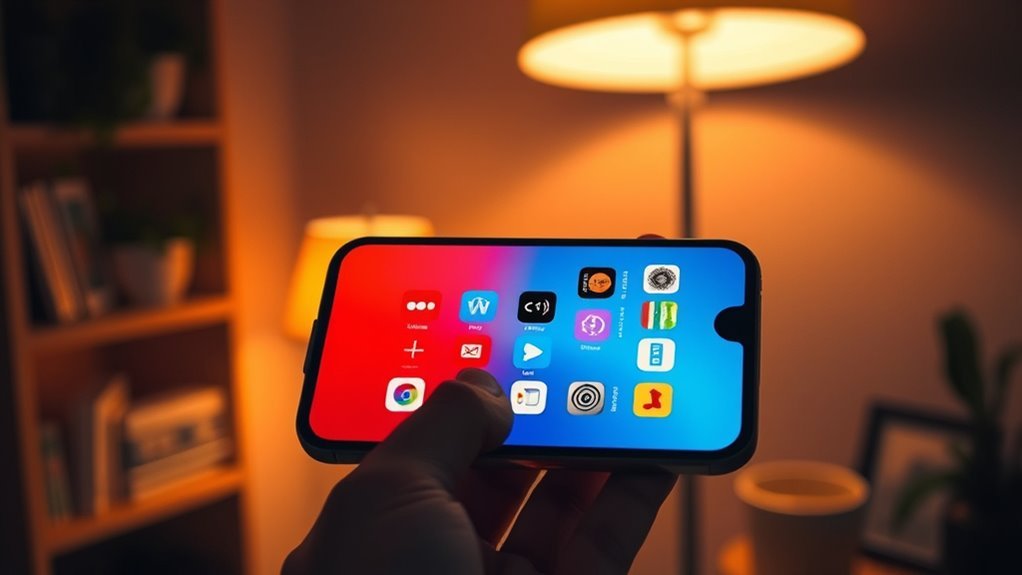
Yes. Your iPhone includes a Color Tint feature that can turn the display red, blue, or another color. It works through Accessibility settings, so you do not need a separate app or physical screen filter.
The feature is designed to help people with color or light sensitivity, but anyone can use it to customize the screen’s appearance.
Apple’s display accessibility documentation explains that Color Tint changes the hue of the entire display. You can adjust both the selected color and the strength of the effect.
Color Tint lets you change the entire iPhone display to red using built-in Accessibility settings.
This is different from changing your wallpaper or applying a photo filter. A red screen affects the appearance of the interface while the setting remains active.
For example, app backgrounds, text, icons, and images may all appear differently. The effect is especially noticeable when you increase the tint intensity.
A red tint may also make the display feel less harsh in a dark room. However, it does not physically lower the screen’s brightness, so you may want to adjust that separately.
How to Turn on Color Filters
To make your iPhone screen red, enable Color Filters and select Color Tint. The process uses the Settings app and does not require any additional software.
- Open Settings. Find and open the Settings app on your iPhone.
- Select Accessibility. Scroll through the menu and tap Accessibility.
- Open Display & Text Size. This section contains the main display accessibility controls.
- Tap Color Filters. Open the menu to see the available color options.
- Turn on Color Filters. Enable the switch at the top of the screen.
- Select Color Tint. Choose this option instead of one of the color blindness filters.
- Adjust Hue. Move the Hue slider until the display takes on a red tone.
- Adjust Intensity. Increase the intensity for a stronger red effect, or lower it for a softer tint.
As you move the sliders, the display changes so you can see the effect immediately. You can fine-tune the color until it matches your preference.
What Is the Difference Between Hue and Intensity?
Hue determines the color used for the screen tint. Moving this slider changes the display between different color tones, including red and blue.
Intensity determines how strongly the selected tint affects the display. A higher setting creates a more noticeable color shift.
For a strong red screen, select a red hue and increase the intensity. For a less dramatic effect, keep the red hue and reduce the intensity.
You can return to the same menu whenever you want to adjust the effect.
How Do You Know the Red Filter Is Working?
After selecting Color Tint, the Settings screen itself should take on your chosen color. You can return to the Home Screen and open another app to confirm that the red appearance continues across the display.
If the screen still looks normal, check that Color Filters is enabled and Color Tint is selected. Then adjust both sliders.
Color Tint is a separate option from the Red/Green color blindness filter. Choosing the latter will not produce the same full-screen red effect.
How to Set Up the Accessibility Shortcut
The Accessibility Shortcut lets you turn Color Filters on and off with a button press. Once configured, you can switch to your red screen without repeating the setup process.
Follow these steps:
- Open Settings.
- Tap Accessibility.
- Scroll down and select Accessibility Shortcut.
- Find Color Filters in the list of available features.
- Select Color Filters so it is assigned to the shortcut.
- Return to the Home Screen and test the shortcut.
On an iPhone with Face ID, triple-click the side button. On an iPhone with a Home button, triple-click the Home button.
If Color Filters is the only feature assigned to the shortcut, the triple-click should toggle it directly. If several features are selected, a menu may appear so you can choose which one to activate.
Apple provides the full procedure in its Accessibility Shortcut instructions.
Once you have the desired red tint, the shortcut makes it easy to switch between normal colors during the day and the filtered display at night.
What If the Triple-Click Shortcut Does Not Work?
First, return to Settings > Accessibility > Accessibility Shortcut and make sure Color Filters is selected.
If your iPhone does not recognize the triple-click consistently, check the button click-speed setting under Accessibility. Apple provides options for adjusting how quickly repeated button presses must occur.
You can also enable or disable the feature directly in Color Filters if the shortcut is unavailable.
What Other iPhone Settings Affect Color?
Color Filters are not the only way to change your iPhone display. Night Shift, Invert Colors, Dark Mode, and other Accessibility settings can also make the screen easier to view in different conditions.
Each feature changes the appearance in a different way, so the right option depends on the effect you want.
Night Shift
Night Shift changes the display toward warmer colors. It reduces the cooler appearance of the screen, but it does not produce the same strong red effect as Color Tint.
To enable it, open Settings > Display & Brightness > Night Shift.
From there, you can adjust the color temperature and set a schedule. You can also activate Night Shift through Control Center by touching and holding the brightness control.
Apple’s Night Shift guide explains how the feature uses your device’s clock and location to adjust the display around sunset and sunrise.
Invert Colors
Invert Colors reverses the appearance of screen colors. It can help make some content easier to see, particularly when an app or website does not provide a dark display option.
- Smart Invert: Reverses many display colors while generally preserving images, media, and certain apps with dark color styles.
- Classic Invert: Reverses all colors on the display.
You can find these controls under Settings > Accessibility > Display & Text Size.
Invert Colors is not a replacement for Color Tint if your goal is a consistently red screen.
Reduce White Point
Reduce White Point lowers the intensity of bright colors. It is useful when the display still feels too bright after you enable a red tint.
Open Settings > Accessibility > Display & Text Size and enable Reduce White Point. Adjust the available control to find a comfortable level.
This feature changes the intensity of bright colors rather than selecting a new screen hue.
Dark Mode and Other Accessibility Options
Dark Mode replaces bright interface backgrounds with a darker appearance in supported parts of iOS and compatible apps.
You can enable it under Settings > Display & Brightness.
Additional display controls include:
- Reduce Transparency: Makes certain backgrounds less transparent or blurred.
- Differentiate Without Color: Helps distinguish interface elements through alternatives such as shapes or labels.
- Increase Contrast: Improves the distinction between interface colors.
These settings help you customize visibility without relying entirely on a strong color tint.
iPhone Red Screen Tips for Night Use
A red iPhone screen may be useful when you want less cool-colored light during nighttime reading or browsing. However, color is only one part of creating a comfortable display.
Screen brightness, room lighting, viewing time, and personal sensitivity also matter.
Reduce the Brightness Separately
A red tint does not automatically make the screen dimmer. If the display still feels bright, lower the brightness through Control Center.
You can also use Reduce White Point to soften especially bright areas.
Try adjusting both settings while viewing the type of content you normally use at night. A comfortable setting for reading may differ from one used for photos or videos.
Understand the Limits of Red Light
Reducing short-wavelength light may help limit some effects of nighttime light exposure on the body’s sleep-wake cycle. However, a red screen does not guarantee better sleep or prevent eye strain.
A published review of blue light and melatonin research found that evidence for blue-light filtering products remains mixed, particularly for eye strain and sleep-related benefits.
The practical benefit of Color Tint is that it gives you control over your screen’s appearance and lets you choose a warmer viewing experience.
It is not the same as red light therapy and should not be treated as a medical treatment.
Note: If you have persistent eye strain, headaches, or sleep problems, consider speaking with an appropriate healthcare professional. Changing your display color is a comfort setting, not a substitute for medical advice.
Remember That Photos and Videos Will Look Different
Color Tint affects how images and videos appear on the screen. A strong red setting can make it difficult to judge their original colors.
If you are editing photos, comparing product colors, or performing another color-sensitive task, turn off Color Filters first.
You can restore the red effect afterward using your Accessibility Shortcut.
Check Night Shift if Your Red Tint Changes
Night Shift and Color Filters are separate display features, and they do not always work together as expected.
Apple’s display color documentation explains that Night Shift can automatically remove color filter effects, except grayscale.
If your red tint disappears or changes when Night Shift activates, check the Night Shift settings and disable that feature if you want to keep the stronger red appearance.
You can then use Color Tint and its Accessibility Shortcut for manual control.
Frequently Asked Questions
How to Change iPhone Display Color to Red?
Open Settings > Accessibility > Display & Text Size > Color Filters. Enable Color Filters, choose Color Tint, and move the Hue slider toward red. Adjust Intensity to control how strong the red effect appears. You can reverse the change by turning Color Filters off.
How to Change the Display Color of Apps on iPhone?
Color Filters change the appearance of apps across the iPhone display. You can also use Dark Mode or Invert Colors for different visual effects. These settings primarily change how content appears on your screen rather than permanently editing the colors of the apps themselves.
Is a Red Color Filter Good for Eyes?
A red color filter may feel more comfortable in dim surroundings because it changes the display’s color balance and reduces its cooler appearance. However, evidence that blue-light filtering reliably prevents digital eye strain is limited. Lowering brightness and taking regular screen breaks may also help improve viewing comfort.
How Do You Turn Off a Red-Tinted iPhone Screen?
Go to Settings > Accessibility > Display & Text Size > Color Filters and turn the feature off. If you assigned Color Filters to the Accessibility Shortcut, you can also triple-click the side button or Home button to disable the tint. Your normal display colors should return.
Conclusion
Making your iPhone screen red is simple with the built-in Color Tint setting. Adjust the Hue and Intensity sliders to create your preferred red effect, then assign Color Filters to the Accessibility Shortcut for convenient switching.
For nighttime use, experiment with brightness and Reduce White Point alongside your chosen tint. This gives you more control over how the display looks without installing another app.
Sources
- Apple Support: Use Display and Text Size Preferences: Color Filters, Color Tint, Hue, Intensity, and display accessibility controls.
- Apple Support: About the Accessibility Shortcut: Setting up and using button shortcuts for accessibility features.
- Apple Support: Use Night Shift: Night Shift operation, scheduling, and color temperature adjustments.
- Apple iPhone User Guide: Change Display Colors: Color filter behavior, Reduce White Point, and Night Shift interactions.
- Blue Light and Melatonin: A Critical Review of Scientific Evidence: Evidence and limitations concerning blue-light filtering, sleep, and digital eye strain.

