Group texts often split into individual messages when the phone, carrier, or messaging app cannot keep one shared thread. Mixed iPhone and Android devices, weak signal, iOS bugs, or outdated software can force fallback to MMS or separate replies. Group messaging settings may also be turned off. Enabling unified group replies, updating the device, and using Google Messages on Android can help. A few simple checks can usually restore a single conversation thread and more.
Key Takeaways
- Mixed iPhone and Android devices often fall back to MMS, which can split one group chat into individual texts.
- Weak network signals or iOS bugs can interrupt group delivery and cause separate message threads.
- Enable group messaging and choose “Send an MMS reply to all recipients” to keep replies unified.
- Google Messages and RCS help compatible devices stay in one shared conversation instead of fragmenting.
- Update your phone and messaging app, then test with a new group message to confirm the fix.
Why Group Texts Split Into Individual Messages
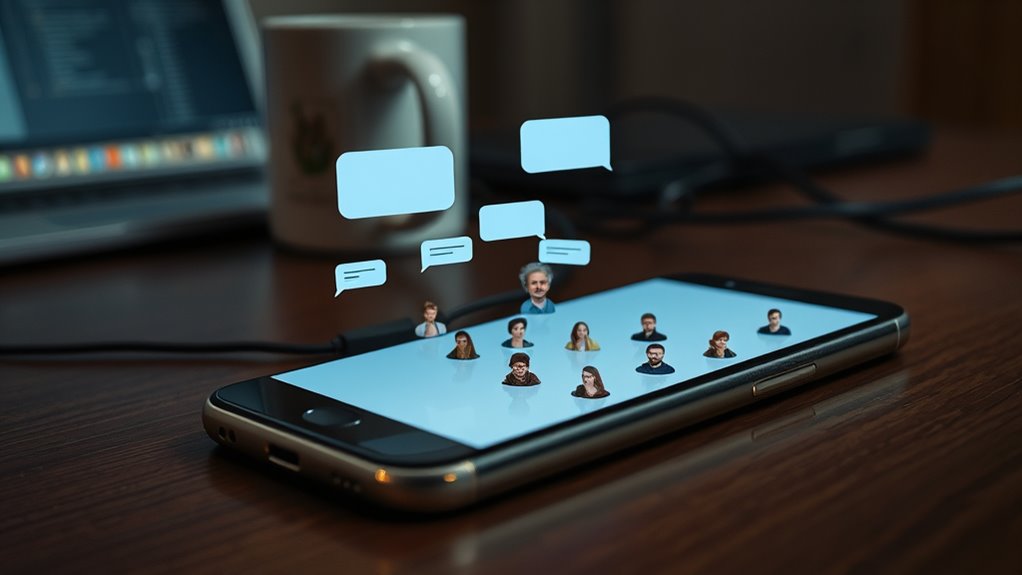
Group texts often split into individual messages when devices in the conversation use different messaging systems, such as iPhone and Android, which can force the thread to fall back to MMS instead of a unified group chat.
iOS bugs, weak network signals, and settings like group messaging or RCS can also interrupt normal delivery, causing replies to be sent separately.
This shift usually begins with mixed device types, where one platform treats the thread as a true group while another sends separate copies.
When that happens, group members may see replies out of sequence or receive them one by one.
Different protocols can create uneven behavior, especially when non-iMessage users are included.
The result is a fragmented conversation that limits shared communication and weakens collective coordination.
A fragmented conversation can limit shared communication and weaken the group’s ability to coordinate effectively.
Understanding these causes gives people a clearer path to restore reliable group messaging and keep every message aligned across the full group.
Check Your Messaging Settings
The first step is to open the messaging settings from the app’s profile picture or menu icon.
Next, the group messaging option should be located under Advanced Settings and enabled.
Then, “Send an MMS reply to all recipients” should be selected to keep group replies together.
Open Message Settings
Open the messaging app and tap the profile picture in the top right corner to access messaging settings. From there, the user can enter a clear path toward restoring group control.
In the settings menu, scrolling down reveals advanced settings, where group messaging options are managed. The group setting should be enabled so replies reach all recipients rather than splitting into individual threads.
The option labeled “Get individual replies back” should remain deselected, preserving collective responses inside the chat. After making these changes, the user should save them.
A brief test message to the group can confirm that the setting now supports shared conversation and protects the freedom of unified reply flow.
Find Group Messaging
With the basic settings already adjusted, the next step is to locate the group messaging controls inside the app. The user opens the messaging app and taps the profile picture in the top right corner.
From there, the message settings menu should be reviewed carefully, with attention directed toward advanced settings linked to group messaging. These messaging app features can determine whether replies stay unified or fragment into separate threads.
To support group chat etiquette and reduce social media implications from scattered responses, the option Send an SMS reply to all recipients should be selected. The setting Get individual replies back should remain disabled.
After changes are made, they must be saved so future group communication stays coordinated, clear, and collectively understood.
Choose MMS Replies
Selecting MMS replies in the messaging settings helps keep a group thread unified. To protect Group dynamics, the user should open the app profile picture, confirm group messaging is enabled, and select “Send an MMS reply to all recipients.” This choice supports MMS advantages by keeping responses visible to everyone. “Get individual replies back” should remain deselected, since that setting fragments the exchange into separate texts. Messaging etiquette also improves when one message reaches the whole group.
| Setting | Recommended Choice | Result |
|---|---|---|
| Group messaging | Enabled | Thread functions properly |
| MMS reply | Send to all recipients | Shared conversation |
| Individual replies | Deselected | No split texts |
| Software | Latest version | Fewer bugs |
| App choice | Google Messages if needed | Better support |
If problems persist, another app may restore collective communication and freedom.
Fix Group Texts on iPhone
To fix group texts on an iPhone, the Group Messaging setting should be checked first, along with iMessage being enabled.
If split messages continue, restarting the device and signing out of iMessage before signing back in can refresh the settings.
These steps often resolve delivery problems caused by mixed device group chats.
Check Group Messaging
If group texts on an iPhone are splitting into separate messages, the first step is to verify that Group Messaging is enabled in the message settings. Open the messaging app, tap the profile picture, and review advanced settings. Select “Send an MMS reply to all recipients” and deselect “Get individual replies back” so the thread stays unified.
| Step | Action | Result |
|---|---|---|
| 1 | Open settings | Reach messaging controls |
| 2 | Check Group Messaging | Confirm it is on |
| 3 | Adjust replies | Keep one shared thread |
| 4 | Review group chat etiquette | Reduce confusion |
| 5 | Explore messaging app alternatives | Preserve connection |
These troubleshooting tips help restore collective communication. If the problem continues, a new group may be needed.
Restart iMessage Settings
A quick reset of iMessage settings can often clear group text problems on iPhone. In Settings > Messages, toggle iMessage off, then on again to refresh the connection.
Next, confirm Group Messaging is enabled so replies stay unified and the group messaging benefits remain intact. If the issue continues, sign out of iMessage and sign back in to remove configuration conflicts.
These iMessage troubleshooting tips are simple but effective when messages split into separate threads. It also helps to review software update importance by checking Settings > General > Software Update, since current software supports stable messaging.
After each change, send a test group message and verify that every recipient receives one shared conversation rather than individual texts.
Fix Group Texts on Android
On Android, group texts can split into separate threads when messaging settings are not configured for group delivery, especially in chats that mix iPhone and Android users. This often reflects group messaging challenges, not user error. The practical fix is to open the messaging app settings and enable group messaging, then select “Send an MMS reply to all recipients” so replies stay unified. Cross platform compatibility improves when the phone is told to handle mixed-device threads as a single conversation.
| Check | Action | Result |
|---|---|---|
| Group messaging | Enable in settings | Shared thread |
| MMS replies | Select reply-to-all | No split texts |
| Updates | Install app and system updates | Fewer bugs |
If the issue persists, messaging app alternatives may offer stronger group support and clearer thread handling. Keeping the app and device software updated helps prevent bugs that fracture conversations and limits the friction that blocks collective communication.
Use Google Messages Instead
Google Messages offers a more reliable option for handling split group texts because it supports Rich Communication Services (RCS) and automatically groups compatible devices into a single chat.
This gives users clear RCS advantages, including richer group replies and fewer fragmented threads. When Messaging compatibility is present across members’ devices, the app keeps the conversation unified and reduces confusion.
It can be downloaded from the Google Play Store and set as the default messaging app to improve function. Group settings are easy to manage, so replies are directed to everyone instead of sent one by one.
That structure supports a freer, less cluttered User experience. Regular updates further strengthen performance across devices and help maintain consistent behavior over time.
For groups that want simpler communication, Google Messages provides a practical path away from split texts and toward organized, collective conversation.
Test the Fix and Reset If Needed
After changing group messaging settings, the next step is to test whether the fix worked. A new group message should be sent, then observed to confirm that all participants receive the same thread rather than separate texts. This simple check can reveal whether the device is still testing connectivity issues or whether the messaging app now behaves correctly.
If the split continues, restarting the device and applying any available software updates may restore compatibility and improve performance.
When the problem persists, a reset of network settings can clear faults that disrupt delivery. If that still fails, uninstalling and reinstalling the messaging app can refresh its function and remove lingering bugs.
During this process, verifying app permissions is important, since blocked access can interfere with group delivery. Adjusting notification settings may also help guarantee replies arrive as intended. Each step preserves user control and supports a freer, more reliable messaging experience.
Frequently Asked Questions
Why Are My Group Text Messages Splitting?
They split because group messaging issues, text delivery problems, and chat app settings often differ across iPhone and Android devices; weak signal or disabled group options can force replies into separate individual texts.
Why Is My iMessage Group Chat Glitching?
Like a frayed net, the iMessage group chat may glitch when iMessage settings, group chat features, or message delivery falter. Mixed Android contacts, weak signal, or software bugs can split conversations into separate threads.
Why Are My Group Texts Going to People Individually?
Group texts often go individually when mixed iPhone and Android devices trigger different protocols, or when network issues, app bugs, and individual message settings interfere; checking group messaging apps and group chat etiquette helps restore unity.
How to Fix Group Text Messages?
Fixing group text messages requires checking group message settings, resolving SMS limitations, and addressing app compatibility issues. They should restart devices, update software, sign out and back into iMessage, or create a new group chat.
Conclusion
To summarize, group texts often split into individual messages because of messaging settings, device differences, or carrier limitations. Checking the right settings on iPhone or Android can usually restore proper group communication. If problems continue, switching to Google Messages may help. Testing the fix guarantees everything works as expected. With the right adjustments, a fragmented group chat can come back together like pieces of a puzzle fitting into place.
