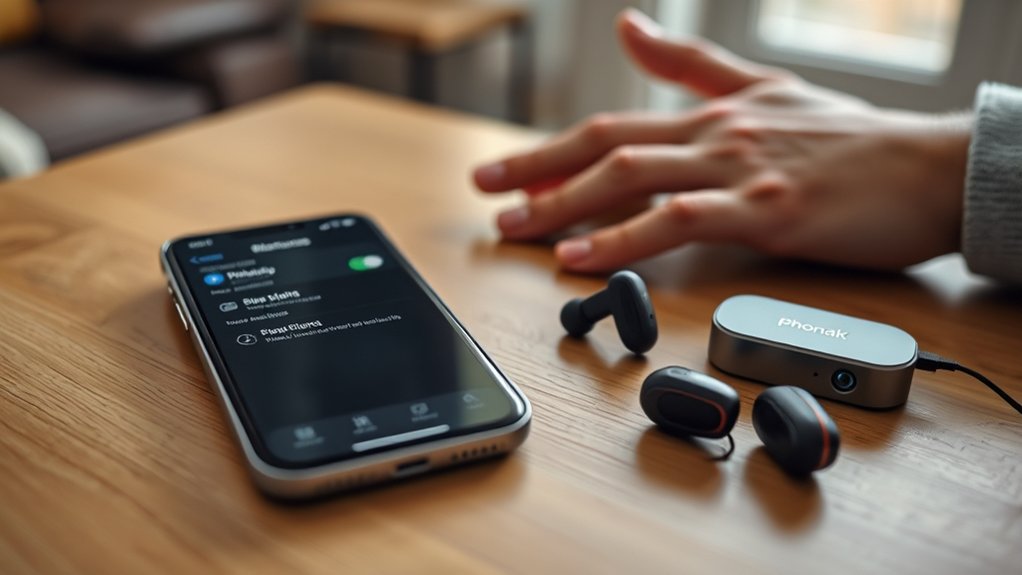
To pair Phonak audio devices with an iPhone, first enable Bluetooth in the iPhone’s settings. Restart the hearing aids: for rechargeable models, place them in the charger; for replaceable battery models, open and close the battery doors. Look for the hearing aids in the Bluetooth menu and select them for connection. Confirm successful pairing with a beep from the devices. Additional tips for optimizing performance and troubleshooting issues can greatly enhance the user experience.
Understanding the Pairing Process for Phonak Hearing Aids
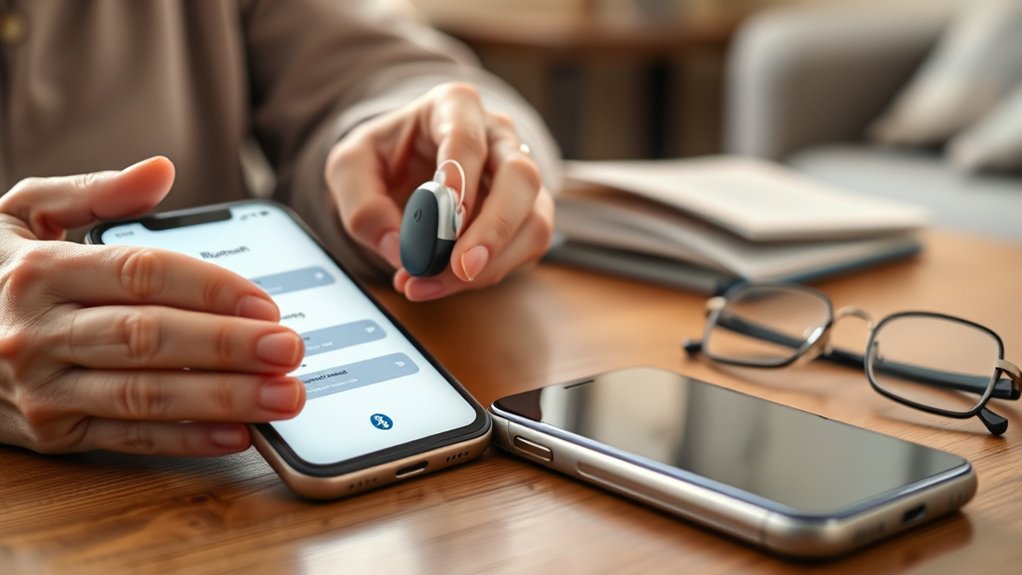
To initiate the pairing process for Phonak hearing aids with an iPhone, users must first access the Bluetooth settings on their device and confirm that Bluetooth is activated.
Following this, the hearing aids should be restarted to enter pairing mode. For rechargeable Phonak hearing aids, this can be done by placing them in the charger, while for those with replaceable batteries, users should open and close the battery doors.
To enter pairing mode, restart the hearing aids by placing rechargeable ones in the charger or opening and closing the battery doors for others.
Once in pairing mode, the hearing aid names, typically labeled as R-Phonak or L-Phonak, will appear in the Bluetooth list. Selecting the appropriate name initiates the connection.
A successful pairing is confirmed by a beep from the hearing aids, indicating they are now connected for calls and audio streaming.
Importantly, only one pairing is necessary for both Phonak hearing aids, streamlining the overall connection process with the iPhone.
How to Easily Enable Bluetooth on Your iPhone
Enabling Bluetooth on an iPhone is a straightforward process that allows users to connect their devices seamlessly.
To begin, users should access the home screen and tap on the “Settings” icon. Within the Settings menu, they must scroll down and select the “Bluetooth” option. A toggle will be displayed; sliding it to the “on” position activates Bluetooth functionality.
Once Bluetooth is enabled, the iPhone will automatically initiate a search for nearby devices, facilitating Bluetooth pairing. Users can confirm that Bluetooth is operational by observing a blue icon at the top of the home screen.
This simple procedure empowers individuals to connect various audio devices, including Phonak hearing aids, enhancing their auditory experience and promoting greater freedom in communication.
Rebooting Your Phonak Hearing Aids for Pairing Mode
After enabling Bluetooth on the iPhone, the next step involves rebooting the Phonak hearing aids to confirm they enter pairing mode.
Proper rebooting is essential for establishing a successful Bluetooth connection.
For effective rebooting, follow these procedures based on the hearing aid type:
- Rechargeable Models: Place the hearing aids in the charger for 10 seconds, then remove them.
- Alternative Rechargeable Method: Press the lower button until a red light appears, then press again until the light turns green.
- Replaceable Battery Models: Open the battery doors for 5 seconds before closing them.
- Detection Window: Verify the hearing aids remain in pairing mode for 3 minutes post-rebooting.
- Bluetooth Connection: Confirm that the hearing aids are detectable by the iPhone during this period.
Finding Your Phonak Hearing Aids in the Bluetooth Menu
Finding Phonak hearing aids in the Bluetooth menu requires a systematic approach to guarantee a successful connection.
First, users should verify that Bluetooth is activated on their iPhone by heading to Settings > Bluetooth.
Next, after restarting the hearing aids, they should enter pairing mode, which typically lasts for three minutes. During this time, users must wait for the hearing aids’ names—such as “R-Phonak” or “L-Phonak”—to appear in the Bluetooth devices list.
If the devices do not display, it is crucial to confirm that the hearing aids remain in pairing mode.
Significantly, only one pairing is necessary for both hearing aids to connect simultaneously once selected from the menu.
For those utilizing the myPhonak app, it is important to note that the app may bypass this manual Bluetooth pairing process during the initial setup, streamlining the connection experience.
How to Confirm a Successful Connection?
Confirming a successful connection between Phonak hearing aids and an iPhone involves several straightforward steps. First, users should listen for a beep from the hearing aids after selecting them from the Bluetooth list, indicating successful pairing.
Next, the following checks should be performed:
- Verify that the hearing aids appear as connected devices in the iPhone’s Bluetooth settings.
- If using the myPhonak app, verify both hearing aids are listed under connected devices.
- Test audio streaming and phone calls to validate functionality through the hearing aids.
If issues arise, restarting both the hearing aids and the iPhone may help re-establish the connection.
Using the myPhonak App for Enhanced Hearing Aid Functionality
The myPhonak app enhances hearing aid functionality by allowing users to customize critical settings such as volume control and sound profiles directly from their iPhone.
Additionally, it features health tracking capabilities that monitor usage statistics, aiding users in managing their hearing health effectively.
This integration of customization and tracking provides a thorough tool for optimizing auditory experiences.
Customizing Hearing Aid Settings
Customizing hearing aid settings through the myPhonak app empowers users to tailor their listening experience to individual preferences.
This app provides a variety of options that enhance functionality and improve sound quality.
Key features include:
- Volume Control: Adjust volume levels effortlessly for different environments.
- Program Selection: Switch between settings optimized for various listening situations.
- Equalization: Fine-tune frequencies to match personal hearing preferences.
- Noise Reduction: Enhance clarity by minimizing background noise.
- Remote Support: Receive adjustments from professionals without an in-person visit.
Health Tracking Features
Building on the customization options available in the myPhonak app, health tracking features greatly enhance the user experience by providing valuable insights into hearing health.
The app enables users to monitor their hearing health over time, offering detailed usage patterns and hearing aid performance analytics. Real-time adjustments and personalized settings are accessible, optimizing audio experiences.
Additionally, it tracks battery life and usage statistics, facilitating effective hearing aid management. Alerts for changes in hearing patterns prompt timely consultations with hearing care professionals, ensuring proactive health measures.
Moreover, the app provides various sound environments, allowing users to tailor their hearing experience according to specific listening situations, thereby promoting overall auditory liberation.
Common Pairing Issues and How to Resolve Them
Pairing issues can arise when Bluetooth fails to detect Phonak hearing aids or when the devices do not successfully pair.
Ensuring that Bluetooth is enabled on the iPhone is essential, as is verifying that the hearing aids are in pairing mode and functioning properly.
If problems persist, troubleshooting steps such as restarting the devices or checking app settings may be necessary to establish a connection.
Bluetooth Not Detecting Devices
When attempting to connect Phonak audio devices to an iPhone, users may encounter issues with Bluetooth detection.
Common reasons for Bluetooth not detecting devices include:
- Ensuring Bluetooth is activated on the iPhone; if off, devices will not be detected.
- Restarting the hearing aids by placing them in the charger or using the manual button to enter pairing mode.
- Verifying that hearing aids are fully charged or contain functional batteries, as low power can impede detection.
- Checking for interference from nearby Bluetooth devices, which may hinder the connection.
- Resetting the Bluetooth settings on the iPhone by toggling Bluetooth off and on, or restarting the device to refresh connections.
Hearing Aids Not Pairing
Connecting Phonak hearing aids to an iPhone can present various challenges that users may need to navigate.
One common issue is hearing aids not pairing due to Bluetooth settings; users should first confirm Bluetooth is activated on their iPhone. Restarting the hearing aids by placing them in the charger or activating pairing mode can often resolve detection issues.
It is vital to verify that the hearing aids are fully charged and within the three-minute pairing timeframe. Additionally, interference from other Bluetooth devices or existing connections may hinder the pairing process.
If utilizing the myPhonak app, users should note that it may auto-pair the hearing aids, bypassing manual Bluetooth pairing altogether.
Stream Audio Seamlessly With Your Hearing Aids
Streaming audio seamlessly with Phonak hearing aids enhances the listening experience by leveraging Bluetooth technology to connect directly to an iPhone. This integration allows users to enjoy a wide range of audio content without cumbersome setups, providing a liberated auditory experience.
Key considerations for effective audio streaming include:
- Verify Phonak hearing aids are in pairing mode and fully charged for peak performance.
- Use the myPhonak app to customize audio settings and preferences directly from the smartphone.
- Confirm the Bluetooth connection status in iPhone settings to guarantee both hearing aids are functioning properly.
- Enjoy stereo sound as both hearing aids receive phone calls and media playback simultaneously.
- Regularly update your iPhone and hearing aid software to maintain compatibility and enhance audio streaming capabilities.
Frequently Asked Questions
How Do I Set up myPhonak Hearing Aid to My iPhone?
To set up the myPhonak hearing aid with an iPhone, initiate the pairing process by downloading the app, activating Bluetooth, and ensuring both devices are recognized before confirming the connection to access custom settings.
Why Isn’t myPhonak App Connecting to My iPhone?
Connectivity issues often arise, with approximately 30% of users experiencing difficulties. Ensuring Bluetooth is enabled, the hearing aids are in pairing mode, and the app is updated may resolve these problems effectively.
What iPhone Settings Affect Hearing Aid Use?
iPhone settings that affect hearing aid use include Bluetooth activation, myPhonak app permissions, volume adjustments, and disabling notification sounds. These elements greatly impact audio quality and overall performance of the hearing aids during use.
How Do I Reconnect My Hearing Aid to My iPhone?
To reconnect hearing aids to an iPhone, verify Bluetooth is activated. Restart the devices, enter pairing mode, and select them from the list. This Bluetooth troubleshooting process liberates users, enhancing their auditory experience seamlessly.
Conclusion
In a world where smartphones connect effortlessly to nearly everything, the irony of struggling to pair your Phonak hearing aids to an iPhone is not lost. Yet, by following this guide, users can transform potential frustration into seamless audio streaming. With just a few steps—from enabling Bluetooth to troubleshooting common issues—one can access enhanced auditory experiences. After all, if technology can bridge the gap between devices, surely it can connect users to the sounds of life.

