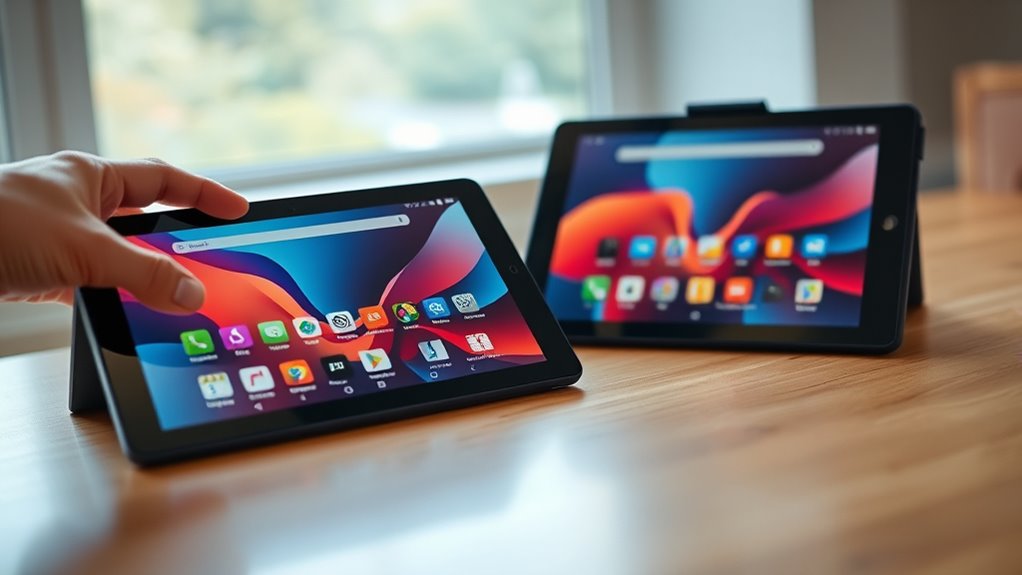
If you want to pair a Fire HD 10 with a Fire Max 11, first decide what you want the tablets to share. Amazon account content, personal files, and Bluetooth accessories use different connection methods. Both tablets can access eligible purchases and supported cloud content, but there is no single built-in pairing process that makes them operate as one device.
Quick Answer
To use a Fire HD 10 and Fire Max 11 together, register both with the same Amazon account, connect each to the internet, and download your eligible content. Use Amazon Photos, Send to Kindle, portable microSD storage, or a computer for personal files. Bluetooth pairing is not required for account syncing.
Last checked: October 23, 2026. Dates and figures were verified against official sources.
At a Glance
| Difficulty | Easy for account content; additional steps for local files |
| Tools Needed | Two Fire tablets, Amazon account, and internet connection |
| Cost | No additional charge for account-based syncing; optional services and accessories may cost extra |
Check Fire Tablet Compatibility
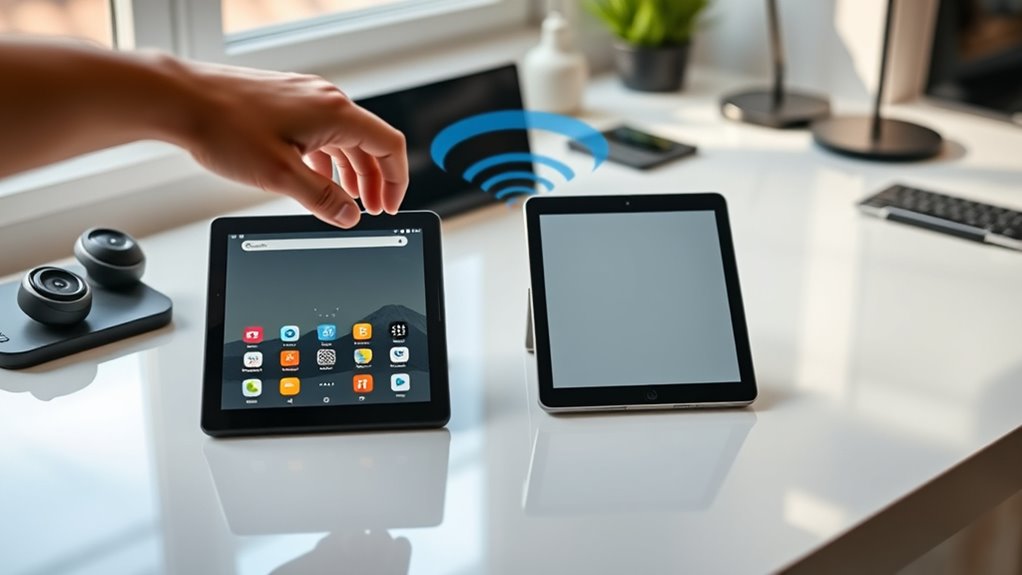
The Fire HD 10 and Fire Max 11 can use the same Amazon account to access eligible digital content. However, this does not mean they support every form of direct device-to-device communication.
The 2023 versions are both 13th-generation Fire tablets running Fire OS 8. Their hardware differs, but those differences do not prevent account-based content access.
According to Amazon’s official Fire tablet specifications, the main differences are:
- Fire HD 10 (2023): 10.1-inch display, 1920 × 1200 resolution, 3 GB RAM, and 32 GB or 64 GB storage.
- Fire Max 11 (2023): 11-inch display, 2000 × 1200 resolution, 4 GB RAM, and 64 GB or 128 GB storage.
- Battery ratings: Up to 13 hours of mixed use for the HD 10 and 14 hours for the Max 11.
- Wireless features: Both support Wi-Fi and Bluetooth. The Max 11 also supports Wi-Fi 6.
To identify your model, open Settings > Device Options and look for Device Model or About Fire Tablet. This is especially useful if you own an older Fire HD 10 with a different Fire OS version.
Also check that each tablet responds normally to touch controls. You should be able to open Settings, use the back navigation control, and return to the home screen before continuing.
What You Need to Pair Both Tablets
For account-based syncing, you need working internet access and the Amazon account associated with your purchases. The tablets do not need to use the same local Wi-Fi network.
Before starting, confirm the following:
- Both tablets connect to the internet.
- You know the login information for the Amazon account holding your content.
- Each device has enough free storage for the files or apps you want.
- Both tablets have available Fire OS updates installed.
- You can identify each tablet in your registered devices list.
- The Alexa app is available if you plan to use supported Alexa features.
Using the same Amazon account is helpful for purchases and eligible digital content. It is not necessary for every kind of independent file transfer.
Amazon’s Backup and Restore documentation explains that compatible device settings, wireless configurations, bookmarks, and other supported information can be backed up to your account.
Account registration and backup help restore supported content and settings, but they do not copy every local file or app between tablets.
Backup and Restore is separate from a live connection between two devices. App-specific data may also require a separate account or backup feature.
Turn On Bluetooth on Both Tablets
You can enable Bluetooth on either tablet, but it is optional for sharing Amazon account content. Bluetooth is mainly useful for compatible accessories, including headphones, speakers, keyboards, and controllers.
To enable it:
- Turn on the Fire HD 10 and unlock its screen.
- Swipe down from the top to open Quick Settings.
- Find Bluetooth and turn it on.
- Repeat the process on the Fire Max 11.
- If connecting an accessory, place that accessory in pairing mode.
On supported Fire OS interfaces, open Settings > Connected Devices > Pair new device to search for compatible Bluetooth equipment.
Amazon documents this menu in its Bluetooth accessory setup instructions.
Keep the accessory close to the tablet during setup. If a device appears in the list, select it and follow any confirmation prompts.
However, enabling Bluetooth on both Fire tablets does not guarantee direct file sharing. A successful Bluetooth connection and support for a particular transfer function are different things.
If your goal is sharing books, photos, documents, or installed apps, use the methods in the following sections instead.
Pair Fire Tablet 10 With Fire Tablet Max 11
The most reliable way to use a Fire HD 10 and Fire Max 11 together is to register both with the same Amazon account. This gives each tablet access to eligible purchases and supported cloud content without a direct Bluetooth connection.
Step-by-Step Amazon Account Setup
- Connect the Fire HD 10: Turn on Wi-Fi and confirm that you can access the internet.
- Check its registration: Open Settings and find the device’s account or registration information.
- Turn on the Fire Max 11: Complete its initial setup if you have not already done so.
- Sign in: Register the Max 11 using the Amazon account associated with the content you want to access.
- Open your library: Visit Kindle, Appstore, or another supported content app.
- Download eligible items: Select the books, apps, or media you need on the second tablet.
- Confirm access: Open one item on each tablet to verify that both devices can use the content.
You can also review your registered devices through Amazon’s Manage Your Content and Devices account page.
For apps, visit the Appstore library and install compatible purchases on the second device. Installing an app does not automatically transfer its saved progress, downloads, or login information.
Using one Amazon account makes supported content accessible on both tablets without turning them into a single paired device.
Can You Share Amazon Kids Profiles?
Amazon Kids allows families to make child profiles and share eligible content across supported devices. You can manage parental controls and available content through the Parent Dashboard.
Amazon’s Amazon Kids and Kids+ comparison confirms that Amazon Kids supports free child profiles, while Kids+ adds subscription content.
You can manage screen-time limits, educational goals, and content permissions. Some child-profile information can be shared across compatible devices, but downloaded content may still need to be installed separately.
Does Alexa Connect the Two Tablets?
Alexa provides voice commands, reminders, music controls, and supported smart-home functions. You can use Alexa features on both tablets when they are configured correctly.
However, Alexa does not act as a general-purpose bridge that automatically copies files, installed apps, or settings between Fire tablets.
Silk browser bookmarks and certain settings may be included in supported backups. That is different from assuming every browser tab or browsing activity will synchronize instantly.
Share Files Between Fire Tablets
To share files between Fire tablets, choose a method based on the type of content. Books and supported documents can use Amazon services, while personal photos, videos, and downloaded files may require a separate transfer process.
Choose the Right File Transfer Method
| Method | Use |
|---|---|
| Send to Kindle | Send supported personal documents to your Kindle library |
| ShareIt | Third-party transfer option; Fire OS compatibility and availability must be confirmed |
| SendAnywhere | Third-party file-sharing option; requires compatible app availability |
| Amazon Cloud Drive | Discontinued service; not a working new-transfer method |
Option 1: Use Send to Kindle for Documents
Send to Kindle is useful for supported documents that you want to read on both devices. Amazon supports common formats such as PDF, DOCX, EPUB, and TXT.
- Open Send to Kindle using a supported method.
- Sign in with the Amazon account associated with your Kindle library.
- Select the document you want to send.
- Submit the file to your library.
- Open the Kindle library on each Fire tablet and download the document.
The service is designed for reading documents rather than moving every type of local file. See Amazon’s supported Kindle document formats for file compatibility.
Option 2: Use Amazon Photos
Amazon Photos lets you store and access eligible pictures and videos on supported devices. Upload the media from one tablet, then access it through the same Amazon Photos account on the other.
Amazon’s Photos service documentation confirms that it supports uploading, accessing, and sharing photos and videos.
Make sure the upload completes before looking for the files on the second tablet. Available storage and supported features depend on your account and country.
Option 3: Transfer Files Using Portable microSD Storage
A portable microSD card is useful when you want to copy compatible files without relying on cloud syncing.
- Check that both tablets support the card.
- Set up the card as portable storage rather than internal storage.
- Copy the desired personal files onto the card.
- Safely unmount the card through the tablet’s storage settings.
- Insert the card into the other Fire tablet.
- Open the files and copy them to the new device if needed.
Amazon’s microSD storage instructions confirm that portable cards can move compatible files, photos, and videos between devices.
Warning: Do not treat a microSD card configured as internal storage as a portable transfer card. Reformatting can erase its contents. Back up important files before changing storage settings.
Option 4: Copy Files Through a Computer
For larger collections of personal files, a computer can provide a practical transfer route.
- Connect the first Fire tablet to the computer using a USB data cable.
- Unlock the tablet.
- Open the USB notification and select File Transfer.
- Copy the needed files to the computer.
- Safely disconnect the first tablet.
- Connect the second tablet and select File Transfer.
- Copy the files into an appropriate folder on the second device.
If the computer only charges the tablet, check the USB cable and transfer mode. Some cables support charging but not file transfer.
Why Amazon Cloud Drive Is No Longer an Option
Amazon Cloud Drive, later called Amazon Drive, was discontinued on December 31, 2023. It should not be recommended as an active service for transferring files between Fire tablets.
The retirement was covered in TechCrunch’s report on Amazon Drive’s closure. Amazon Photos remains a supported service for photos and videos.
Fix Fire Tablet Pairing Problems
Most problems with using two Fire tablets together come from account differences, unavailable downloads, weak connections, or confusion between Bluetooth and cloud services.
First, identify exactly what is not working: missing books, unavailable apps, failed file transfers, or Bluetooth accessories that will not connect.
Start with the account and connection checks before changing device settings or attempting a reset.
Try These Fixes in Order
- Confirm the correct Amazon account: Make sure both devices use the account containing the purchased content.
- Check internet access: Open a webpage on each tablet to confirm connectivity.
- Restart both devices: A normal restart can resolve temporary software problems.
- Check your content library: Find the item in the relevant app and download it again if available.
- Check available storage: Remove unnecessary downloads or files if space is running low.
- Update Fire OS: Install available updates for your model.
- Check app compatibility: Some apps or saved data may not support both tablets.
If a third-party file-transfer app cannot discover the other tablet, check whether both devices need to use the same local network. Guest Wi-Fi networks, VPNs, proxies, or router isolation settings can prevent local connections.
For Bluetooth accessories, check that the accessory is discoverable and not already connected to another device.
If the tablets still cannot access Amazon content, check account registration and the relevant service before considering more disruptive actions.
Use Fire Tablet Settings for Easier Pairing
Fire tablet Settings provide separate controls for Wi-Fi, account registration, Bluetooth accessories, storage, and software updates. Knowing which menu handles your task prevents unnecessary troubleshooting.
For supported Bluetooth devices, open Settings > Connected Devices and choose Pair new device. The exact appearance of this menu can vary by Fire OS version.
Use the same menu to review connected accessories and remove an old pairing when needed.
A Fire TV Stick is managed separately from tablet-to-tablet account syncing. Do not assume its Bluetooth connection procedure is the same as connecting two Fire tablets.
Alexa features are also managed separately. For supported models, you can enable Alexa and hands-free voice controls in the tablet’s Alexa settings.
These options let you control supported accessories and services without confusing them with file transfers.
Keep Both Fire Tablets Updated
Software updates can improve reliability, security, and app compatibility. Installing supported updates is especially useful when one tablet behaves differently from the other.
Amazon’s Fire tablet update instructions document the Device Options and System Updates menus.
To check for available updates:
- Connect the tablet to a reliable Wi-Fi network.
- Open Settings.
- Select Device Options.
- Open System Updates.
- Check for an available update.
- Install the update if one is offered, then allow the tablet to restart as required.
Repeat the process on the second tablet. Automatic update downloads may occur while a Fire tablet is connected to the internet.
After updating, check whether Kindle content, apps, Alexa, and other supported services work as expected.
Keeping both devices updated does not make unsupported Bluetooth or file-transfer features available. It helps the features each device already supports work more reliably.
Frequently Asked Questions
What Are the Key Differences Between the Fire Tablet 10 and Fire Max 11?
The 2023 Fire HD 10 has a 10.1-inch 1920 x 1200 display, 3 GB of RAM, and 32 GB or 64 GB of storage. The 2023 Fire Max 11 has an 11-inch 2000 x 1200 display, 4 GB of RAM, and 64 GB or 128 GB of storage. Amazon rates mixed-use battery life at up to 13 and 14 hours, respectively.
What Are the Common Problems With the Fire Tablet 10?
Common Fire HD 10 issues include weak Wi-Fi, battery drain, slow performance when storage is full, and apps that freeze. Restart the device, free storage, and check for software updates. If one app keeps failing, check its update options before reinstalling it.
What Can You Do With a Fire 10 Tablet?
A Fire HD 10 can read Kindle books, browse using Silk, stream movies, play supported games, and use Alexa. Amazon Kids offers child profiles, while Amazon Kids+ adds paid content. App availability varies by country and device compatibility.
Can You Watch TV on a Fire Tablet?
Yes. You can stream shows and movies through supported services such as Prime Video, Netflix, and Disney+, where available. You may need a subscription and internet connection. A Fire tablet is a portable viewing screen, not a TV tuner.
Can You Pair Two Fire Tablets Directly Over Bluetooth?
You do not need Bluetooth to access your Amazon purchases on both Fire tablets. Bluetooth settings are mainly for compatible accessories, such as speakers and keyboards. Even if the tablets detect one another, that does not guarantee file sharing or screen mirroring.
Do Both Fire Tablets Need to Use the Same Wi-Fi Network?
No. Each Fire tablet needs internet access to download content associated with its Amazon account, but they can use different networks. The same local Wi-Fi network may be needed for a third-party transfer app, depending on how that app works.
Conclusion
The Fire HD 10 and Fire Max 11 work well together when you choose the right method for the content you want to share. Use the same Amazon account for eligible purchases, Amazon Photos or Send to Kindle for supported cloud content, and portable storage or USB for local files. Start by checking account registration and confirm that your important content is available on both devices.
Sources
- Amazon Fire Tablet Specifications: Display, memory, processor, storage, wireless, and battery specifications.
- Amazon Backup and Restore FAQ: Supported backup information and device restoration.
- Amazon Bluetooth Accessory Setup: Connected Devices and Bluetooth pairing instructions.
- Amazon Kids and Kids+ Comparison: Child profiles, shared content, and subscription differences.
- Amazon Kindle Document Format Support: Compatible personal document formats and Fire tablet Kindle support.
- Amazon Photos Features: Photo and video storage, sharing, and access.
- Amazon microSD Card Guidance: Portable storage and transfer precautions.
- TechCrunch: Amazon Drive Retirement: Discontinuation of Amazon Drive.
- Amazon Fire Tablet Software Update Instructions: Fire OS update procedures and menu locations.